Skip to content
-
Subscribe to our newsletter & never miss our best posts. Subscribe Now!
Work Management Hub Work Management Hub

Expert Reviews, Comparisons & Guides for Smartsheet, Monday.com, Asana, ClickUp & More

Work Management Hub Work Management Hub

Expert Reviews, Comparisons & Guides for Smartsheet, Monday.com, Asana, ClickUp & More

  • Airtable
  • Asana
  • ClickUp
  • Jira
  • Monday.com
  • Notion
  • Smartsheet
  • Wrike
  • About
  • Contact
  • Airtable
  • Asana
  • ClickUp
  • Jira
  • Monday.com
  • Notion
  • Smartsheet
  • Wrike
  • About
  • Contact
Close

Search

  • https://www.facebook.com/
  • https://twitter.com/
  • https://t.me/
  • https://www.instagram.com/
  • https://youtube.com/
AirtableHow-To Guides

Airtable Interface Extensions SDK: A Complete Deep Dive for 2026

By Shaik KB
May 22, 2026 15 Min Read
0

⚡ Key Takeaways

  • Airtable Interface Extensions SDK entered open beta in 2026 for Team, Business, and Enterprise Scale plans — allowing developers to embed custom React components inline within interface pages, not just in sidebar panels.
  • The critical distinction from standard Extensions: Interface Extensions render as first-class layout elements alongside native Airtable components like grids and galleries, giving end users a seamlessly integrated tool rather than a floating overlay.
  • The SDK is built on top of the existing Airtable Blocks SDK (@airtable/blocks), includes a CLI, full npm package support, and a testing framework — making it accessible to any React developer without Airtable-specific prior experience.
  • Enterprise Scale deployments include workspace-level admin controls for approving, restricting, and distributing Interface Extensions across an organization — a governance layer that standard Extensions have never had.

Quick Answer:

The Airtable Interface Extensions SDK is a React-based developer toolkit — part of the Airtable Blocks SDK on GitHub — that lets builders embed fully custom JavaScript components directly inside Airtable interface pages. Unlike standard sidebar Extensions, Interface Extensions render inline alongside native elements and require a Team, Business, or Enterprise Scale plan as of the 2026 open beta.

Table of Contents

  1. Interface Extensions vs. Standard Extensions: The Architectural Difference
  2. Airtable Interface Extensions SDK 2026: Plan Requirements and Access
  3. SDK Setup: Installing the CLI and Scaffolding Your First Extension
  4. Building Your First Interface Extension: A Real-World Example
  5. Code Walkthrough: KPI Dashboard Component
  6. Deployment, Sharing, and Enterprise Governance
  7. Airtable Interface Extensions SDK Limitations and Known Constraints for 2026
  8. Verdict: Who Should Use Interface Extensions Now?
  9. Frequently Asked Questions

Airtable Interface Extensions SDK: A Complete Deep Dive for 2026

📅 May 2026
⏱ 12 min read
Airtable
Developer Guide

Every enterprise Airtable build I’ve worked on in the last two years has run into the same ceiling: the moment a client needs a truly custom UI element — a real-time gauge, a multi-step form with conditional logic, a branded data visualization — the standard sidebar Extension model forces a jarring context switch. Users click a button, a panel slides open, they work in isolation from the rest of the interface, then close it again. It’s functional. It isn’t seamless.

The Interface Extensions SDK, which moved into open beta in early 2026, closes that gap in a meaningful way. For the first time, a custom React component can sit directly inside an interface page as a first-class layout element — next to a grid, a gallery, or a record form — without any modal or panel boundary. If you build software on top of Airtable for a living, this changes what’s possible for end-user experience. Here’s everything you need to know to evaluate, build, and deploy it.

Interface Extensions vs. Standard Extensions: The Architectural Difference

Before writing a single line of code, you need to understand the architectural boundary. Developers who skip this step routinely try to force standard Extensions into use cases they’re wrong for, then wonder why the product feels clunky.

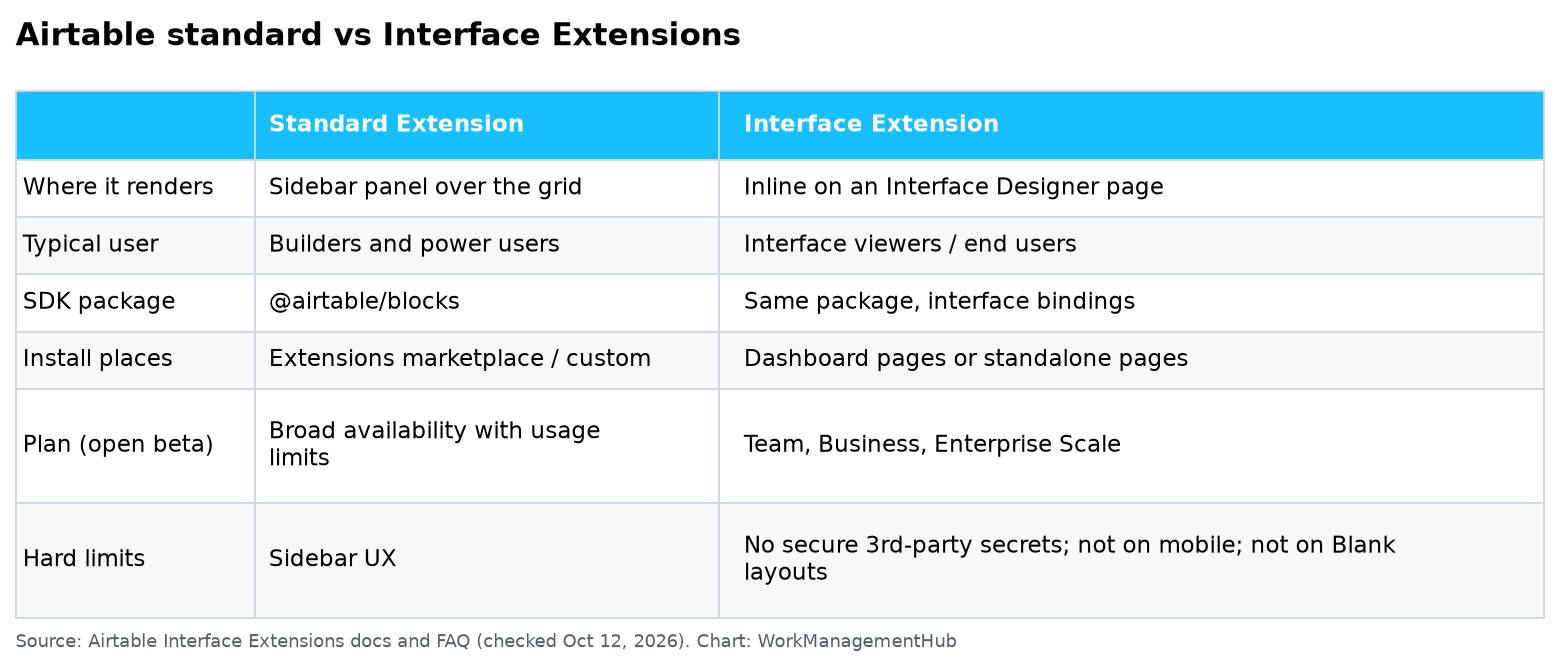
Standard Airtable Extensions have existed since the Blocks SDK launched. They render inside a collapsible panel that overlays the base’s grid view. The panel is persistent across tabs, accessible from any view, and isolated from the interface layer — meaning a user building an interface page cannot embed a standard Extension inline. Extensions live in the base layer, not the interface layer. They’re excellent for power-user tooling: bulk record update utilities, custom import wizards, complex report generators. They are not designed for embedding into a consumer-facing interface that non-technical users will interact with daily.

Interface Extensions are architected differently from the ground up. They are elements within the Interface Designer’s component system. When an interface builder opens a page and clicks the component picker, Interface Extensions appear alongside native components like Grids, Galleries, Record Lists, and Summary Bars. They participate in the page layout grid. They can be positioned, resized, and stacked with other elements. When a viewer loads the interface, the custom React component renders in place — no panel, no button to click, no overlay. It’s just there, as part of the page.

DimensionStandard ExtensionInterface Extension
Render locationCollapsible sidebar panelInline within interface page layout
UI contextBase layer (grid/gallery views)Interface layer (Interface Designer pages)
Target userPower users and base buildersInterface viewers and end users
Layout controlFixed panel sizeResponsive, resizable within page grid
Plan requirementFree and above (with run limits)Team, Business, Enterprise Scale only
SDK@airtable/blocks@airtable/blocks (shared, extended API)
2026 statusGenerally availableOpen beta

The SDK is the same underlying package — @airtable/blocks — but the initializeBlock() call and the specific hooks available differ. Interface Extensions have access to a set of interface-specific APIs (cursor position within the interface, current interface page context, viewer permission levels) that standard Extensions do not expose.

This also matters for how you relate to existing work. If a client already has standard Extensions in production, those don’t automatically become Interface Extensions. They are separate artifacts built, tested, and deployed independently, even if they share underlying business logic you can extract into shared modules.

Airtable Interface Extensions SDK 2026: Plan Requirements and Access

Access to Interface Extensions is gated at the workspace subscription level, not the base level. Getting this wrong costs time — I’ve seen developers build a full extension locally before discovering their client’s workspace doesn’t qualify.

PlanInterface ExtensionsStandard ExtensionsEnterprise Admin Controls
FreeNot availableLimited (100 runs/month)No
TeamOpen beta accessFull accessNo
BusinessOpen beta accessFull accessPartial
Enterprise ScaleOpen beta access + org marketplaceFull access + admin restrictionsFull

If your workspace is on the Team or Business plan, you can build, install, and use Interface Extensions within any base in that workspace. The extension is scoped to the base — it cannot be shared directly to another base without reinstalling. Enterprise Scale plans unlock the workspace-level internal marketplace, which I cover in the deployment section below.

Beta caveat: Because Interface Extensions are in open beta as of 2026, API surface areas are subject to change. Airtable has communicated that breaking changes will be versioned and deprecated with notice, but production deployments for enterprise clients should pin the @airtable/blocks package version and test thoroughly before any platform updates.

SDK Setup: Installing the CLI and Scaffolding Your First Extension

The toolchain requirement is minimal: Node.js v18 or later and an npm-compatible package manager. The Airtable Blocks CLI handles everything else. Here is the complete setup sequence from a clean machine to a locally running Interface Extension.

  1. npm install -g @airtable/blocks-cli — Installs the Blocks CLI globally. After installation, verify with block --version. As of early 2026, the current CLI version is 1.5.x. If you see a version below 1.4.0, your npm cache may be serving a stale package — run npm cache clean --force first.
  2. block init my-interface-extension — Scaffolds a new extension project into the my-interface-extension directory. The CLI prompts you to choose a template; select React for Interface Extensions. The scaffold includes frontend/index.js, package.json, .block/remote.json (for linking to a live base), and a preconfigured webpack config.
  3. cd my-interface-extension && npm install — Installs all dependencies including @airtable/blocks and React 18. The Blocks SDK ships its own React peer dependency pin; do not override it unless you have a specific reason.
  4. block run — Starts the local development server. By default it serves on https://localhost:9000. Note the HTTPS — Airtable’s extension sandbox requires a secure origin even in local development. The CLI generates a self-signed certificate automatically; you’ll need to accept the browser security warning once.
  5. Open Airtable, navigate to your target base, then click Tools > Extensions > Add an extension > Build a custom extension — This is the entry point inside the Airtable UI. Paste the local URL (https://localhost:9000) into the provided field and click Start editing extension. Airtable will load your locally running component inside a sandboxed frame.
  6. Switch to Interface Designer and insert your extension into a page — Open an interface page in the Interface Designer. In the left component panel, scroll to the Extensions section. Your custom extension appears here. Drag it onto the page canvas and resize it within the interface’s column grid.
Tip: The local development server uses hot module replacement. Changes to your React components update in the Airtable interface preview without a full page reload, which dramatically speeds up iteration on layout-sensitive components.

Building Your First Interface Extension: A Real-World Use Case

Theory lands differently once you’ve shipped something real. The use case I’m walking through here is one I built for a professional services client: a project KPI dashboard component embedded in their Airtable project management interface. Their operations team needed a compact, live KPI panel showing project health metrics — total projects, on-time percentage, projects at risk, and average days to close — visible at the top of every project interface page without requiring users to open any sidebar or run any report.

This is exactly the use case where Interface Extensions win. A standard Extension would require the ops team to click open a panel, wait for it to render, read the numbers, then close it and return to the interface. With an Interface Extension, the KPI panel is always visible as the interface loads — it’s part of the page.

Data model for this example

The base has a Projects table with these relevant fields: Status (single select: Active, Complete, At Risk, On Hold), Due Date (date), Completion Date (date), and Project Name (primary field). The Interface Extension reads from this table using the Blocks SDK’s useRecords hook and computes the KPI values client-side in React.

Code Walkthrough: KPI Dashboard Component

Below is the complete frontend/index.js for the KPI panel Interface Extension. This is production-quality code — it handles loading states, uses the Blocks SDK’s design system components for consistent styling, and respects Airtable’s permission model by only reading data.

import {
  initializeBlock,
  useBase,
  useRecords,
  Box,
  Text,
  Heading,
  colors,
  colorUtils,
} from '@airtable/blocks/ui';
import React, { useMemo } from 'react';

// KPI card sub-component — renders a single metric tile
function KpiCard({ label, value, color, subtitle }) {
  return (
    <Box
      backgroundColor="white"
      border="default"
      borderRadius="large"
      padding={3}
      flex="1"
      minWidth="140px"
    >
      <Text
        size="small"
        textColor="light"
        fontWeight="strong"
        style={{ textTransform: 'uppercase', letterSpacing: '0.06em' }}
      >
        {label}
      </Text>
      <Text
        size="xlarge"
        fontWeight="strong"
        textColor={color || 'default'}
        style={{ fontSize: '2rem', lineHeight: 1.2, margin: '6px 0 4px' }}
      >
        {value}
      </Text>
      {subtitle && (
        <Text size="small" textColor="light">
          {subtitle}
        </Text>
      )}
    </Box>
  );
}

// Main extension component
function ProjectKpiDashboard() {
  const base = useBase();
  const projectsTable = base.getTableByNameIfExists('Projects');

  // useRecords subscribes to live data — KPIs update in real time
  const records = useRecords(projectsTable, {
    fields: ['Status', 'Due Date', 'Completion Date'],
  });

  const kpis = useMemo(() => {
    if (!records) return null;

    const total = records.length;
    const atRisk = records.filter(
      (r) => r.getCellValueAsString('Status') === 'At Risk'
    ).length;

    const completed = records.filter(
      (r) => r.getCellValueAsString('Status') === 'Complete'
    );

    // Calculate on-time: completion date is on or before due date
    const onTime = completed.filter((r) => {
      const due = r.getCellValue('Due Date');
      const done = r.getCellValue('Completion Date');
      if (!due || !done) return false;
      return new Date(done) <= new Date(due);
    }).length;

    const onTimePct =
      completed.length > 0
        ? Math.round((onTime / completed.length) * 100)
        : null;

    // Average days to close for completed projects
    const durations = completed
      .map((r) => {
        const start = r.getCellValue('Due Date'); // using due as proxy for start
        const end = r.getCellValue('Completion Date');
        if (!start || !end) return null;
        return (new Date(end) - new Date(start)) / (1000 * 60 * 60 * 24);
      })
      .filter((d) => d !== null && d >= 0);

    const avgDays =
      durations.length > 0
        ? Math.round(durations.reduce((a, b) => a + b, 0) / durations.length)
        : null;

    return { total, atRisk, onTimePct, avgDays };
  }, [records]);

  if (!projectsTable) {
    return (
      <Box padding={3}>
        <Text textColor="light">
          No table named "Projects" found in this base.
        </Text>
      </Box>
    );
  }

  if (!kpis) {
    return (
      <Box padding={3}>
        <Text textColor="light">Loading project data...</Text>
      </Box>
    );
  }

  return (
    <Box padding={3} backgroundColor="lightGray1">
      <Heading size="xsmall" marginBottom={2} textColor="light">
        Project Health Overview
      </Heading>
      <Box
        display="flex"
        flexDirection="row"
        flexWrap="wrap"
        gap={2}
      >
        <KpiCard
          label="Total Projects"
          value={kpis.total}
          subtitle="in this base"
        />
        <KpiCard
          label="At Risk"
          value={kpis.atRisk}
          color={kpis.atRisk > 0 ? 'red' : 'green'}
          subtitle={kpis.atRisk === 0 ? 'All clear' : 'Needs attention'}
        />
        <KpiCard
          label="On-Time Rate"
          value={kpis.onTimePct !== null ? `${kpis.onTimePct}%` : 'N/A'}
          color={
            kpis.onTimePct === null
              ? 'light'
              : kpis.onTimePct >= 80
              ? 'green'
              : 'red'
          }
          subtitle="of completed projects"
        />
        <KpiCard
          label="Avg Days to Close"
          value={kpis.avgDays !== null ? kpis.avgDays : 'N/A'}
          subtitle="completed projects"
        />
      </Box>
    </Box>
  );
}

// initializeBlock registers this component as the extension entry point
initializeBlock(() => <ProjectKpiDashboard />);

Key SDK patterns in this example

  • useBase() — Returns the live base object. Tables, fields, and views are accessible off this hook. The base object is reactive — if a collaborator renames a table while the interface is open, the hook re-renders.
  • useRecords(table, options) — The most performance-sensitive hook in the SDK. The fields option in the second argument limits the data fetched to only what you need. For large tables, always specify fields explicitly — without this option, every field value is loaded into memory for every record.
  • useMemo — Standard React memoization. Compute KPIs only when the records array changes, not on every render cycle. This is essential when Interface Extensions sit in a live interface that re-renders frequently.
  • Blocks UI components (Box, Text, Heading) — Using the Blocks design system ensures your extension visually integrates with Airtable’s interface aesthetic. You can absolutely use your own CSS or a component library, but native Blocks components respect theme settings and accessibility requirements automatically.

For more advanced patterns involving Airtable Field Agents and AI-powered field workflows, the same useBase and useRecords hooks apply — your Interface Extension can read AI field outputs just like any other field value.

Deployment, Sharing, and Enterprise Governance

Local development is one thing. Getting an Interface Extension into production — and keeping it there safely — requires understanding Airtable’s deployment and sharing model, which differs significantly from standard Extensions and from typical web app deployment pipelines.

Releasing to production

  1. block release — Builds the extension bundle (webpack production build) and uploads it to Airtable’s extension hosting infrastructure. The CLI validates the build, checks that the remote base link in .block/remote.json is valid, then uploads. The process takes 30–90 seconds depending on bundle size.
  2. Verify the release in Airtable — After block release completes, open the base, go to Tools > Extensions, and confirm your extension appears with a green status indicator and the correct version string. Airtable displays the release timestamp alongside the version.
  3. Embed in all relevant interface pages — A released extension is available as an Interface Designer component in the base where it’s installed. Open each interface page where you want it to appear, drag the extension component into position, and save the interface. Viewers with any access level can see the rendered component.
  4. Pin the base link to prevent accidental re-initialization — The .block/remote.json file in your project directory stores the base ID and extension ID. Keep this file in version control. If a new developer clones the repo and runs block init instead of block run, they will create a new extension rather than developing against the existing one.

Sharing restrictions by plan

This is an area where many developers are surprised. The sharing model for Interface Extensions is not the same as sharing an interface or a base.

  • Team and Business plans: Interface Extensions are scoped to the base. Any collaborator with Editor access or above can use the extension within the interface. You cannot directly copy an Interface Extension from one base to another — you must re-run block release against the new base. The underlying source code is yours to maintain and redeploy.
  • Enterprise Scale plans: Workspace admins gain access to an internal extension marketplace. An admin can promote a released extension to the workspace level, making it available for installation in any base within the organization without requiring the source code to be re-released per base. This is the mechanism for distributing approved, governed extensions across a large enterprise.
  • Public Airtable Marketplace: Publishing an extension publicly requires a separate developer program submission. Interface Extensions in open beta are not eligible for public Marketplace listing as of this writing — Airtable has indicated this pathway will open post-GA.
Enterprise admin note: On Enterprise Scale plans, workspace admins can restrict which extensions are permitted within the workspace entirely. If an employee builds a custom Interface Extension in their personal base and attempts to share it with a corporate workspace, the admin approval gate will intercept it. Plan your deployment workflow with IT and security teams before beginning development for enterprise clients. For reference, the same admin-level controls that govern Airtable Automations apply to Interface Extensions in enterprise environments.

Version management

Each block release creates a new version of the extension but does not automatically update embedded interface pages to use the new version — Airtable handles that automatically. Unlike some platforms where you need to manually “publish” an update, Airtable’s extension hosting serves the latest released version to all consumers immediately after block release completes. There is no rollback mechanism currently exposed in the CLI; if a bad release goes out, your fastest recovery path is to release a fixed version rather than attempting to revert.

When comparing to other platforms — see our monday.com vs Asana 2026 comparison for context on how each handles custom widget extensibility — Airtable’s deployment model is closer to a serverless function release than to a traditional app deployment. No servers to manage, no containers to configure.

Airtable Interface Extensions SDK Limitations and Known Constraints for 2026

Shipping software on top of a beta API means knowing its edges before your client hits them in production. These are the limitations that matter most in real project work:

  • No server-side code execution: Interface Extensions are purely client-side. There is no server runtime. If you need to call an authenticated external API without exposing credentials to the browser, you must proxy the request through Airtable Automations or a separately hosted backend. The extension cannot make credentialed backend calls directly.
  • Bundle size ceiling: Airtable recommends keeping the final production bundle under 1 MB. Extensions over this size will load noticeably slowly in the interface, degrading user experience. This rules out embedding heavy visualization libraries (full D3, full Highcharts) without careful tree-shaking. Recharts and Chart.js with selective imports are workable within the limit.
  • No access to Airtable automation run history or webhook data: The Blocks SDK API surface is read/write for base data only. Interface Extensions cannot query automation run logs, webhook payloads, or sync integration status. These remain server-side platform primitives inaccessible from the client SDK.
  • Single interface per extension instance: One installed extension maps to one base. There is no mechanism to have a single extension instance serve multiple bases while sharing state between them. Cross-base data scenarios require the Airtable REST API (authenticated separately) rather than the SDK hooks.
  • Interface viewer permissions apply: If an interface viewer has read-only access, any write operations your extension attempts (via table.createRecordAsync(), record.updateCellsAsync(), etc.) will throw a permission error. Always check useGlobalConfig() permission levels or gate write calls behind checkPermissionsForCreateRecord() before executing them.
  • Beta API surface instability: Interface-specific hooks (interface page context, viewer cursor) are explicitly marked beta in the @airtable/blocks package. Treat them as unstable until GA. The core hooks (useBase, useRecords, useGlobalConfig) are stable and have been since the Blocks SDK v1 launch.

The official SDK reference lives at github.com/Airtable/blocks and the developer documentation at airtable.com/developers/extensions. Both are the authoritative sources for API surface changes as the open beta progresses.

🏆 Verdict

Interface Extensions are the right investment now for teams on Team, Business, or Enterprise Scale plans who are building internal tools or client-facing portals on top of Airtable. The SDK is mature enough for production (it’s the same Blocks SDK that has powered thousands of standard Extensions), and the interface-inline rendering model unlocks a class of end-user experience that was simply not achievable before. Enterprise teams get the governance controls they need. The limitations — no server runtime, bundle size caps, open-beta instability on some APIs — are real but manageable with competent React development practices. If you’re still on a Free or Pro plan, there’s no decision to make yet; upgrade first. If you’re evaluating whether to build custom tooling on Airtable or another platform, the Interface Extensions SDK significantly narrows the gap between Airtable and dedicated low-code app builders.

Frequently Asked Questions

What is the Airtable Interface Extensions SDK?

The Airtable Interface Extensions SDK is part of the @airtable/blocks npm package, available on GitHub at github.com/Airtable/blocks. It extends the existing Blocks SDK with APIs that allow React components to render inline within Airtable interface pages — not in a sidebar overlay — alongside native Airtable interface elements. It entered open beta in 2026 and requires a Team, Business, or Enterprise Scale plan.

What Airtable plan do I need to use Interface Extensions?

Interface Extensions require a Team, Business, or Enterprise Scale subscription as of the 2026 open beta. Free and legacy Pro plan workspaces cannot create or embed Interface Extensions. Standard sidebar Extensions remain available on all plans with their respective run limits. Existing Business and Team plan subscribers automatically gained access when the open beta launched — no separate sign-up or waitlist is required.

What is the difference between an Interface Extension and a standard Airtable Extension?

Standard Extensions render in a collapsible sidebar panel that sits over the base’s grid or gallery views. Interface Extensions render as inline elements within interface pages, positioned within the Interface Designer’s layout grid alongside native components. Standard Extensions are excellent for power-user admin tools. Interface Extensions are built for end-user-facing interfaces where seamless visual integration matters. They use the same underlying SDK but target different layers of the Airtable product architecture.

Can I share an Interface Extension with users outside my workspace?

On Team and Business plans, Interface Extensions are scoped to the base where they are installed. Any collaborator with Editor access or above in that base can interact with the extension inside interface pages. On Enterprise Scale plans, workspace admins can promote extensions to a workspace-level internal marketplace. Public Marketplace listing for Interface Extensions is not yet available during the open beta period — Airtable has indicated this pathway will open after the feature reaches general availability.

Does the Airtable Interface Extensions SDK support npm packages?

Yes, fully. The Blocks SDK build pipeline is webpack-based and handles standard npm imports. You can install and use third-party packages like recharts for charts, date-fns for date manipulation, or lodash for utilities. The practical constraint is bundle size — Airtable recommends keeping the production build under 1 MB for acceptable load performance. Use tree-shaking and import only the specific functions you need from larger libraries rather than importing entire packages.

Author

Shaik KB

Follow Me
Other Articles
Previous

How to Set Up Wrike Dashboard Table Widgets for Real-Time Reporting in 2026

No Comment! Be the first one.

    Leave a Reply Cancel reply

    Your email address will not be published. Required fields are marked *

    Sponsored Smartsheet Expert Services – Implementation, Automation, Training
    Sponsored Power BI & Tableau Analytics – Dashboards, Reporting, Insights
    Sponsored AI Agents for Work Management – Automate Tasks, Integrate Tools

    Categories

    • Airtable (9)
    • Alternatives (10)
    • Asana (27)
    • ClickUp (33)
    • How-To Guides (100)
    • Integrations (15)
    • Jira (22)
    • Monday.com (34)
    • Notion (21)
    • Pricing Guides (11)
    • Project Management (61)
    • Smartsheet (23)
    • Tool Comparisons (43)
    • Uncategorized (5)
    • Wrike (8)

    Recent Post

    • Airtable Interface Extensions SDK: A Complete Deep Dive for 2026
    • How to Set Up Wrike Dashboard Table Widgets for Real-Time Reporting in 2026
    • Jira vs Wrike 2026: Which Is Right for Your Team?
    • Jira Legacy Workflow Editor Removal: How to Migrate Before June 2026
    • How to Build Custom Board Widgets with Monday Vibe in 2026
    Work Management Hub

    Independent expert reviews & comparisons of work management tools — helping 50,000+ teams choose the right software.

    Tools We Cover

    • Smartsheet
    • Monday.com
    • ClickUp
    • Asana
    • Notion
    • Jira
    • Wrike
    • Airtable

    Company

    • About Us
    • Contact Us
    • Privacy Policy
    Copyright 2026 — Work Management Hub. All rights reserved. Blogsy WordPress Theme