How to Set Up Monday.com Workload Management in 2026: Capacity Planning for Any Team

Picture this: Your team is juggling multiple projects, and each team member is drowning in tasks. You’ve heard about Monday.com, but you’re unsure if it can really ease the chaos. With its Workload Management feature, capacity planning becomes not just a buzzword but a practical reality. The recent price hike might sting, but unlocking the Pro Plan’s 25,000 monthly automations pays off when you can track time and visualize workloads in an instant. However, if your automation needs are minimal, you might save by sticking to the Standard Plan — provided you’re comfortable with its 250 monthly actions limit and lack of time tracking.
Where Monday.com shines is in its adaptability, but it requires a precise setup to avoid pitfalls like exceeding automation limits, which halt task flows without warning. Navigating through the “Views” dropdown to access the Workload View isn’t just a feature tour; it’s a direct path to understanding who’s overloaded and who’s underutilized. Yet, don’t overlook that even with a well-laid plan, storage caps can hit hard. If your team deals with hefty file uploads, the Pro Plan’s 100 GB storage might just save you from endless file purging. The choice hinges on the scale of your operations and how much unpredictability you’re willing to handle.
Introduction to Monday.com Workload Management
Monday.com Workload Management is an essential feature for teams seeking to balance tasks, visualize capacity, and ensure efficient resource allocation. This tool is particularly beneficial for project managers and team leads who need a clear overview of their team’s workload to prevent burnout and optimize productivity.
One of the most critical aspects of setting up Workload Management is understanding the limitations and trade-offs of your chosen plan. While the Basic Plan might seem cost-effective, its lack of advanced views and limited automation actions means it might not support complex workflows or larger teams. For teams that require more robust functionalities like timeline visualization and extensive automation capabilities, the Pro Plan is often the sweet spot, offering 25,000 automation actions and crucial views like Workload and Chart View. However, bear in mind the pricing model adjustment in February 2026, which increased costs by 18%, necessitating a reassessment of budget allocations for some organizations.
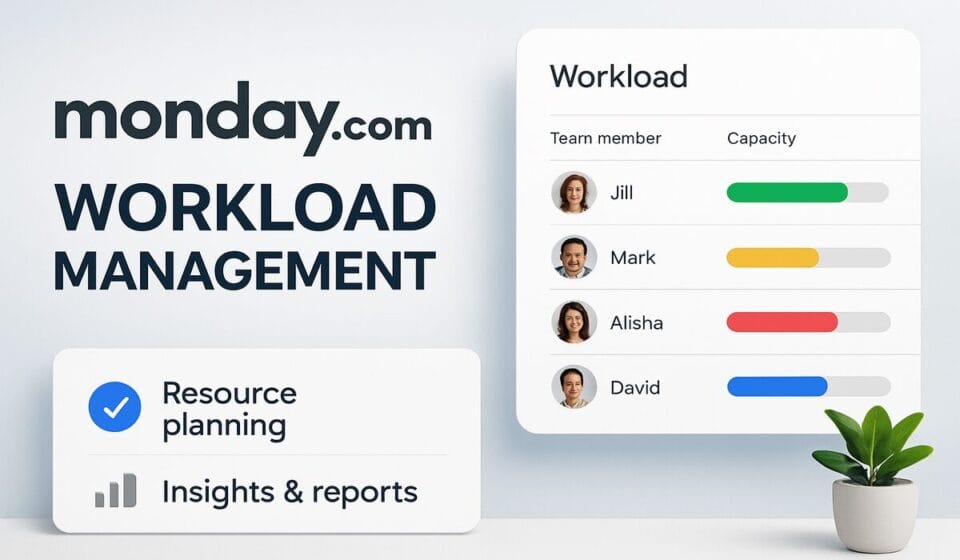
Setting up the Workload View is straightforward but requires careful attention to detail to ensure data accuracy. Begin by navigating to your desired board. Use the Views dropdown to select Workload. This setup will allow you to see who is over or under-allocated at a glance, enabling quick adjustments to task distributions. It’s a powerful visual tool but requires up-to-date input data to be effective. Any discrepancies in task assignments or timelines directly affect the accuracy of the workload view.
Remember, Monday.com’s seat bucket billing could impact your cost efficiency, especially for mid-sized teams. If your team size doesn’t align neatly with the seat buckets, you might pay for unused seats. Therefore, closely evaluate your team’s size and growth trajectory when choosing a plan. For more details on these plans, visit Monday.com Pricing.
Choosing the Right Plan for Capacity Planning
| Plan | Key Features | Best For |
|---|---|---|
| Basic | Unlimited boards, 5 GB storage, 200+ templates | Small teams with minimal automation needs |
| Standard | Automations & integrations (250 actions/month), Timeline view | Teams needing basic automation and collaboration |
| Pro | 25,000 automations/month, Workload & Chart views, 100 GB storage | Medium to large teams with complex workload management needs |
| Enterprise | 250,000 automations/month, advanced security | Large organizations requiring extensive automation and reporting |
When selecting a plan for capacity planning on Monday.com, assess your team’s size and the complexity of your workload management needs. The Pro Plan is ideal for most medium-sized teams due to its comprehensive automation capabilities and advanced views. However, be cautious of the seat bucket billing practice, which can inflate costs unexpectedly. For organizations with stringent security requirements or substantial automation needs, the Enterprise Plan is non-negotiable, offering robust control and flexibility.
Setting Up the Workload View
To truly capitalize on Monday.com’s Workload View and ensure efficient capacity planning, make sure you are on the Pro Plan or higher, as this feature is not available on lower tiers. This view allows you to visualize team capacity against upcoming tasks, making it indispensable for balancing workload and avoiding burnout. Here’s how to set it up:
- Board Navigation — Open your project board where you track ongoing tasks. This is where the Workload View will aggregate data to show who is overloaded and who has bandwidth.
- Access Views — Click on the “Views” dropdown located at the top-right corner of your board interface. This menu provides access to various visualizations, crucial for understanding team dynamics.
- Select Workload — From the dropdown, select “Workload”. This activates the view, offering a dynamic grid where tasks are mapped against team members and their available capacity.
- Configure Settings — Customize the settings by clicking on the “Settings” gear icon within the Workload View. Here, specify the timeline (weekly, monthly) and set task effort estimates to enable the system to calculate capacity accurately.
- Resource Allocation — Assign tasks directly from this view by dragging and dropping items, allowing for immediate adjustments based on team member availability.
When using the Workload View, pay attention to the color-coded capacity indicators. Red signals that a team member is overallocated, necessitating task redistribution. Additionally, remember that the accuracy of this view hinges on precise task effort estimations and up-to-date data entry. Regularly update task progress and recalibrate effort estimates to maintain an accurate picture of team capacity. For more detailed guidance, visit the official support page.
Optimizing Automations and Integrations
When implementing Monday.com for workload management, automations and integrations can significantly streamline your processes, but it’s crucial to optimize them to avoid hitting limits that disrupt your workflow. On the Standard Plan, you’re capped at 250 actions per month for both automations and integrations. For teams with complex workflows, this limit can be a bottleneck. To maximize efficiency, prioritize automations that offer the most value—such as those that eliminate repetitive tasks. A common oversight is automating trivial notifications, which can quickly exhaust your quota without substantial time savings.
For larger teams or those needing extensive automation, the Pro Plan’s 25,000 actions per month offers much more breathing room. However, be mindful of the seat bucket billing quirk: you may need to purchase more seats than your current headcount demands, impacting cost efficiency.
To configure automations and integrations effectively:
- Automations Center — Access from the board by clicking “Automate” in the top menu. Choose templates that align closely with your processes to avoid unnecessary customizations.
- Integration Center — Reach it via the “Integrate” button on the board. Connect essential apps like Slack or Google Calendar first to enhance communication and scheduling.
- Monitor Usage — Regularly check your usage stats under “Admin” > “Account” > “Usage” to preemptively address any nearing limits.
If you find yourself consistently hitting limits, consider evaluating which processes truly benefit from automation versus those that can be streamlined manually. Remember, the Enterprise Plan is your only option for unlimited scalability, but it comes with custom pricing and should be justified by a genuine need for vast automation capacity. Explore the official Monday.com Pricing for more details.
Managing Storage Limits Effectively
Handling storage limits on Monday.com requires a strategic approach, especially when your team scales or handles data-heavy projects. Each plan offers different storage capacities: the Basic Plan provides 5 GB per seat, while the Pro Plan jumps to 100 GB per seat. If you’re working with large files or extensive documentation, the Basic Plan can quickly become a bottleneck.
To effectively manage storage, start by regularly auditing the files stored on your boards. Eliminate redundant files and ensure that only current and necessary documents are uploaded. If hitting storage limits becomes a recurring issue, consider upgrading to the Pro Plan, which offers more generous storage.
For teams needing even more space, particularly those in creative industries dealing with large multimedia files, the Enterprise Plan can be customized to meet your specific requirements.
When cleaning up storage, use Monday.com’s file management features to streamline the process:
- Board Settings — Navigate to your board and click on the three-dot menu to access settings. Use the ‘Files’ tab to view all uploaded documents.
- File Deletion — Select unnecessary files and delete them to free up space.
Remember, storage limitations can also affect performance. Slow loading times or errors in file uploads can often be traced back to exceeded storage capacities. If these issues persist despite regular maintenance, it might be time to reassess your plan choice.
For more detailed storage management insights or plan adjustments, consult Monday.com’s official documentation. Balancing your storage needs with the right plan can significantly enhance team efficiency and prevent disruptions in your workflow.
Navigating Seat Bucket Billing
Understanding Monday.com’s seat bucket billing can save you from unnecessary expenses and ensure your team operates efficiently. Unlike a straightforward per-seat billing model, Monday.com requires purchasing seats in predefined buckets (e.g., 3, 5, 10). This means if your team has 6 members, you’ll need to pay for 10 seats, not just the 6 you need. While this might seem frustrating, it is crucial to align your team size with these bucket thresholds to avoid paying for unused resources.
- Review Team Growth Plans — Before committing to a specific seat bucket, evaluate your team’s growth trajectory. If you’re on a hiring spree, opting for a larger bucket might be cost-effective long-term, considering the 18% price increase effective February 2026.
- Utilize Additional Seats — If you’re stuck with extra seats, consider using them for temporary contractors or cross-functional team members who need limited access to your boards. This ensures you’re maximizing your investment.
- Negotiate with Sales — For teams close to bucket thresholds, contact Monday.com’s sales team to explore potential discounts or custom solutions, especially if you’re considering the Enterprise Plan. Learn more about pricing options.
- Regularly Audit Seat Usage — Implement a quarterly review of seat utilization. Remove inactive users promptly to ensure you’re only paying for those actively contributing to your projects.
These strategies can optimize your expenditure on Monday.com and ensure your team benefits fully from the platform’s capabilities without overspending. Always keep an eye on the latest updates and offers that might affect your billing structure.
Leveraging AI Credits for Enhanced Productivity
Understanding how to maximize AI credits in Monday.com is crucial for enhancing team productivity. Each plan grants a specific number of AI credits per month, which are consumed when using AI-driven features like task automation, intelligent suggestions, and data analysis. Exceeding these limits means purchasing additional credits, which can quickly escalate costs if not managed wisely.
Here’s a strategy for effectively leveraging your AI credits:
- Identify High-Impact Automations — Focus your AI credits on automations that deliver the greatest return. For example, automating repetitive data entry tasks or using AI to prioritize critical tasks can free up substantial team resources.
- Monitor Credit Usage — Regularly check your AI credit consumption to ensure you stay within your monthly allowance. This can be done via the Dashboard by accessing the “Usage” tab, where you can track your credits in real-time.
- Optimize Automation Settings — Adjust automation triggers and conditions to minimize unnecessary usage. For instance, instead of triggering an automation for every item update, set it to trigger only when specific, high-priority conditions are met.
- Evaluate AI Feature Necessity — Not all AI-powered features may be essential for your operations. Evaluate which features genuinely add value and disable those that don’t justify their credit consumption.
- Plan for Credit Spikes — Anticipate periods of increased activity that might demand more AI credits, such as product launches or end-of-quarter reporting. Consider budgeting for additional credits or temporarily upgrading your plan to accommodate these spikes.
For real-world application, ensure your team is trained to use these tools judiciously, maximizing the value derived from every AI-driven action. By strategically deploying AI credits, you can significantly boost productivity without unexpected costs. More details on AI credit usage are available on the official Monday.com pricing page.
Common Failure Modes and How to Fix Them
One of the most frequent issues teams encounter with Monday.com Workload Management is automations not triggering as expected. This problem often arises when you hit the monthly automation action limit. For instance, the Standard Plan restricts you to 250 actions per month, which can be surprisingly easy to exceed if you’re automating common tasks like status changes or notifications. To resolve this, you have a couple of options: either upgrade to a higher plan like the Pro Plan, offering 25,000 actions, or critically assess and streamline your current automations to stay within limits.
Another common pitfall is running up against storage limits, particularly on the Basic Plan where you’re restricted to 5 GB per seat. This can quickly become a bottleneck if your team frequently uploads large files. A practical solution is to routinely audit your storage usage. Start by identifying and deleting redundant files. If storage constraints persist, consider upgrading to a plan with more generous storage allocations, like the Pro Plan, which provides 100 GB per seat.
Teams should also be aware of seat bucket billing. Even if your team size falls between Monday.com’s fixed seat increments, such as needing 6 seats but having to pay for 10, anticipate this cost in your budget planning.
Lastly, take note of the limitations of AI credits included in your plan. If your team utilizes AI-powered actions extensively, monitor your credit consumption closely. Exceeding the allotted credits will require purchasing additional ones to maintain seamless operations. These common issues, while potentially disruptive, are manageable with proactive planning and regular audits of your Monday.com setup.
Expert Tips and Non-Obvious Gotchas
When setting up Monday.com Workload Management, it’s crucial to be aware of the nuances that can affect your team’s efficiency. First, understand the implications of Monday.com’s seat bucket billing. If your team size doesn’t match the predefined seat buckets (e.g., teams of 6 must pay for 10 seats), you might end up overpaying. To optimize costs, align your team size to these buckets or consider whether a smaller team can handle additional responsibilities.
Regarding automations, the Pro Plan’s 25,000 actions might sound ample, but for automation-heavy workflows, this could be a bottleneck. Monitor your usage closely—exceeding these can disrupt operations. For teams pushing these limits, evaluate your automation triggers and streamline processes to stay within bounds. Upgrading to the Enterprise Plan for 250,000 actions should be a last resort due to custom pricing intricacies.
Storage can become an unexpected hurdle, with Basic Plan users often hitting the 5 GB cap quickly. Regularly audit and purge unnecessary files. For Pro Plan users, though 100 GB seems extensive, multimedia-heavy projects might require creative storage solutions or supplementary external storage.
A less advertised feature is AI credits, which can enhance task predictions and recommendations. Each plan includes a set number of credits; once exhausted, additional credits must be purchased. This can be a hidden cost, so assess your reliance on AI functionalities beforehand.
Finally, familiarize yourself with the platform’s limitations on lower-tier plans. Essential features like advanced views and extensive integrations aren’t fully accessible on Basic and Standard plans. Plan upgrades might be necessary if these limitations hinder your workflows. For detailed plan features, refer to Monday.com’s official plan guide.
Frequently Asked Questions
How can I manage workload effectively on Monday.com?
To manage workload effectively, set up the Workload View by navigating to your board, clicking on the “Views” dropdown, and selecting “Workload”. This view allows you to balance tasks across team members, ensuring no one is overloaded. Make use of the Timeline and Calendar views for better visualization of project timelines.
What should I do if automations stop working?
If automations stop working, you might have exceeded your monthly action limits. For the Standard Plan, this is 250 actions; the Pro Plan allows 25,000. Consider upgrading or reducing the number of actions. Regularly check your usage in the account settings to avoid disruptions.
When is it not advisable to use Monday.com for workload management?
Monday.com might not be suitable if your team requires unlimited automations or extensive storage without budget constraints. The Pro Plan caps at 25,000 actions and 100 GB storage. For teams with heavy automation needs, consider the Enterprise Plan or alternative solutions offering unlimited features.
How do I handle storage limits on Monday.com?
Storage limits can be managed by regularly auditing and deleting unnecessary files. The Basic Plan offers 5 GB per seat, while the Pro Plan provides 100 GB. If your needs exceed these limits, upgrading to a higher plan or utilizing external storage solutions may be necessary to maintain efficiency.
What are the costs associated with upgrading plans on Monday.com?
As of 2026, the Basic Plan starts at $9 per seat per month, the Standard Plan at $12, and the Pro Plan at $19, all billed annually with a minimum of 3 seats. An 18% price increase was implemented in February 2026, reflecting added features and improvements. Budget accordingly.