Monday.com WorkForms: The Complete Guide to Building Smart Forms in 2026
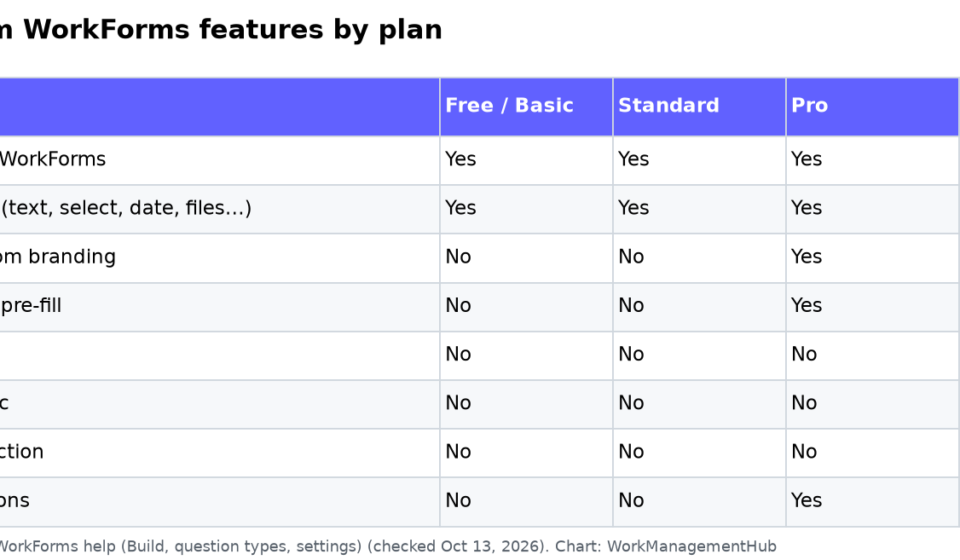
- Monday.com WorkForms is included in every monday.com plan, but the features that make forms genuinely powerful — conditional logic, password protection, pre-filled fields, and response editing — are locked behind Enterprise pricing.
- WorkForms only creates new board items. It cannot update or edit records that already exist on your board — plan your intake workflows accordingly.
- Multi-page forms are not supported on any plan. All questions appear on a single scrolling page, which limits complex intake scenarios.
- If conditional logic is a hard requirement for your use case, you must be on Enterprise — there is no workaround on Standard or Pro.
- For teams on Standard or Pro, WorkForms is still a practical tool for simple intake — project requests, bug reports, event sign-ups — when paired with automations to route submissions intelligently.
Monday.com WorkForms is a native form builder embedded in monday.com that converts form submissions into new board items automatically. Available on all plans, it enables teams to collect requests, registrations, and data without manual entry — though conditional logic and advanced customization require an Enterprise subscription.
- What Is Monday.com WorkForms and Why Does It Matter in 2026?
- Monday.com WorkForms Plan Comparison: What You Actually Get
- How to Build a WorkForm From Scratch
- WorkForms Field Types and When to Use Each
- Conditional Logic: The Enterprise Feature That Changes Everything
- Sharing and Embedding Your monday.com WorkForms
- Pairing WorkForms with Automations to Build Smart Intake Pipelines
- Real Limitations You Need to Know Before You Commit
- Best Practices for Production-Ready monday.com WorkForms
- Verdict
- Frequently Asked Questions
Monday.com WorkForms: The Complete Guide to Building Smart Forms in 2026
If your team is still collecting project requests via email threads or manually copying data from spreadsheets into your monday.com boards, you’re losing hours every week to preventable friction. Monday.com WorkForms was built to eliminate that exact problem — turning any board into a structured intake channel that populates itself automatically.
But here’s what most guides won’t tell you upfront: the version of WorkForms you get depends heavily on your plan tier. The features that make forms genuinely powerful for complex workflows — conditional logic, pre-filled fields, password protection, response editing — are exclusively available on Enterprise. If you’re on Standard or Pro, you’re working with a leaner toolset.
This guide covers everything you need to know to use monday.com WorkForms effectively in 2026: how to build your first form, which plan you actually need, the hard limitations that could break your workflow, and how to pair WorkForms with automations to build intake pipelines that run themselves. I’ve set up hundreds of these in client environments. Let’s get into it.
What Is Monday.com WorkForms and Why Does It Matter in 2026?
Monday.com WorkForms is the platform’s native form-building tool. Every form you create is directly connected to a specific board — when someone submits the form, a new item is created on that board automatically, with each form field mapped to a corresponding column. No manual data entry, no copy-paste, no import scripts.
What separates WorkForms from a generic form tool like Google Forms or Typeform is the tight integration with monday.com’s data structure. Your dropdown options pull directly from your board’s status columns. Your assignee fields connect to your team directory. Your date fields populate timeline columns. The entire form is a front-end for your board’s schema — which means submissions arrive pre-structured and ready for your workflows to act on immediately.
In 2026, the most forward-looking teams are using WorkForms as the entry point for every kind of structured request: IT support tickets, marketing campaign briefs, hiring requisitions, event registrations, client onboarding intake, and product bug reports. The business case is straightforward — every manual handoff you eliminate reduces cycle time and error rate simultaneously.
That said, WorkForms is not a replacement for dedicated form platforms in complex scenarios. It is purpose-built for one thing: creating new board items from structured submissions. If your process requires updating existing records, branching multi-page experiences, or sophisticated response logic without an Enterprise contract, you’ll hit walls fast.
Monday.com WorkForms Plan Comparison: What You Actually Get
This is the section most guides bury or skip entirely. Before you design your form workflow, you need to know exactly which features your current plan supports. The gap between Standard/Pro and Enterprise is significant.
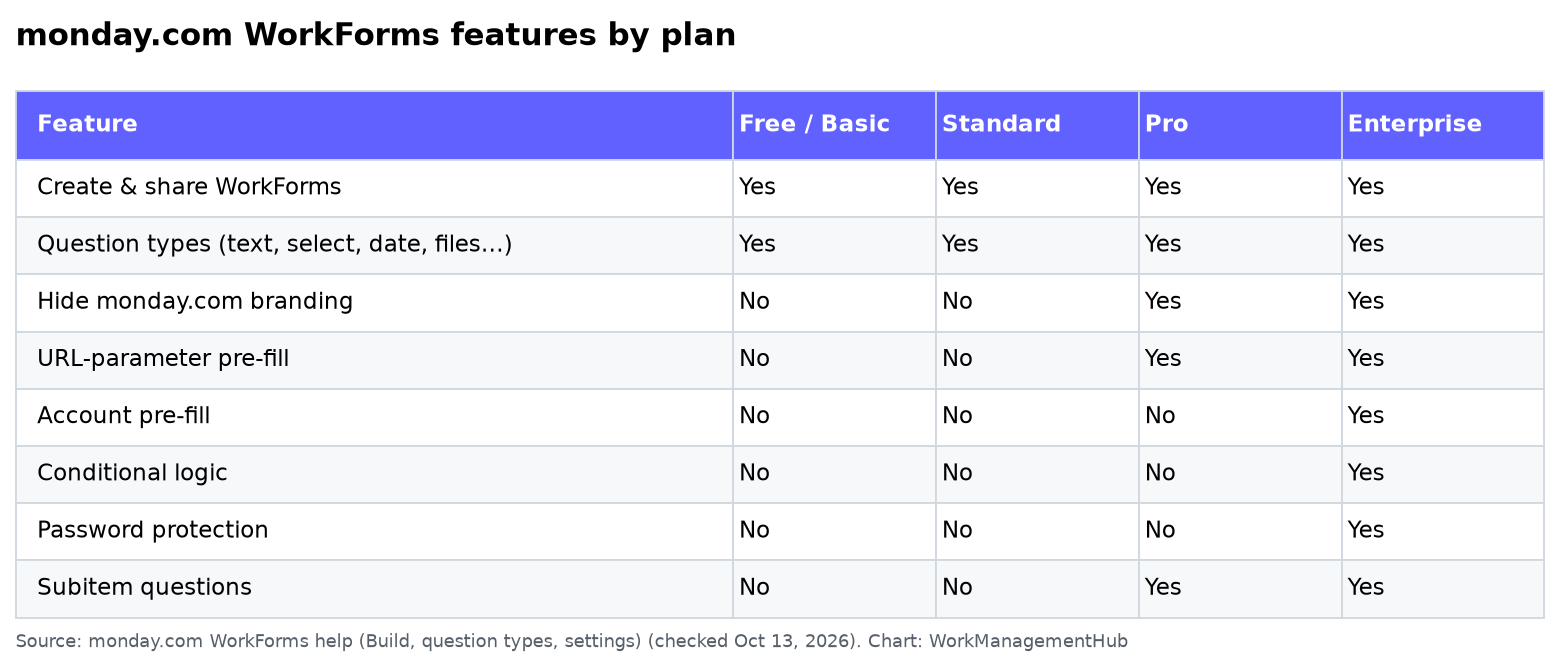
| Feature | Standard ~$10/seat/mo | Pro ~$14/seat/mo | Enterprise Custom pricing |
|---|---|---|---|
| Form builder access | Yes | Yes | Yes |
| Create new board items from submissions | Yes | Yes | Yes |
| Custom branding & colors | Yes | Yes | Yes |
| Share via link or embed | Yes | Yes | Yes |
| Limit responses | Yes | Yes | Yes |
| Conditional logic (show/hide sections) | No | No | Yes |
| Remove monday.com branding | No | No | Yes |
| Pre-fill fields from board data | No | No | Yes |
| Password-protect forms | No | No | Yes |
| Edit/update responses post-submission | No | No | Yes |
| Multi-page forms | No | No | No |
Pricing is billed annually. Standard runs approximately $10 per seat per month, Pro approximately $14 per seat per month, and Enterprise requires contacting sales for a custom quote. See the full WorkForms pricing page for the most current figures.
The takeaway is stark: if you need conditional logic for any reason — and most non-trivial intake workflows do — you are looking at an Enterprise conversation. There is no middle-ground option.
How to Build a WorkForm From Scratch
Building a form is straightforward once you understand the relationship between your board columns and form fields. Every column on your board can become a form field. The form itself lives at the board level, not the workspace level — so you build one form per board (or per process, if you use separate boards for each intake type).
Here is the exact process to create your first monday.com WorkForm:
- Open your target board — Navigate to the board that will receive form submissions. This is the board where new items will be created upon each submission. Your board’s column structure will determine what fields are available in the form.
- Click the “+” icon in the board views bar — The views bar runs along the top of your board beneath the board name. Click the “+” (Add View) icon to open the view picker panel.
- Select “Form” from the views list — Scroll through the available view types and click “Form.” Monday.com will immediately generate a draft form populated with all existing board columns mapped as fields.
- Click the pencil/edit icon next to any field — Each field in the form builder has an edit icon on hover. Click it to rename the field label, add helper text, mark the field as required, or change how the field is displayed to the respondent.
- Drag fields to reorder them — Use the six-dot drag handle on the left side of each field row to reorder your form fields. Put critical fields at the top. Place lower-priority or optional fields toward the bottom.
- Toggle off fields you don’t need — Every board column appears in the form builder by default. Use the toggle switch on the right side of each field to hide columns you don’t want respondents to see or fill in (for example, internal status columns or assignee fields you’ll set manually later).
- Add a form title and description — Click on the default “Untitled Form” text at the top of the preview panel to add a descriptive title. Add a subtitle or instructions in the description field directly below — this is your respondent’s first impression.
- Configure the thank-you message — Scroll to the bottom of the form builder settings panel on the left. Edit the confirmation message respondents see after submitting. Use this to set expectations — “Your request has been received. Our team will respond within 2 business days.”
- Click “Share Form” in the top-right corner — This opens the sharing panel with your form’s public link, embed code, and QR code options. Copy the link to distribute, or grab the embed code for your intranet or website.
For detailed documentation on each step, the monday.com support center maintains up-to-date WorkForms setup guides that reflect the current UI.
WorkForms Field Types and When to Use Each
The fields available in your form are determined by the column types on your board. Understanding which column types translate well to form fields — and which ones create friction for respondents — is essential to building forms people will actually complete.
Here is how each major column type behaves as a WorkForms field:
- Text column — Renders as a single-line text input. Use for names, titles, short identifiers. For longer inputs like descriptions or requirements, use a Long Text column instead, which renders as a multi-line textarea.
- Long Text column — Renders as an expandable multi-line textarea. This is your workhorse for open-ended questions. Always map your “tell us more” and “describe the issue” fields to Long Text columns.
- Status column — Renders as a dropdown or radio button group showing the status labels you’ve defined on your board. Useful for letting respondents self-classify their request type or priority level.
- Dropdown column — Renders as a standard dropdown select. Use this for any categorical field with a fixed list of options. Keep option lists under 10 items for usability.
- Date column — Renders as a date picker. Essential for deadline fields, event dates, and start date requests. Respondents get a calendar widget, reducing formatting errors significantly.
- Numbers column — Renders as a numeric input field. Use for quantities, budgets (note: not a currency field), counts, or any numeric data point.
- People column — Renders as a team member selector. Useful if you want respondents to nominate a point of contact or assign themselves. Only shows board members and workspace members.
- Files column — Renders as a file upload field. Critical for forms that require attachments — design briefs, specs, supporting documents. File uploads go directly to the item’s Files column on the board.
- Email column — Renders as an email-validated text input. Always use this instead of a plain text field when collecting email addresses — it validates format on submission.
- Phone column — Renders as a phone number field with country code selection. Use this for any form where follow-up by phone is part of your workflow.
- Rating column — Renders as a star rating selector (1–5 stars). Use for satisfaction surveys, priority scoring, or any scenario where respondents need to express a preference on a scale.
One field type notably missing from WorkForms: there is no native matrix or grid question type. If your intake process requires a table-style input, you’ll need to break it into individual fields or consider a dedicated form platform for that specific use case.
Conditional Logic: The Enterprise Feature That Changes Everything
Conditional logic — the ability to show or hide sections of a form based on a respondent’s previous answers — is the single most impactful feature gap between Enterprise and lower tiers of monday.com WorkForms.
Without conditional logic, every respondent sees every field. That creates two problems: respondents encounter irrelevant questions that don’t apply to their situation, and your submitted items contain empty fields for irrelevant columns that clutter your board. For simple forms with five to eight fields, this is manageable. For complex intake workflows with fifteen or more fields, it produces a poor experience and messy data.
With conditional logic on Enterprise, you can build branching form experiences where showing a field is contingent on a previous answer. For example: if a respondent selects “Bug Report” as their request type, a set of bug-specific fields appears. If they select “Feature Request,” a different set of fields becomes visible. The respondent only ever sees the fields relevant to them.
Here is how to configure conditional logic on an Enterprise account:
- Open the form builder — Navigate to the Form view on your board and enter editing mode by clicking “Edit Form” in the top-right.
- Click on the field you want to conditionally show or hide — This is the dependent field — the one that should only appear under certain conditions.
- Click “Add Condition” in the field settings panel — This option appears in the right-side settings panel when you have a field selected. It is only visible on Enterprise accounts.
- Select the trigger field from the dropdown — Choose the field whose answer will control visibility. This is typically a Status or Dropdown field earlier in the form.
- Select the operator and value — Define the condition: “Show this field when [trigger field] is [specific option].” You can add multiple conditions per field using AND/OR logic.
- Repeat for each conditional field — Apply conditions to every field that should be hidden by default. Test the form in preview mode to confirm each condition triggers correctly.
- Click “Save” and preview the form — Use the “Preview” button in the top-right to experience the form as a respondent would, verifying that your conditional flows work as intended.
If you are on Standard or Pro and conditional logic is a genuine business requirement, the honest recommendation is to evaluate whether the overall monday.com Enterprise upgrade makes sense for your organization’s needs, not just for WorkForms. The upgrade unlocks significant capabilities across the entire platform. You can also review how monday.com automations work to understand whether automation-based routing can compensate for the lack of conditional logic in your specific scenario.
Sharing and Embedding Your monday.com WorkForms
Once your form is built, getting it in front of respondents is the next challenge. Monday.com WorkForms supports three primary distribution methods, each suited to a different context.
Sharing via public link
The simplest distribution method. Anyone with the link can submit the form — no monday.com account required. This is the right approach for external stakeholders, clients, vendors, and any audience outside your organization.
- Click “Share Form” in the top-right of the form builder — This opens the sharing options panel immediately.
- Toggle “Share publicly” to On — This activates the public link. The toggle is off by default on new forms.
- Copy the form URL — Click the copy icon next to the form URL. Distribute this link via email, Slack, your website, or any other channel where respondents need to reach it.
- Set an expiry date or response limit if needed — Use the “Close form after” options to automatically deactivate the form after a set date or after a specific number of submissions. Useful for event registrations or time-limited requests.
Embedding in a website or intranet
- Open the “Share Form” panel — Same entry point as above.
- Click the “Embed” tab — This switches the panel to show your embed code.
- Copy the iframe code snippet — The code includes a pre-configured iframe with the correct URL and sizing attributes.
- Paste the snippet into your website’s HTML editor — Your form will render inline on the page. Respondents submit without leaving your site.
Password protection (Enterprise only)
- Open the “Share Form” panel — Click “Share Form” in the top-right.
- Click the “Security” section in the sharing panel — This section is only visible on Enterprise accounts.
- Enable password protection and set a password — Respondents will be prompted to enter the password before the form loads. Use this for internal forms containing sensitive request types, or for vendor-facing forms where you want to limit access to invited parties.
Pairing WorkForms with Automations to Build Smart Intake Pipelines
A WorkForm that simply dumps submissions into a board and leaves them there is only half the solution. The real value emerges when you connect WorkForms to monday.com’s automation engine to build intake pipelines that route, assign, and notify without any manual intervention.
Here are the most impactful automation patterns to layer onto your WorkForms setup:
Auto-assign based on request type
- Create a Status column called “Request Type” — Include the intake categories relevant to your team (Design, Development, Marketing, Operations) as status options.
- Map this column to a form field — Let respondents self-select their request type when submitting.
- Build an automation: “When Status changes to [Design], assign to [Design Lead]” — Navigate to Automations in the board top bar, click “Add Automation,” and configure this trigger-action pair. Repeat for each request type and its corresponding owner.
Notify the requester on submission
- Add an Email column to your board — Map it to the email field in your WorkForm so you capture the respondent’s email address on every submission.
- Create an automation: “When item is created, send email to [Email column]” — Use the email notification action to send a confirmation email to the respondent’s captured address automatically. Include the item name and a note about expected response time in the email body.
Route high-priority submissions to a separate group
- Add a Priority field to your form — Map it to a Status or Dropdown column with options including “Urgent.”
- Create an automation: “When Priority is Urgent, move item to [Urgent Queue] group” — This ensures high-priority submissions are immediately visible at the top of the board without manual sorting.
For teams building CRM-style intake pipelines, the patterns above integrate seamlessly with a properly structured monday.com CRM and sales pipeline. Form submissions from prospects or clients can flow directly into contact management workflows with the right board structure and automation chains.
Real Limitations You Need to Know Before You Commit
WorkForms is a capable tool within its defined scope. But several constraints will break specific workflows, and discovering them after you’ve built your intake system is costly. Here are the limitations that matter most in practice.
Forms only create new items — they cannot update existing records
This is the most frequently misunderstood limitation of monday.com WorkForms. Every form submission creates a brand-new item on your board. There is no mechanism to route a form submission to update an existing row, regardless of your plan tier. If your workflow requires respondents to update or amend a record they’ve previously submitted — a common need in change request or amendment processes — WorkForms is not the right tool without significant workaround architecture.
Single-page forms only
All WorkForms are single-page, single-scroll forms. Multi-page forms with step-by-step navigation are not supported on any plan in 2026. This means all your questions appear on one continuous page. For short forms (under ten fields), this is fine. For longer intake processes, it can feel overwhelming to respondents and may increase abandonment rates.
No native logic on Standard and Pro
Without conditional logic, every respondent sees every field. You cannot hide irrelevant sections based on earlier answers unless you are on Enterprise. There is no workaround within WorkForms itself — it is a hard platform constraint.
One form per board view
Each Form view you add to a board creates one form. You can add multiple Form views to a single board (giving you multiple distinct forms), but each form is tied to that specific board and adds items to that board only. You cannot build a single form that populates multiple boards simultaneously.
File upload size limits apply
File attachments submitted via WorkForms are subject to monday.com’s overall file upload size limits. Large file submissions (video files, high-resolution design assets, large CAD files) may hit these limits. Inform respondents of expected file size constraints in your form description.
If your projects require sophisticated resource planning alongside intake workflows, it’s also worth understanding how monday.com’s workload management interacts with incoming form submissions — particularly for teams where new requests directly impact capacity planning.
Best Practices for Production-Ready monday.com WorkForms
The difference between a WorkForm that generates clean, actionable data and one that creates a messy board full of incomplete submissions comes down to a few discipline decisions made at setup time.
- Design your board schema before building the form — The form reflects your board’s columns. If you build the form before finalizing your board structure, you’ll end up rebuilding both when you change a column. Always finalize your board schema first, then build the form.
- Mark the minimum viable fields as Required — Every required field creates submission friction. Only mark fields as required if a missing answer genuinely prevents your team from processing the request. Be ruthless about what is truly mandatory versus nice-to-have.
- Use helper text on every ambiguous field — The helper text (subtitle) beneath each field label is your chance to give respondents clear instructions. Don’t assume they know what format you expect or what level of detail you need. Explicit instructions reduce clarification follow-ups.
- Test the form as a non-logged-in user — Open your form’s public link in an incognito browser window and submit a test response. This is the only way to experience the form exactly as external respondents do. Check that all fields work correctly, the thank-you message appears, and the submission lands on your board as expected.
- Add automations before going live — Configure your routing, notification, and assignment automations before sharing the form link. The first real submission should already trigger the correct workflow, not sit unassigned because automations weren’t set up yet.
- Use a dedicated board for each intake type — Resist the temptation to use a single catch-all board for all form submissions. Separate boards for separate intake types (IT support, project requests, vendor onboarding) keep your data structured and your automations simple.
- Set a clear form title and description — The form title and description are the first thing respondents read. Make the title specific (“New Project Request Form”) and use the description to set expectations about response time, who reviews submissions, and what happens after they submit.
- Review your board templates before building from scratch — Monday.com’s template library includes boards pre-configured for common intake workflows. Starting from a relevant template can save hours of column setup. See the best monday.com templates in 2026 for a curated breakdown of which templates work best for different teams.
Monday.com WorkForms is a solid, practical intake tool for teams already operating on monday.com — with one important caveat: the plan tier you’re on dramatically changes what you can actually build. For Standard and Pro teams running simple, linear intake processes (project requests, bug reports, event sign-ups), WorkForms delivers genuine value and eliminates manual data entry with minimal setup. For teams with complex intake workflows that require conditional logic, response editing, or white-labeled forms for external audiences, Enterprise is not optional — it’s the only viable path. If conditional logic is a hard requirement and Enterprise pricing is out of reach, evaluate whether a dedicated form platform (Typeform, Jotform, or similar) connected to monday.com via Zapier or Make serves your needs better than forcing WorkForms to do something it structurally cannot do on lower plan tiers.
Frequently Asked Questions
Can monday.com WorkForms update existing board items?
No. Monday.com WorkForms can only create new board items when a form is submitted. It cannot update, edit, or append data to records that already exist on your board. This is a fundamental architectural constraint, not a plan limitation — it applies to all tiers including Enterprise. If you need to update existing records via a form interface, you will need to use a third-party integration (such as a Zapier workflow connecting an external form tool to the monday.com API) or manage updates manually on the board itself.
Is conditional logic available on the Pro plan?
No. Conditional logic — the ability to show or hide form sections based on a respondent’s previous answers — is exclusively available on the Enterprise plan as of 2026. It is not available on Standard or Pro, regardless of how many seats you have or how long you have been a customer. If conditional logic is essential to your workflow, the only in-platform solution is upgrading to Enterprise. Contact monday.com sales for an Enterprise quote specific to your team size.
Can I build multi-page forms in monday.com WorkForms?
No. Multi-page forms with step-by-step navigation are not supported on any monday.com plan in 2026 — not on Standard, Pro, or Enterprise. All WorkForms are single-page, single-scroll experiences. If you need a multi-step form experience for respondents, you would need to use a dedicated form tool like Typeform or Jotform integrated with monday.com via automation or native integration.
Do respondents need a monday.com account to submit a WorkForm?
No. When you share a WorkForm via its public link, anyone with the link can submit the form without a monday.com account. This is one of WorkForms’ most valuable characteristics for external-facing use cases — clients, vendors, job applicants, event registrants, and other external parties can submit responses without any login or account creation. On Enterprise, you can also password-protect forms for a controlled level of access without requiring full account setup.
How do I stop receiving spam submissions on my WorkForm?
Monday.com WorkForms does not have a native CAPTCHA feature as of 2026. To reduce spam submissions on public forms, your best options are: set a response limit to close the form after a set number of submissions; use the form expiry date feature to automatically deactivate the form after a specific date; on Enterprise, enable password protection to limit who can access the form; and use an automation to flag or archive submissions that match patterns you associate with spam (for example, submissions where all text fields contain identical or nonsensical content). For high-traffic public forms, consider embedding a third-party form with native spam protection and passing responses to your monday.com board via Zapier or Make.