Linear Initiatives Deep Dive 2026: Strategic Planning, Sub-Initiatives & Health Tracking

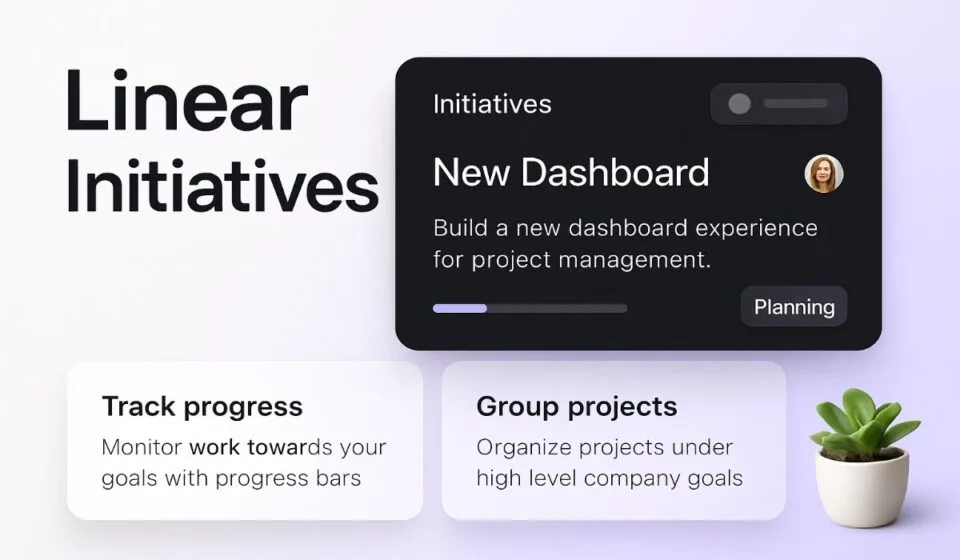
- Linear Initiatives are workspace-wide strategic containers that group projects under company goals — they require only a name to create, and every workspace member (except guests) can see them. There are no private Initiatives.
- Initiative Health is set by the latest initiative update — On track, At risk, or Off track — while the Active Projects column rolls up each project’s own latest update as green, yellow, red, or gray status dots.
- Initiatives move through three lifecycle statuses — Planned, Active, and Completed — and completed Initiatives shift to a dedicated completed section that doubles as a historical record of what shipped.
- Sub-initiatives nest up to 5 levels deep, support multiple parent Initiatives, and automatically roll up project progress — but they are gated to the Enterprise plan only.
- The initiative graph plots one curve per project, showing the rate of completed issues: a rising curve means active delivery, a flattening curve means that project is winding down or done.
Linear Initiatives group multiple projects under a strategic goal, enabled from Settings > Initiatives. Health status comes from the latest initiative update (On track / At risk / Off track), with per-project rollups shown as colored dots. Sub-initiatives add 5-level nesting and multi-parent support, but only on the Enterprise plan.
- What Are Linear Initiatives — and Where They Sit in the Hierarchy
- How to Enable and Create Linear Initiatives
- The Initiative Lifecycle: Planned, Active, Completed
- Initiative Health Tracking: How the Rollup Actually Works
- How to Read the Initiative Graph
- Sub-Initiatives: 5-Level Nesting, Multiple Parents, Enterprise Gating
- A Strategic Planning Workflow That Connects Initiatives to Cycles
- Limitations You Should Know Before Committing
- FAQ
Most teams adopt Linear for its issue tracker and never touch the layer above it. That’s a mistake. Linear Initiatives are the mechanism that turns a fast issue tracker into a strategic planning system — the place where leadership sees whether the quarter’s three big bets are actually on track, without asking anyone to compile a status deck. This guide covers what Linear’s marketing page won’t: how the health rollup is actually computed, what the initiative graph’s curves mean, why sub-initiatives are locked to the Enterprise plan, and how the 5-level, multi-parent nesting model really behaves.
What Are Linear Initiatives — and Where They Sit in the Hierarchy
Linear’s work hierarchy runs from issues (the smallest unit) up through projects (a deliverable with a start and end) to Initiatives (a strategic outcome made of multiple projects). If projects answer “what are we building this quarter,” Initiatives answer “why” — they map projects to company-level goals like “Reduce churn by improving onboarding” or “Launch the EU data residency offering.”
Three design decisions distinguish Initiatives from comparable features in other tools, and they matter for how you should plan:
- Initiatives are always workspace-wide. Every Initiative is visible to all members of your workspace — guests excepted. There is no concept of a private Initiative. This is deliberate: Linear treats strategy as something the whole company should see, not a leadership-only artifact. If your organization needs confidential strategic workstreams (an unannounced acquisition integration, say), Initiatives are the wrong container — keep that work in restricted projects or outside Linear entirely.
- They’re deliberately lightweight. An Initiative requires only a name to create. Owners, target dates, descriptions, and icons are all optional. Compare that to the configuration overhead of Jira Plans and Advanced Roadmaps, where strategic layers demand significant setup before they show anything useful.
- They aggregate, not duplicate. An Initiative doesn’t hold issues directly. It holds projects, and everything you see at the Initiative level — progress, health, the graph — is computed from those projects. You never update an Initiative’s progress by hand.
The official Linear Initiatives documentation covers the basics; what follows goes deeper on the parts that trip teams up in practice.
How to Enable and Create Linear Initiatives
Initiatives are a workspace-level feature that must be switched on before anyone sees them in the sidebar. Here is the full path from a fresh workspace to a populated Initiative:
- Settings > Initiatives — open your workspace settings and enable the Initiatives feature. This is a workspace-wide toggle; once enabled, Initiatives become visible to all members (guests excluded).
- Initiatives (sidebar) — navigate to the new Initiatives section in your workspace sidebar to see the Initiatives overview, organized by status.
- New initiative — create your first Initiative. Only a name is required, so you can sketch your strategic structure in minutes and enrich it later. Use outcome-oriented names (“Cut activation time to under 10 minutes”) rather than department names (“Growth team work”).
- Initiative page > description and properties — add an owner and a target date, and write a short description covering the business outcome, the success metric, and what’s explicitly out of scope. Because every member can see this page, treat it as the single source of truth for the goal.
- Add projects — attach the projects that ship this outcome from the Initiative’s page. Once attached, their progress feeds the Initiative’s rollups automatically.
- Status: Planned or Active — set the Initiative’s lifecycle status. Keep next quarter’s bets in Planned and flip them to Active when work genuinely begins, so the Active list stays an honest reflection of current strategy.
That last point deserves emphasis. The most common failure mode we see in consulting engagements is teams marking everything Active on day one. When eleven Initiatives are “active,” the view stops communicating priority — which defeats the purpose of having a strategic layer at all.
The Initiative Lifecycle: Planned, Active, Completed
Initiatives carry one of three statuses, and the discipline with which you use them determines whether your Initiatives view is a strategy dashboard or a junk drawer.
Planned is for committed-but-not-started bets. This is where annual and quarterly planning artifacts live between the planning offsite and kickoff. Keeping future work in Planned gives leadership a visible pipeline without polluting the picture of what teams are executing right now.
Active is the working set — the Initiatives currently consuming engineering and design capacity. As a rule of thumb, if an Initiative has no project shipping issues this cycle, it probably shouldn’t be Active. A focused Active list of three to six Initiatives is far more useful to an executive than a sprawl of fifteen.
Completed is more valuable than most teams realize. When you complete an Initiative, it moves to a dedicated completed section rather than disappearing. Over quarters, this becomes a historical record of what the company actually shipped against its strategy — invaluable for annual reviews, board updates, and the perennial “what did we do last year?” question. Resist the urge to delete old Initiatives; complete them instead.
Initiative Health Tracking: How the Rollup Actually Works
This is where Linear Initiatives earn their keep — and where most published guides go vague. There are two distinct signals on every Initiative, and they come from different sources. Understanding the difference is the key to reading the Initiatives view correctly.
Signal one: Initiative Health. An Initiative’s health is determined by its latest initiative update — a short written status post in which the Initiative’s owner picks one of three states: On track, At risk, or Off track. This is a human judgment, not a computed metric. That’s a feature, not a bug: an Initiative can be 80% complete by issue count and still be off track because the remaining 20% is blocked on a vendor. Health captures what the numbers can’t.
Signal two: the Active Projects rollup. Alongside the Initiative’s own health, the Active Projects column rolls up the latest project update from each project inside the Initiative, rendered as colored indicators:
- Green — the project’s latest update says it’s on track.
- Yellow — the project’s latest update flags it as at risk.
- Red — the project’s latest update marks it off track.
- Gray — the project has no recent update at all.
Read the two signals together and you get a genuinely useful diagnostic. A green Initiative sitting on top of two red projects means the owner is either ahead of the data or behind on reality — either way, it’s a conversation worth having. A row of gray dots is its own red flag: nobody is reporting, which usually precedes nobody delivering. In our experience, the gray indicator is the most underrated management signal in Linear — it surfaces reporting gaps before they become delivery surprises.
To make health tracking actually work, instrument the habit:
- Initiative page > New update — have each Initiative owner post an initiative update on a fixed cadence (weekly or biweekly), selecting On track, At risk, or Off track and writing two or three sentences of context: what moved, what’s blocked, what decision is needed.
- Project updates — require project leads to post project updates on the same cadence, since these are what feed the Active Projects rollup. An Initiative update without fresh project updates beneath it is an opinion without evidence.
- Initiatives overview > Active Projects column — review the rollup in your leadership sync. Triage in this order: red first, then gray (silence), then yellow. Green needs no meeting time.
If your organization runs formal OKRs, this model maps cleanly: the Initiative is the objective, projects approximate key results, and updates replace the quarterly scoring ritual with a continuous signal. Teams migrating from goal-centric tools will find the comparison with Asana’s Goals and OKR tracking instructive — Asana gives you more goal-metric machinery, Linear gives you tighter coupling to actual engineering work.
How to Read the Initiative Graph
Each Initiative includes a graph that most users glance at and few interpret correctly. Here’s the model: each curve on the graph represents one project, and the curve tracks the rate of completed issues within that project. The curve rises while the team is actively closing issues and levels off as the project approaches completion.
Once you know that, the shapes become legible at a glance:
- A steadily rising curve — healthy, continuous delivery. The project is consuming and closing scope.
- A curve that has gone flat well short of done — a stall. The team stopped completing issues. Cross-check against the project’s update status; a flat curve plus a gray dot is the strongest “go look at this” signal the Initiative view produces.
- A flat curve on a project that is essentially finished — expected. Plateauing at completion is the natural end state.
- A curve that jumps vertically — a batch event: a bulk close, a triage purge, or a scope cut. Worth a question, not necessarily a worry.
The graph’s strategic value is that it shows momentum, which point-in-time progress percentages hide. Two projects can both read “60% complete” while one has been climbing all month and the other flatlined three weeks ago. The percentage treats them identically; the graph does not. When you review Initiatives, scan the curves before the numbers.
Sub-Initiatives: 5-Level Nesting, Multiple Parents, Enterprise Gating
For larger organizations, a flat list of Initiatives eventually breaks down — a company-level bet like “Win the enterprise segment” decomposes into departmental workstreams, which decompose again into team-level efforts. Sub-initiatives are Linear’s answer, and they come with three properties that no competitor blog seems to explain properly (the official sub-initiatives documentation has the primary details):
- Depth: up to 5 levels. You can nest sub-initiatives five levels deep. In practice, that’s more than almost any organization should use — company > department > team is three levels, and every additional level adds a rollup hop between an engineer closing an issue and an executive seeing the effect. Treat 5 as a ceiling, not a target.
- Multiple parents. A sub-initiative can belong to more than one parent Initiative. This solves a real organizational problem that strict trees can’t: a “Platform reliability” sub-initiative can legitimately roll up under both “Enterprise readiness” and “Reduce churn” without duplicating it. Use multi-parenting for genuinely shared workstreams — and sparingly, because each additional parent is another rollup an executive might double-count when eyeballing totals.
- Automatic progress roll-up. Project progress rolls up through the hierarchy automatically. Close issues at the leaf level and the movement propagates upward through every ancestor Initiative with no manual aggregation, no spreadsheets, no chasing.
Here is how to build the hierarchy:
- New initiative — create the Initiatives that will become children as ordinary top-level Initiatives first. There is no separate “sub-initiative” object; nesting is a relationship, not a type.
- Option/Alt + drag — in the Initiatives view, hold Option (Mac) or Alt (Windows) while dragging one Initiative onto another to nest it as a sub-initiative. The modifier key is the part everyone misses: a plain drag reorders, the modified drag nests.
- Parent initiative page — open the parent to confirm the sub-initiative appears beneath it and that project progress from the child is rolling up.
- Repeat for additional parents — attach the same sub-initiative under a second parent where a workstream genuinely serves two strategic goals.
The catch: sub-initiatives are an Enterprise-plan feature only. On Free, Basic, and Business plans you get flat Initiatives — no nesting, no multi-parent relationships, no hierarchical rollup. This single gate is, in our assessment, one of Linear’s clearest enterprise upsell levers, and it’s worth factoring into plan decisions early: if your planning model is inherently hierarchical (multi-product companies, multi-layer org structures), budget for Enterprise from the start rather than building a flat structure you’ll have to rework. See our breakdown of Linear’s Free, Basic, Business, and Enterprise plans for the full plan-by-plan picture.
If you’re below Enterprise, the workable compromise is a naming convention (“Enterprise: SSO hardening”, “Enterprise: Audit logs”) plus disciplined use of the Planned/Active split. It’s cosmetic rather than structural — you lose the rollup — but it keeps the strategic grouping legible.
A Strategic Planning Workflow That Connects Initiatives to Cycles
Initiatives only pay off when they connect cleanly to execution. The full chain in Linear runs: Initiative → projects → issues → cycles. A practical quarterly operating rhythm looks like this:
- Quarterly planning > Planned Initiatives — leadership defines or confirms 3–6 Initiatives for the quarter, each with an owner, a target date, and a written success metric in the description. Anything beyond six dilutes focus.
- Project mapping — each team breaks its Initiative commitments into projects and attaches them. If a project doesn’t map to any Initiative, that’s a prompt: either it’s legitimate keep-the-lights-on work, or it’s unsanctioned scope hiding from the strategy view.
- Cycle execution — teams pull issues from those projects into their cycles and ship. This is where the strategic layer meets sprint mechanics; our guide to Linear Cycles, sprint planning, and team velocity covers that layer in depth.
- Weekly updates — project leads post project updates; Initiative owners post initiative updates. Fifteen minutes a week, total, replaces the status-deck industry.
- Quarter close > Completed — finished Initiatives are marked Completed and move to the completed section, building the historical record; unfinished ones are explicitly re-scoped or rolled forward rather than silently lingering.
The compounding benefit: because rollups are automatic, status reporting stops being a separate activity. The same issue an engineer closes to finish a ticket also moves a project graph, which feeds an Initiative rollup, which appears in the view an executive checks. One action, every altitude. That vertical integration — strategy to commit — is a large part of why Linear scores so well in our full Linear review.
Limitations You Should Know Before Committing
A senior recommendation includes the caveats. Four matter here:
- No private Initiatives, full stop. Workspace-wide visibility is non-negotiable — only guests are excluded. Confidential strategic work needs a different home.
- Hierarchy is Enterprise-only. Flat Initiatives on every other plan. If nesting is core to your planning model, the plan decision is effectively made for you.
- Health is self-reported. The On track / At risk / Off track signal is only as honest as the person posting it. The Active Projects rollup and the graph are your cross-checks — use them.
- Rollups follow issue counts, not value. The graph and progress rollups track completed issues. Ten trivial issues move the needle more than one critical one. Keep issue granularity reasonably consistent across projects in the same Initiative, or the aggregate view will mislead.
For the canonical feature reference and anything that changes after publication, defer to Linear’s official documentation.
Linear Initiatives are the best strategic planning layer available inside an engineering-native tool: near-zero setup, automatic rollups from real issue data, and a health model that pairs human judgment with computed project signals. Enable them if you run more than two concurrent projects — the cost is one settings toggle and a weekly update habit. The only hard qualifier is structural: if you need nested, multi-parent hierarchy, that’s Enterprise-plan territory, so price it in before you build. And if you need private strategic workstreams, look elsewhere — workspace-wide visibility is by design.
FAQ
What’s the difference between a Linear Initiative and a project?
A project is a concrete deliverable with a defined scope and end date, containing issues. An Initiative is a strategic container that groups multiple projects under a business goal and rolls up their progress and health automatically. Issues live in projects, never directly in Initiatives.
Can I make a Linear Initiative private?
No. Initiatives are always workspace-wide and visible to all members of your workspace; only guests are excluded. There is no private Initiative option, so confidential strategic work should be handled through restricted projects or kept outside Linear.
How is Initiative health calculated in Linear?
An Initiative’s health reflects its latest initiative update, where the owner selects On track, At risk, or Off track. Separately, the Active Projects column rolls up each contained project’s latest update as green (on track), yellow (at risk), red (off track), or gray (no recent update). Reading both signals together gives you the real picture.
Are sub-initiatives available on every Linear plan?
No — sub-initiatives are exclusive to the Enterprise plan. On other plans, Initiatives remain a flat list. Enterprise workspaces can nest sub-initiatives up to 5 levels deep, assign multiple parents to one sub-initiative, and get automatic progress roll-up through the hierarchy.
How do I nest one Initiative under another?
Create both as regular Initiatives, then hold Option (Mac) or Alt (Windows) while dragging one onto the other in the Initiatives view. The modifier key is required — dragging without it reorders the list instead of nesting. This requires the Enterprise plan.
Sponsored