The Ultimate Guide to Asana in 2026: Features, Pricing, and Who It’s Right For

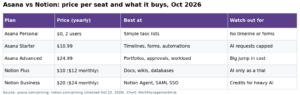
Asana is a project tool built for teams that need to see who is doing what, by when. It is quick to learn, which is why marketing and operations teams like it. The free Personal plan is limited to 2 users. Most teams need Starter at $10.99 per user a month (billed yearly) to get timelines, rules and custom fields. Advanced at $24.99 adds goals, portfolios and approvals.
I have rolled Asana out to marketing and ops teams of 5 to 60 people. It is one of the easiest tools to get people to actually use. But its costs climb fast with seat count. This guide covers features, plans, setup and the trade-offs. Prices are from Asana’s pricing page, checked in October 2026.
ClickUp pricing note (checked October 16, 2026): ClickUp is changing its plans. New Workspaces, all Free Forever Workspaces and some paid ones now get Core at $9 and Business at $17 per user a month billed yearly ($12 and $25 monthly), with AI credits included and a new Max plan at $100. Many existing Workspaces still have the classic plans: Unlimited at $7 and Business at $12 billed yearly ($10 and $19 monthly), with ClickUp Brain as a $9 add-on. Prices in this article use the classic plans unless noted. See ClickUp’s new plans help article.
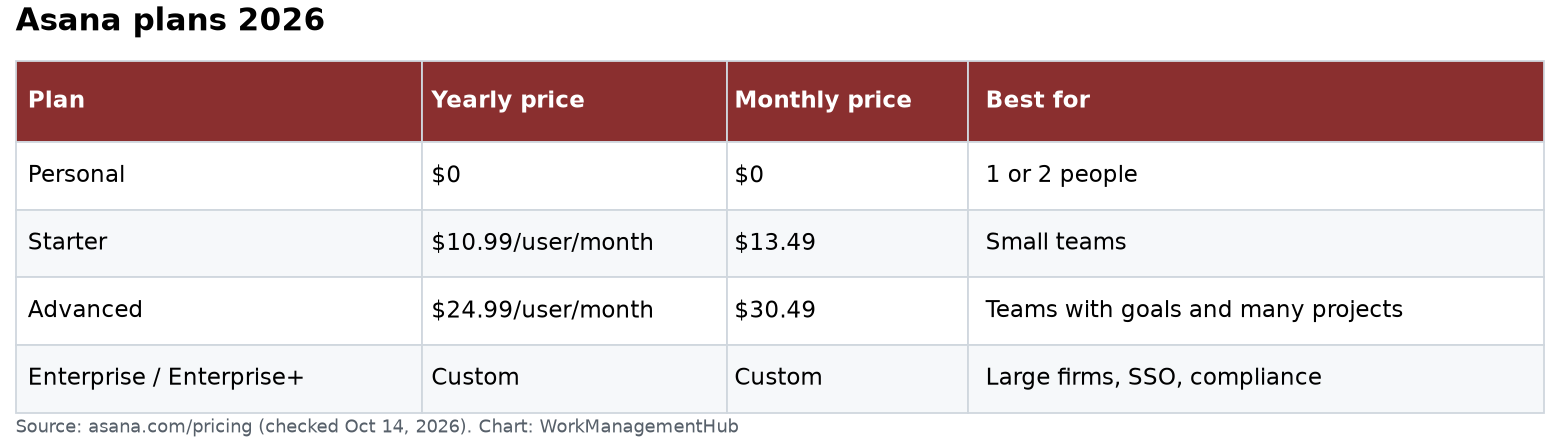
Asana plans at a glance
| Plan | Yearly price | Monthly price | Best for |
|---|---|---|---|
| Personal | $0 | $0 | 1 or 2 people |
| Starter | $10.99/user/month | $13.49 | Small teams |
| Advanced | $24.99/user/month | $30.49 | Teams with goals and many projects |
| Enterprise / Enterprise+ | Custom | Custom | Large firms, SSO, compliance |
What each plan adds
- Personal (free): 2 users, unlimited tasks and projects, list, board and calendar views, and 100MB per file.
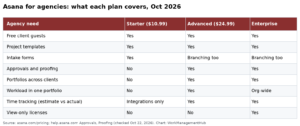
- Starter: no seat cap, timeline and Gantt views, dashboards, unlimited rules, forms, custom fields, custom templates and unlimited free guests.
- Advanced: goals, unlimited portfolios, resource management, approvals and proofing, form branching, time tracking, critical path, and a two-way Jira Cloud sync.
- Enterprise: SAML, SCIM, custom branding, view-only licenses and workflow bundles. Enterprise+ adds HIPAA and other compliance options.
How Asana’s AI works now
Paid plans include AI Teammates and Asana Dash. Each user gets 5 AI requests a month. The account total is capped at 50 on Starter and Advanced, and 250 on Enterprise. Extra requests cost $0.50 each prepaid or $0.60 on demand. Paid plans also include AI Studio credits for building AI steps into workflows.
What that means in practice: 5 requests a person is enough to try AI. It is not enough to run it daily. If your team wants AI to triage requests every day, budget for extra requests.
Seats are sold in steps
Asana does not sell any number of seats. Between 2 and 5 users, you add one at a time. Up to 30 users, you buy in steps of 5. Up to 100, steps of 10. So a team of 11 pays for 15 seats. Plan hires around this.
Setting up Asana: the order that works
Step 1: Create teams first
Make a team for each department. Teams hold projects and control who sees them. This keeps a 50-project workspace easy to browse.
Step 2: Build one project template
Before making ten projects, build one good one. Add sections (stages), custom fields like Priority and Status, and a few rules. Save it as a template. Every new project then starts the same way. That is what makes reporting work later.
Step 3: Add rules for repeated steps
Rules are Asana’s automations. Good first rules:
- When a task moves to “Review,” assign the reviewer.
- When a form is submitted, add the task to the right section.
- When a task is done, move it to the “Done” section.
Step 4: Set up “My Tasks”
Ask everyone to use My Tasks as their daily list. Asana works best when people plan from My Tasks, not by browsing projects.
Step 5: Add dashboards
On Starter, build a simple dashboard per project: tasks by status, overdue tasks and tasks by assignee. On Advanced, use portfolios to see many projects in one place.

A simple weekly rhythm
Asana works best with a habit. Monday: each person reviews My Tasks and sets due dates. Wednesday: the team lead checks the project’s Overdue filter. Friday: owners post a short status update in each project. Fifteen minutes a week keeps the data honest.
What Asana does well
- Easy to learn. Most people get it in an hour. Adoption matters more than features.
- Guests are free on paid plans. Agencies can bring in clients at no extra cost.
- Portfolios and goals. On Advanced, leaders see the health of many projects at once and tie them to goals.
- Forms into projects. Requests arrive in a fixed format, not in random emails.
Where Asana falls short
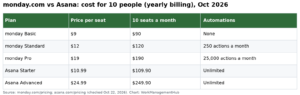
- Cost at scale. 50 people on Advanced cost about $15,000 a year (50 × $24.99 × 12). ClickUp Business for the same team is about $7,200.
- Not a wiki. You can write notes and task descriptions. But there is no real document system. Many teams pair Asana with Notion or Confluence.
- Time tracking is on Advanced. Starter needs an integration for time. Timesheets and budgets are a paid add-on.
- Mobile is basic. Fine for updates, awkward for building projects.
Gotchas before you buy
- No refunds. If you cancel, you keep access until the term ends. You do not get money back.
- Free is for 2 people. A team of 3 cannot stay on Personal.
- AI requests are pooled and capped. On Starter, 10 people still share only 50 requests a month.
- Monthly billing costs more. Starter is $13.49 monthly vs $10.99 yearly. That is about 23% more.
Who should choose Asana
- Marketing teams running many campaigns at once.
- Ops teams with repeat processes and request forms.
- Mixed teams where most people are not project managers.
When NOT to choose Asana
- Software teams. Jira or Linear fit sprints and code better.
- Tight budgets that need advanced features. ClickUp gives more for less money.
- Teams that need docs and tasks together. Notion is a better fit.
My take: Asana is worth paying for when adoption is your biggest risk. People actually use it. If cost is your biggest risk, look at ClickUp or Trello first.
Common questions
Is Asana free?
Yes, for up to 2 users on the Personal plan. It includes unlimited tasks and projects with list, board and calendar views. Teams of 3 or more need a paid plan.
How much does Asana cost in 2026?
Starter is $10.99 per user a month billed yearly, or $13.49 monthly. Advanced is $24.99 yearly or $30.49 monthly. Enterprise is custom.
What is the difference between Starter and Advanced?
Advanced adds goals, portfolios, resource management, approvals, proofing, time tracking and form branching. Pick it when leaders need to see many projects at once.
Does Asana include AI?
Paid plans include 5 AI requests per user a month, capped at 50 per account on Starter and Advanced. Extra requests cost $0.50 prepaid or $0.60 on demand.
Can I add clients to Asana for free?
Yes. Starter and above include unlimited free guests. Guests can see only what you share with them.
Does Asana work for software teams?
It can, and Advanced syncs with Jira Cloud. But teams that run sprints and track code usually prefer Jira or Linear.
Plans and prices checked on asana.com/pricing on October 14, 2026. Vendors change plans; confirm before you buy.
Sponsored