ClickUp Review 2026: The Most Honest Analysis You’ll Find

ClickUp is either the most impressive project management tool you’ve ever used, or the most overwhelming one — and for many teams, it’s both. This review cuts through the hyperbole. After hands-on testing across multiple use cases and synthesizing thousands of real user reviews, here’s exactly what ClickUp delivers in 2025, where it genuinely leads the market, and where it falls short.

ClickUp in 2025: Quick Facts

DetailInfo
Founded2017 (San Diego, CA)
Users10 million+ users globally
G2 Rating4.7/5 (9,000+ reviews)
Capterra Rating4.6/5 (4,000+ reviews)
Starting Price$7/user/month (Unlimited plan)
Free PlanYes — unlimited members, generous limits
ClickUp AI (Brain)$7/user/month add-on
Best ForPower users, startups, all-in-one consolidation

What Makes ClickUp Different: The “One App to Replace Them All” Bet

ClickUp’s core pitch is radical: replace every productivity tool your team uses with one platform. Tasks, docs, whiteboards, spreadsheets, goals, time tracking, chat, dashboards, forms, and AI — all under one login. The bet is that tool consolidation saves money, reduces context switching, and creates a single source of truth for the entire organization.

It’s an ambitious claim. And in 2025, ClickUp has gotten closer to delivering on it than any competitor. But “one app to replace them all” is also the source of ClickUp’s biggest weakness: a feature set so large that new users frequently feel lost, and teams that don’t invest in proper setup end up with a cluttered, underutilized workspace that feels worse than what they had before.

ClickUp Features: A Deep Dive

Hierarchy and Workspace Structure

ClickUp’s organizational hierarchy is one of its most distinctive features: Workspace → Spaces → Folders → Lists → Tasks → Subtasks → Checklists. Each level can have different settings, views, permissions, and automations. A startup might only need 2-3 levels. An enterprise organization might use the full depth to separate departments, teams, projects, and work streams.

The flexibility is genuine — ClickUp can be configured for an engineering team running Scrum, a marketing team managing campaigns, a law firm tracking client matters, or a real estate team managing listings. The downside: getting this structure right requires deliberate planning upfront. Teams that skip the architecture phase end up with a tangled workspace that’s hard to navigate.

15+ Views: More Than Any Competitor

ClickUp offers more views than any other project management platform:

  • List View: Traditional task list with grouping, filtering, and sorting. The default view for most teams.
  • Board View: Kanban-style column view. Excellent for sprint management and visual pipelines.
  • Gantt View: Full Gantt chart with dependencies, critical path, and progress tracking. Available on paid plans.
  • Calendar View: Tasks displayed by due date in a calendar. Weekly and monthly options.
  • Timeline View: Horizontal timeline for project scheduling. Different from Gantt — focuses on time ranges rather than dependency logic.
  • Table View: Spreadsheet-style grid for bulk data management. Supports formulas in custom fields.
  • Workload View: Team capacity visualization. Shows who is over-allocated and who has bandwidth.
  • Mind Map View: Visual brainstorming connected to actual tasks. Unique to ClickUp — no other major PM tool offers this natively.
  • Whiteboard View: Real-time collaborative whiteboard. Create tasks directly from sticky notes.
  • Chat View: Threaded conversations within a List context. Replaces Slack for some teams when combined with task creation from messages.
  • Embed View: Embed any URL (Google Sheet, Figma, YouTube) as a view within ClickUp. Useful for bringing external content into context.

The practical value of multiple views cannot be overstated. A project that a developer tracks as a List, a designer tracks as a Board, and a PM tracks as a Gantt — everyone uses the same underlying data, just different lenses. No data duplication, no sync issues.

Custom Fields: Build Your Own Data Model

ClickUp’s custom fields are among the most powerful in the industry. You can add to any task: text, number, money, percentage, date, dropdown, label, checkbox, URL, email, phone, rating, formula, location, relationship (linking to other tasks or lists), votes, and more. Formulas in custom fields support mathematical operations across other field values — so you can auto-calculate budget remaining, timeline health scores, or priority scores.

The Relationship field is particularly powerful: link a task in your project list to a relevant client record, a bug report, or a goal — and navigate between them without leaving the task. This transforms ClickUp from a task manager into a lightweight relational database for some use cases.

ClickUp Brain: The AI Layer

ClickUp Brain is the platform’s AI assistant, available as an add-on at $7/user/month (in addition to your base plan cost). What it can do in 2025:

  • AI Writer: Generate task descriptions, meeting notes, email drafts, and project briefs from prompts within ClickUp Docs
  • Task Summarization: Summarize a task’s comments, history, and updates into a concise briefing — saves hours reviewing context on complex tickets
  • Subtask Generation: Describe a high-level goal and Brain generates a structured list of subtasks
  • Standup Automation: AI generates a standup report summarizing what your team worked on and what’s coming up, pulled directly from task data
  • Ask AI: Natural language questions about your workspace — “Which tasks are overdue in the Engineering space?” or “What did the team work on last week?”

ClickUp Brain is genuinely useful, particularly the task summarization and standup generation for managers. The AI Writer is solid but not dramatically different from using ChatGPT separately. At $7/user/month extra, evaluate whether the specific AI features you’ll actually use justify the added cost.

Automation Engine: Powerful but Requires Configuration

ClickUp’s automation builder supports over 100 trigger-action combinations across tasks, custom fields, comments, and integrations. Unlike Monday.com’s visual recipe format that’s approachable in minutes, ClickUp’s automation setup requires slightly more configuration knowledge — but unlocks significantly more complex logic.

Real examples: When a task’s custom field “Priority Score” exceeds 80 → Automatically assign to Senior Engineer → Set due date to 3 days from now → Post alert in the #urgent Slack channel. Multi-condition automations with AND/OR logic let you build workflow engines that would previously require Zapier or Make to execute.

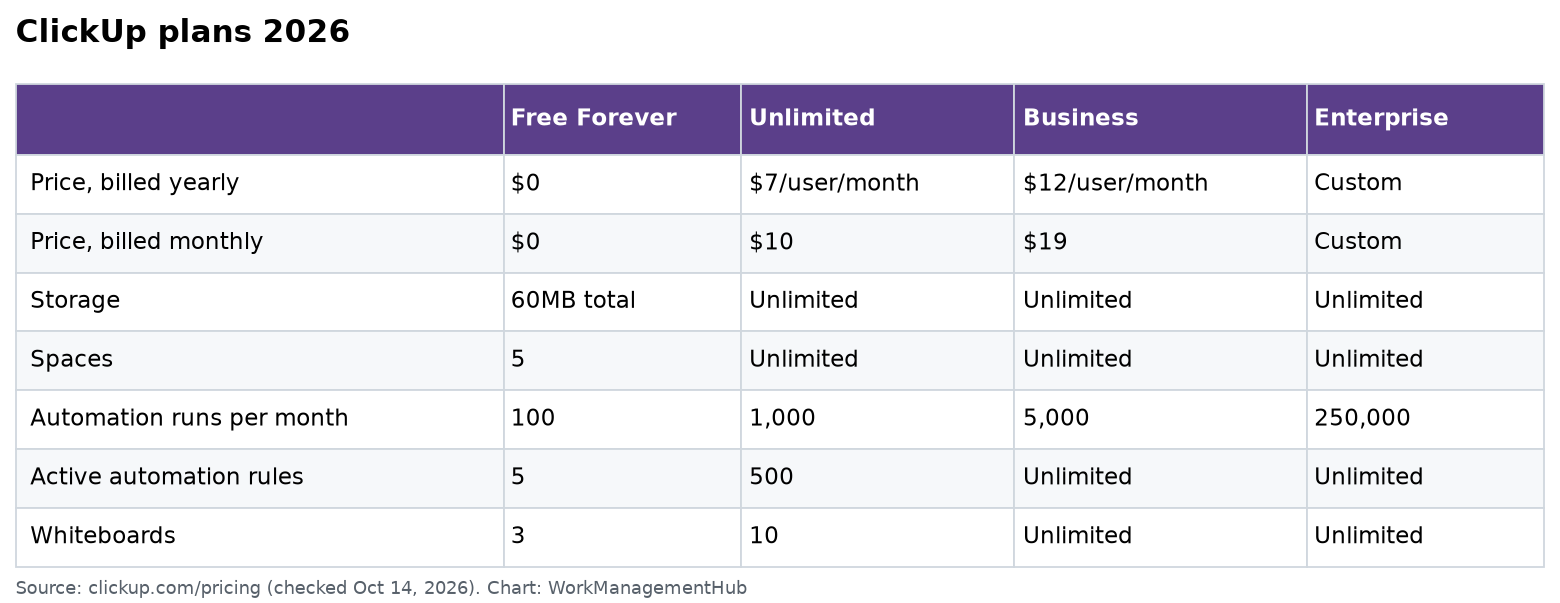
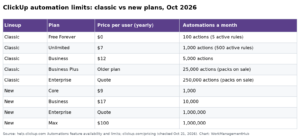
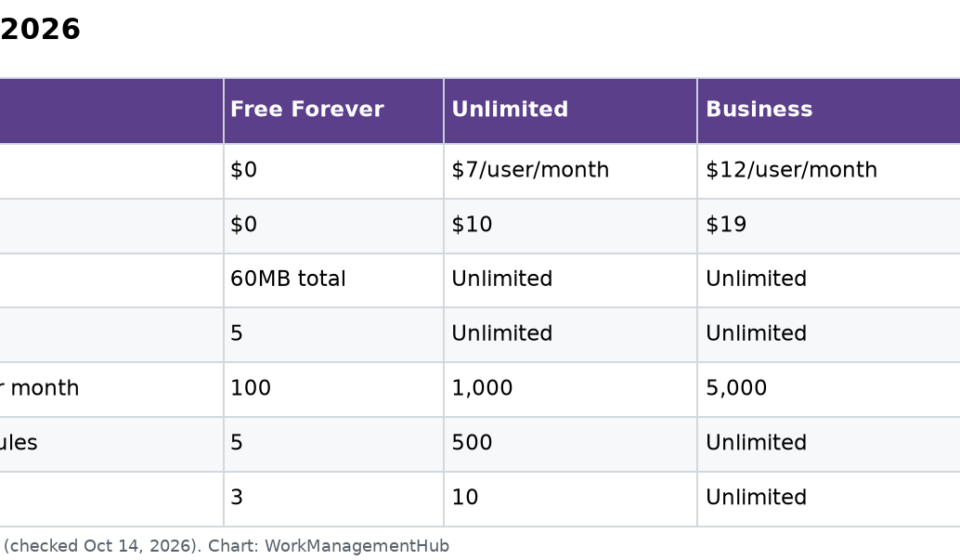
Free plan includes 100 automation uses/month. Unlimited plan: 1,000/month. Business plan: 10,000/month. Business Plus: 25,000/month. Enterprise: unlimited.

ClickUp Pricing: Complete Breakdown (2025)

Free Forever — $0

Unlimited members (this is genuinely unique — most competitors limit free plans to 2-5 users). 100MB storage. Unlimited tasks. Unlimited projects. 100 automation uses/month. List, Board, and Calendar views. Basic Gantt. No time tracking. No custom fields (limited). No Gantt with dependencies. This free plan is the most generous in the industry — a small team running basic projects can legitimately use ClickUp Free forever.

Unlimited — $7/user/month (annual billing)

Unlimited storage, unlimited integrations, unlimited dashboards, unlimited Gantt (with dependencies), time tracking, custom fields, goals, portfolios. 1,000 automation uses/month. This is ClickUp’s most popular plan and represents the best value in the project management market at $7/seat — significantly cheaper than Monday.com’s comparable Standard plan ($12/seat) or Asana’s Starter plan ($10.99/seat).

Business — $12/user/month (annual billing)

Everything in Unlimited plus: Google SSO, unlimited teams, custom exporter, advanced public sharing, advanced automations (10,000/month), Workload management, timeline dependencies, mind maps, advanced dashboard features. This is the right tier for teams of 20-100 that need full feature access and more robust automation.

Business Plus — $19/user/month (annual billing)

Everything in Business plus: custom role creation, custom permissions, increased automation (25,000/month), priority support, admin training webinar, user groups. Positioned for larger organizations that need role-based access control and higher automation volumes.

Enterprise — Custom pricing

White labeling, advanced permissions, enterprise-grade security (SSO with SAML, SCIM provisioning), unlimited custom roles, managed services, dedicated success manager, custom contract and SLA terms.

ClickUp Brain Add-On — $7/user/month (all plans)

AI features added to any paid plan. Note: this means your effective cost on the Unlimited plan with Brain is $14/user/month — still competitive, but worth factoring into budget comparisons.

ClickUp Pros: The Genuine Strengths

  • Best free plan in the industry: Unlimited members on the free tier is genuinely unprecedented. For bootstrapped startups and small teams, this eliminates the cost barrier entirely.
  • Most views of any competitor: 15+ views including Mind Maps and Whiteboards that no other major PM tool offers natively.
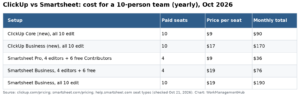
  • Cost-effective at scale: $7/user/month for the Unlimited plan undercuts Asana ($10.99), Monday.com ($12), and Smartsheet ($9 with more restrictions). For a team of 50, ClickUp saves $3,000-5,000/year vs premium alternatives.
  • Tool consolidation potential: If ClickUp successfully replaces your team’s project management tool, docs platform, whiteboard app, and time tracker, the net savings can be significant.
  • Deep customization: Custom statuses, custom fields, custom views, custom automations, custom dashboards — ClickUp bends to fit your workflow, not the other way around.

ClickUp Cons: The Real Weaknesses

  • Overwhelming for new users: The single most common complaint in ClickUp reviews is feature overwhelm. Without deliberate setup and team training, new users spend more time configuring the tool than using it. Many teams report a 2-4 week onboarding period before feeling productive.
  • Performance and loading speed: ClickUp is notoriously slower than competitors. Large workspaces with thousands of tasks, many custom fields, and complex automations can experience significant lag — especially on older hardware or slower internet connections. This is a known issue ClickUp has been working on for years.
  • Feature quality is uneven: With 15+ views and dozens of features, not all are equally polished. The Whiteboard and Chat features, for example, are functional but don’t match the quality of dedicated tools like Figma or Slack. “Best of one platform” sometimes means “good enough at everything but exceptional at nothing.”
  • Mobile app lags behind desktop: While ClickUp has iOS and Android apps, the mobile experience doesn’t fully match the desktop’s functionality. Complex views and automations are best managed on desktop.
  • Frequent UI changes: ClickUp pushes frequent updates, which can be disorienting. Features move, interfaces change, and team members who learned one version of ClickUp sometimes struggle after major UI refreshes.

Who Should Use ClickUp in 2025?

ClickUp is ideal for:

  • Startups and scale-ups trying to consolidate 4-6 tools (PM, docs, time tracking, goals, whiteboards) into one platform to reduce SaaS spend
  • Operations-heavy companies that need deep customization: custom workflows, complex automations, and unique data structures that cookie-cutter tools can’t accommodate
  • Agencies managing multiple clients, each with different workflow requirements — ClickUp’s Spaces and custom views let you configure each client environment differently
  • Power users who want maximum control and are willing to invest 2-3 weeks in proper setup
  • Budget-conscious teams — ClickUp’s $7/user Unlimited plan offers more features per dollar than any competitor in the market

Consider alternatives if:

  • Your team has low technical tolerance and needs a tool that works intuitively from day one — Monday.com or Asana are more forgiving
  • You primarily need enterprise-grade project scheduling with critical path analysis — Smartsheet is more mature here
  • Your team is a dedicated software engineering team running Scrum — Jira’s deeper Git integrations and sprint analytics still have an edge
  • You’ve tried ClickUp before and hit the learning curve wall — sometimes a simpler tool that gets 80% adoption beats a powerful tool with 30% adoption

ClickUp vs Competitors: Quick Comparison

FeatureClickUpMonday.comAsanaNotion
Free PlanUnlimited members2 users15 users10 users
Starting Price$7/user/mo$12/user/mo (Standard)$10.99/user/mo$10/user/mo
Views15+10+8+5
GanttYes (paid)Timeline (Standard+)Yes (Starter+)No native Gantt
Time TrackingBuilt-in (Unlimited+)Pro plan onlyThird-partyThird-party
AIBrain add-on ($7)Monday AI add-on ($12)Included in paid plansIncluded (limited)
Ease of UseModerate-HardEasyEasy-ModerateEasy

Frequently Asked Questions About ClickUp

Is ClickUp better than Asana?

Depends on your team. ClickUp has more features, more views, built-in time tracking, and is more affordable. Asana is significantly easier to adopt and has cleaner goal-setting and portfolio features. For teams that value speed-to-productivity and simplicity, Asana wins. For teams that want maximum flexibility at a lower cost and are willing to invest in setup, ClickUp wins.

Can ClickUp replace Jira?

For many engineering teams, yes. ClickUp has sprint management, backlog views, bug tracking, and Git integration (GitHub, GitLab, Bitbucket) that covers the majority of Jira use cases. However, Jira still has deeper Scrum analytics (velocity charts, burndown, release tracking) and better native integrations with the full Atlassian suite (Confluence, Bitbucket, OpsGenie) for teams fully committed to that ecosystem.

How many users does ClickUp’s free plan support?

ClickUp’s Free Forever plan supports unlimited members — this is genuinely one of the most generous free tiers in the project management industry. The limitations are on storage (100MB total), automation actions (100/month), and certain advanced features (dashboards, Gantt dependencies, reporting) rather than on user count.

Is ClickUp good for remote teams?

Yes. ClickUp’s real-time collaboration, task comments, built-in chat, and Zoom integration make it well-suited for remote teams. The Workload view helps remote managers spot capacity issues before they become burnout problems. The main caveat for remote teams: ensure you have the bandwidth for ClickUp’s sometimes-sluggish performance on slower internet connections.

Final Verdict: ClickUp Review 2025

ClickUp deserves its position as one of the top project management platforms in 2025. The free plan is genuinely the best in the industry. The $7/user Unlimited plan delivers more features than competitors charging 40-70% more. And for teams willing to invest in proper setup, the depth of customization is unmatched.

But ClickUp demands investment — in setup time, in training, and in ongoing workspace maintenance. Teams that come to ClickUp expecting an out-of-the-box experience like Monday.com will be frustrated. Teams that treat ClickUp as a system to be designed and configured will find it extraordinarily powerful.

Rating: 4.5/5 — Best value in the market for teams willing to invest in proper setup. Unmatched free plan. Real weaknesses in ease of adoption and performance at scale.

Leave a Comment

Your email address will not be published. Required fields are marked *