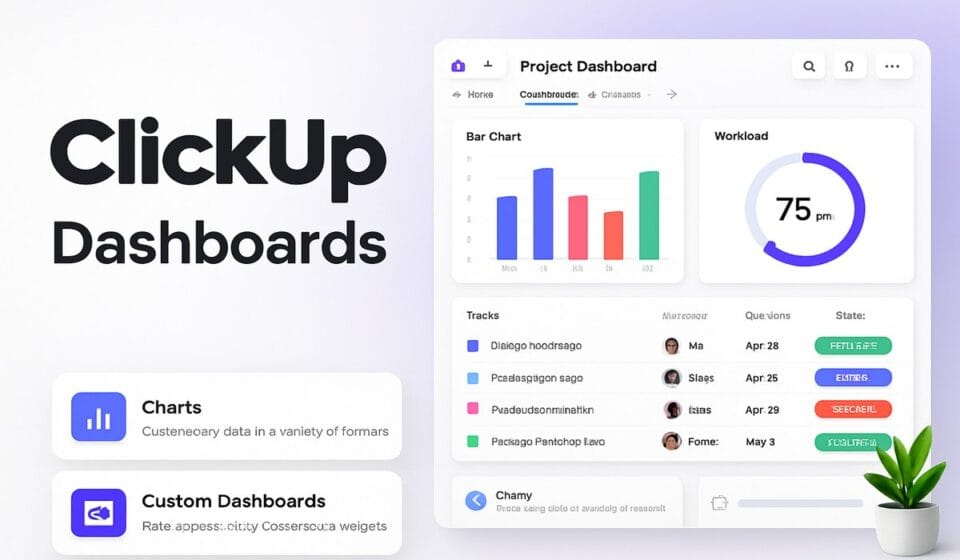

Create the Dashboard first, then decide what it answers. In ClickUp you click the plus icon in a sidebar — or New Dashboard in Dashboards Hub — pick a template or start from scratch, then use + Add card to drop in charts, tables and totals. Which cards you get depends entirely on your plan.
That plan caveat is where most builds fall apart. Someone sketches a reporting layout, gets three cards in, and finds the bar chart they wanted sitting behind an upgrade prompt. On the lower tiers there’s a second trap: simply opening a Dashboard burns a counter that never resets. So check the ceiling before you build anything.
Check your plan ceiling before you build
ClickUp meters Dashboards as “uses” on the cheaper tiers, and the definition is broader than you’d guess. Per ClickUp’s Dashboards feature availability and limits documentation, a use is counted when you create a Dashboard, create a Dashboard view, view a Dashboard, add a card, edit a card, remove a card, or remove a Dashboard. Those uses do not reset.
Viewing counts. That’s the sentence to sit with. A Free Forever Workspace gets 60 uses in total, permanently, and the help centre doesn’t specify whether a view is counted per person or per Workspace — so treat 60 as a small number either way. It’s a trial allowance dressed up as a feature.
Card availability is a separate ladder. ClickUp sorts cards into free, standard, advanced and AI tiers in its cards availability documentation, and every chart you probably came here for — bar, line, pie, battery, calculation, cumulative flow, cycle time, lead time — sits in the advanced tier on Business and above.
| Plan | Dashboard uses | Card tiers included | Scheduled report uses |
|---|---|---|---|
| Free Forever | 60 | Free cards only | 40 |
| Unlimited | 100 | Free + standard | 40 |
| Business | Unlimited | Free + standard + advanced | 40 |
| Business Plus (listed in ClickUp’s help centre) | Unlimited | Free + standard + advanced | Unlimited |
| Enterprise | Unlimited | Free + standard + advanced | Unlimited |
On cost, ClickUp’s public pricing page lists Free Forever at $0, Unlimited at $7 per user per month billed yearly ($10 monthly), and Business at $12 billed yearly ($19 monthly), with Enterprise quoted by sales. Business Plus appears throughout ClickUp’s help-centre limit tables but is absent from that public pricing page, so I’m not going to quote a figure for it.
The practical read: if you want charts, the jump is Free or Unlimited to Business. There is no partial version of this. A Line Chart card is not available on Unlimited at any usage level.
Create the Dashboard
ClickUp gives you five entry points, and they don’t all produce the same thing. Where you create a Dashboard determines where it shows up. The help documentation splits them into Dashboard views (attached to a Space, Folder, Subfolder, Sprint Folder or List), Dashboards created from a Hierarchy location, and Dashboards that live only in Dashboards Hub. All three appear in the Hub; only some appear next to the work.
From Dashboards Hub
- In Global Navigation, select Dashboards.
- In the upper-right corner, click New Dashboard.
- Choose a Dashboard template, or click Start from scratch.
- If you picked a template, use the Location (Data source) dropdown to point it at the right Space, Folder or List.
Templates on offer include Simple Dashboard, AI Team Center and AI Personal Center on all plans, plus Time Tracking, Project Management and Sprint Reporting on Business and above. The Sprint Reporting template also requires the List you choose to be an actual Sprint. If you’d rather build from something prebuilt across the wider app, our roundup of the best ClickUp templates covers the ones worth importing.
From a Space, Folder or List
- In Global Navigation, click Home or Spaces.
- Hover over the Space, Folder, Subfolder or List you want to report on.
- Click the plus icon and select Dashboard.
As a view sitting next to the work
- Open the location and click to add a view in the Views Bar.
- Select Dashboard.
- Choose a template or start from scratch.
This last one is underused. A Dashboard nobody navigates to is a Dashboard nobody reads, and a Dashboard view puts the numbers one tab away from the List they describe. One quirk to know: ClickUp’s documentation notes you won’t see the Edit mode toggle on Dashboards created from a template in this way.
Add cards that answer a specific question
- In the upper-right corner of the Dashboard, click + Add card.
- Search, or browse the categories in the sidebar: Featured, AI Cards, Custom, Sprints, Statuses, Tags, Assignees, Priorities, Time Tracking, Tables, and Embed and Apps.
- Select the card and place it.
- To configure it, make sure Edit mode is enabled in the upper-left, then click the cog icon on the card.
- Adjust the settings and click Save.
What each tier actually gets you
Free cards cover the basics that mostly belong on Home rather than a reporting Dashboard — Docs, Lists, Recents, Resources — plus the AI card set. Standard cards, from Unlimited upward, are where useful reporting starts: Task List, Tasks by Assignee, Overdue Tasks, Priority Breakdown, Workload by Status, Portfolio, Goals, Milestones, Time Reporting, and Who’s Behind.
Advanced cards, Business and above, are the charting layer. Bar, Line, Pie and Battery Charts, Calculation, Status Over Time, Priority Over Time, Cumulative Flow, Cycle Time, Lead Time, Sprint Burndown, Burnup and Velocity, Timesheet, Billable Report and Total Time in Status. Bar, Pie and Battery cards also support the Time Tracked data point and drill-down view, which is what makes them worth the upgrade rather than the chart type itself.
A starting set that holds up
Four cards beats fourteen. A Calculation card for the single number leadership asks about, a Bar Chart grouped by assignee for load, a Status Over Time or Cumulative Flow card for trend, and a Task List card filtered to overdue items so someone can act on what they just saw. Everything else is decoration until somebody asks for it.
Two card ceilings worth knowing before you design around them: Calculation cards display a maximum of 25,000 tasks per card, and Folders cards cap at 1,000 Folders. Notes and Text Block cards retain 90 days of history, not forever.
If you’re building anything billing-related, Time Tracking cards report only what people logged, not what they worked. Patchy tracking produces confidently wrong charts — our ClickUp time tracking guide covers getting entries consistent first. Embed and Apps cards have a similar dependency: they inherit whatever state your connections are in, and ClickUp integrations that stop syncing will quietly show stale data rather than an error.
Filter once at the Dashboard level
- With the Dashboard in Edit mode, click Filter in the upper-right corner.
- Choose your criteria — location, status, assignee, tags, dates, Custom Fields and more.
- Click Apply in the upper-right.
The filter applies to existing cards and to any card you add afterwards, which saves an enormous amount of repetitive configuration. You can then layer a card-level filter on top for one specific card without disturbing the rest.
The gotcha: not every card respects Dashboard filters. ClickUp’s filter documentation states plainly that the newer Sprint Velocity, Burnup and Burndown cards cannot be used with Dashboard filters — only the legacy versions can. Time tracking cards and Table cards don’t support mixed filters either. When a card seems to ignore your filter, check the card type before you start debugging your criteria.
Layout, refresh, and what “real-time” really means
Drag any card to move it; other cards reflow automatically. In edit mode, hover a card edge until the cursor becomes a resize arrow, then drag. If you’d rather not fight whitespace, open the ellipsis menu in the upper-right and toggle Auto Layout, which pulls cards up to close gaps. ClickUp lets you undo up to five layout changes with Ctrl + Z (or Cmd + Z), but adding or removing a card resets that undo stack — so do your rearranging in one pass.
On freshness: ClickUp documents that Dashboards auto refresh every 30 minutes, with an Auto refresh control in the upper-right that has to be set per Dashboard rather than globally. You can hit the Refresh icon manually, and hovering it shows the exact last-refreshed timestamp. Individual cards can be refreshed on their own too.
AI Cards behave differently. Refreshing the Dashboard does not regenerate AI Card content; those have to be refreshed by hand. If you put an AI Executive Summary on a wall display, assume it’s stale until someone touches it.
Sharing, guests and scheduled reports
Click Share in the upper-right, then either Make Public for the whole Workspace, or invite individuals by name. There’s also a private link you can copy for people who already have the right permissions. Sharing with a Team, rather than named individuals, is documented in the help centre as a Business Plus and above capability.
Permissions inherit from the underlying data, and this catches people out constantly. A Dashboard shared with a guest shows only the cards covering tasks, Lists, Subfolders or Folders that guest can already reach. Guests can’t create Dashboards or add cards at all, though they can use drill-down and save a PDF. Comment and view-only guests also can’t change the date and time-range controls on Timesheet and Time Reporting cards, which makes “here’s your project dashboard, adjust the range yourself” a promise you can’t keep.
Scheduled Reports email a Dashboard copy on a routine. One important side effect: ClickUp counts scheduled reports as active Automations, contributing to your monthly Automations usage. If your ClickUp Automations have stopped firing, an enthusiastic reporting schedule may be part of the arithmetic.
When a Dashboard is the wrong answer
Dashboards are aggregation. They’re poor at anything requiring row-level nuance, and they’re bad at telling you why a number moved. If your recurring question is “what changed since Friday,” a filtered List view with a Date updated filter is faster to build and easier to read.
They’re also a hard sell below Business. Paying $12 per user per month for the whole team so that two managers can see a pie chart is a poor trade; exporting to a spreadsheet is unglamorous but free. And card exports are themselves Business-only, with Billable Report, Timesheet, Time Reporting and Worked On cards limited to CSV rather than the full image and PDF set.
Finally, the 100-cards-per-Dashboard limit is not the real constraint — attention is. Long before you hit 100 cards or the 500-row ceiling, you’ll have built something nobody scrolls to the bottom of. If lightweight status roll-ups are all you actually need, that’s worth weighing in a broader ClickUp vs Asana comparison rather than upgrading for charting you won’t use.
Common questions
Do I need a paid plan to use ClickUp Dashboards?
No. Free Forever Workspaces can build Dashboards, but ClickUp’s help centre caps them at 60 lifetime uses, and creating, viewing, or editing a card all count. You also only get the free card set, so no bar, line, or pie charts. It’s enough to evaluate the feature, not to run reporting on.
How many cards can one ClickUp Dashboard hold?
One hundred. ClickUp enforces a hard limit of 100 cards per Dashboard, plus a separate cap of 500 rows of cards per Dashboard or Overview. Once you hit 100 you can’t add or duplicate cards until you delete one. In practice, anything past about 15 cards stops being readable anyway.
Are ClickUp Dashboards real-time?
Close, but not live. ClickUp documents that Dashboards auto refresh every 30 minutes, and you can hit the refresh icon manually at any point. AI Cards are the exception: a Dashboard refresh does not regenerate them, so you have to refresh those cards individually when you want current output.
Can clients or guests see a ClickUp Dashboard?
Yes, if you share it with them explicitly. Guests can’t create Dashboards or add cards, but they can open shared ones, use drill-down, and save a PDF. They only see cards covering tasks, Lists, Folders, or Subfolders they already have access to, so a shared Dashboard can look half-empty to them.
Why is my Dashboard filter not affecting a card?
Not every card obeys Dashboard filters. ClickUp’s filter documentation lists the supported cards, and notes that the newer Sprint Velocity, Burnup, and Burndown cards cannot be used with Dashboard filters at all. Time tracking and Table cards also don’t support mixed filters. Check the card type before assuming the filter broke.
Sponsored