Skip to content
-
Subscribe to our newsletter & never miss our best posts. Subscribe Now!
Work Management Hub Work Management Hub

Expert Reviews, Comparisons & Guides for Smartsheet, Monday.com, Asana, ClickUp & More

Work Management Hub Work Management Hub

Expert Reviews, Comparisons & Guides for Smartsheet, Monday.com, Asana, ClickUp & More

  • Airtable
  • Asana
  • ClickUp
  • Jira
  • Monday.com
  • Notion
  • Smartsheet
  • Wrike
  • About
  • Contact
  • Airtable
  • Asana
  • ClickUp
  • Jira
  • Monday.com
  • Notion
  • Smartsheet
  • Wrike
  • About
  • Contact
Close

Search

  • https://www.facebook.com/
  • https://twitter.com/
  • https://t.me/
  • https://www.instagram.com/
  • https://youtube.com/
ClickUpHow-To Guides

ClickUp Goals 2026: Complete Guide to OKR Tracking, Targets & Portfolio Progress

By Shaik KB
May 31, 2026 23 Min Read
0
⚡ Key Takeaways

  • ClickUp maps OKR terminology natively: your Objectives become Goals and your Key Results become Targets. Goal Folders group related Goals into sprint cycles, company OKR sets, or team scorecards — all in one hierarchy.
  • Four Target measurement types are available — Number, Currency, True/False, and Task-based — so every Key Result has the right unit of measurement rather than forcing everything into a percentage or a checkbox.
  • Task-based Targets auto-calculate progress from the completion percentages of linked ClickUp tasks, meaning Goal progress updates automatically as your team works — no manual score updates required.
  • The Portfolio card in ClickUp Dashboards gives executives a single aggregated progress view across all Goal Folders, making cross-team OKR rollups visible without drilling into individual Goals.
  • ClickUp Goals replace spreadsheet-based OKR tracking by connecting each Key Result directly to the tasks driving it — so the data is always live, not a manual update someone forgets to make on Friday.
Quick Answer:

ClickUp Goals work as a native OKR system: create a Goal (your Objective), add Targets (your Key Results), set the measurement type — Number, Currency, True/False, or Task-based — and link tasks for automatic progress tracking. Organize related Goals into Folders representing company, team, or sprint OKR cycles, and monitor cross-team rollup progress via the Portfolio card in Dashboards.

Table of Contents

  1. Why OKR Tracking in ClickUp Beats a Spreadsheet
  2. ClickUp Goals vs. Tasks: Understanding the Hierarchy
  3. Setting Up Your First Goal (ClickUp 4.0 UI)
  4. Adding Targets: All Four Measurement Types Explained
  5. Organizing Goals into Folders (Company to Team to Individual)
  6. Real-World OKR Example: ‘Grow ARR 40%’ End to End
  7. Tracking Progress: Dashboards, Gantt and Portfolio View
  8. Sharing ClickUp Goals with Stakeholders
  9. Goal Templates and Best Practices
  10. Verdict
  11. Frequently Asked Questions

ClickUp Goals 2026: Complete Guide to OKR Tracking, Targets & Portfolio Progress

Most teams that adopt the OKR framework start with a spreadsheet. Within one quarter, that spreadsheet becomes a maintenance burden: someone updates it the day before the leadership review, the numbers are never quite live, and the connection between the objectives at the top of the sheet and the actual tasks in the project management tool exists only in someone’s head. By quarter three, the spreadsheet has been abandoned and the OKR program is running on vibes and slide decks.

ClickUp Goals solve this directly. Instead of treating OKRs as a reporting layer that sits above your execution system, ClickUp embeds them inside the same workspace where work happens. A Key Result is not a number you update manually — it is a Target linked to the tasks that drive it, updating automatically as those tasks are completed. This guide covers the complete setup from a blank workspace through a production-grade OKR cycle, with a real-world example that walks through every step a sales or revenue team would take to track a 40% ARR growth objective.

Why OKR Tracking in ClickUp Beats a Spreadsheet

The fundamental problem with spreadsheet OKR tracking is that the data is always stale. Your Key Results live in one file, your tasks live in another tool, and the connection between them is a manual update that depends on someone remembering to do it. In practice, that update happens the day before the all-hands meeting, the numbers are estimates rather than actuals, and no one fully trusts them.

ClickUp Goals fix this by making progress automatic. When you configure a Target as Task-based, ClickUp calculates that Target’s progress from the real-time completion percentages of the tasks you have linked to it. If the sales team closes three of five outreach campaigns this week, the “pipeline expansion” Target moves from 60% to wherever the actual task completions put it — with no one updating a cell. The Goal progress roll-up at the top follows automatically.

Beyond the automation argument, there is a structural advantage. In a spreadsheet, your OKRs are a document. In ClickUp, they are a live object connected to assignees, due dates, dependencies, and the Gantt chart showing whether you are on track to hit the end-of-quarter deadline. You can share the Goal with a stakeholder and they see exactly the same live view you see, not a copy of a file that was accurate at the time of export.

For teams already running ClickUp for project execution, the lift to add Goals is minimal: the data to power them already exists in your tasks. The work is configuration, not data entry. And because ClickUp Goals sit natively inside the same workspace, you can pair them with ClickUp automations to trigger notifications, status updates, or escalations the moment a Target falls behind — something a spreadsheet can never do.

ClickUp Goals vs. Tasks: Understanding the Hierarchy

Before building your OKR structure, it helps to understand precisely where Goals sit in the ClickUp hierarchy — because they operate at a different level than Spaces, Folders, Lists, and Tasks.

Tasks are execution-level objects. They represent discrete units of work with assignees, statuses, and due dates. Goals are outcome-level objects. They represent the results you want those tasks to produce. The connection between them runs through Targets: a Target is a Key Result that measures progress toward a Goal, and a Task-based Target draws its progress data directly from task completion.

The hierarchy looks like this from top to bottom:

  • Goal Folder — a container for related Goals. Typically represents a quarter, a team, or a strategic theme (for example, “Q3 2026 Company OKRs” or “Sales Team Scorecard”).
  • Goal — the Objective. A qualitative statement of what you want to achieve (for example, “Grow Annual Recurring Revenue by 40%”). A Goal can have a due date, an owner, and a progress indicator that aggregates from its Targets.
  • Target — the Key Result. A measurable milestone under the Goal that defines what achieving it looks like in quantitative terms. Each Target has a measurement type, a start value, a target value, and a current value that updates based on either manual input or linked task completion.
  • Task — the execution unit. Tasks are linked to Task-based Targets, which is how the daily work of the team feeds up into Goal progress automatically.

This four-level structure maps cleanly to the standard OKR model. If you have been running OKRs in a spreadsheet, your Objectives become Goals, your Key Results become Targets, and your initiatives or action items become the Tasks linked to those Targets. The translation is direct — you are not re-inventing your OKR model, you are moving it into a system that automates the progress tracking.

Note that Goals are workspace-level objects in ClickUp, not Space-level objects. They live in the Goals hub (accessible from the left sidebar under “Goals”) rather than inside a specific Space. This means a single Goal can pull progress data from tasks across multiple Spaces, which is essential for company-level OKRs that span multiple teams and departments. For more on how ClickUp structures work generally, see our full ClickUp review.

Setting Up Your First Goal (ClickUp 4.0 UI)

The Goals hub is accessible from the left sidebar in ClickUp 4.0. If you do not see it, click the ellipsis next to your workspace name and enable Goals from the sidebar settings panel. Once enabled, the Goals icon appears in the left navigation alongside Dashboards, Docs, and Whiteboards.

  1. Click Goals in the left sidebar — this opens the Goals hub, which displays all Goals and Goal Folders in your workspace. If you are opening it for the first time, you will see an empty state with a + New Goal button.
  2. Click + New Goal — a creation panel slides open on the right side of the screen in ClickUp 4.0, or opens as a modal dialog depending on your workspace settings.
  3. Enter the Goal name — use your Objective statement here. Be specific enough that progress toward it is unambiguous. “Grow ARR 40% by end of Q3 2026” is better than “Grow revenue” because the target and timeframe are embedded in the name, which matters when multiple Goals are visible simultaneously in a Folder.
  4. Set the due date — click the Due Date field and select the end date for this Goal cycle. For quarterly OKRs, this is typically the last day of the quarter. The due date drives the progress timeline shown in the Goal detail view and informs the Gantt chart if you use Gantt for OKR timelines.
  5. Assign an owner — click the Owner field and select the person accountable for this Goal. The owner is the DRI (Directly Responsible Individual) who monitors and updates progress, not necessarily the person doing all the execution work. For company-level OKRs, the Goal owner is typically a VP or department head.
  6. Choose the color — Goals can be color-coded, which is useful when multiple Goals are visible in a Folder view. Use color consistently: one color per team, or one color per strategic pillar (growth, retention, product, operations).
  7. Click Create Goal — the Goal is created and the detail view opens. You will see a Targets section that is currently empty, a progress bar at 0%, and the owner and due date fields. Targets are added in the next step.

At this point, the Goal exists but has no Targets, so progress is 0% and the Goal is not tracking anything meaningful. Targets are what give it substance. Do not share the Goal with stakeholders before adding Targets — a Goal sitting at 0% with no Key Results visible communicates nothing useful.

Adding Targets: All Four Measurement Types Explained

Targets are added from inside the Goal detail view. Click + Add Target in the Targets section to open the Target creation panel. You will immediately need to select a measurement type — this is the most consequential decision in the Target setup because it determines how progress is calculated and displayed.

ClickUp offers four Target measurement types. Each one has distinct use cases, and choosing the wrong type forces manual workarounds that undermine the automation advantage of the system.

Number

Number Targets track a numeric metric from a starting value to a target value. Progress is calculated as a percentage of the distance between the two. This is the right type for any Key Result measured in units that are not currency — headcount, customers, NPS score, number of integrations shipped, support tickets resolved, percentage points of market share, and so on.

Example use cases:

  • “Increase NPS from 32 to 50” — start: 32, target: 50, current value updated manually or via integration as new NPS data comes in.
  • “Onboard 25 new enterprise customers” — start: 0, target: 25, current value incremented each time a new customer is onboarded.
  • “Achieve 95% sprint velocity” — start: 72, target: 95, current value updated at the end of each sprint cycle.

When setting up a Number Target, enter the start value (where you are today), the target value (where you want to be), and optionally a unit label (“customers,” “points,” “%”) that appears in the Target display. The current value can be updated manually from the Target detail view or pulled automatically via a ClickUp integration with a data source.

Currency

Currency Targets function identically to Number Targets but format the display with a currency symbol and thousands separators. Use this type for any revenue, budget, cost, or financial metric Key Result. The currency symbol defaults to your workspace’s currency setting but can be overridden per Target.

Example use cases:

  • “Increase ARR from $2.5M to $3.5M” — the exact Key Result walked through in the real-world example below. Start: $2,500,000, target: $3,500,000.
  • “Reduce customer acquisition cost to below $800” — start: $1,200, target: $800, directional (decreasing rather than increasing).
  • “Grow expansion revenue to $400K” — tracking upsell and expansion MRR as a separate metric from new ARR.

Currency Targets support both increasing and decreasing directions. For a cost reduction Key Result, set the start value higher than the target value and ClickUp will track progress toward the lower number correctly.

True/False

True/False Targets are binary: the Key Result is either achieved (True) or not (False). Progress shows as 0% until the Target is manually marked True, at which point it jumps to 100%. This type is appropriate for milestone-based Key Results where there is no meaningful intermediate progress to track — either the thing happened or it did not.

Example use cases:

  • “Launch the enterprise pricing page by July 31” — the page either launches or it does not. There is no “50% launched” state worth tracking.
  • “Complete SOC 2 Type II audit” — binary certification outcome with a clear achieved/not achieved state.
  • “Sign partnership agreement with Tier 1 distribution partner” — a deal is either signed or it is not. Progress toward signing is tracked in tasks; the Target captures the outcome.

True/False Targets are often underused because teams try to force everything into a numeric format. Resist that impulse. For milestone objectives where the intermediate work is tracked in tasks elsewhere, True/False keeps the Goal clean and prevents false precision (“we’re 73% of the way to launching the page” is not a meaningful statement).

Task-Based

Task-based Targets are the most powerful type and the primary reason to use ClickUp Goals instead of a standalone OKR tool. A Task-based Target calculates its progress automatically from the completion percentages of the ClickUp tasks you link to it. When your team completes tasks, the Target updates. When the Target updates, the Goal progress bar updates. No manual entry required.

Example use cases:

  • “Complete all five sales playbook updates” — link the five playbook update tasks to this Target. As each task is completed, the Target progress moves toward 100%.
  • “Ship all Q3 product integrations” — link all integration development tasks. The Target reflects exactly how many have been completed at any moment.
  • “Finish onboarding content library” — link all content creation tasks. Progress updates automatically as writers mark tasks complete.

To set up a Task-based Target, after selecting the type, click + Add Tasks in the Target creation panel. You can search for tasks by name, filter by List, or navigate the Space hierarchy to find the tasks you want to link. Tasks from any Space in the workspace can be linked, which means a single Goal can pull progress from work happening across multiple teams and departments.

One important nuance: ClickUp calculates Task-based Target progress from task completion percentages, not just “done vs. not done” status. A task at 50% complete contributes 50% of its weight to the Target’s progress calculation. This means teams that use ClickUp’s task progress field (the percentage slider inside each task) get more granular progress tracking than teams who only use status changes. For high-stakes Key Results, coaching your team to update task progress percentages rather than just flipping statuses pays dividends in Goal accuracy.

For advanced automation — such as triggering a Slack notification when a Task-based Target crosses 50% completion — see our guide to ClickUp automations for the specific trigger and action configuration.

Organizing Goals into Folders (Company to Team to Individual)

Goal Folders are the organizational layer above individual Goals. A Folder groups related Goals so that leaders can see the full set at a glance without navigating through individual Goal detail views. The standard OKR implementation uses three levels of Folders that mirror the organizational hierarchy.

Company-level Folder: Contains the three to five top-level Objectives for the company in the current OKR cycle. Owned by the CEO or Chief of Staff. This Folder is what the board and executive team reviews in quarterly business reviews. Example: “Q3 2026 Company OKRs” containing Goals for ARR growth, customer retention, product maturity, and team scaling.

Team-level Folders: Each department or team has its own Folder containing the Goals that ladder up to the company-level Objectives. Example: “Sales Team Q3 2026” containing Goals for pipeline expansion, deal velocity, and average contract value. The connection between team Goals and company Goals is maintained through the shared metric: if the company Goal is “Grow ARR 40%,” the Sales team Folder’s Goals should account for the revenue-generating activities that produce that ARR growth.

Individual-level Folders (optional): For organizations running performance management alongside OKRs, individual contributors can have personal Goal Folders with Goals that roll up to their team’s Folder. This is more common in organizations where OKRs are tied to performance review cycles than in startups where individual performance is assessed less formally.

To create a Goal Folder, click the + New Folder button in the Goals hub. Name it with the team and cycle for clarity (“Marketing Q3 2026” rather than just “Q3”). Then create Goals inside the Folder by clicking + Add Goal from within the Folder view. Goals can also be moved between Folders after creation using the three-dot menu on any Goal card.

The Portfolio card in ClickUp Dashboards — covered in the tracking section below — aggregates progress across all Goal Folders in a single view, which is how executives monitor the full OKR landscape without opening each Folder individually.

Real-World OKR Example: ‘Grow ARR 40%’ End to End

Abstract OKR frameworks are easy to understand and hard to implement. Here is a complete, step-by-step implementation of a real revenue growth Objective — the kind of OKR that a VP of Sales or Chief Revenue Officer would actually set for a B2B SaaS company — from Goal creation through task assignment to progress tracking in a Dashboard.

The Objective: Grow Annual Recurring Revenue by 40% (from $2.5M to $3.5M) by September 30, 2026.

The Key Results (Targets):

  • KR1: Close $600K in new logo ARR — Currency Target, start: $0, target: $600,000.
  • KR2: Expand existing accounts to $300K net new ARR — Currency Target, start: $0, target: $300,000.
  • KR3: Complete 5 new sales playbook modules — Task-based Target, linked to 5 specific content creation tasks.

Here is exactly how to build this in ClickUp 4.0:

  1. Open the Goals hub and create a new Folder — click + New Folder and name it “Sales Team Q3 2026 OKRs.” Set the Folder owner to the VP of Sales.
  2. Create the Goal inside the Folder — with the Folder open, click + Add Goal. Name it “Grow Annual Recurring Revenue 40% — Q3 2026.” Set the due date to September 30, 2026. Assign the owner as the VP of Sales or CRO. Choose a color (purple works well for revenue-focused Goals).
  3. Click Create Goal — the Goal detail view opens. You will see the empty Targets section. Click + Add Target to begin adding Key Results.
  4. Create KR1: Close $600K new logo ARR — in the Target creation panel, name it “Close $600K in new logo ARR.” Select Currency as the measurement type. Set start value to $0, target value to $600,000. Assign this Target to the Head of New Business. Click Save.
  5. Create KR2: Expand existing accounts to $300K net new ARR — click + Add Target again. Name it “Expand existing accounts to $300K net new ARR.” Select Currency. Start: $0, target: $300,000. Assign to the Head of Account Management. Click Save.
  6. Create KR3: Complete 5 sales playbook modules — click + Add Target. Name it “Complete all 5 sales playbook modules.” Select Task as the measurement type. Click + Add Tasks and search for the five playbook content tasks: “Competitive positioning module,” “Objection handling module,” “Enterprise demo script,” “Pricing and packaging guide,” and “Case study library.” Select all five and click Save.
  7. Assign Target owners to named team members — each Target has an owner field separate from the Goal owner. KR1 belongs to the new business team lead; KR2 to the expansion team lead; KR3 to the sales enablement manager. Assigning owners makes it clear who is responsible for updating numeric Targets and who is accountable when progress stalls.
  8. Set weekly update reminders for KR1 and KR2 — because these are Currency Targets requiring manual input, create a recurring automation in ClickUp that sends a reminder task to each Target owner every Friday at 9am with a direct link to their Target. Without a prompt, Currency Targets go stale within two weeks of a cycle starting. The ClickUp automations guide covers the exact trigger and action configuration for date-based reminders.
  9. Review the Goal progress bar — return to the Goal detail view. The progress bar aggregates across all three Targets. KR3 (Task-based) will already show live progress if any of the five linked tasks have been partially completed. KR1 and KR2 will show 0% until the first manual update. This is expected and correct — the data is honest.

Now assign the execution work. The sales playbook tasks linked to KR3 already exist in a ClickUp List under the Sales Enablement Space. The AE team’s prospecting and closing activities should be in tasks under a “New Business Pipeline” List, and the expansion team’s upsell activities under an “Account Expansion” List. The KR1 and KR2 Currency Targets are updated by the respective team leads weekly as deal data comes in from the CRM.

If your team uses a HubSpot or Salesforce integration with ClickUp, CRM deal values can feed directly into ClickUp custom fields on tasks. ClickUp Brain AI can then analyze pipeline data and surface at-risk Targets — but manual weekly updates work well as a starting point and build the habit before adding integration complexity.

By week two of the quarter, the Goal detail view for “Grow ARR 40%” shows three Targets with real progress values, an aggregated Goal progress percentage, and a clear picture of which Key Result is behind. That picture updates automatically every time a playbook task is completed, and it updates each Friday when the team leads enter their pipeline numbers. This is the state where OKR tracking starts to be useful rather than ceremonial.

Tracking Progress: Dashboards, Gantt and Portfolio View

Creating Goals and Targets is the setup work. The ongoing value comes from making progress visible in the right context for the right audience — a daily execution view for team leads, a high-level rollup for executives, and a timeline view for anyone tracking whether the OKR is on pace to hit its due date.

Dashboards and the Portfolio Card

ClickUp Dashboards are the primary surface for OKR progress monitoring. The most powerful card type for Goals is the Portfolio card, which displays aggregated progress across all Goal Folders in a single panel. To add it to a Dashboard:

  1. Open or create a Dashboard — navigate to Dashboards in the left sidebar and open the relevant Dashboard, or click + New Dashboard to create a dedicated OKR tracking Dashboard.
  2. Click + Add Card — in the top-right area of the Dashboard canvas.
  3. Select Goals then Portfolio from the card type list — the Portfolio card configuration panel opens on the right side.
  4. Choose which Goal Folders to include — select all Folders for a company-wide executive view, or filter to specific team Folders for a department-level Dashboard.
  5. Click Add Card — the Portfolio card renders as a summary panel showing each Goal Folder with an aggregated progress bar, individual Goal progress indicators, and red/amber/green status indicators based on whether each Goal is on pace relative to its due date.

For a quarterly business review, a single Dashboard with the Portfolio card pinned at the top and individual Goal detail cards below it gives executives everything they need in one view. No pivot tables, no manually updated slide decks, no “can someone pull the latest OKR spreadsheet before the meeting” moments. The Dashboard is always current because the Goal data is always current.

Beyond the Portfolio card, the Bar Chart card can visualize Target progress across a single Goal, which is useful for a team-facing Dashboard where members want to see how each Key Result is trending week over week. Configure the Bar Chart card to pull from a specific Goal’s Targets and set the time range to the current quarter for a clean sprint-over-sprint view.

Gantt View for Goal Timelines

For OKRs with dependencies between Key Results — for instance, completing the sales playbook (KR3) is a prerequisite to the new business team hitting their ARR target (KR1) — the ClickUp Gantt charts feature provides a timeline view of Goal milestones and dependencies.

Gantt view in ClickUp can display Goals alongside Tasks on the same timeline. To add a Goal to a Gantt view, open the Gantt view within a Space that contains tasks linked to your Goals, then enable the Goals layer from the Gantt settings panel. Goals appear as timeline bars anchored to their start and due dates. Milestones can be set within the Goal timeline for mid-quarter check-in dates. Dependencies between Goals — where hitting one Goal unlocks the conditions for another — can be drawn directly on the Gantt canvas with connector lines.

The Gantt view is most useful for operations leaders and program managers who need to see the sequencing of OKR-related work across teams, not just the current snapshot of progress. It answers the question “are we going to hit the deadline?” rather than just “where are we right now?” For a full walkthrough of Gantt configuration including milestones and dependencies, see our dedicated ClickUp Gantt charts setup guide.

List and Board Views for Task-Level OKR Visibility

For team leads who want to see both Goal progress and the underlying task work in a single view, adding a Goal custom field to their List or Board view surfaces the linked Goal on each task card. An AE opening their task list can see which Goal each prospecting task is contributing to, which reinforces the connection between daily work and quarterly objectives — a connection that gets lost when OKRs and tasks live in separate systems. This context is particularly effective during weekly standups: the team sees not just what they are working on but why it matters to the quarter’s targets.

Sharing ClickUp Goals with Stakeholders

ClickUp Goals can be shared with people inside and outside the workspace. The sharing model is straightforward but has a few nuances worth knowing before you send a Goal link to a board member or external investor.

  1. Open the Goal detail view — navigate to the Goal in the Goals hub and click on it to open the detail view.
  2. Click the Share button in the top-right corner — a sharing panel appears with options: share with workspace members, share with a guest account, or share via public link.
  3. Share with workspace members — search by name or email in the Share with Members field. Set their permission to View (they can see progress but not edit) or Edit (they can update Target values and add comments).
  4. Share with external stakeholders via public link — toggle Share publicly on. Copy the generated link. Anyone with the link can view the Goal’s progress and Targets in a read-only view without needing a ClickUp account. This is the right option for board members, investors, or executive sponsors who are not ClickUp users.
  5. Embed Goals in a ClickUp Doc for internal reporting — open the relevant Doc, type / to open the slash command menu, and select Embed Goal. The Goal renders inline in the Doc with live progress data, so your monthly business review Doc always shows current OKR status without manual updates.

For organizations where Goals contain sensitive data — revenue targets, headcount plans, or confidential product roadmaps — use workspace-level Goal visibility settings. Under workspace Settings then Goals, you can restrict Goal visibility so that only owners and explicitly added members can see a Goal, rather than all workspace members. This matters for HR-related Goals or M&A-adjacent objectives that should not be visible to the entire company.

Goal Templates and Best Practices

ClickUp provides a library of Goal templates accessible from the Goals hub via the Templates button. Useful starting points include the OKR template (pre-built Goal structure with company, team, and individual levels), the Sprint Goals template (weekly cadence with Task-based Targets tied to sprint task lists), and the Company Scorecard template (KPI-focused structure with Number and Currency Targets across financial, operational, and customer dimensions).

To use a template:

  1. Click Templates in the Goals hub — the template library opens as a browsable panel with categories and search.
  2. Select a template — preview it to confirm the structure matches your use case. The preview shows the Goal name format, Target types, and suggested Folder structure.
  3. Click Use Template — ClickUp creates the Goal (and Folder, if the template includes one) with placeholder names that you replace with your specific Objective and Key Result text.
  4. Customize the Target types and values — templates use placeholder values. Update the start value, target value, and measurement type for each Target to match your actual OKR. Do not leave placeholder text in place — it is useless to stakeholders and confusing in the Portfolio card view.

Beyond templates, five practices separate high-performing ClickUp Goals implementations from the ones that get abandoned by week four of the quarter:

  • Limit Goals to three to five per team per quarter. More than five Goals per team is a sign that you are tracking activities, not outcomes. Each additional Goal dilutes focus and creates more maintenance overhead than value.
  • Use Task-based Targets wherever possible. If a Key Result can be framed as a completion metric — finishing a set of tasks, shipping a set of features, completing a set of onboarding steps — make it Task-based. Manual updates are the first thing to slip under pressure.
  • Assign every Target to a named owner, not just the Goal owner. The Goal owner is accountable for the Objective. Each Target owner is accountable for their specific Key Result. Without Target-level ownership, the Goal owner becomes a bottleneck for all progress updates.
  • Set a weekly check-in ritual for Currency and Number Targets. Block 15 minutes every Friday for Target owners to update their numeric values. Use a ClickUp automation to send a reminder task to each Target owner at 9am every Friday with a direct link to their Target.
  • Review Goal progress in the context of the work, not separate from it. Use the ClickUp Gantt chart in weekly team meetings to show both the task timeline and Goal progress side by side. This reinforces the connection between daily execution and quarterly outcomes — which is the entire point of OKRs in the first place.

For teams on ClickUp’s Business plan or above, the ClickUp Brain AI features include Goal-specific capabilities: it can analyze current Goal progress and surface which Targets are at risk based on task completion rates, due date proximity, and historical team velocity. This transforms the weekly OKR review from a manual data-gathering exercise into a five-minute AI-assisted exception review. See the official ClickUp Goals documentation for the full feature reference, and the official Targets setup guide for configuration details on each Target type. For a full breakdown of ClickUp plan requirements — Goals are available on all paid plans, with some Dashboard features requiring Business tier — see our ClickUp pricing guide.

🏆 Verdict

ClickUp Goals is the most complete native OKR implementation available in a general-purpose project management platform. The four Target types cover every Key Result format teams actually use, and Task-based Targets solve the single biggest failure mode of OKR programs — stale data — by making progress automatic. The Portfolio card gives executives real-time cross-team visibility without additional tooling, and the Gantt integration adds the timeline context that standalone OKR tools consistently lack. For any team already running ClickUp for execution, the activation cost is low and the payoff — an OKR system that actually stays current — is immediate. Teams evaluating ClickUp specifically for its OKR capabilities will find it competitive with dedicated tools like Lattice or Betterworks at a fraction of the incremental cost, since Goals are included in the platform they are already paying for.

Frequently Asked Questions

What is the difference between a ClickUp Goal and a ClickUp Target?

A Goal is the Objective — the qualitative statement of what you want to achieve, such as “Grow ARR by 40% in Q3 2026.” A Target is a Key Result — the specific, measurable milestone that defines what achieving the Objective looks like, such as “Close $600K in new logo revenue.” A Goal contains multiple Targets, and its overall progress is an aggregate of the progress across all its Targets. The terminology maps directly to the OKR framework: Goal equals Objective, Target equals Key Result.

Can ClickUp Goals update automatically without manual input?

Yes, but only for Task-based Targets. When you link ClickUp tasks to a Target using the Task measurement type, the Target’s progress updates automatically as those tasks are completed or their completion percentages are updated. Number and Currency Targets require manual updates unless you connect an external data source via a ClickUp integration or use a custom automation to push values in. Building a weekly check-in reminder automation for numeric Target owners is the most reliable way to keep those Targets current without relying on memory.

Do ClickUp Goals work across multiple Spaces and teams?

Yes. Goals are workspace-level objects, not Space-level objects. A single Goal can have Targets that pull data from tasks in multiple Spaces — for example, a company-level revenue Goal can include Task-based Targets linked to tasks in the Sales Space, the Marketing Space, and the Product Space simultaneously. This cross-Space capability is essential for company-level OKRs that depend on cross-functional work, and it is one of the key advantages over spreadsheet-based OKR tracking where cross-team data aggregation requires manual consolidation.

Which ClickUp plan do I need to use Goals and the Portfolio Dashboard card?

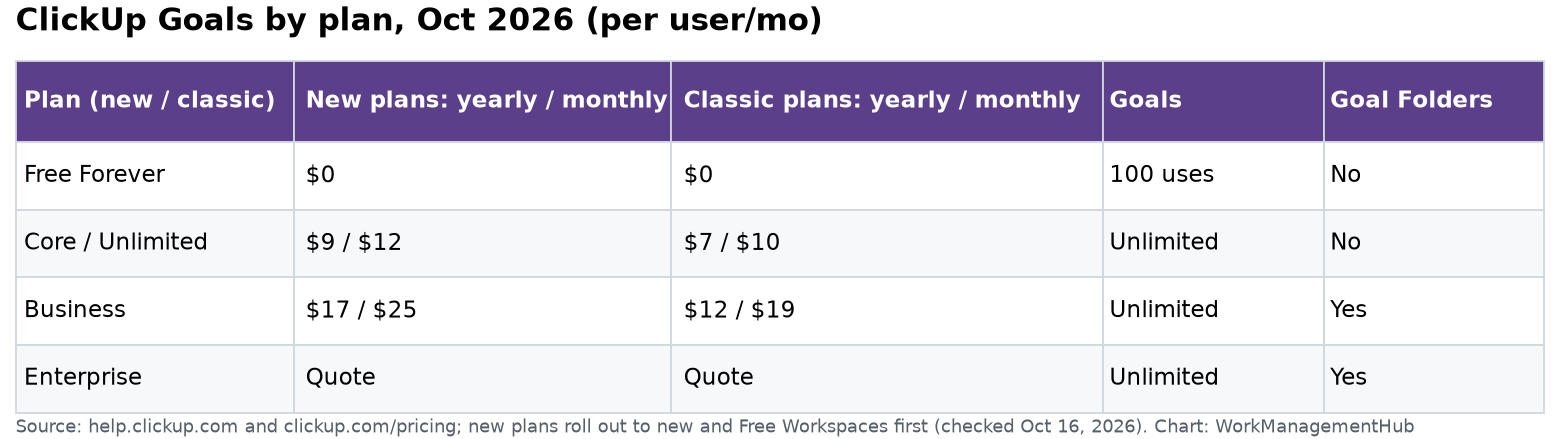
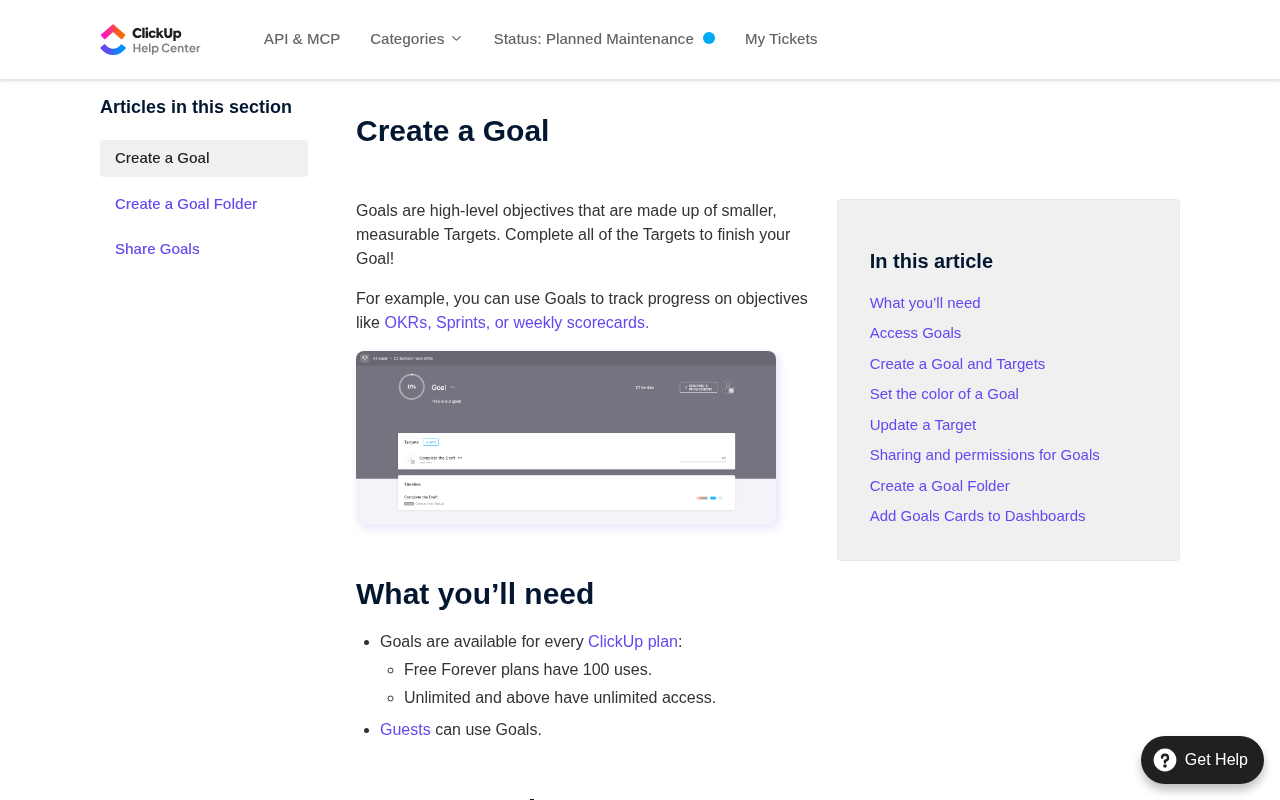
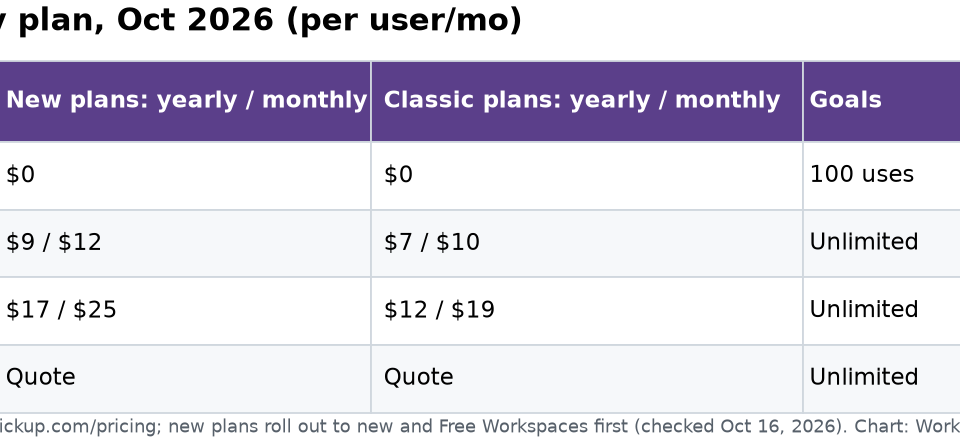
ClickUp Goals are available on all paid plans (Unlimited, Business, Business Plus, and Enterprise). The Free Forever plan does not include Goals. The Portfolio Dashboard card, which aggregates Goal Folder progress in a single executive view, requires the Business plan or above. For teams evaluating whether the Business plan investment is warranted, the Portfolio card is typically the feature that seals the decision for mid-size and larger organizations running structured OKR programs. See our ClickUp pricing guide for a full plan comparison.

How many Targets should each ClickUp Goal have?

The standard OKR practice is three to five Key Results per Objective, which translates to three to five Targets per Goal in ClickUp. Fewer than three Targets often means the Objective is not well-defined enough to be measurable. More than five Targets creates cognitive overhead — team members cannot meaningfully track six or more progress metrics simultaneously — and typically signals that you are tracking activities rather than outcomes. If you find yourself wanting to add a sixth or seventh Target, audit whether some of them belong as tasks on an existing Target rather than as separate Targets in their own right.


Author

Shaik KB

Follow Me
Other Articles
Previous

Smartsheet vs Notion 2026: Which Is Better for Your Team?

Next

Notion Permissions Not Working? 7 Fixes for the Most Common Access Issues in 2026

No Comment! Be the first one.

    Leave a Reply Cancel reply

    Your email address will not be published. Required fields are marked *

    Sponsored Smartsheet Expert Services – Implementation, Automation, Training
    Sponsored Power BI & Tableau Analytics – Dashboards, Reporting, Insights
    Sponsored AI Agents for Work Management – Automate Tasks, Integrate Tools

    Categories

    • Airtable (16)
    • Alternatives (12)
    • Asana (36)
    • ClickUp (42)
    • How-To Guides (157)
    • Integrations (16)
    • Jira (31)
    • Monday.com (41)
    • Notion (29)
    • Pricing Guides (11)
    • Project Management (76)
    • Smartsheet (33)
    • Tool Comparisons (50)
    • Wrike (15)

    Recent Post

    • ClickUp Brain Not Working? 7 Fixes for Super Agent & AI Errors in 2026
    • Smartsheet vs Linear 2026: Which Is Better for Your Team?
    • Notion Workers for Agents 2026: Complete Setup Guide to Code-Powered Automations
    • How to Use the Smartsheet AI Dashboard Builder in 2026: Complete Step-by-Step Guide
    • How to Set Up Asana Timesheets and Budgets in 2026: Complete Add-On Setup Guide
    Work Management Hub

    Independent expert reviews & comparisons of work management tools — helping 50,000+ teams choose the right software.

    Tools We Cover

    • Smartsheet
    • Monday.com
    • ClickUp
    • Asana
    • Notion
    • Jira
    • Wrike
    • Airtable

    Company

    • About Us
    • Contact Us
    • Privacy Policy
    Copyright 2026 — Work Management Hub. All rights reserved. Blogsy WordPress Theme