Notion Permissions Not Working? 7 Fixes for the Most Common Access Issues in 2026
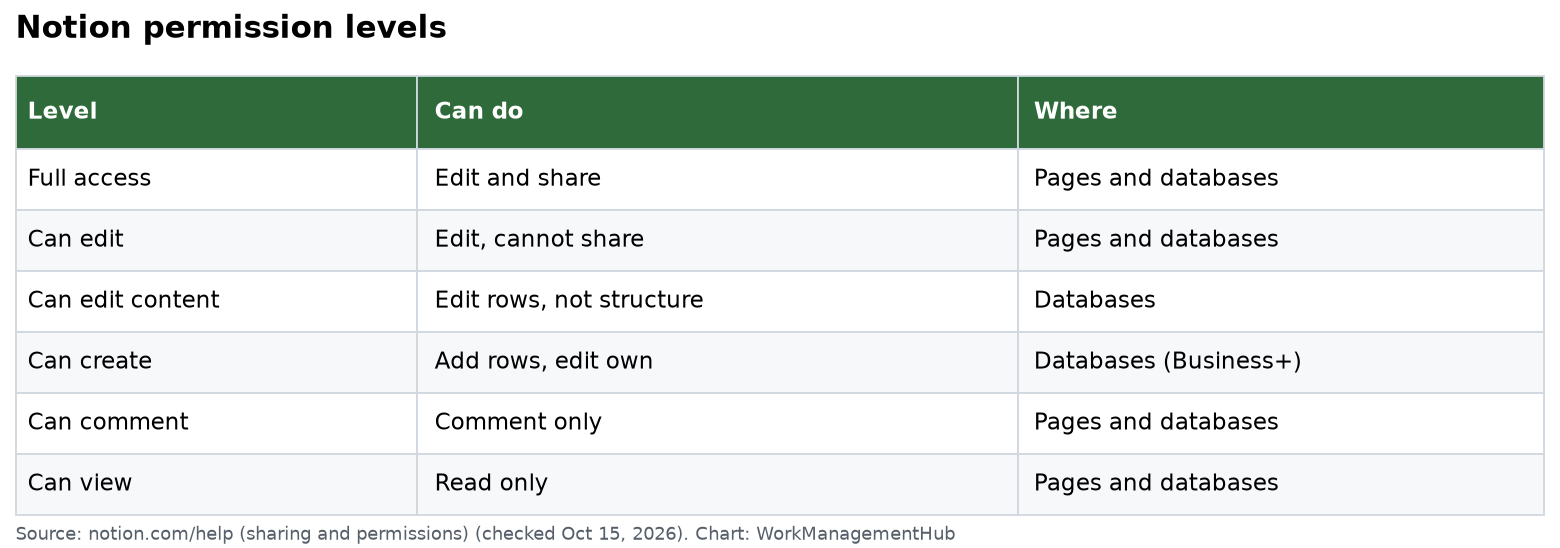
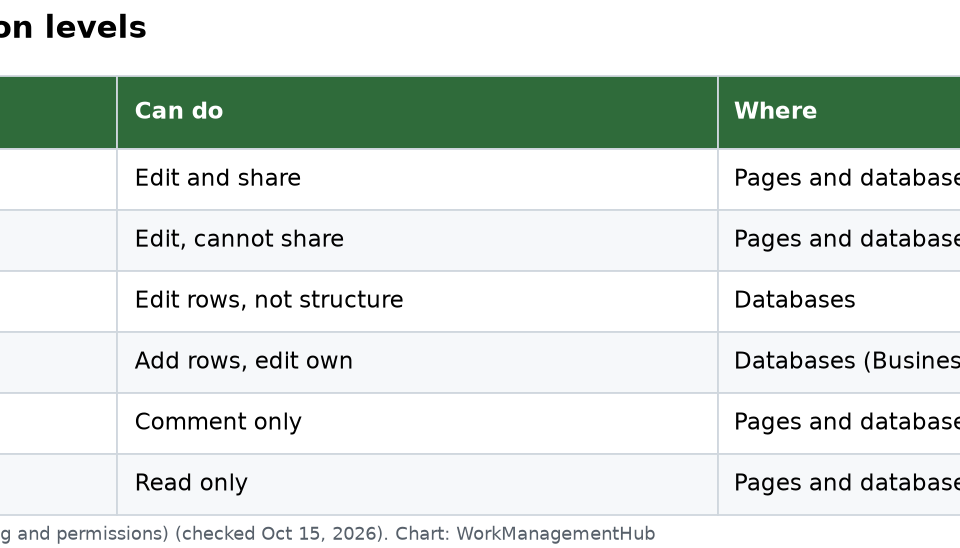
- Notion has five page permission levels — Full access, Can edit, Can comment, Can view, and No access — and the difference between Full access and Can edit is specifically the ability to reshare a page with others.
- Guests cannot access teamspaces or workspace-level settings — a guest invite is a fundamentally different access model than adding a workspace member, and confusing the two causes the majority of “I shared it but they can’t see it” tickets.
- Row-level (page-level) permissions in databases allow specific rows to be shared individually, overriding the parent database’s default access — this creates “invisible row” situations that are nearly impossible to diagnose without knowing the mechanism exists.
- Enterprise Plan workspaces can restrict all external sharing from Settings → Security, which silently blocks previously working share links for every non-admin — this change affects the entire workspace retroactively.
- Permissions set on a child page are overridden whenever a parent page’s permissions change and cascade downward — always lock the parent first before configuring child-level access.
- If a page you were previously invited to becomes inaccessible, it has most likely been deleted, moved to a restricted location, or your guest access has been explicitly revoked — check all three before assuming a bug.
Most Notion permissions not working issues trace to three root causes: using “Can edit” when “Full access” is needed for resharing, inviting someone as a guest instead of a workspace member, or parent-page inherited permissions overriding child access. Match your symptom to the right fix — permission level, workspace role, or page hierarchy.
Notion Permissions Not Working? 7 Fixes for the Most Common Access Issues in 2026
Notion’s permission model is more layered than it appears. On the surface, sharing a page looks as simple as typing an email address and selecting a role from a dropdown. In practice, there are at least four overlapping systems — workspace roles, teamspace membership, page-level permissions, and enterprise security settings — each capable of silently blocking access that you believe you already granted. When something goes wrong, Notion rarely gives you a useful error message. The person on the other end sees nothing, or sees a page they can read but not edit, or finds a row in your database that simply isn’t there.
The seven fixes below are each structured around a specific symptom — the exact frustration you or your users are reporting — followed by the root cause explanation and the numbered steps to resolve it. Before working through the list, it helps to know that Notion’s five page permission levels are: Full access (edit the page and share it with anyone), Can edit (edit content but cannot reshare), Can comment (view and leave comments but not edit), Can view (read-only), and No access. The distinction between Full access and Can edit is the single most misunderstood element of Notion’s permission system.
For foundational context on how Notion’s access model fits into a team setup, see our guide on using Notion for teams in 2026 and our full Notion review covering the platform’s current capabilities and limitations.
- Notion Permissions Not Working — Fix 1: Shared a Page but User Can’t Edit
- Fix 2: Guest Can’t See the Page I Shared
- Fix 3: User Can Edit but Can’t Share with Others
- Fix 4: Database Row Shows for Me but Not for Them
- Notion Permissions Not Working — Fix 5: External Sharing Stopped
- Fix 6: Permissions Keep Reverting After I Set Them
- Fix 7: I Can’t Access a Page I Was Previously Invited To
- Verdict
- FAQ
Notion Permissions Not Working — Fix 1: “I Shared a Page but the User Still Can’t Edit It”
This symptom appears when the shared page opens correctly for the recipient — they can see the content, maybe even leave a comment — but the Edit button is grayed out or they get a “view only” message when they try to type. The instinct is to check whether the share went through at all. It did. The problem is the permission level assigned during the share.
Here is where the confusion originates: when you open Notion’s share dialog and invite someone, the default permission assigned is often Can view, not Can edit. Users frequently send the invite without changing the dropdown, and the recipient receives access — just not edit access. A related mistake is assigning Can comment, which grants view access plus the ability to add comments but explicitly blocks all content editing.
There is also a subtler version of this problem: the user has “Can edit” access on the specific page you shared, but the page is a subpage of a parent that has a No access setting for that user. Parent-level access restrictions can override child-level permissions in certain configurations — this is covered in depth in Fix 6.
- Open the affected page and click Share in the top-right corner to open the Share dialog.
- Locate the user in the People with access list. You will see their email address alongside a permission dropdown showing their current permission level.
- Click the permission dropdown next to their name and change it from “Can view” or “Can comment” to Can edit.
- Confirm whether the user also needs to reshare the page. If they need to invite additional colleagues themselves, assign Full access instead of Can edit — Full access is the only level that allows the recipient to share the page with others.
- Ask the user to hard-refresh their browser (Ctrl+Shift+R on Windows, Cmd+Shift+R on Mac) or restart the Notion desktop app. Permission changes propagate quickly but may require a refresh to take effect on the recipient’s end.
- Verify the page is not set to “No access” at a parent level. Navigate one level up in the page hierarchy, open Share, and confirm the same user has at least Can view access on the parent page. A parent-level restriction can shadow child-level edit access in inherited configurations.
For teams managing large numbers of shared pages across departments, structuring access through teamspaces rather than individual page shares significantly reduces this type of ad hoc permission mismatch. Our guide on Notion for teams explains the teamspace model in detail.
Fix 2: “The Guest Can’t See the Page I Shared with Them”
This is arguably the most common Notion permission failure in organizations, and the root cause is a fundamental architectural distinction that Notion’s UI does not communicate clearly enough: a guest is not a workspace member. These are two completely different access levels, and their capabilities do not overlap in several important ways.
When you invite someone to a page using their email address, Notion gives you two paths: add them as a workspace Member (who gets access to the workspace, teamspaces they are added to, and all non-restricted pages) or add them as a Guest (who can only access the specific page or database you explicitly share with them). Guests cannot see teamspaces. Guests cannot access any workspace-level settings. Guests cannot navigate to pages they have not been directly invited to, even if those pages are within the same workspace.
Here is where the “they can’t see it” failure occurs: the person you shared with is a Guest, and you shared a page that is nested inside a teamspace. The teamspace is invisible to Guests. The page exists, you can see it, but the Guest’s navigation sidebar shows nothing because the teamspace container itself is not accessible to them.
- Open Settings → Members in your Notion workspace to check whether the person is listed as a Member or a Guest. Guests appear in a separate “Guests” section below the Members list.
- Determine whether the person should be a Member or a Guest. If they are an internal team member, colleague, or regular collaborator, they should almost certainly be a Member, not a Guest. If they are an external client or contractor who should only see a specific page, Guest access may be appropriate — but requires careful explicit sharing of each page.
- If they should be a Member, upgrade them from Guest to Member by going to Settings → Members, finding their entry, and changing their role. Note that adding Members affects your billing on paid plans — review your Notion pricing plan before adding seats.
- If they should remain a Guest, share the page directly. Navigate to the exact page, open Share, type their email, and confirm the share. Do not assume that sharing a parent page automatically makes child pages visible to a Guest — you may need to share each relevant page individually.
- Check for teamspace restrictions on the page. If the page lives inside a teamspace, verify the Guest is either explicitly added to that teamspace or that the specific page has been directly shared with them via the Share dialog.
- Ask the Guest to check their email for an invite notification. If the invite email went to spam or was missed, the Guest may not have accepted the invitation. Resend the invite from the Share dialog if needed.
Fix 3: “The User Can Edit the Page but Can’t Share It with Others”
This symptom is: a colleague opens the page, can type, can modify properties, can create subpages — but when they try to invite another person, the Share dialog is missing the invite field or gives them a “you don’t have permission to share this page” message. The page is clearly editable for them, so why can’t they share it?
The answer is the distinction between Can edit and Full access. These are not the same permission level, and this difference trips up experienced Notion users regularly because both levels allow content editing. The critical difference is resharing capability: only users with Full access can invite additional people to a page. Users with Can edit can modify every piece of content on the page but are explicitly blocked from the sharing function.
This is a deliberate design choice — it allows page owners to give collaborators editing access without giving them the ability to expand who can see potentially sensitive content. For many organizations, this is a valuable control. For others, it creates frustrating bottlenecks when a document author needs to loop in a new stakeholder but must route through the original page owner for every new invite.
- Open the Share dialog on the affected page and locate the user in the People with access list.
- Click their current permission dropdown — it will show “Can edit.”
- Change the permission to Full access. This grants them the ability to both edit content and invite additional people to the page.
- Communicate the permission difference to your team. If multiple users regularly need to reshare pages, establish a team convention about which pages restrict resharing (using Can edit) and which allow it (using Full access), and document this in your team’s Notion workspace guidelines.
- For pages where resharing must be restricted, enforce this through a clear workspace policy. If you are on the Business or Enterprise plan, document that Full access is only granted by the workspace owner or a designated admin, preventing uncontrolled expansion of access on sensitive documents.
Understanding which permission level to use for each collaborator type is a core element of any robust Notion workspace architecture. Our Notion database guide covers how permission levels interact specifically within database contexts, including how they affect what users can do with database rows and views.
Fix 4: “A Database Row Shows for Me but Not for Them”
This is one of the most confusing Notion permission scenarios because it involves a mechanism that most users don’t know exists: row-level (page-level) access control within databases. Every row in a Notion database is itself a page. And individual pages — including database rows — can have their own permission settings that override the parent database’s access defaults.
Here is the scenario that creates the “invisible row” problem: a database is shared with the entire team at the “Can edit” level, giving everyone visibility into all rows. At some point, someone opens a specific row as a full page, opens its Share dialog, and explicitly sets a user or group to “No access” — perhaps to restrict a sensitive record during a review period. That row becomes invisible to those users in the database view, even though every other row remains visible. There is no indicator in the database view that a specific row has been individually restricted. The users simply see fewer rows than you do, with no explanation.
The reverse also applies: a row that is not shared at the database level can be individually shared with a specific user, making it visible to that user even though they have no access to the rest of the database. This is the legitimate mechanism for row-level access control — sharing specific records with clients or contractors without exposing the full database.
- Open the specific row that is not appearing for the affected user by clicking into it as a full page (click the row’s expand icon or title to open it).
- Open the Share dialog for that specific row page. Look carefully at the “People with access” list — this list may differ from the parent database’s share settings.
- Check for any explicit “No access” entries for the affected user, or confirm whether the user is absent from the access list when the database itself should grant them access. An explicit “No access” entry on the row overrides the parent database’s permission for that user.
- Remove any explicit “No access” restrictions on the row if the user should be able to see it. After removing the explicit override, the row will revert to inheriting the parent database’s access settings.
- If the row should be visible to all database members, confirm the row’s share dialog does not show individual overrides for any users. A row with clean inheritance will show “Inherited from [parent database name]” rather than individual access entries.
- Test by having the affected user refresh their database view. If the row still does not appear, check whether a database filter the user has applied is hiding the row — this is a separate issue from permission-based invisibility and can look identical from the user’s perspective.
Row-level permissions are particularly relevant in client-facing database setups. For a deep dive into how Notion database permission structures work at scale, see our complete Notion database guide for 2026.
Notion Permissions Not Working — Fix 5: “External Sharing Stopped Across the Whole Workspace”
This symptom has a very different character from the others: it affects many users simultaneously rather than one individual, and it often coincides with a recent change in workspace plan or a security policy decision made by an administrator. Users report that share links that previously worked have stopped working, or that the option to share a page with people outside the workspace has disappeared from the Share dialog entirely.
The root cause is almost always one of two things: a plan upgrade to Enterprise, which introduced centralized security controls that restrict external sharing, or an admin actively changing the external sharing settings available in Settings → Security.
On Notion’s Free, Plus, and Business plans, workspace members can share pages externally by default — both via “Share to web” (a public link) and by directly inviting external email addresses. On the Enterprise plan, workspace admins gain access to Settings → Security, where they can restrict or completely disable both sharing modes. When an Enterprise admin turns off external sharing, every previously working public share link breaks immediately, and members lose the ability to create new external shares — with no direct notification sent to affected users.
- Determine whether your workspace is on the Enterprise plan by going to Settings → Plans or Settings → Billing. If Enterprise is listed, proceed to the security settings.
- Navigate to Settings → Security (this option only appears for Enterprise workspaces and is visible only to Workspace Owners and admins). Review the settings under “External collaboration” and “Public sharing.”
- Check the “Allow sharing outside the workspace” setting. If this is disabled or set to “No one,” workspace members cannot share pages with external users and all public share links are disabled.
- If you are a Workspace Owner or admin, adjust the security settings based on your organization’s policy. Options typically include: allowing all members to share externally, restricting external sharing to admins only, or disabling it entirely.
- If you are not an admin, contact your workspace administrator — the person listed under Settings → Members with the Workspace Owner role. Only Workspace Owners can modify Enterprise security settings.
- For workspaces on lower plans where sharing has stopped for an individual page, check whether a workspace admin has manually toggled off public sharing at the page level. Open the affected page, go to Share, and confirm “Share to web” is toggled on.
- Review the plan comparison for your sharing needs — our Notion pricing guide for 2026 explains which security controls are available on each plan tier.
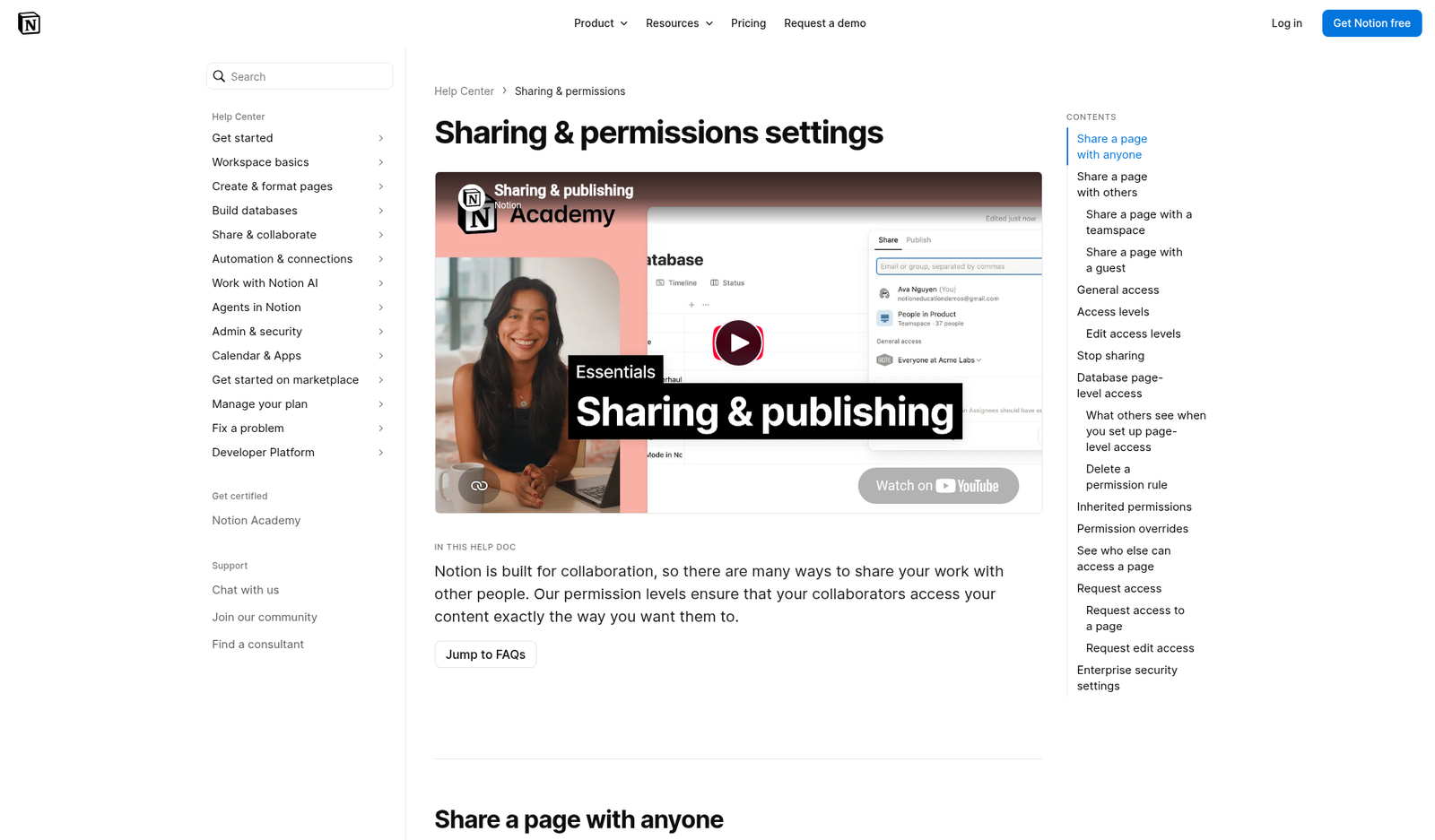
Notion’s official documentation on sharing and permissions provides the authoritative reference for what each plan allows. For Enterprise-specific security controls, refer to Notion’s workspace settings documentation.
Fix 6: “I Set Permissions on a Page but They Revert or Get Overridden”
This is one of the most disorienting Notion permission problems to diagnose because the evidence of your own action — setting permissions — vanishes or becomes ineffective. You open a page, set a user to “Can view,” confirm the change, and then find a day later that the user has full edit access again. Or you restrict a subpage to a specific team, and discover that after someone edits the parent page’s permissions, your subpage restrictions have changed without you touching them.
The mechanism is inherited permissions from parent pages. Notion’s permission model is hierarchical: child pages inherit access from their parent by default. When a parent page’s permissions are changed, that change cascades to all child pages that are using inherited permissions — potentially overriding any individual access settings you configured at the child level.
The critical qualifier is “using inherited permissions.” If a child page has been explicitly given its own unique share settings (not inherited), those override the parent. But if the child page was relying on inheritance and the parent changes, the child resets to match the new parent configuration. The fix requires understanding whether a page is using inheritance or explicit settings, and locking the permission hierarchy at the correct level before configuring any child pages.
- Navigate to the parent page that sits above the page you are trying to configure. Open its Share dialog and review the current permissions.
- Note any conflicts between the parent’s settings and what you intend for the child. If the parent gives everyone in the workspace “Can edit,” any child using inherited permissions will also give everyone “Can edit,” regardless of what you set at the child level.
- Open the child page’s Share dialog and look for a notice indicating that permissions are “inherited from [parent page name].” This is the indicator that the child is using inherited settings and is subject to parent-level overrides.
- Break inheritance by explicitly setting permissions on the child page. In the child page’s Share dialog, explicitly add or modify the access for each user or group you want to configure. Setting an explicit entry for a user on the child page overrides the inherited setting for that user specifically.
- Finalize the parent page’s permissions before configuring child pages. Make all desired permission changes on the parent first, then configure child pages. Changing parent permissions after child configurations are set can cascade in unexpected ways.
- Document your intended permission hierarchy. For workspaces with complex structures, maintain a simple record of which pages use inherited permissions versus explicit permissions. This makes troubleshooting dramatically faster and prevents repeated reconfiguration.
Permission hierarchy issues compound quickly in large Notion workspaces. For guidance on structuring databases and pages to minimize permission conflicts, see our Notion database guide. If permission issues are also causing your automations to fail silently, our guide on Notion automations not working covers how permission problems intersect with automation failures.
Fix 7: “I Can’t Access a Page I Was Previously Invited To”
This symptom is distinct from being denied access — the page simply returns a 404 error, shows “Page not found,” or has vanished entirely from the person’s Notion sidebar. They had access last week, nothing has changed on their end, and now it is gone. This is disorienting and often triggers urgent escalations, especially when the page contained critical project documentation.
There are three distinct causes for this symptom, each requiring a different recovery path — and not all are recoverable.
The page was deleted. In Notion, any Member with edit access to a page can delete it. If the page was deleted — accidentally or intentionally — it moves to the workspace Trash and is permanently purged after 30 days on paid plans. A Guest who was invited to that page loses access immediately upon deletion and receives no notification explaining what happened.
The page was moved to a restricted location. If a page was relocated from a publicly accessible section of the workspace into a restricted teamspace or a private page hierarchy, everyone who had access at the original location may lose that access. The move transfers the page but does not automatically carry forward the original share list.
Guest access was revoked. If the person is a Guest (not a workspace Member), their access to a specific page can be removed by any workspace Member with Full access to that page, or by a Workspace Owner from the Members settings panel. Guests receive no notification when their access is revoked.
- Check the workspace Trash first. If you are a workspace admin or the original page creator, go to Settings → Trash. Search for the page by name. If it appears there, click “Restore” to recover it to its original location. Note that Trash access may be restricted to Workspace Owners depending on your workspace configuration.
- Search for the page using global search. Use Notion’s search (Cmd+P on Mac, Ctrl+P on Windows) to search for the page title. If it appears in search results for you but not for the affected user, the page exists but their access has been removed or the page was moved to a restricted location.
- Check whether the page was moved to a teamspace. Browse through the workspace sidebar, looking for the page in teamspaces the affected user may not be a member of. If found, the page was moved and the original access was not preserved.
- Review the affected user’s membership status. Go to Settings → Members and confirm the person is still listed as an active Member or Guest. If a Guest’s access was revoked or a Member’s account was deactivated, their access to all pages disappears immediately and silently.
- If the page was moved to a restricted location, reshare it explicitly. Navigate to the page’s current location, open Share, and re-invite the affected user with the appropriate permission level.
- If the page was permanently deleted (not in Trash or past the retention period), recovery is not possible through standard Notion tools. For paid plans, Notion’s version history feature may contain previously saved content — contact Notion Support with the page name and approximate deletion date for any possibility of data recovery assistance.
The majority of Notion permission failures fall into one of three categories: the wrong permission level was assigned (Can edit when Full access was needed, or Can view when Can edit was intended), the user was invited as a Guest when they should have been added as a workspace Member, or inherited permissions from a parent page overrode explicitly configured child-level access. Start your diagnosis by identifying which symptom matches the situation — permission level mismatch, guest vs. member confusion, row-level override, Enterprise security restriction, inheritance cascade, or a deleted or moved page. Each root cause has a specific, targeted fix. Teams that spend thirty minutes documenting their intended permission hierarchy — which pages are openly shared, which are team-restricted, which are individually shared with guests — prevent the majority of these issues before they arise.
Frequently Asked Questions
What is the difference between “Full access” and “Can edit” in Notion?
Both Full access and Can edit allow a user to modify page content, create subpages, and edit database properties. The critical difference is resharing: only users with Full access can open the Share dialog and invite additional people to the page. Users with Can edit are explicitly blocked from sharing the page with others. This distinction is important any time document authors need to independently loop in new collaborators — if they only have Can edit access, they must ask the page owner to handle all invitations. For most internal team workflows, Full access is the more practical choice; Can edit is appropriate when you want to prevent ad hoc sharing of sensitive documents.
Why can’t my guest see the teamspace pages I shared with them?
Guests in Notion cannot access teamspaces — this is a hard limitation of the guest access model, not a configuration error. Guests can only see pages that have been directly shared with them via the Share dialog on the individual page. If the pages you want them to access live inside a teamspace, you must share each page explicitly with the guest using their email address. Alternatively, if the person is an internal collaborator who should have broader workspace access, upgrade them from Guest to Member, which gives them standard teamspace visibility based on their assigned teamspace memberships.
How do row-level permissions work in Notion databases?
Every row in a Notion database is an underlying page, and individual row-pages can have their own permission settings independent of the parent database. When explicit permissions are set on a row — for example, a specific user is assigned “No access” directly on that row — those settings override the database’s default access for that user. This makes individual records invisible in the database view for restricted users, with no visible indicator that the row exists. The most common misconfiguration is accidentally setting a row to “No access” for certain users, creating invisible records that are impossible to diagnose without knowing this mechanism exists.
What Notion plan do I need to control external sharing across the whole workspace?
Centralized external sharing controls are only available on the Enterprise plan. On Free, Plus, and Business plans, workspace members can share pages externally by default — both via public share links and by inviting external email addresses — and there is no workspace-wide toggle to disable this. If your organization requires centralized control over who can share content outside the workspace, the Enterprise plan is necessary. You can review current plan capabilities and what each tier includes in our Notion pricing guide for 2026.
Can I recover a Notion page that someone accidentally deleted?
Yes, if the page was deleted recently. Notion moves deleted pages to the workspace Trash, where they remain recoverable for 30 days on paid plans (Free plan retention may be shorter). Workspace Owners and the original page creator can access Trash via Settings → Trash and restore pages to their original location. After the retention period, permanently deleted pages are not recoverable through standard Notion tools. For critical documents on paid plans, Notion’s version history feature may allow you to view earlier snapshots of a page’s content before deletion, though this requires the page to still exist in some form.