Notion Workers for Agents 2026: Complete Setup Guide to Code-Powered Automations
- Notion Workers for agents setup unlocks a hosted TypeScript runtime — not standard automations. Workers let Custom Agents execute real code, call external APIs, and run logic that no click-based rule can replicate.
- Activation requires workspace Owner status on a Business plan or higher; the toggle lives at Settings → Features → Workers and is invisible on Plus plans.
- Workers are free to run until 11 August 2026, after which they consume credits at the same rate as Notion Agents but at materially lower cost per operation than natural-language AI calls.
- Deployment is a single CLI command —
notion workers deploy— and the underlying TypeScript can be generated by Claude Code, Codex, or any AI coding agent from a plain-English description. - No published guide yet covers the full CLI deployment flow or the August 2026 credit cutover — this is it.
To set up Notion Workers for agents: activate the feature under Settings → Features → Workers (Business plan, Owner role required), install the Notion CLI, write or generate TypeScript worker code, and deploy with notion workers deploy. Workers run free until 11 August 2026.
- What Are Notion Workers for Agents — and Why They Are Different From Automations
- Requirements: Plan, Role, and Workspace Configuration
- Notion Workers for Agents Setup: Step-by-Step Activation in the Notion UI
- Installing and Configuring the Notion CLI
- Writing Worker Code — With or Without TypeScript Experience
- Deploying Workers With a Single CLI Command
- Connecting a Deployed Worker to a Custom Agent
- The August 2026 Billing Cutover — What You Need to Know Now
- Real-World Use Cases Worth Building Today
- Verdict
- FAQ
Notion Workers for Agents 2026: Complete Setup Guide to Code-Powered Automations
Standard Notion automations are useful. Workers are transformative. This guide covers the complete Notion Workers for agents setup — from activating the feature to deploying TypeScript code via the CLI. If you have spent any time pushing Notion’s built-in automation rules to their limits — trying to call an external REST API, run conditional logic across multiple databases, or execute a multi-step enrichment pipeline — you already know the frustration. Click-based automations stop precisely where the interesting work begins.
Notion Workers solve that problem with a hosted TypeScript runtime that your Custom Agents can actually execute. They are not a cosmetic upgrade to the automations panel. They are a fundamentally different capability that puts a real code execution environment directly inside your workspace — accessible via the Notion CLI, deployable in minutes, and free to run until August 11, 2026.
This guide covers everything you need: what Workers actually are, how to activate them, how to write and deploy Worker code using AI coding tools, and how to navigate the billing changes landing in August. If you are already comfortable with Notion Custom Agents and want to unlock their full potential, start here.
What Are Notion Workers for Agents — and Why They Are Different From Automations
Business impact first: Workers mean your Notion workspace can now do things that previously required a separate engineering resource — calling a payment API, transforming data from an external source before writing it to a database, or running a scoring algorithm across hundreds of records on a schedule. That is not an incremental improvement; it eliminates entire categories of integration work.
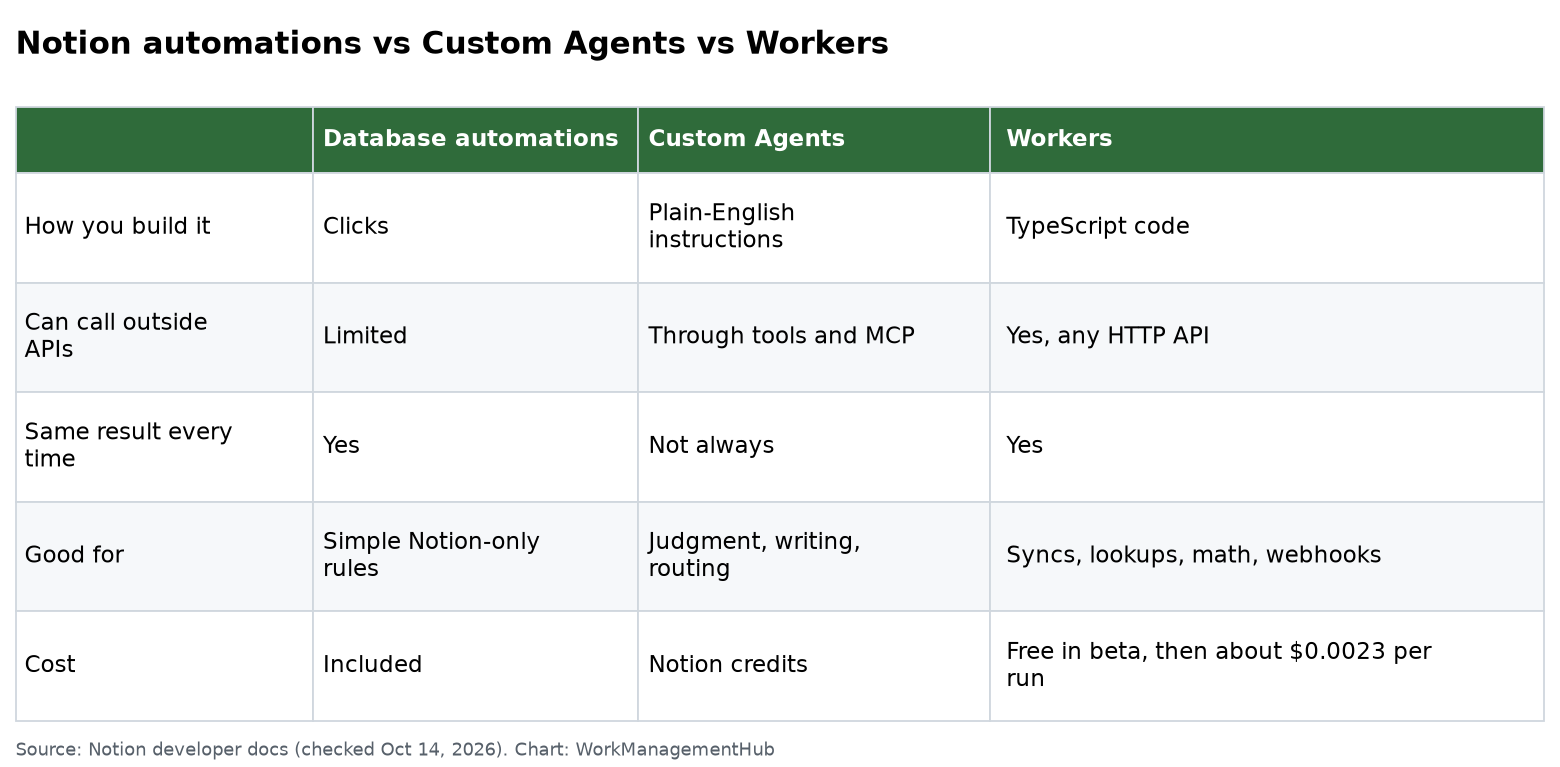
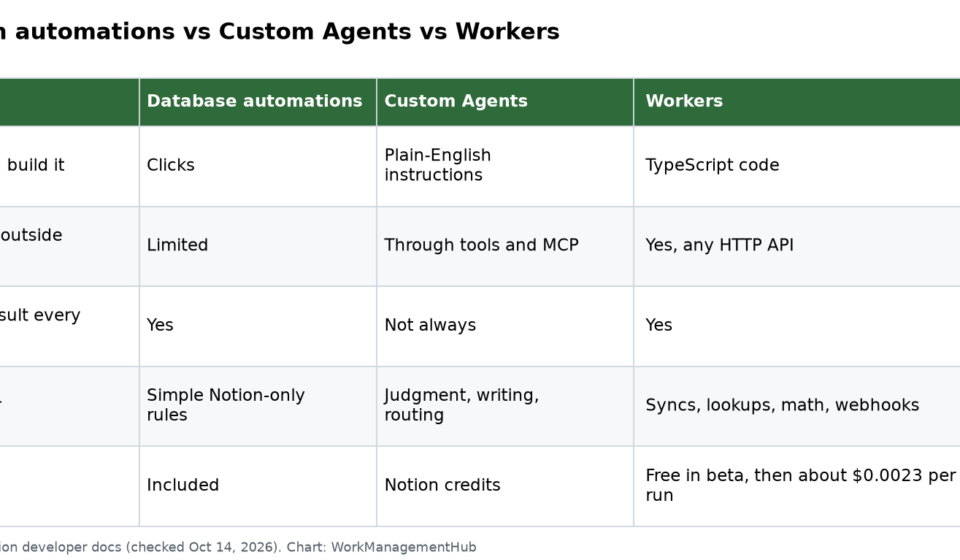
Here is the clearest distinction between the three Notion automation layers available in 2026:
| Layer | What It Can Do | What It Cannot Do |
|---|---|---|
| Standard Automations | Trigger Notion-native actions (create page, update property, send notification) | Call external APIs, run conditional code, process data programmatically |
| Custom Agents (NL) | Understand natural-language instructions, summarise pages, draft content, answer questions in context | Execute deterministic logic, guarantee output format, run without consuming AI credits per call |
| Workers | Execute real TypeScript, call any external API, run complex transformations, return structured data to agents | Replace agents for tasks requiring judgement or language understanding |
Workers live in the middle layer between click-based rules and full AI inference. They are deterministic, fast, and cost far less per operation than a natural-language agent call. That combination makes them the right tool for any repetitive, data-heavy, or API-dependent task that you currently either avoid in Notion or route through a third-party tool like Zapier or Make.
For a broader view of what the full Notion AI layer looks like, our guide to Notion AI features in 2026 covers the complete stack.
Requirements: Plan, Role, and Workspace Configuration
Before spending any time on setup, verify these three prerequisites. Skipping this check is the single most common reason teams report Workers activation failing silently.
- Business or Enterprise plan — Workers are not available on Free or Plus. Navigate to Settings → Workspace → Plan and confirm your tier. If you see Plus, you will need to upgrade before the Workers toggle appears. The plan difference is non-negotiable; there is no workaround or beta access for lower tiers.
- Workspace Owner role — Admin is not sufficient. You must hold the Owner role specifically. Check at Settings → Members → Workspace owners. If your name is not in the Owners list, ask an existing owner to elevate your role before attempting activation.
- Custom Agents already enabled — Workers extend the Custom Agents system, so that feature must be active first. Navigate to Settings → Features and confirm “Custom Agents” is toggled on. If you have not yet set up a Custom Agent, our Complete Notion Custom Agents Guide covers that prerequisite step-by-step.
- Node.js 18 or later on your local machine — the Notion CLI is an npm package and requires Node. Run
node --versionin a terminal to confirm. If you get a version below 18.x, update via nodejs.org before continuing.
One important note on geography: as of June 2026, Notion Workers are available to all Business and Enterprise workspaces globally. The hosted runtime infrastructure runs in Notion’s cloud, so there is no region-specific limitation for the worker execution itself — only for the external APIs your Worker code calls, which is entirely under your control.
Notion Workers for Agents Setup: Step-by-Step Activation in the Notion UI
Once your plan and role are confirmed, activation is fast. The toggle is not prominently promoted in the Notion UI, but it is accessible once you know the path.
- Open Settings — click the ellipsis menu (…) in the lower-left sidebar, then select Settings & members from the dropdown. This opens the workspace settings panel.
- Navigate to Features — in the left navigation of the settings panel, scroll past Workspace, Members, and Billing until you reach the Features section. Click it.
- Locate the Workers toggle — on the Features page, scroll to the “Automation & AI” section. You will see a card labeled Workers (beta) with a brief description and an enable toggle. If this card is absent, your plan or role check in the previous section failed — return there before continuing.
- Enable Workers — click the toggle to the on position. Notion will display a brief confirmation modal explaining the beta status and the August 2026 credit billing start date. Click Enable Workers to confirm.
- Verify the activity log appears — after enabling, navigate to any Custom Agent in your workspace. In the agent’s settings panel, you should now see a Workers tab alongside Instructions and Connections. This confirms the feature is live for your workspace.
If the toggle does not persist after clicking — reverts to off when you close and reopen settings — this almost always means the Owner role check failed. Refresh the page, verify you are logged in as an Owner (not an Admin), and try again. See our Notion automations troubleshooting guide if you continue to experience activation issues.
Installing and Configuring the Notion CLI
The Notion CLI is how you push Worker code from your local machine to Notion’s hosted runtime. It is an npm package, and setup takes about five minutes. There is no GUI alternative for deployment — the CLI is the only path.
- Install the Notion CLI globally — open a terminal and run:
npm install -g @notionhq/cli
This installs thenotioncommand globally. Runnotion --versionto confirm the install succeeded. - Authenticate with your workspace — run:
notion login
This opens a browser window asking you to authorize the CLI against your Notion workspace. Select the workspace where you enabled Workers and click Allow access. The terminal will confirm authentication with a success message and store a local credential token. - Initialize a new Worker project — create a directory for your first Worker and initialize it:
mkdir my-notion-worker && cd my-notion-worker
notion workers init
This scaffolds a project with anotion.config.json, asrc/index.tsentry point, and apackage.jsonwith the required Notion Workers SDK dependency already referenced. - Install project dependencies — run
npm installinside the project directory. This pulls in the Notion Workers SDK and any TypeScript compilation tooling included in the scaffold. - Confirm workspace linkage — open
notion.config.jsonin a text editor. You should see your workspace ID already populated from the login step. If it is blank, runnotion workspaces listto retrieve your workspace ID and paste it into the config manually.
The full CLI reference is available in Notion’s official Workers developer documentation. It is worth bookmarking — the SDK changes frequently during the beta period, and the changelog is detailed.
Writing Worker Code — With or Without TypeScript Experience
This is where most non-technical Notion users stop reading. Do not. The entire premise of Workers in 2026 is that you do not need to write TypeScript from scratch. You need to be able to describe what you want in plain English and review what an AI coding agent produces. That is a skill you already have if you have ever written a detailed Notion automation description or a project brief.
The workflow for generating Worker code with an AI coding agent looks like this:
- Write a plain-English description of your Worker’s job — be specific about inputs, outputs, and any external APIs involved. Example: “When a Notion database row with Status = ‘Ready for enrichment’ is created, call the Clearbit API with the email in the Contact Email property, and write the returned company name, domain, and employee count back to the Company Name, Domain, and Team Size properties.”
- Paste the description into Claude Code, Codex, or your preferred AI coding tool — add the context that the target runtime is Notion Workers TypeScript SDK and that the entry point should be
src/index.ts. Claude Code specifically handles the Notion SDK structure well given Anthropic’s tooling familiarity. - Review the generated code for three things — correct API endpoint URLs, correct Notion property IDs (the AI will use placeholder names; you must substitute your actual property IDs from your database schema), and correct error handling around API call failures.
- Retrieve your actual Notion property IDs — in any Notion database, open the … menu → Edit view → then click a property. The property ID appears in the URL as a UUID. Copy and replace the placeholder IDs in the generated code.
- Add any required API keys as environment variables — the Notion CLI supports a
.envfile in the project root for local development. For deployed Workers, set secrets vianotion workers env set KEY_NAME value. Never hardcode credentials in the TypeScript source.
A minimal Worker that responds to a Notion webhook trigger and writes data back to a database looks like this in the scaffolded entry point:
import { NotionWorker, WorkerContext } from '@notionhq/workers-sdk';
export default {
async fetch(request: Request, ctx: WorkerContext): Promise<Response> {
const body = await request.json();
const pageId = body?.data?.id;
if (!pageId) {
return new Response('No page ID in payload', { status: 400 });
}
// Call external API
const enrichment = await fetch(`https://api.example.com/enrich?id=${pageId}`, {
headers: { Authorization: `Bearer ${ctx.env.API_KEY}` }
}).then(r => r.json());
// Write result back to Notion
await ctx.notion.pages.update({
page_id: pageId,
properties: {
'Enriched Value': { rich_text: [{ text: { content: enrichment.value } }] }
}
});
return new Response('OK', { status: 200 });
}
} satisfies NotionWorker;Even if the TypeScript syntax is unfamiliar, the structure should be readable: receive a request, extract the page ID, call an external API with your credentials, write results back to Notion. An AI coding agent can generate and adapt this pattern for virtually any API or data transformation task you can describe in a sentence.
Deploying Workers With a Single CLI Command
Deployment is deliberately simple. Notion’s hosted runtime handles all infrastructure — there are no servers to provision, no containers to configure, no build pipelines to maintain. You write the code, run the deploy command, and Notion handles the rest.
- Build the TypeScript source — the CLI scaffold includes a build script. Run:
npm run build
This compilessrc/index.tsto a deployable JavaScript bundle in thedist/directory. Watch for any TypeScript type errors in the terminal output and resolve them before proceeding. - Deploy to Notion’s hosted runtime — run:
notion workers deploy
The CLI uploads the compiled bundle to Notion’s infrastructure, registers the Worker in your workspace, and returns a Worker ID and a webhook endpoint URL. The deployment typically completes in 10–30 seconds. - Confirm deployment in the Notion UI — navigate to Settings → Features → Workers. Your newly deployed Worker should appear in the Workers list with a status of Active and the deployment timestamp.
- Test the Worker manually — the Notion UI includes a Test run button on each Worker’s detail page. Click it to send a sample payload and view the execution log, including any console output from your code and the final response status. This is the fastest way to catch configuration errors before connecting the Worker to a live agent.
- Update environment variables if needed — if your Worker requires API keys that you have not yet set in the hosted environment, run:
notion workers env set MY_API_KEY your_key_value_here
Then redeploy withnotion workers deployto pick up the new variable.
To update a deployed Worker after editing the code, simply run npm run build followed by notion workers deploy again. Each deploy creates a new version in Notion’s system; the previous version remains accessible in the version history for rollback if needed.
Notion’s official API documentation covers the full Workers API reference: developers.notion.com/reference/workers.
Connecting a Deployed Worker to a Custom Agent
A deployed Worker sitting in isolation is inert. Its value comes from being callable by a Custom Agent — either on a schedule, in response to a database change, or as a step the agent decides to invoke based on natural-language instructions. This connection step happens entirely in the Notion UI.
- Open your Custom Agent — navigate to the Custom Agent you want to connect the Worker to. If you have not yet created a Custom Agent, click the + button next to “Agents” in the left sidebar and create one first. Our Custom Agents setup guide covers that process in detail.
- Open the Workers tab in agent settings — inside the agent’s settings panel (click the … icon on the agent and select Edit settings), navigate to the Workers tab. This tab only appears if Workers is enabled at the workspace level.
- Add your deployed Worker — click Add Worker and select your Worker from the dropdown list of deployed Workers in the workspace. Give the connection a descriptive name that the agent can reference in its instructions — for example, “Clearbit contact enricher” or “Stripe invoice fetcher”.
- Write the invocation instruction in the agent’s prompt — in the agent’s Instructions field, describe when and why to call the Worker. Be explicit: “When a contact row has Status = ‘Needs enrichment’, invoke the Clearbit contact enricher Worker, pass the Contact Email property value, and update the row with the returned data.” The more specific the instruction, the more reliably the agent invokes the Worker at the right moment.
- Set the trigger type — in the agent’s Trigger settings, choose whether the agent runs on a schedule (hourly, daily, etc.), on a specific database property change, or on demand. Workers can be called from any trigger type; the trigger does not need to match anything in the Worker’s own code.
- Run a test cycle — create a test database row that matches your trigger condition and observe the agent’s activity log. Confirm the agent correctly identifies the trigger, invokes the Worker, and the Worker’s execution log shows a successful run with the expected data written back.
One practical note: a single Custom Agent can be connected to multiple Workers. You can build a modular library of Workers for different tasks — enrichment, formatting, external API calls, calculations — and connect whichever ones a given agent needs. This is significantly more maintainable than writing all logic into a single large Worker.
The August 2026 Billing Cutover — What You Need to Know Now
Notion Workers are free until 11 August 2026. After that date, Worker executions consume credits from the same pool as Notion Agents. This is the single most important operational fact for anyone building on Workers today, and it deserves direct attention rather than a footnote.
Here is what the billing structure actually means in practice:
- Workers cost significantly less per operation than natural-language AI calls. A Worker execution that calls an API and writes data to a database consumes a fraction of the credits that a Custom Agent’s AI inference step does. This is not a small difference — for high-volume, repetitive tasks, Workers will be the economical choice by an order of magnitude.
- Credits are shared across your workspace. There is no separate Workers credit pool. If your workspace has heavy Custom Agent usage, Worker executions pull from the same allocation. Monitor your credit consumption in Settings → Billing → AI usage as you approach August.
- Business plan credit allocations will be published before the cutover. Notion has committed to communicating specific credit rates and Business plan allocations before August 11. Watch the Notion changelog at notion.so/releases for these details as they are confirmed.
- Workers deployed before August 11 continue running after the cutover — there is no re-enrollment or redeployment required. The billing transition is automatic. What changes is that executions begin consuming credits; the Workers themselves remain active.
The strategic implication is clear: build and test your Workers now, during the free window, and optimize their execution frequency before August. A Worker that runs on every single database property change regardless of whether it needs to will cost more than one scoped to run only when a specific status property changes. Use the next two months to profile your Workers’ actual execution volume and tighten their trigger conditions accordingly.
For context on how Notion’s overall cost structure compares to alternatives, our Notion vs ClickUp 2026 comparison covers total cost of ownership across both platforms.
Real-World Use Cases Worth Building Today
Workers unlock a specific class of use cases that were previously impossible in Notion without a separate integration platform. These are the ones I would prioritise deploying before the August billing cutover, while execution is free and you have time to tune them.
Contact and company enrichment. Connect a CRM database to Clearbit, Hunter.io, or Apollo. When a contact is added with just an email address, a Worker calls the enrichment API and auto-populates company name, LinkedIn URL, employee count, and industry. This replaces a Zapier workflow that would cost roughly $20–40/month at volume — and the data lives natively in Notion without any sync delay.
Invoice and billing status sync. Connect your Notion project database to Stripe or QuickBooks. A Worker checks invoice status on a schedule and updates a “Payment status” property — flagging overdue invoices automatically without anyone needing to manually cross-reference two tools. For agencies and consultancies managing multiple client projects in Notion, this alone justifies Workers.
Automated content scoring. Build a readability or SEO scoring Worker that calls a text analysis API when a content row moves to “Ready for review” status. The score writes back to a numeric property, giving editors a consistent quality signal without manual review overhead.
Slack or Teams notification routing. While Notion has native Slack notifications, they are limited to fixed templates. A Worker can build dynamic, richly formatted Slack messages using Block Kit, incorporating multiple database properties and conditional logic that the native notification system cannot express. If you are running a project management database in Notion and want Slack alerts that actually contain the right information in the right format, Workers are the answer.
For teams already deep in Notion for project delivery, these Workers compound the value of the platform significantly. See our Notion project management setup guide for the database structure that makes these Workers most effective.
Notion Workers are the most significant capability addition to the platform in years, and the free window until August 11, 2026 is a genuine opportunity to build and optimise before costs begin. The setup is legitimately accessible — CLI deployment is a single command, and AI coding tools remove the TypeScript barrier entirely for non-developers. The one clear action item: start now, not in July. Build your highest-value Workers in the next four to six weeks, profile their execution volume during the free period, and tune their trigger conditions before credits start counting. Teams that do this will have a mature, cost-optimised Workers setup when the billing cutover arrives. Teams that wait will be paying to learn.
Frequently Asked Questions
Do I need to know TypeScript to use Notion Workers?
Not for straightforward use cases. AI coding agents like Claude Code or Codex can generate well-structured TypeScript Worker code from a plain-English description of what you want the Worker to do. Your actual job is to review the output, replace placeholder Notion property IDs with your real ones, and add API credentials. For more complex Workers involving custom business logic or unusual API structures, basic familiarity with TypeScript syntax is helpful — but you do not need to write code from scratch.
What is the difference between a Notion Worker and a standard Notion automation?
Standard Notion automations trigger Notion-native actions — create a page, update a property, send a notification — and cannot reach outside the Notion ecosystem. Workers are a hosted TypeScript code execution environment that can call any external API, run arbitrary logic, process data transformations, and return structured results. If you can describe the task in code, a Worker can do it. Standard automations are limited to what Notion natively supports; Workers are limited only by what TypeScript and HTTP APIs can express.
When exactly do Notion Workers start costing money?
Workers are free to run until 11 August 2026. After that date, each Worker execution consumes credits from your workspace’s Notion AI credit pool at the same rate as Notion Agents — though at significantly lower cost per operation than natural-language AI inference calls. Notion has committed to publishing specific credit rates and Business plan allocations before the August cutover. There is no action required to continue running Workers after the billing transition; executions simply begin drawing from your credit balance automatically.
Can Workers call any external API, or are there restrictions?
Workers can call any publicly accessible HTTPS API endpoint — there is no Notion-managed allowlist of approved third-party services. You are responsible for API key management (via the notion workers env set command for production secrets) and for staying within the rate limits of whatever external APIs you call. The only restriction is that Workers run in Notion’s sandboxed hosted environment, which means they cannot access resources on private networks or your local machine. All external calls must go to public internet endpoints.
What Notion plan do Workers require, and can I share Workers across workspaces?
Workers require a Business or Enterprise plan and workspace Owner permissions to activate. Workers are scoped to a single workspace — they cannot be directly shared or published to other workspaces. However, the Worker source code is just TypeScript files in a directory, so you can copy the code into a new project and deploy it to a different workspace using the same CLI workflow. If you manage multiple Notion workspaces, you would need to deploy and maintain separate Workers instances in each.