How to Use the Smartsheet AI Dashboard Builder in 2026: Complete Step-by-Step Guide
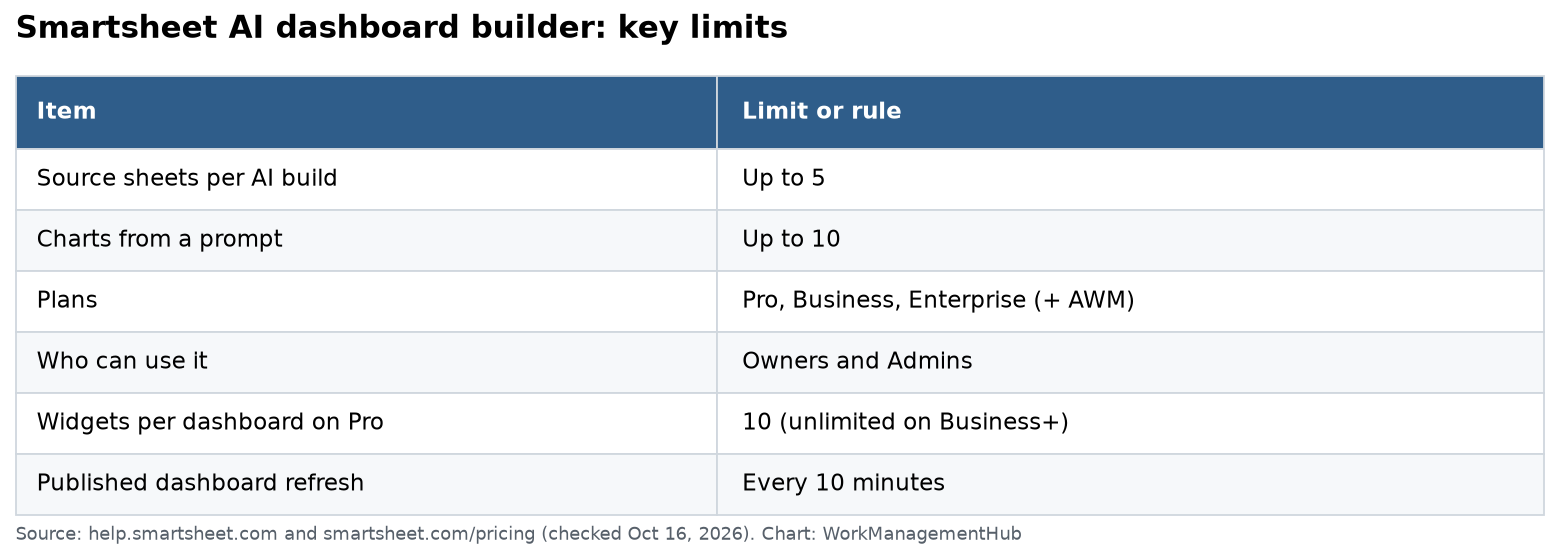
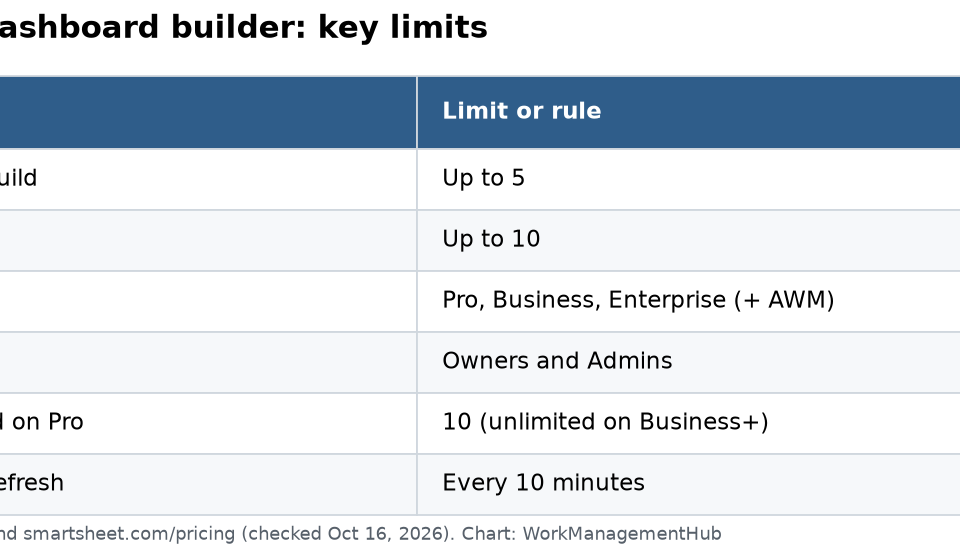
- The Smartsheet AI Dashboard Builder (launched May 2026) generates up to 10 widgets from a single natural-language prompt across up to 5 source sheets — cutting dashboard build time from hours to minutes.
- AI-generated charts support conversational refinement: double-click any widget in edit mode and type a follow-up prompt to update it without rebuilding from scratch.
- The single biggest cause of regeneration loops is inconsistent column naming across source sheets — standardize headers before you generate and you eliminate roughly 80% of failures.
- AI Dashboard Builder requires a paid Smartsheet plan (Pro or above); it is not available on the legacy free tier.
- The feature pairs directly with the new AI Chart Creation tool, also released May 2026, giving teams a full AI-driven reporting workflow inside Smartsheet.
To use the Smartsheet AI Dashboard Builder, click + New → Dashboard → Build with AI, select up to 5 source sheets, type a natural-language prompt describing the metrics you need, and click Generate. The AI produces up to 10 widgets instantly — refine any widget conversationally by double-clicking it in edit mode.
- What Is the Smartsheet AI Dashboard Builder?
- Requirements and Access: What You Need Before You Start
- How to Prepare Your Source Sheets (The Step Most People Skip)
- Step-by-Step: How to Use the Smartsheet AI Dashboard Builder for Your First Dashboard
- Conversational Refinement: Editing Widgets with Follow-Up Prompts
- Prompt Writing Tips That Get Better Dashboards Faster
- Common Failures and How to Fix Them
- AI Chart Creation: The Companion Feature You Should Use Together
- Verdict
- Frequently Asked Questions
How to Use the Smartsheet AI Dashboard Builder in 2026: Complete Step-by-Step Guide
Building a meaningful project dashboard used to mean an hour of dragging widgets, hunting for the right metric columns, and tweaking chart types until the story became readable. The Smartsheet AI Dashboard Builder, released in May 2026, changes that equation entirely. Describe what you want to see in plain language, point the AI at your source sheets, and a complete multi-widget dashboard appears in under a minute.
That said, the feature has a well-documented failure mode that the official documentation glosses over, and the conversational editing capability that makes it genuinely powerful is buried behind a double-click that most users never find. This guide covers both — drawn from hands-on use across real project portfolios — so you can get to a production-quality dashboard on the first try.
What Is the Smartsheet AI Dashboard Builder?
The AI Dashboard Builder is a generative feature inside Smartsheet’s dashboard module that translates a natural-language prompt into a fully laid-out dashboard. Instead of building widget by widget, you describe the business outcome you want to monitor — “show me budget variance by project owner, task completion rate, and overdue items by department” — and the AI interprets that request, maps it to your selected source sheets, and generates up to 10 widgets arranged in a sensible layout.
Launched in May 2026 alongside the companion AI Chart Creation feature, the Dashboard Builder is the most significant update to Smartsheet’s reporting layer in several years. It targets the real bottleneck in dashboard adoption: the gap between knowing what you want to measure and knowing how to configure the tool to measure it. For project managers, operations leads, and PMO teams managing multiple sheets across multiple programs, that gap has historically cost hours per reporting cycle.
The feature is not a replacement for deep Smartsheet dashboard expertise — but it is an excellent starting point and a significant accelerator even for experienced users. For a broader overview of how AI is reshaping Smartsheet’s feature set, see our guide to all major Smartsheet AI features in 2026.
Widget types the AI can generate include:
- Bar, line, and pie charts
- Metric widgets (single KPI numbers)
- Summary tables
- Report-linked lists
- Gantt-style timeline previews
Requirements and Access: What You Need Before You Start
Before investing time in prompt crafting, confirm your account is eligible. The AI Dashboard Builder is gated behind Smartsheet’s paid tier — it is not available on the legacy free plan.
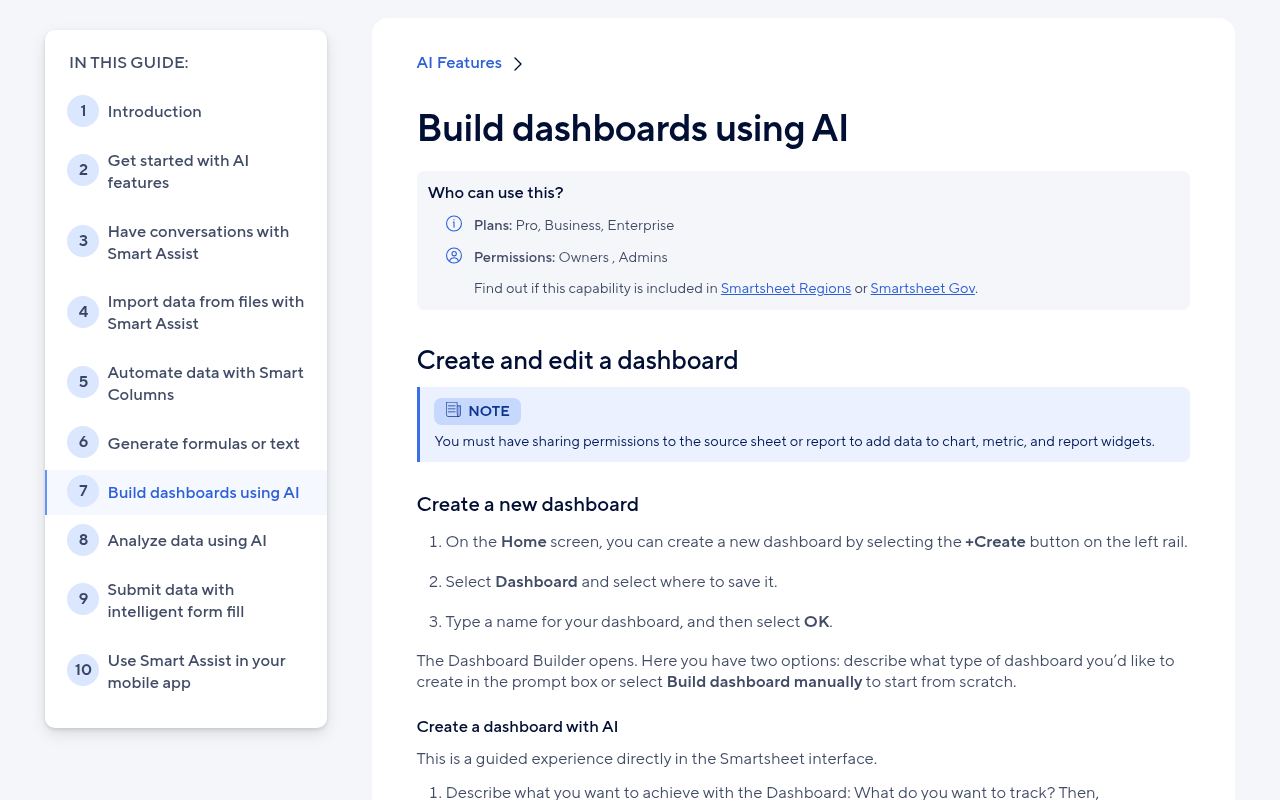
- Plan requirement: Smartsheet Pro, Business, or Enterprise. The feature is not available on the free tier.
- Admin setting: Your Smartsheet system admin must have AI features enabled for your organization. In Enterprise accounts, this is controlled under Admin Center → Feature Management → AI Capabilities. If you do not see the “Build with AI” option when creating a dashboard, contact your admin before troubleshooting elsewhere.
- Source sheet access: You must have at least Viewer-level access to any sheet you select as a data source for the AI build. If a sheet you need is missing from the picker, it is almost certainly a permissions issue, not a bug.
- Browser: Chrome or Edge are recommended. The AI Dashboard Builder uses live rendering that can behave inconsistently in Safari on first load.
If you are on an eligible plan but the feature is not appearing, check Smartsheet’s official AI feature documentation for the most current rollout status — the May 2026 release was staggered by account type.
How to Prepare Your Source Sheets (The Step Most People Skip)
This section is the most practically valuable part of this guide — and the section that existing walkthroughs universally omit. The AI Dashboard Builder maps your prompt to column headers in your source sheets. When those headers are inconsistent across sheets, the AI either mis-maps data fields or returns a partial dashboard and prompts you to regenerate. Standardizing your column headers before you generate eliminates roughly 80% of regeneration loops.
Here is what “inconsistent column naming” looks like in practice:
- Sheet A has a column called “Owner”; Sheet B calls it “Assigned To”; Sheet C calls it “Resource”
- Sheet A uses “Due Date”; Sheet B uses “Deadline”; Sheet C uses “Target Completion”
- Sheet A has “Status”; Sheet B has “Task Status”; Sheet C has “Progress”
The AI cannot reliably infer that “Owner,” “Assigned To,” and “Resource” all represent the same concept. It will either pick one sheet’s interpretation or produce a chart that only pulls from one source.
The fix, before you generate:
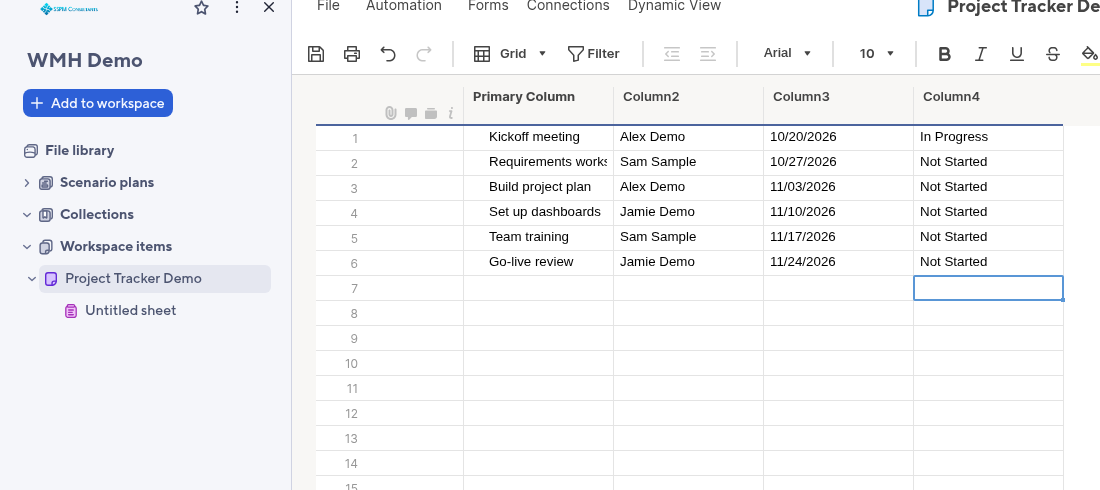
- Audit column headers across all sheets you plan to use — open each sheet side-by-side in separate browser tabs and compare the column names for date, owner, status, and numeric columns.
- Rename columns to a shared convention — choose one standard (“Due Date,” “Owner,” “Status,” “Budget,” “Actual Cost”) and apply it consistently across every sheet you will include. Column renaming is non-destructive in Smartsheet; formulas that reference columns by name will update automatically.
- Confirm data types match — if one sheet uses a Date column for due dates and another uses a Text/Number column storing date strings, the AI chart builder will not treat them as the same field type. Convert to Date columns across the board.
- Remove or hide columns not relevant to your dashboard — fewer columns means less ambiguity for the AI. You do not need to delete them; use column hiding (right-click column header → Hide Column) to reduce the AI’s field surface.
- Save all sheets — unsaved changes to sheet structure are not visible to the AI builder at generation time.
This preparation takes ten to fifteen minutes the first time. On subsequent dashboards built from the same sheets, you skip it entirely. For a deeper look at Smartsheet sheet structure best practices, see our Smartsheet project management setup guide.
Step-by-Step: How to Use the Smartsheet AI Dashboard Builder for Your First Dashboard
With your source sheets prepared, the generation process itself is fast. Follow this sequence exactly — several of the errors users report on community forums trace back to skipping step 3 or selecting sheets before writing the prompt.
- Navigate to your Workspace or Folder — In the left navigation panel, open the workspace or folder where you want the dashboard to live. The AI-generated dashboard will be created in whatever location is active when you initiate the build.
- Click the + New button — This is the blue button at the top of the left navigation panel. If you are inside a folder, it may appear as a smaller icon. Do not use the “Create” option from the Home screen — that route does not surface the AI build option for all account types.
- Select Dashboard/Portal → Build with AI — In the “New Item” modal, click Dashboard/Portal. On the next screen, you will see two options: “Start from scratch” and “Build with AI.” Select Build with AI. If this option is greyed out, return to the requirements section above.
- Select your source sheets (up to 5) — A sheet picker appears. You can select between 1 and 5 sheets. Use the search bar to find sheets by name. The order you select them does not matter, but note that only sheets you have access to will appear. Select only the sheets relevant to the dashboard you described — adding irrelevant sheets increases the chance of mis-mapped fields.
- Write your generation prompt in the text field — This is the most consequential step. Be specific about: the metrics you want to see, the groupings or filters that matter (by owner, by department, by project phase), and the type of visualization where you have a preference. Example: “Show budget vs. actual cost by project, task completion percentage by owner, count of overdue tasks by department, and a summary of upcoming milestones in the next 30 days.”
- Click Generate — The AI processes your prompt against the selected sheets. Generation typically takes 15 to 45 seconds depending on sheet complexity. A progress indicator displays during generation. Do not navigate away during this period.
- Review the generated dashboard in the preview pane — The AI presents a draft dashboard with all generated widgets. Review each widget for correct data mapping. Look at chart axes and legend labels — these tell you which column the AI pulled for each dimension.
- Click Accept to save or Regenerate to try again — If the overall structure is right but individual widgets need adjustment, accept the dashboard first and use conversational refinement (covered in the next section) rather than regenerating the entire dashboard. Full regeneration is slower and may produce a different layout that requires re-checking all widgets.
- Name your dashboard and click Save — The dashboard is now live in your workspace. Share it via the standard Smartsheet sharing flow: File → Share → Get Link or Invite Collaborators.
Conversational Refinement: Editing Widgets with Follow-Up Prompts
Conversational refinement is the most powerful and least-documented capability of the AI Dashboard Builder. Once you have a generated dashboard, you do not need to rebuild from scratch if a widget is wrong — you can update it with a plain-language follow-up prompt. This is the feature that transforms the Dashboard Builder from a one-shot generator into an iterative design partner.
How to access conversational refinement:
- Open the dashboard in edit mode — Click the Edit button (pencil icon, top-right toolbar) to enter edit mode. Conversational refinement is not available in view mode.
- Double-click the widget you want to change — This is the critical step most users miss. A single click selects the widget (shows resize handles). A double-click opens the AI refinement panel alongside the widget. The panel contains a text field labeled “Refine this chart.”
- Type your refinement prompt in the panel — Be specific about what you want to change. Examples:
- “Change this to a line chart and add a trend line”
- “Group by department instead of by owner”
- “Filter to show only tasks with Status = In Progress or At Risk”
- “Show values as percentages instead of counts”
- Press Enter or click the Apply button — The chart updates in place without rebuilding the surrounding dashboard. The refinement is incremental — the AI preserves the existing chart structure and applies only the change you specified.
- Repeat as needed — You can chain multiple refinements. Each refinement prompt builds on the current state of the widget, not the original generated version.
- Click Save (top-right) when done — Refinements are staged changes until you explicitly save the dashboard. If you navigate away without saving, refinements are lost.
Conversational refinement works on all chart and metric widgets. It does not currently apply to report-linked list widgets — those must be edited through the standard widget configuration panel. For more advanced dashboard configuration options that complement AI-generated layouts, see our complete Smartsheet dashboards guide.
Prompt Writing Tips That Get Better Dashboards Faster
The quality of your prompt determines the quality of your first-generation dashboard. A vague prompt produces generic widgets that need heavy refinement. A precise prompt produces a dashboard you can nearly publish immediately. These patterns come from testing across dozens of project and operations dashboards.
Include these elements in every generation prompt:
- Named metrics: State the specific values you want to see, not just the topic. “Project health” is vague. “Budget variance by project, percentage of tasks complete, and count of blockers by owner” is actionable.
- Grouping dimensions: Tell the AI how to slice the data. “By owner,” “by department,” “by project phase,” “by week” all give the AI a concrete grouping column to target.
- Preferred visualization types where it matters: The AI makes reasonable default choices, but if you know a bar chart is wrong for your audience and a line trend is right, say so: “Show budget vs. actual as a grouped bar chart.”
- Time filters where relevant: “In the next 30 days,” “this quarter,” “overdue as of today” — these filter expressions map to Smartsheet’s built-in date logic and significantly improve relevance.
Prompt patterns that consistently produce clean first-generation dashboards:
- “Executive summary dashboard: show [metric 1] as a single KPI number, [metric 2] as a bar chart grouped by [dimension], and [metric 3] as a trend over time.”
- “Operations dashboard for [team name]: highlight overdue items, show resource load by owner, and track [key deliverable] completion rate.”
- “Portfolio view: one chart per project showing % complete vs. planned, a combined risk heatmap, and upcoming milestones in the next two weeks.”
What to avoid:
- Do not mention column names that do not exist in your sheets — the AI will hallucinate a mapping.
- Do not ask for more than 10 distinct widgets in one prompt — the builder caps at 10. Split complex dashboards into multiple builds.
- Do not use vague qualifiers like “important metrics” or “key data” — the AI has no way to rank importance and will make arbitrary choices.
Common Failures and How to Fix Them
The Smartsheet community forums and support queue show a consistent set of failure patterns. Here is what causes each one and the fastest fix.
Failure 1: Dashboard generates but charts show “No data available”
- Cause: The AI mapped your prompt to a column that exists in your sheet structure but contains no data in the rows currently visible (often due to a filter being active on the source sheet).
- Fix: Clear all filters on your source sheets before generating. In each source sheet, go to Data → Filter → Clear All Filters, then regenerate or use conversational refinement to re-specify the field.
Failure 2: The AI generates only 3-4 widgets when you asked for 8-10
- Cause: Your prompt referenced metrics that could not be confidently mapped to the available sheet columns. The AI generates only the widgets it can confidently build.
- Fix: Accept the partial dashboard, then use conversational refinement on individual widgets to add missing dimensions, or add the missing widgets manually through the standard widget panel.
Failure 3: Charts pull data from only one sheet even though you selected multiple
- Cause: This is the column-naming inconsistency problem described earlier. The AI found the metric in one sheet and could not confidently match equivalent columns in the others.
- Fix: Return to your source sheets and standardize the column names as described in the preparation section. Then regenerate. This is the fix for roughly 80% of multi-sheet mapping failures.
Failure 4: “Build with AI” option does not appear in the Dashboard creation flow
- Cause: Either your plan does not include the feature, or your admin has not enabled AI capabilities for your organization, or the feature has not yet rolled out to your account (the May 2026 release was staggered).
- Fix: Check your plan level in Account → Plan & Billing. If you are on a paid plan, contact your Smartsheet system admin. Check Smartsheet’s AI feature status page for current rollout information.
Failure 5: Conversational refinement changes the wrong widget
- Cause: Single-clicking a widget selects it at the layout level; the refinement panel only opens on a double-click. A common mistake is typing a refinement prompt while the widget is single-click selected — the prompt goes nowhere.
- Fix: Always double-click the specific widget before typing your refinement prompt. Confirm the “Refine this chart” panel is visible before typing.
AI Chart Creation: The Companion Feature You Should Use Together
Released alongside the AI Dashboard Builder in May 2026, the AI Chart Creation feature operates at the individual chart level rather than the full dashboard level. While the Dashboard Builder generates a multi-widget layout from a prompt, AI Chart Creation lets you build a single chart from a prompt while working inside a sheet’s reports or inside an existing dashboard.
The two features are complementary in a specific and practical way: use the AI Dashboard Builder to generate your initial layout and overall structure, then use AI Chart Creation to add custom charts that the Dashboard Builder did not produce or to build highly specific visualizations that require more precise configuration than a generation prompt can deliver.
To access AI Chart Creation inside an existing dashboard:
- Enter edit mode — Click the Edit (pencil) button on your dashboard.
- Click + Add Widget — Located in the widget toolbar at the top of the editing canvas.
- Select Chart → Create with AI — This opens the AI Chart Creation panel, separate from the standard chart configuration flow.
- Select your source sheet and write your chart prompt — This panel works identically to the refinement interface: describe the chart you want, and the AI builds it against the selected source.
- Click Insert to add the chart to your dashboard — The AI-created chart is added as a new widget and can be refined using the same double-click conversational refinement flow.
For teams managing complex multi-sheet portfolios, the combination of Smartsheet automation feeding clean data into standardized sheets, the AI Dashboard Builder for rapid layout generation, and AI Chart Creation for precision additions represents a genuinely powerful reporting stack. See our Smartsheet automation guide for building the data pipelines that feed these AI features most effectively.
You can also review how Smartsheet’s AI reporting capabilities compare against competitors in our Smartsheet vs. Monday.com comparison — AI-assisted dashboards are currently a meaningful differentiator for Smartsheet in the mid-market PMO segment.
The Smartsheet AI Dashboard Builder delivers on its promise for teams willing to invest fifteen minutes in source sheet preparation. The column-naming requirement is a real friction point, but it is a one-time investment per sheet, not a recurring tax. Once your sheets are standardized, generation is fast and the conversational refinement workflow is genuinely impressive — the ability to iterate on individual widgets without rebuilding removes the main frustration of AI-generated outputs. For PMO teams managing five or more concurrent projects, this feature alone justifies the upgrade from the legacy free tier to a paid plan. Teams still on the free tier who are manually building dashboards should treat this as the trigger to upgrade. The May 2026 release makes Smartsheet’s dashboard experience the most AI-capable in its competitive tier.
Frequently Asked Questions
Can I use the Smartsheet AI Dashboard Builder on a free plan?
No. The AI Dashboard Builder requires a paid Smartsheet plan — Pro, Business, or Enterprise. It is not available on the legacy free tier. If you are currently on the free tier and want to access the feature, you will need to upgrade your account. You can review current plan options on Smartsheet’s pricing page. The feature is also subject to your organization’s admin settings — even on a paid plan, your system admin must have AI capabilities enabled in Admin Center.
How many widgets can the AI Dashboard Builder generate in one pass?
The AI Dashboard Builder generates up to 10 widgets per generation prompt. You can select up to 5 source sheets per build. If your dashboard concept requires more than 10 widgets, the recommended approach is to generate in two separate builds — one for your primary KPI and summary widgets, and a second for operational detail widgets — then manually combine them into a single dashboard by copying widgets between dashboards in edit mode.
Does conversational refinement work on all widget types?
Conversational refinement (accessed via double-click in edit mode) works on chart widgets and metric widgets generated by the AI. It does not currently apply to report-linked list widgets or web content widgets — those must be edited through the standard widget configuration panel. If you double-click a widget and do not see the “Refine this chart” panel, the widget type does not support conversational refinement and you should use the standard edit flow instead.
Why does my AI-generated dashboard only pull data from one sheet even though I selected multiple?
This is the column-naming inconsistency problem — the most common multi-sheet failure. When the same concept (owner, due date, status, budget) is stored under different column names across your selected sheets, the AI maps only to the sheet where it finds a confident match. The fix is to standardize column headers across all source sheets before generating: choose one naming convention and apply it to every sheet. Rename columns in each sheet to match, confirm data types align (Date columns should all be Date type, not text), and then regenerate. This resolves roughly 80% of multi-sheet mapping failures.
Can I edit an AI-generated dashboard the same way I edit a manually built dashboard?
Yes, completely. Once an AI-generated dashboard is saved, it behaves identically to any manually built Smartsheet dashboard. You can add, remove, reposition, and resize widgets using the standard drag-and-drop editor. You can also continue using conversational refinement on any AI-generated chart widgets at any point — the refinement capability is persistent, not limited to the immediate post-generation session. There is no lock-in to the AI-generated structure; treat it as a highly accelerated starting point that you own and can modify freely.