How to Use Smartsheet Dynamic View in 2026: Secure Data Sharing Without Exposing Your Sheet
- Dynamic View is a Smartsheet premium add-on that creates a filtered, role-based portal from any source sheet — viewers only see the rows and columns you explicitly permit.
- External stakeholders and clients can submit updates through Dynamic View without holding a Smartsheet license, making it ideal for vendor portals and client-facing workflows.
- All changes made in a Dynamic View sync back to the source sheet in real time — there is no data duplication or manual reconciliation required.
- You can restrict both column visibility and column editability independently, giving you granular control over what each audience can see versus change.
- As of 2026, Dynamic View natively supports multi-select dropdown fields, closing a long-standing gap for teams managing complex categorical data.
- Dynamic View is not the same as a Smartsheet Portal — Portals are page-level dashboards, while Dynamic View operates at the row and column level for data interaction.
To use Smartsheet Dynamic View, open your source sheet, click the Dynamic View icon in the right panel, create a new view, define your row filter and column permissions, then share the view link with stakeholders. Viewers see only what you permit and can submit edits that sync back to your sheet in real time — no Smartsheet license required on their end.
- What Is Smartsheet Dynamic View (and Why It Matters in 2026)
- Dynamic View vs. Smartsheet Portals: Understanding the Difference
- Plan Requirements and Access Prerequisites
- Top Use Cases for Dynamic View in Practice
- How to Set Up Smartsheet Dynamic View: Step-by-Step
- Configuring Column Visibility and Edit Permissions
- Setting Up Row Filters for Role-Based Access
- Sharing Your Dynamic View: Authentication Options
- What’s New in Dynamic View for 2026
- Best Practices and Common Configuration Mistakes
- Verdict
- Frequently Asked Questions
What Is Smartsheet Dynamic View (and Why It Matters in 2026)
Most work management tools force you into one of two uncomfortable positions: share the entire sheet with everyone, or share nothing at all. If you have ever spent an afternoon manually copying rows into a separate “client-facing” sheet, manually reconciling updates, and wondering whether your source data is still accurate — you already understand the problem that Dynamic View was built to solve.
Smartsheet Dynamic View is a premium add-on that creates a filtered, interactive portal directly from a source sheet. Instead of duplicating data or building elaborate workarounds, you configure a view that shows specific rows and columns to a specific audience. The viewer interacts with what looks like a standalone form or table, but every change they make writes back to the source sheet in real time. There is exactly one version of the data. Always.
This architecture has significant operational value. Your project team continues working in the full sheet with all its columns, automations, and formulas intact. Meanwhile, a client sees only their project rows, a vendor sees only open requests assigned to them, and a contractor sees only their timesheets. Each audience gets a purpose-built experience. None of them can see data that belongs to someone else.
In 2026, Dynamic View has matured into one of Smartsheet’s most practical premium features. The addition of native multi-select dropdown support this year removes what was previously one of the most cited configuration limitations, making Dynamic View viable for a significantly wider range of data structures. If you dismissed Dynamic View in earlier years because of that gap, it is worth revisiting now.
For teams that also use Smartsheet automations, Dynamic View becomes even more powerful — you can trigger automated notifications whenever a viewer submits an update through the view, creating a fully managed intake and workflow loop without any manual intervention.
Dynamic View vs. Smartsheet Portals: Understanding the Difference
Before configuring anything, you need to be clear on what Dynamic View is not. This is one of the most common points of confusion for Smartsheet users, and conflating the two features leads to the wrong tool being implemented for the wrong problem.
Smartsheet Portals are page-level dashboards. They aggregate widgets — charts, metrics, report summaries, web content, images — into a structured landing page. A portal is primarily read-oriented and is best used when you want to present a curated overview to a stakeholder. You can embed a Dynamic View inside a portal, but the portal itself does not provide row-level data interaction. For a deeper look at dashboard configuration, see the Smartsheet dashboards guide.
Dynamic View operates at the row and column level. It is inherently interactive. A viewer can read rows, submit updates to editable cells, and in some configurations submit entirely new rows. The access control is granular: you specify exactly which rows a person sees and exactly which columns they can edit. This is a data interaction tool, not a presentation tool.
The practical test is simple: if your stakeholder needs to do something to your data — approve a request, update a status, submit a timesheet entry — use Dynamic View. If your stakeholder needs to see a summary of how things are going, use a Portal or Dashboard.
Plan Requirements and Access Prerequisites
Dynamic View is not available on Smartsheet’s free or Pro plans. You need one of the following to access it:
- Business plan — Dynamic View is included as part of the Business tier.
- Enterprise plan — Dynamic View is included and can be governed through enterprise-level admin controls.
- Standalone add-on — If your organization is on a lower-tier plan, Dynamic View can be purchased as a standalone add-on. Contact your Smartsheet account representative for current pricing.
Importantly, the people you share a Dynamic View with do not need a Smartsheet license. This is a meaningful commercial distinction. You can share a Dynamic View with a hundred external vendors, clients, or contractors and none of them require paid seats. They access the view through a shared link or by logging in with a free Smartsheet guest account if authentication is required. Only the person who creates and manages the Dynamic View needs to hold a license on your account.
Before you begin setup, confirm you have the following in place:
- Sheet Owner or Admin permission on the source sheet
- Dynamic View enabled on your Smartsheet account (check under Account > Add-ons)
- A clearly defined row-filtering logic — know which rows each audience should see before you open the configuration panel
Top Use Cases for Dynamic View in Practice
Dynamic View earns its keep in any scenario where you need external or cross-functional access to a controlled slice of your data. The four most productive implementations in 2026 are:
Client project portals. Share project status, milestone dates, and open action items with your client. They see their project rows only, can update the status of their own action items, and cannot see other clients’ data or your internal cost columns. No more “send me an updated spreadsheet” emails.
Vendor and supplier request tracking. Create a Dynamic View scoped to rows where a specific vendor is assigned. The vendor logs in, sees their open requests, updates completion status, and uploads any required attachments. Your procurement team’s source sheet captures every update in real time, and automations can trigger approval workflows when a vendor marks a request complete.
IT helpdesk ticket views. Allow requestors to see only the tickets they submitted, view current status, and add comments — without accessing the full IT ticket sheet that contains internal triage notes, escalation history, and resolution cost tracking.
Contractor timesheets. Each contractor accesses a Dynamic View filtered to rows where their name appears in the Assigned To column. They enter hours and submit. Finance sees the consolidated source sheet with all contractor data. No manual collection process, no version-control headaches. This pairs well with Smartsheet resource management if you are also tracking capacity and allocation.
How to Set Up Smartsheet Dynamic View: Step-by-Step
The following steps walk through creating a Dynamic View from scratch. Complete each step before moving to the next — the configuration options in later steps depend on decisions made in earlier ones.
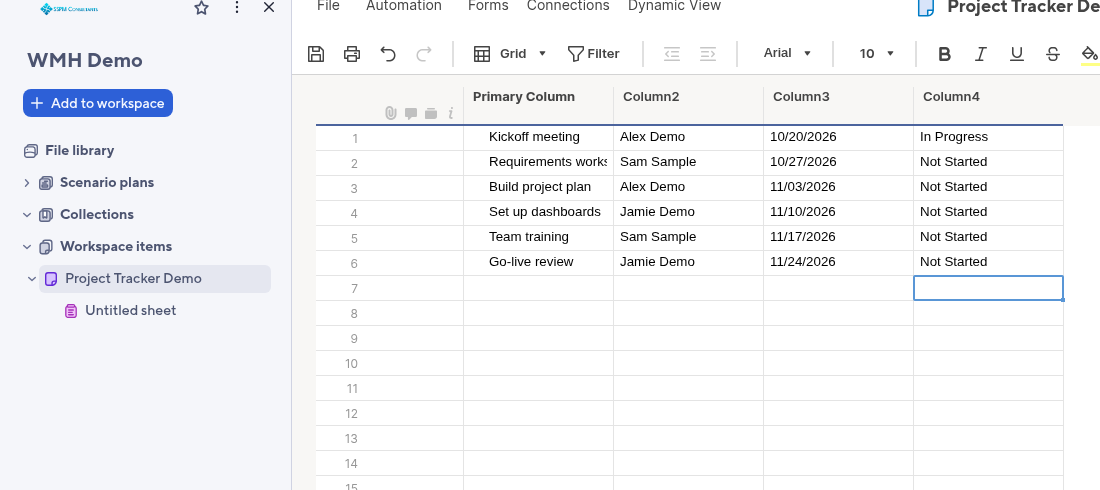
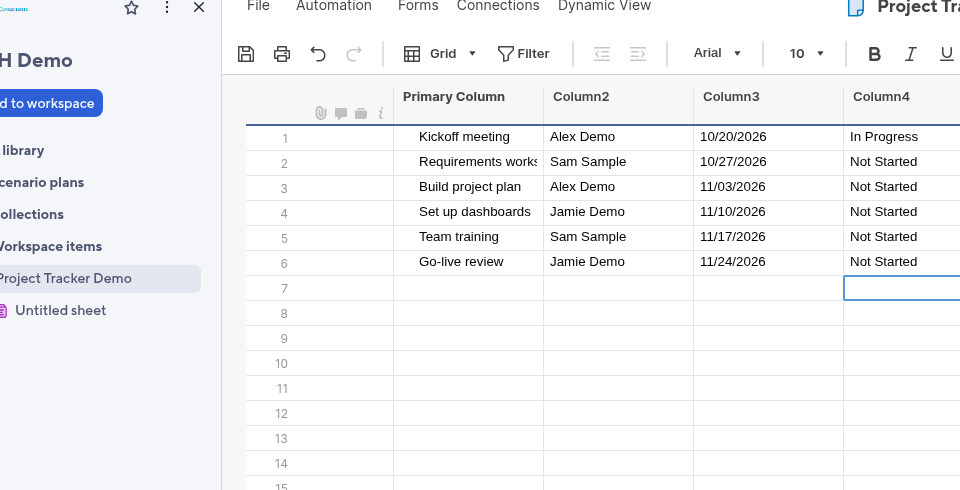
- Open your source sheet in Smartsheet. This is the sheet that contains all your data. Dynamic View draws from this sheet — it does not copy or move data.
- Access Dynamic View by clicking the Dynamic View icon in the right panel (it looks like a filtered table). Alternatively, go to the top navigation bar, click Apps & Integrations, and select Dynamic View from the panel that opens.
- Click “Create Dynamic View” in the Dynamic View panel. A setup wizard will open. Give your view a clear, descriptive name — this name is visible to your viewers, so use something meaningful like “Acme Corp — Project Status” rather than “Test View 1”.
- Select your source sheet from the dropdown. If the sheet is already open, it will be pre-selected. Confirm the correct sheet before proceeding — you cannot change the source sheet after the view is created without rebuilding the view from scratch.
- Configure your row filter in the “Rows” section. This determines which rows are visible in the view. You can filter by column value (e.g., show only rows where “Client Name” equals “Acme Corp”), by the viewer’s email address (dynamic filtering), or show all rows. Dynamic email-based filtering — where each viewer sees only rows assigned to their own email — is the most scalable option for multi-user deployments.
- Configure column visibility and permissions in the “Columns” section (detailed in the next section of this guide). Decide which columns appear, which are read-only, and which are editable by the viewer.
- Set authentication requirements in the “Sharing” section — either require login (recommended for sensitive data) or allow anonymous access via link. Configure who receives the share link.
- Preview your view using the built-in preview function before sending any links. Toggle between different viewer personas if you have set up dynamic filtering to confirm each audience sees only their intended data.
- Share the view by copying the generated link or entering email addresses directly. Smartsheet will send an invitation email to those addresses if you choose the email invite option.
Total setup time for a well-planned Dynamic View is typically 15 to 30 minutes. The majority of that time is spent thinking through the row filter logic and column permissions — the actual UI configuration is fast once you know what you want.
Configuring Column Visibility and Edit Permissions
Column configuration is where Dynamic View’s real power is expressed. This section of the setup is frequently rushed, which leads to either over-sharing sensitive data or under-empowering viewers to do what you actually need them to do.
- Navigate to the “Columns” tab in the Dynamic View editor. You will see a list of every column from your source sheet.
- Toggle visibility for each column using the eye icon. Columns with visibility turned off are completely hidden from the viewer — they do not appear in the view at all, not even as blank placeholders. Hidden columns are never sent to the viewer’s browser.
- Set editability independently from visibility. A column can be visible but read-only, visible and editable, or hidden entirely. Use read-only for reference data the viewer needs to see but should not change (project name, due date, original request details). Use editable for status fields, completion percentages, or any data the viewer is expected to maintain.
- Apply conditional column logic where needed. Dynamic View supports showing or hiding specific columns based on row data. For example, you can configure a “Rejection Reason” column to appear only on rows where the Status column equals “Rejected”. This keeps the view clean for straightforward rows and surfaces relevant fields only when they are needed. Access this under the column’s advanced settings within the editor.
- Verify your column configuration covers these common categories before saving:
- Internal-only columns (budget, margin, internal notes) — hidden
- Reference/context columns (project name, client, original request) — visible, read-only
- Action columns (status, completion, approval decision) — visible, editable
- System columns (Created By, Modified Date) — typically hidden unless auditing is a viewer requirement
As of 2026, multi-select dropdown columns are fully supported in Dynamic View. If your source sheet uses multi-select fields for categories, tags, or skill sets, viewers can now interact with those fields natively — selecting and deselecting options — rather than seeing a broken or static display.
Setting Up Row Filters for Role-Based Access
Row filtering is what transforms a single Dynamic View into a scalable, multi-user access control system. There are three filtering approaches available, and choosing the right one depends entirely on your audience structure.
Static value filter. Use this when all viewers of a particular Dynamic View should see the same set of rows. Example: a view scoped to all rows where “Department” equals “Finance”. Every person who accesses this view sees the same Finance rows. Simple, predictable, appropriate for small teams with a shared context.
Dynamic email-based filter (Current User). This is the recommended approach for any scenario where different viewers should see different rows. In the row filter configuration, instead of entering a static value, select “Current User” as the filter value for a column that contains email addresses or usernames. Smartsheet compares the logged-in viewer’s email against the column value and shows only matching rows. One view URL serves an unlimited number of users, each seeing only their own data. This requires authentication to be enabled — anonymous viewers have no identity to filter against.
No filter (show all rows). Use with caution. This is appropriate only when every viewer legitimately needs to see the full dataset — for example, a management team view of all open tickets. Even in this case, you should still restrict which columns are visible and editable to prevent inadvertent changes to data that should be locked.
- In the Dynamic View editor, click the “Rows” tab.
- Click “Add Condition” to define your filter logic.
- Select the column that contains the identifier you are filtering on (assigned email, client name, vendor ID, etc.).
- Choose your operator (equals, contains, is not blank, etc.) and your value (static text, or “Current User” for dynamic filtering).
- Add additional conditions if needed using AND/OR logic. For example: show rows where Assigned Email equals Current User AND Status is not “Archived”.
- Use the preview function to impersonate specific users and confirm the filter behaves as expected before distributing the view link.
If you are managing data imports or sync processes that populate your source sheet, review Smartsheet Data Shuttle to understand how automated data pipelines interact with Dynamic View row filters — particularly if the column you are filtering on is populated by an automated import rather than manual entry.
Sharing Your Dynamic View: Authentication Options
How you share a Dynamic View determines who can access it and whether Smartsheet can enforce dynamic row filtering. This decision has both security and usability implications.
Require login (Smartsheet account). Viewers must sign in with a Smartsheet account (free guest accounts are acceptable — they do not require a paid license). This is mandatory if you are using Current User row filtering. It is also the appropriate default for any view containing project financials, personal data, contractual information, or anything your organization would not want accessible to an anonymous internet user. Access this setting under the “Sharing” tab in the Dynamic View editor by enabling “Require login to access this view”.
Allow anonymous access. The view is accessible to anyone with the link, no login required. This is appropriate for low-sensitivity, high-volume intake scenarios — a public-facing request form, a conference registration follow-up view, or an anonymous survey response page. Note that anonymous access disables Current User filtering since there is no identity to filter against. All anonymous viewers see the same rows based on whatever static filter you have configured.
- Open the “Sharing” tab in the Dynamic View editor.
- Set the authentication requirement — toggle “Require Smartsheet login” on or off based on your security requirements.
- Share by email to send invitations directly to specific recipients. Smartsheet emails them the view link and logs the invitation.
- Copy the view link to distribute through your own channels (email client, Slack, client portal, etc.). The link is persistent and does not expire unless you explicitly disable or delete the view.
- Manage access at any time from the Dynamic View sharing panel. You can revoke access for specific users or deactivate the view entirely without affecting the source sheet.
For enterprise deployments, work with your Smartsheet system administrator to confirm that Dynamic View access complies with your organization’s data governance policies, particularly around guest account provisioning and external sharing restrictions. Enterprise plans include admin controls that can restrict Dynamic View creation or mandate login requirements across the account.
What’s New in Dynamic View for 2026
Dynamic View has received meaningful updates in 2026 that address some of the most persistent friction points reported by power users. Here is what changed and why it matters for your configuration decisions.
Native multi-select dropdown support. This is the headline update. Previously, multi-select dropdown columns from the source sheet would render in an unpredictable or broken state inside Dynamic View. Viewers could not interact with them properly. As of 2026, multi-select dropdowns render correctly and function as expected — viewers can select multiple values from the configured dropdown list, and those selections sync back to the source sheet in real time. This unlocks Dynamic View for use cases involving skill tags, category classification, multi-department routing, and any other workflow that relies on multi-value fields.
Improved conditional column logic. The conditional display rules for columns have been made more flexible, with support for additional operators and the ability to chain multiple conditions per column. This makes it practical to build context-sensitive views that surface different fields depending on where a row is in its lifecycle.
Performance improvements for large sheets. Teams using Dynamic View against sheets with thousands of rows have reported noticeably faster load times following the 2026 infrastructure updates. The row filter is now applied server-side before data is sent to the viewer’s browser, rather than filtering client-side after a full data fetch. This change also reduces the risk of momentarily visible unauthorized rows during view load.
If you are using Smartsheet resource management alongside Dynamic View, the 2026 updates also improve compatibility between Resource Management data models and Dynamic View column types, reducing the configuration edge cases that previously required workarounds.
Best Practices and Common Configuration Mistakes
After configuring Dynamic View across dozens of client implementations, the same mistakes appear repeatedly. Avoid these, and your Dynamic View will be stable, secure, and genuinely useful to its audience.
Do not use Dynamic View as a substitute for proper sheet architecture. Dynamic View works best when the source sheet is cleanly structured with clear column purposes. If your source sheet is a sprawling, inconsistently named, partially formatted mess, the Dynamic View configuration will be painful and the result will be fragile. Invest 30 minutes in cleaning up your source sheet before creating any views from it.
Always use Current User filtering when access is personal. If the whole point of the view is that each person sees their own data, do not use static filters and do not create separate views per person. The Current User approach is scalable to thousands of users with a single view configuration. Creating one view per client or one view per vendor is technically possible but operationally unsustainable.
Audit your hidden columns before sharing. The most common security mistake is assuming a column is hidden when it is merely invisible in the default view sort order. Use the column visibility toggle explicitly for every column and run a preview with a test account before distributing any view links.
Do not make primary key columns editable. If your row filtering logic depends on a column containing the viewer’s email or an assigned ID, make that column read-only in the Dynamic View. If a viewer can edit that value, they can potentially change which rows they see on their next session load.
Test with a real external account. Always validate your Dynamic View by signing in with a test guest account that has no special permissions on the source sheet. What you see as the owner does not reflect what an external viewer sees. The preview function is useful but does not catch every edge case — a real external sign-in test is the definitive check.
Keep view names descriptive and dated where relevant. If you run recurring programs — quarterly vendor reviews, annual contractor timesheet cycles — include the period in the view name. Ambiguously named views cause confusion when multiple views point to the same sheet for different purposes or time periods.
For teams running complex automation workflows alongside their Dynamic Views, the Smartsheet automations setup guide covers how to trigger notifications and approval workflows when Dynamic View submissions arrive, which is the recommended pattern for high-volume intake workflows.
For additional technical reference, consult the official Smartsheet Dynamic View documentation and the Dynamic View setup and sharing reference maintained by Smartsheet’s help team.
Smartsheet Dynamic View is one of the most underutilized features in the Smartsheet ecosystem, and in 2026 it is more capable than ever. If your team is currently managing client or vendor access by duplicating sheets, sending manual exports, or restricting entire sheets when you only need to restrict a few columns — you are creating unnecessary work and introducing data integrity risk. Dynamic View eliminates both problems in a single configuration that takes less than an hour to set up properly. The 2026 multi-select dropdown update removes the last major field-type gap that previously blocked adoption for teams with complex data schemas. For any Business or Enterprise plan user who has not yet implemented Dynamic View for at least one external stakeholder workflow, this should be next on your Smartsheet optimization list.
Frequently Asked Questions
Does a viewer need a paid Smartsheet license to use Dynamic View?
No. Viewers who access a Dynamic View do not need a paid Smartsheet subscription. If authentication is required, they will need a free Smartsheet guest account — which costs nothing and takes under two minutes to create. Only the licensed user who creates and manages the Dynamic View needs to hold a paid seat on your account. This makes Dynamic View commercially practical for sharing with external clients, vendors, and contractors at no incremental licensing cost.
Can I create multiple Dynamic Views from the same source sheet?
Yes, and this is one of the most powerful patterns available. A single source sheet can serve as the data backbone for multiple purpose-built Dynamic Views, each scoped to a different audience with different row filters and column permissions. You might have a client-facing view, an internal project team view, and a vendor-facing view all drawing from the same sheet simultaneously. Changes from any view sync back to the single source of truth in real time, so there is never any reconciliation required between views.
What is the difference between Dynamic View and a shared sheet report?
A Smartsheet report is a read-oriented aggregation tool that pulls rows from one or more sheets based on filter criteria. Viewers of a shared report can see the filtered rows, but the report itself is not designed as a data entry interface and does not provide the column-level permission controls that Dynamic View offers. Dynamic View is specifically designed for interactive, controlled data entry and editing by external or limited-access audiences. Use reports for internal visibility and monitoring; use Dynamic View when you need external stakeholders to interact with and update specific data.
Can I allow viewers to add new rows through Dynamic View, not just edit existing ones?
Yes. Dynamic View supports a “Request Submission” mode where viewers can submit new rows into the source sheet through a form-style interface embedded in the view. This is configured in the Dynamic View editor under the “Submissions” settings. You define which columns appear in the submission form and what the default values should be for any columns that should be auto-populated on submission. This makes Dynamic View suitable for intake workflows where you want external parties to log new requests, issues, or entries directly into your managed sheet.
What happens to a Dynamic View if the source sheet structure changes?
If you rename, delete, or restructure columns in the source sheet after creating a Dynamic View, the view configuration may break or display incorrectly. Renamed columns typically require manual updates in the Dynamic View column settings. Deleted columns will be removed from the view automatically but may leave gaps in your permission configuration. Best practice is to finalize your source sheet structure before creating Dynamic Views against it, and to test all views after any source sheet column changes are made. Smartsheet does not currently send automatic alerts when source sheet changes affect dependent Dynamic Views.