
When someone can’t see or edit something in Jira, start with the Permission helper. Go to Settings, then System, then Permission helper. Enter the user, the work item key and the permission, then select Show failed conditions. It tells you which rule blocks them. Most cases trace back to one of six layers: app access, global permissions, space access, the permission scheme, roles, or a work item security level.
Jira now says spaces instead of projects and work items instead of issues. This guide follows Atlassian’s docs on checking a user’s access, troubleshooting permissions, permission schemes, work item security and team-managed space access, checked on October 16, 2026.
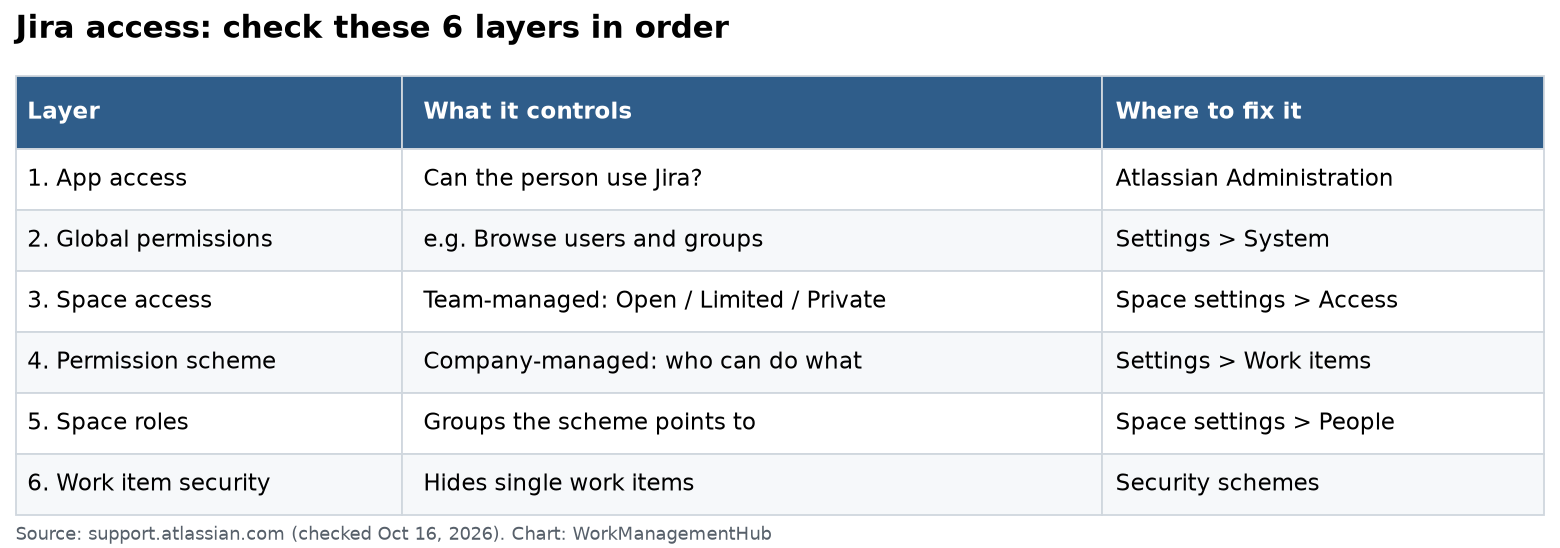
The six layers, checked in order
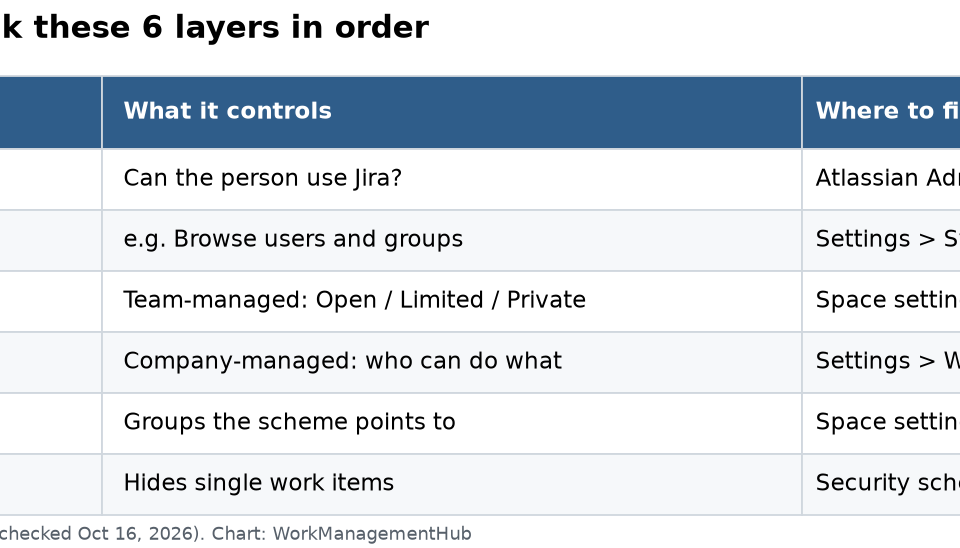
| Layer | What it controls | Where to fix it |
|---|---|---|
| 1. App access | Can the person use Jira at all? | Atlassian Administration (paid seat) |
| 2. Global permissions | Site-wide rights, like Browse users and groups | Settings, System, Global permissions |
| 3. Space access | Team-managed: Open, Limited or Private | Space settings, Access |
| 4. Permission scheme | Company-managed: who can do what in a space | Settings, Work items, Permission schemes |
| 5. Space roles | Groups of people the scheme points to | Space settings, People or Access |
| 6. Work item security | Hides single work items inside a space | Work item security schemes |
First: are you on Jira Free?
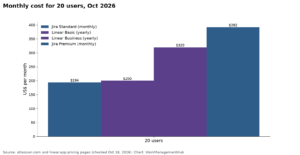
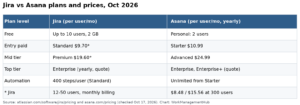
Jira Free has no permission schemes, no space roles and no work item security schemes. Atlassian lists this under permission limits for Free sites. If you need to restrict who sees what, you need Standard or above. On a 300-user monthly quote on October 16, 2026, the Jira pricing page showed Standard at $8.48 and Premium at $15.56 per user a month. Our Jira pricing guide explains how team size changes that.
Fix 1: Use the Permission helper
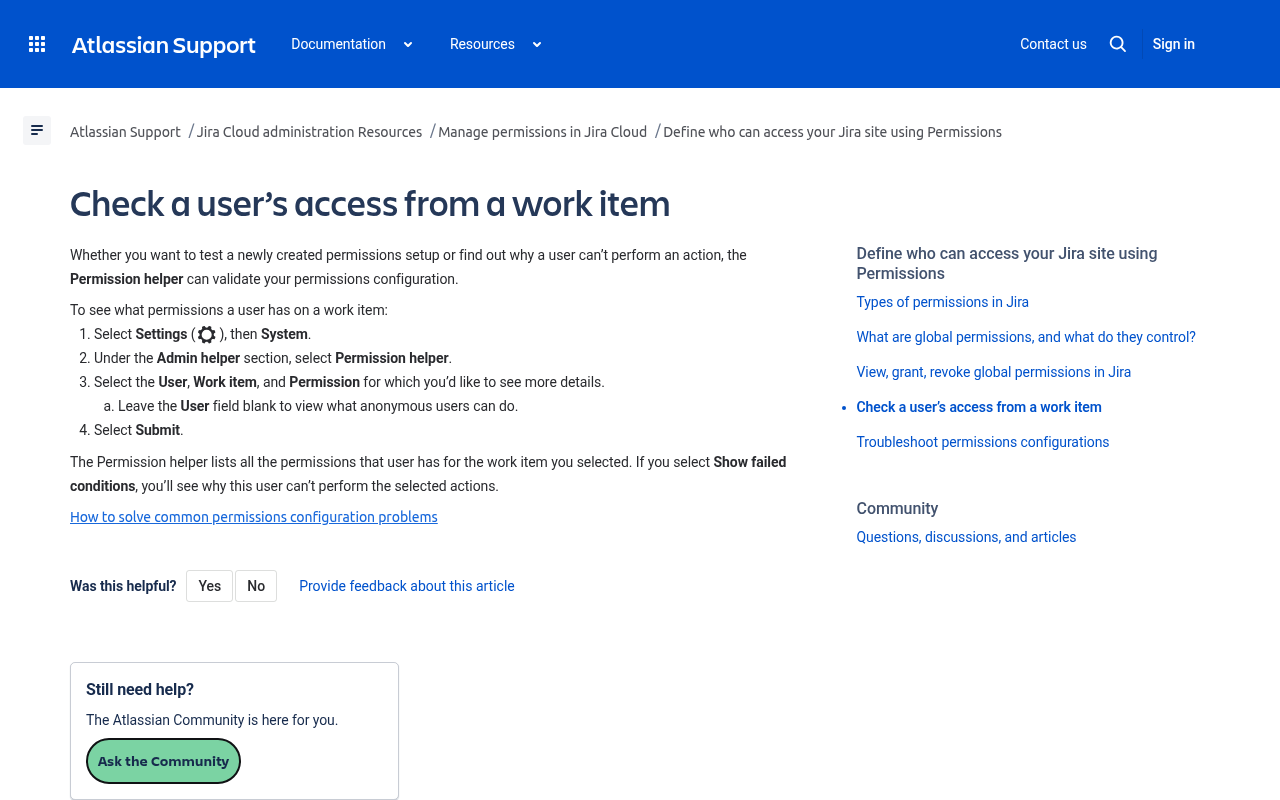
You need to be a Jira admin to use it.
- Go to Settings, then System.
- Under Admin helper, select Permission helper.
- Enter the user, the work item key (like OPS-142) and the permission, like Browse spaces or Edit work items. Leave the user blank to test anonymous access.
- Select Submit, then Show failed conditions.
The result lists every permission the user has on that work item. Show failed conditions explains why the rest fail. If the helper says “yes” but the person still can’t act, look at workflow conditions on the transition, or at the app they are using.
Fix 2: Confirm the person has Jira access
A person can exist on your site without access to Jira itself. Some space permissions can only be granted to people a site admin invited who hold a paid seat. If a grant “won’t stick,” check their app access in Atlassian Administration first.
Fix 3: Check team-managed space access
Team-managed spaces skip permission schemes. They have three access levels under Space settings, then Access:
- Open: anyone on the Jira site can view, create and edit work items.
- Limited: anyone can view and comment, but not create or edit.
- Private: only Jira admins and people added to the space.
A space set to Limited explains the classic complaint, “I can see it but can’t edit it.” Add the person with a role that can edit, or change the access level.
Fix 4: Read the permission scheme (company-managed)
In company-managed spaces, a permission scheme says which users, groups or roles get each permission. Open Settings, then Work items, then Permission schemes, and find the scheme your space uses.
Check these first:
- Browse spaces: without it, the space is invisible.
- Create work items and Edit work items.
- Transition work items: needed to move items across the board.
- Assign work items and Assignable user: two different rights. One lets you assign; the other lets you be assigned.
Schemes are often shared by many spaces. A change applies to every space using that scheme. Copy the scheme before you edit it if you only want to change one space.
Fix 5: The specific permission wins
This trips up even experienced admins. A specific permission takes priority over a general one.
Atlassian’s example: if a space does not configure Assign work items, anyone with Edit work items can change the Assignee. Once you restrict Assign work items, only people with that permission can change the Assignee. They can still edit every other field.
So if someone “can edit everything but the assignee,” that is not a bug. Grant them the specific permission.
Fix 6: Use roles, not names
Grant permissions to space roles (like Administrators, Members, Viewers) instead of to single users. Then space admins can add people to a role without asking a Jira admin to edit the scheme.
If a new hire can’t see anything, check that they were added to the role in this space. Roles are set per space, even when the scheme is shared.
Fix 7: Check work item security levels
Sometimes a person sees the space but not one item. That is usually a work item security level. A security scheme hides chosen work items from anyone not in the level, even if they can browse the rest of the space.
- To set a level, people need the Set work item security permission, and the Work item security field must be on the layout.
- When you move a work item to another space, it gets that space’s default level. If the new space has no security scheme, the item becomes visible to anyone with access to that space.
To protect a whole space, Atlassian suggests a data classification level instead of item-by-item security.
Fix 8: Empty user pickers and broken integrations
Two quick fixes from Atlassian’s troubleshooting page:
- User picker fields are empty or @mentions don’t find people: grant Browse users and groups (a global permission). Without it, people only see users who can browse the current space.
- Slack or another app can’t act in Jira: add the atlassian-addons-project-access role to the permission scheme. Our Jira Slack integration guide shows the app setup.
Ask Rovo to explain your setup
If your site has Rovo, you can open Rovo Chat and type /manage-jira-permissions, then describe the problem. It can explain the current permission setup in plain words. Treat it as a second opinion. Always confirm with the Permission helper before changing a shared scheme.
Habits that prevent permission tickets
- Keep one or two standard schemes, not one per space.
- Grant to roles and groups, never to single people.
- Use security levels sparingly. Each one is a hidden rule someone will forget.
- Test a change with the Permission helper before you tell the requester it is fixed.
- Save a few JQL filters to spot items with a security level set.
If permissions are fine but Jira still misbehaves, our common Jira errors guide covers the next suspects.
Common questions
How do I see why a user can’t see a Jira work item?
Use the Permission helper under Settings, System, Admin helper. Enter the user, work item and permission, then select Show failed conditions.
Why can someone see a work item but not edit it?
In team-managed spaces, Limited access allows view and comment only. In company-managed spaces, check Edit work items in the permission scheme.
Does Jira Free have permission schemes?
No. Permission schemes, space roles and work item security schemes are not available on Jira Free.
Why did my permission change affect other spaces?
Permission schemes can be shared. Editing one changes every space that uses it. Copy the scheme first.
Why can a user edit fields but not the assignee?
Assign work items is restricted. The specific permission overrides the general Edit work items permission.
Checked against support.atlassian.com (Permission helper, permission troubleshooting, permission schemes, work item security, team-managed access) and atlassian.com/software/jira/pricing on October 16, 2026.
Sponsored