
What connecting Notion and Slack actually gives you
Connecting Notion and Slack takes about two minutes: install the Notion app from Slack, then link your Slack account in Notion’s notification settings. What you get is event-based message passing — Notion pushes notifications into Slack channels, Slack messages push into Notion databases, and links expand into previews on both sides. Nothing synchronizes continuously.
That distinction matters more than any feature list. Teams adopt this integration expecting a Slack channel to mirror a Notion database, then find that a message posted at 9:04am reflects the state of the page at 9:04am and never changes again. Editing the Notion page later does not rewrite the Slack message. Replying in the Slack thread does not write back to the page. The integration is a notification and capture layer, and planning around that reality is the difference between a channel people read and a channel people mute in week two.
The connection methods, and what each one cannot do
Notion ships several distinct Slack behaviours under one app install. They have different owners, different permission models and different plan requirements, which is why generic advice about “the Slack integration” tends to fall apart in practice.
| Method | What it does | Hard limit | Plan requirement |
|---|---|---|---|
| Personal Slack notifications | Delivers your Notion @-mentions, comment replies, page invites and access requests to you in Slack | Personal only — you cannot route a colleague’s mentions to a channel | No plan requirement stated on Notion’s Slack help page |
| Database automation → Send Slack notification to | Posts a custom message to a channel when a page is added or a property changes | Channels only, never a private DM. Formulas cannot be used in the message body | Notion’s action list names Plus, Business and Enterprise (see below) |
| Button or database button action | Fires a channel message when a person clicks the button | Same channel-only restriction; requires a human click | Paid plans |
Slack shortcuts /notion create and /notion task | Turns a Slack message into a Notion database page or a project task | Works at channel level only — not inside Slack threads | None stated |
| Link previews both ways | Notion links expand in Slack; Slack message links paste into Notion as live previews | Preview plus an access-granting control; no editing of page content from the card | None stated by Notion; Slack-side preview controls need a paid Slack plan |
| Slack AI Connector | Lets Notion AI answer questions using your Slack history | Public channels by default, excludes Slack Connect, does not index Canvases or Lists | Notion Business or Enterprise |
One consequence catches most admins off guard: Notion states you cannot install only part of the integration. Installing the app enables the full feature set, and the supported way to restrict it is through page and database permissions rather than through the app itself.
Connect your Slack account to Notion
Start with the personal connection, because the automation actions will prompt you for it anyway.
- In Notion, open Settings in your sidebar, then select Notifications.
- Find Slack notifications and open the dropdown beside it.
- Select your Slack workspace, or choose Add new account if it is not listed, and complete the Slack authentication flow.
- Toggle Activity in your workspace on to receive the full set of events. Doing this automatically enables Only user or group mentions as well.
- To receive mentions and nothing else, leave Only user or group mentions on and toggle Activity in your workspace off.
Connecting your own account does not connect anyone else’s. Notion is explicit that when one person sets up the integration, everyone in Slack can see unfurled Notion links, but each colleague has to authorize their own account before they can use the functionality themselves. Roll this out with a short instruction to the team rather than assuming a single admin install covers everybody.
Post to a Slack channel from a Notion database automation
This is the piece most teams are actually after — a channel that receives a message when work changes state.
- Open the database and click ••• at the top right, then select Automations.
- Select New automation and give it a name that describes the event, not the channel.
- Select Add trigger and choose Page added, a specific Property edited condition, or a recurring Every {frequency} schedule.
- Select Add action → Send Slack notification to… and pick the destination channel.
- Compose the message body. You can use bold and italics, hyperlinks, emoji, @-mentions of Notion pages, people or teamspaces, the Slack-native
@channeland@here, and dynamic variables including@nowand@trigger.person. - Select Create.
Two constraints are worth designing around before you build. Formulas are not supported inside a Slack notification body, so any computed value — a cycle time, a formatted currency total — has to exist as a property on the page first and be referenced with an @-mention. If your workspace leans heavily on calculated fields, read up on how Notion’s current formula language handles property references before you design the message. Second, private DMs are not a valid destination for any of the Slack automation actions. Channels only, including private channels the Notion app has been added to.
Which plan you need, and why Notion’s own pages disagree
Be careful here, because Notion documents this inconsistently and a lot of secondhand advice repeats whichever line it found first.
- The database automations help doc describes the Send Slack notification to action as “only available on the Plus, Business, and Enterprise Plans.”
- The same page’s eligibility section says database automations are available on paid plans, then adds that Free Plan users can create Slack notification automations but no other kinds.
- The Slack integration help doc simply notes that Slack automation actions are “only available on paid plans.”
- Notion’s pricing page describes Free automations as basic and buttons-only, with custom database automations appearing at Plus.
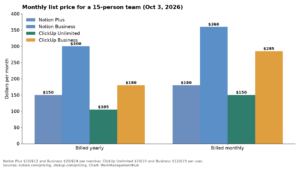
Those four statements cannot all be precisely true, and Notion has not reconciled them. The defensible reading for anyone budgeting a rollout is that a paid seat is the safe assumption, with Plus as the entry point. Notion lists Plus at $10 per member per month and Business at $20 per member per month on annual billing, with monthly billing priced higher and Enterprise quoted on request. If a Free-plan workspace happens to expose the action, treat it as an undocumented allowance rather than something to build a process on. Confirm what your own workspace offers by opening the action picker before you commit a team to a workflow, and cross-check current rates on Notion’s plan tiers if seat count is a factor.
Send Slack messages into a Notion database
The capture direction is the half of this integration that quietly earns its keep, because it stops decisions made in a channel from evaporating.
- In a Slack channel, type
/notion create, or click ⋮ beside any message and choose Send to Notion. You may need to open More message shortcuts… to find it. - Search for the destination database, or paste its URL, then give the new page a title.
- Select Add property to populate the database’s existing properties from the modal.
- Tick Confirm page creation publicly if the channel should see that the item was captured.
- Click Save.
Use /notion task instead when the destination is a project, which lets you set name, assignee, status, due date and description in one step. Both commands work at channel level only and will not fire inside a thread — a limitation that generates a surprising volume of support tickets, because threads are exactly where the useful decisions get made. A practical habit is to paste the deciding message back into the channel before capturing it.
One trick that saves real effort: paste the link to a filtered database view rather than the database itself. Notion auto-fills the properties that the view filters on, so a message captured into a “Design team, this sprint” view arrives already tagged.
Link previews in both directions
Paste a Notion link into Slack and it expands with page context. For database pages that carry an AI summary property, Slack unfurls the summary itself, which is the closest thing here to a genuinely useful status card. The sharer also gets a permission prompt when people in the channel lack access, with the option to grant it or remove the preview.
Going the other way, copy a Slack message link, paste it into Notion, and choose Paste as preview from the menu that appears. The block shows the message, its channel, when it was sent and the reply count, and it stays current. Select ••• → Reload preview to force a refresh. This is the correct way to cite a Slack decision inside a project doc, rather than screenshotting it.
Permissions: the part that breaks quietly
Notion requires Full Access to a database to create a Slack notification on it. Anyone with View access can see the automations that already exist but cannot create or edit them, and guests cannot create database automations at all.
The failure that costs the most time is subtler. Notion’s automations will not take action on pages whose access is restricted — a page marked private, or shared narrowly outside the database’s own permissions, is skipped without a loud error. If a channel is receiving messages for most rows and silently missing a handful, restricted page access is the first thing to check. Our walkthrough of Notion permission problems and how to trace them covers the diagnostic order.
On the admin side, Slack owners can require approval for any app install, and those settings apply to Notion. On Notion’s Enterprise plan, admins can separately restrict members from installing the Slack integration through connection management. If your rollout stalls with no obvious error, one of those two approval gates is usually the cause.
Keeping the channel worth reading
Notification noise is the reason most of these integrations get switched off, and it is almost always a trigger-design problem rather than a volume problem.
Avoid Any property edited as a trigger on an active database. Use precise conditions — is set to, contains — so the channel hears about state changes that matter rather than every typo correction. Notion evaluates database changes over roughly a three-second window, and if you configure several is edited triggers under When all of these occur, they must land inside that window or the automation may not fire at all. Splitting them into separate automations is more reliable than tightening the conditions.
The other common noise source is group mentions. A group @-mention in Notion fans out to every member of that group who has Slack mentions enabled, so one careless @-team in a comment thread produces a burst of DMs. Reserve group mentions for genuine broadcasts.
Route by audience, not by database. One channel per team receiving only the state transitions that team owns beats one channel receiving everything. Teams that run the same pattern on other tools will recognise the approach from Asana’s Slack integration and its channel routing model.
Troubleshooting the failures that actually happen
Notion links stop unfurling in Slack. This is usually a Slack-side setting, not a Notion fault. A workspace owner or admin can block previews for a domain, and blocked domains are listed under Workspace settings → Attachments → Blocked previews, where clicking the x icon restores them. Separately, work object previews can be tuned per app under Manage apps → select Notion → App settings → Work object previews. Slack’s guide to managing link previews for a workspace covers both paths, including the separate control for Slack Connect conversations.
An automation that used to work has gone quiet. When a previously working automation errors, Notion pauses it rather than retrying indefinitely, and a lapsed Slack authorization is one of the documented causes. Fixing the connection does not restart it — you have to re-enable it manually. Open the database, select ••• → Automations, hover the automation, select •••, and toggle Active back on. Notion does not notify you for every error class, so a periodic audit is worth scheduling. Our guide to Notion automations that stop firing goes deeper on silent failures.
The automation never fired in the first place. Check three things in order: whether the trigger is another automation (automations cannot trigger automations, though a button click can), whether the page still matches the view’s filters after the edit, and whether the database is locked.
You cannot pick a DM as the destination. Not a bug. Slack automation actions target channels only.
You cannot edit a colleague’s Slack automation. Also not a bug. Slack automations can only be edited by whoever created them, which becomes a real handover problem when that person leaves. There is no central place in Notion to view every Slack automation across a workspace, so keep an inventory page listing each database, its automations and their owner.
The Slack AI Connector is a different product
Do not confuse the Slack integration with the Slack AI Connector, which lets Notion AI answer questions using your Slack history. It is gated to Business and Enterprise plans, requires you to be both a Slack workspace owner and a Notion workspace owner, and must be started from Notion — beginning setup in Slack will not work. It indexes public channels you select, backfills roughly one year of history over a process that can take up to 36 hours, and takes up to three hours to pick up new messages. Slack Connect channels are excluded, Canvases and Lists are not indexed, and guests are not supported. Individual members can additionally connect their own private channels and DMs, scoped to what each person can already see. Notion’s Slack AI Connector documentation covers the permission mapping in detail.
Frequently asked questions
Does Notion two-way sync with Slack?
No. The integration passes events between the two tools rather than keeping records aligned. A Slack message generated by a Notion automation captures that moment and never updates when the page changes afterwards. Likewise, replying in Slack does not write anything back to the Notion page it references.
Which Notion plan do I need to send Slack messages from a database automation?
Notion’s documentation is inconsistent. The action reference names Plus, Business and Enterprise, the Slack help page says paid plans generally, and the eligibility section suggests Free users can create Slack notification automations specifically. Budget for Plus as the safe floor and confirm in your own workspace’s action picker before committing.
Can a Notion automation post to someone’s Slack DM?
No. Every Slack automation action in Notion — database automations, page buttons and database buttons — can only target a channel. Personal @-mention notifications do arrive as direct messages, but those come from your own notification settings and cannot be routed to another person on their behalf.
Why can’t I edit the Slack automation my colleague built?
Slack automations in Notion can only be edited by the person who created them, regardless of your access level on the database. If that person has left, the automation has to be recreated by someone with Full Access. Maintain an ownership register to avoid discovering this during an outage.
Do I need Notion at all if the team already lives in Slack?
The integration works best when Notion holds the durable record and Slack handles the conversation. If your team wants tasks, chat and docs in a single tool instead, the trade-offs are set out in our Notion versus ClickUp comparison, which weighs consolidation against depth.
Sponsored

Related guides