
Notion Calendar is its own app, not a tab inside Notion. Download it for Mac or Windows, or open it on the web. Sign in with your Notion account. Connect a Google, Outlook or iCloud calendar under Settings. Then link your Notion workspace and add any database that has a date property. That last step is what makes it worth using.
It is free on every Notion plan. I use it daily for time blocking a task database, and the setup takes about 15 minutes. This guide follows Notion’s Notion Calendar help pages, checked in October 2026.
Step 1: Install and sign in
Notion Calendar runs on web, Mac, Windows, iOS and Android. The Mac app needs macOS 11 or newer. On the web it works in Chrome, Safari, Firefox, Edge and Arc.
Pick your sign-in email with care. Only one Notion account can link to one Notion Calendar account. If you lose access to that email, you lose the calendar. Many people sign in with a personal address, then add the work calendar after.
Step 2: Connect your calendar accounts
- Open Notion Calendar and go to Settings.
- Under Calendar accounts, select Add calendar account.
- Pick your provider and sign in.
Each provider has one catch:
- Google: Notion Calendar is a Google-verified app. On a work account, you may get an error. A Google Workspace admin must mark Notion Calendar as Trusted under Security > Access and data control > API controls.
- iCloud: you need an app-specific password from your Apple account. It looks like four groups of four letters. Your normal Apple password will not work.
- Outlook / Microsoft 365: choose Microsoft Outlook and sign in. If your company limits outside apps, IT must approve it first.
Keep it to five calendars. Notion warns that performance drops past five, and some people find they cannot add a sixth. You also cannot subscribe to a new calendar from inside the app. Subscribe in Google Calendar first. It will then show up here.
Quick tidy-up: hide a calendar with the eye icon. Change its color with the ••• menu. Set a default under Settings > Calendar accounts > ••• > Make default calendar. If the same event is on two calendars, Notion Calendar merges the copies.
Step 3: Link Notion databases
This is the reason to use Notion Calendar. But a database must have a date property to connect. No date property, no connection.
- Go to Settings. Under Notion workspaces, select Add Notion workspace and grant access. Connect each workspace on its own, even if they share an email.
- In the left sidebar, hover over the workspace name and choose ••• > Add Notion database.
- Search for the database and select it. If it has more than one date property, pick which one drives the calendar.
You can also start from Notion: open the database, click the view name, and choose Manage in Notion Calendar.
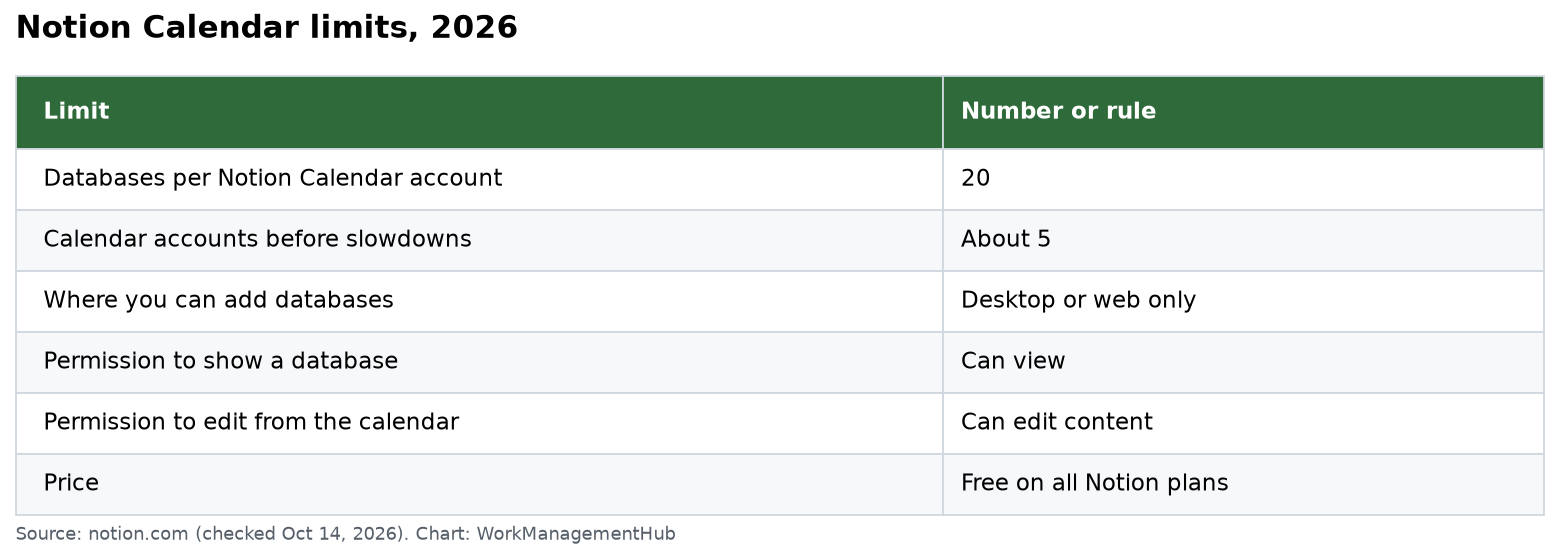
| Limit | Number or rule |
|---|---|
| Databases per Notion Calendar account | 20 |
| Calendar accounts before slowdowns | About 5 |
| Where you can add databases | Desktop or web only |
| Permission to show a database | Can view |
| Permission to edit from the calendar | Can edit content |
| Price | Free on all Notion plans |
What you can edit from the calendar
You can change the title, date, status, select, text, checkbox and page icon. ID and Person show as read-only. Notion’s help page is not consistent about multi-select, so do not count on editing it here.
Formula, Created time and Last edited time dates will show, but they are read-only.
Step 4: Time block your tasks
This is the best part. A database item with a start and end time shows as a timed event. An item with only a date shows as an all-day event at the top.
Drag an all-day item into a time slot, and the Notion database updates to match. That is real two-way sync on the date. Your task list becomes a time-blocking plan with no double entry.
To go faster, click the database name in the sidebar. A panel opens with every page. Filter by status or by “no date,” then drag items onto the grid.

Step 5: Set up booking links
Notion Calendar can replace a simple booking tool. Notion’s scheduling guide covers two link types: one-off links for one person, and recurring links you reuse.
- Select Scheduling in the left panel, or press S.
- Click Create recurring link or Create one-off link.
- Add your free times. For one-off links, drag on the grid.
- Add a location, video link, booking window or description if you like.
- Edit the URL and click Create.
- At the bottom, turn on Avoid conflicts and pick which calendars to check.
Guests can reschedule or cancel from the event, except on single-use one-off links. Booking links are desktop and web only. Focus time and out-of-office events need a Google Workspace work or school account. Personal Gmail does not get them.
Notion Calendar vs the calendar view inside Notion
| Notion Calendar app | Calendar view in a database | |
|---|---|---|
| Shows Google or Outlook events | Yes | No |
| Hour-by-hour grid | Yes | No, month or week only |
| Edit any property | Limited set | All properties |
| Filters | Status and date only | Full filters and sorts |
| Booking links | Yes | No |
| Shared with team | Per person | Uses page permissions |
Most people use both. The database view is for team planning. The app is for your own day, with meetings and tasks side by side.
Limits worth knowing first
- Sync is one way for outside events. Database items show in Notion Calendar only, not in Google or iCloud. You cannot import Google events into a Notion database.
- Mobile is thin. Per Notion’s apps page, mobile cannot search events, make booking links, attach Notion pages, or show week or month views. You get 1, 2 or 3-day views and widgets.
- No travel time. It is not supported.
- Permissions can hide pages. If one page has different permissions from its database, it may not show. That looks like a sync bug, but it is not.
What experienced users do
- One “Tasks” database with a Date and a Status. Keep it simple so the calendar view stays clean.
- Plan on desktop, check on phone. Treat mobile as a viewer.
- Turn on Avoid conflicts for every link. Double bookings are the most common complaint.
- Use a separate date property for “Do date.” Keep the real deadline in “Due date.” Time block with “Do date.” This stops you from moving deadlines by accident when you drag.
When NOT to use Notion Calendar
- You live on your phone. The mobile app is too limited.
- You need a full booking tool. For payments, round-robin teams or intake forms, use Calendly or similar.
- Your company blocks outside calendar apps. You will need IT approval for Google or Microsoft.
Common questions
Is Notion Calendar free?
Yes. It is included on the Free plan and every paid Notion plan.
Why is my database not showing up?
Usually one of three things. It has no date property. You tried to add it on mobile, which is not allowed. Or some pages have different permissions from the database.
How many databases can I connect?
Up to 20 databases per Notion Calendar account.
Can I see Google Calendar events inside a Notion page?
Not through Notion Calendar. Database items show in Notion Calendar only. A view-only Google Calendar embed is the workaround.
Does Notion Calendar work with Outlook?
Yes, on desktop and web. Your company’s IT team may need to approve it first.
Why do I need a special password for iCloud?
Apple requires an app-specific password for outside apps. Create one in your Apple account settings, then paste it into Notion Calendar.
Steps and limits checked against Notion’s help center on October 14, 2026. Apps change; confirm in your account.
Sponsored