Skip to content
-
Subscribe to our newsletter & never miss our best posts. Subscribe Now!
Work Management Hub Work Management Hub

Expert Reviews, Comparisons & Guides for Smartsheet, Monday.com, Asana, ClickUp & More

Work Management Hub Work Management Hub

Expert Reviews, Comparisons & Guides for Smartsheet, Monday.com, Asana, ClickUp & More

  • Airtable
  • Asana
  • ClickUp
  • Jira
  • Monday.com
  • Notion
  • Smartsheet
  • Wrike
  • About
  • Contact
  • Airtable
  • Asana
  • ClickUp
  • Jira
  • Monday.com
  • Notion
  • Smartsheet
  • Wrike
  • About
  • Contact
Close

Search

  • https://www.facebook.com/
  • https://twitter.com/
  • https://t.me/
  • https://www.instagram.com/
  • https://youtube.com/
How-To GuidesWrike

Wrike Proofing and Approvals Guide 2026: Set Up Review Workflows for Creative Teams

By Shaik KB
June 4, 2026 29 Min Read
0

⚡ Key Takeaways

  • Wrike Proofing and Approvals are two separate features with different UIs, plan requirements, and workflows — most teams confuse them and set up the wrong one.
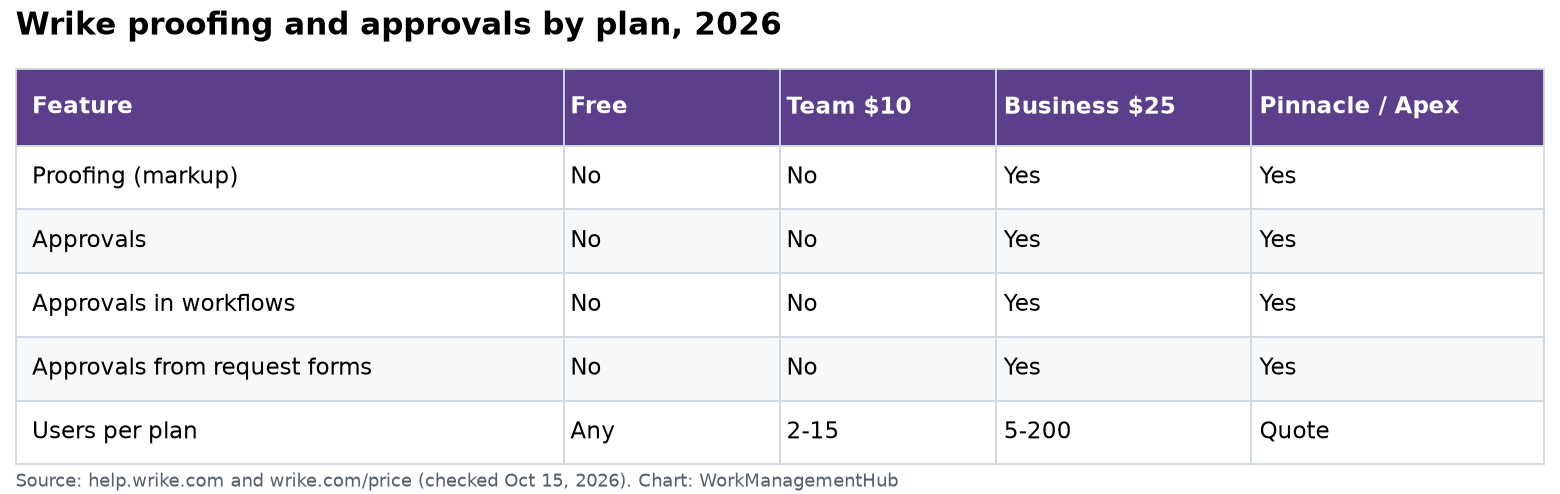
  • Wrike Proofing is available on Business+ and Pinnacle plans; basic approvals are available on Team+ plans.
  • Video proofing with frame-level annotations supports MP4 and MOV files up to 4GB — no competing PM tool at this price point offers this natively.
  • The number one version management mistake: Wrike does NOT auto-version files on save — you must manually click “Add as new version” when uploading revisions.
  • Approval tasks auto-lock for editing when an approval is active — warn your team or they will waste time wondering why they cannot update the task.
Quick Answer:

Wrike Proofing lets reviewers annotate files directly in-app (images, PDFs, videos, web pages) while Wrike Approvals manages the sign-off workflow with sequential or parallel routing. Both features are available on Business+ plans. Enable Proofing from a task’s attachment panel; add an Approval from the task’s approval tab.

Table of Contents

  1. Wrike Proofing vs Approvals: What’s the Difference?
  2. Plan Requirements and Feature Access
  3. How to Set Up Wrike Proofing
  4. Supported File Types and Limits
  5. Version Management: The Gotcha Most Teams Miss
  6. How to Set Up Wrike Approvals
  7. Sequential vs Parallel Approvals
  8. External Guest Reviewers
  9. Automating Your Review Workflow
  10. Best Practices for Creative Teams
  11. Verdict
  12. FAQ

Wrike Proofing and Approvals Guide 2026: Set Up Review Workflows for Creative Teams

Creative review cycles are where projects go to die. A designer uploads a banner, the marketing manager emails feedback as a PDF annotation, the legal team uses a separate Dropbox comment thread, and the CMO signs off on the wrong version. By the time the campaign launches, nobody is sure which file is final. Wrike’s built-in proofing and approval tools are designed to eliminate exactly this chaos — but only if you set them up correctly and understand how they differ from each other.

This guide covers every aspect of Wrike Proofing and Wrike Approvals — two features that most guides treat as the same thing (they are not). You will get exact UI steps, the version management gotcha that trips up almost every new team, and automation rules that will save your team hours of manual follow-up per campaign cycle. Whether you’re running a two-person design shop or a 50-person marketing department, the workflows in this guide apply directly to how creative teams operate in 2026. For broader context on how Wrike serves marketing organizations, see our guide on Wrike for marketing teams.

1. Wrike Proofing vs Approvals: What’s the Difference?

The single most common question on Wrike community forums — and the source of more setup frustration than any other issue — is the confusion between Proofing and Approvals. Teams activate one when they need the other, then wonder why their workflow feels broken. Here is the definitive explanation.

Wrike Proofing is a file markup and annotation tool. It opens a visual viewer inside Wrike where reviewers can draw directly on images, highlight text in PDFs, drop timestamp markers on video frames, or click on specific regions of a web page screenshot to leave comments. Proofing is fundamentally about collecting structured, contextualized feedback on a piece of creative work. Think of it as a digital lightboard where everyone marks up the same physical artifact in the same place.

Wrike Approvals is a sign-off workflow tool. It manages who needs to formally say yes to a deliverable, in what order, and by when. Approvals generate a formal record of who approved what and when — critical for compliance, brand governance, and legal review. Approvals do not require a file attachment; you can approve a task that contains only a description. Proofing, by contrast, requires an actual file or URL to annotate.

In most mature creative workflows, you use both: Proofing to collect visual feedback during the revision phase, and Approvals to capture the final green light before publishing or production. The two features live in different parts of the Wrike task UI and have different permission models, which is why understanding the distinction matters so much operationally.

DimensionWrike ProofingWrike Approvals
PurposeVisual annotation and markup of files — arrows, shapes, text, freehand drawing, video timestampsFormal sign-off routing — Approve or Reject with an audit trail
Where accessedTask → Attachments tab → hover over file → Proof iconTask → Approvals tab (separate tab next to Description)
Plan requiredBusiness+ and Pinnacle (video proofing: Business+ and Pinnacle)Team plan and above (basic); Business+ for advanced routing
What it locksNothing locked — task remains editable during proofing reviewTask is locked from editing while an active approval is pending
Who uses itDesigners, copywriters, video editors seeking iterative feedbackManagers, legal, brand team, CMOs giving final sign-off

The practical implication: when a designer asks “can you review this?” they need Proofing. When a manager asks “has this been approved?” they’re asking about the Approvals workflow. Many teams short-circuit this by only using Approvals — which means they lose the precise visual feedback that prevents misinterpretation of revision notes.

2. Plan Requirements and Feature Access

Before configuring any review workflow, verify which Wrike plan your organization is on. Feature access for Proofing and Approvals is strictly plan-gated, and several key capabilities — particularly video proofing and external guest access — are only available at higher tiers. Discovering this after you have promised a client they can review assets inside Wrike is a painful conversation to have.

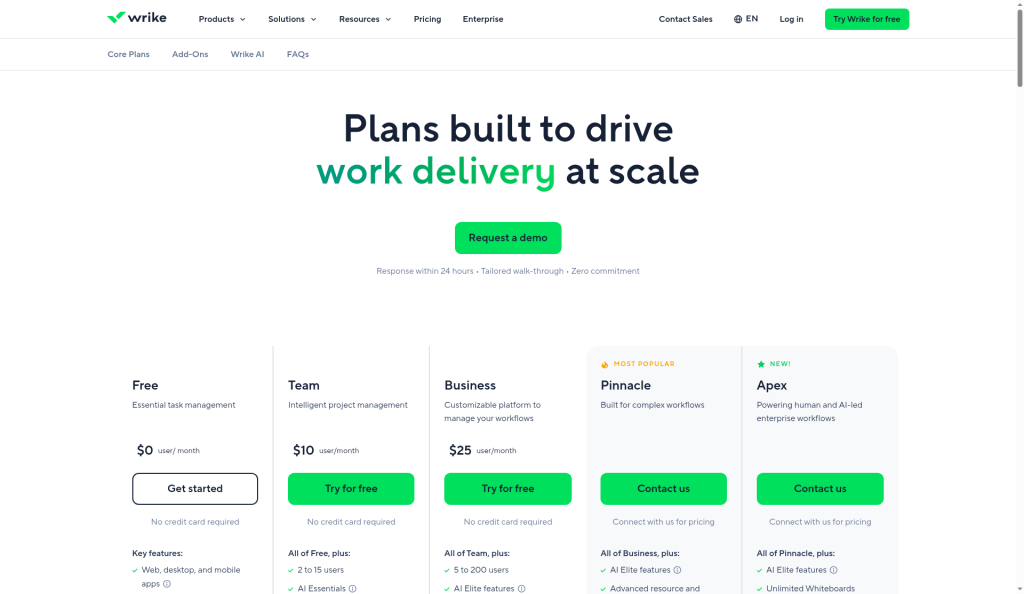
As of 2026, Wrike’s plan lineup consists of Free, Team, Business, Business+, and Pinnacle. The relevant features for creative review workflows are distributed as follows:

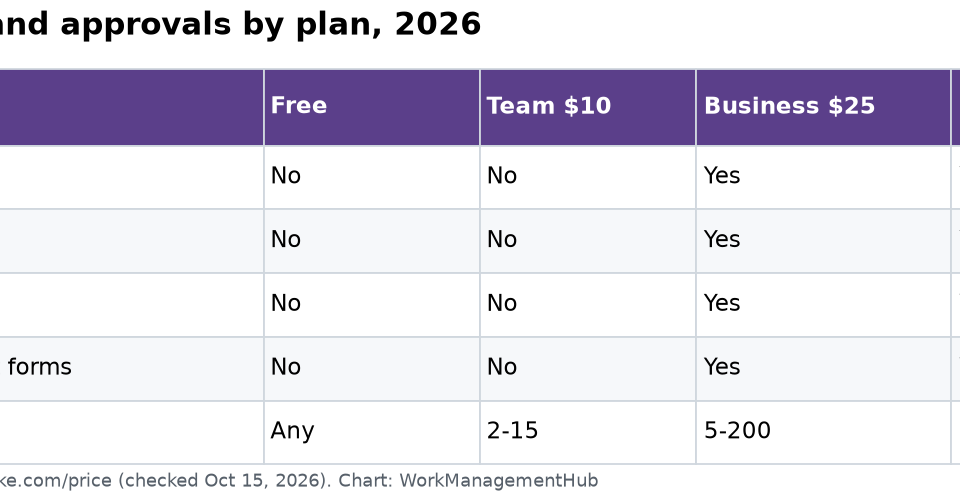
FeatureFreeTeamBusinessBusiness+Pinnacle
Basic Approvals (Approve/Reject)NoYesYesYesYes
Sequential/Parallel Approval RoutingNoNoNoYesYes
Image & PDF ProofingNoNoNoYesYes
Video Proofing (MP4/MOV, frame-level)NoNoNoYesYes
Web Page Proofing (URL snapshot)NoNoNoYesYes
External Guest Reviewers (no Wrike seat)NoNoNoYesYes
External Approval RoutingNoNoNoNoYes
Automation Engine (workflow triggers)NoNoYesYesYes

The Business+ plan is the functional minimum for most creative agencies and marketing departments: it unlocks the full Proofing suite (including video), sequential approval routing, and external guest access. Pinnacle adds external approval routing — meaning external clients can formally Approve or Reject (not just annotate) directly in the workflow. If your team currently sits on the Business plan without the + tier, the upgrade specifically for Proofing is typically justified within one campaign cycle by the time saved on email feedback consolidation alone.

Check your current plan by going to Account Management → Subscription. If you manage capacity alongside creative reviews, our Wrike resource management guide explains which plan features intersect with workload tracking.

3. How to Set Up Wrike Proofing

Setting up Proofing for the first time takes less than five minutes if you follow the correct sequence. The most common mistake is trying to find a dedicated “Proofing” section in the sidebar — it does not exist as a standalone module. Proofing is triggered directly from a file attachment on a task. Here is the complete setup sequence.

For complete official documentation, see Wrike’s Wrike Proofing documentation.

  1. Open the task and access the Attachments tab. Navigate to the task containing the creative asset you want to review. Click the Attachments tab within the task panel (it appears alongside Description, Subtasks, and other task sections). Upload your file by clicking the upload button or dragging and dropping directly into the Attachments area. Supported types at this step include PNG, JPG, GIF, PDF, MP4, and MOV — or you can paste a URL for web page proofing (covered in step 5). If you are uploading a revised version of an existing proof, do NOT drag-drop a new file — read Section 5 on version management first.
  2. Activate the Proofing viewer. Once the file is uploaded, hover over the attachment thumbnail. You will see a set of action icons appear. Click the Proof icon — it appears as a green circle with a checkmark. This is distinct from the download icon and the preview icon. Clicking it opens the dedicated Proofing viewer in a full-panel overlay. If you do not see the Proof icon, your account is on a plan that does not include Proofing — check the plan table in Section 2.
  3. Use the annotation tools for images and PDFs. For image (PNG, JPG, GIF) and PDF files, the Proofing viewer displays the file with an annotation toolbar on the left panel. Tools available include: arrow/pointer (for pointing to specific elements), rectangle and ellipse shapes (for circling areas), freehand drawing (for hand-drawn markup), text comment boxes (for detailed written notes), and — for PDFs — text highlight. Click anywhere on the document to place a comment pin. A numbered marker appears on the file and a corresponding comment thread opens in the right panel. Each annotation is linked to its spatial position on the file, so reviewers can see exactly what each comment refers to.
  4. Annotate video files with frame-level precision. When the uploaded file is an MP4 or MOV, the Proofing viewer opens a video player interface. Use the playhead at the bottom to scrub to the exact frame you want to annotate. Pause the video at that frame, then click on the canvas area to drop a comment marker at that timestamp. Wrike records the exact timecode alongside your annotation — so instead of a comment saying “around the 0:23 mark, the logo flickers,” your note appears directly on the frame with a visible marker in the video timeline. This eliminates the single biggest source of ambiguity in video creative review. Video proofing is available on Business+ and Pinnacle plans only.
  5. Proof a live web page via URL. For landing pages, email templates rendered in a browser, or any live URL, navigate to the Proofing viewer and select the URL/Web option instead of uploading a file. Paste the target URL into the URL field and click Capture. Wrike takes a snapshot of the page as it renders at that moment — capturing the visual state including images, fonts, and layout — and loads it into the annotation canvas. You can then use area selection and comment tools exactly as you would on a static image. Note: the snapshot is a point-in-time capture; changes to the live page after capture will not automatically update the proof. Re-capture is required if the page changes significantly.
  6. Add reviewers to the proof. In the Proofing viewer, locate the reviewer panel (typically top-right or accessible via the Reviewers button). Click the + (Add Reviewer) icon and type the name or email address of each person who needs to review this proof. Internal team members with Wrike accounts will be found by name. External reviewers (clients, contractors) require a Business+ plan — see Section 8 for the external reviewer workflow. Each added reviewer will receive an email notification with a direct link to the proof.
  7. Set a review deadline. In the reviewer panel, locate the Review deadline field. Click it to open a date picker and select the date by which all annotations should be submitted. Wrike will send automated reminder notifications to reviewers who have not completed their review as the deadline approaches. Setting a deadline is not mandatory, but it is strongly recommended — open-ended reviews are a primary cause of stalled creative pipelines.
  8. Send the review. Click the Send Review button (or equivalent — the label may appear as “Notify Reviewers” depending on your account configuration). This triggers email notifications to all added reviewers with a direct link to the proof. The proof status in the task changes to “In Review.” All annotations submitted by reviewers appear in real time in the right panel of the Proofing viewer, threaded by reviewer and sorted by position on the file.

Once all reviewers have submitted their annotations, the proof status updates to “Reviewed.” The task owner then addresses each annotation, uploads a revised version (using the proper version method described in Section 5), and the cycle repeats until the asset is approved.

4. Supported File Types and Limits

Knowing Wrike’s file type support and size limits before you start a review cycle prevents mid-workflow surprises — particularly for video-heavy teams who discover 4K source files are too large to upload, or agencies who try to proof an interactive HTML prototype and find it unsupported. The table below covers every supported proofing format as of 2026.

File TypeFormatsMax SizeAnnotation TypePlan Required
Static ImagesPNG, JPG, JPEG, GIF50 MB per filePoint pins, area shapes, freehand drawing, text commentsBusiness+, Pinnacle
PDF DocumentsPDF (all versions)100 MB per fileText highlight, area shapes, point pins, page-level commentsBusiness+, Pinnacle
Video FilesMP4, MOV4 GB per fileFrame-level timestamp annotations, area pins at specific timecodesBusiness+, Pinnacle
Web PagesLive URL (snapshot capture)N/A (URL-based)Area annotations, point pins on page snapshotBusiness+, Pinnacle

Formats not supported for in-app proofing (as of 2026): Adobe XD, Figma links, interactive HTML files, SVG, PSD, AI, INDD, and Office document formats (DOCX, PPTX, XLSX). For these formats, teams typically export to PDF for proofing purposes. Wrike’s product team has indicated SVG and Figma embed support are on the roadmap but had not shipped as of Q2 2026.

Practical note on video file size: The 4GB limit accommodates most compressed web-delivery video files, but raw 4K footage from high-end cameras can exceed this limit. Compress to H.264 or H.265 MP4 before uploading if your source files are larger. For broadcast-grade productions requiring ProRes review, a dedicated video review platform (Frame.io, Vimeo Review) remains the better choice — use Wrike Approvals to capture the final sign-off and reference the external review link in the task description.

5. Version Management: The Gotcha Most Teams Miss

Version management is where Wrike Proofing breaks down for most teams — not because the feature is poorly designed, but because it behaves differently from every other file management tool people are accustomed to. Google Drive auto-versions on every save. Figma auto-versions continuously. Dropbox creates versions automatically when you overwrite a file. Wrike does none of these things.

⚠ Critical Warning: Wrike Does Not Auto-Version Files

Unlike Google Drive or Figma, Wrike will NOT automatically create a new version when you re-upload a file with the same name. If you drag a revised file onto the task, it appears as a separate attachment — not a new version of the original. Reviewers who annotated the old file will not be notified, and their comments will appear on the wrong version. In 2026, Wrike added an orange warning banner to alert users when a proof has multiple files with similar names on a task, but this is a warning only — the manual “Upload new version” step is still required to correctly link revisions in the versioning system.

This behavior creates the most common and costly mistake in creative review workflows: a designer uploads “banner_v2.png” by dragging it into the task, thinking the reviewers will automatically know to look at the new file. Instead, the task now has two separate attachments — “banner_v1.png” and “banner_v2.png” — each with its own independent proof thread. Reviewers open the wrong file, annotate it thoroughly, and the designer incorporates feedback from a version they thought was already approved. By the time the error is discovered, an entire review cycle has been wasted.

The correct procedure for uploading a revised proof is a specific multi-step process that must be followed every time. Make this a written rule in your team’s onboarding documentation and review it at the start of every project kickoff.

  1. Open the task and navigate to the Attachments tab. Locate the original proof attachment — the one that already has reviewer annotations on it. Click the proof thumbnail to open the Proofing viewer. Do not click the download button and do not drag a new file into the Attachments area at this stage.
  2. Access the version management menu. Inside the Proofing viewer, look for the three-dot menu in the top-right corner of the viewer interface. Click it to open the context menu. If you see the option labeled “Upload new version” or “Add as new version,” you are in the right place. If you do not see this option, you may be looking at a non-proofed attachment preview rather than the Proofing viewer — go back and ensure you accessed the file via the Proof icon (green circle with checkmark).
  3. Select “Upload new version.” Click this option from the three-dot menu. A file upload dialog opens. Select the revised file from your local drive. The filename does not need to match the original — Wrike links the new file to the proof record based on the action you took, not the filename. Upload the revised file and wait for the upload to complete.
  4. Confirm the new version has been created. After the upload completes, Wrike creates a version record linked to the original proof. You will see a version number indicator in the Proofing viewer — “Version 2,” “Version 3,” and so on. Previous reviewers are automatically notified that a new version is available for review. The original annotations from Version 1 are preserved and accessible via the version selector, so reviewers can compare their previous feedback to the current revision.
  5. Review the version history. Previous annotations are preserved on the old version and remain accessible by clicking the version number indicator. Reviewers will see a version history panel showing each version with its upload date, uploader name, and annotation count. This creates a complete audit trail of the revision cycle without requiring any separate documentation.
  6. Respond to the 2026 version warning banner. As of early 2026, Wrike displays an orange banner at the top of the Proofing viewer when it detects that a task has multiple attachments with similar or identical filenames. The banner reads something like: “Multiple versions detected — are these related?” and prompts you to consolidate them using the versioning tool. This is a helpful guardrail, but it only appears when filenames are similar. If your team uploads “V2_Final_Banner.png” separately from “Banner_Creative.png,” no banner appears — so the procedural discipline of always using “Upload new version” remains the only reliable safeguard.

Teams who establish the “Upload new version” habit on day one almost never experience version confusion. Teams who discover it after their third round of revision cycle chaos always wish they had been told earlier. Document this procedure in your team wiki and include it in your Wrike onboarding checklist. For issues with other Wrike behaviors that confuse new users, our Wrike troubleshooting guide covers the most common configuration errors.

6. How to Set Up Wrike Approvals

Wrike Approvals is a separate workflow from Proofing. While Proofing collects iterative visual feedback, Approvals captures the formal, binding “yes, this is ready to publish/produce/send” decision from the stakeholders who have authority to give it. A key behavioral difference: when you add an Approval to a task, Wrike automatically locks the task from editing until the approval is resolved. This prevents last-minute changes sneaking in after stakeholders have already signed off.

For official documentation, see Wrike Approvals documentation.

Important pre-step: Warn your team that the task will lock when an approval is active. The lock is intentional — it prevents the approved version from being modified — but it catches teams off guard when they try to update a task description or change a due date and find they cannot. The task unlocks automatically once the approval is resolved (approved or rejected).

  1. Open the task and navigate to the Approvals tab. In the task panel, click the Approvals tab. It appears alongside Description, Subtasks, Time Log, and other task sections. The exact position varies slightly depending on your workspace configuration and plan. If you do not see an Approvals tab, your plan may not include this feature — check the plan table in Section 2.
  2. Click “+ Add Approval.” The approval creation form opens. This form contains all the fields needed to configure the routing, participants, and deadline for this approval instance.
  3. Configure the approval form. In the form: (a) Search for and add Approvers by name — these are the people who must formally approve or reject. (b) Select routing type: Sequential (each approver is notified and must act before the next is notified) or Parallel (all approvers are notified simultaneously and can act in any order). See Section 7 for guidance on which to choose. (c) Set a Due Date for the approval. (d) Optionally add an Approval Message — a brief explanation of what is being approved, any context the approvers need, and any specific review criteria. This message appears in the email notification sent to approvers.
  4. Create the Approval. Click Create Approval. At this point, the task is locked from editing. A visual indicator appears in the task header showing the approval is active, the number of approvers, and the current status. If the routing is Sequential, the first approver in the chain receives an email notification immediately; subsequent approvers are queued.
  5. Approvers receive and act on the notification. Each approver receives an email with a direct link to the task. When they open the task, they see the approval panel prominently displayed with two action buttons: Approve and Reject. Approvers can view all task content (attachments, description, comments) before deciding. If they select Reject, Wrike requires them to enter a reason — this mandatory comment ensures that rejection always includes actionable feedback, preventing vague “not approved” responses.
  6. Monitor approval progress. As the task owner or project manager, you can see real-time approval status in the Approvals tab — which approvers have acted, which are pending, and the current routing position (for sequential approvals). You can also view approval status in Wrike’s Table and Gantt views using the Approval Status column, making it easy to see approval bottlenecks across an entire project.
  7. Approval resolution and task unlock. When all required approvers have approved (in the required order for sequential routing), the task status automatically updates to the “Approved” status (or whichever custom status you have mapped to approved in your workflow). The task is unlocked and becomes editable again. If any approver rejects, the task status changes to “Rejected” or “Revision Needed” (depending on your configuration), the task unlocks, and the team is notified to address the rejection reason before re-submitting for approval.

Pro tip: After an approval is rejected and the team has made revisions, you do not modify the original approval — you create a new approval instance in the same task. Each approval instance is recorded separately, creating a clear audit trail of: first submission → rejected → revised → second submission → approved. This history is valuable for compliance documentation and post-project retrospectives.

7. Sequential vs Parallel Approvals

The choice between Sequential and Parallel approval routing is one of the most consequential decisions in your review workflow design. The wrong choice does not break the workflow — but it either creates unnecessary delays (Sequential when Parallel would suffice) or allows premature approval before critical gatekeepers have reviewed (Parallel when the sign-off chain requires a specific order).

Sequential approvals work by notifying each approver only after the previous person in the chain has approved. If Person A rejects, Person B never receives notification — the chain stops and the rejection is escalated to the task owner. This mirrors a traditional chain-of-command sign-off: the copywriter approves the copy first, then the brand manager reviews the copy-approved version, then the legal team reviews the brand-approved version, and finally the CMO gives the green light. No one further down the chain sees the asset until everyone upstream has signed off.

Parallel approvals notify all approvers simultaneously. All must approve (any single rejection blocks completion), but they can do so in any order and at any time. This is faster when multiple stakeholders have equal authority over different aspects of the deliverable — three regional marketing managers all reviewing a global campaign asset for local market fit, for example. There is no hierarchy between them; the campaign just needs all three to confirm before it proceeds.

DimensionSequentialParallel
How it worksApprover 1 acts, then Approver 2 is notified, then Approver 3, in strict orderAll approvers notified simultaneously; each acts independently
Best forLegal/compliance review chains, hierarchical sign-off (copywriter to brand manager to CMO), regulated industriesPeer review by multiple equals, cross-functional teams with independent concerns (design + copy + media buying), internal design critiques
Time to approveLonger — each approver must wait for the previous person. Total time equals sum of each person’s review timeFaster — total time equals the slowest single approver’s review time
Rejection behaviorChain stops at rejection point; subsequent approvers not notifiedAny rejection blocks completion; other approvers may still be reviewing simultaneously
Typical use caseHealthcare marketing, financial services, any campaign requiring legal pre-approval before executive reviewInternal design team critique, multi-market campaign validation, agency-to-client review with multiple client contacts

A hybrid approach works well for complex campaigns: use Parallel routing for the internal team review phase (design, copy, and production all review simultaneously), then trigger a Sequential approval for the external chain (client creative director to client legal to client CMO). This is achievable with two separate approval instances on the same task, triggered at different points in the workflow using the Automation Engine (see Section 9). Comparing this to how other tools handle sign-off chains is useful — see our Wrike vs Teamwork comparison for a side-by-side view of approval features.

8. External Guest Reviewers

One of the most compelling arguments for using Wrike’s native Proofing over a separate review tool is the external guest reviewer capability — the ability to invite clients, contractors, or partners to annotate proofs and participate in approval workflows without needing a paid Wrike seat. This eliminates the overhead of managing a second tool subscription just for client-facing review.

External guest reviewers on Wrike Business+ and Pinnacle plans receive a unique access link via email that grants them a scoped, limited view of the platform. They can see the specific proof they have been invited to review, submit annotations, and (on Pinnacle) formally Approve or Reject. They cannot see any other workspace content — projects, other tasks, team member names beyond the proof context, or any billing or account information. From the external reviewer’s perspective, they interact with a clean, focused review interface rather than a full project management platform.

This is particularly valuable for agency-client relationships where the client does not use Wrike internally. Rather than exporting assets to email or using a third-party review tool, the agency sends the client a single Wrike proof link. The client annotates, the annotations appear immediately in the internal Wrike workflow, and the revision cycle stays consolidated in one system.

Steps to invite an external reviewer:

  1. Open the Proofing viewer for the relevant attachment. Navigate to the task, hover over the attachment, and click the Proof icon (green circle with checkmark) to open the Proofing viewer.
  2. Access the Add Reviewer panel. In the Proofing viewer, click the + Add Reviewer button or icon. The reviewer search field appears.
  3. Enter the external email address. Type the full email address of the external reviewer. Because this address is not associated with an internal Wrike account, Wrike will recognize it as an external user and prompt you to confirm you want to send an external invite. Confirm the action.
  4. Wrike sends a unique access invite. The external reviewer receives an email with a unique, access-controlled link. This link is specific to the proof — it does not grant broader Wrike access. The reviewer does not need to create a Wrike account; they access the proof directly through their browser after clicking the link.
  5. External reviewer annotates the proof. The external reviewer sees the proof in a simplified interface with the full annotation toolset (point pins, area shapes, text comments). They submit their annotations exactly as internal reviewers do. Their comments appear in the internal proof view alongside internal team annotations, identified by the external reviewer’s name and email.
  6. Review the external annotations in your internal workflow. Internal team members see external reviewer annotations in real time in the Proofing viewer. There is no need to import, copy, or consolidate external feedback — it lives directly in the task alongside internal notes.

Important distinction: On Business+ plans, external reviewers can annotate proofs but cannot formally Approve or Reject within a Wrike Approval workflow. If you need your client to be a formal approver in the approval chain — with a recorded “Approved” or “Rejected” status — you need Pinnacle plan. On Business+, the workaround is to use the external reviewer’s annotation as the signal and have an internal team member record the formal approval decision based on the client’s annotation feedback.

Security note: External access links are scoped to the specific proof. If a link is shared or forwarded, the new recipient can access the proof — there is no per-person authentication beyond the link itself on standard Business+ plans. For highly sensitive proofs (unreleased product images, confidential campaign materials), consider adding an expiration date to the review or revoking external access after the review period ends.

9. Automating Your Review Workflow

Manual review workflows break down at scale. When you are running three campaigns simultaneously, each with multiple creative assets in review, manually tracking who needs to act, when proofs are ready for the next stage, and when approvals have stalled is a full-time job. Wrike’s Automation Engine eliminates most of this overhead by triggering actions automatically when workflow conditions are met.

The Automation Engine is available on Business plan and above. The most useful automation rules for creative review workflows are described below with exact setup steps.

  1. Navigate to the Automation Engine. In the Wrike left sidebar, click on Automation (the lightning bolt icon, or find it under the Space/Folder settings where you want the rule to apply). Click + New Rule to begin creating an automation.
  2. Set the trigger: “Task status changes to In Review.” In the trigger configuration, select Task status changes as the trigger type. In the “changes to” field, select your “In Review” status (or whatever you have named the status that signals a creative asset is ready for review). This trigger fires whenever any task in the scope (Space, Folder, or Project) moves to that status.
  3. Add the first action: Create Approval. Click + Add Action and select Create approval. Configure the approval with your standard approvers and routing type. For recurring campaign types, you will typically have a fixed internal approval chain (e.g., Creative Director then Brand Manager) — pre-populate this in the automation so it triggers automatically without anyone needing to set it up manually on each task.
  4. Add the second action: Send Slack notification. Click + Add Action again and select Notify via Slack (requires the Wrike-Slack integration to be connected). Configure the notification to post to a specific Slack channel (e.g., #campaign-reviews) with a message like “A new proof is ready for review: [Task name]” and a direct link to the task. This ensures the review team is notified even if they do not check Wrike email notifications promptly.
  5. Add a conditional branch: Rejected approval resets status. Click + Add Condition to create a branching rule. Set the condition: If Approval status changes to Rejected, then perform action: Change task status to “Revision Needed.” This automatically moves the task back to the revision stage when an approver rejects, notifying the designer without requiring the project manager to manually track the rejection and update the task status.
  6. Activate and test the rule. Click Save Rule and toggle the rule to Active. Test it by creating a sample task and changing its status to “In Review.” Verify that the approval is created, the Slack notification fires, and the routing matches your configuration. Adjust as needed before applying to live campaigns.

Creative workflow template: Wrike’s template library includes a pre-built Creative Workflow template designed specifically for marketing teams. This template includes pre-configured task statuses (Draft, In Review, Approved, Revision Needed, Final), pre-populated automation rules for approval triggers, and suggested folder structures for organizing creative assets by campaign. Access it by clicking Templates in the left sidebar and searching for “Creative” or “Marketing.” The template saves several hours of workflow configuration and reflects Wrike’s own recommendations for marketing team setups. For a deeper dive into recurring campaign structures, our guide on Wrike Blueprints explains how to turn your configured campaign workflow into a reusable template that pre-populates the entire approval chain.

Additional automation ideas for mature teams: Auto-escalate approvals that have not been acted on within 24 hours by sending a follow-up notification to the approver’s manager. Auto-close stale proofs after 14 days of inactivity. Trigger a “proof ready” notification when a task’s assignee changes status to “Awaiting Review.” Each of these represents automation rules you can build in the same Automation Engine using the same trigger/action pattern described above.

10. Best Practices for Creative Teams

The teams that extract the most value from Wrike Proofing and Approvals are not necessarily the ones with the most complex workflows — they are the ones who establish consistent habits and enforce them across the team. The following practices are drawn from patterns observed in high-performing creative operations teams who use Wrike’s review features at scale.

  1. Establish “Upload New Version” as a non-negotiable team rule from day one. This single habit prevents the majority of version confusion issues described in Section 5. Document the correct procedure (open proof, three-dot menu, Upload new version) in your team wiki, pin it in your design Slack channel, and include it in every new team member’s Wrike onboarding. Do not assume people will figure it out on their own — the wrong behavior (drag-drop a new file) is more intuitive to first-time users than the correct behavior (navigate into the proof viewer first). Consider making it a mandatory agenda item in your first week onboarding for all creative team members.
  2. Create a proofing SLA with automated deadline reminders. Every proof should have a deadline. A common creative team SLA is 48 hours for internal review and 72 hours for external client review. Set these deadlines in the Proofing viewer’s Review deadline field for every proof you send. Then configure an Automation Engine rule to send a follow-up notification to reviewers who have not submitted annotations within 24 hours of the deadline. An open-ended review is an invitation for indefinite delay — the SLA and the automated reminder together create a system that keeps reviews moving without the project manager needing to manually chase each reviewer.
  3. Use Sequential approvals for final legal and brand sign-off; use Parallel for internal peer review. Matching approval routing to the actual authority structure of your organization saves time and prevents the wrong version of a deliverable from reaching a senior approver. As a rule of thumb: if Person A’s approval is a prerequisite for Person B to make a meaningful review, use Sequential. If Person A and Person B are reviewing independent dimensions of the same asset (e.g., legal reviews compliance language; brand manager reviews visual identity), use Parallel. Mixing these up is the second most common Approvals configuration error after version management.
  4. Train external clients to annotate before approving. Many clients, when given the option to Approve or annotate, will click Approve without leaving any annotations — even when they have concerns. This leads to post-approval change requests that create significant rework. Brief external clients before their first proof review: explain that annotations are how their feedback gets recorded, that “Approve” means they have reviewed and accepted the creative, and that any reservations should be captured as annotations before clicking Approve. A short 5-minute walkthrough call or a one-page “How to Review Your Proof” instruction document sent alongside the first proof link reduces this problem substantially.
  5. Archive completed proofs to manage storage. Proofs attached to tasks continue to consume Wrike storage even after the project is complete. Wrike storage limits apply per account and can become a cost issue for agencies with high creative volume. Implement a quarterly archiving practice: create a “Proof Archive” folder (or a dedicated Archive project), move completed proof tasks there, and download final approved files to external storage (your DAM, Google Drive, or S3). Alternatively, use Wrike’s task status automation to automatically archive tasks that reach the “Approved” final status after 30 days. Check your storage consumption in Account Management → Storage Usage.
  6. Link every proof task to a Blueprint for recurring campaign types. If your team runs the same types of campaigns repeatedly — monthly newsletter, quarterly product launch, weekly social content — create a Wrike Blueprint for each campaign type that pre-populates the task structure, the approval chain, the reviewer list, and the automation rules. When a new campaign starts, you instantiate the Blueprint rather than building the workflow from scratch. This ensures the approval routing is never misconfigured on a rushed deadline, because the configuration was established carefully when the Blueprint was created. Teams using Blueprints for recurring creative workflows report 60 to 70 percent reduction in workflow setup time per campaign cycle.
Verdict

Wrike Proofing is the most underused feature in creative teams’ workflows — and the most valuable once set up correctly. The combination of video frame-level annotations, sequential approval routing, and external guest access puts it ahead of bolt-on review tools like Frame.io or Filestage for teams already on Wrike Business+. The one non-negotiable habit: always use “Upload new version” instead of re-uploading files. That single discipline eliminates 80% of version confusion. If you are running more than 5 active creative reviews at a time, set up the Automation Engine rules in Section 9 — they will save your team 2 to 3 hours of manual follow-up per campaign cycle. For teams evaluating whether Wrike’s proofing capabilities justify the Business+ plan cost, the answer is almost always yes if your team produces more than 20 creative assets per month — the time saved on consolidated feedback alone typically exceeds the plan cost difference. Pair Proofing with Blueprints and resource planning, and you have the foundation of a genuinely scalable creative operations system inside a single platform.

Frequently Asked Questions

Is Wrike Proofing the same as Wrike Approvals?

No — Wrike Proofing and Wrike Approvals are two distinct features with different purposes, different interfaces, and different plan requirements. Wrike Proofing is a visual annotation tool: it opens a viewer where reviewers can draw, highlight, and comment directly on images, PDFs, videos, and web page screenshots. Its purpose is collecting structured, spatially-contextualized feedback on a creative asset during the revision phase. Wrike Approvals is a sign-off workflow tool: it routes a formal Approve or Reject decision through a chain of stakeholders (sequentially or in parallel) and generates an audit trail of who approved what and when. Its purpose is capturing the binding green light that a deliverable is ready to publish, produce, or send. In most creative workflows, you use both in sequence: Proofing during the feedback-and-revision phase, then Approvals for final sign-off. Confusing the two — setting up Approvals when you need annotation feedback, or using Proofing when you need a formal compliance record — is the most common setup mistake for new Wrike users.

What file types does Wrike Proofing support?

As of 2026, Wrike Proofing supports the following file types natively: static images (PNG, JPG, JPEG, GIF — up to 50MB), PDF documents (all versions — up to 100MB), video files (MP4 and MOV — up to 4GB per file, with frame-level timestamp annotations), and live web pages via URL (Wrike captures a snapshot of the page for annotation). Video proofing with frame-level annotations is available on Business+ and Pinnacle plans. File types that are NOT currently supported for in-app proofing include: Adobe XD, Figma files, SVG, PSD (Photoshop), AI (Illustrator), INDD (InDesign), and Microsoft Office formats (DOCX, PPTX, XLSX). For unsupported formats, the standard workaround is to export to PDF for proofing purposes. Interactive HTML files, video formats other than MP4 and MOV (such as AVI, WMV, or MKV), and animated GIFs beyond a certain complexity threshold are also not supported for in-app proofing and should be converted before uploading.

Can external clients review proofs in Wrike without a paid seat?

Yes — on Wrike Business+ and Pinnacle plans, external reviewers (clients, contractors, partners) can be invited to annotate proofs via a unique email link without holding a paid Wrike seat. The external reviewer receives an email invitation with a scoped access link that takes them directly to the proof viewer. They can see the proof, submit annotations (point pins, area shapes, text comments), and view other reviewers’ comments — but they cannot access any other workspace content such as other projects, tasks, team member information, or account settings. On Business+ plans, external reviewers can annotate but cannot formally Approve or Reject within a Wrike Approval workflow. External approval routing — where a client is a formal approver in the sign-off chain — requires Pinnacle plan. If your team is on Business+ and needs client sign-off, the workaround is to use the client’s annotation as the approval signal and have an internal team member record the formal approval decision.

How do I create a new version of a proof in Wrike?

Creating a new proof version in Wrike requires a specific manual process — the platform does not auto-version files on upload. The correct procedure: (1) Open the task and navigate to the Attachments tab. (2) Click the existing proof thumbnail to open the Proofing viewer — do not drag a new file into the task. (3) Inside the Proofing viewer, click the three-dot menu in the top-right corner. (4) Select “Upload new version” from the menu. (5) Select the revised file from your local drive and upload it. Wrike will create a new version record linked to the original proof, notify previous reviewers that a new version is available, and preserve all previous annotations on the old version for reference. The critical mistake to avoid: dragging and dropping a revised file directly into the Attachments tab creates a new, separate attachment — not a new version of the existing proof. This is the number one source of version confusion in Wrike creative workflows. In 2026, Wrike added an orange warning banner when it detects multiple files with similar names on a task, but this banner is a warning only — the manual “Upload new version” step is still required to correctly link revisions in the versioning system.

Does Wrike Proofing integrate with Adobe Creative Cloud?

Wrike offers an Adobe Creative Cloud integration, but it works differently from a direct proofing handoff. The Wrike for Adobe CC extension (available in the Adobe Exchange marketplace for Photoshop, Illustrator, InDesign, and Premiere Pro) allows designers to view task details, update task status, and upload files to Wrike tasks directly from within the Creative Cloud application — without switching between windows. However, this integration uploads files as standard attachments, not automatically as proof versions. The designer still needs to follow the “Upload new version” process in the Proofing viewer to correctly version the proof after uploading from within Creative Cloud. There is no direct “Push to proof review” button inside Photoshop or Illustrator as of 2026. The practical workflow for Adobe CC users is: complete the revision in Creative Cloud, use the Wrike CC extension to upload the revised file to the task, switch to Wrike in a browser, navigate to the proof, and use the three-dot menu to set the uploaded file as a new version. This adds a few steps compared to a native integration, but it keeps all creative files and feedback consolidated in Wrike rather than scattered across multiple tools.

Author

Shaik KB

Follow Me
Other Articles
Previous

Airtable vs ClickUp 2026: Which Is Better for Product Teams and Data Management?

Next

How to Use Linear Cycles in 2026: Sprint Planning, Backlog Triage & Team Velocity

No Comment! Be the first one.

    Leave a Reply Cancel reply

    Your email address will not be published. Required fields are marked *

    Sponsored Smartsheet Expert Services – Implementation, Automation, Training
    Sponsored Power BI & Tableau Analytics – Dashboards, Reporting, Insights
    Sponsored AI Agents for Work Management – Automate Tasks, Integrate Tools

    Categories

    • Airtable (17)
    • Alternatives (12)
    • Asana (36)
    • ClickUp (42)
    • How-To Guides (161)
    • Integrations (16)
    • Jira (32)
    • Monday.com (42)
    • Notion (29)
    • Pricing Guides (11)
    • Project Management (77)
    • Smartsheet (33)
    • Tool Comparisons (51)
    • Wrike (16)

    Recent Post

    • How to Use Linear Cycles in 2026: Sprint Planning, Backlog Triage & Team Velocity
    • Wrike Proofing and Approvals Guide 2026: Set Up Review Workflows for Creative Teams
    • Airtable vs ClickUp 2026: Which Is Better for Product Teams and Data Management?
    • Jira Permissions Not Working? 8 Fixes for the Most Common Access Issues in 2026
    • How to Set Up Monday.com Sprints in 2026: Agile Boards, Backlog & Sprint Reviews
    Work Management Hub

    Independent expert reviews & comparisons of work management tools — helping 50,000+ teams choose the right software.

    Tools We Cover

    • Smartsheet
    • Monday.com
    • ClickUp
    • Asana
    • Notion
    • Jira
    • Wrike
    • Airtable

    Company

    • About Us
    • Contact Us
    • Privacy Policy
    Copyright 2026 — Work Management Hub. All rights reserved. Blogsy WordPress Theme