
- The Spreadsheet Model Difference: Why Smartsheet Automations Work Differently
- Trigger Types That Are Uniquely Powerful in the Spreadsheet Model
- The Approval Workflow Architecture — and Why Its Absence Is Smartsheet’s Most Common Failure Mode
- Cross-Sheet References and Cell-Link Automations: The Architecture Nobody Explains
- Automation Action Types: What Smartsheet Can and Can’t Do
- Where Smartsheet Automations Fall Short Compared to Alternatives
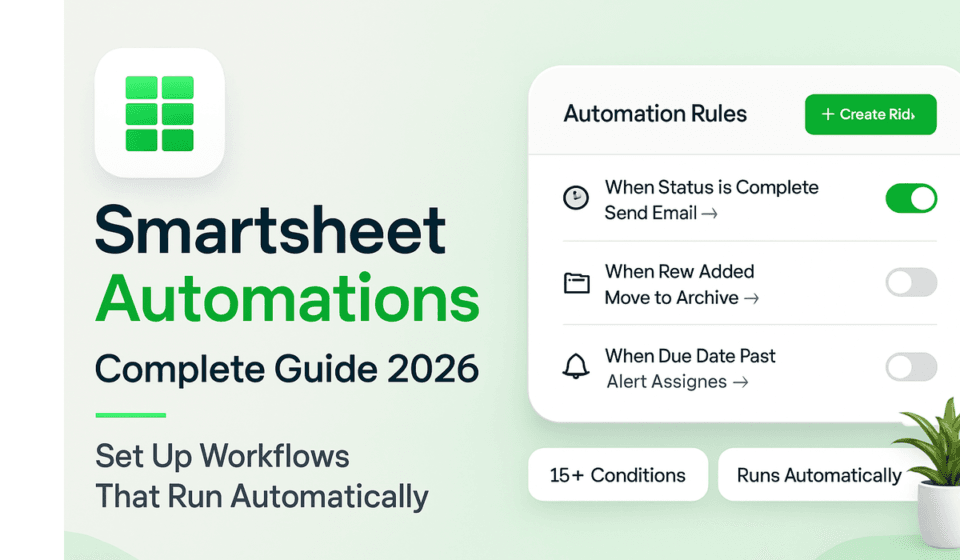
The Spreadsheet Model Difference: Why Smartsheet Automations Work Differently
Every major PM tool’s automation engine is designed around the concept of a task. A trigger fires when something happens to a task — it’s created, its status changes, its due date approaches, someone is assigned to it. The automation’s target is the task and the people associated with it.
Smartsheet’s automation engine is designed around the concept of a row in a sheet. A row is not inherently a task — it can represent a task, a project, a resource, a budget line, a contact, or any other unit of information that makes sense to track in rows and columns. This matters because it means Smartsheet’s trigger conditions can reference any column in the row, including formula-calculated columns, and can fire based on conditions that no other PM tool’s automation system can express.
The practical implication: a Smartsheet automation can trigger when a formula column’s value changes — meaning the automation fires based on a computed condition, not just on a raw data entry. An automation that triggers “when the calculated Budget Variance column exceeds 15%” is a type of trigger that cannot be expressed in Monday.com or ClickUp because those tools don’t have the equivalent concept of formula columns whose changes can be automation triggers. In Smartsheet, this is a standard row-change trigger applied to a formula column.
This also means that Smartsheet automations can be layered on top of formula logic in ways that create sophisticated conditional behavior without requiring the automation builder to express the conditions directly. Build the logic in formulas; use automations to respond to what the formulas produce. This separation of concerns — formulas for logic, automations for response — is the Smartsheet architecture pattern that enables the most powerful workflows.
Book Your FREE Smartsheet Discovery Call
A no-obligation 30-minute session — get expert answers tailored to your team’s Smartsheet setup.
Trigger Types That Are Uniquely Powerful in the Spreadsheet Model
Smartsheet’s automation triggers are surface-level similar to other PM tools but contain capabilities that only exist in the spreadsheet model architecture.
Cell change triggers are the most basic trigger type and the most distinctively Smartsheet. Any cell in any column can be a trigger source — including formula cells, checkbox columns, date columns, and contact columns. The granularity is at the column level within a row: “when any cell in the ‘Status’ column changes” or “when the checkbox in the ‘Approved’ column is checked.” This column-level precision is more granular than most PM tools’ trigger systems, which typically operate at the task level without distinguishing between which field changed.
Row-based triggers fire when a row is created (a new row is added to the sheet), when a row matches a condition set (evaluated against all rows on a scheduled basis), or when a row no longer matches a condition (useful for automations that should fire when items fall out of a filtered state). The “when a row matches a condition” trigger is particularly powerful: it’s evaluated against the sheet’s current state on whatever schedule you configure, meaning it can catch rows that transitioned into a condition state between active human monitoring periods.
Date-based triggers in Smartsheet are more flexible than in most tools because they can reference any date column in the sheet, and the trigger schedule can be set to a specific time of day on the trigger date. For workflows with time-sensitive SLAs — “notify the client 24 hours before their deliverable review deadline at 9am” — this time-of-day precision is operationally meaningful.
Form submission triggers are unique to Smartsheet among PM tools because Smartsheet natively includes form creation for external data collection. A form submission creates or updates a row, which can then trigger an automation chain. This makes Smartsheet the most capable tool for intake workflows where external parties (vendors, clients, applicants) submit data that needs to flow into a tracked and automated workflow — without requiring a third-party form tool integration.
| Trigger Type | Smartsheet | Asana | Monday.com |
|---|---|---|---|
| Formula column change | Yes | No | No |
| Row condition (scheduled) | Yes | Limited | Limited |
| Form submission | Native | Via integration | Via integration |
| Date trigger (time-of-day) | Yes | No | No |
| Cell change (any column) | Yes | Selected fields only | Selected columns only |
The Approval Workflow Architecture — and Why Its Absence Is Smartsheet’s Most Common Failure Mode
Smartsheet has the most capable native approval workflow functionality of any PM tool in its category. It supports multi-step approval chains, conditional routing (if Approver A rejects, go to Approver B rather than Approver C), approval request emails with inline approve/reject buttons, automated reminders to approvers who haven’t responded, and full audit trails of approval decisions.
The failure mode isn’t that the feature is weak — it’s that most Smartsheet deployments are configured without deliberately designing the approval workflow architecture, and the consequences emerge gradually in ways that are difficult to diagnose.
Here’s the pattern: a team sets up a Smartsheet approval automation for a single use case — expense approvals, say. The automation sends a request to one approver and updates the row status on approval. It works. Three months later, the same sheet is being used for three different types of requests with different approval requirements, because it was easier to add more rows than to create new sheets. The approval automation fires on all rows, but the approval logic only makes sense for the original use case. Rows that weren’t meant to have approval workflows are generating approval requests to the wrong people. Approvers are approving (or ignoring) requests they don’t understand. The audit trail is meaningless because it contains approval records for things that didn’t require approval.
The architectural fix requires a decision made before the first automation is built: define the approval chain topology for every request type that will flow through the sheet, and either create separate sheets for each type (cleanest) or use conditional logic in the automation rules to route different row types to different approval chains (more complex but viable if the request types share enough structural similarity).
The most common Smartsheet approval architecture that actually works: one sheet per approval workflow type, with a master summary sheet that uses cross-sheet references to aggregate status across all active approval workflows. This keeps each approval process clean and auditable while providing portfolio-level visibility.
Cross-Sheet References and Cell-Link Automations: The Architecture Nobody Explains
Smartsheet’s cross-sheet reference capability allows cells and ranges in one sheet to reference data from other sheets — similar in concept to cross-sheet formulas in Excel but with dynamic linking that updates as source data changes. When combined with automation triggers, this creates automation architectures that are uniquely powerful in the Smartsheet model.
The pattern: a master project tracking sheet contains a formula column that calculates project health scores from cross-sheet references to individual project sheets. When a project’s health score drops below a threshold, the formula column value changes, triggering a row-condition automation that notifies the portfolio manager and creates an escalation record in the risk register sheet. This entire chain — data aggregated from distributed sheets, logic evaluated by formula, automation fired on formula output — is invisible to any individual project sheet. The escalation chain operates at the portfolio level, watching conditions that no single project owner can see.
This architecture pattern is why Smartsheet is used disproportionately by program managers and operations teams managing multi-project environments: the cross-sheet reference plus formula plus automation combination creates monitoring and escalation logic that doesn’t require anyone to watch a dashboard actively. The system watches itself and escalates when conditions warrant.
Automation Action Types: What Smartsheet Can and Can’t Do
Smartsheet’s automation actions cover the standard PM tool set — email notifications, Slack messages, record updates, row moves, row locks, document generation — with some specific capabilities worth highlighting.
Document generation is a Smartsheet capability with no equivalent in Asana, Monday.com, or ClickUp. When an automation fires, it can generate a PDF or Word document populated with data from the triggering row and any related sheets. For teams that produce output documents as part of their workflow — proposals populated from a project sheet, purchase orders from a procurement tracker, certificates from an enrollment form — this eliminates the manual document preparation step entirely. The document template is defined once; the automation generates the populated version when the trigger condition is met.
Row locking is another uniquely Smartsheet automation action. When a row is locked, its cells cannot be edited without the appropriate permission level. An automation that locks a row when its status changes to “Approved” creates an audit-friendly record: approved decisions are immutable by default, preventing after-the-fact changes to approved records.
Row moving allows automations to move rows between sheets — enabling a multi-sheet workflow architecture where items progress through pipeline stages that are each represented as a separate sheet. Request comes in on the Intake sheet, automation moves it to the In Progress sheet when approved, automation moves it to the Completed Archive sheet when done. Each sheet represents a workflow stage; the automation handles the physical progression.
Where Smartsheet Automations Fall Short Compared to Alternatives
Honest competitor assessment for Smartsheet’s automation capabilities:
Smartsheet’s automation builder is more powerful than Asana’s but less intuitive than Monday.com’s for users without a spreadsheet background. The trigger and condition setup requires understanding Smartsheet’s column types and formula logic, which creates a steeper learning curve for team members who aren’t comfortable with spreadsheet concepts.
ClickUp’s custom field trigger flexibility — firing automations based on any custom field value — is comparable to Smartsheet’s cell-change triggers. ClickUp’s hierarchy-based automation scoping (Space/Folder/List) is more flexible than Smartsheet’s sheet-level scoping for organizations with complex nested project structures.
Monday.com’s automation builder is more visual and accessible for non-technical users. Its cross-board automation (Pro plan) is the closest equivalent to Smartsheet’s cross-sheet workflow architecture, though Smartsheet’s cross-sheet reference capability at the formula level is more granular than Monday.com’s cross-board automation.
For complex approval workflows, Smartsheet is the strongest native option in the PM tool category. For simpler approval workflows where the sophistication isn’t needed, any of these tools is adequate.
Expert Bottom Line
Smartsheet’s automation engine is the most mature in the PM tool category for organizations whose workflows are grounded in spreadsheet logic — structured data, formula-computed conditions, form-based intake, and multi-step approvals. The formula-column trigger capability, the document generation action, and the cross-sheet reference architecture enable automation patterns that competitors simply can’t replicate. The failure mode that consistently appears in Smartsheet deployments is building approval workflows without designing the approval architecture first — which produces audit trails that are meaningless and approval chains that route requests to the wrong people. Design the approval topology before building any automation rule. Use separate sheets for separate request types. The power is there; the discipline to use it correctly is what separates Smartsheet deployments that scale from ones that require constant maintenance.
Frequently Asked Questions
Can Smartsheet automations trigger from data entered via API?
Yes — Smartsheet automations fire based on changes to sheet data regardless of how those changes were made: manual entry, form submission, API update, or import. This makes Smartsheet a viable backend for custom applications where external systems update Smartsheet rows via API and the automation layer handles notification, routing, and downstream process steps without requiring any additional code. The full automation capability is available to API-driven data in the same way as manually entered data.
What’s the practical limit on automation rules per sheet?
Smartsheet’s published limit is 200 automation rules per sheet. In practice, sheets with more than 30-40 active automation rules become difficult to maintain and audit. The maintenance overhead grows non-linearly with rule count because rules can interact in unexpected ways. The architectural recommendation: if you’re approaching 20+ rules on a single sheet, evaluate whether the sheet is trying to handle multiple distinct workflows that should be separated into purpose-built sheets. Complexity that requires 30 automation rules to manage is usually a sign that the sheet architecture needs redesign, not that more rules are needed.
How does Smartsheet’s approval workflow compare to dedicated approval tools like Docusign or Adobe Sign?
Smartsheet’s approval workflow is a strong lightweight approval mechanism for internal business process approvals — budget requests, project approvals, change orders, HR requests. It is not a substitute for legal signature tools. Docusign and Adobe Sign provide legally binding electronic signatures with audit trails that meet regulatory standards for contract execution, compliance, and legal enforceability. Smartsheet approvals are best understood as a business process approval (I have reviewed and approve this request to proceed) rather than a legal signature (I am legally committing to the terms of this document). For workflows that require the former, Smartsheet is appropriate. For workflows that require the latter, use a dedicated e-signature tool — Smartsheet can trigger the e-signature process through its Docusign integration but shouldn’t replace it.
Can Smartsheet automations send notifications to users who don’t have a Smartsheet account?
Yes — automation notifications can be sent to any email address, regardless of whether the recipient has a Smartsheet account. This is important for client-facing workflows and for notifications to external stakeholders. The recipient receives an email with the notification content and (if configured) a link to a read-only shared view of the relevant sheet or row. They cannot edit the sheet without an account, but they can receive automated notifications and, if a form is attached, submit information back through the form without needing an account.
What is the Smartsheet automation usage limit, and how does it compare to Monday.com?
Smartsheet’s automation is effectively unlimited for paid plans — there is no monthly action count that depletes. Monday.com’s Standard plan has 25,000 automation actions per month, and Basic has 250. For high-volume automation scenarios — large teams, frequent data updates, many active automation rules — Smartsheet’s unlimited model is a material advantage. The tradeoff is that Smartsheet’s per-seat licensing is generally more expensive than Monday.com’s for the same team size, so the total cost comparison depends on team size, automation volume, and which plan tier each tool’s functionality requirements push you toward.
- Smartsheet Automated Workflows: Official Documentation
- Smartsheet Approval Workflows Setup Guide
- Smartsheet Cross-Sheet References and Formulas
📌 Related: Pairing Smartsheet automations with Microsoft Teams notifications creates a powerful no-code workflow. Check out our Smartsheet Teams integration setup guide.
📚 Related Reading on WorkManagement Hub
Sponsored