Smartsheet Resource Management in 2026: Workload Tracking vs the Full Add-On, Setup and Costs
Smartsheet now has two levels of resource management. The first is workload tracking, which is built into the Business and Enterprise plans. It shows who is free and who is over-booked across every sheet that has it turned on. The second is Resource Management by Smartsheet, a paid add-on with skills, roles, capacity planning and time tracking. Smartsheet Business was $19 per member a month billed yearly on October 17, 2026. The add-on has no public price. You request a demo or talk to sales.
Many older guides say you must buy the add-on to see anyone’s workload. That is no longer true. This post shows what each level does, how to set up workload tracking, and when the add-on is worth it.
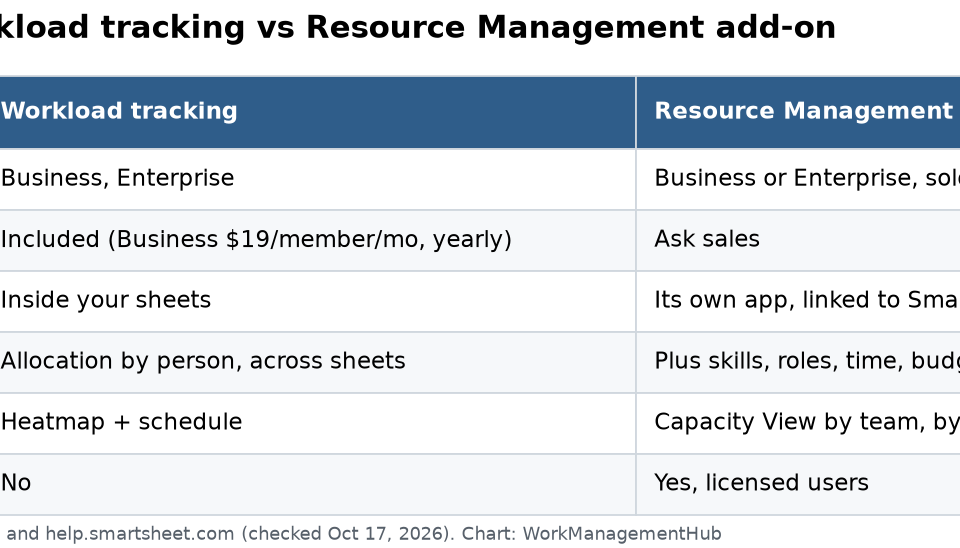
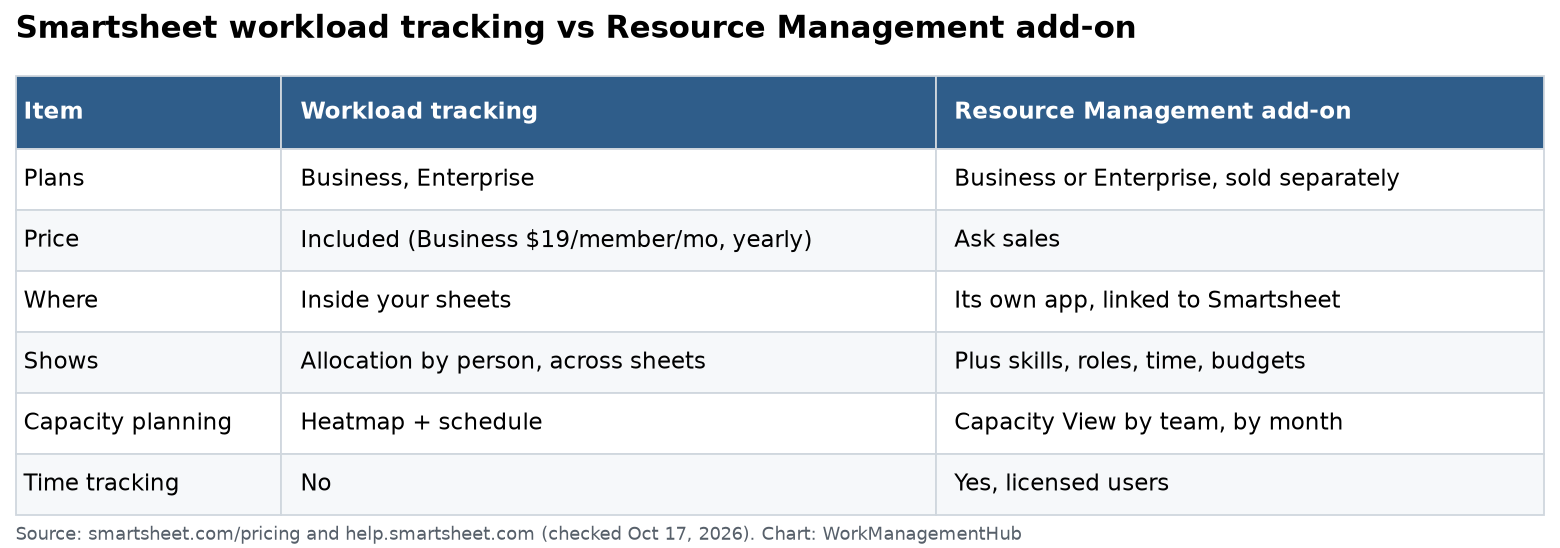
The two levels at a glance
| Workload tracking | Resource Management add-on | |
|---|---|---|
| Plans | Business, Enterprise | Business or Enterprise, sold separately |
| Price | Included | Ask sales |
| Where you use it | Inside your sheets | Its own app, linked to Smartsheet |
| Shows | Allocation by person across sheets | Allocation plus skills, roles, time and budgets |
| Capacity planning | Heatmap and schedule | Capacity View by team and month |
| Time tracking | No | Yes, for licensed users |
Who can use workload tracking
Smartsheet’s workload tracking help page sets these rules:
- You must be a Member (a licensed user in the older model).
- You can only track people who are on your plan.
- Admin or higher on the sheet can turn it on.
- Editor or higher can view the heatmap and edit the schedule.
- Viewer or higher can view the heatmap and schedule.
The Smartsheet pricing page lists workload tracking on Business and up. Pro ($9 per member a month billed yearly, for 1 to 10 members) does not include it.

Set up workload tracking in 4 steps
Step 1. Add the three required columns. You need a Start date and an End date column, both set to the Date type. You also need an Assigned resource column set to the Contact type.
Step 2. Add the optional columns. An Allocation % column (text/number) tells Smartsheet how much of a person’s time a task takes. It runs from 0% to 100%. If you skip it, each assigned row with dates counts as 100%. A Phase column (single-select dropdown) groups the work.
Step 3. Turn it on. – In Table View, select Workloads in the toolbar, map your columns, and select Apply. You can also do this from Settings. – In Grid View, open the Resource Management panel, map your columns, and select Track workload.
Step 4. Read the results. In Grid View, the panel shows a heatmap. Expand it to see the full workload schedule.
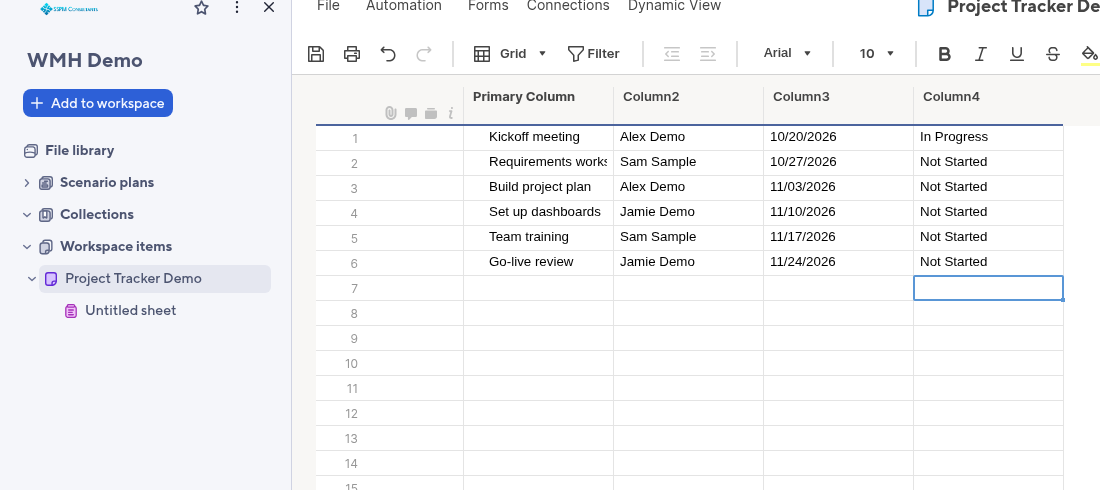
Here is a simple project sheet from my own WMH Demo workspace. It has task names, owners and dates. Give the columns clear names, make sure the owner column is a Contact column, and add an End date. Then it’s ready for workload tracking.
How to read the heatmap
| Color | Meaning |
|---|---|
| Red | Over-allocated |
| Dark gray | Fully allocated (100%) |
| Medium gray | Partly allocated (1% to 99%) |
| Light gray | Available (0%) |
| Blue | Work from the sheet you have open |
The heatmap only appears in Grid View. It shows availability for up to 60 days in the past. The schedule pulls in assignments from every sheet with workload tracking turned on, so you can see why someone is red.
The rules that trip people up
- Grid View needs a save. Changes show in the schedule only after you save the sheet. Table View saves on its own.
- Parent rows don’t get a default allocation. Neither do rows where the Allocation % column has a column formula.
- Deleting the allocation removes the task from the heatmap and schedule.
- You can only edit your own sheet’s assignments in the schedule. To fix a clash with another project, talk to its owner.
- Deleting a sheet affects the linked project. With no time entries, the project is deleted. With time entries, it is archived.
- Archived projects drop out of the workload schedule.
What the paid add-on adds
Resource Management by Smartsheet is for teams that staff many projects from one pool of people.
- Richer profiles. Skills, roles, disciplines and part-time hours.
- Staffing ideas. It suggests people based on skills and free time.
- Capacity View. A team-level, month-by-month view of percent allocated, hours scheduled and hours left.
- Time and budgets. Licensed users log time. Projects can carry budgets.
How the add-on is licensed
Smartsheet’s subscription help page explains three kinds of profiles:
- Licensed users sign in, plan, and track time.
- Managed Resources are people or things, like rooms or equipment, that you schedule. They can’t sign in. You can’t track expenses for them.
- Unmanaged Resources are free profiles made by workload tracking for people who aren’t licensed or managed.
Licensed users and Managed Resources are sold in separate amounts. If you upgrade later, the data from workload tracking is already there.
When workload tracking is enough
- You run a handful of projects with a small, stable team.
- You only need to know who is over-booked.
- Your people don’t log hours.
When the add-on is worth asking about
- You staff projects by skill or role.
- You bill clients by the hour or track budgets.
- Leaders want a team-level forecast for the next few months.
My advice: start with workload tracking on Business. Run it for a month. If you keep wishing you could filter by skill or see hours, get a quote for the add-on.
Related guides
- Smartsheet pricing in 2026
- Smartsheet Portfolios and Scenario Planning
- Smartsheet Control Center setup
Common questions
Does Smartsheet have resource management built in?
Yes. Workload tracking is included on the Business and Enterprise plans. It shows each person’s allocation across sheets. The full Resource Management add-on costs extra.
Which columns does workload tracking need?
A Start date and End date column (Date type) and an Assigned resource column (Contact type). Allocation % and Phase are optional.
How much does Smartsheet Resource Management cost?
Smartsheet doesn’t list a public price for the add-on. You request a demo or contact sales. Business was $19 per member a month billed yearly on October 17, 2026.
Can I use workload tracking on the Pro plan?
No. The pricing page lists workload tracking on Business and higher plans.
What are Unmanaged Resources?
Free profiles that workload tracking creates for people who are assigned work but aren’t licensed users or Managed Resources. They can’t sign in to Resource Management.
Plans, prices and rules checked on smartsheet.com/pricing and help.smartsheet.com on October 17, 2026.
From our team: OneSmar for Smartsheet Teams