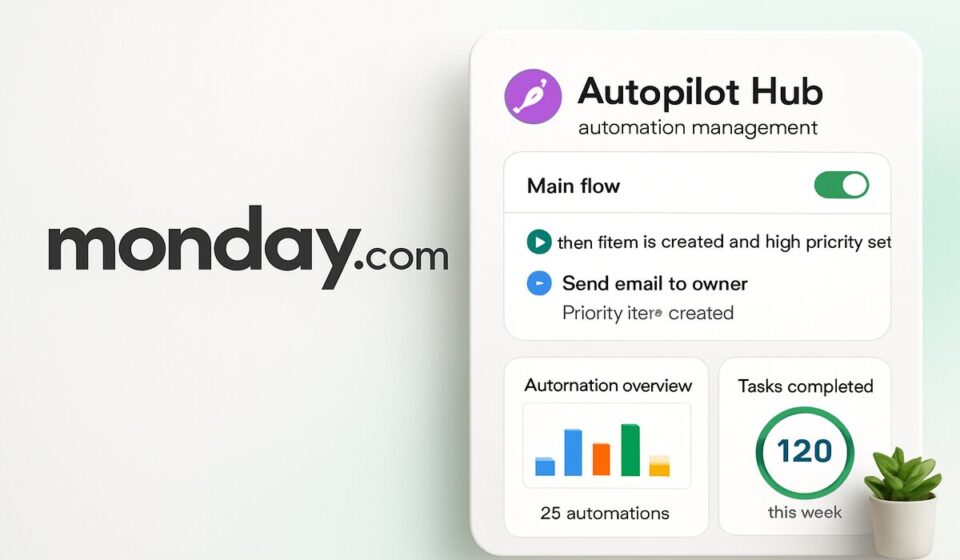

The monday.com Autopilot hub is an account-level view of every automation, integration and workflow you run. You add it from the left pane’s More menu, then work across four tabs: Health, Usage, Workflows and Connections. Setup takes about a minute. Getting real value from it takes tagging your automations by importance first.
What the hub replaces
Before it existed, auditing automation health meant opening each board’s Automations page one at a time and reading run logs board by board. The Autopilot hub pulls that into a single account-wide view. monday.com’s own Autopilot hub documentation calls it a centralized command center, which is fair as far as reporting goes. It is closer to a monitoring surface than a control panel: it tells you what is broken and where, and then sends you elsewhere to fix it.
Access is not gated behind an admin role. monday.com states there are no specific permission settings for the hub, and that existing permissions carry over, so private boards and workflows you cannot already see stay hidden here too. That is worth knowing before you use the hub as a compliance audit — it shows your view of the account, not the whole account.
Opening and pinning the hub
One quirk that wastes people’s time: the help article calls it the Autopilot hub, but the menu item you actually click is labelled Automation hub. Searching the interface for “Autopilot” turns up nothing.
- Open any board and click More at the bottom of the left pane.
- Select Automation hub from the dropdown. It opens on the Health tab by default.
- To keep it permanently in the sidebar, reopen More and click Personalize menu.
- Click the pushpin icon to the right of Automation hub.
- Click Save changes. The hub now appears in the left pane without going through More.
What each of the four tabs shows
| Tab | What it reports | Where you act on what you find |
|---|---|---|
| Health | Which automations and workflows are failing, when each last failed, the owner, the board it lives on, and an AI-generated root cause label. Filterable by owner and by board. | Click through to the board or workflow and fix it in context. |
| Usage | Action consumption for the current cycle, plus active automations, creators, boards and active workflows. Below that, a daily action-use graph and pie charts for top boards, workflows and creators. | Upgrade the plan directly from this tab; download any section as CSV. |
| Workflows | Every workflow in the account with its status, workspace, importance level and how many actions it has used. Searchable across workspaces. | Add a new workflow, or open an existing one to edit. |
| Connections | Every connected app and integration, with status, connection, which boards use it, how many automations it powers and when it was last updated. | Open the relevant app or board to change or reconnect it. |
Set importance before you rely on the Health tab
The Health tab’s sorting logic depends on the business importance you have assigned to each automation. If nobody has set importance on anything, every failure reads as equally urgent and the prioritisation is decorative. Do this before your first real audit.
- Open a board with automations on it and click Automate at the top.
- Click the Manage tab, then the Automations tab.
- Click the three-dot menu beside an automation, click Importance, and choose a level.
- For workflows, open the workflow builder and click the arrow to the right of the workflow title to set importance there.
- Go back to the Autopilot hub’s Health tab and filter by owner or board to confirm the ranking now reflects reality.
The AI root cause classification in the failures table is genuinely useful for triage — it labels the likely cause instead of making you read raw logs. Treat it as a hypothesis rather than a verdict. monday.com does not publish the list of classifications it can produce or any accuracy figure for them, so when the label and the symptom disagree, trust the symptom and work through the usual checks for monday.com automations that stop firing.
Reading the Usage tab without fooling yourself
The single most common misreading is treating the Usage number as a count of automation runs. It is not. monday.com bills actions, and one trigger can spend several. Per the actions and limits documentation, notifying six board subscribers consumes six actions, not one. Creating an item where Status, Tag, People or Dropdown columns are mapped costs one action per mapped column plus one for the item itself. Condition steps in workflows also draw down the quota.
That arithmetic decides which plan you need, not the number of automations you have built.
| Plan | Automation actions per month | Integration actions per month |
|---|---|---|
| Free and Basic | Not available | Not available |
| Standard | 250 | 250 |
| Pro | 25,000 | 25,000 |
| Enterprise | 250,000 | 250,000 |
Two limits run in parallel and do not affect each other: the monthly action limit, and the number of Workflow Builder recipes that can be active at once. Hitting one does not free up the other. Also note that a custom template counts against your Automation limit even when it contains only Integration blocks, and that apps installed from the marketplace can quietly create automations that spend actions in the background.
Reset timing depends on how you pay. Monthly plans reset on the day of the month you activated the account; annual plans reset on the 2nd. Heavy formula-driven boards are a frequent surprise entry in the top-consumers list, so if payroll or costing runs through a monday.com formula column setup, check it against the Usage tab before assuming integrations are the culprit.
Each Usage section has a download icon in its top right corner that exports that section as CSV. The same top-consumer data is also available under Administration then Usage stats, and again from a board via Automate, Manage, Account usage. Three documented routes to overlapping numbers is a fair sign this area of the product is still being consolidated.
Where monday’s own documentation contradicts itself
This one matters if you plan to rely on warning emails instead of checking manually. The actions and limits article says Billing Contacts receive an email and a board banner at 50% of the limit and again at 80%. The automations and integrations pricing article says email notifications go to account admins at 50%, 75% and 100%. Both pages were live and current when this was written, and they disagree on both the thresholds and who gets notified.
The practical answer is not to depend on either. Open the Usage tab on a schedule. At 100% consumption you get a 72-hour grace period before automation runs pause, overage is deducted from the next cycle, and once the current month’s actions are gone the account is blocked from editing or adding automations at all. It is possible to overshoot far enough that a new month starts at zero available actions.
What the hub does not do
- Per-run detail. The hub surfaces last-failure time and a root cause label, not the individual run. For that you need Run history on the board, under Automate then Manage, which monday.com documents as retaining only the past 10 days.
- Bulk control. monday.com does not document any way to pause, disable or edit automations in bulk from the hub. Every fix is a click-through to the board or workflow.
- Custom reporting. The charts are fixed. If you want automation metrics next to project or capacity data you will need to build that separately in a monday.com dashboard.
- Alerting you actively. Quota emails exist, but monday.com does not document any failure-rate alert that reaches you without opening the hub.
If you run a handful of automations on two or three boards, the hub is not worth a weekly habit — the board Automations page tells you the same thing faster. It earns its place at roughly the point where nobody can name every automation in the account from memory.
Common questions
Do I need admin rights to open the Autopilot hub?
No. monday.com states no specific permission settings are required. Your existing permissions still apply inside it, so anything you cannot see elsewhere stays hidden here. That makes the hub useful for your own work but unreliable as an account-wide audit unless you already have visibility of every board.
Why does the hub show fewer boards than I expected?
Private boards and private workflows you are not subscribed to do not appear, and their names and data are withheld exactly as they are everywhere else in the platform. If a board’s automations are burning actions but never show in Health, permissions are the first thing to check, not a reporting bug.
Can I see why one specific automation failed at a specific time?
Not from the hub. Health reports the last failure time and a root cause label per automation. For a timestamped list of individual runs marked in progress, failed or successful, open the board, click Automate, then Manage, then Run history. That log covers the past 10 days only.
What happens the moment I hit 100% of my actions?
You get a 72-hour grace period before automation runs pause. Any overage is deducted from the next cycle’s allowance. Once the month’s actions are exhausted, the account is also blocked from editing or adding automations and integrations, so you cannot switch off the offender to buy room.
Can I buy more actions instead of upgrading?
Only on Enterprise, and only by contacting your monday.com account contact. On every other plan the actions included with the plan are all you get, and monday.com states you cannot pay to have actions reactivated once they run out. Upgrading the plan or waiting for the reset are the options.
Sponsored