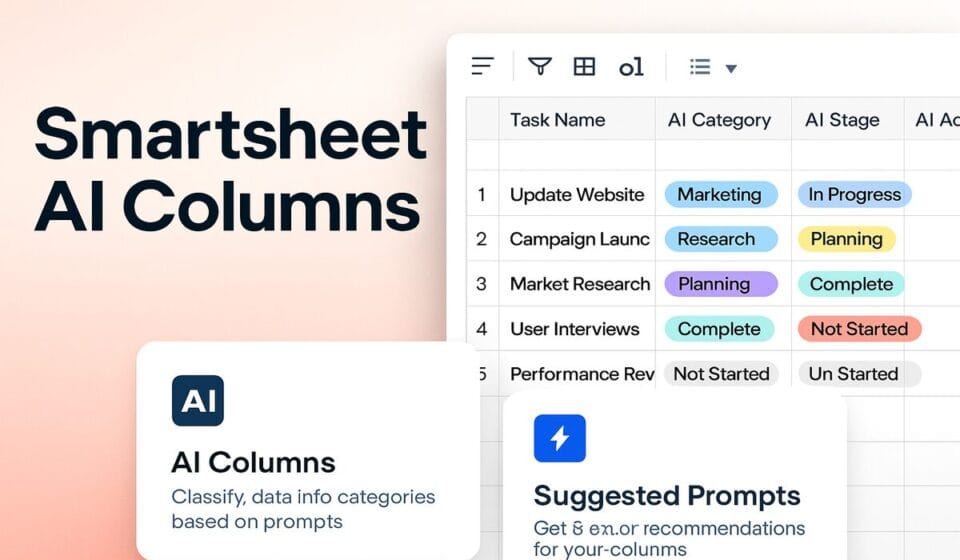

Smartsheet dropdown columns hold a fixed list of values you type into column properties. To make one update itself, use linked dropdown columns — the feature Smartsheet markets as Dynamic Dropdowns — which points your column at a column in another sheet and refreshes the options in near real time. Data Shuttle and the API cover the cases it can’t.
The three toggles that decide how a dropdown behaves
Most dropdown complaints trace back to a switch nobody set. A Smartsheet dropdown column has two settings that change its behaviour completely, and the difference between Single Select and Multi-Select is really just one of them. Get these right before you build anything on top.
- Select the column menu and choose Insert Column Right or Insert Column Left.
- Type a name in the Name box.
- Choose the Dropdown list column type.
- Toggle Restrict to list values only to block free-text entry, and toggle Allow multiple values per cell if you want Multi-Select.
- Type your options under Values, one per line, pressing Enter between each.
- Select OK.
Here is the part that catches people. If you leave Restrict to list values only off, editors can double-click a cell and type anything. That free-text value is saved in that one cell — it is not added to the column’s Values list, so it never appears as an option for anyone else. You end up with “In Progress”, “in progress”, and “In-Progress” scattered across the sheet and a report that counts them as three different things. Smartsheet documents this behaviour plainly in its dropdown column type article. If your dropdown feeds a rollup or a chart, turn the restriction on.
Two smaller details: values appear in the order you typed them, not alphabetically, and in a Multi-Select column the number of values a user can pick is unlimited up to the normal cell character limit. If your status column is producing errors downstream rather than dirty data, that is a different problem — see Smartsheet Formula Errors: Every Code and Its Real Fix.
Dynamic Dropdowns, or what the documentation calls linked dropdown columns
Smartsheet announced Dynamic Dropdowns as generally available on 5 November 2025, describing it as automatically populating a dropdown list from another column in Smartsheet. Searching the Help Center for that marketing name gets you almost nothing, because the documentation files the feature under linked dropdown columns. Same thing, two names. It is available on Pro, Business, and Enterprise, and you need Viewer permissions on the source sheet plus Admin on the target sheet.
You can only set the link up in table view, though the resulting column works everywhere else — grid, board, timeline, reports, forms, and Dynamic View.
- Open the target sheet and switch to table view.
- Add a new column and set the type to Dropdown list.
- Name the column, then toggle on Link to another sheet. Doing this automatically switches on Limit to list values only; you can switch it back off if you want local values allowed alongside the linked ones.
- In the Source sheet box, paste the source sheet URL or use the plus icon to search for it.
- In the Source column box, pick the column holding your values.
- Select Apply.
Both columns then show a link symbol in the header. If the values don’t appear straight away, refresh the sheet. Supported source column types are Contact, Dropdown List, and Text/Number only — and if the source is a dropdown or contact column, it must have Limit to one value per cell switched on. Changing that setting on the source afterwards breaks the connection.
You can also narrow the list with a static filter. Open Column properties on the linked column, toggle on Filter dropdown options, pick a source column, an operator, and a value, then select Apply. One condition per column, no compound logic.
The gotcha that will cost you an afternoon
The linked dropdown reads the cells in the source column, not the values defined in that column’s properties. If your source is a dropdown column configured with twelve options but only three of them have actually been used in rows, your target dropdown shows three options. This is the single most common reason a linked dropdown looks half-empty, and it is documented in Smartsheet’s troubleshooting table rather than anywhere you would look first. Build your source as a plain Text/Number list column with one value per row and you sidestep it entirely.
Blank cells in the source return nothing, and deleting the source column or sheet leaves the target throwing “The source column no longer exists” until someone resets the connection. Worth knowing before you hand the source sheet to someone who tidies aggressively.
Limits worth checking before you commit
The linked dropdown columns overview lists constraints that matter at scale:
- Only sheets can be used as a source. Not reports, not DataTable, not an external file.
- You cannot use a column in the current sheet as the source for another column in that same sheet.
- Dropdown colours can’t be configured on a linked column, and colours set on the source don’t carry through.
- Up to 20,000 values can propagate from source to target.
- A sheet supports a maximum of 400 inbound dropdown links; Smartsheet supports up to 250,000 outbound links from a single source.
- Each cell value caps at 255 characters.
The colour limitation is the one that annoys people most, because RYG-style status columns usually depend on colour coding. If your status dropdown needs colours, keep it local and use linked dropdowns for the lists where colour doesn’t matter — vendors, cost codes, project names, SKUs.
When you need Data Shuttle instead
Linked dropdown columns only work sheet-to-sheet. If your authoritative list lives in a CSV exported from an ERP, or on SharePoint, or in a Box folder, Data Shuttle is the supported route. It is a paid add-on starting at $100/month and is only eligible on Business and Enterprise plans, so this is a genuine cost decision rather than a configuration one.
The Data Shuttle dynamic dropdowns setup uses two workflows that have to run in order:
- Create an Offload Data workflow that reads your source sheet and writes a CSV to a Smartsheet Attachment (or OneDrive, SharePoint, Google Drive, or Box).
- Set a cadence with Run on schedule, then save and run it once manually.
- Create an Upload Data workflow pointed at that attachment, choosing Most recent so it always picks up the latest file.
- Select your target sheet and choose the Update the dropdown choices for the selected columns action.
- Map the columns, then set Run on schedule or Run on attachment so the upload fires when a new file lands.
Reach Data Shuttle from the Connections menu in grid view or the Data Integrations button in table view. If neither appears, your system admin hasn’t enabled it in Admin Center. Note that this is a scheduled sync, not a live link — between runs, your dropdown is stale. Choosing Run on attachment on the upload side narrows that window considerably.
The API route
For anything driven by an external system in real time, PUT /sheets/{sheetId}/columns/{columnId} updates a column’s options directly. There is one rule that trips up nearly everyone writing this the first time: for PICKLIST and MULTI_PICKLIST column types, Smartsheet enforces one update per API call. You set the column type first, then apply additional constraints such as validation: true in a subsequent call. Trying to do both in one request fails. The type property is also required whenever you’re changing options, even though it’s optional for a rename or a move.
Comparing the four approaches
| Approach | How current the list stays | Plan and cost | Best for |
|---|---|---|---|
| Values typed in column properties | Only when someone edits it manually | All plans, included | Short lists that rarely change |
| Linked dropdown columns (Dynamic Dropdowns) | Near real time from the source sheet | Pro, Business, Enterprise — included | Lists that already live in a Smartsheet sheet |
| Data Shuttle | On a schedule, or when a new attachment arrives | Business and Enterprise; add-on from $100/month | Source lists in CSV, XLSX, SharePoint, Box, or Drive |
| Smartsheet API | Whenever your code runs it | Included, but needs development time | Options driven by an external system of record |
Plan choice matters more than the feature list suggests here — Pro caps you at 250 automations per month and 1-10 Members, while Business lifts automations to unlimited and opens up Data Shuttle eligibility. The full breakdown is in Smartsheet Pricing 2026: Pro, Business & Enterprise. If your rules are firing inconsistently rather than not at all, Smartsheet Automation Not Triggering? 9 Real Fixes covers the usual causes.
Dropdowns in forms, including the disappearing-option trick
Linked dropdown columns work in forms, though you can’t create them from the form builder — set the column up in table view first, then add the field. That covers most request forms.
The harder case is inventory: a booking form where each option should vanish once someone takes it. Smartsheet’s documented pattern uses two sheets and two formulas. Sheet 1 holds a Times column with every slot, an Is Selected column running a VLOOKUP against the form’s response sheet, and an Available Time Slots column running =IF(IFERROR([Is Selected]@row, true) = true, Times@row, ""). Sheet 2 hosts the form, with its dropdown linked to that Available Time Slots column. Convert both formulas to column formulas so they apply to every row.
The behaviour is real but not instant. Expect a delay of up to a minute between submission and the form’s dropdown updating, and the respondent has to refresh the form to see it. For a low-volume booking process that is fine. For anything competitive, two people can grab the same slot inside that window. Conditional logic in forms is a separate lever worth combining with this — see Smartsheet Forms Conditional Logic: Rules That Hold Up.
What Smartsheet’s AI actually does with columns
There is persistent confusion here, partly because Smartsheet announced a lot of AI at once in late 2025. Smart Columns are real and documented: AI-powered column types that run a specific operation — sentiment analysis, translation, summarisation — across every row as data changes. They are included in the conversational AI features listed on the Pro plan. They do not populate dropdown options, and no AI feature in Smartsheet currently does. Dynamic Dropdowns is a data-linking feature, not an AI one.
Smart Flows, Smart Agents including the Project Manager Smart Agent, and Smart Hub were all announced at ENGAGE in November 2025, with Smart Flows, Smart Columns and Smart Agents going to the Early Adopter Program and Smart Hub slated for a 2026 launch. Of those, only Smart Columns currently appears in the Help Center’s AI features list alongside Smart Assist, the AI dashboard builder, generate formulas, analyze data, and intelligent form fill. Treat the rest as roadmap until your own account shows them. For what is genuinely usable today, see Smartsheet AI in 2026: What’s Actually Worth Using.
Frequently asked questions
Can a Smartsheet dropdown pull its values from another sheet?
Yes. Linked dropdown columns, marketed as Dynamic Dropdowns, connect a dropdown column to a column in a separate source sheet and refresh in near real time. Available on Pro, Business, and Enterprise. You need Viewer permissions on the source sheet and Admin permissions on the target, and you must set it up in table view.
Why does my linked dropdown show fewer options than the source column has?
Because the link reads the cells in the source column, not the options defined in that column’s properties. If only three rows contain values, only three options appear, regardless of how many are configured. Fix it by making the source a Text/Number column with one value per row rather than a dropdown column.
Do I need Data Shuttle to build a dynamic dropdown?
Not if your source list is already a Smartsheet sheet — linked dropdown columns handle that natively at no extra cost. Data Shuttle becomes necessary when the source is an external CSV, XLSX, or a file on SharePoint, Box, or Google Drive. It starts at $100/month and requires a Business or Enterprise plan.
Can users type their own values into a dropdown?
Only if Restrict to list values only is switched off. When it is off, an editor can double-click a cell and type anything, but that value stays in that single cell and is never added to the column’s option list. Turn the restriction on whenever the column feeds reports, rollups, or automations.
Can I sort dropdown options alphabetically?
There is no built-in sort. Values in a standard dropdown appear in the order you entered them in column properties, and linked dropdowns follow the row order of the source sheet. To reorder, either retype the values in the order you want or sort the rows in the source sheet. Free text added to Multi-Select cells is the exception, saving alphabetically at the end of that cell.
Sponsored

Related guides