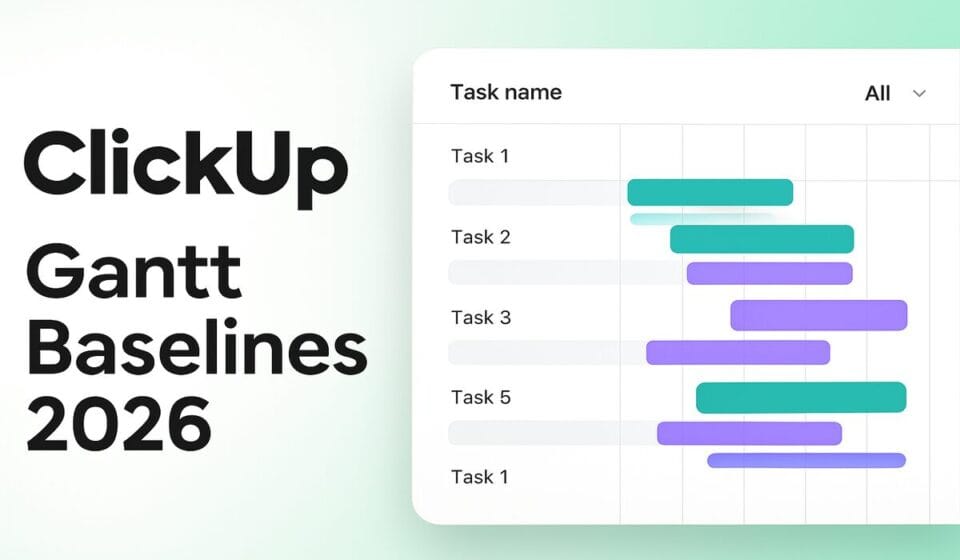

- ClickUp Gantt baselines, released in early 2026 after 1,000+ community requests, let you snapshot planned dates and compare them visually against actual progress on the same chart.
- You can save multiple baselines per Gantt view — each gets a distinct color — and toggle them on or off from the legend without permanently deleting them.
- Baselines work at the List, Folder, and Space level, making them equally useful for granular sprint tracking and portfolio-wide schedule health reviews.
- The feature is available on paid ClickUp plans and is accessed through the ClickUp 4.0 interface, which became the mandatory default on March 27, 2026.
- Setting a baseline at project kickoff and reviewing it at sprint close is the single highest-leverage habit for catching schedule drift before it becomes a missed deadline.
To use ClickUp Gantt baselines, open any Gantt view in ClickUp 4.0, click Baselines in the toolbar, then select + Save Baseline. ClickUp snapshots all current task start and end dates. Return at any sprint close to visually compare your original planned timeline against actual progress using color-coded overlay bars on the same chart.
- What Are ClickUp Gantt Baselines and Why Do They Matter?
- Before You Begin: Requirements and Plan Eligibility
- How to Create Your First ClickUp Gantt Baseline at Project Kickoff
- Reading the Baseline Overlay: Planned vs. Actual at a Glance
- Managing Multiple Baselines: Colors, Legends, and When to Add More
- The Sprint Close Review: Using ClickUp Gantt Baselines to Audit Schedule Drift
- Portfolio-Level Baseline Tracking Across Folders and Spaces
- Common Mistakes That Kill Baseline Accuracy
- Verdict
- Frequently Asked Questions
How to Use ClickUp Gantt Baselines for Smarter Project Tracking in 2026
Every project manager has lived this moment: a stakeholder asks why the launch slipped three weeks, and the only evidence you have is a current Gantt chart that shows where things are — not where they were supposed to be. ClickUp Gantt baselines exist to eliminate that blind spot. By freezing a snapshot of your planned schedule at any meaningful moment, you create a permanent reference point that travels with the project, visible right alongside live task bars on the same chart.
This guide covers the full workflow — from saving your very first baseline at kickoff, through reading the color-coded overlay mid-project, to running a structured sprint close review that turns variance data into actual process improvement. Whether you manage a single agile product team or oversee a portfolio of client engagements, the baseline discipline covered here is the same.
What Are ClickUp Gantt Baselines and Why Do They Matter?
A Gantt baseline is a time-stamped snapshot of every task’s planned start date, end date, and duration. When you save one in ClickUp, those values are locked. As the project progresses and actual dates shift — because they always shift — ClickUp renders your original baseline bars on the same timeline so you can see the gap between plan and reality without switching views, exporting data, or building a comparison spreadsheet.
ClickUp Gantt baselines were released in early 2026 following more than 1,000 community upvotes on the ClickUp Canny board. That level of demand signals something important: project teams were already doing baseline comparisons manually, usually by screenshotting the Gantt or duplicating the list before kickoff. The native feature eliminates that workaround and, critically, keeps the comparison alive and interactive rather than frozen in a screenshot you have to dig out of Slack.
The business case is straightforward. Early schedule drift is cheap to fix — a scope conversation, a resource reallocation, a dependency flag. Late drift, the kind you only discover when a stakeholder asks why the launch slipped, is expensive. Baselines compress the feedback loop between “we’re drifting” and “we’re taking corrective action” from weeks to days.
For teams that bill clients on a time-and-materials basis, baselines also provide defensible documentation of what was originally scoped versus what was delivered — a point that becomes critical during project close-out conversations or invoice disputes.
Before You Begin: Requirements and Plan Eligibility
Gantt baselines are available on all paid ClickUp plans. Free Forever plan users do not have access. If you are unsure of your current plan, navigate to Settings → Workspace Settings → Billing in the ClickUp 4.0 sidebar to confirm.
You also need the Gantt view enabled. If your List, Folder, or Space doesn’t already show a Gantt tab, add one before proceeding:
- Open your List, Folder, or Space — navigate using the left-hand sidebar in ClickUp 4.0. The sidebar was restructured when 4.0 became mandatory on March 27, 2026; everything lives under the unified Space tree now.
- Click the + View button — it appears in the view tab bar at the top of the content area, to the right of your existing view tabs (Board, List, etc.).
- Select Gantt from the view picker panel that slides open on the right side of the screen.
- Name the view if prompted — something like “Project Gantt” keeps it findable — then click Add View.
- Assign dates to your tasks — baselines require that tasks have both start and due dates set. Tasks with only a due date or no dates at all will not be captured in the snapshot. Use the ClickUp Gantt view documentation to verify your date fields are correctly configured.
One pre-flight check worth doing: confirm that your task dependencies are set before saving the first baseline. Dependency lines are not part of the baseline snapshot itself, but they influence how date drift cascades through the chart — and you want that picture to be accurate before you freeze it. See our guide to setting up ClickUp task dependencies and critical path analysis if your dependency chains aren’t locked in yet.
How to Create Your First ClickUp Gantt Baseline at Project Kickoff
The best time to save a baseline is the moment the project schedule is finalized and approved — not after work has started. Think of it as the digital equivalent of getting a signed scope document: it creates an immutable record of what everyone agreed to.
- Open the Gantt view — click the Gantt tab in your List, Folder, or Space. Confirm you can see all your tasks with their planned bars displayed across the timeline.
- Click Baselines in the Gantt toolbar — the Baselines button sits in the toolbar row directly above the Gantt chart, to the right of the Settings and Filter controls. It displays a small calendar-with-bookmark icon in ClickUp 4.0.
- Click + Save Baseline — a dialog box opens prompting you to name the baseline. Be specific: use a name like “Kickoff Baseline — 2026-05-21” rather than a generic “Baseline 1.” You will thank yourself when you have three baselines saved and need to know which is which.
- Confirm the snapshot — click Save. ClickUp immediately records the start date, end date, and duration of every task currently visible in the view. This action is instantaneous; there is no processing delay.
- Verify the baseline appears in the legend — after saving, look at the bottom-left of the Gantt chart. A legend entry for your new baseline will appear with its assigned color. By default, ClickUp assigns the first baseline a distinct color (often a muted shade that contrasts with the live task bars). The baseline bars will appear as thinner, color-coded bars rendered above or below each active task bar.
- Communicate the baseline to your team — share the Gantt view link via Share → Copy Link in the top-right corner of the view. Anyone with access can now see the baseline overlay. This is your project’s official starting line.
For deeper context on structuring a ClickUp project before kickoff, our ClickUp 4.0 automations setup guide for 2026 walks through the full pre-kickoff configuration sequence.
Reading the Baseline Overlay: Planned vs. Actual at a Glance
Once a baseline is saved, the Gantt chart shows two sets of bars for each task: the live bar (reflects current assigned dates, moved by any reschedules that have occurred) and the baseline bar (frozen at the moment you saved the snapshot). The visual gap between these two bars is your schedule variance.
Here is how to interpret what you see:
- Live bar and baseline bar are perfectly aligned — the task is tracking exactly to plan. No action needed.
- Live bar extends to the right of the baseline bar — the task has slipped. The horizontal distance represents days of delay. Hover over either bar to see the exact planned vs. actual dates in the tooltip.
- Live bar sits to the left of the baseline bar — the task completed or is expected to complete ahead of schedule. This is usually good news, but check whether downstream tasks have dependencies that need to be pulled forward.
- Live bar is significantly longer than the baseline bar — duration has expanded, typically indicating scope growth or underestimated effort. This is the signature visual pattern of scope creep.
- Live bar is shorter than the baseline bar — the task was de-scoped or simplified after the baseline was saved. Worth documenting so the schedule compression is attributed correctly.
To toggle the baseline overlay visibility without deleting the baseline, click the colored dot next to its name in the Gantt legend at the bottom of the chart. This is useful when you want a clean view of current dates for a stakeholder screenshot but need to preserve the baseline for your own tracking. Refer to the official ClickUp Gantt Baselines help article for a reference on legend controls.
Managing Multiple Baselines: Colors, Legends, and When to Add More
One of the more powerful — and underused — capabilities of ClickUp Gantt baselines is the ability to save multiple baselines on the same view. Each baseline gets a distinct color, and all of them can coexist on the chart simultaneously or be shown and hidden independently via the legend.
The most common multi-baseline use cases are:
- Replanning events — when a project is formally re-baselined after a significant scope change or approved delay, you save a new baseline while keeping the original. Now you can see how far you drifted from the original plan and how well you are tracking against the revised plan simultaneously.
- Phase gates — save a baseline at the close of each project phase (discovery, design, development, QA). When you review the full project retrospectively, you have a layered history of how each phase performed against its own approved schedule.
- Client change orders — save a new baseline each time a formal change order is signed. The color progression across baselines gives you an audit trail that makes scope expansion visible and defensible.
To add a second or third baseline, follow the exact same steps as the first: Baselines → + Save Baseline. ClickUp will auto-assign the next available color from its palette. You can rename any baseline after the fact by clicking the three-dot menu next to its name in the Baselines panel.
A practical discipline: limit active baselines to three or fewer on any single view. More than that and the chart becomes visually cluttered. Archive older baselines by hiding them in the legend rather than deleting them — deletion is permanent and cannot be undone.
The Sprint Close Review: Using ClickUp Gantt Baselines to Audit Schedule Drift
Saving a baseline is the easy part. The discipline that separates teams who actually improve their delivery accuracy from teams who just have a pretty chart is the sprint close review. Here is a repeatable process you can run in under 30 minutes at the end of every sprint or project phase.
- Open the Gantt view with the relevant baseline visible — ensure the baseline for the sprint or phase just completed is toggled on in the legend. If you saved a phase-specific baseline, now is when it earns its keep.
- Filter to the current sprint’s tasks — use Filters → Sprint (or filter by the relevant date range or tag) to narrow the Gantt to only the tasks that were in scope for this review period. This removes noise from future tasks that haven’t started yet.
- Identify every task where the live bar extends beyond the baseline bar — these are your slipped tasks. Hover over each one and note the exact number of days slipped using the tooltip data.
- Categorize each slip — for each slipped task, assign one of four root causes directly in the task’s custom field (create a “Slip Reason” dropdown if you don’t have one): Scope Change, Dependency Delay, Estimate Error, or Resource Constraint. This categorization is what turns baseline data into process intelligence.
- Calculate your Schedule Performance Index (SPI) — sum the planned durations of completed tasks divided by the sum of actual durations. An SPI above 1.0 means you ran ahead of plan; below 1.0 means you ran behind. Even a rough manual calculation here gives you a trend line across sprints.
- Document the findings in a ClickUp Doc — create a sprint retrospective doc linked to the project (use Add Doc from the Space sidebar) and paste in your slip categorizations, SPI, and top two corrective actions for the next sprint.
- Save a new baseline for the next sprint — once the current sprint’s tasks are updated with any approved rescheduling, save a fresh baseline before work begins on the next sprint. This is your new official plan.
Teams that follow this rhythm consistently report that their estimate accuracy improves measurably within three to four sprints. The root cause categorization is the key — without it, you have variance data but no diagnosis. Learn how to pair this workflow with ClickUp’s automation features in our guide to ClickUp Brain Autopilot Agents for team workflows in 2026.
Portfolio-Level Baseline Tracking Across Folders and Spaces
Individual project managers love baselines at the List level. Portfolio managers love them even more at the Folder and Space level — because the same feature that shows task-by-task variance for a sprint manager shows program-by-program schedule health for a PMO director.
When you open a Gantt view at the Folder or Space level in ClickUp 4.0, all tasks across every List within that container are rendered in a single unified timeline. A baseline saved at this level snapshots the planned dates for every task across every project in the portfolio simultaneously.
This means a PMO can:
- Save a Q2 portfolio baseline at the start of the quarter and compare it against actuals at Q2 close — across all projects at once.
- Show stakeholders a single chart where every program’s baseline vs. actual is visible without switching between individual project views.
- Identify systemic patterns — if six out of eight projects slipped in the same two-week window, that is usually an organizational blocker (holiday, all-hands, budget freeze) that should be factored into future capacity planning.
To set this up, navigate to your Portfolio Space or Folder in the ClickUp 4.0 sidebar, add a Gantt view at that level using the + View button, confirm all sub-tasks are loading (use Subtasks → All Levels in the Gantt settings if needed), then save your baseline as described in the kickoff section above.
One important caveat: Gantt views at the Space level can become slow to load when they contain hundreds of tasks. If performance degrades, consider creating a dedicated “Portfolio Summary” Folder that contains only milestone-level tasks from each project rather than every leaf-level task. This keeps the portfolio Gantt fast and focused on the dates that actually matter to executive stakeholders.
Common Mistakes That Kill Baseline Accuracy
The feature is simple to use. The discipline around it is where most teams fall down. These are the four mistakes that consistently undermine baseline value:
- Saving the baseline after work has already started. Any task that slipped in the first week before the baseline was saved will look like it is on track, because the current date is now the planned date. Save the baseline before the first task’s start date — ideally in the last planning session before kickoff.
- Not updating task dates when reschedules are approved. If a task slips and the team informally agrees to extend the due date without updating ClickUp, the live bar moves but no one logs the decision. The baseline comparison then shows drift that was actually an approved change. Use a ClickUp Automation to trigger a status change or comment whenever a due date changes on an in-progress task — this forces the team to consciously acknowledge every reschedule.
- Deleting baselines instead of hiding them. Deletion is permanent. Hiding a baseline in the legend preserves it for future retrospectives and audit purposes. Default to hiding, not deleting.
- Using baselines as a blame tool. When baseline reviews become performance evaluations rather than process improvement sessions, team members start sandbagging estimates to make their baseline look good. Frame every sprint close review around “what can we do differently” rather than “who caused this slip.”
For a broader look at how ClickUp compares to competitors on schedule management maturity, see our full ClickUp vs. Asana 2026 comparison, which covers how Asana’s Timeline view handles (or doesn’t handle) baseline functionality.
Verdict
ClickUp Gantt baselines are not a nice-to-have reporting feature — they are the mechanism that closes the feedback loop between planning and delivery. The teams that will get the most from them are not the ones who save a baseline and forget about it, but the ones who build the sprint close review into their team rhythm and use root-cause categorization to actually change their estimating behavior over time. If you manage projects on a paid ClickUp plan and you are not yet using baselines, set one today on your most active project. The three minutes it takes will give you a reference point worth far more than three minutes every time a stakeholder asks why something slipped. For portfolio leaders, the Space-level Gantt baseline is the closest thing ClickUp currently offers to a native earned-value management view — and it requires no configuration beyond what is covered in this guide.
Frequently Asked Questions
Can I use ClickUp Gantt baselines on the Free Forever plan?
No. Gantt baselines are only available on paid ClickUp plans (Unlimited, Business, and Enterprise). Free Forever users can access the Gantt view itself but will not see the Baselines button in the toolbar. If you are evaluating whether to upgrade, baselines alone are a strong argument for doing so on any project with more than three concurrent workstreams — the visibility they provide pays for the plan cost quickly.
What happens to a baseline if I delete a task that was included in the snapshot?
If you delete a task after saving a baseline, the baseline entry for that task is also removed. The deleted task’s planned bar will no longer appear in the baseline overlay. This is worth noting if you use task deletion as a cleanup habit — consider closing or archiving tasks instead of deleting them so your baseline history stays intact for retrospective analysis.
How many baselines can I save on a single Gantt view?
ClickUp does not publish a hard cap on the number of baselines per view, but practical usability degrades significantly beyond three to four simultaneous baselines due to visual complexity. There is no documented limit in the current ClickUp 4.0 help documentation — if you need to track more than four planning revisions, the recommended approach is to hide older baselines in the legend rather than saving additional ones, and to use a separate Doc to log the historical baseline data for audit purposes.
Do baselines capture task progress (percentage complete) or only dates?
Baselines in ClickUp capture planned start dates, end dates, and durations only. They do not snapshot percentage complete, assignees, priority, or any other task field. This means the baseline comparison is purely a schedule comparison — a gap between planned and actual dates. If you need to track effort variance (planned hours vs. actual hours), pair baselines with ClickUp’s Time Tracking and Estimated Time features to get a more complete earned-value picture.
Can I export a ClickUp Gantt chart with the baseline overlay visible for stakeholder reports?
Yes. With the baseline overlay toggled on in the legend, use the Gantt view’s export function — click the three-dot menu in the top-right corner of the Gantt view and select Export → PNG or Export → PDF. The exported image will include the baseline bars as they appear on screen. This is currently the most reliable way to share a baseline comparison with stakeholders who do not have ClickUp access, though the export quality is sufficient for most executive reporting needs.