ClickUp Brain in 2026: What It Does, Super Agents, Setup Steps, and What It Costs

ClickUp Brain is the AI layer inside ClickUp. Day to day you use it three ways: asking questions about your tasks, Docs and chats; writing and summarizing inside tasks and Docs; and running Super Agents, AI teammates that act when you @mention them, assign them a task, on a schedule, or from an Automation.
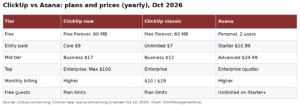
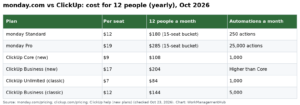
On ClickUp’s classic plans, Brain is a paid add-on (Brain AI $9 per user per month, Everything AI $28). On the newer plan lineup some workspaces see, every plan includes a monthly AI credit allowance. My ClickUp pricing breakdown has the full numbers.
Everything below is based on ClickUp’s help center and pricing page, checked October 12, 2026.
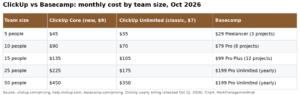
ClickUp pricing note (checked October 16, 2026): ClickUp is changing its plans. New Workspaces, all Free Forever Workspaces and some paid ones now get Core at $9 and Business at $17 per user a month billed yearly ($12 and $25 monthly), with AI credits included and a new Max plan at $100. Many existing Workspaces still have the classic plans: Unlimited at $7 and Business at $12 billed yearly ($10 and $19 monthly), with ClickUp Brain as a $9 add-on. Prices in this article use the classic plans unless noted. See ClickUp’s new plans help article.
What ClickUp Brain can do
| Part of Brain | What it’s for | How you start it |
|---|---|---|
| Ask (Brain chat) | Questions like “what’s overdue for the Acme launch?” answered from your workspace | AI Hub, or the Brain icon |
| AI writing | Drafting and rewriting task descriptions, Docs, comments, summaries of long threads | Inside a task, Doc or comment |
| Enterprise / connected search | Searching ClickUp plus connected apps (Google Drive, Slack and others, depending on plan) | AI Hub search |
| AI fields | Filling a custom field with an AI summary, sentiment or category | Add an AI field to a List |
| AI Notetaker | Meeting notes and action items | Calendar or meeting integration (Everything AI or higher) |
| Super Agents | Recurring, multi-step work that needs judgment | Mention, DM, assigning a task, schedule, or Automation |
Everything starts from the AI Hub in ClickUp’s left sidebar. ClickUp’s AI Hub article lists what’s there: Ask or Create, Skills, Analytics (how AI is used in your workspace), Connections, Create Agent, All Agents, My Agents and recent chats.
Before anything works, a workspace owner or admin has to turn on the AI ClickApp. To talk to agents in Chat, the Chat ClickApp must also be on.
Super Agents, in plain terms
A Super Agent is a named AI teammate with its own profile. According to ClickUp’s Super Agent configuration article, each profile has five parts:
- Instructions & Skills. What the agent does. Instructions are required. You can also pick which AI model it uses here. Skills save reusable instructions.
- Triggers. When it acts: @mention in a task comment, Doc comment or Chat; direct message; being assigned a task; an hourly/daily/weekly/monthly or custom schedule; or an Automation. Each trigger can carry extra instructions.
- Tools. The actions it’s allowed to take. Agents built from scratch start with a “Default tools” set.
- Knowledge. Which Spaces, Folders, Lists, Docs and connected apps it can read, plus optionally ClickUp’s help articles and the web.
- Memory. Recent work, preferences you approve, and what ClickUp calls “Intelligence,” memories the agent stores on its own.
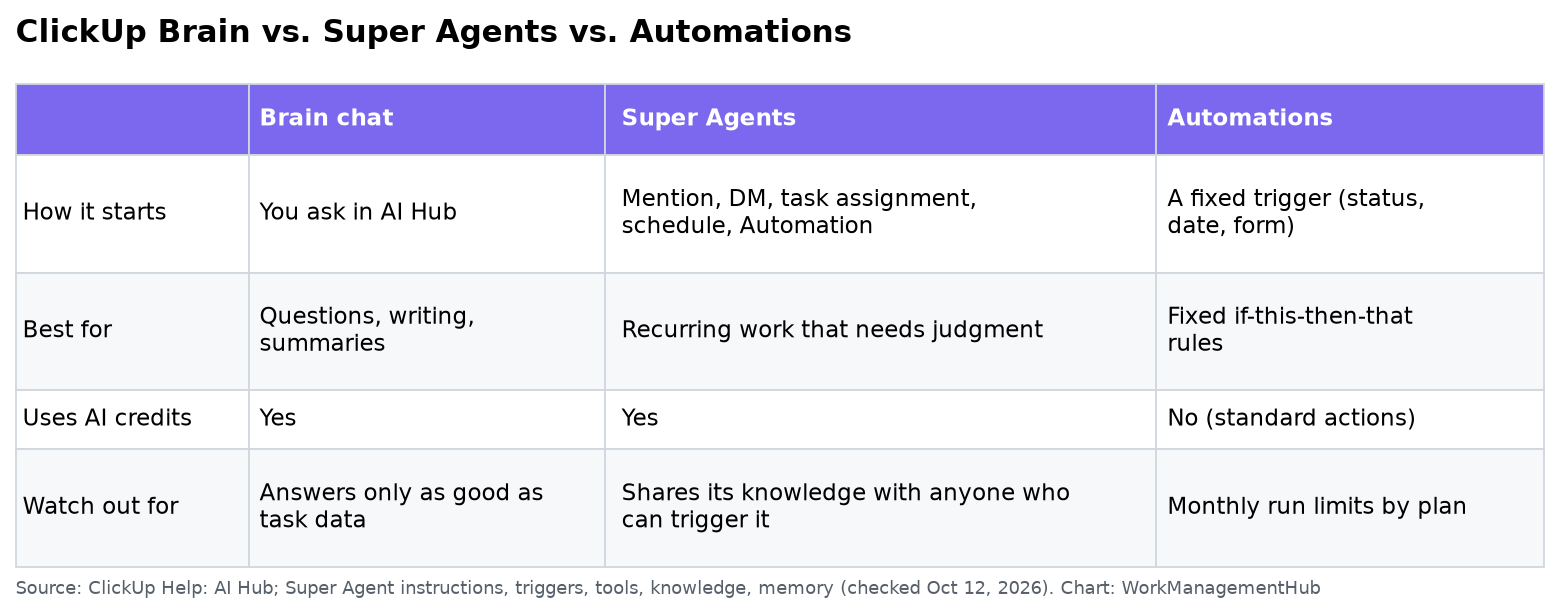
Super Agents vs. Automations
Use a normal Automation when the rule is fixed: “when status changes to Done, move the task.” Use a Super Agent when the work needs reading and judgment: “every Monday at 8 a.m., summarize last week’s completed work by person and flag anything blocked for more than three days.” You can combine them: create an Automation in a Space or List and pick Super Agents as the action. A Webhook received trigger lets an outside app start an agent.
Setting up your first Super Agent
ClickUp’s Create a Super Agent article offers four routes: the natural-language builder, the prebuilt catalog, from scratch, or asking Brain to create one. For a first agent I’d use the catalog or builder, then tighten it by hand.
- Turn on the AI ClickApp (and Chat ClickApp if you want to DM the agent).
- Open AI Hub → Create Agent. Pick a catalog template (they’re grouped by team, such as Projects or Product and Engineering) or describe the job, for example: “Each Friday at 3 p.m., post a status summary of the Website Redesign List to the #web channel, grouped by assignee, with overdue items first.”
- Answer the builder’s questions, then open the agent’s profile.
- Narrow its Knowledge to the Lists or Spaces it actually needs.
- Trim its Tools. A reporting agent doesn’t need to create or edit tasks.
- Set the schedule under Triggers → Add Schedule, and check the timezone under Advanced. It defaults to the creator’s timezone.
- Run it manually first with an @mention, read the output, and upvote or downvote it so it learns.

The permission trap to know about
This is the part most guides skip. ClickUp warns that if private or external data is shared with a Super Agent, including Personal Lists, it can use that data when responding to anyone who has permission to trigger the agent, even if that person doesn’t have direct access to the data. The same applies to personal app connections you add as tools or knowledge.
In practice:
- Don’t give a widely shared agent access to HR, finance or private client Lists.
- Build separate agents for sensitive areas, and limit who can trigger them.
- Review “All Agents” in AI Hub every month or so, and remove the ones nobody uses.
Where Brain earns its cost, and where it doesn’t
Worth it:
- Weekly status summaries and stand-up digests from real task data.
- Triage: tagging and routing incoming requests from a form List.
- Catching up on long comment threads or Docs you missed.
Not worth it (yet):
- Workspaces where tasks lack owners, due dates and statuses. The agent can only report what’s there, so fix data hygiene first. My ClickUp dashboards guide helps here.
- Fixed rules a standard ClickUp Automation handles for free within your monthly runs.
- Paying for every seat when only two or three people will use AI daily. On classic plans, billing applies across the workspace, so check before you buy.
Credits. Agents, AI fields, AI automations and image generation draw from pooled AI Super Credits. Brain AI adds 1,500 per user per month and Everything AI 5,000; extra credits cost $10 per 10,000. ClickUp notes usage varies with complexity, so watch the Analytics page in AI Hub for the first month.
Comparing AI across tools? See my Asana vs monday.com vs ClickUp AI comparison, or start from the complete ClickUp guide.
Common questions
Is ClickUp Brain free?
There’s free trial access. On ClickUp’s classic plans, full Brain costs $9 per user per month (Brain AI) or $28 (Everything AI). On the newer plan lineup, each plan includes a monthly AI credit allowance.
What’s the difference between ClickUp Brain and Super Agents?
Brain is the AI you chat with and use for writing and search. Super Agents are configured AI teammates with their own instructions, triggers, tools, knowledge and memory that can act on a schedule or from an Automation.
How do I turn on ClickUp Brain?
A workspace owner or admin enables the AI ClickApp. To interact with Super Agents in Chat, the Chat ClickApp must also be enabled.
Can a Super Agent see private data?
If you give it private or external data as knowledge, it can use that data when answering anyone allowed to trigger it, even people without direct access. Scope knowledge carefully.
Can I trigger a Super Agent from another app?
Yes. Create a ClickUp Automation with the Webhook received trigger and choose Super Agents as the action.
Features and prices checked against ClickUp’s help center and pricing page on October 12, 2026. ClickUp ships AI changes often, so confirm details in your workspace.
Sponsored