Skip to content
Work Management Hub Work Management Hub

Expert Reviews, Comparisons & Guides for Smartsheet, Monday.com, Asana, ClickUp & More

Work Management Hub Work Management Hub

Expert Reviews, Comparisons & Guides for Smartsheet, Monday.com, Asana, ClickUp & More

  • Airtable
  • Asana
  • ClickUp
  • Jira
  • Monday.com
  • Notion
  • Smartsheet
  • Wrike
  • About
  • Contact
  • Airtable
  • Asana
  • ClickUp
  • Jira
  • Monday.com
  • Notion
  • Smartsheet
  • Wrike
  • About
  • Contact
Close

Search

ClickUpHow-To Guides

ClickUp Sprints Not Working? Here’s How to Fix It (2026)

By Khasim
May 27, 2026 12 Min Read
0

Imagine you’re mid-sprint, and your team faces roadblocks because ClickUp Sprints aren’t functioning as expected. You’ve prepped meticulously, so what gives? Many teams stumble here, particularly when they’ve maxed out the 100 Sprint Points on the Free Forever and Unlimited plans, unaware of these restrictions. Transitioning to the Business Plan ($12 per user/month) unlocks unlimited Sprint Points, Sprint Automations, and Sprint Cards, but is the cost justified for your team size? The trade-off between sticking with limited functionality and upgrading for scalability is real. Understanding these nuances can mean the difference between a productive sprint and one that stalls, wasting both time and resources.

Understanding Sprints in ClickUp

For those new to agile methodologies, a sprint in ClickUp is a focused, time-bound period where specific tasks are completed. ClickUp’s Sprint feature is integrated across its plans, but with distinct limitations depending on your subscription. While the Free Forever plan offers sprint management, it restricts sprint points to 100 uses, which can be quickly exhausted in a fast-paced environment. If your team frequently exceeds this limit, upgrading to the Business Plan or higher is essential for unlimited sprint points.

Beyond points, the real power of ClickUp Sprints shines through in automation and visualization, available only on the Business Plan and above. Sprint Automations, for instance, streamline repetitive tasks like moving completed items to archives or notifying team members about task status changes. However, these automations are not just for convenience; they can significantly reduce human error, something that’s often missing in vendor documentation. Consider them indispensable if your team handles complex workflows.

To activate sprints, ensure you have first enabled the Sprints ClickApp. Here’s how:

  1. Open the App Center — Navigate to your workspace settings and find the App Center.
  2. Enable Sprints — Locate the Sprints ClickApp and toggle it on.

If you’re managing a multi-disciplinary team, Sprint Cards provide a visual representation of progress and can be customized to fit unique workflows, but remember, they’re exclusive to the Business Plan and up. For teams already using ClickUp, transitioning to their sprint framework could be seamless, but always weigh the costs and ensure you fully utilize features like advanced automations to justify any plan upgrades. If your team is small or just starting with agile, stick to the Free or Unlimited plans until your needs justify the additional expense. For detailed plan features, refer directly to ClickUp’s pricing page.

Common Issues with ClickUp Sprints

One frequently encountered issue with ClickUp Sprints is the limitation on Sprint Points, particularly for teams on the Free Forever and Unlimited plans. These plans cap Sprint Points at 100 uses, which can be quickly exhausted by active teams. If you find your team hitting this ceiling, consider upgrading to the Business plan. While this incurs a cost of $12 per user/month, it offers unlimited Sprint Points, thereby removing this bottleneck.

Another common problem is the absence of Sprint Automations in the lower-tier plans. Automations streamline repetitive tasks and ensure that sprints progress efficiently without manual intervention. If your team relies heavily on automations, operating on the Business plan or higher would be essential, as lower-tier plans don’t support this feature. It’s a trade-off between cost and the efficiency gains from automation.

Teams also report issues with Sprint Cards, which are not available until the Business plan. Sprint Cards provide advanced visualization and tracking, crucial for teams managing complex projects. Without them, you may struggle with visibility and tracking progress across sprints. If your team needs this functionality, upgrading is the only option.

Lastly, navigating the UI to activate the Sprints ClickApp can be confusing due to frequent updates. Ensure you are in the App Center, then follow these steps:

  1. App Center — Open the App Center from the sidebar.
  2. Search — Type “Sprints” in the search bar.
  3. Activate — Click on “Sprints” and then “Activate” to enable it for your workspace.

Should issues persist, consult ClickUp’s official support documentation for further troubleshooting.

Troubleshooting Sprint Activation

Activating ClickUp Sprints can be straightforward, but there are specific nuances that can stall your progress if overlooked. The first step is ensuring the Sprints ClickApp is enabled for your workspace. This is crucial because even if you’re on a plan that supports sprints, the feature won’t appear until activated.

  1. Open the App Center — Navigate to your workspace’s settings. This is often found in the bottom left corner under the avatar icon.
  2. Locate the Sprints ClickApp — Within the App Center, search for “Sprints” in the ClickApps section.
  3. Toggle Activation — If the Sprints ClickApp isn’t active, you’ll see a toggle switch. Activate it to enable sprints in your projects.

A common oversight occurs with plan limitations. If you’re on the Free Forever or Unlimited Plan, remember there’s a cap on sprint points (100 uses). Attempting to exceed this cap without a plan upgrade will disable further sprint creation. If you’re bumping against this limit, consider upgrading to at least the Business Plan, which offers unlimited sprint points.

Another gotcha is permissions. Ensure your role has the necessary permissions to activate and manage sprints. Admins typically have this by default, but custom roles might need adjustments. If you’re not seeing the option to activate sprints, check with your workspace admin.

Remember, sprint automations and cards are only available on the Business Plan and above. If you need these features, it’s not just about activating sprints; it’s about ensuring you’re on the right plan.

For persistent issues, verify you’re running the latest version of ClickUp. Regular updates might resolve known bugs related to sprint activation. For further assistance, utilize ClickUp’s 24/7 support to troubleshoot specific errors. You can find more guidance on their official support page.

Optimizing Sprint Points Usage

Managing sprint points effectively in ClickUp requires a strategic approach, especially given the limitations on certain plans. For teams on the Free Forever or Unlimited plans, where sprint points are capped at 100 uses, prioritization becomes crucial. An immediate action is to conduct a sprint planning meeting to align on priority tasks and allocate points judiciously. Here’s how you can streamline this process:

  1. Review Backlog — Begin by evaluating your task backlog. Focus on tasks that align closely with your project goals and have a clear impact on deliverables. Prioritize these tasks to maximize the value of your 100 sprint points.
  2. Set Clear Criteria — Establish criteria for task inclusion in sprints. This could be based on factors like urgency, complexity, and impact. Ensure your team agrees on this to avoid unnecessary debates during sprint planning sessions.
  3. Utilize Tags and Custom Fields — Use tags or custom fields to categorize tasks by priority or department. This helps in filtering tasks during sprint planning and ensures you’re not wasting sprint points on low-impact work.
  4. Regular Reviews — Schedule regular sprint reviews to assess the effectiveness of your sprint point allocation. Adjust your criteria and task selection process based on these reviews to continuously improve your sprint management.

For organizations on the Business Plan or higher, with unlimited sprint points, the focus shifts to optimizing workflow through sprint automations and cards. Automations can reduce manual workload, ensuring that your team focuses on high-value tasks rather than administrative overhead. In practice, this means setting up automations to automatically move tasks to different columns based on status changes, or to notify team members when tasks reach certain stages.

In conclusion, effective sprint point management is about maximizing the return on each point used. By strategically planning, regularly reviewing, and utilizing ClickUp’s features like custom fields and automations (for higher plans), teams can enhance their productivity and ensure that each sprint is impactful.

Leveraging Sprint Automations and Cards

Sprint Automations and Cards in ClickUp are powerful tools, but their availability starts only at the Business Plan level. If you’re finding your team’s sprint workflow bogged down by repetitive tasks or lacking visibility, these features can be game-changers, but only if you’re on the right plan.

First, understand that Sprint Automations don’t count against the monthly automation limits, a crucial detail the vendor documentation often glosses over. This can be a significant advantage for teams running multiple sprints simultaneously. Automations can automatically shift tasks between sprints, update statuses, or even notify team members upon certain triggers. Setting these up requires a clear understanding of your team’s workflow to avoid creating convoluted processes.

Here’s a quick guide to set up Sprint Automations:

  1. ClickUp Settings — Navigate to the Automations tab within your selected Space.
  2. Create Automation — Choose from preset templates or build a custom one based on triggers and actions relevant to your sprint processes.
  3. Test and Implement — Always test your automations on a smaller scale to ensure they work as intended without disrupting existing workflows.

Sprint Cards offer a visual edge by providing detailed insights directly on your dashboard. They can display metrics like sprint progress, velocity, or remaining work, depending on what you configure. This visual feedback mechanism can be crucial for team leads to make informed decisions on-the-fly.

To utilize Sprint Cards effectively, ensure you have the right permissions set up (available from Business Plan onwards) and regularly update the metrics they track. This ensures the data remains relevant and accurate, preventing misinformed decisions that could derail sprint goals.

Plan Feature Comparison: Which One Suits Your Needs?

PlanSprint PointsSprint AutomationsSprint CardsKey Additional Features
Free Forever100 usesNot availableNot availableBasic Custom Fields, Kanban Boards, Docs
Unlimited100 usesNot availableNot availableUnlimited Integrations, Storage, Time Tracking
BusinessUnlimited usesAvailableAvailableAdvanced Automations, Dashboards, Mind Maps
Business PlusUnlimited usesAvailableAvailablePriority Support, Custom Roles & Permissions
EnterpriseUnlimited usesAvailableAvailableWhite Labeling, Advanced Permissions, MSA

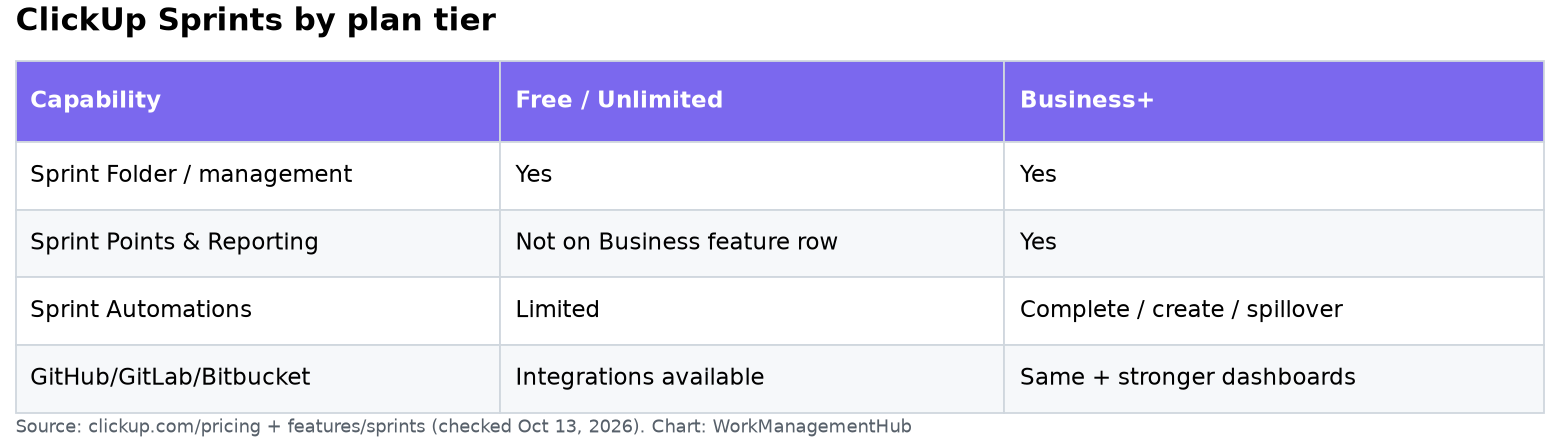
For teams just exploring sprints, the Free Forever plan allows you to dip your toes with basic features, but its sprint points cap at 100 uses might soon become a bottleneck. Moving to the Unlimited plan at $7/user/month (billed yearly) extends your flexibility with more integrations and storage but does not solve the sprint automation gap. If your team requires seamless sprint management with automations and cards, the Business plan is the sweet spot, providing unlimited sprint points and advanced features for $12/user/month. For larger teams or those needing advanced controls and priority support, Business Plus and Enterprise plans unlock full customization and collaboration capabilities. Evaluate your team’s scale, frequency of sprint cycles, and need for automation to select the right plan. For more details, check the official ClickUp pricing page here.

Updates and New Features in 2026

ClickUp’s commitment to a rigorous weekly release schedule has culminated in a series of significant enhancements in 2026, particularly for teams leveraging Sprints. If your team uses the Free Forever or Unlimited plans, you’ve likely hit the sprint point cap of 100 uses. For growing teams, upgrading to the Business Plan is essential for unlimited sprint points, unlocking the full potential of ClickUp’s sprint management.

The introduction of Sprint Automations and Sprint Cards, exclusively available from the Business Plan upwards, is a game-changer for efficiency. Automations now operate independently of the monthly automation cap, allowing teams to streamline repetitive tasks without additional cost. This feature can be a critical time-saver, reducing manual effort and minimizing error rates in sprint workflows.

Here’s an example path for activating new Sprints features:

  1. App Center — Navigate to the App Center to activate the Sprints ClickApp.
  2. Sprints ClickApp — Enable the ClickApp to access sprint functionalities.

To leverage these updates, consider how Sprint Automations can replace manual status updates or task assignments. With Sprint Cards, advanced visualization of sprint progress becomes possible, offering insights that were previously cumbersome to gather manually.

While these updates are robust, teams should carefully evaluate their current needs before upgrading. If automation complexity or visualization with Sprint Cards is not immediately necessary, sticking with a lower-tier plan might be more budget-friendly. However, if your sprint management feels constrained, particularly with automation needs, the Business Plan or higher could yield substantial productivity gains.

For further details on these updates, consult ClickUp’s official release notes for a deeper dive into each feature’s capabilities.

Best Practices for Sprint Management

Implementing sprints in ClickUp requires a strategic approach to maximize efficiency and avoid common pitfalls. Here’s how to manage them effectively:

  1. Customize Your Sprint Duration — Start by setting the right sprint duration. While two-week sprints are standard, adjust based on your team’s workflow and feedback cycles. Use the Sprints ClickApp in the App Center to configure settings.
  2. Define Clear Sprint Goals — Before launching a sprint, ensure all tasks align with broader project objectives. Use ClickUp’s integrated Goals & Portfolio Management feature on the Unlimited plan and above for comprehensive tracking.
  3. Utilize Sprint Points Wisely — With only 100 uses on lower plans, judiciously assign points to tasks that truly reflect effort. Consider upgrading to the Business plan if point limitations hinder productivity.
  4. Automate Repetitive Tasks — For those on the Business plan, enable Sprint Automations to streamline routine processes, freeing your team to focus on high-impact work.
  5. Regularly Review and Adjust — Post-sprint reviews are crucial. Use ClickUp’s Advanced Dashboards (Business plan) to analyze metrics and iterate on your sprint process.

Avoid using the Free Forever plan if sprints are critical to your operations due to its limitations on points and lack of automations. Instead, consider the Business plan, which offers unlimited sprint points and automations, essential for scaling teams. Always keep team size and project complexity in mind when choosing a plan, ensuring features align with your sprint management needs.

Resources and Support for ClickUp Sprints

Navigating ClickUp Sprints can be tricky, especially if you’re on the Free Forever or Unlimited Plans where certain limitations apply. If you’re struggling with Sprint Points or need Sprint Automations, the Business Plan or higher is essential. But let’s dive into resources and support that can help regardless of your plan.

First, leverage ClickUp’s comprehensive Help Center articles extensively. These are invaluable for understanding feature availability and limits, especially for knowing how to activate Sprints without hitting roadblocks. The Help Center often includes hidden gems that vendors don’t advertise, like nuanced limitations on Sprint Points usage.

When activating or troubleshooting Sprints, the community forum can also be a goldmine. Engage with other users who may have faced similar challenges. Often, real-world solutions and workarounds pop up here that even ClickUp support may not immediately suggest.

For hands-on support, consider the 24/7 customer support available even on the Free Forever Plan. However, remember that priority support is reserved for the Business Plus Plan and above. If your team frequently encounters complex issues, upgrading might be worthwhile.

If you’re a visual learner, ClickUp’s in-app video recordings and tutorials can be particularly effective. They provide step-by-step guidance on managing sprints, often showing UI nuances that written guides miss.

Finally, if you require custom solutions, hiring a ClickUp consultant could be a worthwhile investment. They can tailor the setup to your workflows, ensuring you maximize the efficiency of your sprints.

Make sure to regularly check the weekly updates for new features or fixes that might enhance your sprint experience. Staying updated can prevent many avoidable issues from ever arising.

Related guides

  • How to Optimize Resource Allocation in ClickUp with AI Insights 2026
  • How to Create ClickUp Forms in 2026: Setup, Conditional Logic & Intake Workflows
  • How to Build ClickUp Dashboards in 2026: Cards, Widgets & Real-Time Reporting

Frequently Asked Questions

Why are my sprint points not working as expected in ClickUp?

Check your plan tier. The Free Forever and Unlimited Plans offer only 100 sprint point uses. If you’ve hit this limit, consider upgrading to the Business Plan or higher for unlimited sprint points. This upgrade also unlocks sprint automations and cards, enhancing your sprint management capabilities.

How do I enable sprint automations in ClickUp?

Sprint automations are available starting from the Business Plan. Navigate to your workspace settings, select ‘Automations’, and ensure your plan supports this feature. Automations streamline repetitive tasks in sprint management without affecting your monthly automation usage limit.

What are the limitations of ClickUp’s Free Forever Plan for sprints?

The Free Forever Plan limits you to 100 sprint point uses, lacks sprint automations, and sprint cards. It’s suitable for small teams or individuals starting with sprint management, but scaling teams will find the Business Plan’s unlimited points and automations essential for efficiency.

Can I use ClickUp Sprints if my team heavily relies on integrations?

Yes, but consider the Unlimited Plan or higher for unlimited integrations with tools like Slack, Hubspot, and Google Drive. This ensures seamless collaboration across platforms, vital for teams needing comprehensive integration capabilities alongside sprint management.

Is ClickUp’s Business Plus Plan worth the investment for sprint management?

If your team needs advanced features like custom role creation, priority support, and team sharing, the Business Plus Plan is worth it. The added custom capacity in workload management provides a tailored approach to sprint planning, beneficial for larger or complex teams.

Author

Khasim

Khasim is a work management expert and entrepreneur with a deep passion for project management tools. He works hands-on with platforms like Smartsheet, Monday.com, Asana, ClickUp, Jira, Notion, Wrike and Airtable every day, and loves automating workflows to save teams and customers a ton of time. On WorkManagementHub he shares practical setup guides, honest tool comparisons, and real-world troubleshooting drawn from daily use.

Follow Me
Other Articles
Previous

Notion Formulas 2.0: Syntax, Real Formulas & Fixes (2026)

Next

How to Set Up Jira Work Management for Business Teams in 2026

No Comment! Be the first one.

    Leave a Reply Cancel reply

    Your email address will not be published. Required fields are marked *

    Sponsored Smartsheet Expert Services – Implementation, Automation, Training
    Sponsored Power BI & Tableau Analytics – Dashboards, Reporting, Insights
    Sponsored AI Agents for Work Management – Automate Tasks, Integrate Tools

    Categories

    • Airtable (21)
    • Alternatives (12)
    • Asana (41)
    • ClickUp (47)
    • How-To Guides (192)
    • Integrations (17)
    • Jira (36)
    • Monday.com (46)
    • Notion (35)
    • Pricing Guides (11)
    • Project Management (80)
    • Smartsheet (39)
    • Tool Comparisons (59)
    • Wrike (19)

    Recent Post

    • How to Customize Jira Workflows for Non-Technical Teams in 2026: A Comprehensive Guide
    • Notion vs Airtable for Academic Research in 2026: Which Tool Wins?
    • How to Use Smartsheet for Event Planning in 2026: Complete Setup Guide
    • Airtable vs Trello 2026: Which Tool Enhances Cross-Team Collaboration Better?
    • How to Leverage Smartsheet for Strategic HR Planning in 2026: Workforce Analytics, Succession Planning & More

    Independent reviews, comparisons, and hands-on guides for work management tools — Smartsheet, Monday.com, Asana, ClickUp, Notion, Jira, Wrike, and Airtable — written from daily, real-world use of these platforms.

    Tools We Cover

    • Smartsheet
    • Monday.com
    • ClickUp
    • Asana
    • Notion
    • Jira
    • Wrike
    • Airtable

    Company

    • About Us
    • Contact Us
    • Privacy Policy
    Copyright 2026 — Work Management Hub. All rights reserved. Blogsy WordPress Theme