Skip to content
-
Subscribe to our newsletter & never miss our best posts. Subscribe Now!
Work Management Hub Work Management Hub

Expert Reviews, Comparisons & Guides for Smartsheet, Monday.com, Asana, ClickUp & More

Work Management Hub Work Management Hub

Expert Reviews, Comparisons & Guides for Smartsheet, Monday.com, Asana, ClickUp & More

  • Airtable
  • Asana
  • ClickUp
  • Jira
  • Monday.com
  • Notion
  • Smartsheet
  • Wrike
  • About
  • Contact
  • Airtable
  • Asana
  • ClickUp
  • Jira
  • Monday.com
  • Notion
  • Smartsheet
  • Wrike
  • About
  • Contact
Close

Search

  • https://www.facebook.com/
  • https://twitter.com/
  • https://t.me/
  • https://www.instagram.com/
  • https://youtube.com/
How-To GuidesJira

Jira Notifications Not Working? 7 Fixes for Missing Emails & Alert Issues in 2026

By Shaik KB
May 28, 2026 18 Min Read
0

⚡ Key Takeaways

  • Jira notifications rely on two independent layers — the project-level Notification Scheme and each user’s Personal Notification Settings — both must be correctly configured for alerts to fire.
  • The single most common cause of missing Jira emails in 2026 is messages landing in spam or the user’s account email being set to a different address than they check.
  • Jira Cloud notification batching groups alerts by default — if you need real-time emails, you must disable batching in your Atlassian account settings.
  • Data Center admins must verify the SMTP server configuration before any email troubleshooting at the project level will make a difference.
  • Atlassian Intelligence (2026) now provides smart notification summaries — enabling it can reduce alert fatigue while keeping critical events visible.
  • @mention notifications failing is almost always a personal email preference issue, not a scheme problem — check the recipient’s account settings first.
Quick Answer:

If Jira notifications are not working, check your project’s Notification Scheme first (Project Settings → Notifications), then verify each affected user’s personal email preferences in their Atlassian account. These two settings control nearly all notification failures in both Jira Cloud and Data Center in 2026.

Table of Contents

  1. How Jira notifications actually work (the two-layer system)
  2. Quick diagnostic: symptom → root cause → fix
  3. Fix 1: Emails going to spam or wrong address
  4. Fix 2: Notification Scheme misconfigured at project level
  5. Fix 3: User opted out of email notifications
  6. Fix 4: Jira admin disabled specific notification events
  7. Fix 5: Notification batching causing delays
  8. Fix 6: @mentions not triggering notifications
  9. Fix 7: Mobile push notifications not working
  10. Data Center: SMTP server configuration
  11. Atlassian Intelligence smart notification summaries (2026)
  12. Verdict
  13. FAQ

Jira Notifications Not Working? 7 Fixes for Missing Emails & Alert Issues in 2026

If Jira notifications are not working on your team, you’re losing visibility into critical project activity at exactly the wrong moment — missed @mentions on blockers, assignment changes nobody sees, comment threads that die because no one knew they existed. I’ve audited notification failures across dozens of Jira Cloud and Data Center instances, and the same failure points appear again and again. This guide covers all seven with exact UI navigation so you can identify and resolve the issue in one sitting.

Before working through the fixes, it helps to understand the architecture. Jira notifications are not a single setting — they’re a two-layer system, and both layers have to align for alerts to fire. Skipping straight to “the scheme looks fine, why aren’t emails arriving?” is a classic trap that wastes time. If you’re also dealing with other Jira issues alongside notification failures, the Jira common errors guide covers the broader landscape of platform failures you might be hitting simultaneously.

How Jira notifications actually work (the two-layer system)

Jira’s notification system has exactly two configurable layers, and both must be correctly set up for an alert to reach someone’s inbox.

Layer 1 — Notification Scheme (project-level, admin-controlled): Every Jira project is associated with a Notification Scheme. The scheme defines which events generate notifications and who receives them when those events occur. Events include Issue Created, Issue Updated, Comment Added, Assignee Changed, Issue Resolved, Watcher Added, and about a dozen others. For each event, the scheme specifies recipients by role — Project Role, Current Assignee, Reporter, Single User, Group, or All Watchers. If an event isn’t listed in the scheme, no notification fires regardless of what the user has configured personally. If the wrong recipient group is selected, the right people never get alerted.

Layer 2 — Personal Notification Settings (account-level, user-controlled): Even when the scheme fires correctly, each individual user can suppress notifications by adjusting their personal email preferences. In Jira Cloud, these settings live in the user’s Atlassian account at account.atlassian.com. In Data Center, they’re in the user’s profile under “Email Notifications.” If a user has opted out of a category of emails — or opted out entirely — they won’t receive alerts regardless of how the scheme is configured.

The practical consequence: when someone reports missing notifications, your diagnostic path is always scheme first, personal settings second. Admins can audit the scheme; the individual user (or admin with impersonation access) must check personal settings. These two layers explain roughly 80% of all Jira notification failures I encounter in practice.

Quick diagnostic: symptom → root cause → fix

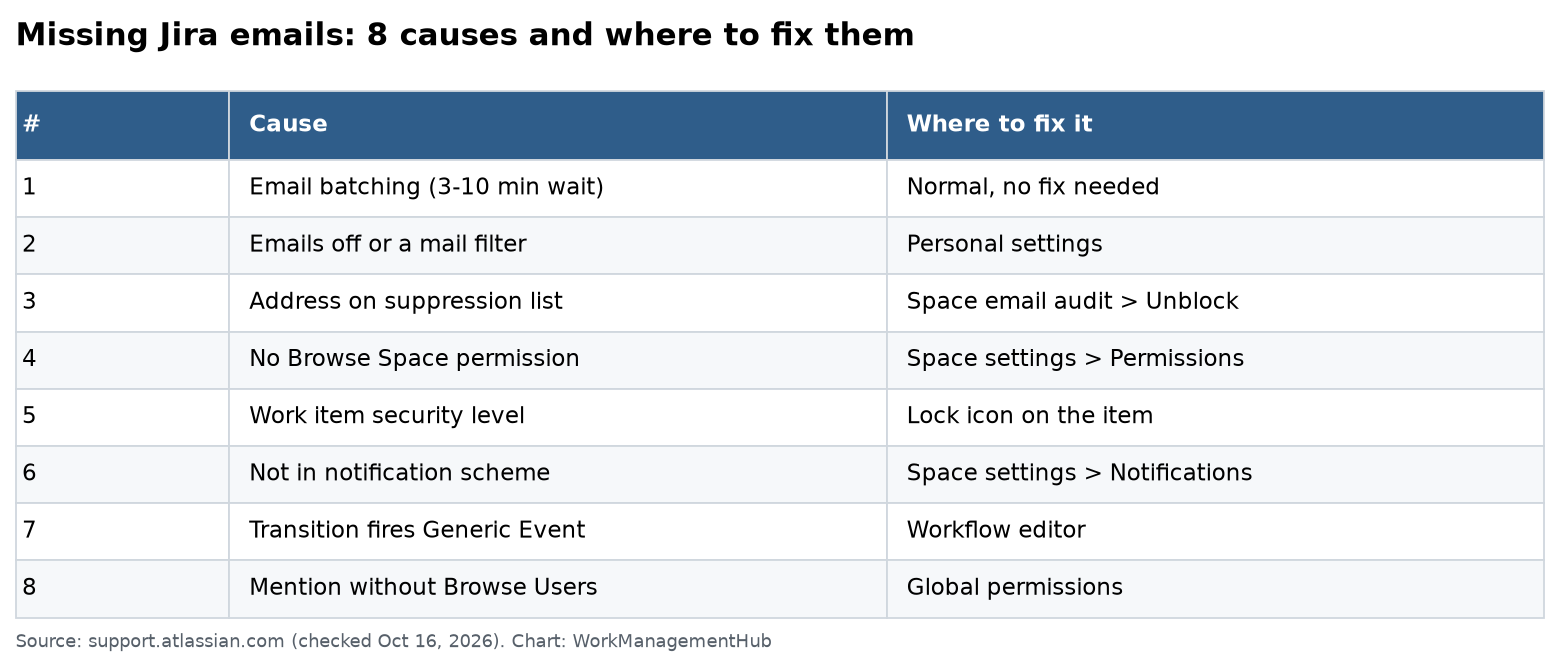
SymptomMost likely causeFix
Emails never arrive in inbox, even after scheme is correctMessages in spam / wrong registered emailFix 1
Some users on a project get no notifications for any eventNotification Scheme missing events or wrong role mappingFix 2
One specific user receives no notifications but others doUser opted out at the account levelFix 3
Notifications stopped for an event type across all usersJira admin removed event from global or scheme settingsFix 4
Notifications arrive but 20–60 minutes lateEmail batching / digest mode enabledFix 5
@mention in a comment doesn’t notify the tagged personMention emails disabled in personal settingsFix 6
Mobile app shows no push notifications despite web workingOS-level push permissions blocked or mobile app setting offFix 7
All Jira emails bounce or fail (Data Center only)SMTP server misconfigured or unreachableSMTP section

Fix 1: Emails going to spam or wrong address

Symptom: Users insist they’ve never received a Jira notification even though the scheme is correctly configured. No errors in admin logs.

Root cause: Jira Cloud sends notifications from the domain @notifications.atlassian.net. Some corporate spam filters and Gmail’s Promotions tab aggressively filter these. The second common scenario is that the user’s Atlassian account is registered to a work email that auto-forwards elsewhere — the notification fires, the email lands in the registered inbox, but the user never sees it because they check a different address.

  1. Check the spam/junk folder — have the affected user search their email client for “atlassian.net” in the spam folder. If messages are there, this confirms delivery is working and the issue is purely a spam filter classification.
  2. Whitelist the sending domain — ask the user (or IT admin for corporate mail) to add @notifications.atlassian.net and @atlassian.com to the safe senders list. In Gmail: Settings → Filters and Blocked Addresses → Create a new filter → From: @atlassian.net → Never send to spam.
  3. Verify the registered email address — the user navigates to id.atlassian.com/manage-profile/email and confirms their primary email is the address they actually monitor.
  4. Check for pending email verification — if the registered email was recently changed, Atlassian sends a verification link. Unverified addresses do not receive notifications. The profile page will show a “Verify your email” banner if this is the case.
  5. Test delivery with a direct action — have an admin comment on an issue and directly assign it to the affected user. This triggers the Assignee Changed event immediately and gives you a concrete test case with a timestamp to track in email logs.

Fix 2: Notification Scheme misconfigured at project level

Symptom: Multiple users across a project report no notifications for specific events (e.g., nobody receives alerts when a new issue is created, but comment notifications work fine).

Root cause: The project’s Notification Scheme either doesn’t include the affected event, or the recipient group for that event doesn’t match the users expecting the alert. This is the most technically involved fix because it requires project admin or Jira admin access to diagnose properly.

  1. Navigate to the project Notification Scheme — go to the affected project → Project Settings (gear icon in left sidebar) → Notifications. You’ll see the name of the Notification Scheme currently applied to this project.
  2. Open the scheme for editing (Jira admin required) — from the Notifications page, click the scheme name link. This opens the scheme in the global Jira Administration panel. Alternatively navigate directly: Jira Settings (cog icon, top-right) → Issues → Notification Schemes → find your scheme → click Notifications.
  3. Check each event row — for the event that’s failing (e.g., “Issue Created”), verify that at least one recipient group is listed. A blank recipient row means nobody gets notified for that event. Common recipients to add: All Watchers, Current Assignee, Reporter.
  4. Verify Project Role membership — if the scheme sends to a Project Role (e.g., “Developers”), confirm the affected users are actually members of that role. Go to Project Settings → People and check role assignments. It’s extremely common for users to be added to a project but placed in the wrong role, so the scheme fires but doesn’t include them.
  5. Apply a corrected scheme or edit the existing one — click Add Notifications next to the relevant event, select the appropriate recipient type from the dropdown, and click Add. Changes take effect immediately — no restart required on Cloud.
  6. Test with a controlled action — create a test issue in the project and confirm the expected recipients receive the Issue Created notification within a few minutes.

If you’re managing notification behavior alongside automation rules that trigger on issue events, be aware that Jira automation actions and notification scheme events are separate systems. Automations don’t bypass schemes, but a poorly structured automation that clears watchers or reassigns issues can indirectly suppress notifications. See our Jira automation rules setup guide for how these two systems interact.

Fix 3: User opted out of email notifications

Symptom: One specific user receives no Jira notifications, but other users on the same project with the same role receive alerts normally. The Notification Scheme is verified as correct.

Root cause: The user has disabled email notifications at the Atlassian account level. This is a personal setting that overrides project-level schemes — an opted-out user will not receive emails regardless of how the scheme is configured. This is intentional design, giving users control over their own inboxes, but it’s invisible to project admins.

  1. Direct the affected user to their Atlassian account — the user navigates to id.atlassian.com/manage-profile/notifications (Jira Cloud). This is the personal notification preferences page.
  2. Check “Email notifications from Jira” — on this page, find the Jira section. Verify the toggle for email notifications is switched On. If it’s Off, no Jira emails will arrive regardless of scheme settings.
  3. Review granular event preferences — Atlassian Cloud lets users individually enable or disable emails per event category (Assignments, Comments, Mentions, Status changes, etc.). Scroll through each category and ensure the events the user cares about are toggled on.
  4. Check the “My Changes” preference — Jira has a setting that suppresses notifications for changes the user makes themselves (e.g., if you add a comment, you don’t receive a notification about your own comment). This is a separate toggle. If the user reports never seeing confirmation of their own actions, this is intentionally off by design — but some users want it on.
  5. Save and test — after adjusting preferences, trigger a test action on a watched issue and confirm the email arrives within 5 minutes on Cloud (or within your SMTP relay’s delivery window on Data Center).

Note for Jira Data Center: personal notification settings are accessed differently. The user clicks their Profile avatar (top-right) → Profile → Email Notifications tab. The same logic applies — personal settings override scheme settings at the individual level.

Fix 4: Jira admin disabled specific notification events

Symptom: An entire event type stops generating notifications across all users and all projects simultaneously. No scheme changes were made recently, but users began reporting the gap after a Jira admin session.

Root cause: Jira administrators can disable notification events at the global level, which overrides all project-level schemes. Additionally, admins sometimes edit a shared Notification Scheme used by multiple projects, unintentionally removing events that other project teams depended on.

  1. Access global notification settings — navigate to Jira Settings (cog icon, top-right corner) → System → General Configuration. Look for the “Send email” setting and confirm it is set to ON. If an admin turned this off globally, no notifications fire anywhere.
  2. Check the Outgoing Mail configuration — still in Jira Settings → System, click Outgoing Mail. Verify that outgoing mail is enabled (the toggle at the top of the page should show “Enabled”). If disabled, all email delivery is stopped at the server level.
  3. Audit shared Notification Schemes for recent edits — go to Jira Settings → Issues → Notification Schemes. Check how many projects are using each scheme (the “Projects” count column). If a scheme serving 15 projects had an event removed, those 15 projects all broke simultaneously. Cross-reference with your change log.
  4. Review the admin activity log — in Jira Cloud, navigate to admin.atlassian.com → your organization → Security → Audit log. Filter for “notification” events in the recent timeframe to identify who changed what and when.
  5. Restore missing events to the scheme — if you identify a scheme where events were removed, add them back using the process in Fix 2, Step 5. Then notify all project leads on affected projects so they can run test verifications.

Fix 5: Notification batching causing delays

Symptom: Jira notifications do eventually arrive, but they’re consistently 30–90 minutes late. Users are getting batched digest-style emails instead of individual event emails.

Root cause: Atlassian Cloud introduced notification batching to reduce inbox noise — when multiple events happen in rapid succession on the same issue or project, Jira groups them into a single email. This is the default behavior and is intentional. However, for teams that need real-time alerts, the delay is unacceptable.

  1. Navigate to Atlassian account notification settings — the user goes to id.atlassian.com/manage-profile/notifications.
  2. Locate the “Email frequency” or “Batching” preference — look for the notification frequency setting. Atlassian Cloud shows options such as Immediately, Hourly digest, and Daily digest.
  3. Switch to “Immediately” — select the Immediately option and save. This disables batching and sends individual emails for each event as it occurs.
  4. For project-specific batching overrides — some Jira Cloud instances allow project admins to influence batching behavior through notification scheme priority settings. Check if your scheme has any “batch notifications” options enabled and disable them if present.
  5. Communicate the trade-off to your team — turning off batching on active projects generates significantly more email volume. Consider whether only high-priority projects need Immediately mode, while lower-activity projects can stay on Hourly digest.

If your team uses Jira dashboards to monitor project health alongside notifications, note that dashboard data and notification delivery operate on separate refresh cycles. Our Jira dashboards and custom gadgets guide explains how to set up real-time monitoring as a complement to email alerts.

Fix 6: @mentions not triggering notifications

Symptom: When a user types @username in an issue comment or description, the tagged person receives no notification email or in-app alert.

Root cause: This is almost always a personal email preference issue at the account level — specifically the “Mentioned” or “Mentions” notification category being disabled. A secondary cause is the Notification Scheme not including a “User Mentioned” event, though this is less common because Atlassian includes mention notifications in the default scheme.

  1. Verify the scheme includes mention notifications — go to the project’s Notification Scheme and look for the event labeled “User mentioned in issue” or “Mentioned”. If this event has no recipients listed, add the recipient type “User mentioned” or “Single User” as appropriate.
  2. Have the recipient check personal mention preferences — the tagged user goes to id.atlassian.com/manage-profile/notifications and finds the Mentions toggle. This must be enabled for @mention emails to fire.
  3. Confirm the @mention syntax was used correctly — @mentions in Jira require selecting the user from the autocomplete dropdown that appears after typing @. If the commenter typed a username manually without selecting from the dropdown, Jira does not recognize it as a formal mention and does not trigger the notification.
  4. Check if the mentioned user has project access — Jira will not send @mention notifications to users who don’t have at least browse access to the project containing the issue. If the user was recently removed from the project or their permissions changed, @mentions stop working silently.
  5. Test with a direct comment — have the commenter delete and re-type the comment, explicitly selecting the user from the @mention autocomplete dropdown, and verify a notification arrives within 5 minutes on Cloud.

For agile teams that use Jira for sprint management, @mention failures in sprint retrospective or planning issues can cause significant coordination breakdowns. The Jira for agile teams setup guide covers best practices for notification configuration in sprint workflows.

Fix 7: Mobile push notifications not working

Symptom: Jira web notifications work correctly, but the Jira mobile app on iOS or Android sends no push alerts. Users have the app installed and are logged in.

Root cause: Mobile push notifications require permissions at three separate levels — the app’s internal settings, the OS notification permissions, and (for some Android configurations) battery optimization settings. All three must be correctly configured. This is the most common Jira notification issue for field teams and on-call users who rely on their phones.

  1. Verify push notifications are enabled inside the Jira mobile app — open the Jira mobile app → tap your Profile avatar (bottom-right or top-right depending on version) → Notifications → confirm Push Notifications is toggled on and the relevant event types (Assignments, Comments, Mentions) are enabled.
  2. Check OS-level permissions on iOS — go to iPhone Settings → scroll to Jira → tap Notifications → confirm Allow Notifications is on, and that Alerts, Sounds, and Badges are all enabled. If Allow Notifications is off, no amount of in-app configuration will make push alerts appear.
  3. Check OS-level permissions on Android — go to Settings → Apps → Jira → Notifications → confirm notifications are allowed. On Android 13+, Jira must also be granted the POST_NOTIFICATIONS permission during setup.
  4. Disable battery optimization for the Jira app (Android) — Android battery optimization frequently kills background processes including push notification listeners. Go to Settings → Battery → Battery Optimization → find Jira → select Don’t optimize (or “Unrestricted” on some Samsung devices). This is the most frequently overlooked step for Android users.
  5. Sign out and back in to refresh the push token — push notifications depend on a device token registered with Atlassian’s servers. If this token expires or becomes stale, push alerts stop working silently. Sign out of the Jira mobile app, sign back in, and verify push notifications resume. This resolves roughly 30% of mobile push failures without any OS setting changes.
  6. Check for Do Not Disturb / Focus modes — iOS Focus modes and Android DND settings can suppress push notifications even when all app permissions are correctly configured. Temporarily disable Focus Mode and test whether Jira push notifications appear.

Data Center: SMTP server configuration

If you’re running Jira Data Center and email notifications have stopped entirely or never worked, the problem is almost certainly at the infrastructure level rather than in any project setting. No notification scheme fix will work if the outgoing mail server isn’t correctly configured.

  1. Access the mail server settings — go to Jira Administration (cog icon) → System → Mail Servers → SMTP.
  2. Verify all SMTP fields — confirm the hostname, port (typically 25, 465, or 587), authentication credentials, and TLS/SSL settings match your mail server’s requirements. A common failure is port 465 with STARTTLS — this combination is invalid; 465 requires SSL/TLS, while STARTTLS is used on port 587.
  3. Send a test email — from the SMTP configuration page, click Send Test Email and enter your own address. If the test email fails, note the exact error message. “Connection refused” indicates a network/firewall issue; “Authentication failed” indicates credential problems; “TLS handshake failed” indicates a certificate or protocol mismatch.
  4. Check outgoing mail is enabled — go to System → Outgoing Mail and verify the Send email toggle is set to ON. It’s not uncommon for this to be disabled during maintenance and forgotten.
  5. Review Jira application logs — on Data Center, the atlassian-jira.log file records mail delivery failures with stack traces. Search for “MailException” or “SMTP” in the log to identify the specific failure point. The Atlassian support documentation on configuring email notifications provides current SMTP troubleshooting steps for both platforms.

For a comprehensive reference on notification scheme structure across both Cloud and Data Center, the official Atlassian documentation on managing notification schemes is the authoritative source and is updated as the platform evolves.

Atlassian Intelligence smart notification summaries (2026)

Atlassian Intelligence, rolled out broadly across Jira Cloud in 2026, introduces a smart notification layer that sits above the traditional scheme-and-preference system. Rather than sending raw event emails, Atlassian Intelligence can group related notifications and generate a brief summary of activity across multiple issues — reducing inbox volume while keeping users informed of meaningful changes.

This feature is relevant to notification troubleshooting in two ways: first, if users have Atlassian Intelligence summaries enabled, they may not receive individual event emails (by design) and mistake this for a notification failure. Second, the AI-powered prioritization can occasionally surface notifications to the wrong channel if the feature is partially configured.

  1. Access Atlassian Intelligence notification settings — go to your Atlassian account at id.atlassian.com/manage-profile/notifications and look for the Atlassian Intelligence section.
  2. Review smart summary preferences — confirm whether “Smart notification digest” is enabled. If it is, understand that Jira may consolidate multiple notifications into a single AI-generated summary email rather than sending individual event alerts.
  3. Disable for real-time critical projects — for projects where immediate, per-event notifications are required (incident response, compliance workflows, executive escalation paths), consider disabling smart summaries for those project contexts and reverting to standard event-based emails.
  4. Enable for high-volume projects — conversely, smart summaries are excellent for high-volume projects where users receive dozens of notification emails per day and would benefit from a consolidated view. This is the primary use case Atlassian designed it for.

Atlassian Intelligence features work most effectively when paired with well-structured automation rules. If you’re relying on automations to manage issue state and want notifications to fire accurately on state transitions, see our guide on setting up Jira automation rules in 2026 for the recommended configuration patterns. Poorly structured automations that fire redundant events can also generate notification storms that trigger over-aggressive email filtering — another indirect cause of missing notifications.

Teams using Jira velocity charts and reporting features alongside notification workflows sometimes find that notification failures correlate with sprint transitions, when assignees change rapidly. If your velocity data also looks off during these periods, the Jira velocity chart fixes guide is worth reviewing as part of a broader sprint configuration audit.

🏆 Verdict

Start with Fix 1 (check spam and verify the registered email address) and Fix 3 (personal email preferences), because between them they resolve the majority of Jira notification issues without requiring any admin access. If the problem is project-wide rather than user-specific, move to Fix 2 and audit the Notification Scheme’s event-to-recipient mapping. For long-term prevention, establish a standard onboarding checklist that includes verifying each new team member’s Atlassian account email and personal notification settings during project kickoff — this eliminates the most common failure modes before they become support tickets.

FAQ

Why are my Jira email notifications going to spam?

Jira Cloud sends notification emails from @notifications.atlassian.net, a domain that some corporate spam filters and consumer email providers treat with suspicion. The fix is to whitelist this sending domain in your email client or ask your IT admin to add it to the organization’s safe sender list. In Gmail, create a filter (Settings → Filters → Create new filter → From: atlassian.net → Never send to Spam). Once whitelisted, existing emails in the spam folder will not automatically move to the inbox, but future notifications will route correctly.

Can a Jira admin force notifications on for a specific user who has opted out?

No — in Jira Cloud, personal notification preferences at the Atlassian account level are controlled entirely by the individual user and cannot be overridden by project admins or Jira administrators. This is an intentional privacy design by Atlassian. The only resolution is to communicate directly with the user and ask them to re-enable email notifications in their account settings at id.atlassian.com/manage-profile/notifications. In Jira Data Center, server administrators have more access to user profile settings but should still coordinate with the user rather than making changes without consent.

How do I add a new event (like “Priority Changed”) to a Jira Notification Scheme?

Navigate to Jira Settings (cog icon, top-right) → Issues → Notification Schemes → select your scheme → click Notifications. Find the event you want to add recipients for — if “Issue Updated” doesn’t cover priority changes specifically, look for the closest matching event in the list. Click “Add Notifications” next to the event, choose a recipient type (e.g., Current Assignee, All Watchers, or a Project Role), and click Add. Note that not all granular event types are available as separate scheme entries — Jira groups some changes under the umbrella “Issue Updated” event.

Why do @mentions work in Jira Cloud but not in Data Center?

Jira Data Center mention notifications depend on the SMTP server being correctly configured — if the mail server is down or misconfigured, @mention emails fail silently just like all other notification emails. Verify SMTP connectivity first (Jira Administration → System → Mail Servers → Send Test Email). Additionally, Data Center has a separate “User Mentioned” event in the Notification Scheme that must be explicitly configured; it is not always included in default schemes on older Data Center installations. Check the scheme and add the “User mentioned in issue” event with appropriate recipients if it’s missing.

What’s the difference between Jira’s “All Watchers” and “Current Assignee” notification recipients?

In a Notification Scheme, “Current Assignee” sends the notification only to the person currently assigned to the issue at the moment the event fires. If an issue is unassigned, no email is sent to this recipient type. “All Watchers” sends the notification to every user who has clicked the Watch button on that specific issue, plus the reporter and assignee by some scheme configurations. For high-visibility issues where multiple stakeholders need alerts, “All Watchers” is the correct recipient — team members simply click Watch on issues they need to monitor. Most well-configured schemes use both recipient types together for critical events like Issue Resolved and Comment Added.

Author

Shaik KB

Follow Me
Other Articles
Previous

Airtable Views Guide 2026: Grid, Gallery, Kanban, Gantt, Calendar & Form Views Explained

Next

How to Use Asana Status Updates and Progress Reporting in 2026: Keep Stakeholders Informed Without Micromanaging

No Comment! Be the first one.

    Leave a Reply Cancel reply

    Your email address will not be published. Required fields are marked *

    Sponsored Smartsheet Expert Services – Implementation, Automation, Training
    Sponsored Power BI & Tableau Analytics – Dashboards, Reporting, Insights
    Sponsored AI Agents for Work Management – Automate Tasks, Integrate Tools

    Categories

    • Airtable (14)
    • Alternatives (12)
    • Asana (34)
    • ClickUp (40)
    • How-To Guides (141)
    • Integrations (16)
    • Jira (29)
    • Monday.com (39)
    • Notion (26)
    • Pricing Guides (11)
    • Project Management (75)
    • Smartsheet (29)
    • Tool Comparisons (46)
    • Wrike (12)

    Recent Post

    • ClickUp Time Tracking Not Working? 8 Fixes for the Most Common Issues in 2026
    • Notion Linked Databases 2026: The Complete Guide to Relations, Rollups and Cross-Database Connections
    • Linear vs Shortcut 2026: Which Issue Tracker Is Better for Software Teams?
    • How to Set Up Smartsheet Control Center in 2026: Automate Project Provisioning for Enterprise Teams
    • How to Use Asana Status Updates and Progress Reporting in 2026: Keep Stakeholders Informed Without Micromanaging
    Work Management Hub

    Independent expert reviews & comparisons of work management tools — helping 50,000+ teams choose the right software.

    Tools We Cover

    • Smartsheet
    • Monday.com
    • ClickUp
    • Asana
    • Notion
    • Jira
    • Wrike
    • Airtable

    Company

    • About Us
    • Contact Us
    • Privacy Policy
    Copyright 2026 — Work Management Hub. All rights reserved. Blogsy WordPress Theme