Wrike Resource Management: Complete Guide to Workloads, Capacity & Bookings in 2026
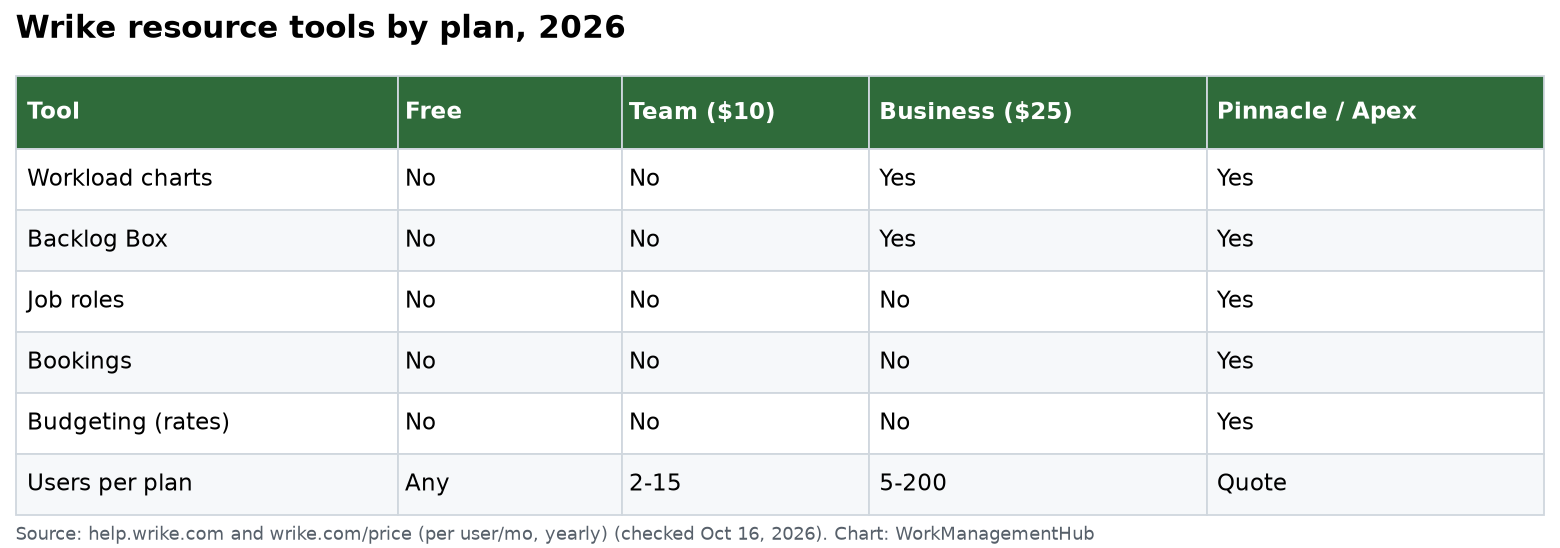
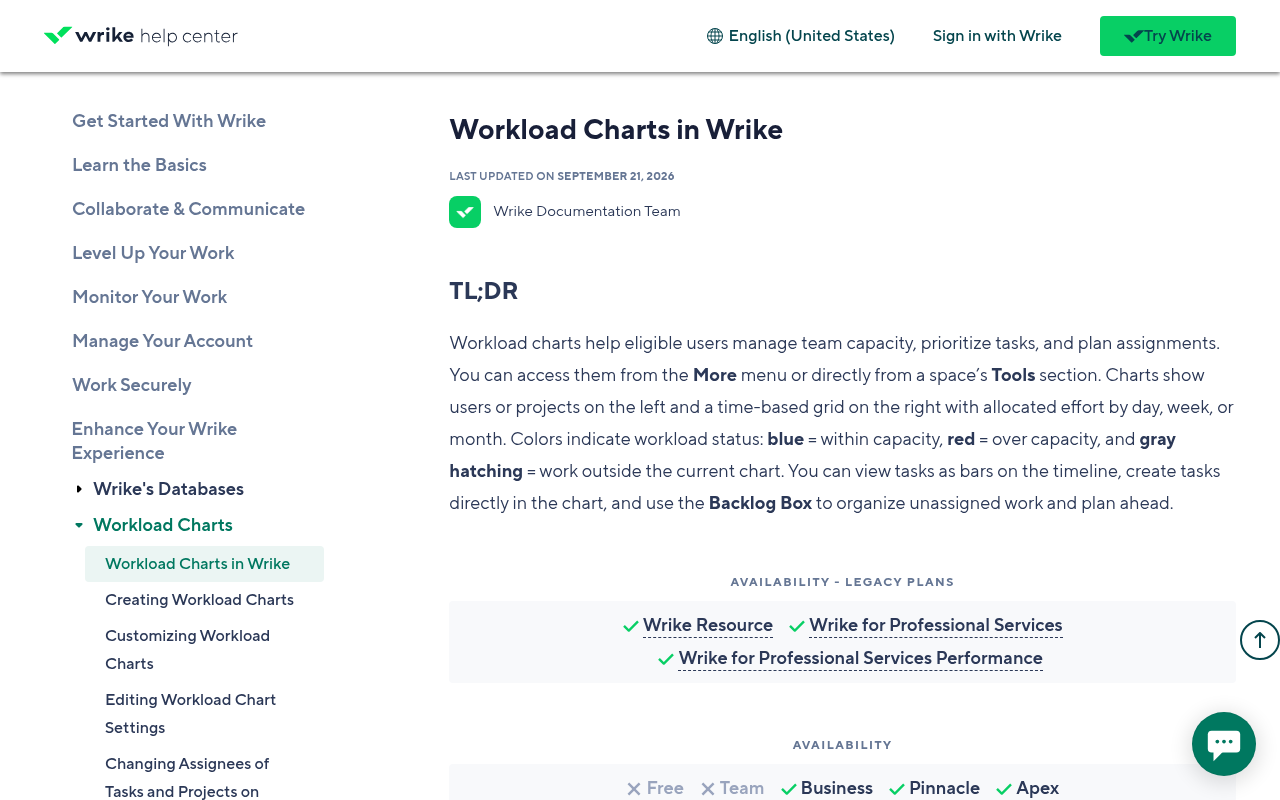
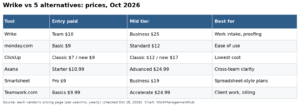
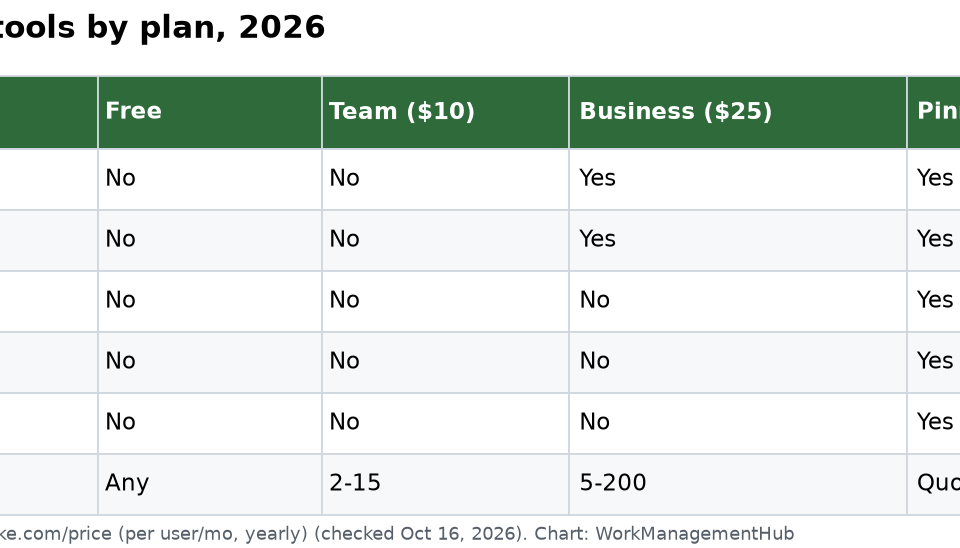
- Wrike Resource Management — including Workload Charts, Resource Bookings, and capacity planning — requires the Business plan at $25/user/month; it is not available on Free or Team plans.
- Wrike restructured its pricing in January 2026 into five tiers: Free, Team, Business, Pinnacle, and the new Apex tier — the legacy Enterprise plan is no longer sold to new customers.
- Workload Charts use color-coded cells — white for under-capacity, red for overload — with a configurable default of 8 hours per user per day.
- Resource Bookings let project managers pre-allocate hours by user or job role before detailed task plans exist, surfacing those allocations on managers’ Workload Charts for pre-approval.
- Work Schedules allow admins to set custom daily capacity per user and add time-bounded Capacity Change entries for part-time arrangements, leaves, or role transitions.
- Combining Workload Charts with Resource Bookings gives teams a two-layer capacity model: strategic pre-planning plus real-time task-level visibility.
Wrike resource management works by combining Workload Charts — a visual, color-coded grid showing each team member’s daily task load against their configured capacity — with Resource Bookings, which let managers pre-allocate hours by person or role before detailed tasks are created. Both features require the Business plan ($25/user/month) and are configured under Resource Management in account settings.
- What Is Wrike Resource Management?
- Plan Requirements and 2026 Pricing Changes
- Workload Charts Explained: How Color-Coding Reveals Capacity
- How to Set Up Workload Charts in Wrike
- Resource Bookings: Pre-Planning Allocations Before Tasks Exist
- How to Create Resource Bookings in Wrike
- Work Schedules and Daily Capacity Settings
- How to Configure Work Schedules and Capacity Changes
- Real-World Use Cases: Agency, Ops Team, and Enterprise PMO
- Workload Charts vs. Resource Bookings: Which to Use When
- Integrating Resource Management with Blueprints, Gantt, and Dashboards
- Verdict
- Frequently Asked Questions
Wrike Resource Management: Complete Guide to Workloads, Capacity & Bookings in 2026
Overloaded teams kill delivery timelines. It is that straightforward. When project managers assign tasks without visibility into who is already at capacity, the result is predictable: missed deadlines, burnout, and a wave of reactive firefighting that crowds out strategic work. Wrike resource management is purpose-built to prevent exactly that — giving team leads, PMOs, and operations directors a real-time, visual command center for capacity across every project, role, and individual contributor.
This guide covers everything you need to know about Wrike’s resource management toolkit in 2026: the Workload Charts that surface overload at a glance, the Resource Bookings feature that lets you plan capacity weeks before a task plan exists, and the Work Schedules infrastructure that makes all of it accurate. Whether you run a 10-person agency, a 50-person operations team, or an enterprise PMO with hundreds of contributors, the principles here apply — and the step-by-step setup paths are exact.
What Is Wrike Resource Management?
Wrike resource management is not a single feature — it is a layered system of three interconnected tools that together answer the hardest question in project delivery: do we have enough of the right people, at the right time, to hit our commitments?
The three pillars are:
- Workload Charts — a visual, date-range grid showing each user’s assigned task hours stacked against their configured daily capacity. Color-coding immediately surfaces who is under-utilized, who is at healthy capacity, and who is heading toward burnout.
- Resource Bookings — a pre-planning layer that allows project managers to reserve hours for a person or job role before any tasks are created. Bookings show up on Workload Charts so managers can see and approve allocations in aggregate.
- Work Schedules and Capacity Settings — the foundational layer where admins define each user’s available hours per day, working days per week, and any time-bounded changes (for part-time arrangements, leaves, or role transitions).
Together, these three tools give you a two-layer capacity model: a strategic pre-planning view (bookings) layered on top of a real-time execution view (task-driven workload). This is meaningfully different from simply looking at a task list and guessing who has bandwidth — it is a deliberate system designed to surface conflicts before they become delivery failures.
It is also worth naming what Wrike resource management is not: it is not a time-tracking or invoicing tool. For actual time logged against tasks, Wrike has a separate timesheets module. Resource management is about planned and allocated capacity, not recorded actuals — though the two work side by side for organizations that need both.
Plan Requirements and 2026 Pricing Changes
Before configuring anything, confirm your plan. Wrike resource management — including Workload Charts, Resource Bookings, and Work Schedules with Capacity Changes — requires the Business plan or higher. As of the January 2026 pricing restructure, the Business plan is priced at $25 per user per month (billed annually).
The 2026 plan lineup is as follows:
- Free — basic task management, no resource features
- Team — collaboration and simple Gantt views, no resource management
- Business — full resource management suite at $25/user/month
- Pinnacle — advanced analytics, locked budgets, and performance dashboards
- Apex — new in 2026, enterprise-grade AI automation and advanced security controls
The legacy Enterprise plan is no longer sold to new customers following the January 2026 restructure. Existing Enterprise accounts remain supported under their current terms, but new sign-ups are directed to Pinnacle or Apex depending on scale.
For a full breakdown of what each plan includes and how the 2026 restructure compares to legacy pricing, see our Wrike Pricing 2026 guide.
If your team is on the Free or Team plan and is experiencing capacity management pain, the upgrade calculus is straightforward: one mis-staffed project — one overloaded developer who misses a launch by a week — typically costs more in rework and client impact than the Business plan upgrade for an entire year.
Workload Charts Explained: How Color-Coding Reveals Capacity
The Workload Chart is Wrike’s most immediately impactful resource management view. It renders a grid where each row is a team member (or job role) and each column is a day (or week, depending on your zoom level). Each cell shows the total hours assigned to that person on that date, compared to their configured daily capacity.
The color logic is deliberate and worth memorizing:
- White cells — the user has no tasks assigned, or assigned hours are well below their daily capacity. This indicates available bandwidth.
- Blue or partially filled cells — the user has assigned work but is within their configured capacity. This is the healthy zone.
- Red cells — the user’s assigned hours exceed their daily capacity threshold. This is the overload and burnout risk indicator and warrants immediate attention from the project manager.
The default daily capacity is 8 hours per user per day, but this is configurable at the individual user level via Work Schedules (covered in detail below). A part-time contractor working 4 hours per day will have a different threshold than a full-time senior developer, and the chart respects those differences — provided admins have configured them correctly.
Workload Charts can be filtered by:
- Specific spaces, folders, or projects (to see only work within a given scope)
- Individual users or job roles
- Date ranges from daily granularity up to multi-month horizons
- Task status (active, in progress, deferred) to exclude completed work
One practical nuance: Workload Charts pull data from task effort fields, not from the task’s start and end dates alone. If your team does not consistently enter effort estimates on tasks, the chart will underreport load. Establishing an effort estimation habit — even rough T-shirt sizing converted to hours — is a prerequisite for the chart to be useful.
How to Set Up Workload Charts in Wrike
- Navigate to Resource Management — From the left sidebar in Wrike, click the Resource Management icon (the person-with-chart icon). If you do not see it, confirm your account is on the Business plan or higher and that your admin has enabled the module.
- Select Workload Charts — In the Resource Management navigation, click Workload Charts. The chart loads with your default team view and the current week selected.
- Set Your Date Range — Use the date picker in the top-right corner to select your planning horizon. For sprint-based teams, a 2-week view is common. For quarterly planning, select a 90-day range to see macro patterns.
- Filter by Space or Project — Click Filter in the top toolbar, then select the specific Space, Folder, or Project you want to analyze. This scopes the workload data to only the tasks within that context, preventing noise from unrelated work.
- Add or Remove Team Members — Click Add People to include specific users or job roles in the view. You can save custom views that always show your core team so you are not re-selecting members each session.
- Identify Red Cells — Scan the chart for red cells. Click any red cell to see a drill-down list of the tasks contributing to that overload — exact task names, due dates, and assigned effort. This is your starting point for rebalancing work.
- Reassign or Reschedule Tasks — From the drill-down panel, click any task to open it inline and adjust its due date, assigned user, or effort estimate. Changes reflect immediately in the chart without leaving the resource view.
- Save Your View — Click Save View in the top-right to preserve your filter configuration. Saved views appear in the left sidebar under Resource Management for quick access.
Resource Bookings: Pre-Planning Allocations Before Tasks Exist
Resource Bookings solve a problem that Workload Charts alone cannot: the gap between when you know you need someone’s time and when you have a detailed enough task plan to actually assign tasks. In most organizations — especially agencies and PMOs running multi-project portfolios — that gap is weeks or months.
Here is the scenario: a client signs a contract in March for a website redesign project starting in May. The project manager knows they will need a senior designer for approximately 20 hours per week for six weeks. But the task breakdown will not be completed until a kickoff workshop in late April. Without Resource Bookings, that designer’s time is invisible to anyone running the Workload Chart — meaning another project lead could overcommit the same designer in May without realizing it.
Resource Bookings solve this by letting project managers create a placeholder allocation — “20 hours per week, May 1 through June 15, Sarah Chen, Senior Designer” — that appears on the Workload Chart immediately. Other project managers and team leads can see that Sarah is booked, even before a single task has been created for the redesign project.
Key characteristics of Resource Bookings:
- Bookable by user or job role — If you do not yet know which specific designer will be assigned, you can book against the “Senior Designer” role. This is especially useful for resource planning at the portfolio level where individual assignments are not yet confirmed.
- Visible on team managers’ Workload Charts — Bookings appear as a distinct visual layer on the Workload Chart, distinguishable from task-driven workload. This allows managers to see the pre-approval view of their team’s committed time.
- Approval workflow — When a booking is submitted, it surfaces on the relevant team manager’s Workload Chart as a pending booking requiring pre-approval. This creates a formal gate before allocations are locked in, preventing unauthorized over-commitment of team members.
- Linked to projects — Bookings are associated with a specific project or space, so when you later create tasks within that project, Wrike can compare actual task assignments against the booking envelope to flag over or under-utilization.
The distinction between Workload Charts and Resource Bookings is worth making explicit: Workload Charts show you where you are (current task-driven load vs. capacity), while Resource Bookings show you where you are going (committed allocations for future work not yet in task form). Used together, they give you both a current-state and a forward-looking capacity picture.
How to Create Resource Bookings in Wrike
- Open Resource Management — From the left sidebar, click the Resource Management icon to enter the resource management module.
- Navigate to Resource Bookings — Click Resource Bookings in the Resource Management sub-navigation. This view shows all existing bookings and any pending approval requests for your team.
- Click New Booking — Select the + New Booking button in the top-right corner of the Resource Bookings view. A booking creation panel slides in from the right.
- Select the Project or Space — In the Project field, search for and select the project this booking is associated with. Bookings must be tied to a project — they cannot float independently.
- Choose User or Job Role — In the Assign to field, select either a specific user (e.g., Sarah Chen) or a job role (e.g., Senior Designer). If booking by role, leave the individual user unassigned until the specific person is confirmed.
- Set Allocation Dates — Use the Start Date and End Date fields to define the booking window. For a 6-week engagement starting May 1, set May 1 through June 15.
- Enter Allocation Hours — Specify the allocation as either a fixed number of hours per day (e.g., 4 hours per day) or a total hours figure distributed across the booking window. Wrike calculates daily load based on the user’s Work Schedule configuration.
- Add a Description (Optional) — Use the description field to note context: project phase, deliverables expected, or any constraints. This helps approving managers understand what they are authorizing.
- Submit for Approval — Click Submit. The booking is sent to the relevant team manager for pre-approval and immediately appears on their Workload Chart as a pending allocation. The project manager receives a notification when the booking is approved or declined.
- Monitor Booking Status — Return to the Resource Bookings view to track approval status. Approved bookings appear in a distinct color on the Workload Chart overlay. Declined bookings require revision before resubmission.
Work Schedules and Daily Capacity Settings
Everything in Wrike resource management depends on one foundational truth: the system needs to know how much time each person has available. Without accurate capacity data, the Workload Chart cannot tell you whether a red cell is a genuine overload or a data entry artifact from an incorrect schedule configuration.
Work Schedules are configured at the account level by administrators and assigned to users individually. They define:
- Working days per week — which days of the week the user is expected to work (Mon–Fri for most, Mon–Thu for compressed workweeks, etc.)
- Daily capacity in hours — the standard number of working hours per day. The default is 8, but this can be set to any value from 1 to 24 per day per user.
- Capacity Change entries — time-bounded modifications to a user’s standard schedule. These are the most powerful and most underused element of Work Schedules.
Capacity Change entries allow admins to model real-world complexity without changing a user’s base schedule. Common use cases include:
- A full-time employee reducing to 4 hours per day during a 6-week parental leave return period
- A contractor whose engagement is 20 hours per week for a fixed project window
- A team member transitioning between roles, where their design capacity drops to 50% as they ramp up into a project management role
- Holiday or leave periods where daily capacity drops to zero
Without Capacity Change entries, the Workload Chart will show a misleading picture for anyone whose real availability differs from the default schedule. A team member on a 3-month part-time arrangement will appear permanently overloaded if their capacity remains at 8 hours per day in the system but they are only working 4. This is one of the most common sources of Workload Chart data quality issues in organizations that are new to the feature.
How to Configure Work Schedules and Capacity Changes
- Access Account Settings — Click your avatar or profile icon in the top-right corner of Wrike, then select Account Management. This requires admin permissions.
- Navigate to Work Schedules — In the left sidebar of Account Management, click Work Schedules. You will see any existing schedules listed, including the default “Standard Work Schedule.”
- Create a New Schedule (if needed) — Click + New Work Schedule to create a schedule variant (e.g., “Part-Time 4h” or “Compressed 10h 4-day”). Name it clearly — you will be assigning it to multiple users over time.
- Set Working Days — In the schedule editor, check or uncheck days of the week. The system marks checked days as working days for capacity calculations.
- Set Daily Hours — Enter the standard daily capacity hours in the Daily Hours field. For a standard 8-hour day, enter 8. For a 6-hour creative agency workday, enter 6.
- Assign the Schedule to Users — Navigate to Users in Account Management, select a user, and in their profile under Work Schedule, assign the appropriate schedule from the dropdown.
- Add a Capacity Change Entry — To model a time-bounded change for a specific user, open their user profile in Account Management, scroll to Capacity Changes, and click + Add Capacity Change.
- Configure the Capacity Change — Set the Start Date and End Date for the change period, then enter the modified daily hours. For a full leave period, enter 0. For a half-time arrangement, enter half the user’s standard daily hours.
- Save and Verify — Save the Capacity Change. Navigate back to the Workload Chart and confirm the affected user’s cells now reflect the updated capacity during the change window. Red and white coloring should update immediately.
Real-World Use Cases: Agency, Ops Team, and Enterprise PMO
10-Person Creative Agency
A boutique agency running 8 to 12 concurrent client projects faces a classic resource crunch: everyone is “busy” but projects still miss deadlines, and the principal has no visibility into whether busyness reflects genuine overload or poor prioritization. In this context, Wrike resource management delivers value in the first week of deployment.
The configuration approach for a small agency: create a single Work Schedule (“Agency Standard, 7h per day” — most agencies build in 1 hour for admin and business development), assign it to all full-time staff. Set up Resource Bookings for each active client retainer, booking the primary designer and account manager at their retainer hours. The Workload Chart immediately reveals which projects are competing for the same people on the same days.
The most common discovery in agency deployments: the senior designer and the lead developer are both booked at 140% capacity for the next month. Three projects have overlapping deadlines that were set independently by different account managers without checking capacity. Wrike surfaces this in minutes; resolving it without the tool would have taken a crisis meeting after the first missed deadline.
50-Person Operations Team
A mid-sized operations team — IT, HR, and facilities combined — typically runs a mix of project work and business-as-usual operational tasks. The challenge is that resource management tools built for pure project environments do not model BAU load well.
The configuration approach here: create separate Work Schedules for project-only capacity versus total capacity. For example, if an IT analyst has 8 hours per day total but 3 hours are consumed by BAU (tickets, monitoring, standups), their project capacity is 5 hours per day. Configure their Work Schedule at 5 hours per day so the Workload Chart measures only against project-available time. This is a practical workaround that keeps the chart meaningful for project managers without requiring engineers to log every BAU hour.
Resource Bookings become critical here for infrastructure projects, where budget approval and resource commitment happen months before sprint planning begins. A network upgrade booked for Q3 can be pre-allocated to 3 senior engineers at 20% capacity each, preserving visibility for anyone looking to staff Q3 application projects with the same engineers.
Enterprise PMO with 200+ Contributors
At enterprise scale, individual task-level Workload Charts become operationally unwieldy. The PMO’s interest is at the program and portfolio level: which programs are over-committed, which teams have slack capacity to absorb new initiatives, and where are the cross-program resource conflicts.
The enterprise configuration approach: use job roles rather than individual users as the primary booking unit. Pre-book capacity at the role level (e.g., “Senior Java Developer: 3 FTE committed to Program Omega, Q2 through Q3”) so that portfolio-level Workload Charts show program-level allocation before individual assignments are made. Individual Workload Charts remain available for team managers and Scrum masters at the execution level.
Wrike’s Pinnacle and Apex plan analytics — including cross-project reporting and custom dashboards — complement this approach by allowing PMO directors to build real-time capacity utilization dashboards that pull from multiple spaces simultaneously.
Workload Charts vs. Resource Bookings: Which to Use When
The distinction between these two features trips up new Wrike administrators consistently. Here is the practical decision rule:
Use Workload Charts when:
- You need to see the current state of team capacity based on assigned tasks
- You are triaging an overload situation and need to identify which tasks to move or reassign
- You want a real-time view of whether the team can absorb a new task without blowing someone’s capacity
- You are running a sprint review or weekly capacity check-in
Use Resource Bookings when:
- You have committed team time to a project or client but have not yet created detailed tasks
- You want to signal future capacity consumption to other project managers before they over-commit the same people
- You are doing quarterly or annual resource planning at the program level
- You need manager approval on resource commitments before project work begins
The most sophisticated Wrike deployments use both simultaneously: Bookings set the strategic allocation envelope for future work, and Workload Charts track whether actual task execution stays within that envelope. When task-driven load (from Workload Charts) exceeds the booking allocation for a given person in a given week, it is an early warning signal that scope has grown beyond what was approved.
Integrating Resource Management with Blueprints, Gantt, and Dashboards
Wrike resource management does not operate in isolation — it is most powerful when connected to Wrike’s broader project management toolkit.
Resource Management and Blueprints
Wrike Blueprints (project templates) can include pre-configured task structures with effort estimates already attached. When a Blueprint-based project is created, those effort estimates feed directly into Workload Charts, immediately surfacing resource implications the moment a new project is spun up. This is especially valuable for agencies and PMOs that run repeating project types — a website build Blueprint, an onboarding Blueprint, a compliance audit Blueprint — where the resource pattern is known in advance. See our Wrike Blueprints and project templates guide for setup details.
Resource Management and Gantt Charts
The Gantt Chart view and the Workload Chart are complementary lenses on the same data. Gantt shows you the timeline sequence of tasks; Workload shows you whether the people assigned to those tasks can actually execute them within the timeline without overloading. Running both views in parallel is the standard operating mode for experienced Wrike project managers. See our Wrike Gantt Chart features guide for 2026 updates that affect resource-linked scheduling.
Resource Management and Marketing Team Workflows
Marketing teams face a specific resource management challenge: campaign work involves hard external deadlines — launch dates, media buys, publisher windows — that cannot be moved, combined with highly variable creative workloads. Wrike resource management helps marketing leaders identify when the creative team is approaching a capacity wall before a campaign deadline, allowing for early intervention. See our Wrike for Marketing Teams guide for a full walkthrough of capacity planning in creative contexts.
Resource Management and Custom Dashboards
On Business and above plans, Wrike Dashboards can surface resource management widgets alongside project status and task completion metrics. A well-configured PMO dashboard might include: average team utilization this week, number of red-celled (overloaded) contributors, pending booking approvals, and upcoming capacity changes taking effect in the next 30 days. This brings resource health into the same view as project health, forcing the conversation about capacity constraints into every project status meeting.
For additional technical reference and advanced configuration options not covered here, the Wrike Help Center resource management documentation is the authoritative source. For use-case specific guidance from Wrike’s team, the Wrike capacity planning use case page covers industry-specific deployment patterns.
Wrike resource management is a genuinely capable capacity planning system — not just a visual layer on top of task data, but a structured approach to pre-planning allocations, modeling real-world schedule complexity, and surfacing overload before it becomes a delivery failure. The Business plan requirement at $25/user/month is a meaningful budget commitment, but for any team running more than 3–4 concurrent projects with shared contributors, the cost is justified within the first averted resource crisis. The two features teams should deploy first are Workload Charts (for immediate visibility) and Work Schedules with accurate daily capacity per user (for data quality). Resource Bookings deliver the most value once those foundations are solid and teams are ready to move from reactive to proactive capacity management. If you are managing a portfolio of projects and still relying on a shared spreadsheet to track who has bandwidth, Wrike resource management on the Business plan is the right upgrade.
Frequently Asked Questions
Does Wrike resource management work with the Free or Team plan?
No. Resource Management features — including Workload Charts, Resource Bookings, and Work Schedules with Capacity Changes — require the Business plan at $25/user/month (billed annually) or higher. The Free plan supports basic task management only, and the Team plan adds collaboration and limited Gantt features but does not include resource management tools. If you are evaluating whether to upgrade, Wrike offers a trial period where Business plan features can be tested before committing.
What is the difference between Workload Charts and Resource Bookings in Wrike?
Workload Charts show the current state of team capacity based on tasks that have already been assigned — they are a real-time execution view. Resource Bookings are a pre-planning tool that lets project managers reserve a person’s or role’s time for future work before detailed tasks are created. Workload Charts tell you where you are; Resource Bookings tell you where you are committed to be. The most effective approach uses both: bookings set the strategic envelope, and Workload Charts track whether task execution stays within it.
How does Wrike calculate whether a team member is overloaded on the Workload Chart?
Wrike compares the total effort hours assigned to a user on a given day against their configured daily capacity from their Work Schedule. The default capacity is 8 hours per day. If assigned task hours exceed the configured daily capacity, the cell turns red, indicating an overload and burnout risk. The accuracy of this calculation depends entirely on two inputs: task effort estimates being entered correctly, and Work Schedules being configured to reflect each user’s actual available hours including any Capacity Change entries for part-time arrangements or leaves.
Can I book a job role rather than a specific person in Wrike Resource Bookings?
Yes. Resource Bookings can be created against a job role rather than a named individual. This is particularly useful for portfolio-level planning where the specific person has not yet been confirmed but the role requirement is known. For example, you can book “2 x Senior Developer at 50% capacity for Q3” without specifying which developers will fill those slots. When individual assignments are confirmed later, the role booking can be updated to link to specific users, and the Workload Chart updates to reflect their personal capacity against the booking.
What happens to Workload Chart data when a team member goes on leave?
By default, if a team member’s Work Schedule is not updated to reflect a leave period, they will continue to appear as having full daily capacity on the Workload Chart even during their absence — making any tasks assigned during that period appear within capacity when they are actually unresourced. The correct approach is to add a Capacity Change entry in Account Management for the leave period, setting their daily capacity to 0 hours for the leave window. This causes those days to show as zero-capacity on the Workload Chart, and any tasks assigned to them during that period will immediately appear as overload, prompting reassignment before the leave begins.