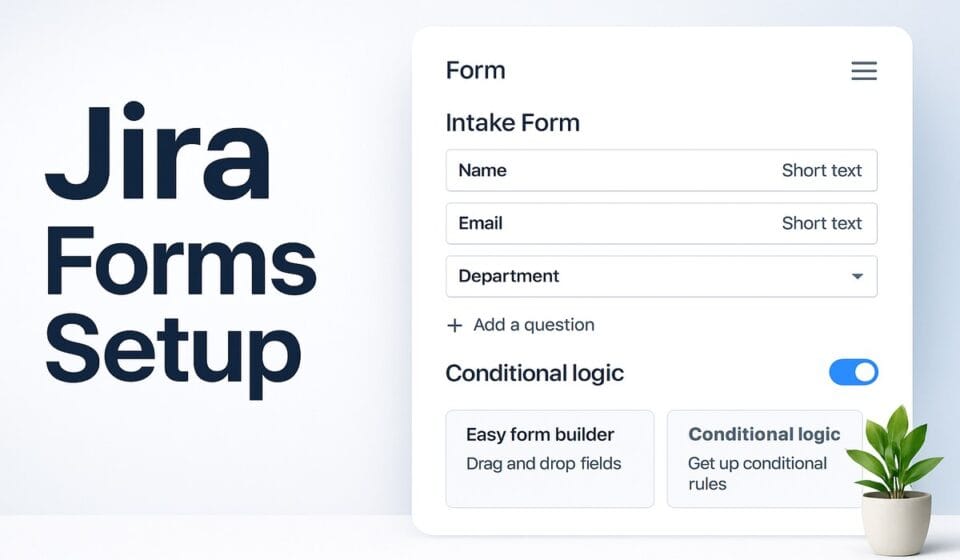

To create a form in Jira, open the project (called a space in Jira’s newer navigation), select Forms, then choose a template or a blank form and pick the work type each submission should create. Add your questions, map them to Jira fields, set an access level, and share the link with the people you want to hear from.
That is the short version, and for a simple intake form it is genuinely all you need. The longer answer depends on which Jira you are working in, because Atlassian ships two form experiences under almost the same name, and teams mix them up constantly. Getting that distinction right before you build anything saves a lot of rework.
Two form products that share a name
The first is Forms inside a business or software project. This is the feature that grew out of ProForma, and it is what most people mean when they search for Jira forms. A form lives in one space, and when someone submits it, their response creates a work item in that same space. You use these to collect requests from other teams: a design ask, a legal review, a new-hire kit, a bug report from a non-technical group.
The second is Forms in Jira Service Management. Those attach to request types and appear on the customer portal, so a requester fills them out when raising a ticket. They behave differently around permissions and conditional fields, and they are tied to the agent-based JSM licensing model rather than standard Jira seats. If you are running a help desk or IT queue, that is the version you want, and our Jira Service Management setup guide covers the portal side in detail. This post focuses on the general project form, then flags where JSM diverges.
Creating a form in a business or software project
You need space admin permission to build or edit forms. In company-managed spaces you also need browse permission. If you do not have that access, ask whoever administers the project, because there is no requester-level shortcut here.
- Select Forms from the space navigation.
- Choose Blank form to start from scratch, or pick a template. Templates are not available on every site, so do not be surprised if the list is short or empty.
- If your space has more than one work type, you are prompted to choose which one the form creates on submission, for example a Task or a bug. Pick this deliberately, because it decides which Jira fields you can map to later.
- Add your questions. You drag fields onto the form and edit each one: label, help text, whether it is required. Reorder by dragging.
- Group related questions into sections, and set each section to appear Always or Conditionally so the form adapts to earlier answers.
- Set the access level, then share the link. More on both below.
The build experience is closer to a real form builder than the old custom-field-on-issue approach, and that is the point. You can add headings and layout, mark validation, and hand a clean, single-purpose form to people who never open Jira otherwise.
Mapping questions to Jira fields
This is the part that determines whether a form is useful a month later. Each question on the form is a form field, and a form field can either be linked to a real Jira field or left as form-only data. When it is linked, the answer populates that field on the created work item, so you can filter, report, and automate against it like any other issue data. When it is not linked, the answer still gets captured on the form response, but it does not become a queryable Jira field.
Because of that, the work type you chose in step three matters. Only the fields available to that work type show up as mapping targets. If a question needs to drive a workflow or a JQL filter, add the matching Jira field to that work type first, then map the question to it. I map anything I will report on or route, and leave genuinely free-text context as form-only.
Conditional sections are the other feature worth learning early. You can show a block of questions only when an earlier answer matches, and for select lists or checkboxes you decide whether the condition triggers on one of or all of the chosen options. A single intake form with two or three conditional branches usually replaces the three near-identical forms a team would otherwise maintain. Only space admins can create these conditions, which is a recurring theme with Jira forms.
Access levels and sharing
Before you send a form to anyone, set who is allowed to submit it. Jira gives you three access levels, and the difference is who can reach the form at all.
| Access level | Who can submit a response |
|---|---|
| Limited access | Only people with permission to create work items in the space |
| Open access | Anyone with a Jira license who can log in to your site |
| Public access | Anyone online with the link, unless an admin has disabled public access on your site |
Public access is the one to think carefully about. A public form overrides app access and space permissions, so people with no Jira account can view and submit it. That is exactly what you want for an external vendor request or a public bug report, and exactly what you do not want for anything sensitive. An organization, site, or Jira admin can switch public access off entirely, and IP allowlists still apply, so a public link is not a way around your security settings. Atlassian’s documentation on managing form access spells out each level.
Once submissions start arriving, they behave like normal issues, which means you can act on them normally. I usually pair a form with an automation rule that assigns, labels, or transitions the new item so nothing sits unowned in the backlog. If you want to route those requests further, our Jira automation rules guide walks through the triggers, and a Slack integration is the simplest way to ping the right channel the moment a form comes in.
How Service Management forms differ
In Jira Service Management the path is Project settings, then Request management, then Forms. You select Create form, choose Create blank or a template, name it, and add fields the same way. The difference is what you do next: you attach the form to one or more request types, and it appears on the portal beneath the standard Jira fields whenever a customer raises that request. JSM forms also support conditional fields on the portal, and on submission you can lock a form so only admins edit it, or save a PDF copy each time it is resubmitted for an audit trail.
Availability and what to check first
Atlassian’s own guidance says you can create as many forms as you like in a space, so there is no documented per-project cap to plan around. What is gated is not the number of forms but public sharing, and that gate is an admin toggle rather than a pricing tier in the docs I could verify. Before you promise a stakeholder an external form, confirm your admin has left public access enabled. If your organization runs on the Free plan, review permission behavior there generally, since Free sites handle permissions differently, and check current seat costs in our Jira pricing breakdown before you scale intake across teams.
Where Jira forms frustrate people
The admin-only build model is the first wall teams hit. Only space admins can create, edit, or delete forms and create conditions, so the person who understands the intake process often cannot touch the form without a grant. On a busy team that becomes a bottleneck, and it is the constraint I flag most often in setup reviews.
The second is scope. A form belongs to the space it was built in, and submissions land there. Jira does not offer a documented way to publish one form once and reuse it across several projects, so multi-team intake tends to mean rebuilding similar forms in each space. I treat that as a practitioner observation rather than a hard product limit, but it shapes how I design intake for larger orgs.
Third, unmapped questions are easy to regret. Anything left as form-only data is readable on the response but not filterable as a Jira field, and people discover this only when they try to build a report and the column is not there. Decide up front what needs to be a real field. If forms feel too constrained for heavy external intake, it is worth comparing dedicated tools, which our roundup of Jira alternatives gets into. For most internal request flows, though, native forms are the right call because the data stays inside Jira. Atlassian’s overview of what forms can do is a fair scope check before you commit.
Frequently asked questions
Do form submissions create Jira issues automatically?
Yes. When someone submits a project form, their response creates a work item in the same space, using the work type you selected while building the form. Answers mapped to Jira fields populate those fields on the new item, so you can filter, assign, and automate against it exactly as you would any manually created issue.
Can people outside my company submit a Jira form?
Only if you set the form to public access and your admin has left public sharing enabled for the site. A public form works for anyone with the link, even without a Jira account, but IP allowlists still apply. Any admin can disable public access, which removes that option entirely.
Why can’t I edit the form I need to change?
Creating, editing, and deleting forms requires space admin permission, and company-managed spaces also need browse permission. Regular project members cannot modify forms even for their own requests. Ask whoever administers the space to grant access or make the change, since there is no requester-level editing path for forms.
Sponsored