Notion AI for Project Management: The Complete 2026 Guide
If you’ve been using Notion for a year or two, you already know it can replace a dozen tools. But if you haven’t touched Notion AI yet — or you poked at it in 2024 and moved on — 2026 is a completely different story. The system has evolved from a fancy autocomplete into something that can genuinely run parts of your project workflow for you.
This guide cuts through the hype and gives you a practical framework for integrating Notion AI into a real project management setup. We’ll cover what’s actually new in 2026, which features are worth your time, how to configure the AI Agents that most teams are sleeping on, and where the system still falls short.
⚡ Key Takeaways
- Notion 3.0 introduced autonomous AI Agents that execute multi-step workflows without manual prompting — this is the biggest shift in 2026.
- The context window expanded from 20 to 50 pages in January 2026, making full project wiki summarization possible in a single prompt.
- Voice input landed on macOS and Windows in April 2026 — you can now dictate AI prompts from anywhere in Notion.
- AI works across every view: Board, Timeline, Calendar, List, and Gallery — not just docs.
- Full AI access requires the Business plan ($20/user/month); the Plus plan has meaningful restrictions.
- Notion AI’s real competitive edge is the document layer — AI on your wikis, meeting notes, and project pages simultaneously.
Table of Contents
- What’s Actually New in Notion AI for 2026
- Notion AI Agents: The Feature Most Teams Aren’t Using
- 50-Page Context and Voice Input: Why They Matter
- AI Across Every Project View
- 4 Real Use Cases for Project Managers
- How to Set Up Notion AI for Your Project Workflow
- Honest Limitations: What Notion AI Still Can’t Do Well
- Notion AI vs. Asana AI vs. ClickUp AI: What’s Different
- Pricing Breakdown
- Final Verdict
What’s Actually New in Notion AI for 2026
The jump from Notion AI in late 2024 to what exists now is significant enough that prior impressions don’t apply. Three changes define the current system:
Notion 3.0 and autonomous AI Agents. The headline update is Agents — AI that doesn’t just respond to prompts but executes sequences of tasks on a schedule or trigger. An Agent can pull data from your project database, compile a summary, post it to a channel, and flag anything that needs attention, all without you touching a keyboard. This moves Notion AI from assistant to infrastructure.
Context window expansion. In January 2026, Notion raised the AI context limit from 20 pages to 50 pages. This sounds like a technical footnote but it changes what’s possible. A 35-page project wiki — specs, meeting notes, decision log, stakeholder map — can now be processed in a single AI query. You’re no longer working around a ceiling.
Voice input on desktop. Since April 2026, you can dictate AI prompts on macOS and Windows. This works anywhere you’d type a prompt. For long, context-heavy questions about a project, voice input is noticeably faster than typing and tends to produce more conversational, useful responses.
Notion AI Agents: The Feature Most Teams Aren’t Using
Most teams who have Notion AI enabled are using it reactively — ask a question, get an answer. Agents flip that model. They’re configured workflows that run automatically when a condition is met or on a schedule.
Here are the four categories where Agents are delivering real value for project teams right now:
Daily Feedback Aggregation
An Agent can be set up to pull from connected sources — Slack channels, support ticket queues, form submissions — and compile a daily summary into a Notion page. Instead of someone manually collating feedback every morning, the Agent drops a structured digest into the project workspace. You can then ask the AI to surface patterns or flag items that mention blockers.
Automated Status Reporting
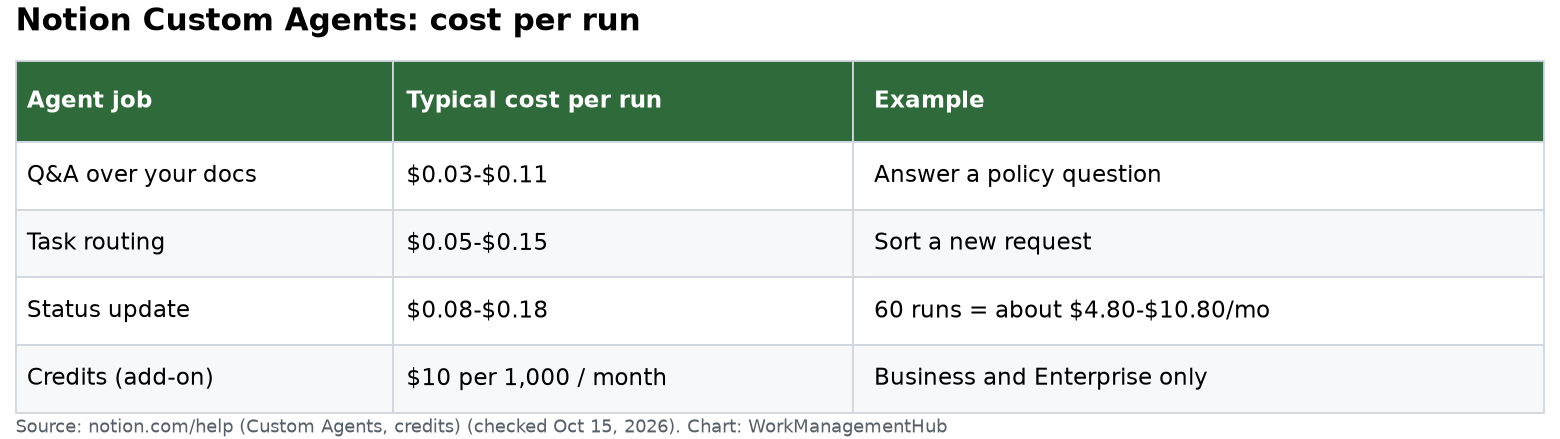
Weekly project status updates are a known time sink. An Agent connected to your task database can generate a status report draft based on what moved, what didn’t, and what’s overdue. The draft lands in the workspace for review and editing before it goes out. This doesn’t eliminate the human judgment step — the PM still approves the final version — but it eliminates the blank-page start.
IT and Helpdesk Triage
Teams running IT support workflows in Notion can configure an Agent to review incoming requests and apply priority tags, route to the right sub-team, and flag items that have been open past a threshold. The Agent handles the mechanical triage; humans handle the judgment calls.
Database Monitoring and Alerts
Agents can watch a database and trigger actions when conditions are met — for example, if a milestone moves past its due date, or if a task in a “blocked” status has been sitting there for more than 48 hours. The Agent can post a comment, notify a person, or create a new follow-up task automatically.
The key limitation to understand: Agents require explicit setup and a defined trigger. They don’t self-initiate or figure out what to monitor. You have to design the workflow. This makes them powerful for structured, repetitive tasks and less useful for anything that requires contextual judgment.
50-Page Context and Voice Input: Why They Matter
The context window increase is easy to underestimate. Before January 2026, if your project wiki exceeded 20 pages, you had to be selective about what you fed the AI — chunk the document, ask about sections, stitch the answers together yourself. That friction meant most PMs weren’t using AI on their actual project documentation; they were using it on isolated notes.
At 50 pages, a typical mid-size project workspace fits entirely in context. You can ask “What are the three biggest open questions across the full project wiki?” and get a coherent answer that draws on the whole document set. Meeting notes, technical specs, stakeholder feedback, and the project brief are all visible to the AI simultaneously.
Voice input is a less obvious unlock, but worth testing if you haven’t. Complex questions about a project are faster to speak than type, and the freeform phrasing tends to produce better responses than tightly constructed typed queries.
AI Across Every Project View
One thing that distinguishes Notion AI from task-management AI bolted onto other tools: it’s not siloed to one part of the interface. The AI works in every project view.
- Board (Kanban): Ask the AI to summarize all cards in a column, identify overdue tasks, or suggest reclassification for cards that have been stalled.
- Timeline (Gantt): When a new blocker is identified or an estimate changes, ask the AI to replan the timeline. It shifts dependencies, reorders dates, highlights downstream impact, and surfaces who is affected.
- Calendar: AI can surface scheduling conflicts, identify gaps in coverage, and propose where to move items when priorities shift.
- List view: Ask AI to sort, filter, or summarize based on criteria you describe in natural language rather than configuring filter rules manually.
- Gallery: Useful for content or asset tracking workflows — AI can analyze and tag items, or generate summaries for each card.
4 Real Use Cases for Project Managers
1. Surfacing Blockers from Comment Threads
Open your project database, select all tasks with recent comments, and ask: “Summarize all comments on these tasks and identify any blockers or unresolved questions.” You get a consolidated view in seconds that would take 15–20 minutes to compile manually.
2. Writing Status Updates from Task Data
Navigate to your timeline or board view, select the relevant tasks, and prompt the AI to draft a status update — three things completed, three things in progress, three blockers. The output is a working draft, but it’s a much faster starting point than a blank page.
3. Setting Up an Agent for Feature Request Triage
If your team collects feature requests in a Notion database, an Agent can be configured to review new entries, apply a priority score based on criteria you define, route them to the appropriate product area, and notify the relevant PM when high-priority items come in. Once configured, this runs without intervention.
4. Replanning a Sprint After a New Task Is Added
When a high-priority task drops into an already-loaded sprint, ask the AI to look at the current sprint board and suggest what should be deferred to maintain a realistic workload. It can factor in capacity flags you’ve set and identify which in-progress items have the most flexibility.
How to Set Up Notion AI for Your Project Workflow
If you’re on the Business plan and haven’t configured AI deliberately, here’s a practical setup sequence:
- Enable AI on your primary project database. Navigate to your main project database → click the … menu → ensure Notion AI is toggled on for the database.
- Set up your first AI summary view. Click + Add a view → name it AI Summary → use the AI filter prompt field to configure what the summary should surface (e.g., “Show all blocked or overdue tasks with the last comment”).
- Create your first Agent. Go to Settings → AI & Automation → Agents → click + New Agent. Select your trigger (schedule or database condition), define the data source, and write the action prompt.
- Test the Agent in dry-run mode. Before activating, run a test pass to verify the output. Agents pulling from the wrong pages or generating imprecise summaries are a common first-run issue.
- Configure voice input. On macOS or Windows: open Notion Settings → AI Features → enable Voice Input. Look for the microphone icon next to any AI prompt field.
- Set context scope for recurring AI queries. When working in a large wiki, use the Select Pages option in the AI panel to manually scope which pages are in context before submitting a prompt.
Honest Limitations: What Notion AI Still Can’t Do Well
Agents can’t self-initiate without a trigger. They’re reactive, not proactive. If your workflow requires judgment about when to act, you still need a human in that loop.
AI timeline adjustments require clean data. Inconsistent date formats, missing dependencies, or tasks without assignees will produce unreliable output. Notion AI rewards well-structured databases.
AI quality depends on your prompt specificity. “Summarize this project” is less useful than “Summarize the top three open decisions and who owns each.” The AI is capable of precise work, but it requires precise direction.
Multi-model support is Business-tier only. On the Plus plan, you get a single AI model. On Business, you can switch between models for different tasks.
No native real-time data connections yet. Agents can’t natively query live external APIs without an intermediary integration.
Notion AI vs. Asana AI vs. ClickUp AI: What’s Different
Asana AI is strongest for task-centric workflows — deeply integrated with goal tracking and workload balancing. But it doesn’t touch your documentation layer.
ClickUp AI offers broader surface area — AI on docs, tasks, and whiteboards — but the interface complexity is a real cost.
Notion AI’s genuine advantage is that your wikis, meeting notes, project briefs, retrospectives, and task databases are all in the same system. Asana’s AI knows about your tasks. Notion’s AI knows about your tasks and everything your team has written about those tasks. That difference is significant for knowledge-heavy teams in product, design, consulting, and software development.
The tradeoff: Notion’s task management UX is still less structured than Asana for large portfolio views. If you’re managing 200+ tasks across 10+ projects, Asana’s structure wins. If you’re managing complex, documentation-heavy projects where context matters as much as task tracking, Notion AI has the edge.
Pricing Breakdown
- Free plan: No AI access.
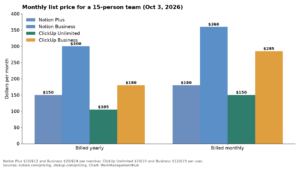
- Plus ($12/user/month): Limited AI — basic summarization and writing assistance, single model, no Agents.
- Business ($20/user/month): Full AI access — Agents, multi-model support, 50-page context, voice input, AI across all views.
- Enterprise: Custom pricing, same AI features as Business plus admin controls and audit logs.
The practical implication: if you’re on the Plus plan and wondering why your AI experience feels limited, that’s intentional product segmentation. The features described in this guide require Business. For a 10-person team, the jump from Plus to Business is $80/month — straightforward math if AI Agents save even a few hours per week.
Final Verdict
Is Notion AI Worth It for Project Managers in 2026?
For teams already working in Notion: yes, and the Business plan is likely worth the upgrade if your team is doing any recurring reporting, triage, or documentation-heavy project work. The AI Agents feature alone can eliminate hours of manual aggregation per week once configured properly.
For teams evaluating Notion as a switch from Asana or ClickUp: the case is strongest if your work involves significant knowledge management alongside task tracking. If you run lean, task-only workflows, the Notion AI advantage is less compelling relative to the tool-switching cost.
The honest ceiling: Notion AI is not yet a fully autonomous project manager. It requires clean data, explicit configuration, and human review at key decision points. What it is — and what it wasn’t 18 months ago — is a system that can meaningfully reduce the overhead of running a project, particularly the information-gathering and reporting work that eats PM time without adding proportional value. That’s a real improvement worth taking seriously.