Asana Automation Rules: Complete Setup Guide for 2026
⚡ Key Takeaways
- Asana automation rules follow a simple formula: Trigger → Condition → Action — master this and you can automate nearly any repetitive workflow.
- Rules live under Project Settings > Automations; the “Create Automation” builder walks you through each component step by step.
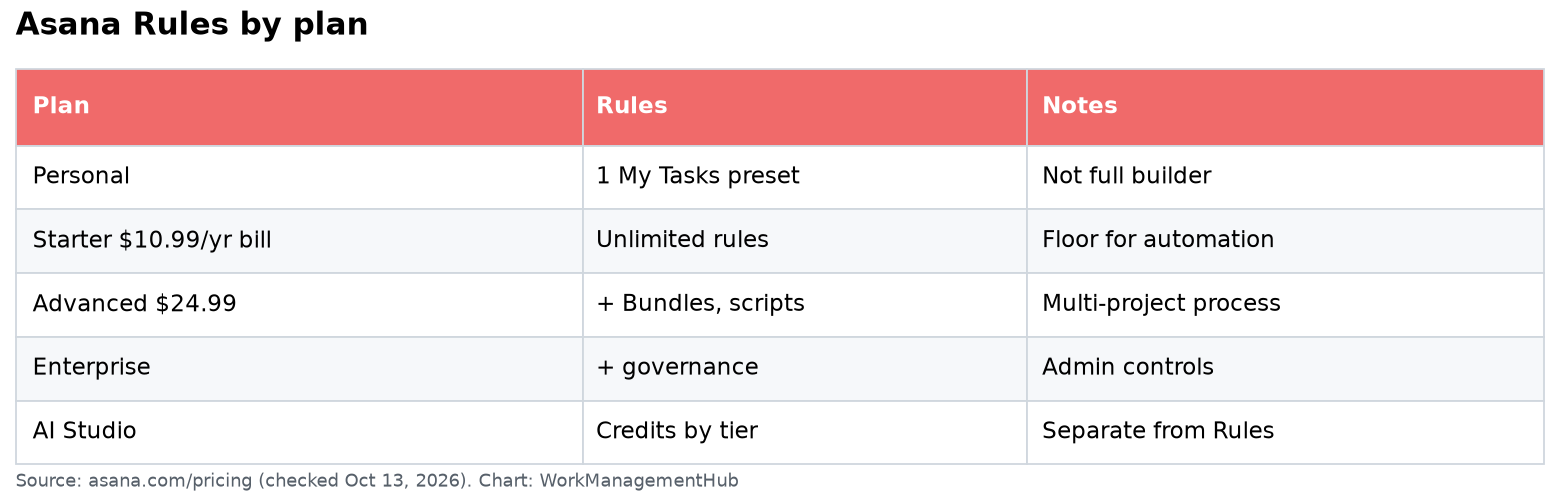
- Starter plans allow 20 rules per project; Advanced allows 25; Enterprise is unlimited — plan accordingly before you scale.
- The highest-ROI starting point is identifying the three most frequent manual actions your team repeats daily and building rules around those first.
- Asana’s 2026 AI Agents (Advanced plan+) can run multi-step automations autonomously — worth piloting for intake triage and feedback compilation.
If your team is still manually moving tasks between sections, pinging people on Slack to pick up assignments, or setting due dates one by one — you’re doing work that Asana’s automation engine should be doing for you. Asana’s Rules feature has been production-ready for years, but most teams only scratch the surface. This guide skips the basics and goes straight to what a team lead actually needs: how rules work structurally, how to build them correctly, and which automations will return the most time the fastest.
The Anatomy of an Asana Rule
Every Asana automation rule has the same three-part structure:
- Trigger — the event that fires the rule. Examples: a task is added to a project, a task’s status changes, a due date arrives, a form is submitted.
- Condition (optional but strongly recommended) — a filter that narrows when the rule applies. Without a condition, the rule fires on every matching trigger across the entire project. With a condition, you can scope it: “only if the assignee is unset,” “only if the task is in the Backlog section,” “only if the custom field Priority = High.”
- Action — what actually happens. Asana can assign the task, move it to a section, set a due date, create a subtask, send a Slack message, move the task to another project, or trigger a combination of these.
The logic is always sequential: Trigger fires → Conditions evaluated → If all conditions pass, Action executes. You can stack multiple actions on a single trigger, and you can add multiple conditions with AND/OR logic. That gives you a surprisingly expressive rule engine without any code.
One important architectural note: rules are project-scoped. A rule you build in your “Content Calendar” project has no effect on your “Product Roadmap” project. If you want the same rule in multiple projects, you’ll need to replicate it — or use a project template with rules baked in.
How to Create an Automation Rule (Step-by-Step)
There are two entry points. Both land you in the same rule builder.
From Project Settings
- Open your Asana project — Navigate to the project where you want the rule to live.
- Click the three-dot menu (⋯) in the top toolbar — Located to the right of the project name.
- Select “Project Settings” — This opens the settings panel on the right side.
- Click the “Automations” tab — You’ll see a list of any existing rules and a button to create new ones.
- Click “Create Automation” — The rule builder modal opens.
From the Board View Automation Tab
- Switch to Board view — Click the “Board” tab at the top of your project.
- Click “Automation” in the top toolbar — This is a dedicated button that appears in board view.
- Click “New Rule” — Takes you directly into the rule builder.
Inside the Rule Builder
- Name your rule — Give it a descriptive name like “Auto-assign form submissions to intake queue.” This matters when you’re debugging rules six months from now.
- Select a trigger — Choose from the trigger library. The most commonly used: “Task is added to this project,” “Task is moved to a section,” “A task’s field is changed,” “Due date is approaching,” “Form is submitted.”
- Add a condition (recommended) — Click “+ Add Condition.” Scope it to the specific scenario. For example, if your trigger is “Task is added to this project,” add a condition “Assignee is empty” so the rule only fires for unassigned tasks, not tasks that already have an owner.
- Select an action — Choose what should happen. You can chain multiple actions by clicking “+ Add Action” after your first selection.
- Click “Save Rule” — The rule goes live immediately for all future matching events.
Test every new rule manually. Add a task that should match the trigger, confirm all conditions apply, and verify the actions fire correctly. Asana doesn’t have a rule dry-run mode, so the only way to confirm behavior is to trigger it in a real (or test) project.
Triggers, Conditions, and Actions Reference
Most Useful Triggers
| Trigger | Best Used For |
|---|---|
| Task added to project | Intake workflows, auto-assignment, default section routing |
| Task moved to section | Stage-based actions (e.g., move to “In Review” → notify reviewer) |
| Task field changed | Priority escalation, status-based routing |
| Due date approaching | Proactive notifications 2–3 days before deadline |
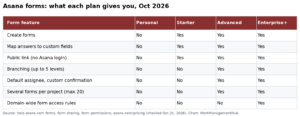
| Form submitted | Request intake, auto-populate assignee and due date |
| Task completed | Trigger downstream tasks, archive, notify stakeholders |
| Subtask completed | Move parent task when all subtasks are done |
Most Useful Actions
| Action | Common Use |
|---|---|
| Assign to a team member | Auto-route intake tasks to the right owner |
| Move to section | Progress through workflow stages automatically |
| Set due date | Apply SLA-based deadlines on submission |
| Create a subtask | Auto-generate QA or review checklist items |
| Add to another project | Cross-functional visibility (e.g., add to Exec Tracker) |
| Send Slack message | Notifications without leaving Asana |
| Send email notification | External stakeholder updates |
5 Real Automation Workflow Examples
1. Client Request Intake — Auto-assign and Route on Form Submission
Scenario: A marketing agency uses an Asana form for client change requests. Before automation, the project manager had to manually open each submission, assign it to the right designer, and set a 3-day turnaround deadline.
Rule setup:
- Trigger: Form submitted
- Condition: “Request Type” field = “Design Change”
- Actions: (1) Assign to [Design Lead], (2) Set due date to 3 days from today, (3) Move to “Design Queue” section
Result: Every design change request lands in the right section, owned by the right person, with a deadline — zero PM intervention required for standard requests.
2. Subtask Completion Gate — Move to Review Only When Ready
Scenario: A software team’s “Ready for QA” section was getting polluted with tasks that still had open subtasks. Developers were moving tasks manually before completing their checklist items.
Rule setup:
- Trigger: Last subtask is completed
- Condition: Parent task is in “In Progress” section
- Actions: (1) Move parent task to “Ready for QA” section, (2) Assign to QA Lead, (3) Send Slack message to #qa-team: “Task [task name] is ready for review”
Result: QA section only contains tasks with all prerequisites complete. QA team stops wasting time opening tasks that aren’t actually ready.
3. Overdue Escalation — Slack Alert When Task Passes Due Date
Scenario: A customer success team had tasks slipping past due dates silently. Managers only found out during weekly reviews — too late to course-correct.
Rule setup:
- Trigger: Due date passes (task not completed)
- Condition: Task is not in “Completed” or “Cancelled” section
- Actions: (1) Send Slack message to assigned person’s DM: “Your task [task name] is overdue — please update status or escalate,” (2) Add tag “Overdue” to task
Result: Overdue tasks surface in real-time. The “Overdue” tag also makes them easy to filter in Asana reports and dashboards.
4. SLA Deadline Auto-Set — Due Date Applied on Task Creation
Scenario: An IT help desk project receives support tickets via Asana forms. SLA requires P1 issues to be addressed within 4 hours, P2 within 1 business day. Setting due dates manually was inconsistent.
Rule setup (two separate rules):
Rule A — P1:
- Trigger: Task added to project
- Condition: “Priority” custom field = “P1”
- Actions: Set due date to today, move to “Critical” section, assign to On-Call Engineer
Rule B — P2:
- Trigger: Task added to project
- Condition: “Priority” custom field = “P2”
- Actions: Set due date to 1 day from today, move to “Standard Queue” section
Result: Every ticket gets an appropriate deadline the moment it’s created, regardless of who submitted it or when. SLA compliance improved measurably in the first sprint.
5. Cross-Project Visibility — Add High-Priority Tasks to Executive Tracker
Scenario: A product team manages execution in a detailed project with 200+ tasks. Leadership wants visibility into high-priority items only, in a separate “Exec Tracker” project, without the noise of the full project.
Rule setup:
- Trigger: Task field changed
- Condition: “Priority” field is set to “High”
- Action: Add task to “Exec Tracker” project (multi-home the task)
Result: Exec Tracker stays current automatically. Leadership sees only what they need. No one has to manually maintain two project views.
Plan Limits and What They Mean for Your Team
As of 2026, Asana’s rule limits by plan tier are:
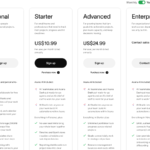
| Plan | Price (per user/month) | Rules per Project |
|---|---|---|
| Starter | $10.99 | 20 |
| Advanced | $24.99 | 25 |
| Enterprise | Custom | Unlimited |
In practice, the 20-rule limit on Starter is manageable for most teams — especially since each rule can stack multiple actions. A single well-constructed rule with three actions replaces what might otherwise be three separate rules in a simpler system.
Where teams run into limits is when they build overly granular rules — one per person, one per status value, etc. Before you hit the ceiling, audit your existing rules for consolidation opportunities. Can two rules that fire on the same trigger be merged into one with conditional branching? In many cases, yes.
If you’re on Starter and need more than 20 rules in a project, the pragmatic option isn’t always upgrading — it’s restructuring your project so that fewer, broader rules cover more cases through conditions.
Asana AI Agents in 2026
Asana’s AI Agents, rolled out broadly in 2025 and maturing through 2026 on Advanced and Enterprise plans, extend what automation can do beyond deterministic if-then rules.
Where traditional rules need an exact trigger-condition match, AI Agents can:
- Auto-triage incoming requests — Read the content of a submitted form or task description and route it to the right team based on intent, not just a field value.
- Execute multi-step workflows autonomously — Chain multiple rule-like actions together based on context, without you having to define every branch manually.
- Compile feedback and generate summaries — For example, collecting all comments on a completed milestone and drafting a status update.
AI Agents are not a replacement for well-structured manual rules — they’re an extension for edge cases and high-variability workflows where the input isn’t predictable enough for deterministic triggers. For standard SLA assignment, section routing, and notification rules, stick with traditional automation. Layer AI Agents on top for intake triage, stakeholder communications, and cross-functional summaries.
Best Practices Before You Scale
Teams that get automation wrong usually do one of three things: they build too many rules too fast, they skip conditions and create rules that fire on everything, or they don’t document what they built. Here’s how to avoid all three:
- Start with your top three daily repetitive actions — Before building anything, list the manual tasks your team does every day. What’s copied, reassigned, or status-updated by hand most often? Those are your first three rules. Build them, run them for a week, refine based on real behavior.
- Always add at least one condition — A trigger without a condition is a blunt instrument. Even something as simple as “Assignee is empty” or “Section is not Completed” prevents rules from firing on tasks where the action is already handled.
- Name rules with the format: [Trigger] → [Action] — Example: “Form Submitted → Assign to Design Lead.” When you have 15+ rules in a project, this naming convention makes auditing fast.
- Document rules in a pinned task or project brief — A short list of active rules with their purpose helps new team members understand the project’s logic and prevents duplicate rules being created later.
- Audit rules quarterly — Projects change. Sections get renamed, assignees change, workflows evolve. A rule targeting a section that no longer exists will silently fail. A quarterly check keeps your automation layer aligned with your actual workflow.
- Test in a sandbox project first — When building complex multi-action rules, duplicate your project (or create a test version), build the rule there, and validate behavior before applying it to live work.
Final Verdict
Asana automation rules are one of the highest-leverage investments a team lead can make in Asana. The setup time for a well-built rule is 5–10 minutes. The return — eliminating a repetitive manual action that happens 10–20 times a day — pays back immediately and compounds indefinitely. Start with intake routing and due-date automation. Add overdue escalations. Then use Asana’s cross-project multi-homing rules to keep leadership visibility effortless. On Starter, you have 20 rules — more than enough to transform how your team operates. On Advanced, you get AI Agents to handle the variable, judgment-heavy workflows that deterministic rules can’t cover. Either way, the ceiling on automation ROI is defined by how much manual work your team currently does — and for most teams, that number is substantial.