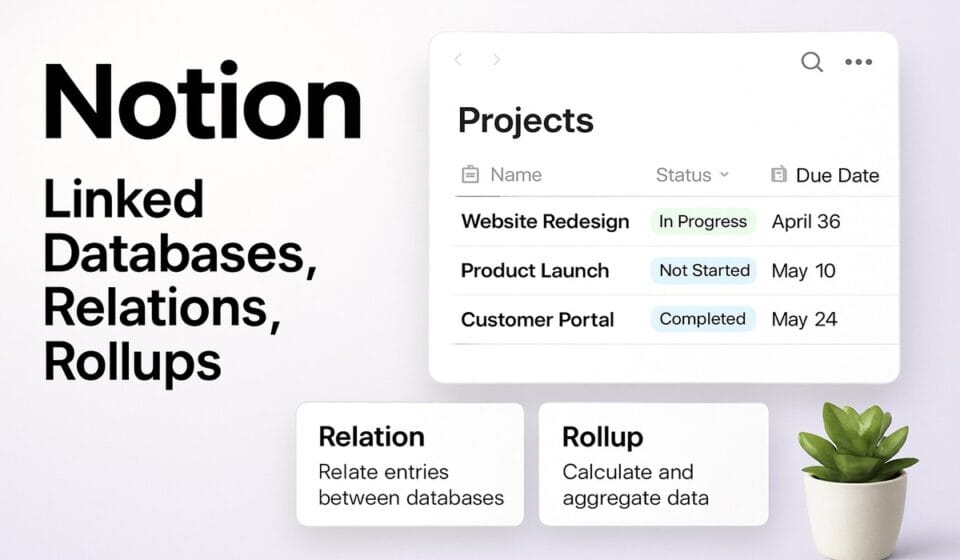
Notion Linked Databases 2026: The Complete Guide to Relations, Rollups and Cross-Database Connections

Picture this: You’re leading a team buried under a sea of scattered databases, desperate for a coherent system to unify tasks and insights. Notion’s linked databases promise salvation—but the devil is in the details that vendor glossaries often skim over. As someone who has wrestled firsthand with establishing these links, a key trade-off emerges: While relations and rollups unlock cohesive visual mapping of interrelated data, they demand a robust knowledge of Notion’s interface. This complexity often trips up new users, turning potential efficiency into a tangled mess. Beware, too, of the Free Plan’s harsh limitations on syncing and data capacity, which can stymie growth once initial enthusiasm spikes.
If your team requires seamless cross-database connections, stepping up to the Plus or Business Plans is vital. With these, you transition from being handcuffed by the Free Plan’s 100-row sync limit to harnessing up to 20,000-row databases—a scale necessary for true data integration. Yet, this leap comes at the cost of a meticulous setup and an annual fee that can sting, underscoring the importance of weighing immediate needs against budgetary constraints. It’s not about jumping into the deep end; it’s about building a diving board sturdy enough to support your team’s unique requirements.
Introduction to Notion Linked Databases
Navigating the landscape of Notion’s linked databases can be a game changer for teams looking to streamline their workflows. The essence of linked databases lies in their ability to consolidate and interconnect data across multiple tables, effectively breaking down silos. This is achieved through the use of relations and rollups—two powerful tools that allow you to reference and aggregate data from different databases efficiently.
If you’re on the Free Plan, note that you’re limited to one synced database with a maximum of 100 rows. This is suitable for individuals or very small teams testing the waters. However, serious team operations should consider the Plus Plan or higher to exploit the full potential of unlimited synced databases and robust data management capabilities—each supporting up to 20,000 rows. This is particularly crucial for scaling teams that rely on complex data interactions.
To set up a relation, you need to create a property linking one database to another. This step is straightforward but requires careful planning to ensure that your databases are interconnected in a meaningful way. Without this, relations can become tangled and counterproductive. For rollups, ensure that your relation is correctly configured, as rollups depend on these connections to pull and aggregate data accurately.
The real power of linked databases is in the detail—knowing how to set up and manage them effectively can significantly impact your team’s productivity. Be wary of common pitfalls such as incorrectly set relation properties or misconfigured rollups, which can lead to inaccurate data representation. Always double-check your setups and test for expected outcomes to ensure the integrity of your data interconnections.
Pricing and Plan Tiers Overview
| Plan | Cost (Annual/Monthly) | Key Features | Limitations |
|---|---|---|---|
| Free | $0/user | Unlimited pages & blocks, 7-day history | Limited team blocks, 5MB uploads |
| Plus | $10/$12 per user | Unlimited blocks & uploads, 30-day history | No SAML SSO, no private teamspaces |
| Business | $20/$24 per user | 90-day history, SAML SSO, private teamspaces | None listed |
| Enterprise | Custom pricing | Unlimited history, advanced security | Contact for pricing |
For small teams or individual users, the Free plan is an enticing option, but be aware of the limited block usage in team settings, which can quickly become a bottleneck. The Plus plan offers a solid middle ground with unlimited guest access and file uploads, making it ideal for growing teams that don’t require enterprise-level security. However, the lack of private teamspaces and SSO may deter larger organizations. The Business plan is where serious collaboration begins, providing advanced permissions and SSO, essential for larger teams needing secure and organized spaces. The Enterprise plan, with its bespoke pricing, is tailored for organizations that require dedicated support and compliance features. For official pricing details, see Notion’s pricing page.
Understanding Relations and Rollups
In Notion, relations and rollups are powerful mechanisms that transform how you structure data across multiple databases. By creating a relation, you enable items from one database to reference items in another, providing a dynamic way to connect information without redundancy. A typical application could be linking a “Projects” database to a “Tasks” database, ensuring that each task is directly associated with its relevant project.
For those who have struggled with conventional spreadsheet limitations, the flexibility here is invaluable. However, the slick UI can mask complexity if not managed carefully. A common pitfall is failing to ensure that both databases have the relation property correctly configured. Always double-check this setup if you encounter unexpected results.
Rollups build on relations by aggregating data from linked databases. For instance, you could sum task durations in the “Tasks” database to display project total hours in the “Projects” database. However, note that rollups depend fundamentally on correctly established relations. If your rollup isn’t functioning as expected, verify both the relation setup and the rollup configuration to pull the right property.
Here’s how to create these properties:
- Relation — Open your database, click “+ Add a property,” choose “Relation,” then select the target database to relate.
- Rollup — Ensure you have an existing relation property. Click “+ Add a property,” select “Rollup,” and configure it to pull from the desired field in the related database.
The absence of explicit limits on relations and rollups offers flexibility, but it’s crucial to monitor performance in large-scale databases. As you scale, keep an eye on load times and consider simplifying complex relations to maintain efficiency. For further guidance, official documentation provides detailed insights.
Cross-Database Connections: A Deep Dive
Notion’s cross-database connections, through relations and rollups, provide a robust framework for data aggregation and management across multiple databases. This feature is particularly beneficial for teams that need to track interconnected information, such as project management, CRM, and operations. While Notion offers this functionality without explicit limits per database on the number of relations or rollups, practical performance considerations suggest staying below 10,000 entities per database to maintain user experience fluidity.
A significant advantage of cross-database connections is the ability to maintain a single source of truth. For instance, linking a project database with a team database via relations allows for seamless updates across all related entries. However, be mindful of potential performance lags when databases grow large. From experience, I recommend testing performance at scale before full implementation.
To set up these connections, follow these steps:
- Database Page — Navigate to the primary database where you want the connection.
- + Add a property — Use this to select “Relation” and choose the target database.
- Set Up Rollups — If needed, add a “Rollup” property to summarize or aggregate data from the related entries.
Notion users often overlook the importance of configuring the relation properties in both databases properly. Ensure that your databases are structured to support the data flow you envision. A common pitfall is configuring relations only in one database, leading to incomplete data mapping.
For teams on the Free Plan, remember the limitation of one synced database with a maximum of 100 rows. This constraint can hinder the integration of extensive datasets, suggesting a potential upgrade for teams aiming to leverage cross-database connections fully. For more comprehensive setups, the Plus or Business Plans are more suited, providing the flexibility needed for scaling operations without hitting row limits. Always weigh these factors when deciding on the right plan for your team’s needs.
2026 Updates and New Features
Navigating Notion’s 2026 updates requires a strategic understanding of how these changes impact team collaboration and database management. The most significant development is the integration of Notion AI into Business and Enterprise plans as of May 2025. This move eliminates the previous AI add-on cost, streamlining access for users on these tiers. However, Free and Plus plan users are limited to 20 AI trial responses, which demands careful allocation — these responses should be reserved for high-impact tasks where AI can truly enhance productivity.
For those relying on synced databases, the Free Plan remains capped at one database with a 100-row limit, a critical consideration when planning project scopes or integrating external data sources. Teams exceeding these limits should consider upgrading to Plus or Business Plans, which support unlimited synced databases with up to 20,000 rows each. This expanded capacity is crucial for data-intensive operations and companies scaling their operations.
When implementing the new features, particularly the enhanced AI capabilities, ensure that team members are trained to maximize these tools. AI-driven suggestions can substantially speed up routine tasks, but their efficacy depends on user proficiency in configuring and interpreting AI outputs.
To leverage these updates effectively:
- Review Plan Requirements — Assess your team’s database and AI usage to determine if a plan upgrade is necessary.
- Train Users on AI Tools — Schedule training sessions to familiarize your team with AI functionalities and best practices for their use.
- Monitor Synced Database Limits — Regularly audit your database connections to ensure compliance with your plan’s constraints.
Stay informed about Notion’s roadmap and consider engaging with their dedicated success managers available for Enterprise users to tailor the platform’s capabilities to your business needs.
Step-by-Step Guide to Creating Relations and Rollups
Creating relations and rollups in Notion can transform how your team manages interconnected data. The power of these features lies in their ability to create a seamless flow of information across databases, yet setting them up requires precision. Here’s how to do it effectively:
- Open Target Database — Navigate to the database where you want to add a relation. This is your starting point for establishing connections with other data sets.
- Add Relation Property — Click on the + Add a property button. From the dropdown, select Relation. You’ll be prompted to choose the database you wish to link. This is where many users stumble, ensuring you select the correct database is crucial. Verify the database names to avoid linking errors. Learn more
- Establish Links — Once the relation property is created, manually link items between the databases. This step requires careful attention to detail, as improperly linked items can lead to data discrepancies later.
- Add Rollup Property — With a relation in place, add another property by clicking the + Add a property button. Choose Rollup this time. Configure the rollup to extract the desired data from the related database. Ensure the rollup calculation aligns with your data analysis needs.
- Configure Rollup Settings — Dive into the rollup settings to specify the property you want to aggregate. This includes setting up calculations like sum, count, or average. Incorrect configurations here are the most common reason for unexpected rollup results.
Remember, while the number of relations and rollups is technically unlimited, practical performance considerations and data clarity should guide your strategy. Too many interconnected databases can lead to clutter and confusion, particularly on the Free Plan, where database syncing is limited. For teams needing extensive data linking, the Plus or Business Plans offer more flexibility with unlimited synced databases and larger row capacities, justifying the cost in efficiency gains.
Common Issues and Solutions
When working with Notion’s linked databases, two frequently encountered issues are incorrect relation displays and miscalculating rollups. These problems can disrupt workflow efficiency and data accuracy, particularly in complex setups.
Relation Not Displaying Correctly: This issue typically arises when the relation property doesn’t show the expected linked items. The root cause often lies in an improperly configured relation setup or missing links between databases. To resolve:
- Verify Relation Setup — Ensure both databases involved have the relation property correctly established.
- Check for Missing Links — Confirm that each item in the primary database is linked to the corresponding items in the related database.
More details can be found in the official documentation.
Rollup Not Calculating as Expected: Users often face this issue when the rollup property fails to display the correct aggregated data. This is usually due to incorrect configuration of the relation or rollup properties. Here’s how to address it:
- Ensure Proper Relation — Double-check that the relation property is accurately set up between the databases.
- Configure Rollup Settings — Verify that the rollup is correctly pulling the intended property from the related database.
Avoid these issues by regularly reviewing your database configurations, particularly after any structural changes. For teams on the Free Plan, remember that syncing is limited to one database and 100 rows, which could impact larger data operations. For extensive usage, consider upgrading to the Plus or Business Plan to accommodate unlimited synced databases and rows, allowing for more robust data connections.
Expert Tips for Maximizing Linking Capabilities
To truly maximize Notion’s linking capabilities, understanding both the power and the pitfalls is essential. While Notion’s Relations and Rollups offer flexibility, they require thoughtful structuring to avoid future headaches.
First, clearly define your database architecture. Over-reliance on relations can lead to complex web-like structures that are difficult to manage. Instead, aim for simplicity: use relations only when data needs to be directly connected across projects or departments. The absence of explicit limits on relations and rollups is tempting, but restraint is crucial to maintain clarity and performance.
For large-scale operations, leverage the Plus or Business plans to benefit from unlimited synced databases. However, remember the row limit: 20,000 per database. If your data volume is approaching this, consider breaking your database into smaller, thematic units to ensure optimal performance without hitting these caps.
When setting up relations, ensure both databases are fully updated with the correct properties. A common misstep is missing or incorrectly configured relation properties, which can cause display errors. Follow the UI path meticulously:
- Database — Open the database where you want to add the relation.
- + Add a property — Click this button.
- Relation — Select this from the property types.
Rollups require an existing relation, so plan accordingly. If you notice incorrect aggregations, double-check that the rollup is pulling from the correct related database property.
Finally, regularly review and prune your database structures. As teams and projects evolve, so should your data architecture. This proactive approach prevents bloated systems and maintains efficiency. For more detailed guidance, refer to the official Notion documentation here.
Future Trends in Notion Database Linking
The landscape of Notion’s database linking is ripe for innovation and refinement. A key trend to watch is the evolution of AI-assisted functionality within linked databases. With Notion AI bundled into Business and Enterprise plans since May 2025, expect a significant boost in automated data handling. This integration will likely enhance how rollups and relations are managed by predicting and suggesting links based on historical data patterns, reducing manual setup time.
Another anticipated development is the expansion of cross-database operations. As organizations seek deeper insights, there will be increased demand for more complex, multi-layered database interactions. This might drive Notion to introduce advanced querying capabilities, potentially resembling SQL-like operations, allowing users to perform more sophisticated data manipulations across linked databases without resorting to external tools.
Scalability is also on the horizon. Currently, the Plus and Business plans support up to 20,000 rows per synced database. However, as enterprise needs grow, Notion may extend these limits or introduce tiered scaling options to accommodate larger datasets, especially for data-heavy industries like research and finance.
From a user interface perspective, expect improvements in visualizing linked data. Providing users with more intuitive dashboards to track relationships and data flows across databases could be a game-changer. Enhanced visualization tools would make it easier to manage complex data architectures and extract actionable insights quickly.
For those leveraging Notion’s linking capabilities, staying informed about these trends is crucial. As features are rolled out, regularly review your database structures to integrate new functionalities seamlessly. Adopt a proactive approach by participating in beta programs, providing feedback, and staying engaged with Notion’s updates to maximize the platform’s potential.
Frequently Asked Questions
How do I create a relation between two databases in Notion?
To create a relation, open one database, click on the “+” icon to add a property, select “Relation” from the list, and choose the target database. This links entries across databases, allowing for dynamic connections and data visibility.
What are the limitations of rollups in Notion?
Rollups aggregate data from related databases without an explicit limit on the number used per database. However, performance may degrade with complex nested rollups or when dealing with large datasets, so monitor and optimize as needed.
How can I manage synced databases effectively on the Free Plan?
With the Free Plan, you’re limited to one synced database with up to 100 rows. Prioritize critical data and consider summarizing or archiving less crucial information to stay within these limits while maintaining efficiency.
Why is my Notion AI not working on the Plus Plan?
As of May 2025, Notion AI is included only in the Business and Enterprise plans. Free and Plus users have a limited trial of 20 AI responses. Consider upgrading if AI features are essential for your workflow.
How do I enable advanced permissions in Notion?
Advanced permissions are available on the Business Plan. Navigate to Settings & Members, select “Permissions,” and configure the access levels for each user or team to control data visibility and editing rights effectively.