How to Set Up Asana Timesheets and Budgets in 2026: Complete Add-On Setup Guide
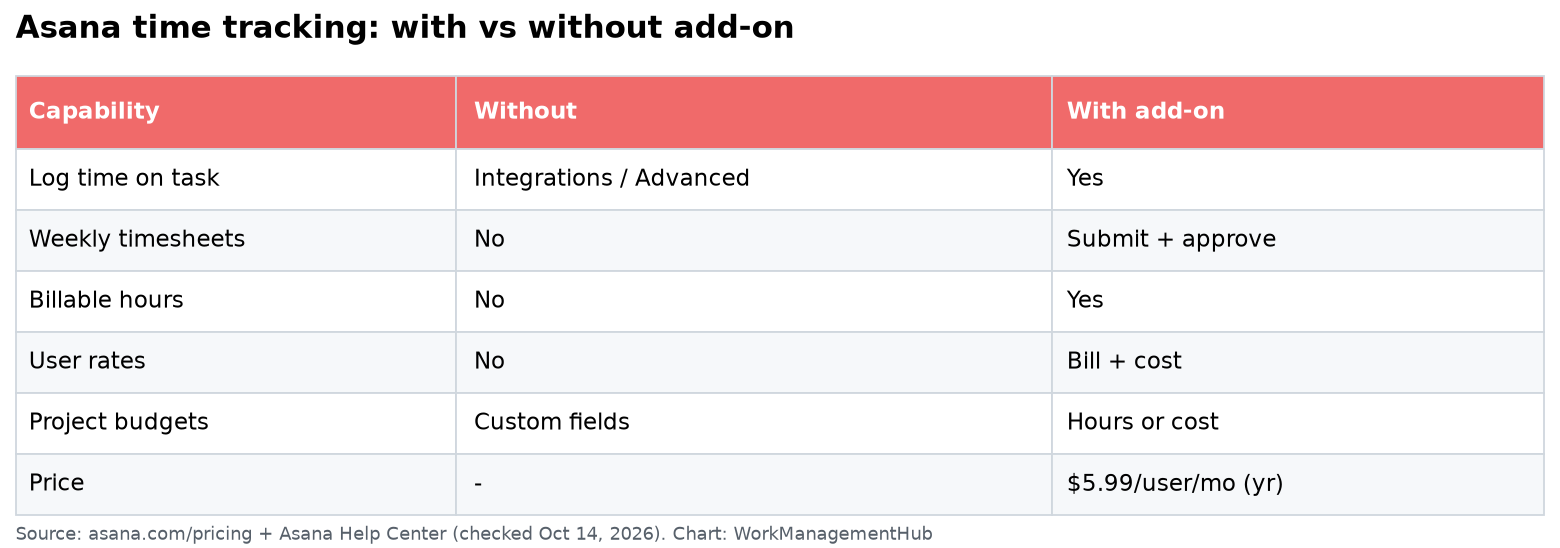
- Asana Timesheets and Budgets is a native add-on available to all Asana customers with a 14-day self-serve free trial — no sales call required as of Spring 2026.
- Purchasing the add-on alone is not enough — admins must manually assign individual licenses in the Admin Console before team members can log any time.
- The add-on supports billable vs. non-billable rate tiers per user, project-level budget currency selection, and a built-in timesheet approval workflow with designated Time Reviewers.
- Spring 2026 introduced AI-powered cost and time recommendations that flag projects trending over budget before deadlines are missed.
- This guide covers every step from trial activation through timesheet approval — including the Admin Console license step that most guides skip entirely.
To set up Asana Timesheets and Budgets, start a 14-day free trial from your Admin Console, then assign user licenses under Members → Licenses → Add-Ons. Without that license step, no one can log time. Once assigned, configure rate tiers, set project budgets, and designate Time Reviewers to activate the approval workflow.
- What Is the Asana Timesheets and Budgets Add-On?
- How to Start the 14-Day Free Trial
- The Critical Step Most Guides Miss: Assigning Licenses
- Configuring Billable and Non-Billable Rate Tiers
- Setting Up Project-Level Budgets
- Enabling the Timesheet Approval Workflow
- How Team Members Log Time
- Using AI-Powered Cost and Time Recommendations (Spring 2026)
- Pro Tips and Common Gotchas
- Verdict
- Frequently Asked Questions
How to Set Up Asana Timesheets and Budgets in 2026: Complete Add-On Setup Guide
If your team is still patching together Harvest exports, Toggl integrations, and manual spreadsheet formulas to track project spend inside Asana, you are solving a problem that Asana already solved natively. The native Asana Timesheets and Budgets add-on brings time tracking, rate management, and budget monitoring directly into the platform your team uses every day. The Timesheets & Budgets add-on — released to general availability and self-serve trial in Spring 2026 — puts time tracking, rate management, budget monitoring, and approval workflows directly inside the platform your team is already using every day.
The catch? Most published guides are still writing about third-party integration workarounds. The few that do cover the native add-on skip the single step that causes the most support tickets: the Admin Console license assignment. You can purchase the add-on, activate the trial, and still have every team member locked out of time logging — because Asana does not auto-provision licenses on purchase. This guide covers every step, in the right order, so your setup actually works the first time.
What Is the Asana Timesheets and Budgets Add-On?
Asana Timesheets & Budgets is a paid add-on that layers time tracking and financial management directly onto Asana tasks and projects — no third-party tool, no webhook plumbing, no separate login. Unlike the legacy Harvest or Toggl integrations (which sync data across systems after the fact), this add-on stores time entries natively in Asana, so every logged hour is tied to the exact task, project, and portfolio it belongs to.
The core feature set as of Spring 2026 includes:
- Native time logging on individual tasks with a timer or manual entry
- Billable vs. non-billable rate tiers configured per user
- Project-level budget tracking with currency selection per project
- Timesheet approval workflow with designated Time Reviewers
- AI-powered cost and time recommendations flagging budget overruns before they happen
- Budget reporting surfaced directly inside Asana Portfolios
This is the tool organizations have been requesting as a native Asana capability for years. It integrates naturally with Asana Portfolio Management, giving leadership a real-time view of budget health across all active projects without requiring a separate finance dashboard.
Availability: the add-on is available to all paid Asana plans (Starter, Advanced, Enterprise, and Enterprise+). As of Spring 2026, any admin can activate a 14-day self-serve free trial directly from the Admin Console — no sales call, no procurement process required.
How to Start the 14-Day Free Trial
The self-serve trial is one of the most significant changes in the Spring 2026 release. Previously, accessing the add-on required contacting Asana sales. Now any organization admin can activate it in under two minutes.
- Admin Console — Navigate to your Asana workspace, click your profile photo in the top-right corner, and select Admin Console from the dropdown menu.
- Billing tab — In the left sidebar of the Admin Console, click Billing. This displays your current plan and all available add-ons.
- Add-Ons section — Scroll down to the Add-Ons section on the Billing page. You will see the Timesheets & Budgets add-on listed with a Start Free Trial button.
- Start Free Trial button — Click Start Free Trial. Asana will activate the 14-day trial for your organization immediately. No payment method is required to begin the trial.
- Confirmation screen — You will see a confirmation screen noting the trial end date and prompting you to assign licenses. Do not skip this next step — see Section 3 immediately.
The trial gives you full access to all Timesheets & Budgets features for 14 days. At the end of the trial, you can convert to a paid subscription or let it expire. No data is lost if you convert after the trial ends, as long as you convert before the grace period closes.
The Critical Step Most Guides Miss: Assigning Licenses
This is the section that determines whether your setup actually works. Activating the trial or purchasing the add-on does not grant time-logging access to any team member automatically. Each user who needs to log time must be individually assigned a license by an admin. Until that license is assigned, the time-logging UI simply does not appear in that user’s Asana interface.
This is the most common reason teams report “the add-on isn’t working” immediately after purchase. The add-on is working — the licenses just haven’t been assigned yet.
Here is how to assign licenses:
- Admin Console → Members — From the Admin Console left sidebar, click Members to open the full member directory for your organization.
- Select a member — Click on the name of the team member you want to grant time-logging access to. This opens their individual member profile.
- Licenses tab — On the member profile page, click the Licenses tab. You will see your current Asana plan license and a section for Add-On licenses.
- Add-Ons section → Timesheets & Budgets toggle — Find the Timesheets & Budgets entry and toggle it to Enabled. The change takes effect immediately — no page reload required.
- Repeat for each user — Return to the Members list and repeat this process for every team member who will log time. There is no bulk-assign option in the current release; each license must be assigned individually.
For organizations with large teams, plan for 15–20 minutes of admin time to complete license assignments before announcing the rollout to your team. Attempting to use Asana Automation Rules to auto-assign licenses is not currently supported — license management is admin-only and must be done manually in the Admin Console.
According to Asana’s official Timesheets & Budgets documentation, only users with an assigned add-on license will see the time-tracking interface on tasks. This is a deliberate cost-control feature — organizations pay per licensed user, not per workspace seat.
Configuring Billable and Non-Billable Rate Tiers
Rate configuration is where Timesheets & Budgets starts to deliver real financial intelligence. Rather than tracking hours as uniform units, the add-on allows you to assign different hourly rates to different users — and to distinguish billable hours from non-billable hours at the point of time entry. This is essential for any organization that invoices clients, tracks utilization, or monitors blended project costs.
Rate tiers are configured at the user level, not the project level. This means a senior consultant’s rate reflects correctly across every project they work on, without manual adjustments per project.
- Admin Console → Members → select user — Navigate to the member profile for the user whose rate you want to set.
- Time & Billing tab — On the member profile, click the Time & Billing tab (distinct from the Licenses tab you used earlier).
- Billable Rate field — Enter the user’s billable hourly rate in the Billable Rate field. Select the currency from the dropdown (currency options match those available for project budgets).
- Non-Billable Rate field — Enter a separate non-billable rate if applicable. Many organizations set this to $0 to distinguish internal time from client-billable time clearly.
- Save Changes button — Click Save Changes. The new rates apply to all future time entries by this user. Historical time entries already logged are not retroactively recalculated.
Team members can designate each individual time entry as billable or non-billable when logging time. The system defaults to billable — if your team logs significant internal or overhead time, train them to switch this default at the point of entry rather than relying on corrections after the fact.
Setting Up Project-Level Budgets
Project budgets are the financial backbone of the add-on. Once a budget is set, Asana tracks actual time-based costs against it in real time and — as of Spring 2026 — uses AI to forecast whether you will exceed it before the project deadline. Setting budgets correctly upfront is what makes those forecasts meaningful.
- Open the project — Navigate to the Asana project you want to budget. This must be a project owned by your organization, not a guest-view project.
- Project Settings (gear icon) — Click the gear icon in the top-right of the project view to open Project Settings.
- Budget tab — In Project Settings, click the Budget tab. This tab is only visible if the Timesheets & Budgets add-on is active and you have an assigned license.
- Budget Amount field — Enter the total project budget in the Budget Amount field.
- Currency dropdown — Select the budget currency from the dropdown. Asana supports major global currencies. Note that this currency selection is per-project — different projects can carry different currencies, which matters for multi-region teams.
- Budget Period — Set the budget period (project lifetime, monthly, or quarterly). For most fixed-scope projects, select Project Lifetime.
- Save button — Click Save. The budget is now active. You will see a budget utilization bar appear in the project header.
For portfolios, budget data from individual projects rolls up automatically into the Portfolio view. This pairs directly with the portfolio management features in Asana to give program managers a consolidated financial status view across all active engagements.
Enabling the Timesheet Approval Workflow
The built-in approval workflow is one of the most operationally significant features in the add-on — and the one most organizations skip during initial setup, then scramble to configure later when they realize unapproved time entries are inflating project costs. Set this up before your team starts logging time.
The workflow works as follows: team members submit their timesheets for a given period, a designated Time Reviewer reviews and approves or rejects the entries, and approved time is locked from further editing. This creates an auditable record that finance teams can rely on for invoicing and reporting.
- Admin Console → Settings → Time Tracking — From the Admin Console, navigate to Settings in the left sidebar, then click Time Tracking.
- Enable Timesheet Approval toggle — Toggle Timesheet Approval to On. This activates the approval workflow organization-wide.
- Approval Period setting — Select the approval period (weekly is the standard for most teams). This determines how often team members are prompted to submit their timesheets.
- Designate Time Reviewers — Project Settings → Budget tab — Return to each project’s Settings → Budget tab. You will now see a Time Reviewers field. Add the relevant reviewer(s) for that project. Time Reviewers are typically project managers or finance leads.
- Notify team members — Once Time Reviewers are assigned, notify team members that time submissions are now required. Asana will send automated reminders at the close of each approval period, but a heads-up from leadership improves first-cycle compliance significantly.
Time Reviewers receive an in-app notification and email when a team member submits their timesheet. Reviewers can approve, reject with a note, or request corrections before approval. Approved entries are locked and reflected in project budget calculations.
How Team Members Log Time
Once licenses are assigned and budgets are configured, time logging is straightforward. Here is what the experience looks like for a licensed team member:
- Open any task — Click on a task to open its detail panel. Licensed users will see a Log Time button in the task detail panel that unlicensed users do not see.
- Log Time button — Click Log Time. A time entry panel opens with fields for date, hours, minutes, billable/non-billable toggle, and an optional description.
- Enter time manually or use the timer — Type hours and minutes directly, or click the timer icon to start a running timer. The timer continues even if the user navigates away from the task.
- Billable toggle — Set the entry to Billable or Non-Billable. This defaults to Billable — ensure your team knows to switch it for internal tasks.
- Save button — Click Save. The entry is recorded immediately and reflected in project budget calculations in real time.
- Submit timesheet (weekly) — At the end of the approval period, team members navigate to their My Timesheets view (accessible from the left sidebar under their profile) and click Submit for Approval.
The My Timesheets view gives each team member a calendar-style overview of their logged hours for the current and past periods, broken down by project and task. This is also where they can see the status of submitted timesheets (pending, approved, rejected).
This native logging workflow is considerably smoother than toggling between Asana and a third-party time tracker. For teams that previously used the Harvest integration, the key difference is that time is now logged in context — directly on the task — rather than in a separate tool that references task names.
How Asana Timesheets and Budgets Uses AI-Powered Cost Recommendations (Spring 2026)
The most forward-looking capability in the Spring 2026 release is AI-powered budget forecasting. This is not a cosmetic feature — it is the difference between knowing a project went over budget after invoicing and catching the overrun with enough runway to act on it.
The AI analyzes logged time to date, the rate at which time is being consumed relative to task completion, and the remaining scope in the project plan. It then surfaces a recommendation directly in the project view: either a confirmation that the project is on track, or a flag indicating that the current trajectory will exceed the budget before the deadline.
Here is how to surface and act on AI recommendations:
- Project view → Budget tab (header) — Open any project that has a budget set and at least a few time entries logged. In the project header, click the Budget tab to open the budget panel.
- AI Insights section — The budget panel includes an AI Insights section at the top. If the AI has detected a risk, it will display a flag with a plain-language explanation — for example, “At the current pace, this project is projected to exceed its budget by $4,200 before the deadline.”
- View Recommendation detail — Click View Details on the flag to see a breakdown of which task areas are consuming the most hours relative to their estimated scope.
- Take action — Based on the AI’s breakdown, adjust task assignments, renegotiate scope, or update the budget before the overrun occurs. The AI does not take any action autonomously — it surfaces the signal; the decision belongs to the project manager.
The AI recommendations update each time new time entries are logged, so the signal stays current throughout the project lifecycle. This capability pairs well with the broader AI features in Asana, which include AI Teammates for task creation and workload management. For teams already leaning into AI-assisted project management, this integration reinforces the value of keeping all project data inside a single platform.
For more context on how Asana’s AI layer handles workload and capacity, see our guide to Asana workload management.
Pro Tips and Common Gotchas
After walking dozens of teams through this setup, the following issues come up consistently enough to be worth calling out explicitly.
Gotcha 1: The License Assignment Gap
Already covered in detail above, but worth repeating: buying the add-on does not assign licenses. Plan admin time for manual license assignment before announcing the rollout. For organizations with 50+ users, block an hour and work through the Members list systematically.
Gotcha 2: Currency Mismatch Between User Rates and Project Budgets
If a user’s billable rate is set in USD and the project budget is set in EUR, Asana does not auto-convert. The system will display a currency mismatch warning in the budget panel. Resolve this by standardizing on a single currency across your organization before configuring rates and budgets, or by setting user rates in the same currency as the projects they are primarily assigned to.
Gotcha 3: Time Reviewers Must Be Licensed Users
Time Reviewers must hold an active Timesheets & Budgets license to access the approval workflow. This is easy to overlook if your project manager does not actively log time themselves — they still need a license to review and approve the time entries of others.
Gotcha 4: Historical Time Entries Are Not Retroactively Calculated
If you change a user’s billable rate after they have already logged time, the new rate applies only to future entries. Past entries retain the rate that was in place when they were logged. This is correct behavior from an audit standpoint, but it surprises teams that configure rates after going live.
Tip: Use Portfolios to Monitor Budget Health Across Projects
The most powerful view in the add-on is not the individual project budget panel — it is the Portfolio view with budget columns enabled. Add the Budget Used and Budget Remaining columns to your Portfolio to get a one-screen financial health dashboard for every active project. For teams managing five or more concurrent projects, this view alone justifies the add-on cost.
Tip: Integrate with Asana Automation for Timesheet Reminders
While license assignment cannot be automated, you can use Asana Automation Rules to send reminder tasks or messages to team members approaching the end of the timesheet submission window. A rule triggered on “5 days before period end” assigned to your team’s check-in task keeps submission rates high without manager nagging.
For teams evaluating whether Asana’s native toolset covers their entire project management workflow, our Asana vs. Monday.com comparison covers how both platforms handle time tracking and budget management side by side. Also see Asana’s official Help Center for the most current documentation on rate configuration and approval workflows.
The Asana Timesheets & Budgets add-on is the most significant operational improvement Asana has shipped for services and consulting teams in several years. The native time logging, billable/non-billable rate tiers, approval workflow, and AI budget forecasting replace a stack of third-party integrations with a single, coherent system. The 14-day self-serve trial removes all friction from evaluation. The one non-negotiable prerequisite — manual license assignment in the Admin Console — is easy to execute once you know it exists, and it is the step that separates teams who have a smooth rollout from those who spend a week wondering why the feature is not showing up. Follow the setup sequence in this guide in order, assign licenses before announcing the rollout, and this add-on will pay for itself in the first month of client invoicing.
Frequently Asked Questions
Does the Asana Timesheets & Budgets add-on require a specific Asana plan?
The add-on is available to all paid Asana plans including Starter, Advanced, Enterprise, and Enterprise+. It is not available on the free Asana tier. As of Spring 2026, any organization admin on a paid plan can activate the 14-day self-serve free trial directly from the Admin Console without contacting sales.
Can team members start logging time immediately after the trial is activated?
No. Activating the trial makes the add-on available to the organization, but individual team members cannot log time until an admin assigns them a license in the Admin Console under Members → Licenses → Add-Ons. This is the most commonly missed step in the setup process. Until a license is assigned, the time-logging UI does not appear in that team member’s Asana interface at all.
What happens to logged time data if we do not convert to a paid subscription after the trial?
If the trial expires without conversion, time entries already logged are retained in Asana’s database but become inaccessible through the Timesheets & Budgets interface. If you convert to a paid subscription after the trial (within the grace period), full access to historical time entries is restored. Asana recommends exporting any critical time data before the trial ends as a precaution, using the export function in the Timesheets view.
Can multiple people be designated as Time Reviewers on a single project?
Yes. The Time Reviewers field in Project Settings → Budget tab accepts multiple users. Any designated Time Reviewer can approve or reject submitted timesheets for that project. This is useful for projects with multiple work streams where different managers oversee different team members. All reviewers receive notifications when a team member submits their timesheet.
How does the AI cost and time recommendation feature know when a project is trending over budget?
The AI analyzes the ratio of hours logged to tasks completed, compares the current burn rate against the remaining task scope and project deadline, and projects forward to estimate total hours and cost at completion. It does not require any additional data input beyond the time entries your team is already logging and the budget you have set on the project. Recommendations update in real time as new time entries are saved, and they surface automatically in the project’s Budget panel without requiring any manual report generation.