Skip to content
Work Management Hub Work Management Hub

Expert Reviews, Comparisons & Guides for Smartsheet, Monday.com, Asana, ClickUp & More

Work Management Hub Work Management Hub

Expert Reviews, Comparisons & Guides for Smartsheet, Monday.com, Asana, ClickUp & More

  • Airtable
  • Asana
  • ClickUp
  • Jira
  • Monday.com
  • Notion
  • Smartsheet
  • Wrike
  • About
  • Contact
  • Airtable
  • Asana
  • ClickUp
  • Jira
  • Monday.com
  • Notion
  • Smartsheet
  • Wrike
  • About
  • Contact
Close

Search

How-To GuidesMonday.com

Monday.com Formula Column Guide 2026: Functions, Syntax & Automation Workarounds

By Khasim
July 4, 2026 11 Min Read
0
⚡ Key Takeaways

  • The monday.com formula column calculates values from other columns using Excel-style functions, with a builder that color-codes functions, columns, and errors as you type.
  • Functions nest freely — IF, ROUND, WORKDAYS, ADD_DAYS, and TEXT combine into budget trackers, deadline monitors, and status logic without leaving the board.
  • The biggest gotcha: formula output is read-only and invisible to automations, email actions, most dashboard widgets, and cross-board mirroring.
  • The reliable fix is copying formula results into a real Numbers or Text column via a workflow — we walk through the exact setup below.
  • Formula columns require a Pro or Enterprise plan; Basic and Standard teams need a plan upgrade or a different tool for calculated fields.
Quick Answer:

A monday.com formula column calculates values from other columns on the same item using Excel-style functions like IF, SUM, and WORKDAYS. You add it from the + column menu, reference columns in curly braces (e.g., {Budget}-{Cost}), and the result updates automatically. Output is read-only and can’t trigger automations without a copy-to-column workaround.

Table of Contents

  1. What the Formula Column Actually Does (and Who Gets It)
  2. How to Add a Monday.com Formula Column Step by Step
  3. Syntax Rules and the Formula Builder Interface
  4. The Functions You’ll Actually Use: Reference Table
  5. Nesting Functions: Three Formulas Worth Stealing
  6. Monday.com Formula Column Limitations Nobody Warns You About
  7. The Copy-to-Real-Column Workaround, Step by Step
  8. When Formulas Aren’t the Answer
  9. Frequently Asked Questions

What the Formula Column Actually Does (and Who Gets It)

If your team exports monday.com boards to Excel just to calculate margin, days remaining, or budget variance, you’re burning hours on work the platform can do natively. The monday.com formula column turns any board into a lightweight spreadsheet: it reads values from other columns on the same item, runs them through Excel-style functions, and displays the result in real time. Change the input, and the output recalculates instantly — no refresh, no re-export, no stale numbers in a Friday report.

First, the plan gate, because it catches teams off guard: the formula column is a Pro and Enterprise feature. If you’re on Basic or Standard, the column type simply won’t appear in your column center. For a five-person team, the jump from Standard to Pro is real money, so weigh whether calculated fields alone justify it — if they don’t, tools covered in our Airtable vs Google Sheets 2026 comparison ship formula fields on cheaper tiers.

What the formula column is genuinely good at: per-item math (cost × quantity), conditional labels (“Over Budget” vs “Under Budget”), date arithmetic (working days until deadline), and text manipulation (concatenating fields into a clean reference code). What it’s structurally bad at — automations, dashboards, mirroring — we cover in depth later, because that’s the part monday.com’s official documentation glosses over, and it’s where most teams get burned.

How to Add a Monday.com Formula Column Step by Step

The whole setup takes under two minutes once you know where things live. Here’s the exact path on a Pro or Enterprise account:

  1. Open your board and click the + icon — it sits at the far right of your column headers, after the last existing column.
  2. Select “More columns” — the quick-add menu shows only common types; the formula column lives in the full Column Center that opens from this option.
  3. Search “Formula” and click “Add to board” — type “formula” in the Column Center search bar, hover the Formula card, and confirm. A new column appears on your board.
  4. Click any cell in the new column — this opens the formula builder panel where you’ll write your first formula.
  5. Click “Columns & labels” in the builder sidebar — this browsable list shows every referenceable column on your board. Clicking one inserts it wrapped in curly braces, e.g. {Budget}, so you never have to guess column names.
  6. Click “Functions & constants” to browse available functions — the sidebar lists every function (IF, SUM, ROUND, WORKDAYS, and dozens more) with syntax hints. Click to insert, then fill in the arguments.
  7. Type your formula and watch the syntax highlighting — functions, column references, and punctuation are color-coded as you type. If anything turns red, you have a syntax error — usually a missing parenthesis, a misspelled column name, or an unclosed quote.
  8. Press “Set formula” (or the confirm button) to apply — the formula runs against every item on the board immediately, and every new item inherits it automatically.

Two habits that pay off from day one: rename the column to describe the output (call it “Days to Deadline,” not “Formula”), and always insert column references from the “Columns & labels” list rather than typing them — a typo inside curly braces is the single most common cause of the dreaded red error state.

Syntax Rules and the Formula Builder Interface

If you can write an Excel formula, you’re 90% of the way there. The core rules:

  • Column references use curly braces: {Cost}, {Due Date}, {Status}. The reference must match the column name exactly, including spaces.
  • Text strings use double quotes: "Over Budget", not single quotes.
  • Standard operators work as expected: + - * / for math, > < = >= <= for comparisons inside logical functions.
  • Functions take comma-separated arguments in parentheses: ROUND({Cost}/{Budget}*100, 2).
  • Formulas only see the current item’s row. There is no cross-item reference — you cannot pull item 4’s value into item 7’s formula. For column totals, use the built-in column summary footer instead.

The builder itself is more forgiving than a blank Excel cell. Syntax highlighting color-codes functions, column tokens, and punctuation separately, so a formula that “reads wrong” visually usually is wrong. Red text means the parser rejected something — fix it before saving, because a broken formula displays an error state on every item, which is a fantastic way to get Slack messages from confused teammates. The two sidebar lists (“Functions & constants” and “Columns & labels”) mean you rarely need external documentation open, though monday.com’s formula use cases library is worth bookmarking for copy-paste starting points.

One behavior worth internalizing: status and dropdown columns resolve to their label text in formulas. So IF({Status}="Done", "Complete", "In Progress") compares against the exact label string, and renaming a status label silently breaks every formula referencing the old name. Document your label-dependent formulas somewhere your board admins will actually see.

The Functions You’ll Actually Use: Reference Table

Monday.com ships well over a hundred functions, but in five years of building client boards, roughly ten do 95% of the work. Here they are with syntax you can paste directly:

FunctionWhat It DoesExample
IFConditional logic — the backbone of almost everythingIF({Budget}>{Cost}, "Under", "Over")
ROUNDRounds a number to N decimal placesROUND({Cost}/{Budget}*100, 2)
SUMAdds values from multiple columns on the same itemSUM({Labor}, {Materials}, {Fees})
WORKDAYSWorking days between two dates (skips weekends)WORKDAYS({Deadline}, {Start Date})
ADD_DAYSAdds N days to a dateADD_DAYS({Start Date}, 14)
SUBTRACT_DAYSSubtracts N days from a date (great for reminder dates)SUBTRACT_DAYS({Deadline}, 3)
TODAYReturns the current date for live countdownsDAYS({Deadline}, TODAY())
CONCATENATEJoins text and column values into one stringCONCATENATE({Client}, " — ", {Project ID})
AND / ORCombine multiple conditions inside IFIF(AND({Cost}>0, {Status}="Done"), "Bill it", "Wait")
TEXTFormats numbers as currency, percentages, etc.TEXT({Revenue}, "$#,##0.00")

Nesting Functions: Three Formulas Worth Stealing

The real power arrives when you nest one function inside another. Any function’s argument can itself be a function, exactly like Excel. Three patterns I deploy on almost every client board:

1. Budget health with a live percentage. This shows “Under Budget” when you’re safe, and the exact burn percentage when you’re not:

IF({Budget}>{Cost}, "Under Budget", ROUND({Cost}/{Budget}*100, 2))

The ROUND nested inside the IF means over-budget items display a clean two-decimal figure like 112.5 instead of a fifteen-digit float. Program managers can scan a 200-item board and spot trouble in seconds.

2. Deadline traffic light. Nested IFs create a three-state warning based on working days remaining:

IF(WORKDAYS({Deadline}, TODAY())<0, "⛔ OVERDUE", IF(WORKDAYS({Deadline}, TODAY())<=3, "⚠️ Due Soon", "✅ On Track"))

Because WORKDAYS ignores weekends, “3 days left” on a Friday means Wednesday, not Monday — which is how humans actually think about deadlines.

3. Auto-calculated review date. SUBTRACT_DAYS({Launch Date}, 5) gives every item a review date five days before launch, and ADD_DAYS({Kickoff}, 30) projects a milestone thirty days out. Pair these with the workaround in the next two sections and you can drive reminder automations from calculated dates — something the formula column can’t do on its own.

Practical nesting limit: around three levels deep, formulas become unmaintainable by anyone but their author. If you’re nesting five IFs to replicate a lookup table, that’s a signal you’ve outgrown the feature — more on that below.

Monday.com Formula Column Limitations Nobody Warns You About

Here’s the section the official docs won’t give you. The monday.com formula column produces output that is read-only and computed at display time — and that single architectural decision creates a cascade of limitations that surface weeks after you’ve built your board around it:

  • Automations can’t see formula columns. You cannot build “When formula column changes to Over Budget, notify the PM.” The formula column simply doesn’t appear in automation trigger or condition pickers. Every recipe in our Monday.com automations guide that keys off a value needs that value in a real column.
  • Email and notification actions can’t insert formula values. Dynamic fields in email automations pull from standard columns only — your beautifully formatted TEXT({Revenue}, "$#,##0.00") can’t be dropped into a client-facing email.
  • Charts and dashboard widgets largely ignore them. Try to build a chart widget grouped by your formula output and you’ll find it missing from the column picker. If your reporting layer depends on calculated values — and per our Monday.com dashboards setup guide, it usually should — formulas alone won’t feed it.
  • Cross-board mirroring doesn’t carry formula results. Mirror a formula column to a high-level portfolio board and you get nothing usable. Multi-board reporting structures need real columns at every hop.
  • You can’t type into it. Read-only means no manual overrides. If one item needs an exception value, tough — restructure or add an override column and handle it in the formula logic.

None of this makes the feature bad. It makes it a display layer. The moment a calculated value needs to trigger, notify, chart, or mirror, you need the workaround below — and honestly, monday.com should put this in the first paragraph of their documentation instead of leaving teams to discover it after building fifty formulas.

The Copy-to-Real-Column Workaround, Step by Step

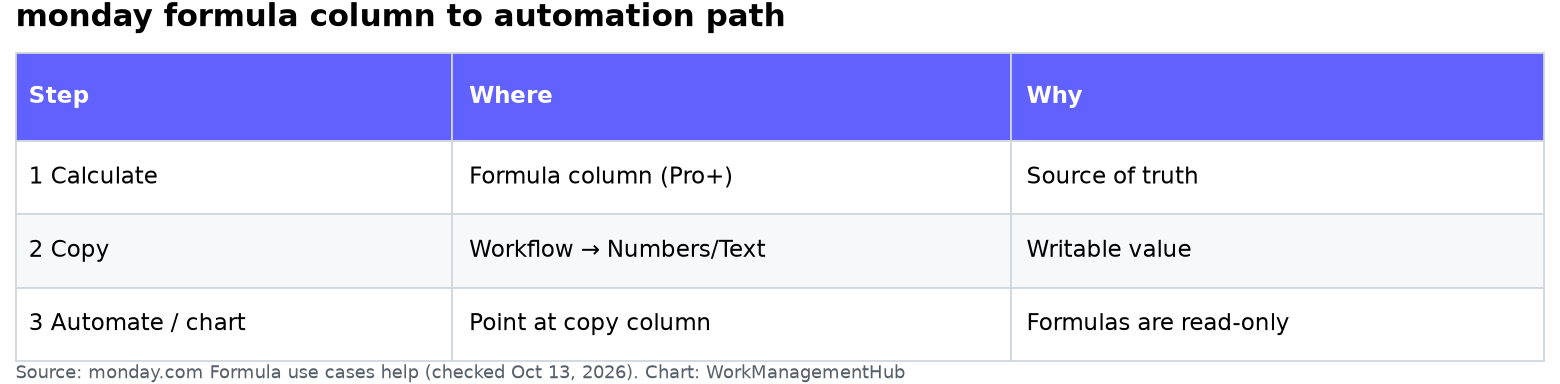
The reliable fix for every limitation above: copy the formula result into a regular Numbers or Text column via a workflow, then point your automations, widgets, and mirrors at that real column. The formula stays the brain; the regular column becomes the mouth. Here’s the setup:

  1. Add a target column — click the + icon at the end of your column headers and add a Numbers column for numeric formula output or a Text column for string output. Name it clearly, e.g. “Budget % (synced).”
  2. Open the Automation Center — click the “Automate” button in the top-right toolbar of your board.
  3. Search the automation/apps marketplace for a formula-copy app — in the Automation Center, use the search bar for terms like “copy formula” or browse workflow apps such as General Caster or Autoboost that read formula-style calculations and write results into standard columns. Monday.com’s native workflow blocks are adding calculation-to-column support on newer plans; check Workflows → New workflow first before installing a third-party app.
  4. Choose your trigger — select “When column changes” on the input columns your formula depends on (e.g., Cost and Budget). Triggering on inputs is the key trick, since the formula column itself can’t fire a trigger.
  5. Set the action to perform the calculation and write to your target column — in the app’s recipe, rebuild the calculation (most of these apps accept the same syntax) and select “Budget % (synced)” as the destination.
  6. Click “Create automation” and test — change a Cost value on a test item and confirm the synced column updates within a few seconds.
  7. Repoint your dependent features — rebuild your dashboard widgets, automation triggers (“When Budget % (synced) changes to something greater than 100, notify…”), and cross-board mirrors against the synced column.

Two operational warnings from production boards. First, there’s a sync delay of seconds — never build time-critical logic assuming instant propagation. Second, hide the original formula column from most board views once the synced column exists, or someone will inevitably edit their charts against the wrong one. One calculated value, one visible source of truth.

When Formulas Aren’t the Answer

Take a clear position on tool fit and you save months of workaround maintenance. The monday.com formula column is the right call for per-item calculations on Pro-plan boards where results mostly need to be seen, not acted on. It’s the wrong call in three situations:

You need cross-row or aggregate logic. Formulas can’t reference other items. If your use case is really “SUMIF across a table” or lookups between tables, a relational tool wins — our Airtable vs Google Sheets comparison breaks down which one fits, and Airtable’s formula fields feed automations natively with no copy-column dance.

Your team lives in spreadsheet-grade formulas. Finance and PMO teams that need cell-level references, cross-sheet formulas, and formula-driven alerting out of the box are frequently better served by Smartsheet — see our Smartsheet beginners setup guide — where formulas are first-class citizens of the automation engine.

You need calculated properties inside rich docs and wikis. Notion’s formula 2.0 language handles rollups and calculated properties that filter views and drive templates; the Notion database guide covers the pattern. It’s slower for heavy PM work but far more flexible for knowledge-plus-data teams.

🏆 Verdict

The monday.com formula column is genuinely excellent as a display-layer calculator — nested IFs, WORKDAYS date math, and the color-coded builder make per-item logic fast to write and easy to debug. But treat it as read-only glass, because that’s what it is. For any calculated value that must trigger automations, populate emails, feed dashboard widgets, or mirror across boards, implement the copy-to-real-column workflow on day one rather than retrofitting it later. Pro-plan teams who adopt that one pattern get 90% of a spreadsheet’s power inside their boards; teams who skip it end up exporting to Excel anyway — which is exactly what the formula column was supposed to eliminate.

Frequently Asked Questions

Why isn’t my monday.com formula column triggering automations?

Because formula output is computed at display time and is read-only, the automation engine can’t see it — formula columns never appear in trigger or condition pickers. The fix is to copy the result into a regular Numbers or Text column using a workflow app, then build your automation against that real column instead.

What plan do I need for the formula column?

The formula column is available on Pro and Enterprise plans only. On Basic and Standard plans it won’t appear in the Column Center at all. If calculated fields are your only reason to upgrade, compare the cost against tools like Airtable or Smartsheet that include formulas on lower tiers.

Can a formula reference values from other items or other boards?

No. Formulas operate strictly within a single item’s row on a single board — there’s no cross-item or cross-board referencing, and mirrored formula results don’t carry over. For column-wide totals, use the column summary footer; for cross-board math, sync formula results into real columns and mirror those.

Why is part of my formula showing in red?

Red text in the formula builder means a syntax error: most often a misspelled column name inside curly braces, an unclosed parenthesis, or single quotes where double quotes are required. Insert columns from the “Columns & labels” sidebar list instead of typing them, and the most common error disappears.

Can I manually edit or override a formula column’s value?

No — formula columns are fully read-only, with no per-item override. If some items need exception values, add a separate manual-input column and handle it in logic, e.g. IF({Override}>0, {Override}, {Cost}*{Rate}), so the manual value wins whenever it’s filled in.


Author

Khasim

Khasim is a work management expert and entrepreneur with a deep passion for project management tools. He works hands-on with platforms like Smartsheet, Monday.com, Asana, ClickUp, Jira, Notion, Wrike and Airtable every day, and loves automating workflows to save teams and customers a ton of time. On WorkManagementHub he shares practical setup guides, honest tool comparisons, and real-world troubleshooting drawn from daily use.

Follow Me
Other Articles
Previous

Wrike’s New Compliance Features: Ensuring Data Security in 2026

Next

Notion Sites Custom Domain Setup Guide 2026: Publish Your Website, DNS, SEO & Pricing

No Comment! Be the first one.

    Leave a Reply Cancel reply

    Your email address will not be published. Required fields are marked *

    Sponsored Smartsheet Expert Services – Implementation, Automation, Training
    Sponsored Power BI & Tableau Analytics – Dashboards, Reporting, Insights
    Sponsored AI Agents for Work Management – Automate Tasks, Integrate Tools

    Categories

    • Airtable (21)
    • Alternatives (12)
    • Asana (41)
    • ClickUp (47)
    • How-To Guides (192)
    • Integrations (17)
    • Jira (36)
    • Monday.com (46)
    • Notion (35)
    • Pricing Guides (11)
    • Project Management (80)
    • Smartsheet (39)
    • Tool Comparisons (59)
    • Wrike (19)

    Recent Post

    • How to Customize Jira Workflows for Non-Technical Teams in 2026: A Comprehensive Guide
    • Notion vs Airtable for Academic Research in 2026: Which Tool Wins?
    • How to Use Smartsheet for Event Planning in 2026: Complete Setup Guide
    • Airtable vs Trello 2026: Which Tool Enhances Cross-Team Collaboration Better?
    • How to Leverage Smartsheet for Strategic HR Planning in 2026: Workforce Analytics, Succession Planning & More

    Independent reviews, comparisons, and hands-on guides for work management tools — Smartsheet, Monday.com, Asana, ClickUp, Notion, Jira, Wrike, and Airtable — written from daily, real-world use of these platforms.

    Tools We Cover

    • Smartsheet
    • Monday.com
    • ClickUp
    • Asana
    • Notion
    • Jira
    • Wrike
    • Airtable

    Company

    • About Us
    • Contact Us
    • Privacy Policy
    Copyright 2026 — Work Management Hub. All rights reserved. Blogsy WordPress Theme