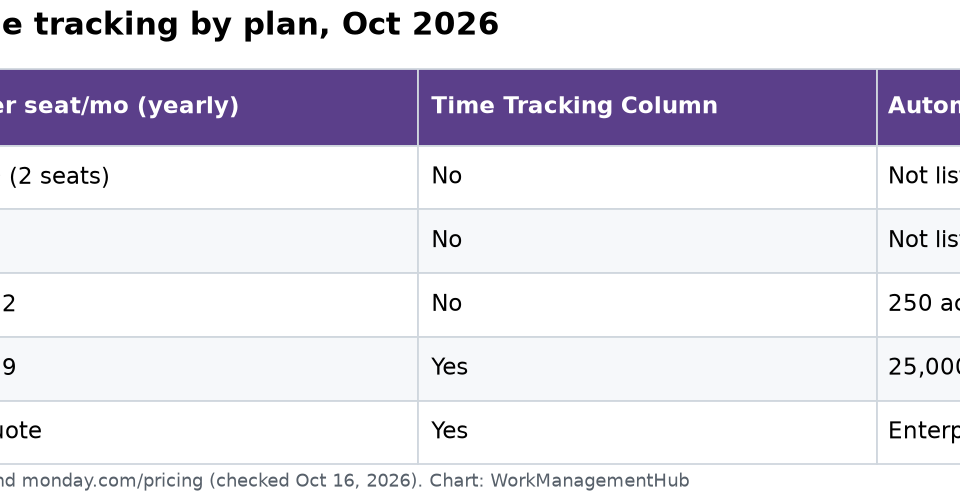

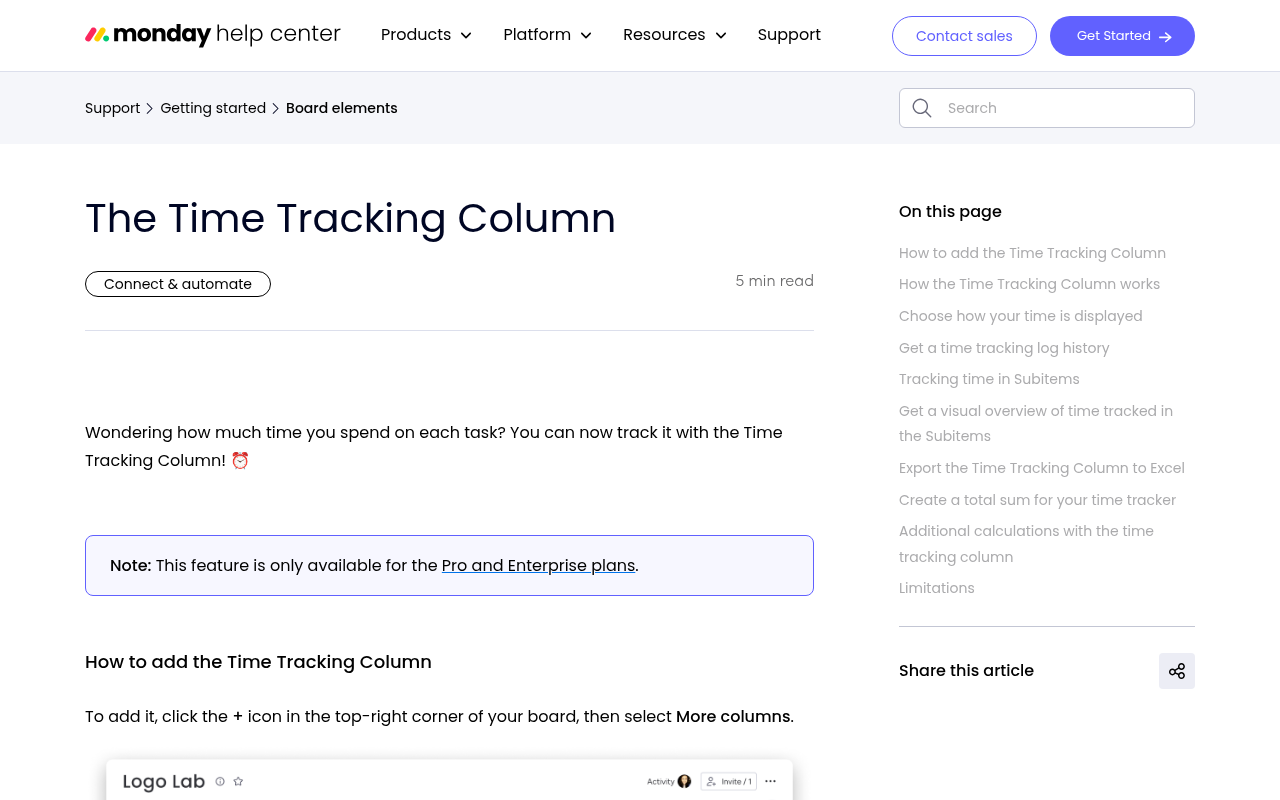
monday.com time tracking runs on the Time Tracking Column, which needs the Pro plan ($19 per seat a month, billed yearly) or Enterprise. Add it from the column center, then press play to time a task or add a past session by hand. Use the Formula Column to total hours and work out billable amounts, and export the column to Excel for timesheets. A running timer is not counted until you pause or stop it.
This guide follows monday.com’s help article on the Time Tracking Column (last modified July 16, 2026), the Formula Column article and the monday.com pricing page. I checked them on October 16, 2026.
Which plan do you need?
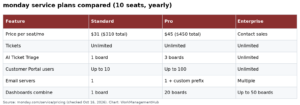
| Plan (billed yearly) | Price per seat/mo | Time Tracking Column | Automations per month |
|---|---|---|---|
| Free | $0 (up to 2 seats) | No | Not listed |
| Basic | $9 | No | Not listed |
| Standard | $12 | No | 250 actions |
| Pro | $19 | Yes | 25,000 actions |
| Enterprise | Quote | Yes | Enterprise scale |
Prices are per seat, and monday.com sells seats in groups, so check the total on the pricing page for your team size. Our monday.com pricing guide explains seat buckets and the Standard to Pro jump.
Step 1: Add the Time Tracking Column
- Open your board.
- Click the + at the top right of the board.
- Select More columns.
- In the column center, pick Time Tracking.
Name it something clear, like “Time spent.”
Step 2: Track time with the timer
When you start a task, click play in its Time Tracking cell. Click again to pause. You can stop and start as often as you like. Each item’s timer activity also shows in the board’s Activity Log.
Step 3: Add a session by hand
Forgot to start the timer? Click the cell and select Add session manually. Enter the start and end time.
Two rules:
- You can’t enter future times. Log work after it happens.
- You can edit any entry later. Click the time and change the date or time. Edited values turn red, so managers can spot changes.
To delete an entry, hover over it in the log and click the X.
Step 4: Show minutes instead of seconds
By default the column shows seconds, which looks busy. Click the arrow next to the column title, choose Column settings and untick Show seconds.
Step 5: Track time on subitems
Big tasks often have smaller steps. Open a subitem and add a Time Tracking Column there too. Then, in the subitem column settings, pick Show Summary on Parent Item. The parent now shows the total time from all its subitems.
Step 6: Total the hours
The Time Tracking Column does not add itself up. Use a Formula Column to get hours you can sum in the group footer:
- Hours:
{Time Tracking#Hours} - Rounded to 2 places:
ROUND({Time Tracking#Hours},2) - Minutes, for short jobs: swap
#Hoursfor#Minutes
The group summary then shows total hours for the group.
Step 7: Work out billable amounts
Add a Numbers column called “Hourly Rate.” Then a Formula Column:
ROUND(MULTIPLY({Time Tracking#Hours},{Hourly Rate}),0)
That gives the cost of each item in whole dollars. Example: 6.5 hours at $80 an hour shows $520. Sum the group to see the client total.
Want a budget check? Add a “Budget” Numbers column and a second formula, like {Budget} - ROUND(MULTIPLY({Time Tracking#Hours},{Hourly Rate}),0). A negative number means you are over. Our monday.com formula column guide has more formulas like this.
Step 8: Export for timesheets
- Whole column: open the column menu and choose Export Column Data to Excel. You get item names, who logged the time and totals by item and board.
- One item: click the cell, then Export to Excel at the top right of the time window.
- Only some groups: save a board filter first, then export the column.
For visual reports, add time and formula columns to a dashboard. See our monday.com dashboards guide.
Example: a client project board
Here is a simple layout a small agency can copy:
| Column | Type | Purpose |
|---|---|---|
| Task | Item name | What the work is |
| Owner | People | Who does it |
| Time spent | Time Tracking | Timer and manual sessions |
| Hours | Formula | ROUND({Time spent#Hours},2) |
| Hourly Rate | Numbers | Set by the manager |
| Billable | Formula | Hours times rate |
| Budget | Numbers | Agreed amount for the task |
Group items by client or by month. The group footer then shows hours and billable totals for each one. At month end, filter to one client and export the column to Excel to build the invoice.
Limits to plan around
monday.com lists these limits:
- Running timers don’t count yet. Time is saved only when a session is paused or stopped. Formulas and reports ignore the running session.
- No alerts while a timer runs. An automation like “notify me if someone logs more than 4 hours” can’t fire on a live timer. It only sees saved time.
- No moving time between boards. When an automation creates or moves an item to another board, the time data does not go with it.
What this means in practice: ask people to pause timers at the end of each day. Otherwise yesterday’s work won’t appear in this morning’s report.
Good habits for clean time data
- One timer per person at a time. Pause before starting the next task.
- Log same day. Manual entries from last week are rarely accurate.
- Use subitems for phases (design, build, review) and roll up to the parent.
- Review red entries weekly. They were edited after the fact.
- Lock the rate column so only managers can change billing rates.
If your automations act oddly with time data, our monday.com automations fix guide covers the common causes.
When to use a time tracking app instead
The built-in column is fine for logging hours per task. For timesheets with approvals, idle detection or payroll, monday.com points to marketplace apps such as Tracket, Time Reporting Solution and TMetric. Try one if you bill many clients or need sign-off before invoicing.
If time tracking is your main need, compare tools first. ClickUp includes native time tracking on Core and up; see our ClickUp time tracking guide.
Common questions
Which monday.com plan has time tracking?
The Time Tracking Column is on Pro ($19 per seat a month, billed yearly) and Enterprise only.
Can I add time manually in monday.com?
Yes. Click the Time Tracking cell and choose Add session manually. You can’t enter future times.
How do I total time tracked on a monday.com board?
The column doesn’t sum itself. Add a Formula Column with {Time Tracking#Hours} and use the group summary.
Can I export monday.com time tracking to Excel?
Yes. Use Export Column Data to Excel from the column menu, or export a single item from its time window.
Why doesn’t my report include today’s time?
A running timer is not saved until it is paused or stopped. Pause the timer and the time will show.
Checked against support.monday.com (Time Tracking Column, Formula Column) and monday.com/pricing on October 16, 2026.
Sponsored