Linear Projects Roadmap Setup in 2026: Milestones, Health Tracking & 7 Planning Best Practices
- Linear projects roadmap setup starts with the hierarchy Initiatives > Projects > Milestones > Issues — Cycles sit alongside as team-level time-boxes, not inside the hierarchy.
- Linear renamed Roadmaps to Initiatives in June 2024; the modern roadmap is an initiative populated with projects that carry target dates, viewed on a timeline.
- Milestones split a project into phases (internal alpha, beta, GA) with their own target dates; progress auto-calculates from closed vs. total issues in each milestone.
- Project health (On track / At risk / Off track) plus scheduled project update reminders routed to Slack can replace most weekly status meetings.
- Use milestones for sequential phases owned by one team; use separate projects when work needs its own lead, its own health signal, or its own line on the roadmap.
To set up a Linear roadmap, create projects with start and target dates, group them under an Initiative (Linear’s replacement for Roadmaps), and switch to the Timeline view. Split each project into milestones like alpha, beta, and GA, then set health status and automated project update reminders so progress reports itself weekly.
- Linear Projects Roadmap Setup: Understand the Hierarchy First
- How to Create a Linear Project (Step by Step)
- Linear Projects Roadmap Setup: Building the Roadmap Itself
- Adding Milestones: Alpha, Beta, GA and Auto-Calculated Progress
- Project Health and Automated Updates (Kill the Status Meeting)
- How Projects Relate to Initiatives and Cycles
- 7 Planning Best Practices for Linear in 2026
- FAQ
Most teams get Linear projects roadmap setup wrong in the same way: they treat projects as folders, skip milestones entirely, and then spend Monday mornings in a status meeting reconstructing what Linear could have told them automatically. The business cost is real — a project lead spending 45 minutes a week assembling status for five projects burns roughly 190 hours a year on reporting that Linear’s health indicators and automated project updates generate for free.
This guide walks through the full setup — projects, roadmaps (now Initiatives), milestones, health tracking, and update automation — with exact UI paths, plus the two questions most guides dodge: how projects actually relate to Initiatives and Cycles, and when a phase deserves a milestone versus its own project.
Linear Projects Roadmap Setup: Understand the Hierarchy First
Before you click anything, internalize the four-level hierarchy, because every setup mistake traces back to putting work at the wrong level:
- Initiatives — workspace-level strategic containers (“Q3 Enterprise Readiness”). They group projects across teams and give leadership a single progress view. Linear renamed Roadmaps to Initiatives in June 2024, migrating all roadmap data 1:1 — so if an older guide tells you to click + New roadmap, that flow now lives under Initiatives.
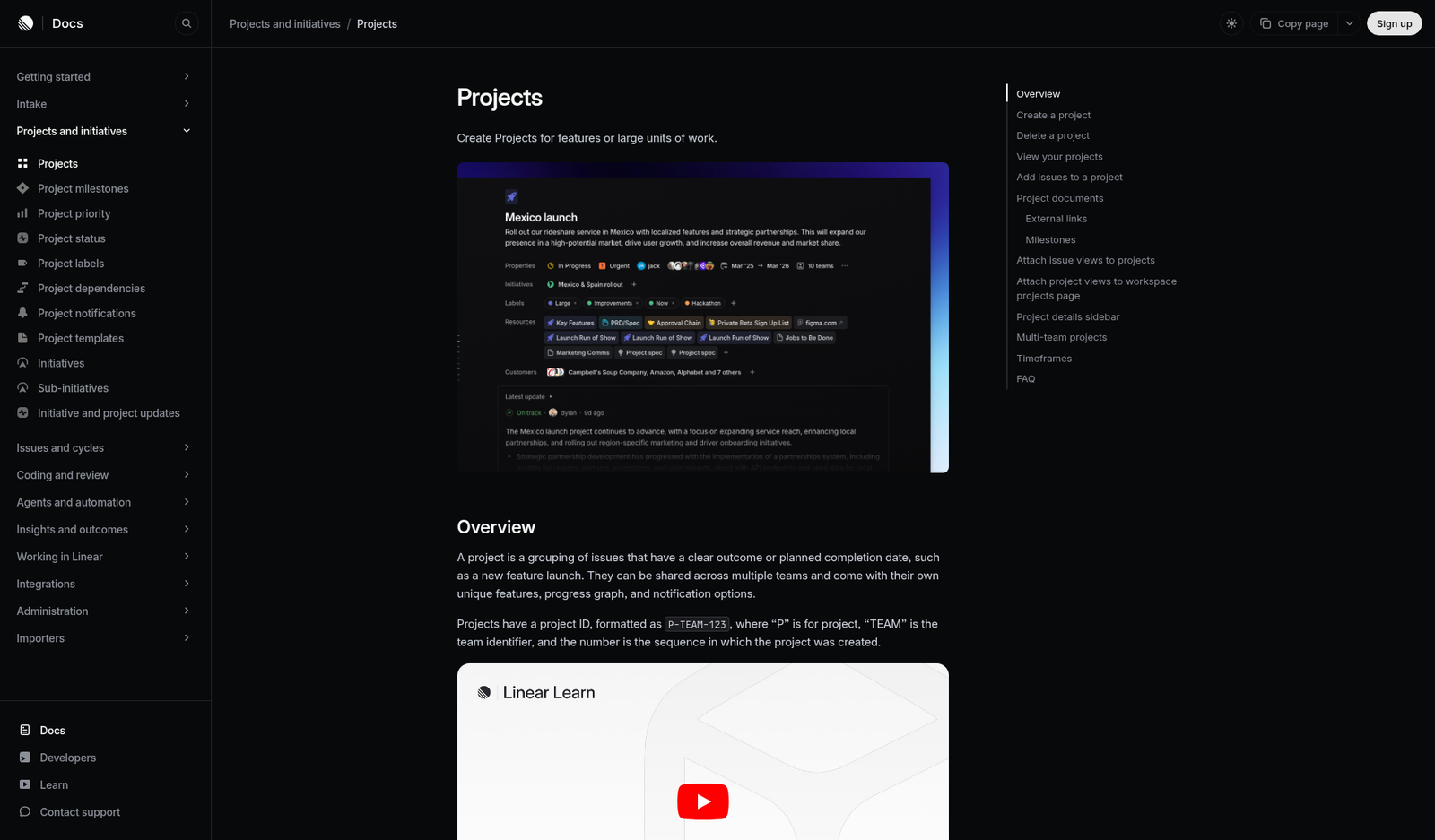
- Projects — concrete deliverables with a defined outcome and an end (“SSO/SAML support”). Projects have leads, members, start and target dates, health status, and documents. A project can be shared across multiple teams.
- Milestones — phases inside a single project (“Internal alpha,” “Beta,” “GA”), each with an optional target date and its own subset of issues.
- Issues — the atomic unit of work. An issue belongs to one team, optionally one project, and optionally one milestone within that project.
Cycles are deliberately outside this hierarchy. A cycle is a team-level time-box (usually one or two weeks) that answers “what are we doing right now,” while projects answer “what are we shipping and when.” Issues from several projects flow through the same cycle, and one project’s issues spread across many cycles. If that distinction is fuzzy, read our Linear Cycles sprint planning guide before continuing — the rest of this setup assumes it.
Team-size guidance: a 5-person startup can run projects and milestones alone and skip Initiatives entirely. At 20–50 people with three or more teams, Initiatives become the layer that stops leadership from asking engineers for status. Above 100 people, sub-initiatives and workspace-level views (covered in our Linear Initiatives deep dive) are effectively mandatory.
How to Create a Linear Project (Step by Step)
Projects are the unit your roadmap is built from, so get the fields right at creation time rather than backfilling later.
- Projects → + (Create new project) — In the sidebar under your team, hover over Projects and click the + icon, or press Cmd/Ctrl + K and type “New project.” Name the project after the deliverable, not the team (“Self-serve billing,” not “Payments work”).
- Summary field — Write a one-sentence outcome statement. This line appears in roadmap hover cards and project lists, so make it legible to executives, not just engineers.
- Lead — Assign exactly one project lead. This person receives update reminders later; a project with no lead is a project whose health never gets set.
- Teams — Add every team contributing issues. Multi-team projects are Linear’s mechanism for cross-functional work; you don’t need duplicate projects per team.
- Start date and Target date — Click the date fields and choose a precision that matches your certainty: Linear lets you set a year, half-year, quarter, month, or exact day. A Q4 target on a discovery-stage project is honest; October 17 is fiction. Projects without target dates render as undated bars and quietly fall off timeline-sorted roadmap views.
- Status — Set the project status (Backlog, Planned, In Progress, Completed, Canceled). Only move it to In Progress when issues are actively being worked, because update reminders target in-progress projects.
- Create project — Confirm, then open the project’s Overview tab and attach the spec or PRD as a project document so context lives where the work does.
See Linear’s official projects documentation for field-level details. If you’re still evaluating whether Linear fits your stack at all, our full Linear review covers the trade-offs.
Linear Projects Roadmap Setup: Building the Roadmap Itself
A Linear roadmap is not a separate artifact you maintain — it’s a timeline view over projects that already carry dates. That’s why the setup order matters: projects first, roadmap second. Here is the current flow (in workspaces that predate the 2024 rename, the legacy button read + New roadmap with a choice of team-specific or workspace-wide visibility; the same capability now lives in Initiatives and project views).
- Workspace Settings → Initiatives — If you don’t see Initiatives in your sidebar, an admin must enable the feature first under workspace settings.
- Initiatives → + New initiative — Click Initiatives in the sidebar, then the + button. Name it after the strategic theme (“2026 H2 Platform Reliability”), assign an owner, and set a target date if the theme has a deadline.
- Add projects — On the initiative’s Overview page, scroll to the projects section and click + Add project. Attach every project that serves this theme; a project can belong to multiple initiatives if it genuinely serves two goals.
- Switch to Timeline — In the initiative’s project list, change the layout to Timeline. Each project renders as a horizontal bar spanning its start-to-target range, with milestone markers on the bar. This is your roadmap.
- Adjust dates by dragging — Drag bar edges to reslip dates directly on the timeline instead of opening each project. Changes propagate instantly to every other view of that project.
- Create a filtered roadmap view for each audience — Open Views → + New view, choose Projects, filter by initiative, team, or health, pick Timeline layout, and save. Team-scoped views give squads their local roadmap; a workspace-wide view filtered to health “At risk + Off track” gives leadership an exception report. Custom views can be shared with a team or the entire workspace, reproducing the old roadmap visibility options.
For a 10-person team, one initiative per quarter is usually enough. For a 200-person org, structure initiatives around company bets and let each department maintain its own saved timeline views rather than one monster roadmap nobody scrolls.
Adding Milestones: Alpha, Beta, GA and Auto-Calculated Progress
Milestones are the most underused feature in Linear planning. They split a project into meaningful phases — internal alpha, closed beta, GA is the canonical release pattern — and each milestone gets its own target date and its own subset of the project’s issues. Progress is computed automatically from closed versus total issues in the milestone, so “how far along is beta?” always has a current, numeric answer. Full reference: Linear’s project milestones docs.
- Project page → + Add milestone — Open the project, and in the milestones area of the Overview (or via the project’s right-side panel) click + Add milestone. Create one per phase: “Internal alpha,” “Beta,” “GA.”
- Target date — Set a date per milestone. Dates are optional at creation and can be added later, but undated milestones don’t create urgency and won’t show as markers on the roadmap timeline.
- Description — Add exit criteria to each milestone description (“Beta ends when 10 design partners have completed onboarding”). This turns a label into a decision rule.
- Assign issues to milestones — In the project’s issue list, multi-select issues, then set the Milestone property (also available on any issue via Cmd/Ctrl + K → “Set milestone”). Unassigned issues count toward the project but no phase, which muddies phase progress — triage them weekly.
- Group by milestone — In the project view options, group the issue list by milestone. Each group header shows the auto-calculated completion percentage, giving you a phase-by-phase burndown with zero manual updating.
Milestones vs. separate projects: the decision rule
This is where teams most often overbuild. Use a milestone when the phases are sequential, share one lead and one issue pool, and no stakeholder needs to track a phase independently. Use a separate project when the work needs its own lead, its own health status and updates, its own line on the roadmap, or contributions from a team that isn’t on the parent project. A practical litmus test: if a phase would ever justify its own “At risk” flag while the rest of the work is fine, it’s a project. A mobile app where iOS and Android ship on different dates with different owners is two projects under one initiative — not one project with platform milestones. Release-stage phases of a single deliverable are almost always milestones; if you’re tracking post-GA deployment trains, that’s a different feature entirely — see our guide to Linear’s Releases feature.
Project Health and Automated Updates (Kill the Status Meeting)
Every Linear project carries a health indicator — On track (green), At risk (yellow), or Off track (red) — set by the project lead as part of a project update: a short, structured post combining the health signal with rich-text notes on progress, blockers, and next steps. The latest update pins to the project’s Overview page, and updates roll up into initiative views. Configured properly, this replaces the weekly status meeting for most teams. Documentation: Initiative and project updates.
- Project page → Post update — The project lead clicks Post update (in the New update area on the project Overview), selects On track / At risk / Off track, and writes 3–5 sentences. Anything longer belongs in a document, not an update.
- Workspace Settings → Project updates → Reminders — An admin enables update reminders and sets the cadence (weekly or biweekly) plus the day and time — for example, every Wednesday at 10:00. Leads of in-progress projects get nudged automatically, and projects overdue for an update are visibly flagged in project views.
- Slack channel routing — In the same settings area (with the Slack integration connected), select a Slack channel to receive all project updates. Health changes and updates land where stakeholders already are; nobody has to open Linear to know a project slipped to At risk.
- Leadership view: filter by health — Create a saved projects view filtered to Health: At risk, Off track. This exception list — typically 2–4 projects out of 20 — is what your weekly leadership sync should discuss, instead of walking every green project.
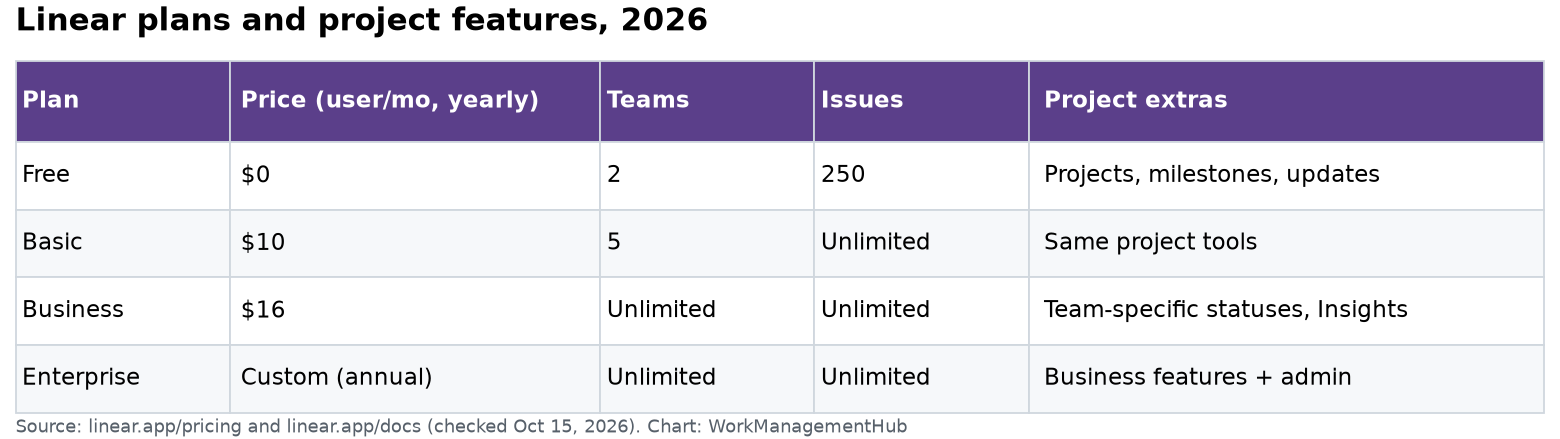
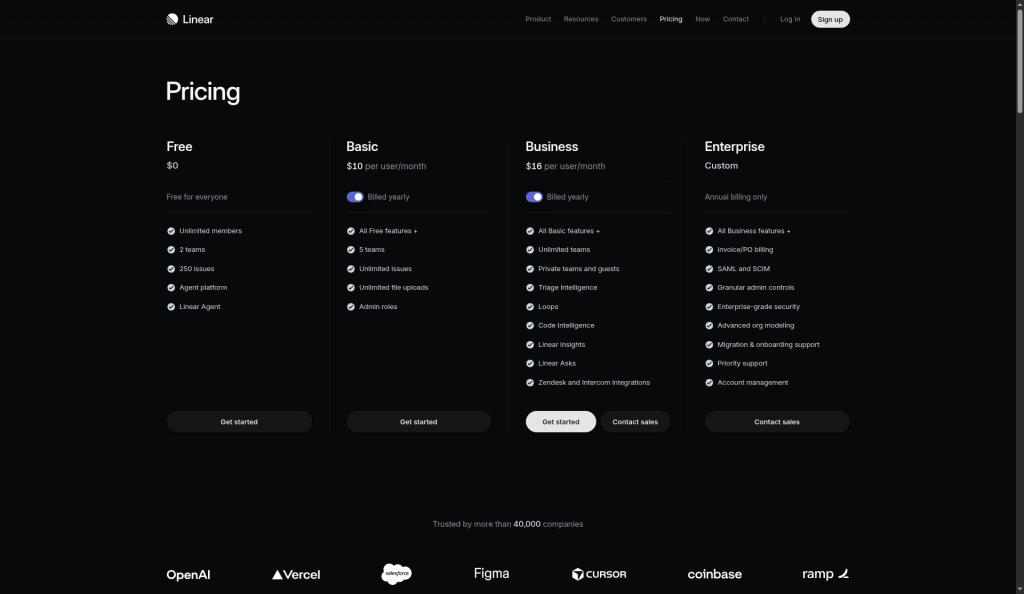
The cultural rule that makes this work: a yellow flag must trigger help, never blame. The first time a lead gets punished for honestly marking At risk is the last time your health data means anything. Note that Initiatives (and some related features) have plan-tier requirements — check current tiers in our Linear pricing breakdown before promising this workflow to your org.
How Projects Relate to Initiatives and Cycles
Most setup guides stop at “create a project,” which is why so many workspaces end up with projects doing three jobs badly. Here’s the mental model that keeps the three planning primitives clean:
- Initiatives answer “why” on a 6–12 month horizon. They aggregate project progress and health upward. Executives live here. An initiative with one project is a smell — it’s usually just a project wearing a strategy costume.
- Projects answer “what and when” on a 2–12 week horizon. They are the roadmap’s atoms and the health-reporting unit. A project that has been In Progress for six months is a smell — it should have been an initiative containing several projects, or cut into projects per quarter.
- Cycles answer “who is doing what right now” on a 1–2 week horizon. Cycles are team-scoped and issue-based; they don’t contain projects and never appear on the roadmap. During cycle planning, you pull issues from active projects into the cycle — that pull is the entire connection between execution and the roadmap.
The practical loop for a healthy workspace: quarterly, leadership sets initiatives and approves projects with target dates. Weekly or biweekly, teams plan cycles by pulling project issues. Weekly, project leads post updates with health. The roadmap, milestone progress, and initiative rollups all update themselves from those three habits — no one “maintains the roadmap” as a task.
7 Planning Best Practices for Linear in 2026
- Name projects as outcomes, not activities. “Reduce checkout latency below 300ms” tells the roadmap reader what done means; “Performance work” doesn’t.
- Match date precision to certainty. Use Linear’s quarter/month/day granularity deliberately: quarter for planned projects, month at kickoff, exact day only once beta starts. False precision is how roadmaps lose credibility.
- Cap in-progress projects per team at 2–3. A 6-person team with eight active projects has zero active projects. Statuses exist — leave the rest in Planned.
- Standardize the alpha/beta/GA milestone pattern. When every product project uses the same three milestones, cross-project comparisons (“everything in beta this month”) become a single filtered view.
- Make the update reminder cadence match your risk cadence. Weekly for projects within a month of GA, biweekly for early-stage work. Configure it once in workspace settings and let the reminders do the chasing.
- Run leadership reviews from the At-risk/Off-track filter. Reviewing exceptions instead of everything cuts a 60-minute status meeting to 15 — that’s the concrete payoff of health tracking.
- Prune quarterly. Every quarter, cancel zombie projects, close shipped ones, and archive done initiatives. A roadmap containing dead bars trains people to ignore it.
Set up Linear planning in this exact order: projects with honest target dates first, alpha/beta/GA milestones second, health tracking with automated weekly update reminders third, and Initiatives as the roadmap layer only once you have three or more concurrent projects. Teams under 10 people can stop after milestones; multi-team orgs should implement all four layers and run leadership reviews exclusively from an At-risk/Off-track filtered view. Done right, this replaces status meetings entirely — the roadmap maintains itself as a by-product of cycle planning and weekly updates.
FAQ: Linear Projects and Roadmaps
Does Linear still have Roadmaps?
Not under that name. Linear renamed Roadmaps to Initiatives in June 2024 and migrated existing roadmap data, views, and favorites 1:1. The roadmap capability itself is stronger than before: you build it by grouping dated projects under an initiative and viewing them in Timeline layout, or by saving filtered project views with team or workspace visibility.
How is milestone progress calculated in Linear?
Automatically, from issue counts: closed issues divided by total issues assigned to that milestone. There’s no manual percentage field to update. This means milestone accuracy depends entirely on keeping issues assigned to milestones, so add a weekly triage pass for issues in the project that have no milestone set.
Should I use a milestone or a separate project for a new phase?
Use a milestone when phases are sequential, share one lead, and draw from the same issue pool — release stages like alpha, beta, and GA are the textbook case. Create a separate project when the work needs its own lead, its own health status and project updates, or its own bar on the roadmap timeline. If a phase could plausibly be At risk while everything else is green, make it a project.
Can one project belong to multiple teams or multiple initiatives?
Yes to both. A project can be shared across several teams, with each team’s issues rolling into the same project progress, and it can be linked to more than one initiative when it genuinely serves multiple strategic themes. This is Linear’s intended pattern for cross-functional work — avoid creating duplicate per-team projects.
How do automated project updates actually work?
An admin enables reminders in workspace settings, choosing a weekly or biweekly cadence plus the day and time. Leads of in-progress projects are then prompted to post an update — a health indicator (On track, At risk, or Off track) plus short rich-text notes — and overdue projects are visibly flagged. With the Slack integration, updates post automatically to a channel of your choice, which is what lets teams retire the weekly status meeting.