
A Linear roadmap is just your projects shown on a timeline. Give each project a lead, a target date, milestones and a weekly health update, then open the Timeline layout. That is the whole system. The hard part is keeping it honest.
I set up Linear for product teams that want less process, not more. The tool is fast and strict, which helps. But I see the same few mistakes on almost every team. This guide walks through the setup step by step, using Linear’s projects docs and the pricing page, checked on October 15, 2026.
How Linear fits together
Linear has three layers of planning. Keep them straight and the rest is easy.
- Issues are single pieces of work.
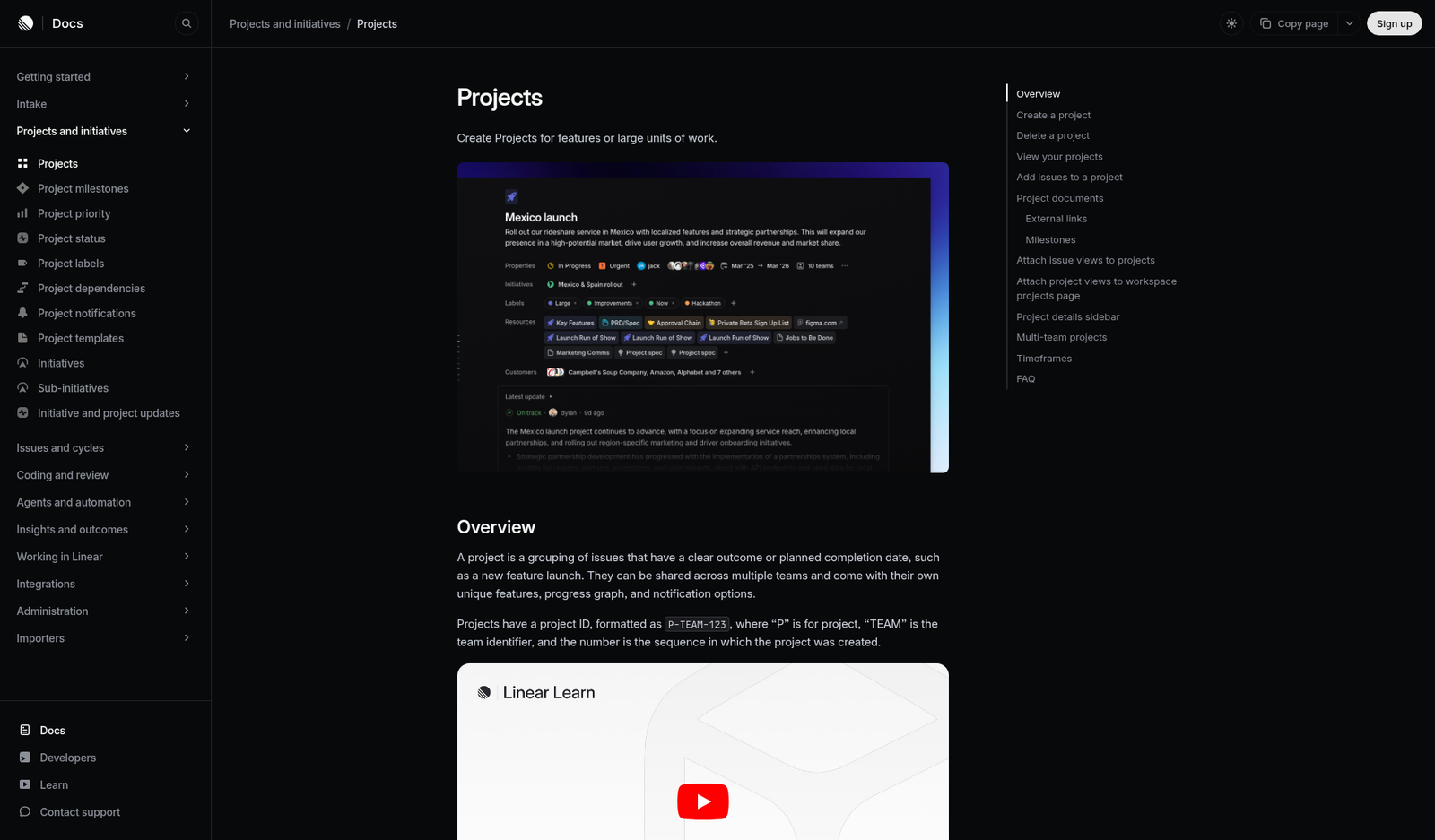
- Projects group issues with a clear outcome or end date, like a feature launch.
- Initiatives group projects under a bigger goal, like “Expand to Europe.”
Cycles sit beside this. They are your sprints. A project can span many cycles. If you run sprints too, our Linear cycles guide covers that side. For the layer above projects, see the Linear initiatives guide.
Two rules matter early. An issue can belong to only one project. And each project has one lead. If two people “own” a project, nobody does.
What each plan gives you
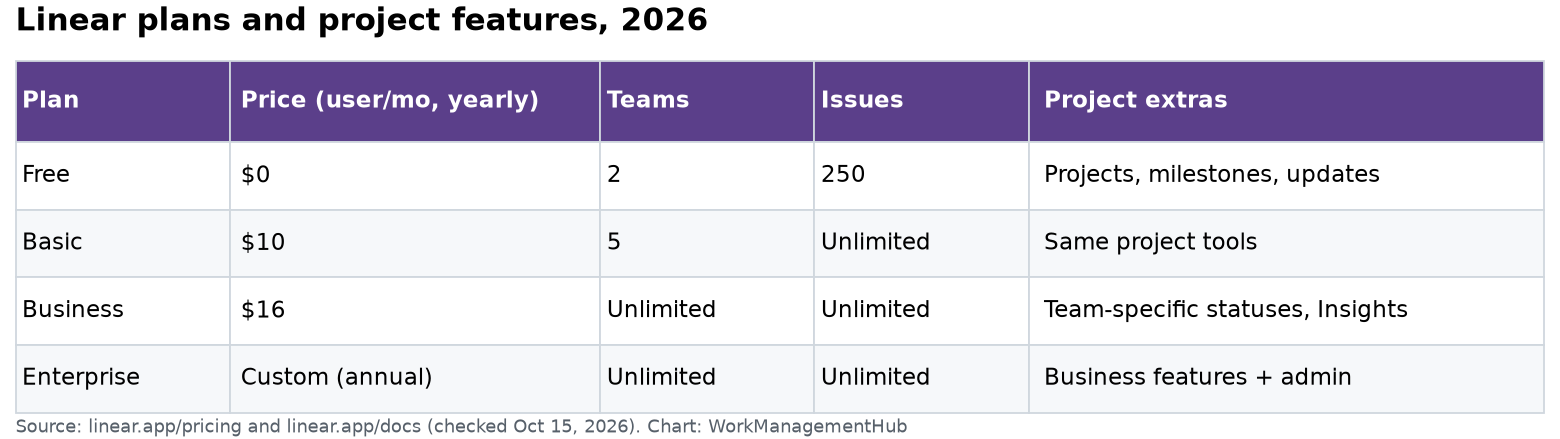
Projects, milestones and updates work on every plan, including Free. The limits that bite are teams and issue counts.
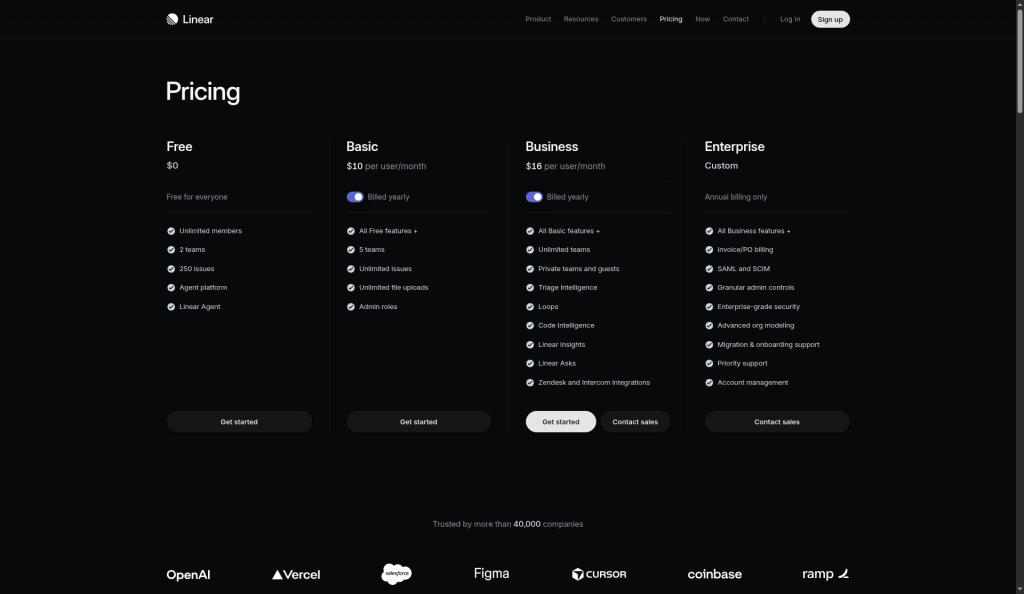
| Plan | Price (per user/mo, yearly) | Teams | Issues | Notes |
|---|---|---|---|---|
| Free | $0 | 2 | 250 | Unlimited members |
| Basic | $10 | 5 | Unlimited | Admin roles |
| Business | $16 | Unlimited | Unlimited | Private teams, guests, Insights |
| Enterprise | Custom | Unlimited | Unlimited | Annual billing only, SAML, SCIM |
The 250-issue cap on Free fills up fast once a real team starts logging bugs. Business also adds team-specific project statuses and sub-initiatives. Full pricing math is in our Linear pricing guide.
Step 1: Create the project
Only two fields are required: a name and a status. Fill in more anyway.
- Open your team’s or workspace’s Projects page and click the + button.
- Add a name that describes the outcome, like “Self-serve billing,” not “Q4 work.”
- Pick a lead. One person.
- Add the teams involved. In a multi-team project, one team is the lead team. It sets which statuses the project can use.
- Set a start date and target date.
- Fill in the overview: the goal, what is out of scope, and links to specs.
Each project gets an ID like P-TEAM-123. You can open the details sidebar with Cmd/Ctrl + I at any time.
Dates do not have to be exact days. Linear lets you set a timeframe by year, half, quarter, month or day. Use a quarter when you honestly do not know the day yet. A fake exact date is worse than a vague true one.
Step 2: Add issues to the project
Select issues in any list and press Shift + P to move them into a project. To make a new issue inside a project, press C from the project view.
Do this before you add milestones. A project with no issues has no progress bar, so the roadmap shows nothing useful.
Step 3: Add milestones
Milestones split a project into stages, like Alpha, Beta and GA. Open the project overview and click the icon beside the Milestones header to add one. Click the calendar icon to give it a date. Then select issues and press Shift + M to put them in a milestone. The milestones docs explain how progress works:
- Progress counts an issue once it is started, and moves up again when it is completed.
- The current milestone shows in yellow.
- Milestones also appear on the initiative timeline.
You can even convert a milestone into its own project if it grows too big. I do this when a “milestone” has its own lead and its own date.
My rule: three to five milestones per project. Ten milestones is a task list, not a plan.
Step 4: Turn on project updates
This is the feature that keeps a roadmap honest. A project update is a short written note with a health label: On track, At risk or Off track.
From the project updates docs:
- The lead gets reminders to post. You can set them daily, weekly or every two weeks.
- If the lead skips it, Linear nudges again after one working day, then after two more.
- Old updates go stale, and the health icon turns grey. That grey dot is a signal in itself.
- Progress details show in an update only when progress moved by more than 2%.
- You can sync updates to a Slack channel.
Weekly works for most teams. Ask leads to write two or three sentences: what moved, what is stuck, and what they need. The health label should match the words. “On track, but blocked by legal” is not on track.
Step 5: Build the roadmap view
Open the Projects list, then pick Display, Timeline. Now every project is a bar between its start and target date. The timeline docs list the options:
- Zoom by week, month, quarter or year.
- Show your cycles as an overlay, so you can see sprints under the bars.
- Group and filter by team, lead, status or initiative.
Save it as a view and share the link. That is your roadmap. No slides needed.
Step 6: Draw project dependencies
If one project must finish before another starts, draw a dependency on the timeline. Linear supports end-to-start links only, as the dependency docs explain.
- A blue line means the order is fine.
- A red line means the dates now break the rule.
When you drag a project, any backlog or planned projects in its chain move with it. Hold Cmd/Ctrl to keep the chain in place, or hold Shift to move every linked project together. Red lines in a planning meeting are useful. They show trade-offs without anyone arguing about it.
Seven habits that keep the roadmap true
- One lead per project. Always a name, never a team.
- Use quarters before you know days. Change to a day once work starts.
- Weekly updates, short ones. Three sentences beat a page nobody reads.
- Close projects on time. Mark them Completed or Canceled. Do not leave them “In progress” forever.
- Keep projects small. If a project runs longer than a quarter, split it.
- Review grey dots first. Stale updates hide the real risk.
- Use initiatives for the “why.” Leaders read initiatives. Engineers read projects.
Honest pros and cons
What works well: Setup takes minutes. The timeline is clean. Health updates with reminders do more for roadmap honesty than any template I have used. Everything has a keyboard shortcut.
What falls short: One project per issue can feel tight for shared platform work. Only end-to-start dependencies exist, so no lead or lag time. Team-specific statuses need Business. And Linear is built for software teams. Marketing or ops teams may feel lost. If that is you, compare it in our Linear vs Asana breakdown.
Common questions
Is Linear’s roadmap a separate feature?
No. A roadmap in Linear is the Projects list shown in the Timeline layout. Save that view and share the link with your team.
Can an issue belong to two projects?
No. An issue can belong to only one project. If work is shared, split it into two issues or make one project that both teams join.
How often should project updates be posted?
Weekly fits most teams. Linear can remind leads daily, weekly or every two weeks, and it nudges again if they miss one.
What happens when I delete a project?
Linear keeps deleted projects for 30 days, so you can restore one if you delete it by mistake.
Do milestones work on the Free plan?
Yes. Projects, milestones and updates are on every plan. The Free plan limits you to 2 teams and 250 issues.
Can I see sprints on the roadmap?
Yes. Turn on the cycles overlay in the Timeline display options to see sprints under your project bars.
Checked against linear.app/docs and linear.app/pricing on October 15, 2026. Linear ships often; confirm details before you roll out.
Sponsored