
Every team that uses AI seriously ends up with the same problem. One or two people write great prompts, and everyone else gets mediocre results because those prompts live in someone’s chat history. Notion’s answer, shipped in Notion 3.7 on September 15, 2026, is a shared skills library: reusable instructions that live as Notion pages, that the whole team can run, and that Notion Agent can pick up on its own.
I implement work-management tools through SSPM, a Smartsheet Premier Aligned Partner, and the AI question I get most often from operations leaders isn’t “which model?” It’s “how do we make everyone use AI the same way?” Skills are the most practical answer Notion has shipped so far. Here’s what they do, what they don’t, and how I’d set them up. Everything below is based on Notion’s release notes and help center documentation on skills, checked October 6, 2026.
What a Notion skill actually is
A skill is a Notion page that tells AI how to do one specific kind of work. Think “turn call notes into a client proposal in our format,” “review this feature spec against our engineering standards,” or “rewrite this update for an executive audience.”
Because a skill is just a page, it works like any other page:
- You write it, edit it and share it like a doc.
- Page history shows who changed what.
- Permissions decide who can run it and who can edit it.
You run a skill by typing / in a Notion Agent chat and picking it, or by selecting text on a page and choosing it from the editor menu. Notion also ships a few built-in ones, like Improve Writing, Proofread, Explain and Reformat.
Custom skills first arrived in March 2026, for Business and Enterprise plans. What 3.7 added is the team layer: a shared library, skills databases, automatic use, Notion suggesting skills from the work you already do, and downloads to local coding agents.
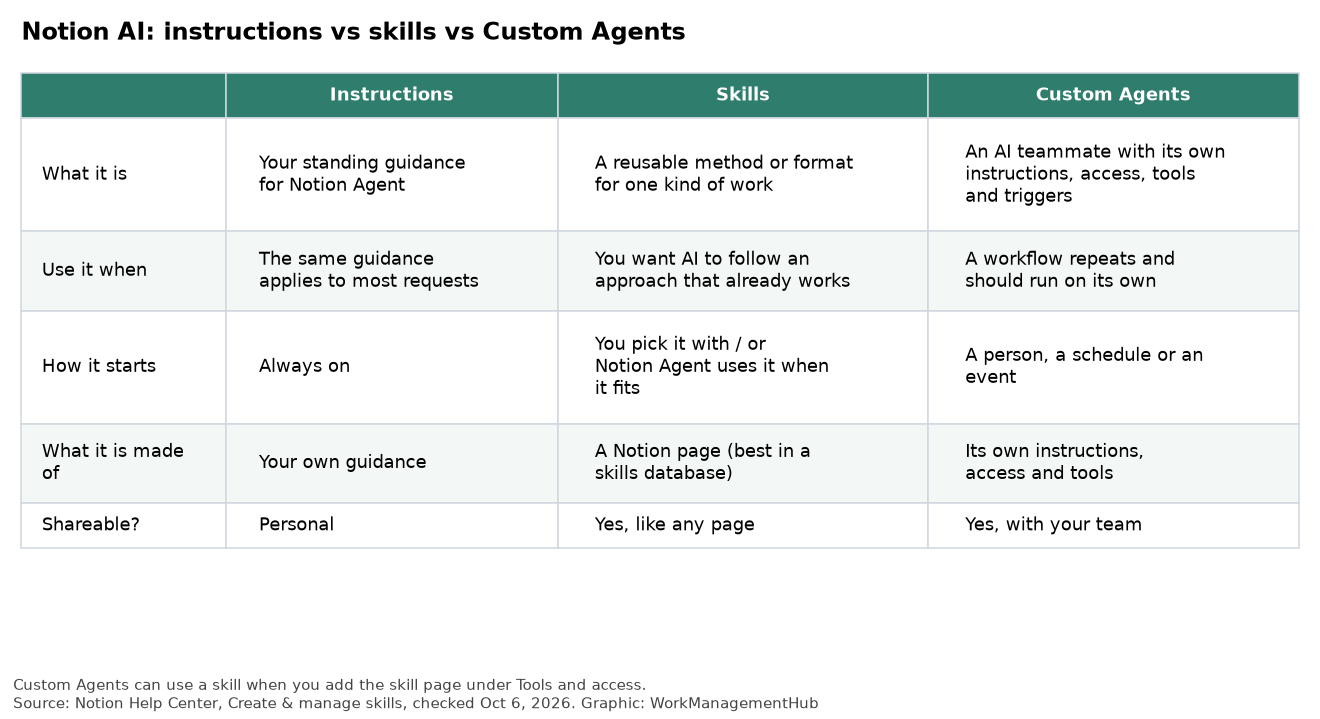
Skills vs instructions vs Custom Agents
This is where most teams get confused, so it’s worth being precise. Notion’s help center draws the lines like this:
- Instructions are your standing preferences for Notion Agent. They apply to almost everything you ask.
- Skills are a method for one kind of work. You call them when you need them, or Notion Agent uses them when they fit.
- Custom Agents are AI teammates with their own instructions, access, tools and triggers. A person, a schedule or an event can start them, and they can run in the background.
The useful part: they stack. A Custom Agent can use a skill if you give it access to the skill page under Tools and access. So you can write “how we summarize customer interviews” once as a skill, use it by hand in chat, and also have a Custom Agent apply it every time a new interview lands in your research database. Our Notion Custom Agents guide covers the agent side in depth.
How skills databases and automatic use work
You can mark any page as a skill (from the page’s ••• menu, choose Use as a skill), but for a team you want a skills database. Every page in it becomes a skill automatically and gets two built-in properties:
- Description: what the skill does and when to use it. Notion Agent reads this to decide whether a skill fits a request.
- Files: examples, reference docs, images, data files or scripts the skill can work from.
Two details matter more than they look:
- Automatic use only works for skills in a skills database, because that’s where the description lives. A standalone skill page can’t be picked automatically. Once a skill sits in a database and has a description, automatic use is on by default.
- Access and enabling are separate. Sharing a skills database gives people access. Each person still turns a skill on for themselves with Enable for me in the Library’s Discover tab.
And one governance warning straight from Notion’s docs: anyone with edit access to a shared skill changes it for everyone who uses it. Treat edit access to your skills database the way you’d treat edit access to a company template.
Taking skills to Claude Code, Cursor and other local agents
This is the feature developer-heavy teams will care about. From a skill page you can choose Download to local agents and send the skill to Claude Code, Codex, Cursor, Gemini or Grok. Notion saves it as a SKILL.md file, plus any attached files approved for sharing, in that agent’s skills folder.
A few things to know:
- You need the Notion desktop app and the local agent on the same computer.
- Downloads don’t stay in sync. When the skill changes in Notion, it shows a badge, and you download it again.
- For teams that want this automated, Notion followed up on September 17 with a Skills API for loading skills in standard file formats, and says Vercel’s open-source
skillsCLI now supports Notion skills.
Practically, that means product managers and engineers can keep one version of “how we write a spec” or “how we review a pull request description” in Notion, where non-developers can edit it, while coding agents follow the same rules. If your team is already building on Notion’s developer platform, see our Notion Workers for agents setup guide.

What it costs
Skills run through Notion AI, so what you pay depends on your plan. Prices from Notion’s pricing page, checked October 6, 2026:
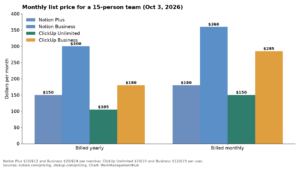
- Free and Plus ($10 per seat/month, billed yearly): Notion Agent is a limited trial, and Notion listed custom skills for Business and Enterprise when they launched. Not a team-rollout option.
- Business ($20 per seat/month, billed yearly): Notion Agent and skills are included. This is the realistic starting point for a shared skills library.
- Enterprise: custom pricing, with extra admin and security controls.
- Custom Agents are free to try, then use Notion credits at $10 per 1,000. If a Custom Agent applies a skill, that work is part of the agent’s run, so budget for it there.
Several 3.7 features around skills, including Custom MCP connections (beta) and post-meeting Custom Agents, are listed for Business and Enterprise only. For the full plan breakdown, see our Notion pricing guide.
How I’d roll it out
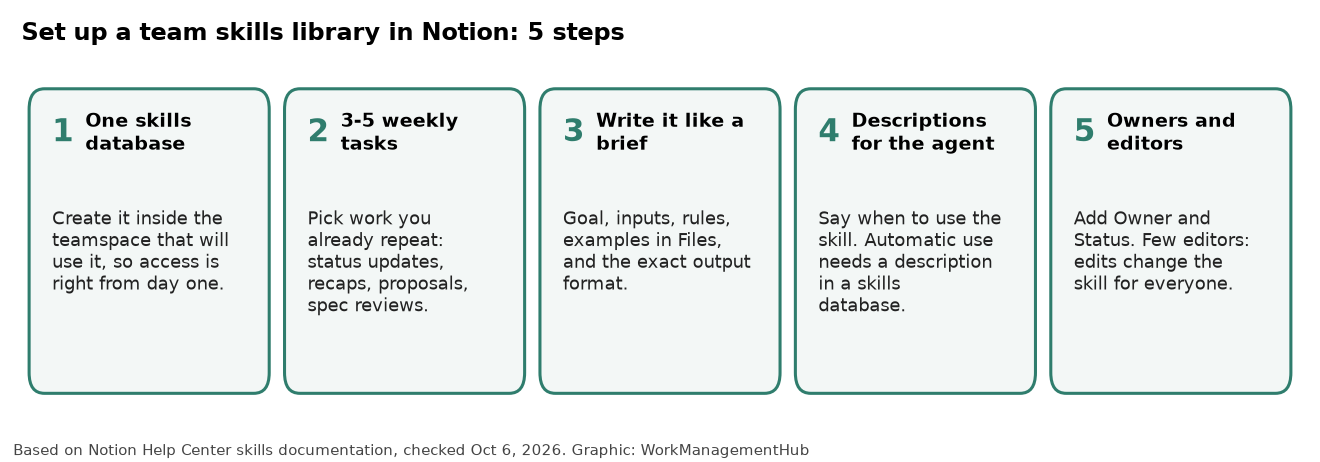
- Create one skills database in a teamspace. Notion’s own advice is to start with one shared database and add more only when a group needs different access or owners. Creating it inside the teamspace saves you a permissions cleanup later.
- Pick three to five skills from work you already repeat weekly. Notion’s rule of thumb is good: if you’d paste the same prompt twice, it’s a skill. Status updates, meeting recaps, proposal drafts and spec reviews are the usual winners.
- Write each skill like a brief. Goal, inputs, rules, a couple of good examples in Files, and the exact output you want (“five bullets, then risks and next steps”). Keep the page short and link to longer references.
- Write descriptions for the agent, not for people. “Use when someone asks for a weekly client status update from task data” works. “Status helper” doesn’t. Vague descriptions are the main reason automatic use picks the wrong skill.
- Give every skill an owner and limit editors. Add an Owner and a Status property. Two or three editors per database is plenty; everyone else gets view access and enables what they need.
After a month, look at which skills people actually enabled and which ones nobody touched. Retire the dead ones. A small library people trust beats a big one they ignore.
Is it worth it?
If you’re already on Business, yes. It’s included, and it’s the cleanest way I’ve seen in a work-management tool to standardize how a team uses AI without forcing everyone into one rigid template. The SKILL.md export is a genuine bonus for teams that also use coding agents.
If you’re on Free or Plus, skills alone aren’t a reason to upgrade to Business. Upgrade when Notion Agent itself is pulling its weight for your team, then add skills on top. And if you’re still comparing AI approaches across tools, our AI agents in work management comparison and Notion AI guide are good next reads.
FAQ
What are skills in Notion?
Skills are reusable instructions, written as Notion pages, that teach Notion AI how to do a specific kind of work. You run them from Notion Agent chat or the editor menu, or let Notion Agent use them automatically when they fit.
When did Notion add shared skills?
Notion 3.7, released September 15, 2026, added the shared skills library, skills databases, automatic use and downloads to local agents. A Skills API followed on September 17.
Why won’t my Notion skill run automatically?
Automatic use only works for skills that live in a skills database and have a description. Move the skill page into a skills database, add a clear description, and automatic use turns on by default.
Can I use Notion skills in Claude Code or Cursor?
Yes. Open the skill page and choose Download to local agents. Notion saves it as a SKILL.md file for Claude Code, Codex, Cursor, Gemini or Grok. You need the Notion desktop app, and you have to download again after the skill changes.
Which Notion plan do I need for skills?
Notion lists custom skills for Business and Enterprise plans, where Notion Agent is included. Free and Plus only get a limited AI trial, so Business ($20 per seat per month, billed yearly) is the starting point for a team.
Features and prices checked against Notion’s release notes, help center and pricing page on October 6, 2026. Notion updates AI features often; confirm availability in your workspace before you roll out.
Sponsored

Related guides