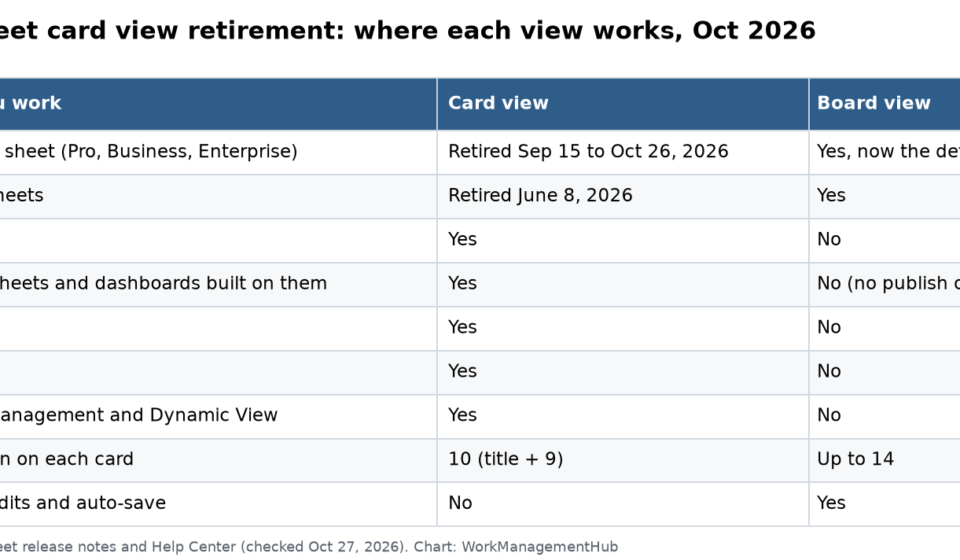

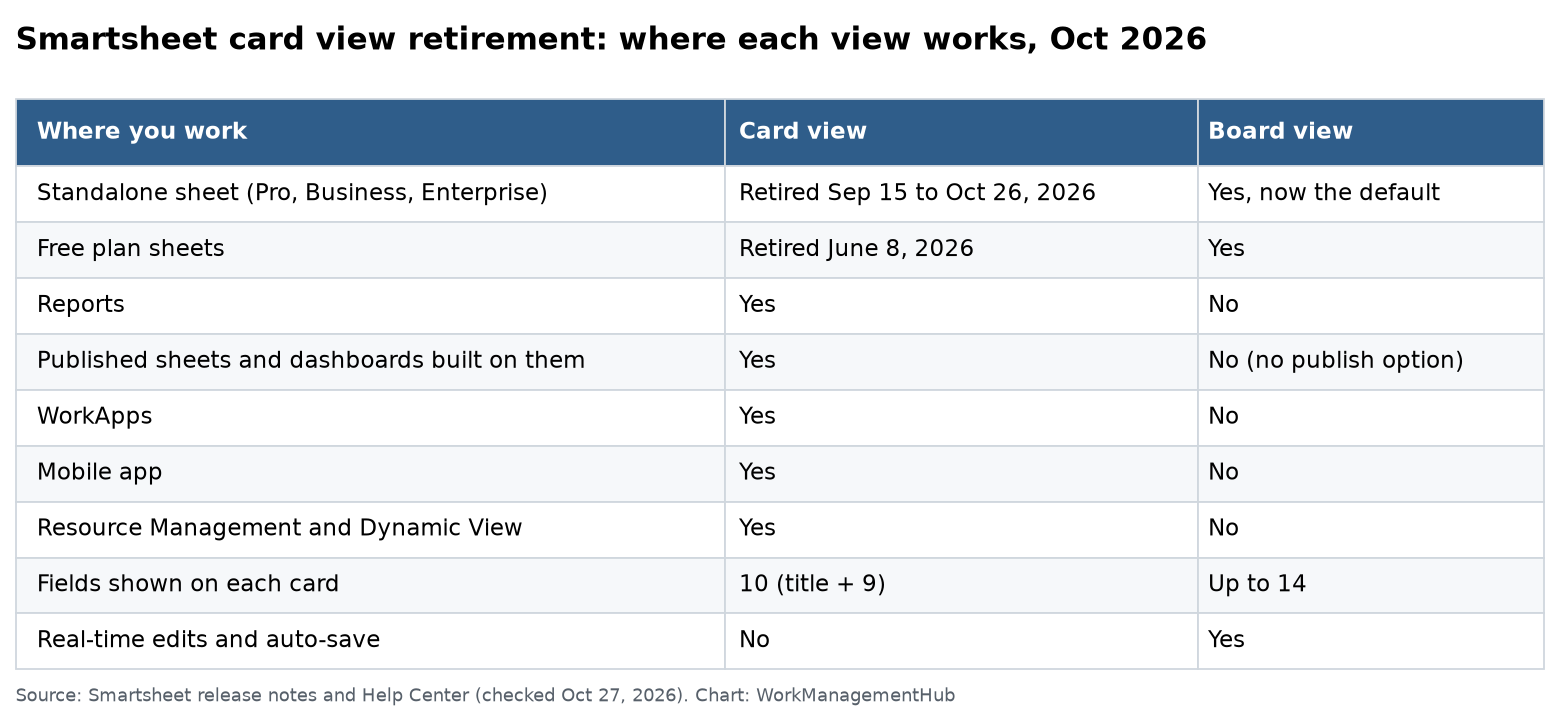
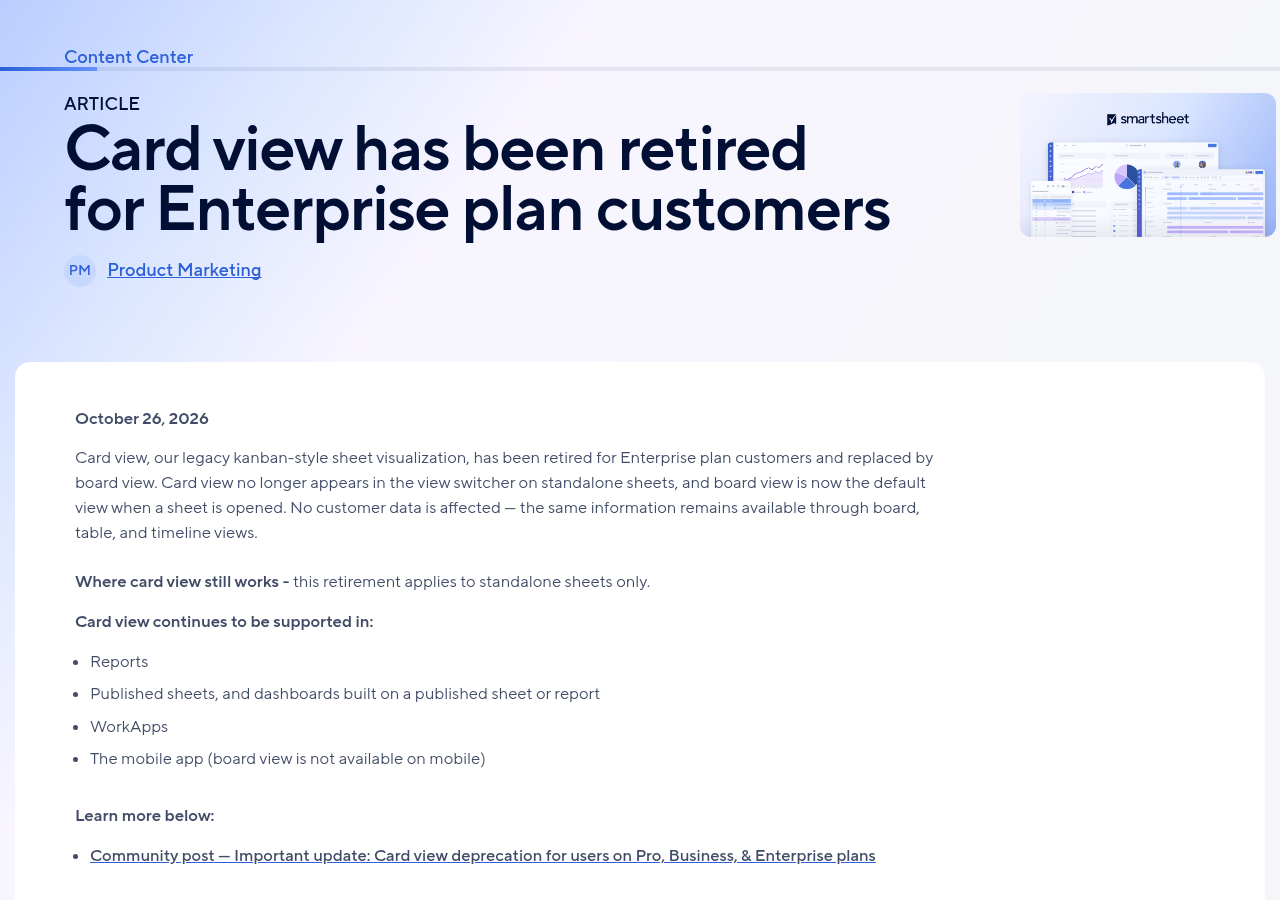
Card view is gone from standalone Smartsheet sheets on every paid plan. Smartsheet retired it for Pro on September 15, Business on October 12 and Enterprise on October 26, 2026. Board view is now the default when a sheet opens. Your data is safe. Card view still works in reports, published sheets, dashboards built on them, WorkApps and the mobile app.
I set up Smartsheet for clients as a Smartsheet partner, and card view was the Kanban board many teams lived in. So this change hits real workflows. I read Smartsheet’s three retirement notes for Pro, Business and Enterprise, the board view help article and the Community announcement on October 27, 2026.
The retirement timeline
| Plan | Announced date | Retirement note date |
|---|---|---|
| Free | June 8, 2026 | Removed from June 8, 2026 |
| Pro | September 14, 2026 | September 15, 2026 |
| Business | October 9, 2026 | October 12, 2026 |
| Enterprise | October 25, 2026 | October 26, 2026 |
Smartsheet first posted the paid-plan schedule on July 15, 2026, and updated it on September 17. Board view became the default on load 30 days before each plan’s date. The release notes came out a day or so after the announced dates, so use the note dates as the confirmed ones.
The change covers Commercial US, EU and AU regions. It hits both Legacy Collaborator and User Model plans.
Where card view still works
This is the part most teams miss. The retirement only applies to standalone sheets. Card view is still supported in:
- Reports
- Published sheets, and dashboards built on a published sheet or report
- WorkApps
- The Smartsheet mobile app, since board view is not on mobile
A Smartsheet employee also confirmed in the Community thread that card view will remain in reports “for the time being.” That last phrase matters. Don’t build a new long-term process on card view in a report. Treat it as a bridge.
Board view vs card view
Smartsheet’s help article lists the differences. Here is the short version.
| Feature | Board view | Card view |
|---|---|---|
| Auto-save and real-time edits | Yes | No |
| Fields shown on a card | Up to 14 | 10 (title plus 9) |
| Cover images on cards | Yes | No |
| Record details panel | Yes | No |
| Automations, activity log, sheet summary | Yes | Yes |
| Proofs | Yes | Yes |
| Publish the view | No | Yes |
| Resource Management and Dynamic View | No | Yes |
| Shows up in reports, dashboards, WorkApps | No | Yes |
One note from Smartsheet: if Resource Management, Dynamic View or automations were already set up on a sheet, they keep running in the background while people use board view.
How to set up board view on a sheet
Board view needs at least one single-select dropdown, single-select contact or symbol column. That column becomes your lanes.
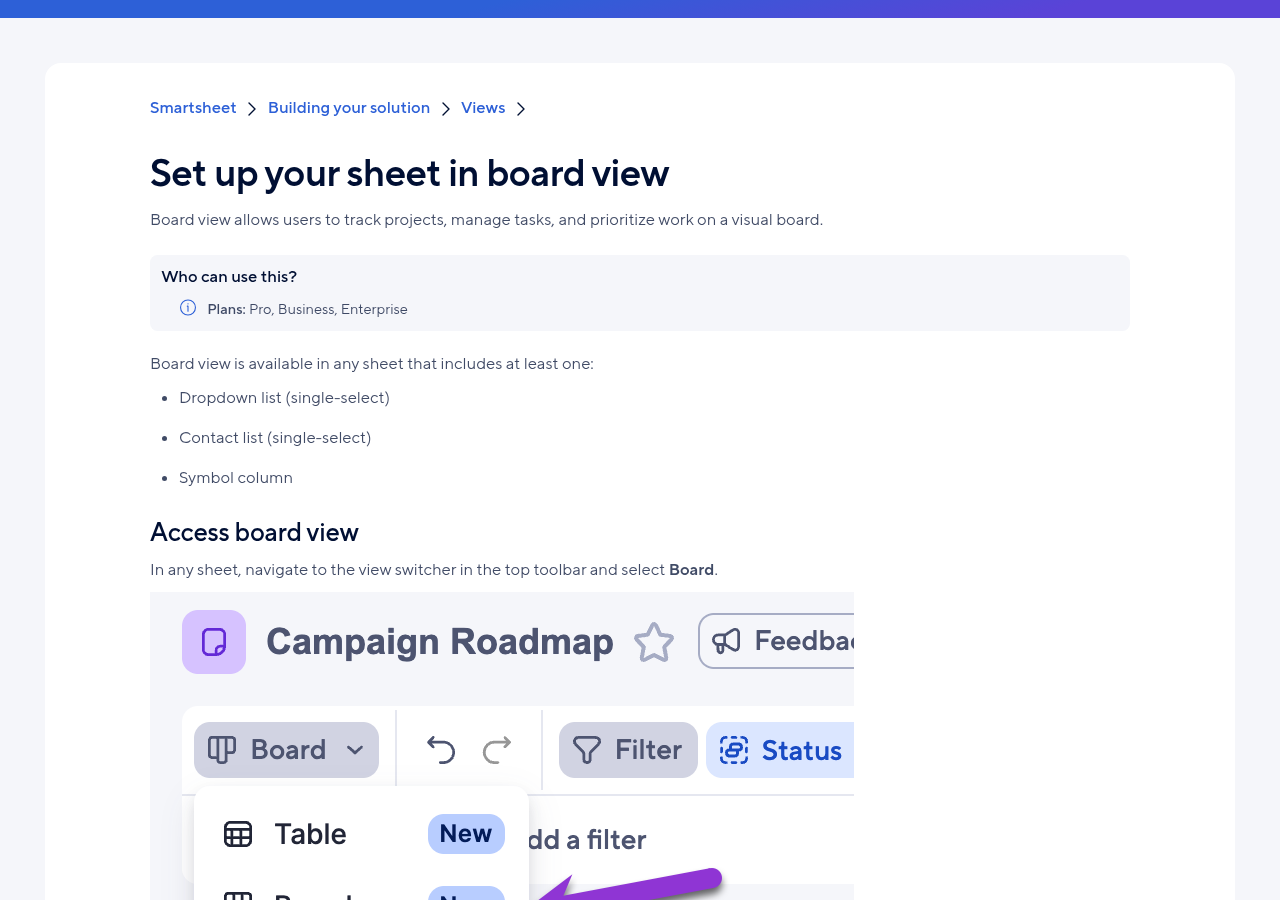
- Open the sheet and pick Board from the view switcher in the top toolbar.
- Use Group by to choose the lane column. You get one level of grouping only.
- Add lanes with + Add lane. Lane order follows the order of values in the column.
- Pick fields with Fields. The first four show by default, and you can show up to 14.
- Choose a density: Condensed, Comfortable or Wide.
- For subtasks, choose Nested cards. It shows up to five levels of child cards.
- Go to Share, then Default view, and set Board with the grouping you want.
Two tips from client work. First, press Shift+Enter after a new card to add another one below it. Second, if you delete a lane, its cards move to Uncategorized. They are not deleted, but people panic when they vanish from a lane.
Gaps and gotchas to plan around
Multi-select columns can’t be lanes. If your status lives in a multi-select dropdown, add a single-select column first.
Update requests. Smartsheet’s FAQ, last updated September 17, says update requests are coming to board view. For now, send them from table or grid view.
Search is thin. Board view search only checks the primary column. If people found cards by tag or owner, show them the filters instead.
Card colors carry over. Each card’s left border uses the task bar color from Gantt, card or calendar view. To change it, right-click the card and pick Set item color. If a conditional formatting rule sets the color, the rule wins.
Mobile is split. Your phone users still see card view. Your desktop users see board view. Write one short guide that covers both, or you’ll field the same question all week.
Look and feel. In the Community thread, several users said board view feels less dense than card view, and one said it ran slower on large sheets. Test your biggest board before you tell leadership it’s fine.
Pros and cons of the switch
Pros
- Edits save on their own and show up for others in real time.
- Cards can show 14 fields, up from 10.
- Cover images and the details panel make cards easier to scan and edit.
- No data moves, so nothing needs to be rebuilt in the sheet.
Cons
- No publish option, so public or client-facing boards still need card view through a published sheet.
- No board view in reports, dashboards or WorkApps yet.
- Lanes only group one level deep.
- Your team now uses two different board styles, one on desktop and one on mobile.
What I’d do this week
- List every sheet where card view was the default. Board view took over as the new default on those.
- Check dashboards with embedded card views. If they point at a published sheet or report, they still work. Test them anyway.
- Fix lane columns. Swap multi-select status columns for single-select ones.
- Reset each key sheet’s default view and grouping in Share.
- Move update request steps into table view until board view supports them.
- If you build projects from Control Center templates, set board view as the default view in the template.
Who should not rely on board view yet
If your process runs on a client-facing published board, a report-based Kanban, or a card view inside WorkApps, keep it as is for now. The same goes for teams that live in Dynamic View or Resource Management. Board view does not cover those yet. Moving early would only break a working setup.
Small teams on Pro with simple status boards should switch fully and move on. For them, board view is the better tool.
Does this change pricing?
No. Smartsheet’s pricing page lists Pro at $9 per member a month and Business at $19 per member a month, billed yearly. Enterprise and Advanced Work Management are custom pricing. Board view is part of the core product, not an add-on. Our Smartsheet pricing guide covers the plan limits.
Related guides
- Smartsheet pricing 2026
- Smartsheet for beginners: complete setup guide
- Smartsheet dashboards guide 2026
- Smartsheet WorkApps guide 2026
- Smartsheet Control Center setup guide
Common questions
Is Smartsheet card view gone for good?
It is gone from standalone sheets on Free, Pro, Business and Enterprise plans. It still works in reports, published sheets, dashboards built on them, WorkApps and the mobile app.
When was card view retired on my plan?
Free lost it from June 8, 2026. Smartsheet’s notes confirm Pro on September 15, Business on October 12 and Enterprise on October 26, 2026.
Will I lose data when card view goes away?
No. Views are just different ways to see the same rows. Your data stays in the sheet and shows in board, table and timeline views.
Why can’t I open board view on my sheet?
Board view needs at least one single-select dropdown, single-select contact or symbol column. Add one of those and the Board option will work.
Can I publish a board view?
Not yet. Board view has no publish option. Use a published sheet in card view, or open link sharing, for people who don’t have a license.
Is board view on the Smartsheet mobile app?
No. The mobile app still uses card view, so phone users will see a different layout than desktop users.
Sources
- Smartsheet: Card view has been retired for Pro plan customers (Sep 15, 2026; checked Oct 27, 2026)
- Smartsheet: Card view has been retired for Business plan customers (Oct 12, 2026; checked Oct 27, 2026)
- Smartsheet: Card view has been retired for Enterprise plan customers (Oct 26, 2026; checked Oct 27, 2026)
- Smartsheet Community: Card view deprecation for Pro, Business and Enterprise (Jul 15, 2026, updated Sep 17, 2026)
- Smartsheet Community: Card view deprecation for Free plan (checked Oct 27, 2026)
- Smartsheet Help: Introduction to board view (checked Oct 27, 2026)
- Smartsheet Help: Set up your sheet in board view (checked Oct 27, 2026)
- Smartsheet Help: Work with your data in board view (checked Oct 27, 2026)
- Smartsheet pricing (checked Oct 27, 2026)
Sponsored