
ClickUp Whiteboards are a canvas inside your Workspace for sticky notes, shapes, connectors, drawings, and embedded ClickUp items. The feature that makes them worth using over Miro or FigJam is simple: you can turn a sticky note or shape into a real ClickUp task in a List, with an assignee and a due date, without leaving the board.
The limit most teams hit first is the count, not the features. On ClickUp’s pricing page (checked October 14, 2026), Free allows 3 Whiteboards, Unlimited allows 10, and Business and above are unlimited. Private Whiteboards start on Business.
I implement work-management tools for teams (SSPM is a Smartsheet partner, and we also set up ClickUp for clients). The pattern below is what I use for project kickoffs, not a tour of every toolbar button.
Whiteboard limits by plan
| Plan | Price (yearly / monthly billing) | Whiteboards | Private Whiteboards |
|---|---|---|---|
| Free Forever | $0 | 3 | No |
| Unlimited | $7 / $10 per user/mo | 10 | No |
| Business | $12 / $19 per user/mo | Unlimited | Yes |
| Enterprise | Custom | Unlimited | Yes |
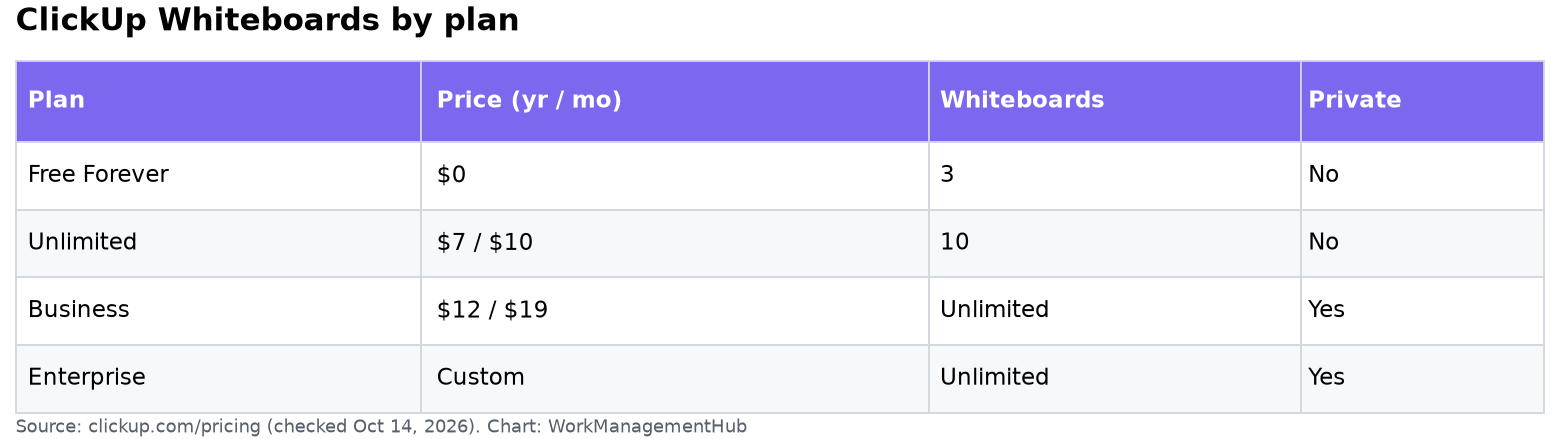
Ten boards sounds generous until every project kickoff, retro, and brainstorm gets its own. On Unlimited, archive or reuse boards. If whiteboarding is a daily habit across teams, that alone can justify Business. For a full plan breakdown, see our ClickUp pricing guide.
Create a Whiteboard in the right place
Add a Whiteboard as a view in the Space, Folder, or List where the work will live. That location matters more than people expect: when you convert a sticky into a task, you want the task to land in the right List with the right statuses, not in a catch-all.
- Open the project List (or Folder) and click + View.
- Choose Whiteboard and name it after the purpose, for example “Q1 launch kickoff.”
- Share it with the people who will edit. Guests can view or edit depending on permissions.
You can also create a standalone Whiteboard from the Whiteboards hub, but tie it to a location before you start converting items.
A kickoff workflow that ends in real tasks
The board is useful when it ends with owners and dates. This is the 45-minute sequence I run:
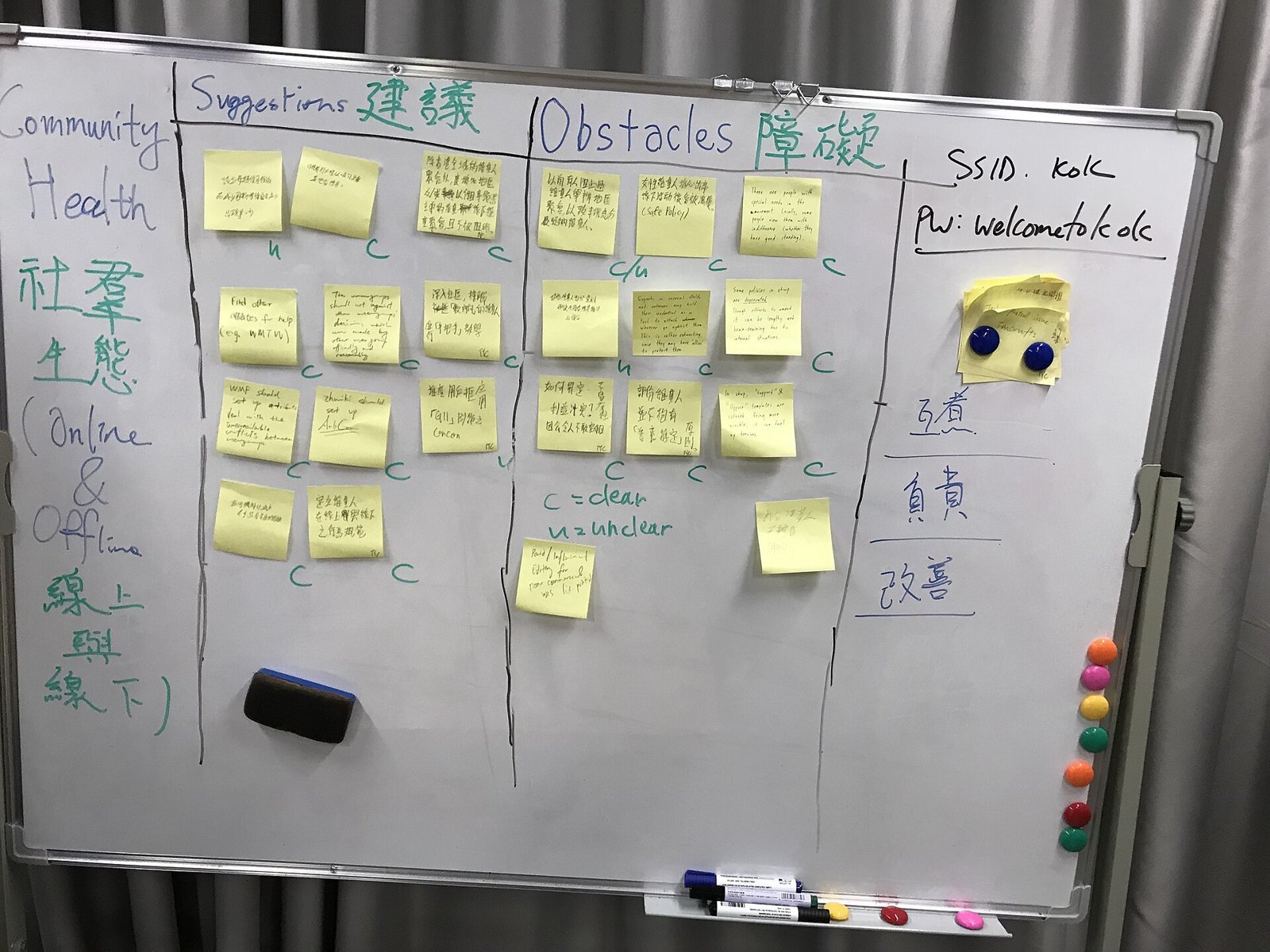
- Goal box (5 min). One shape at the top with the outcome and the deadline.
- Brain dump (10 min). Everyone adds sticky notes for work they think is needed. No discussion yet.
- Cluster (10 min). Drag stickies into groups: design, build, content, launch. Delete duplicates.
- Sequence (10 min). Draw connectors between groups to show order. Keep it rough; detailed dependencies belong in Gantt.
- Convert (10 min). Select the stickies that survived and convert them to tasks in the project List. Assign an owner on each one before the call ends.
After conversion, the task appears on the board as a card linked to the real task, so status changes show up on the canvas. From there, the Gantt view is where dates and dependencies get real.
Where Whiteboards fall short
- Not a project plan. Connectors on a board are not task dependencies. Do not expect the board to reschedule anything.
- Big boards get slow. Hundreds of objects plus embedded docs make the canvas sluggish, especially in browsers with many tabs open. Split by phase.
- Converted tasks drift. If people edit the task title in the List, the board shows the update, but free-floating stickies next to it do not. Delete leftovers once converted.
- Mobile is for viewing. Editing a large board on a phone is painful. Plan on desktop.
Whiteboards vs Docs vs Mind Maps
| Use | Best ClickUp feature |
|---|---|
| Brainstorm with a group, cluster ideas | Whiteboard |
| Write a brief or spec with decisions | ClickUp Docs |
| Break a goal into a hierarchy of tasks | Mind Map view |
| Report progress to leadership | Dashboards |
If you want AI to draft a first board from a prompt, ClickUp Brain can help (see our ClickUp Brain guide). I still run the human brain dump first; AI drafts tend to produce generic stickies nobody owns.
Small habits that keep boards useful
- Use one sticky color per team so ownership is visible at a glance.
- Put a “Parking lot” frame on every board for ideas that are not in scope.
- Add the board link to the project’s description so it is not lost after kickoff.
- Archive the board once tasks are converted and the project is moving. It still counts against your limit until you do.
Gotchas I see on real client boards
People convert too early. If you turn every sticky into a task during the brain dump, you get 60 tasks and half are duplicates. Convert only after you cluster and cut. My rule: nothing becomes a task until it has an owner in the room.
The wrong List gets the tasks. A board made from the Whiteboards hub has no home. Converted tasks then land wherever you pick in a hurry. Make the board as a view inside the project List first. Then the tasks pick up that List’s statuses and custom fields (extra data columns like Priority or Budget).
Guests see more than you think. A board shared with a client shows every sticky, including the “client is slow to reply” note someone wrote as a joke. Make a second, clean board for client sessions. Private boards need Business.
Boards are not documentation. Six months later, nobody can read a board full of arrows. Write the final decisions in a ClickUp Doc and link it from the board.
When NOT to use ClickUp Whiteboards
- You already pay for Miro or FigJam and your designers live there. Two canvas tools split the team. Keep Miro for design work. Use ClickUp boards only for planning that must end in tasks.
- The session is a big workshop with 30+ people. Large live sessions get slow on a busy board. A dedicated workshop tool handles that crowd better.
- You need a real schedule. Use Gantt (a timeline chart where tasks are bars and can depend on each other). A board will never move dates for you.
- You are on Free and want a board per project. Three boards run out in a week. Either pay for Unlimited or keep one “planning” board and clear it after each kickoff.
A worked example: a website relaunch kickoff
Here is how a 6-person marketing team ran it last quarter, in plain steps:
- Goal box: “New site live by March 31. Same traffic or better.”
- Brain dump: 48 stickies in 10 minutes.
- Cluster: Design (9), Content (14), Dev (11), SEO (6), Launch (8).
- Cut: 48 became 31 after removing duplicates and “nice to have” ideas, which went to the parking lot.
- Sequence: Content had to start before Design finished, so we drew that link. Dev waited on Design.
- Convert: 31 tasks went into the “Website Relaunch” List with owners. Dates went on in Gantt the next day.
The board took 45 minutes. The Gantt plan took 30 more. Without the board, the same plan usually takes two or three meetings.
Cost check: is Business worth it for boards alone?
At yearly billing, Business is $5 more per user per month than Unlimited ($12 vs $7). For a team of 10 that is $50 a month, or $600 a year. Pay it if you need more than 10 boards, private boards, or Business features you already wanted. If boards are the only reason, archive old boards and stay on Unlimited.
Common questions
How many Whiteboards can I create on ClickUp Free?
Three. Unlimited allows 10, and Business and Enterprise are unlimited, per clickup.com/pricing on October 14, 2026.
Can I turn a sticky note into a task?
Yes. Select the sticky note or shape and convert it to a task. Pick the destination List so the task gets the right statuses and fields.
Are ClickUp Whiteboards private?
Private Whiteboards are a Business-plan feature. On Free and Unlimited, boards follow the sharing of their location.
Do Whiteboard connectors create task dependencies?
No. Connectors are visual only. Set real dependencies in Gantt or on the task itself.
Can clients or guests edit a ClickUp Whiteboard?
Yes, if you share it with edit rights. Guest access depends on your plan and sharing settings. Use a separate clean board for client sessions.
Should I use ClickUp Whiteboards or Miro?
Use ClickUp boards when the session must end in ClickUp tasks. Keep Miro if your team runs big workshops or design work there already.
Plan limits and prices checked against clickup.com/pricing on October 14, 2026. Vendors change plans; confirm before you buy.
Sponsored