Smartsheet AI Features Deep Dive 2026: Smart Assist, Smart Flows, Smart Agents & Smart Hub
- Smartsheet’s 2026 AI platform is built on four pillars: Smart Assist (conversational project setup), Smart Flows (natural-language multi-step automations), Smart Columns (AI data categorization), and Smart Agents (autonomous digital coworkers).
- Smart Hub — the centralized AI governance console — is on track for general availability in 2026 after its announcement at ENGAGE 2025, giving enterprise admins control over agent management and AI data monitoring.
- The Smartsheet MCP Server (launched March 2, 2026) enables direct integration with Claude and other MCP-compliant tools, allowing real-time AI queries against live sheet data.
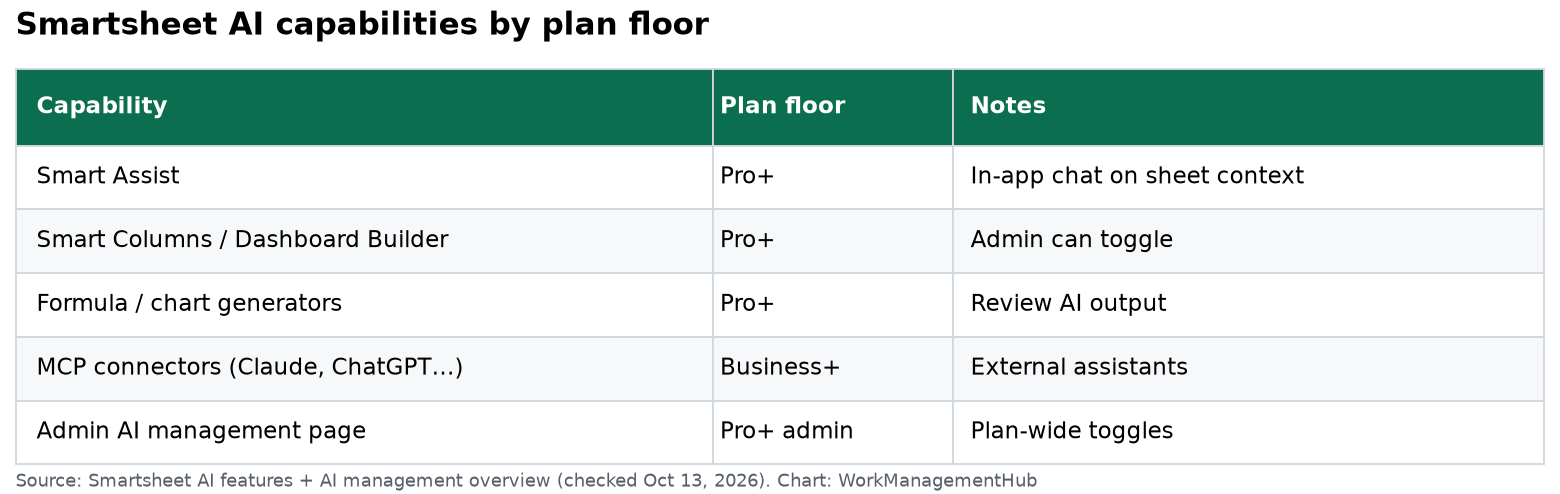
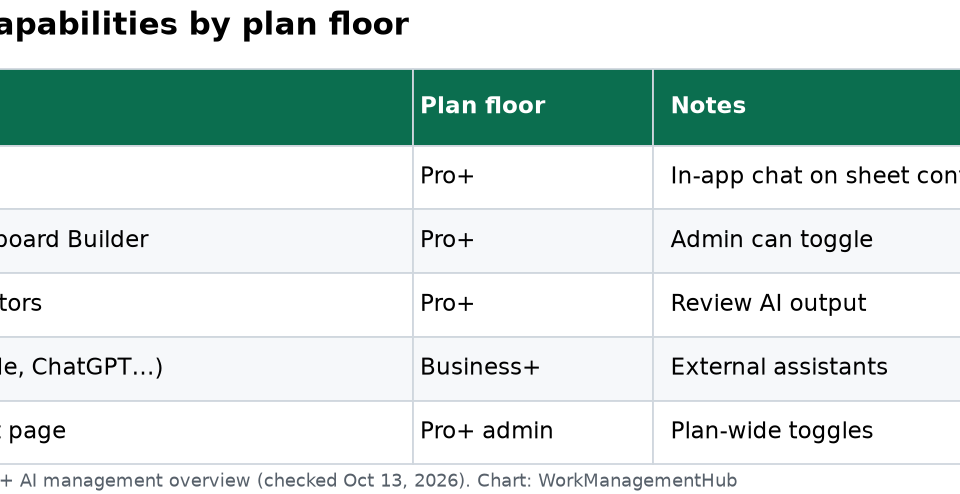
- Smart Columns is available from the Business plan; Smart Assist, Smart Flows, Smart Agents, and Smart Hub require the Advance plan.
- Smart Agents are not just faster automations — they are goal-directed AI workers that can plan, reason across multiple sheets, and take multi-step actions with optional human-in-the-loop approval gates.
Smartsheet AI features in 2026 span four capabilities — Smart Assist for conversational project creation, Smart Flows for plain-English multi-step automations, Smart Columns for AI-driven data categorization, and Smart Agents for autonomous task execution — all governed by the new Smart Hub enterprise control center. Core AI requires the Advance plan; Smart Columns starts on Business.
- Smartsheet’s Intelligent Work Management Platform in 2026
- Smart Assist: Conversational AI for Project Setup
- Smart Flows: Natural-Language Multi-Step Automations
- How to Set Up a Smart Flow (Step-by-Step)
- Smart Columns: AI-Powered Data Categorization and Translation
- Smart Agents: Autonomous Digital Coworkers
- How to Configure a Smart Agent (Step-by-Step)
- Smart Hub: Enterprise AI Governance Center
- Smartsheet MCP Server: AI Integration with Claude and Beyond
- Plan Comparison: Which AI Features Require Which Tier?
- Verdict
- Frequently Asked Questions
Smartsheet’s Intelligent Work Management Platform in 2026
Smartsheet has always positioned itself as a platform for enterprise work management — structured, scalable, and governance-first. In 2026, that foundation now carries a full AI layer that the company calls Intelligent Work Management (IWM). Rather than bolting a single AI chatbot onto the side of its existing product, Smartsheet has integrated AI across four distinct functional areas, each solving a different class of problems that enterprise teams actually face.
The four AI pillars — Smart Assist, Smart Flows, Smart Columns, and Smart Agents — reflect a deliberate architectural philosophy: AI should reduce the time from “idea” to “executing project” while simultaneously reducing the cognitive load of maintaining complex sheet structures, automations, and status reporting. Smart Hub sits above all four pillars as the enterprise control layer, giving IT administrators and operations leaders the visibility and governance controls they need before sanctioning widespread AI adoption.
Understanding which pillar to deploy in which context is where most enterprise teams struggle. This guide breaks down each feature in detail, with concrete use cases, configuration guidance, and plan-tier requirements — so you can make a defensible recommendation to your stakeholders rather than experimenting in production.
For context on how Smartsheet’s AI strategy compares to rivals, see our Smartsheet vs. Asana enterprise comparison for 2026, and if you are evaluating AI agents specifically across tools, our Monday.com AI agents setup guide provides a useful benchmark.
Smart Assist: Conversational AI for Project Setup
Advance plan
Smart Assist is the entry point for most users encountering Smartsheet AI for the first time. It is a conversational AI interface embedded directly in the Smartsheet experience, purpose-built to accelerate project initiation — the phase that historically eats the most setup time before any real work begins.
In practice, Smart Assist operates like a structured dialogue. A project manager describes a project goal in natural language — for example, “I need to plan a product launch for Q3, covering marketing, engineering, and customer success workstreams” — and Smart Assist responds by generating a complete sheet structure: columns, rows, task groupings, milestones, dependencies, and default status fields. It applies Smartsheet best practices automatically, including proper hierarchy using parent-child rows, date columns formatted for Gantt view, and contact columns pre-mapped to team assignments.
Real-world use cases for Smart Assist
- New project spin-up: A PMO coordinator can generate a fully structured project plan in under two minutes from a brief description, instead of spending an hour copying from a template and adjusting columns.
- Template customization: Smart Assist can take an existing Smartsheet template and modify it to fit specific team requirements — “Add a Risk column, a RAID log section, and remove the Budget columns, we handle that in a separate tool.”
- Meeting-to-action conversion: Paste in bullet points from a meeting notes doc and ask Smart Assist to convert them into a structured action register with owners, due dates, and priority levels.
- Onboarding new team members: Smart Assist can generate role-specific views of a complex sheet by understanding the user’s function and filtering the structure accordingly.
Smart Assist also handles ongoing project questions. Once a sheet is live, team members can ask questions like “Which tasks are overdue and who owns them?” or “Summarize the status of the Engineering workstream” directly in the Smartsheet interface, without building a report or exporting to a spreadsheet. The AI reads the current sheet state and responds with a grounded, structured answer.
Smart Flows: Natural-Language Multi-Step Automations
Advance plan
If Smart Assist reduces the time to project setup, Smart Flows eliminates the bottleneck of automation configuration. Traditional Smartsheet automations — while powerful — require users to understand triggers, conditions, and actions, then assemble them through a point-and-click workflow builder. For complex, multi-step processes, this becomes a significant technical hurdle for non-admin users.
Smart Flows replaces this friction with a natural-language automation builder. A user types a plain-English description of the workflow they want, and Smartsheet’s AI generates the complete multi-step automation — including triggers, branching conditions, cross-sheet actions, notifications, and third-party integrations — as a ready-to-review workflow.
What makes Smart Flows genuinely different
The critical distinction from standard automations is the ability to chain actions across multiple steps with conditional logic, all from a single prompt. A standard Smartsheet automation might say: “When Status changes to Complete, notify the project manager.” A Smart Flow can interpret: “When a task row is marked Complete, check if it is a milestone. If it is, send a summary email to the executive stakeholder list and update the master project tracker sheet. If it is not a milestone, archive the row to the Completed Tasks sheet and log the completion date.”
That is a four-action, two-condition workflow assembled from a single sentence. For teams managing complex operational processes — procurement approvals, IT ticket escalations, client onboarding sequences — this is a significant capability leap.
Common Smart Flows use cases
- Approval routing: “When a budget request row is submitted, check the amount. If under $5,000, notify the department head. If over $5,000, route to CFO approval and pause the row until approval is received.”
- Cross-sheet synchronization: “When a new client is added to the CRM sheet, create a corresponding row in the Onboarding Tracker and assign the default CSM.”
- Escalation management: “If a ticket row has been in Pending status for more than 3 business days, escalate to the team lead and flag the row red.”
- Reporting triggers: “Every Friday at 4 PM, summarize all rows updated this week and send the digest to the weekly standup distribution list.”
How to Set Up a Smart Flow (Step-by-Step)
Advance plan
- Open Automation. Open your target Smartsheet and navigate to Automation > Create workflow from the top menu bar. This opens the automation builder panel.
- Select Smart Flow. Choose Smart Flow from the workflow creation options. This activates the natural-language input interface rather than the standard rule builder.
- Describe your automation in plain English. Type a clear, specific description of the workflow. Include the trigger condition, any branching logic, and the desired actions. The more specific your prompt, the fewer manual adjustments the generated flow will need.
- Review the AI-generated workflow steps. Smartsheet AI generates a multi-step flow displayed as an editable visual workflow. Review each step — confirm the trigger field, check condition values, verify action targets (especially cross-sheet references).
- Test in sandbox mode. Run the workflow in test mode against a sample row. Smartsheet will execute each step and show you the results without committing changes to live data. Verify that all conditional branches behave as expected.
- Activate and monitor. Once validated, click Activate. Monitor the workflow’s run history in the Automation panel for the first week to confirm it is firing correctly on real data.
Smart Columns: AI-Powered Data Categorization and Translation
Business plan
Smart Columns are the most immediately practical of Smartsheet’s AI features for teams who already have data in Smartsheet and want AI to help them make sense of it. Rather than requiring a workflow change, Smart Columns operate on existing column data and produce AI-enriched outputs in new or adjacent columns.
The two primary Smart Column capabilities in 2026 are AI categorization and AI translation.
AI Categorization
When you add a Smart Column configured for categorization, you define a set of categories and point the AI at a source column (typically a free-text field like a request description, support ticket body, or project name). The AI reads each cell’s content and assigns it to the appropriate category — automatically, at scale, without manual tagging.
A procurement team processing 400 purchase requests per week, for example, can use AI categorization to automatically tag each request as IT Hardware, Software Licensing, Professional Services, Facilities, or Other — based on the description text alone. What previously required a manual triage step or a rigid keyword-matching rule now happens in real time as new rows are added.
AI Translation
Smart Columns also support real-time language translation. A multinational team maintaining a single master project sheet can surface translated versions of status updates, task descriptions, or notes in regional colleagues’ preferred languages — without leaving Smartsheet or pasting content into a third-party translation service. This is particularly valuable for operations teams running global project portfolios from a single source of truth.
Other Smart Column capabilities
- Sentiment analysis: Useful for customer feedback sheets — the AI tags each feedback entry as Positive, Neutral, or Negative based on text content.
- Summarization: A Smart Column can summarize long free-text entries (meeting notes, ticket descriptions, change logs) into a one-sentence summary displayed in a compact column.
- Entity extraction: Extract specific data points — company names, project codes, product SKUs — from unstructured text into clean, structured columns that can be filtered and reported on.
Smart Agents: Autonomous Digital Coworkers
Advance plan
Smart Agents represent the most significant architectural shift in Smartsheet’s 2026 platform. While Smart Assist answers questions and Smart Flows automate defined workflows, Smart Agents are fundamentally different in nature: they are goal-directed AI workers capable of planning, reasoning across multiple data sources, and taking multi-step actions to achieve an objective — with or without a human triggering each step.
The distinction matters enormously for enterprise deployment. An automation runs a fixed sequence of steps when a trigger fires. An agent pursues a goal by dynamically deciding which steps to take, in which order, based on the current state of the data. If a step fails or conditions change mid-execution, the agent adapts rather than halting.
What Smart Agents can do
- Weekly status report generation: An agent monitors all project sheets in a portfolio workspace, pulls the latest status from each, identifies risks and blockers flagged in the past week, and produces a formatted executive summary posted to a designated report sheet — every Monday morning, without human initiation.
- Resource conflict detection: An agent scans team capacity sheets alongside project assignment sheets, identifies over-allocated team members, flags the conflicts to the relevant PMs, and suggests rebalancing options based on task priority and deadline proximity.
- Intake processing: An agent monitors an intake request sheet, categorizes each new request using the same AI logic as Smart Columns, routes it to the correct team workspace, pre-populates a project initiation sheet, and sends a confirmation notification to the requestor — all within minutes of submission.
- Risk monitoring: An agent tracks project health metrics across a portfolio, triggers escalation actions when risk thresholds are breached, and maintains a rolling risk register with AI-generated mitigation suggestions.
Human-in-the-loop governance
For actions that modify live data — updating rows, sending external notifications, or making structural changes to sheets — Smart Agents support configurable approval gates. Before executing a consequential action, the agent pauses and sends an approval request to the designated reviewer. This is the right default posture for any enterprise deploying agents on production data for the first time, and Smartsheet’s architecture makes it straightforward to configure.
For comparison with how other platforms approach autonomous agents, see our Jira AI agents 2026 spring release guide and our coverage of Notion custom agents in 2026.
How to Configure a Smart Agent (Step-by-Step)
Advance plan
- Navigate to Smart Hub. Access Smart Hub from the main Smartsheet navigation panel. Smart Hub is where all agent management and monitoring lives. You must have Advance plan admin or owner permissions to create agents.
- Create a new agent. Click New Agent and assign a clear, descriptive name that reflects the agent’s purpose (e.g., “Portfolio Weekly Status Agent”). Select the primary sheets and reports it should monitor as its data scope.
- Define the agent’s goal and operating scope. Write the agent’s objective in plain language. Be explicit about boundaries: which workspaces it can read, which sheets it can write to, and what it must not modify. Principle of least privilege applies here exactly as it does to user access controls.
- Set triggers and schedule. Choose the activation mode: scheduled (e.g., every Monday at 7 AM), event-driven (e.g., when a new row is added to a specific sheet), or on-demand (manually triggered by a named user). You can combine schedule and event triggers for resilience.
- Configure output destinations and approval gates. Specify where the agent writes its outputs — a summary column, a dedicated report sheet, a Slack notification. For any write actions on live data, enable human-in-the-loop approval and designate the approver(s).
- Publish and monitor in Smart Hub. Publish the agent and use Smart Hub’s activity log to review each run: what the agent read, what decisions it made, what actions it took, and whether any approvals are pending. Adjust permissions and scope based on the first week’s activity.
Smart Hub: Enterprise AI Governance Center
Advance plan
Smart Hub was announced at Smartsheet’s ENGAGE conference in 2025 and is on track for general availability in 2026. It addresses one of the most serious friction points in enterprise AI adoption: the gap between what individual teams want to do with AI and what IT and compliance teams are willing to sanction without visibility and control.
Smart Hub is a centralized control plane for all AI activity in a Smartsheet organization. Its core capabilities fall into three categories.
Agent management
Smart Hub provides a unified registry of all Smart Agents deployed across the organization — who created them, which sheets they access, what permissions they hold, when they last ran, and what actions they took. Admins can pause, modify, or decommission any agent from Smart Hub without needing access to the individual workspace where the agent was created.
AI data usage monitoring
Every AI interaction — Smart Assist queries, Smart Flows executions, Smart Column processing, agent runs — generates an audit trail visible in Smart Hub. Operations and compliance teams can review which data the AI has accessed, when, and for what purpose. For organizations operating under data residency requirements, financial services regulations, or healthcare compliance frameworks, this audit trail is not optional; it is a prerequisite for deployment.
Governance and policy enforcement
Smart Hub allows admins to set organizational policies: which AI features are enabled, which user roles can create agents, which external integrations AI workflows are permitted to call, and what data classification levels AI can access. These policies can be applied at the workspace, group, or individual user level — matching the same granularity as Smartsheet’s existing permission model.
For organizations also evaluating Claude-based AI workflows directly within Smartsheet, Smart Hub works in conjunction with the MCP Server integration described below, providing governance coverage over AI queries that originate from external tools as well as native Smartsheet AI features.
Smartsheet MCP Server: AI Integration with Claude and Beyond
On March 2, 2026, Smartsheet launched its MCP (Model Context Protocol) Server — a connector that enables external AI tools, including Claude, to query live Smartsheet data in real time using the MCP standard.
The practical implication: instead of exporting a sheet to a spreadsheet, copying data into a prompt, and asking Claude a question about it, teams can connect Claude directly to their Smartsheet workspace. Claude can then read current row data, query across sheets, surface insights, and generate analysis — all against live, up-to-date information — without users leaving their working environment.
What the MCP Server enables
- Real-time project interrogation: “Claude, what is the current status of every milestone in the Q3 product launch sheet?” — Claude queries the sheet directly and returns a grounded answer based on today’s data.
- Cross-sheet analysis: “Which team members are assigned to more than three active projects simultaneously?” — Claude reads across multiple sheets to synthesize an answer that would otherwise require building a cross-sheet report.
- Natural-language reporting: “Write an executive summary of this week’s project status updates for the board deck” — Claude generates the summary from live sheet data, not from a static export.
- Anomaly detection: “Flag any rows where the due date has passed and status is not Complete” — the kind of query that previously required a custom filter set or a formula column.
For a full technical walkthrough of setting up the Smartsheet MCP Server with Claude, including authentication configuration and permission scoping, see our dedicated guide: Smartsheet MCP Claude integration setup 2026.
The MCP Server is compatible with any tool that implements the Model Context Protocol standard, not just Claude — making it a durable integration investment as the MCP ecosystem continues to expand across enterprise AI tools in 2026 and beyond. Official documentation is available at help.smartsheet.com and smartsheet.com/platform/ai.
Plan Comparison: Which AI Features Require Which Tier?
One of the most common sources of confusion in Smartsheet AI evaluations is the plan-tier requirement for each AI feature. The table below provides a clear breakdown based on Smartsheet’s 2026 licensing structure.
| Feature | Description | Plan Required |
|---|---|---|
| Smart Columns (Categorization, Translation, Summarization) | AI-powered column enrichment on existing sheet data | Business |
| Smart Assist | Conversational AI for project setup and in-sheet Q&A | Advance |
| Smart Flows | Natural-language multi-step automation builder | Advance |
| Smart Agents | Autonomous goal-directed AI workers | Advance |
| Smart Hub | Enterprise AI governance and agent management console | Advance |
| MCP Server Integration | Connect Smartsheet data to Claude and MCP-compliant tools | Advance |
Organizations on the Business plan who want to evaluate the full AI feature set before committing to an Advance upgrade should engage Smartsheet’s enterprise sales team for a structured pilot. Smartsheet has historically offered time-limited Advance trials for Business-tier customers in active evaluation.
For teams running Advance, note that large-scale Smart Agent deployments — particularly those involving hundreds of agents across a complex multi-workspace organization — may trigger additional Enterprise add-on licensing conversations. This is worth confirming with your Smartsheet account team before committing to an agent-heavy deployment architecture.
Smartsheet’s 2026 AI platform is the most coherent enterprise AI offering the company has ever shipped. The four-pillar architecture — Assist, Flows, Columns, Agents — covers the full spectrum from individual productivity to organization-wide autonomous operations, and Smart Hub finally gives enterprise IT teams the governance controls needed to sanction broad deployment with confidence. The MCP Server integration is a meaningful differentiator for organizations already invested in Claude or other MCP-compliant AI ecosystems, enabling real-time data access without compromising the sheet as the system of record. The primary limitation remains plan gating: teams on Business plans get Smart Columns but are locked out of the higher-value features until they move to Advance. For organizations serious about AI-augmented project and portfolio management in 2026, the Advance tier is not optional — it is the product. The question is whether the total cost of ownership justifies the upgrade, and for most enterprise PMO teams managing complex portfolios, it does.
Frequently Asked Questions
Smart Columns (AI categorization, translation, summarization) is available from the Business plan and above. Smart Assist, Smart Flows, Smart Agents, Smart Hub, and the MCP Server integration all require the Advance plan. For large-scale agent deployments across complex enterprise environments, contact Smartsheet sales to discuss Enterprise add-on licensing. Do not assume that a standard Advance seat includes unlimited agent runs at scale without validating this with your account team.
Smartsheet states that customer data is not used to train its underlying AI models. All AI processing operates within Smartsheet’s existing enterprise-grade security and data residency framework. Smart Hub provides admins with a full audit trail of AI data access — which features accessed which data, when, and what actions resulted. For compliance-sensitive industries, review Smartsheet’s Trust and Security documentation before deployment and confirm applicable data residency controls with your Smartsheet enterprise representative.
Smart Hub is Smartsheet’s centralized AI governance console, announced at the ENGAGE 2025 conference. It is on track for general availability in 2026. Smart Hub allows IT administrators and operations leaders to manage all deployed Smart Agents, monitor AI data usage across the organization, review agent activity logs, enforce access policies for AI features, and ensure compliance with internal and external data governance requirements — all from a single unified dashboard.
Launched on March 2, 2026, the Smartsheet MCP Server is a connector that implements the Model Context Protocol standard, enabling AI tools such as Claude to query live Smartsheet data in real time. This allows teams to ask natural-language questions about current project data, generate analysis and summaries from live sheet content, and surface cross-sheet insights — all without exporting data or switching tools. It is compatible with any MCP-compliant AI platform, not just Claude. Full setup documentation is available at our dedicated integration guide.
Standard Smartsheet automations are single-trigger, single-action or limited multi-action rules built through a structured point-and-click interface. They execute a fixed sequence every time the trigger condition is met. Smart Flows are AI-generated, multi-step workflow sequences that you describe in plain English. The AI interprets your intent and assembles complex workflows incorporating branching conditional logic, cross-sheet actions, summarization steps, and third-party integrations — from a single natural-language prompt. For teams with complex operational processes, Smart Flows can produce automation configurations in minutes that would otherwise take hours to build manually.