
Jira automation lives under Project settings → Automation for project rules, with site-wide rules managed in global automation. A rule watches for a trigger, checks conditions, then runs actions – assign, comment, transition, notify – without code.
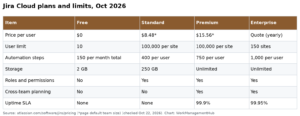
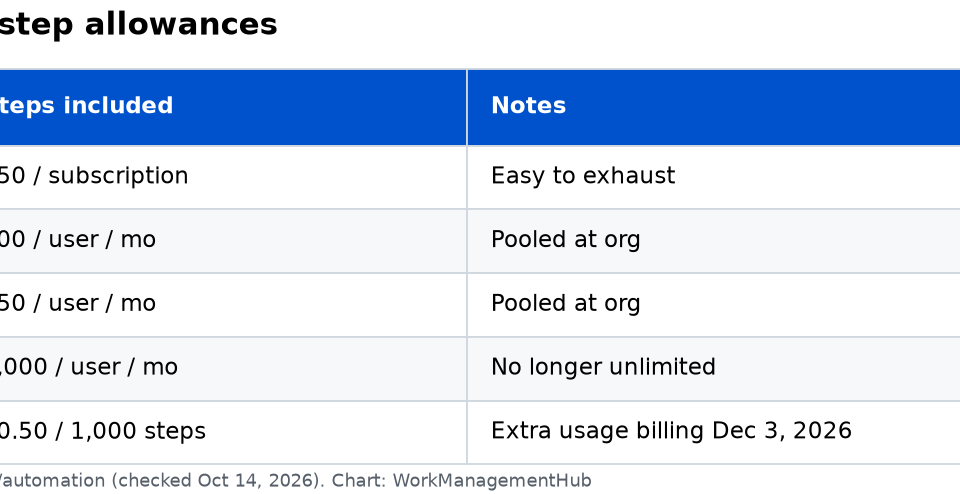
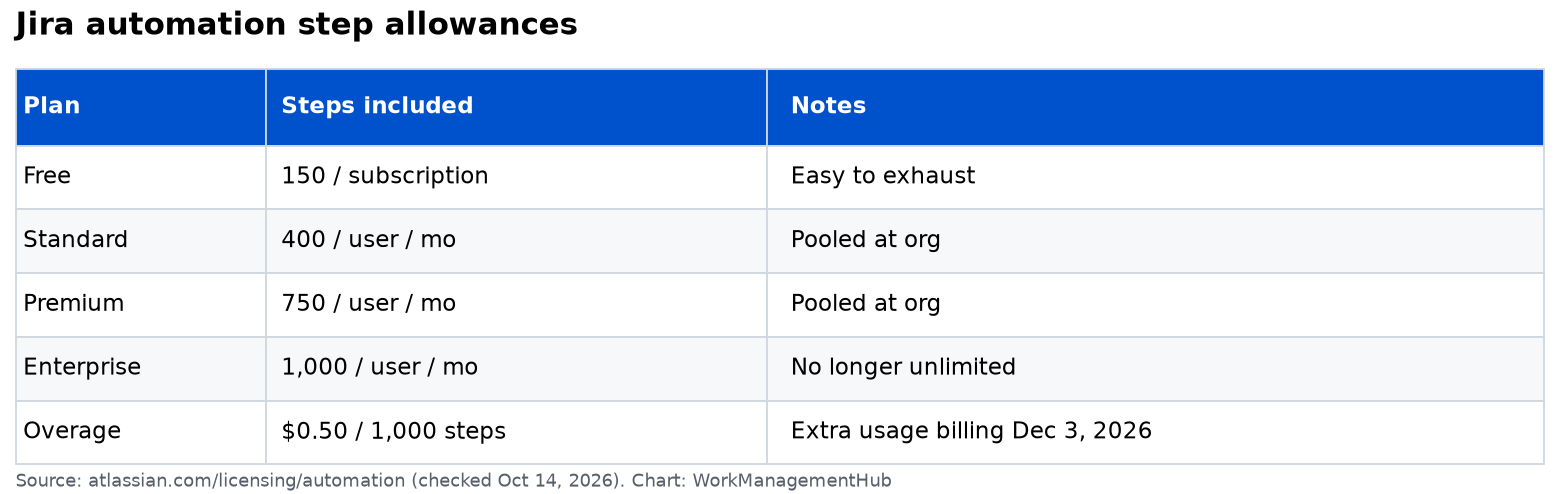
The parts that cost teams time are step limits, permission gaps, and rules that go quiet. Atlassian now meters steps (each trigger, condition, action, branch, and loop execution), pooled at the organization level across Jira and other Atlassian apps. Allowances from Atlassian’s automation licensing FAQ and plan tables, checked October 14, 2026:
| Jira plan | Included automation steps |
|---|---|
| Free | 150 steps / month / subscription |
| Standard | 400 steps / user / month |
| Premium | 750 steps / user / month |
| Enterprise | 1,000 steps / user / month |
Extra usage is $0.50 per 1,000 steps. December 3, 2026 is when extra-usage billing is scheduled to take effect; if extra usage is disabled and you exhaust the pool, flows pause and events during the pause are not replayed. Seat list prices also rose on October 13, 2026 (about $9.70 Standard / $19.60 Premium per user/month in the 1-100 monthly band) – see Jira pricing and Atlassian Cloud pricing changes.
Build a rule the boring, reliable way
- Pick the narrowest trigger (
Issue transitionedto Done, notField value changedon every edit). - Add conditions that fail fast (project, type, status).
- Limit actions; each one is a step when it runs.
- Avoid looping branches that re-touch the same issues.
- Use the rule actor identity intentionally – permissions errors look like “automation is broken.”
- Enable audit log, test with one issue, then widen.
Example step math: trigger → priority condition → assign → Slack notification = 4 steps every time it fires. Sixty fires a workday ≈ 5,300 steps in a 22-day month – most of an 18-user Standard pool (18 × 400 = 7,200).
Fixes when rules go quiet
| Symptom | Likely cause | Fix |
|---|---|---|
| Never fires | Wrong project scope; trigger event mismatch | Re-check trigger + scope |
| Fires in audit, no visible change | Actor lacks permission | Change rule actor / permissions |
| Stopped mid-month | Step allowance exhausted; extra usage off | Optimize rules or enable packs/extra usage |
| Duplicate comments | Two rules on same event | Merge or add mutual exclusions |
| Works in one project only | Project rule vs global rule confusion | Publish the right scope |
Pair automation with clean queues: JQL advanced filters keep conditions readable. Git-linked transitions belong with Jira-GitHub.

What to do before December 3, 2026
- Open Atlassian Administration usage dashboards; note 80%/100% alerts.
- Kill chatty rules (notify-on-every-edit, sync-parent loops).
- Decide: prepaid step packs vs leaving extra usage enabled.
- Document business-critical flows – there is no “pin this rule” priority flag today.
- Remember Rovo-powered actions consume Rovo credits, not automation steps.
Templates vs custom rules
Atlassian ships templates for common cases (auto-assign, notify Slack, clone sub-tasks). Start from a template, then delete half the actions. Custom rules that grow to ten branches are where step counts explode. Prefer two small rules with clear names over one mega-rule nobody can edit safely.
Global rules are powerful and dangerous: a wrong condition can touch every project. Restrict global automation to admins, require a ticket for new global rules, and review the audit log weekly during the first month after any pricing or metering change.
Pros and cons
Pros: Native, no Forge required for common cases; templates speed setup; auditability.
Cons: Step math surprises; org-pooled limits couple Jira usage to Confluence automation; paused events are lost when over cap without extra usage.
Sample rule: assign on transition without wasting steps
Trigger: Issue transitioned → status equals In Progress.
Condition: Assignee is empty.
Action: Assign to {{initiator}} (or a round-robin component if you use one).
That is three steps when it fires, and it only fires on the transition you care about – not on every field edit. Compare that to “Field value changed” on Description, which can fire while people type.
Governance checklist for admins
- Inventory rules monthly; delete disabled experiments.
- Require a ticket ID in the rule description.
- Separate “notify” rules from “mutate fields” rules so you can disable notifications under load without stopping triage assignments.
- After the October 2026 price change, update internal runbooks that still quote $9.05 / $18.30 – those figures are outdated for new purchases and renewals on the new list.
- Cross-link Confluence automation owners; remember the step pool is shared at org level.
Common questions
How do I create a Jira automation rule?
Project settings → Automation → Create rule (admins/project admins depending on permissions). Choose trigger, conditions, actions, then turn it on.
What counts as an automation step in Jira?
Each executed trigger, condition, action, branch, or loop component counts as a step when it runs.
What happens when we exceed our Jira automation limit?
If extra usage is disabled, new runs pause until the monthly refresh or you add capacity. Events during the pause are not queued. With extra usage on, overage bills at $0.50 per 1,000 steps.
Is Jira automation free?
Included allowances ship with Free/Standard/Premium/Enterprise; Free’s 150 steps are easy to exhaust. Automation is not a separate SKU, but overage and packs can add cost after December 3, 2026.
If you are comparing automation economics with Airtable, remember Airtable meters runs while Jira meters steps – a single chatty Jira rule can cost more steps than an Airtable run even when both “fire once.” See Airtable automations for the other model.
Figures checked against atlassian.com/licensing/automation and Jira plan docs on October 14, 2026.
Sponsored