
You’ve crafted the perfect Airtable base, but as you hit ‘Enter’, your formula spits out an error. It’s a heart-sinking moment familiar to many of us who rely on Airtable for streamlined operations. From unexpected blank fields to mismatched data types, formula errors can stymie even the most meticulously planned workflows. The allure of Airtable lies in its flexibility and powerful customization, yet this very strength can become a quagmire for teams unprepared to navigate its intricacies. Understanding the full scope of these errors and their fixes can mean the difference between seamless project management and a bottleneck that derails productivity.
When implementing Airtable for clients, I’ve seen firsthand how these formula challenges can escalate unexpectedly. For instance, a simple IF statement may misfire when dealing with null values or unexpected text inputs, an oversight rarely covered in vendor documentation. It’s crucial to understand that while Airtable’s flexibility allows for diverse data operations, it demands a clear comprehension of its formula syntax and data structure nuances. Jumping into Airtable without this knowledge can lead to underutilized features, especially when scaling from the Free Plan to the Enterprise Scale, where stakes—and costs—are much higher.
Introduction to Airtable Formulas
Airtable formulas are a powerful tool in transforming your data manipulation needs from tedious to intuitive. They allow you to automate calculations and derive insights directly within your Airtable base, providing a dynamic approach to data analysis. Unlike static spreadsheets, Airtable’s formula fields automatically update as the data changes, which can be a game-changer for real-time data monitoring.
Understanding the unique syntax of Airtable formulas is crucial. They are case-sensitive and require proper referencing of field names using curly brackets, e.g., `{Field Name}`. This is an area where users often stumble, leading to common errors such as `#ERROR`. Always double-check your field names and make sure they match exactly with what’s in your base.
Airtable formulas integrate functions similar to those in Excel, including basic arithmetic operations, logical checks, and text manipulations. However, don’t expect Airtable to handle complex formulas with nested functions as efficiently as dedicated spreadsheet software. For instance, if your operation involves more than three nested `IF` statements, consider restructuring your data or using multiple formula fields to simplify logic.
Remember, Airtable’s formula capabilities are influenced by your subscription plan. For example, the Free Plan’s limitations on automation and API calls might restrict your formula-based automations. If your workflow demands high automation runs, upgrading to at least the Team Plan could be essential to leverage Airtable’s full potential (source).
Finally, always test your formulas in a controlled environment before deploying them across crucial datasets. A simple mistake can cascade into significant data issues, so use Airtable’s revision history feature to safeguard against errors. With these strategies, Airtable formulas can significantly enhance your data management capabilities while reducing manual effort.
Common Formula Errors in 2026
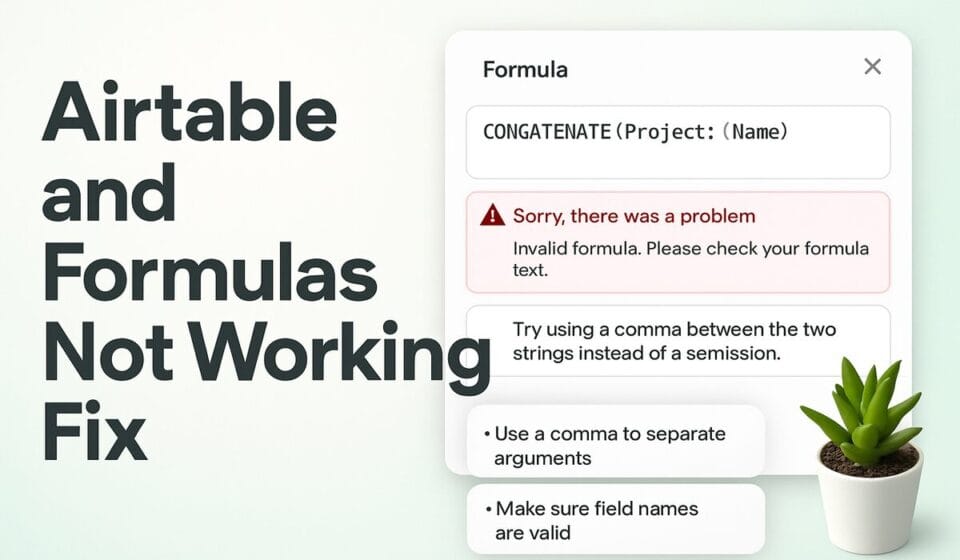
Navigating Airtable formulas can be tricky, especially with the common errors that can emerge in 2026. One frequent culprit is the #ERROR or Invalid Formula message. This usually stems from a variety of issues such as mis-typed field names, missing curly brackets, or using smart quotes instead of straight ones. It’s crucial to pinpoint the exact cause to resolve these errors.
Start by ensuring field names are correct. If you’re referencing a field like “Total Cost”, ensure it’s wrapped in curly brackets: {Total Cost}. Smart quotes often sneak in when copying text from external sources; always replace them with straight quotes within Airtable.
Null values can disrupt calculations, especially when they appear in fields expected to contain data. Use the IF() function to check for nulls before performing operations. Example: IF({Field} = "", 0, {Field} * 1.2) ensures null values are converted to zero before multiplication.
If your formula involves complex calculations, misplaced parentheses can wreak havoc. Count opening and closing parentheses to ensure they match. Airtable won’t perform calculations with text fields, so convert text to numbers where necessary. Use the VALUE() function to transform text digits into numeric format.
To troubleshoot effectively:
- Formula Bar — Double-check field names and function syntax.
- Field Formatting — Ensure data types align with your formula’s needs.
- Error Checking — Utilize
ISERROR()to identify and manage errors proactively.
Refer to the Airtable support page for detailed examples. Mastery of these nuances elevates your proficiency, reducing downtime caused by formula errors.
Understanding Error Messages
Navigating Airtable’s error messages isn’t just about identifying the problem—it’s about understanding the root cause to implement effective solutions. When formulas don’t work, Airtable often provides error messages like `#ERROR` or `Invalid Formula`. These indicators are not just nuisances; they offer critical clues about where your formula might be breaking down.
Start by examining field names and syntax. A common culprit for errors is the use of incorrect field references. Ensuring that field names are enclosed in curly brackets and match exactly as they appear in your table is crucial. For instance, `{Total Sales}` must be entered precisely, including letter case and spacing.
Mismatched parentheses can also throw off your formulas. Airtable’s formula editor doesn’t always catch these at a glance, so counting and matching each opening parenthesis with a closing one is a good habit. Consider using a text editor with parenthesis highlighting to draft complex formulas, then paste them into Airtable.
Another often overlooked issue is the use of smart quotes. Airtable requires straight quotes, so if you’re copying from a word processor, replace any curly quotes with straight ones.
Airtable formulas can be particularly sensitive to null values. If a referenced field might be empty, use functions like `IF()` to default to zero or another appropriate value, which can prevent errors from cascading through your calculations.
Finally, consider the context of your formula. Are you attempting math operations on text fields? Convert these fields to numbers where necessary. Tools like the `VALUE()` function can assist in this conversion.
Understanding these nuances can save hours of troubleshooting and make Airtable a more reliable tool for your workflow.
Fixing Field Name Errors
Field name errors in Airtable are a common stumbling block that can halt your workflow, especially when dealing with complex formulas. The most typical cause is mis-typed or non-existent field names. Here’s how to address these issues effectively:
- Check Field Names — Verify the exact field name by clicking on the field header in your base. Airtable is case-sensitive, so ensure you’re using precise capitalization and spelling.
- Use Curly Brackets — Always enclose field names in curly brackets (e.g.,
{Field Name}). This is crucial for Airtable to recognize them within formulas. - Reference Existing Fields — If you receive a
#ERRORdue to a missing field, ensure the field exists in your base. If you’re working with multiple collaborators, confirm that the field hasn’t been deleted or renamed by another user. - Update Formulas — After correcting field names, update your formulas. Airtable doesn’t automatically refresh formulas, so a manual review is necessary.
- Utilize Formula Editor — Use Airtable’s formula editor, which highlights syntax errors in real-time. This tool is invaluable for spotting issues before they impact your database operations.
For teams on the Free or Team plans, where you might have limited access to advanced features, it’s essential to tackle these errors efficiently to make the most out of your automation and API call limits. If field name errors persist, it could lead to wasted automation runs and API calls, especially problematic on plans with tighter restrictions. Always double-check your work when scaling up operations or collaborating with others. For further guidance, refer to Airtable’s official documentation for comprehensive troubleshooting tips.
Handling Parentheses and Brackets
Misplaced parentheses and brackets are a frequent culprit when Airtable formulas fail. In my experience, these errors often arise from rushed formula writing or complex nested functions. The syntax is unforgiving; even one misaligned bracket can result in a non-functional formula.
To minimize errors, always double-check the balance of your parentheses and brackets. A quick trick is to count opening and closing pairs to ensure every opening has a corresponding closure.
When inserting field references, remember to use curly brackets `{}`. Failure to do so leads to `#ERROR` messages because Airtable can’t interpret the field names correctly. For instance, if referencing a field named “Total Cost,” ensure it’s written as `{Total Cost}` and not just “Total Cost.”
For complex formulas, break them down into smaller parts. Write each section separately, verifying the functionality before combining them. This approach helps isolate where the error might be occurring, saving you hours of frustration.
Airtable’s formula editor doesn’t have advanced debugging tools, so I recommend using external tools like text editors with syntax highlighting to draft and visually check formulas before entering them into Airtable. Such tools can highlight mismatched parentheses and brackets, making it easier to spot mistakes.
Remember, when dealing with nested functions, clarity is key. Over-nesting can obscure logic flow, making errors hard to trace. If your formula gets too convoluted, consider creating intermediary calculated fields to simplify the main formula. This practice not only reduces errors but also enhances maintainability.
In summary, handling parentheses and brackets with care is non-negotiable. The precision here is crucial. If Airtable’s formula editor had an auto-complete feature, it would catch these errors early, but until then, meticulous manual checks are your best ally.
Avoiding Smart Quotes and Null Values
Smart quotes and null values are stealthy saboteurs in Airtable formulas. Smart quotes — those curly quotation marks that look visually appealing in text editors — wreak havoc in Airtable. They cause formulas to return errors because Airtable only recognizes straight quotes. This pitfall often occurs when pasting text from word processors. The fix is simple but requires vigilance:
- Text Editor — Always use a plain text editor to write formulas before pasting them into Airtable. This ensures that only straight quotes are used.
- Search and Replace — Within Airtable, use the search feature (Ctrl + F or Cmd + F) to find curly quotes and replace them with straight quotes manually.
Null values can also disrupt formula calculations, especially when you’re referencing fields that may not always contain data. For example, summing a column with null values can result in errors or unexpected results because null is not a number. Here’s how to manage them:
- IF() Function — Implement an
IF()function to check for null values. For instance,IF({Field} = BLANK(), 0, {Field})assigns a zero to any null value, preventing calculation errors. - Default Values — In field settings, specify a default value for fields that might otherwise be blank. This proactive measure helps maintain data integrity.
These adjustments might seem minor, but they are crucial for maintaining formula accuracy and avoiding downtime. Remember, Airtable doesn’t offer advanced error debugging tools, so preventative measures are your best strategy. For more detailed guidance, refer to Airtable’s official documentation on common formula errors.
Troubleshooting with Examples
When dealing with Airtable formulas, specific errors like #ERROR or Invalid Formula can derail productivity. Here are hands-on examples of diagnosing and fixing these issues, which the official docs might gloss over.
One frequent mistake is referencing field names incorrectly. Let’s say you receive a #ERROR message. The first step is to check your field names:
- Formula Bar — Ensure all field names are enclosed in curly braces. For example,
{Total Sales}+{Discount}instead ofTotal Sales+Discount.
Another common pitfall is using smart quotes in formulas. If you’ve copied text from a document editor, replace curly quotes with straight quotes:
- Formula Editor — Replace any curly quotes with straight quotes. For example, use
"Hello"instead of“Hello”.
Handling null values is crucial for accurate calculations. If your formula involves arithmetic operations, null values can lead to unexpected results:
- Field Type — Convert text fields to number fields if calculations are required. Use a function like
IF({Field}="", 0, {Field})to handle nulls effectively.
Misplaced parentheses can also trigger formula errors. To troubleshoot, break down your formula into smaller parts:
- Formula Structure — Start with simple calculations, verifying each part before combining. Use a function like
LEN()to ensure text lengths match expectations, helping find where a missing parenthesis might be.
These steps not only resolve specific errors but also enhance your understanding of Airtable’s formula syntax. For further insights, refer to the official Airtable support page.
Pricing and Feature Comparison Across Plans
| Plan | Records per Base | Storage per Base | Automations per Month | API Calls per Month | Revision History |
|---|---|---|---|---|---|
| Free | 1,000 | 1 GB | 100 | 1,000 | 2 weeks |
| Team | 50,000 | 20 GB | 25,000 | 100,000 | 1 year |
| Business | 125,000 | 100 GB | 100,000 | 100,000 | 1 year |
| Enterprise Scale | 500,000+ | 1,000 GB | 500,000 | Custom | 3 years |
Choosing the right Airtable plan depends heavily on your scale and specific needs. For small teams or individual users, the Free Plan might suffice, but the limitations on records and automation runs can quickly become a bottleneck. The Team and Business Plans offer significant upgrades in terms of storage and automation capacity, with the Team Plan providing the best balance of cost and features for medium-sized teams. For larger organizations, the Enterprise Scale Plan, with its extensive record and storage capabilities, is ideal, albeit at a custom cost. Be mindful of your automation needs, as exceeding your limit can halt critical workflows. For more on the differences, check Airtable’s official documentation.
Expert Tips and Best Practices
When troubleshooting formula errors in Airtable, the devil is in the details. Missteps often arise from overlooked nuances not covered in vendor docs. Firstly, ensure your field names are precise. Airtable formula fields are case-sensitive, so confirm that you match the exact case and spelling of field names. A simple way to verify is by clicking the field header to copy the exact field name.
Another common pitfall is the handling of null values. If your data might include empty cells, wrap formulas in an `IF()` statement to manage nulls gracefully. For instance, use `IF({Field Name}, {Field Name}, “Default Value”)` to return a default value if a field is null. This is especially crucial in calculations where division by zero errors could occur.
When dealing with text fields in calculations, convert them to numbers using the `VALUE()` function. Text fields masquerading as numbers can cause unexpected results, so ensure data types align with formula expectations.
For collaborative environments, remember that Airtable’s Free Plan limits you to 5 collaborators. If your team is larger, consider the Team Plan to avoid bottlenecks. Keep in mind the Team Plan’s automation limit — 25,000 runs per month — which might seem ample, but heavy automation use can quickly hit this ceiling.
Lastly, utilize Airtable’s built-in formula helper. It suggests functions as you type, reducing errors and speeding up formula creation. If your formula still throws an error, use the `ISERROR()` function to debug by isolating problematic parts and testing assumptions. This function is invaluable for pinpointing where calculations go awry. For deeper insights, consult Airtable’s official documentation for the latest updates and examples.
Frequently Asked Questions
Why is my Airtable formula returning an error?
Formula errors in Airtable often stem from mismatched data types or incorrect syntax. Ensure all fields referenced in your formula are of compatible types. If you’re using text functions, verify that you’re not applying them to numeric fields. Double-check formula syntax according to Airtable’s documentation.
How can I troubleshoot a #ERROR in Airtable?
Use Airtable’s formula field error checker to pinpoint issues. Check for missing parentheses, incorrect field names, or unsupported operations. Simplify your formula step-by-step to isolate the problem. Testing with smaller data sets can help identify specific data causing the error.
What is the character limit for formulas in Airtable?
Airtable formulas are limited to 100,000 characters. If you exceed this, consider breaking your formula into multiple fields or using automations to simplify operations. Keep your formulas concise to avoid hitting this limit and ensure better performance.
Can I use nested IF statements in Airtable?
Yes, Airtable supports nested IF statements, but keep them manageable. Deeply nested statements can become difficult to troubleshoot and maintain. Consider using SWITCH statements for multiple conditions as they can be more readable and efficient.
Why is my automation not triggering despite a correct formula?
Ensure your automation conditions align with your formula’s output. Check that the automation is enabled and that you haven’t exceeded your monthly run limits. For the Free Plan, you have 100 runs per month, while the Team Plan offers 25,000 runs. Verify the setup in the Automations tab.