Skip to content
-
Subscribe to our newsletter & never miss our best posts. Subscribe Now!
Work Management Hub Work Management Hub

Expert Reviews, Comparisons & Guides for Smartsheet, Monday.com, Asana, ClickUp & More

Work Management Hub Work Management Hub

Expert Reviews, Comparisons & Guides for Smartsheet, Monday.com, Asana, ClickUp & More

  • Airtable
  • Asana
  • ClickUp
  • Jira
  • Monday.com
  • Notion
  • Smartsheet
  • Wrike
  • About
  • Contact
  • Airtable
  • Asana
  • ClickUp
  • Jira
  • Monday.com
  • Notion
  • Smartsheet
  • Wrike
  • About
  • Contact
Close

Search

  • https://www.facebook.com/
  • https://twitter.com/
  • https://t.me/
  • https://www.instagram.com/
  • https://youtube.com/
How-To GuidesMonday.com

How to Set Up Monday.com Sprints in 2026: Agile Boards, Backlog & Sprint Reviews

By Shaik KB
June 4, 2026 21 Min Read
0

⚡ Key Takeaways

  • Monday.com sprints are part of the monday dev product — not standard monday.com boards. You must enable monday dev in Admin settings first or every sprint-related feature stays hidden from your account.
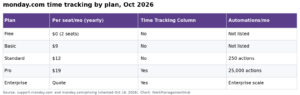
  • Sprint access requires a Pro or Enterprise plan. Free and Basic plans cannot activate monday dev regardless of how many settings you toggle.
  • The backlog is populated automatically from items not assigned to an active sprint — you do not maintain it manually, but you do need to set story points and priorities before sprint planning is useful.
  • The Velocity widget tracks story points completed per sprint across a rolling 8-sprint history. Configure it before your second sprint or you lose the baseline data that makes velocity predictions reliable.
  • The 2026 update added Cycle Goals connected to Workspace Goals for OKR alignment, and the Sprint Retrospective widget (launched March 2026) brings structured retro workflows natively into the board — no external tool required.

Quick Answer:

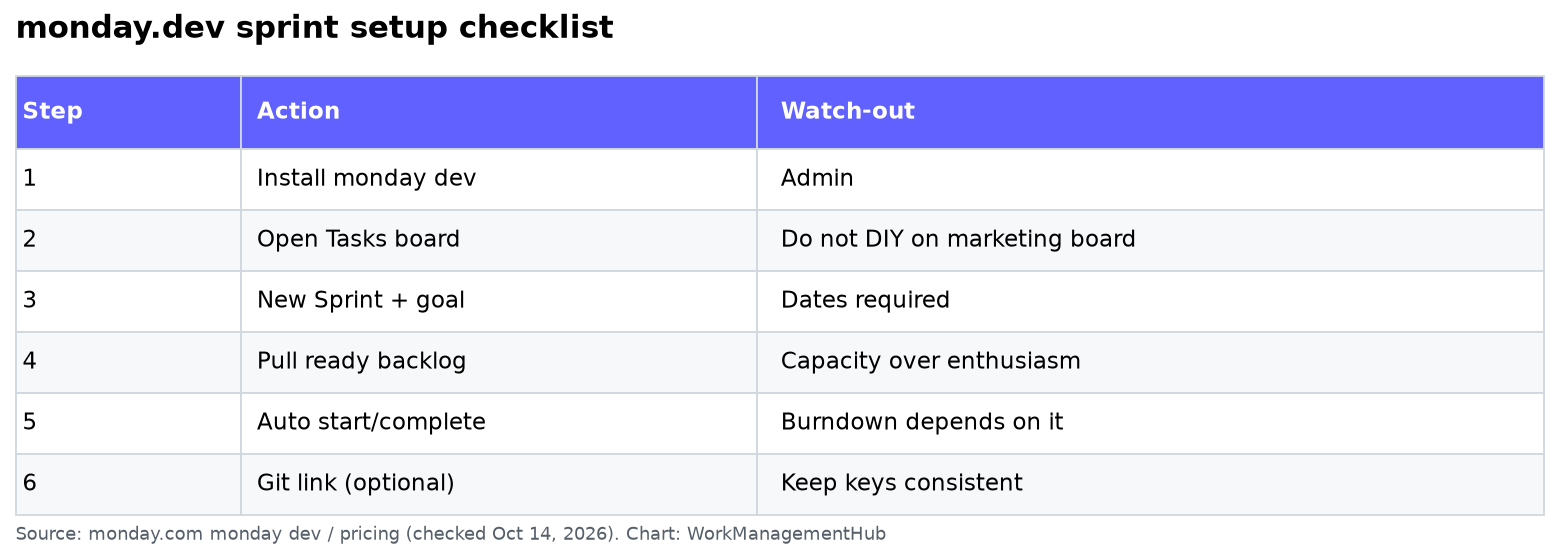
To set up Monday.com sprints, you must first enable the monday dev product under Admin → Products & Features (Pro or Enterprise plan required), then create a Sprint board, configure sprint duration (1–4 weeks), assign story points, and drag backlog items into your first sprint. The backlog auto-populates from any incomplete items not yet assigned to an active sprint.

Table of Contents

  1. Why Monday.com Sprints Are Different From Standard Board Views
  2. Prerequisites: Plan Requirements and Admin Activation
  3. Step 1 — Enable Monday Dev in Admin Settings
  4. Step 2 — Create Your First Sprint Board
  5. Step 3 — Configure the Backlog and Story Points
  6. Step 4 — Launch Your First Sprint
  7. Step 5 — Configure the Velocity Widget
  8. Step 6 — Connect Cycle Goals to Workspace OKRs (2026 Feature)
  9. Step 7 — Run Sprint Reviews and Retrospectives
  10. Board Permission Scope: What Most Guides Miss
  11. The Most Common Monday.com Sprint Mistakes
  12. Verdict
  13. Frequently Asked Questions

How to Set Up Monday.com Sprints in 2026: Agile Boards, Backlog & Sprint Reviews

The single most common failure mode I see in monday.com sprint setups is teams trying to simulate Agile sprints using standard board views — creating Groups named “Sprint 1,” “Sprint 2,” and manually moving cards between them. This is not a sprint system. It is a sprint costume on top of a project board, and it breaks the moment you want velocity tracking, burndown charts, or any structured sprint review workflow.

Real Monday.com sprints exist inside a separate product called monday dev, with dedicated sprint infrastructure that standard monday.com does not replicate. The distinction matters enormously for setup because the entry point is not a board setting or a view — it is an Admin-level product activation that most teams and most online guides completely skip. If you have ever opened monday.com looking for sprint features and found nothing, that is why.

This guide covers the full setup path for 2026, including the 2026 additions of Cycle Goals for OKR alignment and the Sprint Retrospective widget that launched in March 2026. Whether you are configuring sprints for the first time or auditing a broken setup inherited from a previous team, every step is here with exact UI paths.


Why Monday.com Sprints Are Different From Standard Board Views

Understanding this distinction is not academic — it determines whether your sprint setup actually functions or simply looks right until the first sprint review falls apart.

Standard monday.com boards give you Groups, Views, and Automations. You can label groups “Backlog” and “Sprint 1” and drag items between them. Teams do this constantly, and it works passably for very small teams running their first few sprints. But it lacks the mechanics that make Agile iteration actually work at scale:

  • No automatic backlog population — you manually manage what belongs in the backlog versus a sprint
  • No velocity tracking — there is no native widget that accumulates story point completion history across sprints
  • No sprint date gating — groups do not enforce sprint start and end dates or auto-close at sprint boundaries
  • No burndown chart — standard board views cannot generate a sprint-scoped burndown
  • No cycle goals connected to OKRs — introduced in monday dev in 2026, not available on standard boards
  • No native retrospective widget — the March 2026 Sprint Retrospective widget is monday dev-exclusive

Monday dev is monday.com’s purpose-built product for software and product teams running iterative development cycles. It includes all of the above, plus bug tracking templates, release tracking, and GitHub/GitLab integrations. When you activate monday dev on a Pro or Enterprise account, you get access to a Sprint board type that is fundamentally different from any view you can create on a standard board.

This matters for other monday.com work you are already doing. If your team uses monday.com for CRM or client project management alongside sprint work, see our guide on monday.com CRM setup and sales pipeline for how to structure workspaces so sprint boards stay isolated from client-facing boards without creating data silos.


Prerequisites: Plan Requirements and Admin Activation

Before spending any time on sprint board configuration, confirm these three prerequisites are satisfied. Skipping this verification is how teams lose hours chasing settings that simply do not exist on their current plan.

Plan Requirement

Monday dev sprints require a Pro or Enterprise plan. Standard plan accounts cannot activate monday dev. Basic and Free plans are not eligible under any circumstances. If your team is on Standard and evaluating an upgrade, sprint functionality is one of the clearest ROI arguments available — it directly enables engineering team velocity measurement, which translates to more reliable release forecasting.

Verify your plan: click the grid icon (Main Menu) in the top-left corner, then go to Admin → Billing. Your plan tier is shown at the top of the Billing page.

Admin Access

Only account Admins can activate monday dev. If you are a board owner or member without Admin privileges, you need to either request activation from your account Admin or have them follow the steps in the next section. Board-level permissions do not grant product activation rights — this is an account-level setting.

Board Permission Scope Decision

Decide before you build whether your Sprint boards will be Main boards (visible to all account members who have workspace access) or Private boards (invitation-only). Most engineering teams run Sprint boards as Main boards scoped to a dev workspace, with stakeholders invited as viewers. Shareable boards (for external collaborators) have significant limitations on sprint features and are generally not recommended for active sprint work.


Step 1 — Enable Monday Dev in Admin Settings

This is the step that virtually every other sprint guide on the internet skips, and it is the reason so many teams cannot find sprint features anywhere on their account. Monday dev is not active by default — even on Pro and Enterprise plans. An account Admin must enable it explicitly.

  1. Open Admin Panel — click the grid icon in the top-left corner of your monday.com account to open the Main Menu, then click Admin at the bottom of the left sidebar.
  2. Navigate to Products & Features — in the Admin left sidebar, click Products & Features. This page controls which monday.com product lines are active on your account.
  3. Locate monday dev — scroll down the Products list until you see monday dev. It is listed separately from monday work management, monday CRM, and monday service.
  4. Toggle Enable — click the toggle next to monday dev to switch it from Off to Enabled. The toggle turns green and a confirmation banner appears at the top of the page.
  5. Refresh Your Browser — after activation, do a full browser refresh (Ctrl+Shift+R on Windows, Cmd+Shift+R on Mac). The monday dev navigation items will not appear in the sidebar until after the refresh.
  6. Verify Activation — after refresh, click the grid icon again. You should now see monday dev listed as a product option in the left navigation. If it does not appear, clear your browser cache and try again — cached sessions sometimes prevent new product lines from loading immediately.

One important clarification: activating monday dev does not change your billing mid-cycle. It unlocks the product features that are already included in your Pro or Enterprise plan. You are not purchasing a separate add-on — you are enabling capabilities that were provisioned but dormant.

For official documentation on product activation, see the monday.com Product Activation guide in the official Help Center.


Step 2 — Create Your First Sprint Board

With monday dev active, you now have access to the Sprint board type. Do not create a standard board and try to turn it into a sprint board — that pathway does not exist. You must start from a Sprint board template.

  1. Switch to monday dev — click the grid icon in the top-left, then select monday dev from the product switcher. Your view shifts to the dev-specific navigation.
  2. Create a New Board — click the + Add button in the left sidebar, then select New board from the dropdown options.
  3. Select the Sprint Template — in the template picker, click the Dev category on the left filter panel, then select the Sprint Management template. This pre-configures your board with the Backlog group, Sprint group structure, Story Points column, Priority column, and the Sprint automation rules.
  4. Name Your Board — give the board a clear name that identifies the team or product area (e.g., “Platform Team Sprints” or “Mobile App Sprint Board”). Avoid naming it “Sprint 1” — the board persists across all future sprints.
  5. Set Board Permissions — in the board creation dialog, set the board visibility to Main (for team-accessible) or Private (for restricted access). Select the workspace where this board will live. Engineering teams typically create a dedicated “Dev” workspace to keep sprint boards separate from other project boards.
  6. Confirm Creation — click Create Board. The board opens with pre-built groups: Backlog, Sprint (active), and Done.

After board creation, you will notice the board has a Sprint panel in the left sidebar specific to monday dev — this is where you manage sprint dates, sprint goals, and cycle configuration. This panel does not exist on standard boards and is the clearest visual confirmation that you are working in the correct product environment.


Step 3 — Configure the Backlog and Story Points

A backlog only works if items are properly estimated and prioritized before sprint planning. Dragging unprioritized, unestimated items into a sprint defeats the purpose of backlog refinement and makes velocity tracking meaningless. Get the structure right first.

Understanding Automatic Backlog Population

Monday.com’s sprint backlog auto-populates from items that meet two criteria: they are on the sprint board, and they are not assigned to an active sprint. You do not create a separate “Backlog board” — the Backlog group on your Sprint board is the live backlog, and items stay there until you assign them to a sprint during planning.

  1. Add Items to the Backlog — click + Add Item at the bottom of the Backlog group. Each item represents a user story, bug, or feature. Enter a descriptive name that can stand alone without context (e.g., “Implement OAuth 2.0 login flow” not “OAuth”).
  2. Assign Story Points — click the Story Points column for each item and enter a numeric value. Most teams use a Fibonacci-like scale (1, 2, 3, 5, 8, 13). If your team uses T-shirt sizes (S, M, L, XL), you need to map these to numeric values in the column settings — the Velocity widget requires numeric story points.
  3. Set Priority — use the Priority column (pre-configured on the Sprint template) to tag each backlog item as Critical, High, Medium, or Low. Sprint planning is significantly faster when the backlog is pre-sorted by priority.
  4. Assign an Owner — use the Person column to assign each item to the team member responsible. Unassigned backlog items are a planning anti-pattern — someone should own every story before it enters a sprint.
  5. Add Item Type Labels — use the Item Type column to classify each backlog item as Story, Bug, Task, or Spike. This matters for burndown analysis and sprint review discussion.
  6. Create Subitems for Tasks — for any story that requires multiple development tasks, use subitems to break the story into trackable sub-tasks. See our detailed guide on monday.com subitems setup for configuration options including rollup columns and automation triggers at subitem level.

Backlog refinement is an ongoing process, not a one-time setup. Schedule a weekly 30-minute refinement session where the team reviews new backlog items, agrees on story points, and bumps critical items up the priority order before the next sprint planning session.


Step 4 — Launch Your First Sprint

Sprint launch in monday dev is a deliberate action — not just a date change on a group. The moment you start a sprint, the system creates a sprint record with defined start and end dates, a sprint goal field, and the tracking baseline that feeds the velocity widget and burndown chart.

  1. Open the Sprint Panel — in the left sidebar within your sprint board, click Sprints to open the Sprint management panel. You will see any previously created sprints and a button to create a new one.
  2. Create a New Sprint — click + New Sprint. A dialog appears with Sprint Name, Start Date, End Date, and Sprint Goal fields.
  3. Set Sprint Duration — Monday.com sprints support 1 to 4 weeks. Set your start and end dates accordingly. Most software teams run 2-week sprints; teams with high uncertainty or frequent scope changes often benefit from 1-week sprints to reduce planning waste. The platform enforces date boundaries but does not automatically close sprints — you manually mark a sprint as complete at the end of the cycle.
  4. Write a Sprint Goal — enter a single, outcome-oriented sprint goal in the Sprint Goal field (e.g., “Complete authentication module and deploy to staging”). Teams that skip the sprint goal tend to drift into task-completion mode without a shared north star for the two weeks.
  5. Drag Backlog Items Into the Sprint — select items from the Backlog group and drag them into the active Sprint group, or use the Assign to Sprint option in the item’s right-click context menu. The Sprint panel shows a running story point total as you add items, making it easy to compare planned points against the team’s historical velocity.
  6. Start the Sprint — once items are assigned and the sprint goal is set, click Start Sprint in the Sprint panel. The sprint status changes to Active and the burndown chart begins tracking from the planned story point total.

For sprint capacity planning before you launch, compare planned story points against your team’s average velocity from previous sprints. If this is your first sprint, start conservatively — plan for 70% of what the team thinks they can complete. Overcommitment on sprint 1 creates a pattern of incomplete sprints that undermines velocity data for months.

For teams that also manage client-facing workloads alongside sprint work, see our guide on monday.com workload management setup for cross-board capacity visibility when developers are shared between sprint work and project work.


Step 5 — Configure the Velocity Widget

The Velocity widget is the most strategically important element of your sprint board setup, and the one most commonly misconfigured or entirely ignored. Without a correctly configured velocity widget, sprint planning becomes guesswork. With it, you can predict with reasonable confidence how much the team can commit to in the next sprint based on what they actually completed in the last eight.

The velocity widget tracks story points completed per sprint across a rolling 8-sprint history. “Completed” means items moved to the Done status within the sprint’s date range — not items that were simply moved to a Done group after the sprint closed.

  1. Open Dashboard Settings — on your sprint board, click Dashboards in the top navigation bar, then open or create a dashboard associated with your sprint board.
  2. Add a Widget — click + Add Widget in the dashboard editor.
  3. Select Velocity Chart — in the widget library, filter by Dev category and select the Velocity Chart widget. This widget is exclusive to monday dev boards and will not appear when connected to standard boards.
  4. Connect Your Sprint Board — in the widget settings panel, connect the widget to your Sprint board by selecting it from the board picker. If you have multiple sprint boards (e.g., one per team), you can add multiple Velocity Chart widgets to the same dashboard.
  5. Select the Story Points Column — configure the widget to read from the Story Points column you set up in the backlog configuration. If the column is not appearing, verify it is a Numbers column type — text-based story points will not be recognized.
  6. Set the Completion Status — select which Status label(s) count as “done” for the velocity calculation. Typically this is the Done status label. Items in In Progress or Review do not count toward completed velocity even if the sprint has closed.
  7. Configure Display Settings — choose whether to display the velocity as a bar chart (best for trend spotting) or a line chart (best for long-running teams tracking stability). Set the sprint count to 8 to capture the full rolling history window.

A critical operational note: configure the velocity widget before or during your second sprint, not after. The widget calculates retroactively from sprint records, so as long as your sprints were created as proper sprint records in the Sprint panel (not just groups), the historical data will populate. But if you did not use proper sprint records in earlier cycles — if you were using groups — that history cannot be recovered.

For the official velocity widget documentation, see monday.com’s Sprint Tracking documentation.


Step 6 — Connect Cycle Goals to Workspace OKRs (2026 Feature)

The most significant monday dev update of 2026 is Cycle Goals — a feature that connects individual sprint goals to Workspace Goals, enabling OKR alignment directly within the sprint planning workflow. This closes a gap that previously forced teams to maintain sprint goals in monday dev and OKR tracking in a separate Goals board or external tool like Lattice.

The business impact is concrete: product teams can now answer “which OKR does this sprint advance?” at the point of sprint creation, and stakeholders can see real-time sprint progress reflected in Workspace Goal completion percentages without requiring manual status updates.

  1. Navigate to Sprint Settings — open the Sprint panel in your sprint board’s left sidebar and click on the active sprint to open the Sprint detail view.
  2. Click Cycle Goals — in the sprint detail view, locate the Cycle Goals section. Click + Add Cycle Goal to create a new goal for this sprint cycle.
  3. Define the Cycle Goal — enter a specific, measurable outcome that this sprint contributes to (e.g., “Reduce API response time below 200ms for 95th percentile”). This is separate from the sprint goal — the sprint goal describes what the team will do; the cycle goal describes the measurable outcome they are targeting.
  4. Link to a Workspace Goal — click Link to Workspace Goal and select the relevant OKR from your Workspace Goals. This creates a bidirectional connection: sprint progress feeds the Workspace Goal completion, and the Workspace Goal context is visible in the sprint view.
  5. Set Goal Metrics — define how cycle goal progress is measured. Options include percentage completion, numeric milestone, or story point completion rate. The metric you choose determines how sprint progress auto-updates the linked Workspace Goal.
  6. Review Goal Alignment in Planning — during sprint planning, the Cycle Goals panel shows which Workspace Goals are covered by the planned sprint work. Use this to identify if any OKRs have no sprint coverage in the current cycle — a common problem that cycle goals make visible for the first time.

Teams that have adopted Cycle Goals report a measurable reduction in the “sprint-to-strategy gap” — the disconnect between what the team ships and what the organization’s quarterly priorities actually are. If your leadership team struggles to see how sprint work connects to company goals, Cycle Goals resolve this structurally rather than through more meetings.

If your team uses monday.com AI Agents to automate task assignments or sprint planning workflows, see our guide on monday.com AI Agents setup for how to configure agents that can assist with backlog triage and sprint capacity suggestions.


Step 7 — Run Sprint Reviews and Retrospectives

The Sprint Retrospective widget, launched in March 2026, is a significant operational upgrade for teams that have previously used Miro, FigJam, or Google Docs to run retros. It brings structured retrospective workflows natively into monday dev, with templates, anonymous feedback collection, and action item tracking that connects directly to the next sprint’s backlog.

Running a Sprint Review

The sprint review happens before the retrospective. Its purpose is to demonstrate completed work and get stakeholder feedback — not to discuss team process.

  1. Close the Sprint — at sprint end, open the Sprint panel and click Complete Sprint. A dialog shows all items and their status. Items marked Done are archived to the sprint record; incomplete items return to the Backlog automatically.
  2. Generate the Sprint Summary — monday dev automatically generates a Sprint Summary showing planned vs. completed story points, item-by-item completion status, and any items that were added mid-sprint. Share this summary with stakeholders via the board’s sharing panel.
  3. Review Incomplete Items — for every item returned to the backlog, add a note explaining why it was not completed. This context is critical for accurate re-estimation in the next sprint.

Running a Retrospective with the Sprint Retrospective Widget

  1. Add the Sprint Retrospective Widget — in your sprint dashboard, click + Add Widget, filter by Dev, and select Sprint Retrospective.
  2. Select a Retro Template — choose from built-in formats including Start/Stop/Continue, 4Ls (Liked, Learned, Lacked, Longed For), and Mad/Sad/Glad. For teams new to retrospectives, Start/Stop/Continue is the most productive starting point.
  3. Enable Anonymous Submission — toggle Anonymous Mode on. Psychological safety directly determines the quality of retrospective feedback. Anonymous submissions consistently surface issues that named submissions suppress.
  4. Open Feedback Collection — click Start Retrospective to open the feedback window. Share the board link with the team. Each team member submits their items in real time.
  5. Run the Dot Voting Round — once all items are submitted, the facilitator clicks Reveal Responses, which shows all feedback. Team members then dot-vote on items to surface the highest-priority discussion topics. Monday dev’s built-in voting counts votes in real time without needing a separate polling tool.
  6. Create Action Items — for each discussion point that generates a concrete improvement action, click + Create Action Item. The widget automatically creates a corresponding item in the Backlog with the owner assigned and a due date linked to the next sprint review. This closes the loop between retrospective feedback and actual sprint work.

The action item integration is the most valuable part of the Sprint Retrospective widget. Every improvement action becomes a trackable board item, which means retrospective commitments are visible, assigned, and reviewed at the next sprint boundary. This eliminates the most common retrospective failure mode: action items that get agreed upon verbally and then completely forgotten.

For teams running workforms as part of their sprint intake process (turning feature requests into backlog items automatically), see our guide on monday.com WorkForms setup for intake automation that feeds directly into the sprint backlog.


Board Permission Scope: What Most Guides Miss

Permission configuration for sprint boards in monday dev has nuances that standard board documentation does not cover. Getting this wrong creates two common problems: engineers can see or edit backlog items they should not touch during active sprints, or stakeholders lose visibility into sprint progress because the board is too restricted.

Recommended Permission Structure

RoleBoard AccessItem EditingSprint Management
Scrum Master / PMOwnerFull editFull — can start, close, edit sprints
Developer / QAMemberOwn items only (configurable)View only
Stakeholder / ExecutiveViewerNo editView only
External ContributorShareable link (avoid for sprint boards)Very limitedNo access
  1. Set Board-Level Permissions — on the sprint board, click the three-dot menu in the top right, select Board Permissions, and choose who can edit items. The “Only owners and editors” setting prevents team members from accidentally moving items between sprint and backlog groups.
  2. Lock the Sprint Group During Active Sprints — use monday.com Automations to lock item movement: when a sprint starts, trigger an automation that sets the item’s Sprint Status to Active and restricts editing to owners only. This prevents ad-hoc scope changes during a sprint.
  3. Configure Workspace-Level Access — if your sprint board lives in a dedicated Dev workspace, set the workspace access to team-specific so that non-dev teams browsing the main workspace do not see sprint boards by default. Navigate to Workspace Settings → Members to configure workspace-level access controls.

The Most Common Monday.com Sprint Mistakes

After auditing sprint setups across a range of product and engineering teams, these are the recurring failures — and exactly how to fix each one.

Mistake 1: Using Standard Board Groups Instead of monday dev

Teams create “Sprint 1,” “Sprint 2” groups on a standard board and call it sprint management. This creates no burndown, no velocity tracking, no sprint records, and no retrospective tooling. Fix: activate monday dev (Admin → Products & Features), create a proper Sprint board from the Dev template, and migrate existing items.

Mistake 2: Not Configuring Story Points as a Numbers Column

Teams add a Story Points column but set it as a Text column type so they can enter “8 pts” or “Large.” The Velocity widget and burndown chart require a numeric column. Fix: convert the column to Numbers type in column settings. Use dropdown columns for T-shirt sizes if needed, but maintain a separate numeric mapping for velocity calculation.

Mistake 3: Forgetting to Configure the Velocity Widget Early

Teams run four or five sprints using proper sprint records but never add the Velocity widget to their dashboard. By the time they add it, they realize the historical data exists but they have no baseline to calibrate planning against. Fix: add the Velocity Chart widget to your sprint dashboard before the second sprint starts.

Mistake 4: Adding Items Mid-Sprint Without Impact Analysis

Stakeholders or product managers add new items directly to the active sprint group without a formal change process. This inflates the sprint scope invisibly and makes velocity data unreliable. Fix: use an Automation that notifies the Scrum Master when an item is added to the active sprint group mid-cycle, and require approval before the addition is accepted.

Mistake 5: Skipping the Sprint Goal Field

Teams create sprints with a name and dates but leave the Sprint Goal blank. Sprint goals are the single most important alignment mechanism in Agile — without them, teams optimize for task completion rather than outcome delivery. Fix: make the Sprint Goal mandatory by adding a sprint creation checklist (use monday.com’s WorkForms intake for sprint requests) and review the goal at the start of every daily standup.

For broader automation setup that supports sprint workflows — including automatic backlog re-prioritization and status-based notifications — see our guide on monday.com AI Agents which covers how AI automation can assist with sprint workflow management in 2026.


🏆 Verdict

Monday.com sprints in 2026 are genuinely production-ready for software and product teams — but only when configured through monday dev, not through standard board workarounds. The platform has closed most of its gaps with dedicated sprint tooling: proper sprint records, velocity tracking, burndown charts, and now the Sprint Retrospective widget and Cycle Goals for OKR alignment. The activation step (enabling monday dev in Admin settings) is non-negotiable and is what separates teams that use this system effectively from those who spend months simulating it with renamed groups. For Pro or Enterprise teams running two-week iterations, this is a legitimate Jira alternative for sprint management. For teams on Standard plan, the standard board workaround is a short-term patch — budget for a plan upgrade or use a purpose-built Agile tool. The setup investment is approximately 2–3 hours for a full sprint board configuration; the return is a functioning velocity baseline within three sprints and measurable improvement in sprint predictability within two quarters.

Frequently Asked Questions

Do I need monday dev to use sprints on monday.com?

Yes. Monday.com sprints — with proper sprint records, velocity tracking, burndown charts, and retrospective tooling — are exclusively part of monday dev. Standard monday.com boards can simulate sprint-like structures using groups, but this approach lacks all of the core sprint management infrastructure. Monday dev must be enabled by an account Admin under Admin → Products & Features and requires a Pro or Enterprise plan.

What is the difference between monday dev sprints and regular monday.com board groups?

A monday dev sprint is a formal record with defined start/end dates, a sprint goal, story point tracking, and an automatic backlog — none of which exist in standard board groups. Sprint records feed the Velocity Chart widget and Burndown Chart. Standard board groups are static organizational containers with no date gating, no capacity tracking, and no velocity history. The visual similarity masks a fundamental functional difference.

How does the monday.com backlog auto-populate?

The backlog on a monday dev Sprint board automatically contains all items on the board that are not currently assigned to an active sprint. When you complete a sprint and items are marked as incomplete, they return to the backlog automatically. You do not manually manage a backlog list — the system infers it from sprint assignment status. This means any item created on the board lands in the backlog by default until it is pulled into a sprint.

What sprint duration should I choose: 1, 2, 3, or 4 weeks?

Two-week sprints are the most common and generally the right default for established engineering teams. One-week sprints work well for new teams learning to estimate or for teams working in fast-changing environments where priorities shift frequently. Three- and four-week sprints suit teams with low-frequency deployments or heavy QA cycles where two weeks does not provide enough runway to complete a testable unit of work. Start with two weeks and adjust based on sprint completion rates after four to six cycles.

Can I use monday.com sprints alongside other monday.com products like CRM or WorkForms?

Yes. Monday dev operates as a separate product layer on the same account. Your monday.com CRM boards, WorkForms, and standard project boards remain fully functional alongside sprint boards. The recommended structure is to create a dedicated Dev workspace for sprint boards so they stay organizationally separate from client-facing or operational boards. You can connect sprint boards to CRM boards via integrations if you need to link customer-reported bugs to sprint items, and WorkForms can serve as a structured intake channel for feature requests that feed directly into the sprint backlog.


Author

Shaik KB

Follow Me
Other Articles
Previous

ClickUp Brain Not Working? 7 Fixes for Super Agent & AI Errors in 2026

Next

Jira Permissions Not Working? 8 Fixes for the Most Common Access Issues in 2026

No Comment! Be the first one.

    Leave a Reply Cancel reply

    Your email address will not be published. Required fields are marked *

    Sponsored Smartsheet Expert Services – Implementation, Automation, Training
    Sponsored Power BI & Tableau Analytics – Dashboards, Reporting, Insights
    Sponsored AI Agents for Work Management – Automate Tasks, Integrate Tools

    Categories

    • Airtable (17)
    • Alternatives (12)
    • Asana (36)
    • ClickUp (42)
    • How-To Guides (161)
    • Integrations (16)
    • Jira (32)
    • Monday.com (42)
    • Notion (29)
    • Pricing Guides (11)
    • Project Management (77)
    • Smartsheet (33)
    • Tool Comparisons (51)
    • Wrike (16)

    Recent Post

    • How to Use Linear Cycles in 2026: Sprint Planning, Backlog Triage & Team Velocity
    • Wrike Proofing and Approvals Guide 2026: Set Up Review Workflows for Creative Teams
    • Airtable vs ClickUp 2026: Which Is Better for Product Teams and Data Management?
    • Jira Permissions Not Working? 8 Fixes for the Most Common Access Issues in 2026
    • How to Set Up Monday.com Sprints in 2026: Agile Boards, Backlog & Sprint Reviews
    Work Management Hub

    Independent expert reviews & comparisons of work management tools — helping 50,000+ teams choose the right software.

    Tools We Cover

    • Smartsheet
    • Monday.com
    • ClickUp
    • Asana
    • Notion
    • Jira
    • Wrike
    • Airtable

    Company

    • About Us
    • Contact Us
    • Privacy Policy
    Copyright 2026 — Work Management Hub. All rights reserved. Blogsy WordPress Theme