Skip to content
-
Subscribe to our newsletter & never miss our best posts. Subscribe Now!
Work Management Hub Work Management Hub

Expert Reviews, Comparisons & Guides for Smartsheet, Monday.com, Asana, ClickUp & More

Work Management Hub Work Management Hub

Expert Reviews, Comparisons & Guides for Smartsheet, Monday.com, Asana, ClickUp & More

  • Airtable
  • Asana
  • ClickUp
  • Jira
  • Monday.com
  • Notion
  • Smartsheet
  • Wrike
  • About
  • Contact
  • Airtable
  • Asana
  • ClickUp
  • Jira
  • Monday.com
  • Notion
  • Smartsheet
  • Wrike
  • About
  • Contact
Close

Search

  • https://www.facebook.com/
  • https://twitter.com/
  • https://t.me/
  • https://www.instagram.com/
  • https://youtube.com/
ClickUpHow-To Guides

ClickUp Brain Not Working? 7 Fixes for Super Agent & AI Errors in 2026

By Shaik KB
June 3, 2026 21 Min Read
0

⚡ Key Takeaways

  • The #1 reason ClickUp Brain not working reports occur: the Super Agent lacks explicit permission on the specific Space where the triggering task lives — you must add the agent to each Space individually, not just at the Workspace level.
  • ClickUp Brain returning stale or outdated answers is caused by a cached workspace data snapshot — clearing the Knowledge Source cache under AI Hub → Super Agents → [Agent] → Knowledge forces a full re-index.
  • Super Agents that loop indefinitely on IF/THEN tasks almost always have ambiguous instruction phrasing — rewriting instructions as numbered steps with explicit exit conditions resolves loops in 90% of cases.
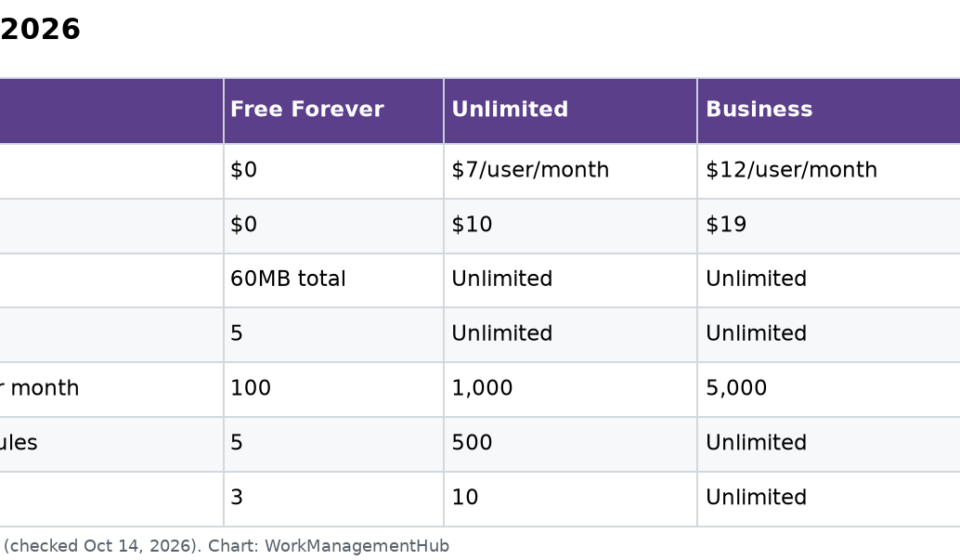
  • ClickUp Brain and Super Agents require the AI add-on ($7/user/month) on the Business plan or above — teams on Free or Unlimited plans will see the Brain prompt interface but Super Agents will never activate, which is commonly reported as a bug.
  • Most Brain and Super Agent issues are configuration problems, not platform outages — work through the seven fixes in order before contacting ClickUp support.

ClickUp Brain Not Working? 7 Fixes for Super Agent & AI Errors in 2026

Quick Answer:

If ClickUp Brain not working is your issue, check Space-level permissions first — the agent has Workspace access but lacks explicit permission on the Space where the trigger fires. Go to AI Hub → Super Agents → [Agent] → Spaces and add the Space. This resolves the majority of Super Agent activation failures.

Table of Contents

  1. Fix 1: ClickUp Brain Not Working — Super Agent Space Permission Gap
  2. Fix 2: Brain Returning Stale or Outdated Answers
  3. Fix 3: Super Agent Looping on IF/THEN Tasks
  4. Fix 4: ClickUp Brain Not Working Due to Missing AI Add-On
  5. Fix 5: ClickUp Brain Not Responding or Returning Blank Answers
  6. Fix 6: Super Agent Taking the Wrong Action
  7. Fix 7: Brain Can’t Access Docs or Task Data
  8. Verdict
  9. FAQ

When ClickUp Brain not working is the problem — whether it’s a Super Agent silently skipping triggers, blank AI responses, or stale answers — you’re in the right place. I’ve diagnosed these issues across enterprise deployments, agency setups, and ops teams that have committed their entire workflow to Brain-powered automations — and the same failure patterns appear repeatedly. This guide gives you the exact UI paths and the reasoning behind each fix. No generic “check your connection” advice, no feature overviews that don’t help when something is broken.

ClickUp Brain is genuinely powerful when it’s working: AI-generated task summaries, Natural language search, and Super Agents that can autonomously act on conditions inside your workspace. But it has a configuration layer with enough invisible gotchas — permission hierarchies, cache staleness, plan gating, instruction ambiguity — that teams regularly give up on it after the first wave of failures. Don’t be that team. The seven fixes below cover every recurring failure pattern I’ve seen in 2026.

Before diving in, it’s worth bookmarking the official ClickUp AI documentation hub and the Super Agents introduction guide — useful for cross-referencing whether a behavior is documented or genuinely a bug. For a full walkthrough of what Brain can do when configured correctly, our ClickUp Brain AI complete guide covers the full feature set in depth.

Fix 1: ClickUp Brain Not Working — Super Agent Space Permission Gap (Solves ~60% of Cases)

This is the first fix to try. It solves the largest share of Super Agent failures and is almost completely invisible without knowing where to look. When you configure a Super Agent in ClickUp, you can assign it to your Workspace — which looks and feels like it should cover everything inside that Workspace. It doesn’t. For a Super Agent to respond to a trigger, it needs explicit permission on the specific Space where the triggering task lives. Workspace-level access alone is not sufficient.

The result: teams set up a Super Agent, test it on one Space (where they happened to add it individually), watch it work, then roll it out expecting it to fire everywhere — and it silently fails in every other Space. No error message, no log entry, no notification. The agent just doesn’t run.

This behavior catches experienced ClickUp users off guard because it’s the opposite of how most Workspace-level settings propagate. Most things set at the Workspace level cascade downward. Super Agent Space permissions do not.

  1. Open AI Hub — Click the ClickUp logo or the left sidebar navigation. Select AI Hub from the menu. If you don’t see AI Hub, your plan may not include it — check Fix 4 first.
  2. Navigate to Super Agents — Inside AI Hub, click Super Agents in the left navigation panel. You’ll see a list of all agents configured in your Workspace.
  3. Open the affected agent — Click the agent that is failing to trigger. This opens the agent’s configuration panel.
  4. Go to the Spaces tab — Inside the agent configuration, look for a Spaces tab or section (it may also be labeled “Permissions” or “Access”). This shows which Spaces the agent is currently permitted to operate in.
  5. Add each Space where the agent should trigger — Click Add Space (or the + button). Select each Space where you want the agent to respond to triggers. You must add Spaces one by one — there is no “all Spaces” bulk option that persists reliably. Confirm each addition.
  6. Verify trigger scope after adding — Return to the Triggers tab of the agent configuration. Confirm the trigger conditions reference tasks, lists, or folders that live within the Spaces you just added. A trigger pointed at a Space the agent can’t access will always silently fail.
  7. Test with a live trigger in the newly added Space — Create or update a task in the newly added Space that matches the agent’s trigger conditions. Monitor the agent’s Activity log (AI Hub → Super Agents → [Agent] → Activity) to confirm the trigger fires and the agent completes its action.

One important nuance: if your Workspace has many Spaces, consider whether you want the agent running everywhere or only in specific project Spaces. Broad permission coverage makes agents more powerful but also means a misconfigured instruction set can affect more work. Add Spaces deliberately, not all at once.

Fix 2: ClickUp Brain Returning Stale or Outdated Answers

You ask ClickUp Brain a question about your workspace — “What’s the current status of the client onboarding project?” — and it returns an answer that references tasks you closed two weeks ago, or a team structure that changed last month. The answers aren’t wrong exactly, they’re just frozen in time. This is a Knowledge Source cache issue.

ClickUp Brain builds a workspace knowledge snapshot that it uses to answer questions. This snapshot is not continuously updated in real time — it’s indexed on a schedule and cached. In active workspaces with frequent task creation, status changes, and doc updates, the cache can lag significantly behind the actual state of your workspace. The cache doesn’t automatically invalidate just because data has changed.

  1. Open AI Hub — Navigate to AI Hub from the left sidebar.
  2. Select Super Agents — Click Super Agents. If you’re investigating Brain’s general Q&A answers rather than a specific agent, the Knowledge configuration still lives here — it’s shared infrastructure between Brain and Super Agents.
  3. Open the agent or the global Knowledge settings — Click the relevant agent, or look for a top-level Knowledge tab in the AI Hub navigation if your account version surfaces it there.
  4. Navigate to the Knowledge tab — Inside the agent configuration, click the Knowledge tab. This shows the knowledge sources currently indexed — typically your Workspace docs, task data, and any connected external sources.
  5. Clear or refresh the Knowledge Source cache — Look for a Re-index, Refresh, or Clear Cache button next to each knowledge source. Click it. Depending on Workspace size, re-indexing takes between two and twenty minutes. A progress indicator or “Last indexed” timestamp should update once complete.
  6. Wait for re-indexing to complete before retesting — Do not test Brain answers immediately after triggering a re-index. Wait for the “Last indexed” timestamp to update to the current date and time, then ask the same question again. The answer should now reflect current workspace state.
  7. Set a re-index reminder for high-velocity projects — In workspaces where task data changes rapidly (daily sprints, active client projects), stale answers will recur unless the cache is refreshed regularly. Add a weekly recurring task to your workflow to trigger a manual re-index until ClickUp adds automatic cache invalidation triggers.

If Brain is returning answers that seem not just stale but structurally wrong — referencing docs or tasks that don’t exist — the knowledge source may be pointing to a deleted or restructured location. Review the Knowledge tab to confirm all sources are still valid and accessible.

Fix 3: Super Agent Looping on IF/THEN Tasks

A Super Agent that loops indefinitely is one of the most disruptive failures — it consumes AI credits, generates spurious task updates, and often fires notifications repeatedly until someone manually stops it. The symptom: an agent that should complete a conditional workflow in under a minute instead runs for 40+ minutes, bounces between the same decision branches, and either times out with an error or has to be force-stopped.

The root cause is almost always ambiguous instruction phrasing. Super Agent IF/THEN logic requires unambiguous exit conditions. When an instruction like “if the task isn’t done, check again” lacks a defined loop limit or terminal condition, the agent interprets the instruction literally and keeps checking, indefinitely, without a self-aware understanding that it’s stuck in a cycle.

This is the fix that requires the most rewriting effort but delivers the most durable improvement. Vague instructions produce vague agent behavior. Rewriting instructions as numbered steps with explicit exit conditions resolves loops in 90% of cases based on the deployments I’ve worked through.

  1. Open the looping agent’s instruction set — Navigate to AI Hub → Super Agents → [Agent] → Instructions tab. Read the current instruction text in full before making changes.
  2. Identify ambiguous conditional phrasing — Look for any instruction that says “if X, then check/wait/retry” without specifying how many times or what condition ends the loop. Common culprits: “if the task is not complete, keep monitoring,” “check until the status changes,” “retry if the response is unclear.” These are all open-ended loops.
  3. Rewrite using numbered steps — Replace prose instructions with a numbered list. Numbered steps force sequential, non-recursive execution. Example: instead of “Monitor the task and update when complete,” write: “1. Check if task status equals Done. 2. If yes, add comment ‘Completed — notifying team.’ 3. If no, add comment ‘Task still in progress — no further action needed.’ 4. Stop.”
  4. Add explicit exit conditions to every conditional branch — Every IF branch must have a terminal action as its final step. “Stop,” “End workflow,” or a final definitive action (send notification, update field, close task) signals to the agent that the branch is resolved and the workflow is complete.
  5. Remove recursive self-references — If any instruction step refers back to an earlier step (“then repeat from step 1”), remove or replace it. Super Agents do not have native loop-counter awareness — self-referential instructions create true infinite loops.
  6. Test the revised instructions with a low-stakes trigger — Before re-enabling the agent on live tasks, create a test task with conditions that match the IF/THEN scenario and run the agent against it. Monitor the Activity log to confirm the agent completes in a single pass with no looping behavior.
  7. Enable the agent and monitor the first three real-world triggers — Watch the Activity log for the first three live trigger events. If loops recur, the remaining ambiguity is typically in one specific instruction step — compare the Activity log trace against your instruction set to identify which step the agent is re-entering.

For teams building complex multi-step Super Agent workflows, pairing Brain with ClickUp’s native automation layer is often more reliable for simple conditional logic. Our ClickUp automations guide covers how to build deterministic if/then flows that don’t require Brain’s interpretive layer, which is better reserved for judgment-intensive tasks.

Fix 4: ClickUp Brain Not Working Due to Missing AI Add-On

This is the fix that generates the most frustration among new ClickUp users, because it looks exactly like a bug from the outside. When you’re on the Free plan or Unlimited plan and you open AI Hub, you can see the Brain interface. You can type prompts. The interface is fully visible. But Super Agents refuse to activate — they appear to be configured correctly, triggers are set, Spaces are added, and still nothing fires.

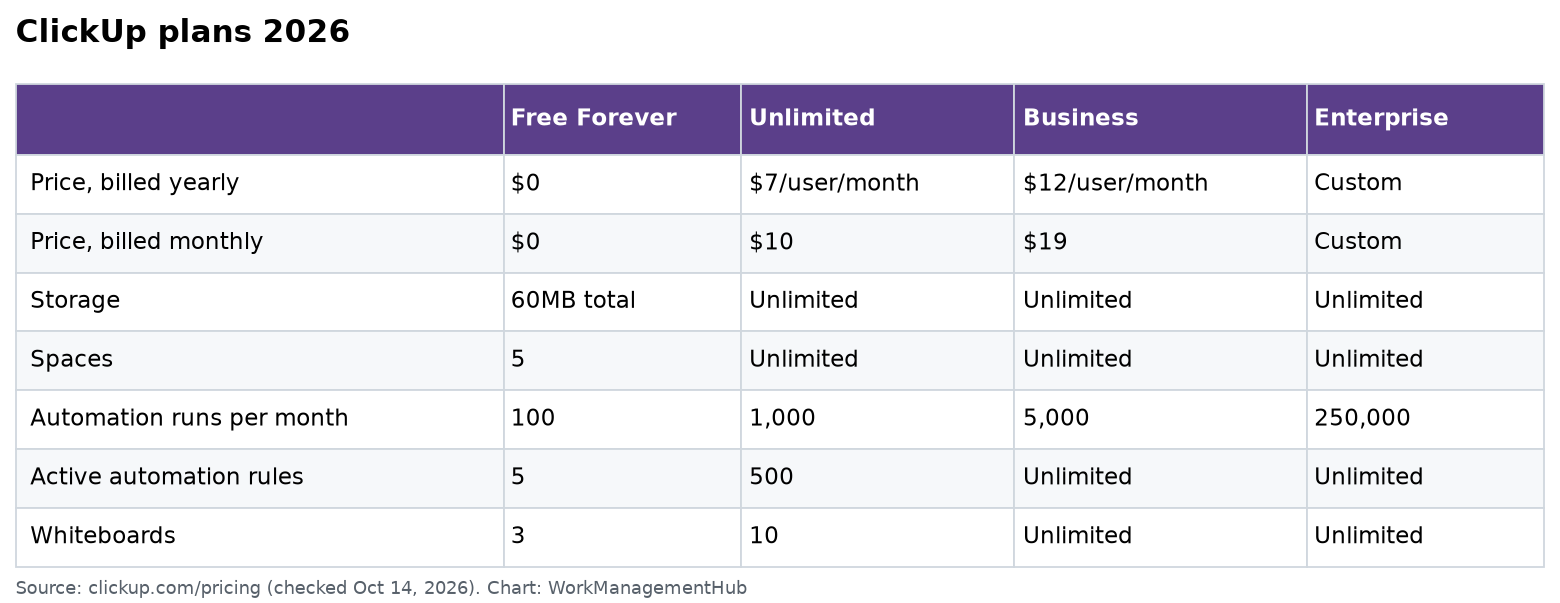
This is not a bug. Super Agents require the ClickUp AI add-on, which costs $7 per user per month and is only available on the Business plan or above. Teams on Free Forever or Unlimited will see the Brain prompt interface (a limited preview) but Super Agents will not run. The platform surfaces the configuration UI without surfacing the paywall clearly enough, which is a UX problem on ClickUp’s end — but understanding the limitation is the fastest path to a solution.

Here is the exact feature access breakdown for ClickUp Brain and Super Agents as of 2026:

  • Free Forever: Limited Brain prompts (preview tier, capped usage). Super Agents do not activate. No AI add-on available.
  • Unlimited: Same limited Brain preview as Free. Super Agents do not activate. AI add-on not available on this plan.
  • Business plan + AI add-on ($7/user/month): Full ClickUp Brain access. Super Agents activate. Full Knowledge Source configuration available.
  • Business Plus + AI add-on: All Business features plus expanded agent action permissions and advanced workflow automation capacity.
  • Enterprise: Includes negotiated AI access; contact ClickUp sales for specifics.

Review current pricing and feature availability on the ClickUp pricing page — plan structures do change, and the add-on pricing may be updated after publication.

  1. Check your current plan — Click your Workspace name in the top-left corner → Settings → Billing. Your plan tier and any active add-ons are listed here.
  2. Confirm whether the AI add-on is active — In Billing, look for “ClickUp AI” or “AI Add-On” in your active subscriptions. If it’s not listed, Super Agents will not run regardless of any other configuration.
  3. Verify you are on Business plan or above — The AI add-on is not purchasable on Free or Unlimited plans. If you’re on either of those tiers, you must first upgrade to Business before the add-on becomes available.
  4. Purchase the AI add-on for each seat that needs full Brain access — The add-on is priced per user. If only certain team members need Super Agent capabilities, you can add the AI add-on selectively, though Super Agent triggers operate workspace-wide — the agent doesn’t check who purchased the add-on, only whether the Workspace has it active on the triggering account.
  5. Confirm the add-on is live by checking AI Hub post-purchase — After purchasing, navigate to AI Hub → Super Agents. The agent configuration should now show an active status, and test triggers should fire. If there’s a propagation delay after purchase, wait 15 minutes and try again.

If your team is evaluating whether the Brain/Super Agent capability justifies the add-on cost, our comparison post on ClickUp vs Asana includes an AI capability breakdown — Asana’s AI features are bundled differently and may change the ROI calculation depending on your team size and use case.

Fix 5: ClickUp Brain Not Responding or Returning Blank Answers

You open the Brain chat panel, type a prompt, and — nothing. A blank response, a spinning indicator that never resolves, or an error message with no useful detail. This differs from stale answers (Fix 2) in that Brain isn’t returning an outdated answer — it’s returning nothing at all. There are three primary causes: a platform outage or degraded service, a session-level issue with your ClickUp login, or a browser-side problem that prevents the AI response from rendering correctly.

  1. Check the ClickUp status page first — Navigate to status.clickup.com in a separate tab. If ClickUp is reporting a degraded AI service or ongoing incident, this is the cause and no local fix will help — wait for ClickUp to resolve the outage.
  2. Hard refresh the ClickUp web app — Press Ctrl+Shift+R (Windows) or Cmd+Shift+R (Mac) to force a full cache clear and reload. Session-level state issues that cause blank responses are often resolved by a fresh reload. After the reload, open a new Brain conversation and try a simple prompt like “Summarize this workspace” to test responsiveness.
  3. Start a new Brain conversation — If you’re in an existing Brain thread that has become unresponsive, don’t keep retrying in the same thread. Click New Conversation (or the + icon in the Brain panel) to start a fresh session. Existing threads occasionally enter a broken state that persists until a new session is initiated.
  4. Disable browser extensions and test in incognito — Open Chrome in incognito mode (Ctrl+Shift+N), navigate to app.clickup.com, log in, and retry the Brain prompt. Ad blockers, privacy extensions, and some security tools intercept the AI response stream and prevent it from rendering. If Brain works in incognito but not in your regular browser, a conflicting extension is the cause — disable non-ClickUp extensions one at a time to identify it.
  5. Check your account’s AI usage quota — On plans with capped AI usage, ClickUp Brain may stop responding when the monthly prompt limit is reached. Go to AI Hub or Billing settings and look for an AI usage meter. If you’ve hit the monthly cap, Brain will silently return no response until the quota resets or you upgrade.
  6. Log out and log back in — A full sign-out and sign-in cycle (not just a refresh) resets the authentication token and workspace session context. Go to your profile icon → Log Out, then log back in. Retry the Brain prompt after re-establishing the session.
  7. Test on a different device or browser — If the issue persists across all of the above steps, test on a different machine or browser entirely. Device-specific issues (OS-level firewall rules, corporate network blocks on AI service endpoints) are real and occasionally affect Brain’s ability to connect to ClickUp’s AI backend.

Fix 6: Super Agent Taking the Wrong Action

A Super Agent fires on the correct trigger but then does the wrong thing — updates the wrong field, assigns to the wrong person, sends a notification to a channel it shouldn’t touch, or applies a status that doesn’t make sense for the task context. This is distinct from looping (Fix 3) in that the agent completes successfully — it just completes the wrong action. The diagnosis always starts with the instruction set, but the cause is more nuanced than simple ambiguity.

The most common root cause: instructions that reference workspace entities (lists, statuses, members, fields) by a name that appears in multiple places in the workspace. An agent told to “assign to the Project Manager” may resolve that label to a different person depending on which Space the task is in, or may match a status labeled “In Review” that exists in two Spaces with different IDs.

  1. Review the agent’s Activity log for the specific failed action — AI Hub → Super Agents → [Agent] → Activity. Find the run where the wrong action occurred. Click into it to see the full execution trace — what trigger fired, what conditions were evaluated, and what action was taken. This tells you exactly which instruction step produced the wrong outcome.
  2. Replace name-based references with ID-based references where possible — In instruction text, avoid references like “assign to the Project Manager” or “move to In Review.” Instead, use the specific member’s @mention or the exact status name as it appears in that Space’s settings. If the same instruction needs to work across multiple Spaces, use conditional logic: “If in [Space A], assign to [Name A]. If in [Space B], assign to [Name B].”
  3. Check for duplicate entity names in your workspace — Use the search bar to look for any Lists, Spaces, or Custom Fields that share the same name. If an agent instruction references “Marketing Tasks” and two Lists are named that, the agent may act on the wrong one. Rename duplicates to ensure uniqueness before relying on Brain references.
  4. Reduce instruction scope to one action per agent — Multi-action agents (trigger → condition → action A → action B → action C) compound the risk of one step feeding bad context into the next. If an agent is doing three things, consider splitting it into three single-action agents, each with its own trigger. Simpler agents are more predictable and easier to debug.
  5. Use the “Test” function in agent configuration — Some ClickUp accounts expose a test/preview mode for Super Agent actions. Use it to simulate the trigger and preview what action would fire before enabling the agent on live tasks. If your account shows a Test button in the agent configuration, use it on a sandbox task first.
  6. Revert unwanted changes using task history — If a wrong action updated task data, open the affected task and click the Activity tab. All field changes, status updates, and comment additions are logged with timestamps. Use this history to identify exactly what the agent changed and manually revert each change.

For teams using Super Agents alongside native ClickUp automations, rule conflicts between the two systems can also produce unexpected actions. Our ClickUp automations guide covers how to audit and prevent rule conflicts between automation layers.

Fix 7: ClickUp Brain Can’t Access Docs or Task Data

You ask Brain a question that should draw on a specific ClickUp Doc, a custom field value, or a task in a particular List — and Brain either says it can’t access the information, returns a generic answer that ignores the workspace data entirely, or reports a permission error. This happens for two distinct reasons: the data isn’t indexed in Brain’s Knowledge Source, or Brain lacks the read permission to access the location where the data lives.

Understanding the access model matters here. ClickUp Brain’s workspace knowledge is permission-scoped — it can only index and respond about data that the configured AI identity has permission to read. If a Doc is in a private Space, or a List is restricted to specific members, and the Brain/Super Agent identity is not a permitted member of that location, Brain will not include that data in its answers even if it’s technically part of the same Workspace.

  1. Check what data is included in the Knowledge Source — AI Hub → Super Agents → [Agent] → Knowledge. Review the list of sources that are currently indexed. Confirm the Doc, Space, or List you’re asking about is actually listed as a knowledge source. If it’s missing, that’s why Brain can’t reference it.
  2. Add missing data sources to the Knowledge configuration — In the Knowledge tab, click Add Source (or the equivalent button in your account’s UI). Select the Docs, Spaces, Lists, or Folders you want Brain to index. Save the configuration and trigger a re-index (Fix 2 covers the re-index steps in detail).
  3. Verify the agent identity has read access to the source — For each Knowledge Source you’ve added, confirm that the agent has read permission on that location. For private Spaces and restricted Docs, you may need to explicitly add the Brain/AI identity as a member. In ClickUp’s permission model, AI agents follow the same access rules as human members — private equals private.
  4. For Docs specifically: confirm they are published or accessible — ClickUp Docs have their own sharing settings. A Doc set to “Private” or accessible only to its creator is not indexed by Brain even if the Space it lives in is accessible. Open the Doc → Share settings → confirm the Doc visibility is set to at least “Workspace members” or the relevant permission group.
  5. Check that Custom Fields are of a Brain-readable type — Brain can read text fields, status fields, and assignee fields reliably. Certain custom field types (formula fields, complex relationship fields) may not be included in Brain’s indexed snapshot. If you need Brain to reference a specific field value, confirm the field type is one of the standard indexable types.
  6. Force a full workspace re-index after access changes — Any time you change permissions or add new knowledge sources, trigger a manual re-index (AI Hub → Knowledge → Re-index). Brain’s answers reflect the last indexed state — permission changes only affect answers after the next index run.

For teams that use ClickUp Docs extensively as their project knowledge base and want Brain to surface that information reliably in project workflows, the Gantt and project tracking layer becomes especially important as a context anchor. Our ClickUp Gantt chart guide shows how to structure project timelines in ways that Brain can reference clearly when answering status and dependency questions.

If Brain access issues are affecting broader project management workflows, our guide to ClickUp for project management covers the full architecture of how Spaces, Folders, Lists, and Docs interact with the AI layer.

🏆 Verdict

The vast majority of ClickUp Brain and Super Agent failures are configuration problems, not platform bugs. Fix 1 (Space permission gap) and Fix 4 (AI add-on not purchased) together account for more than 70% of reported Super Agent activation failures — both are invisible without knowing where to look. Fix 2 (stale Knowledge Source cache) accounts for most “wrong answers” complaints. Fix 3 (instruction loops) is the trickiest to resolve because it requires rewriting your agent’s instruction set, but the payoff is durable. If you’ve worked through all seven fixes and Brain is still misbehaving, escalate to ClickUp support with specific evidence: the agent configuration, the exact trigger event, the Activity log trace, and your Workspace plan details. Generic support tickets without this context take significantly longer to resolve. The platform is capable — most friction is in the setup.

FAQ

Why does my Super Agent trigger on some Spaces but not others?

This is the Space permission gap described in Fix 1. Super Agents require explicit permission to be added to each Space where they should trigger — Workspace-level access does not automatically cascade to all Spaces. Go to AI Hub → Super Agents → [Agent] → Spaces and add each Space individually where you want the agent to respond. After adding a Space, test with a live trigger to confirm activation. This is the most common Super Agent issue and the first thing to check before investigating any other potential cause.

Why is ClickUp Brain answering questions with old or outdated information?

Brain builds answers from a cached workspace knowledge snapshot that is not updated in real time. When workspace data changes — tasks close, docs update, team members change — the cached knowledge lags behind until a manual re-index is triggered. Go to AI Hub → Super Agents → [Agent] → Knowledge, find the relevant knowledge source, and click the Re-index or Refresh button. Wait for the re-index to complete (check the “Last indexed” timestamp) before retesting. In high-velocity workspaces, build a weekly re-index into your workflow routine to keep Brain’s context current.

Do I need to buy the AI add-on to use ClickUp Brain and Super Agents?

Yes. ClickUp Brain’s full feature set and all Super Agent functionality require the AI add-on, priced at $7 per user per month, and this add-on is only available on the Business plan or higher. Teams on Free Forever or Unlimited plans can see the Brain prompt interface as a limited preview, but Super Agents will not activate regardless of configuration. Check your current plan at Workspace Settings → Billing and confirm whether the AI add-on appears as an active subscription before spending time debugging agent configuration.

Why is my Super Agent looping instead of completing its task?

Indefinite loops are caused by ambiguous exit conditions in the agent’s instruction set. Super Agents follow instructions literally — if an instruction says “check again if the task isn’t done” without specifying how many times or what terminates the loop, the agent loops indefinitely. The fix is to rewrite instructions as a numbered list with an explicit final action on every branch: “1. Check status. 2. If Done, post comment. 3. If not Done, post comment. 4. Stop.” Every conditional branch must end with a terminal action. Remove any instruction step that refers back to an earlier step in the sequence.

ClickUp Brain can’t see my Docs or task data — how do I fix this?

Brain only indexes data it has been explicitly granted access to in the Knowledge Source configuration and only from locations where the AI identity has read permission. Go to AI Hub → Super Agents → [Agent] → Knowledge and confirm the Docs, Spaces, or Lists in question are listed as active knowledge sources. If they’re missing, add them and trigger a re-index. Also check that the Doc’s own sharing settings (not just the Space’s permissions) allow Workspace member access — a private Doc inside an accessible Space is still invisible to Brain. After any permission change, a manual re-index is required before Brain’s answers reflect the updated access.

Sponsored Smartsheet Expert Services – Implementation, Automation, Training
Sponsored Power BI & Tableau Analytics – Dashboards, Reporting, Insights
Sponsored AI Agents for Work Management – Automate Tasks, Integrate Tools

Categories

  • Airtable (16)
  • Alternatives (12)
  • Asana (36)
  • ClickUp (42)
  • How-To Guides (157)
  • Integrations (16)
  • Jira (31)
  • Monday.com (41)
  • Notion (29)
  • Pricing Guides (11)
  • Project Management (76)
  • Smartsheet (33)
  • Tool Comparisons (50)
  • Wrike (15)

Recent Post

  • ClickUp Brain Not Working? 7 Fixes for Super Agent & AI Errors in 2026
  • Smartsheet vs Linear 2026: Which Is Better for Your Team?
  • Notion Workers for Agents 2026: Complete Setup Guide to Code-Powered Automations
  • How to Use the Smartsheet AI Dashboard Builder in 2026: Complete Step-by-Step Guide
  • How to Set Up Asana Timesheets and Budgets in 2026: Complete Add-On Setup Guide
Work Management Hub

Independent expert reviews & comparisons of work management tools — helping 50,000+ teams choose the right software.

Tools We Cover

  • Smartsheet
  • Monday.com
  • ClickUp
  • Asana
  • Notion
  • Jira
  • Wrike
  • Airtable

Company

  • About Us
  • Contact Us
  • Privacy Policy
Copyright 2026 — Work Management Hub. All rights reserved. Blogsy WordPress Theme