
Most missing Asana notifications come from five things: Do Not Disturb is on, the email type is unchecked, you archived the item in Inbox before the email went out, your browser or phone blocks Asana, or you are not a collaborator on the task. Start at your profile photo, then Settings, then the Notifications tab. Almost every fix lives there.
One more rule explains a lot of “missing” alerts. Asana only notifies you about other people’s actions. If you assign a task to yourself or comment on your own task, nothing arrives. That is by design.
This guide follows Asana’s help articles on notification settings, email notifications and Inbox, checked on October 16, 2026. Work through the fixes in order. Each takes a minute or two.
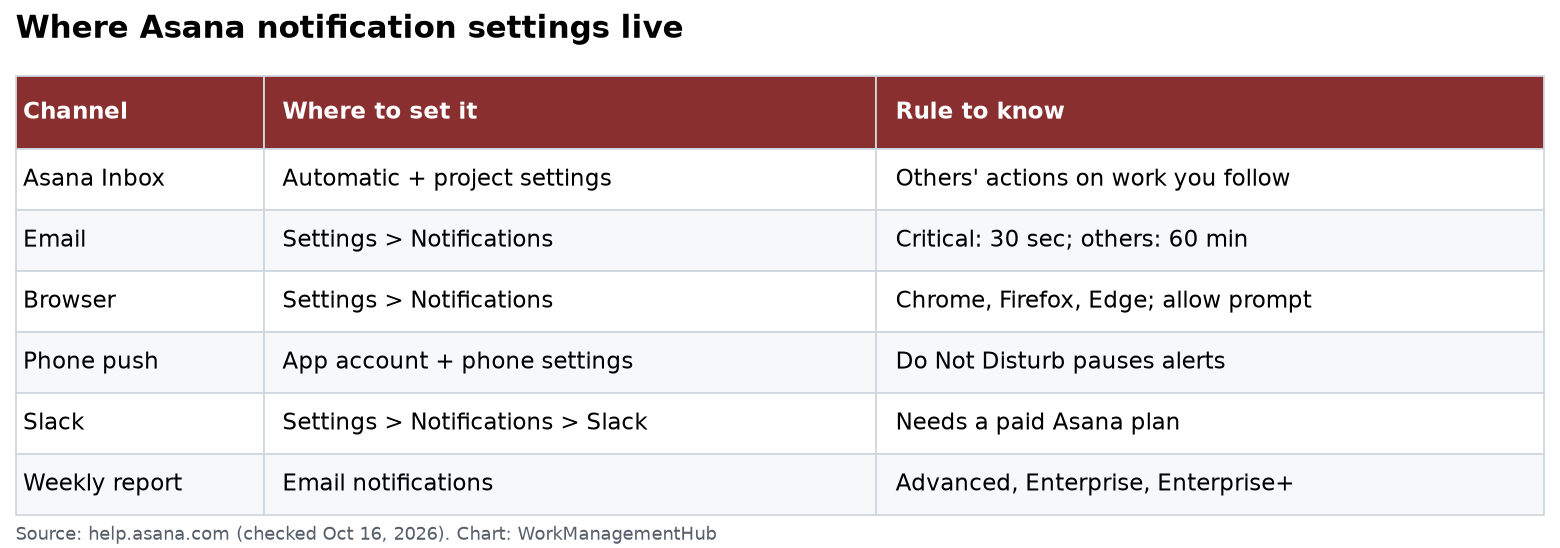
Where each kind of notification is controlled
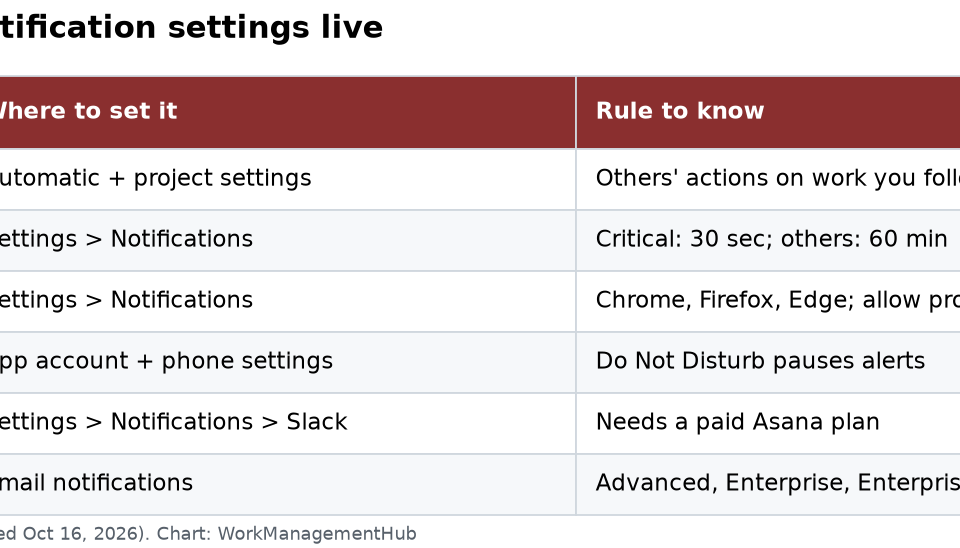
| Channel | Where to set it | Rule to know |
|---|---|---|
| Asana Inbox | Automatic, plus project settings | Shows others’ actions on work you follow |
| Settings, Notifications, Email notifications | Critical alerts wait 30 seconds, others 60 minutes | |
| Browser | Settings, Notifications, Browser notifications | Chrome, Firefox and Edge only; you must allow the prompt |
| Phone push | Asana app Account settings, plus phone settings | Do Not Disturb pauses push and browser alerts |
| Slack | Settings, Notifications, Slack | Needs a paid Asana plan |
| Weekly report | Email notifications | Advanced, Enterprise and Enterprise+ only |
1. Turn off Do Not Disturb
Do Not Disturb pauses push and browser notifications. It also hides the orange dot next to Inbox. People turn it on for a meeting and forget.
- Web: profile photo, Settings, Notifications, open Do not disturb. Check for a pause or a schedule.
- Phone: open the Asana app, go to Account settings, tap Do not disturb. Check the schedule and your days off.
A schedule set for “weekdays after 6 PM” will quietly block every evening alert. Look for that first.
2. Check that the email type is turned on
Asana has several email types. Each has its own checkboxes.
- Open Settings, then Notifications, then the Email notifications drop-down.
- Confirm the email address is the one you read. To change it, add the new address first, then remove the old one.
- Make sure the activity you expect is checked. Common ones: a task assigned to you, a due date change, new comments on a task you collaborate on, and a task you were waiting on changing status.
Also know what the Daily summary does not include. It goes out Monday to Friday. It lists tasks due in the next 5 days and recently assigned tasks. Overdue tasks are not in it. Overdue tasks come in a separate weekly reminder.
3. Understand the email delay
This one surprises people. Asana waits before sending email:
- Critical alerts, like a task assigned to you, wait 30 seconds.
- Less important alerts wait 60 minutes.
- If you archive the item in Inbox during that wait, Asana skips the email.
- Several updates within an hour are batched into one email. Comments and task assignments are never batched.
So if you live in Asana all day and clear your Inbox fast, you will get very few emails. Nothing is broken. Asana assumes you already saw it.
4. Rescue Asana email from spam
If settings look right but nothing arrives, check your spam, junk and “Other” folders. Then ask your email admin to allow Asana’s sending domains.
Do not save an Asana reply-to address as a contact. Asana changes that address, so an old saved one can confuse filters.
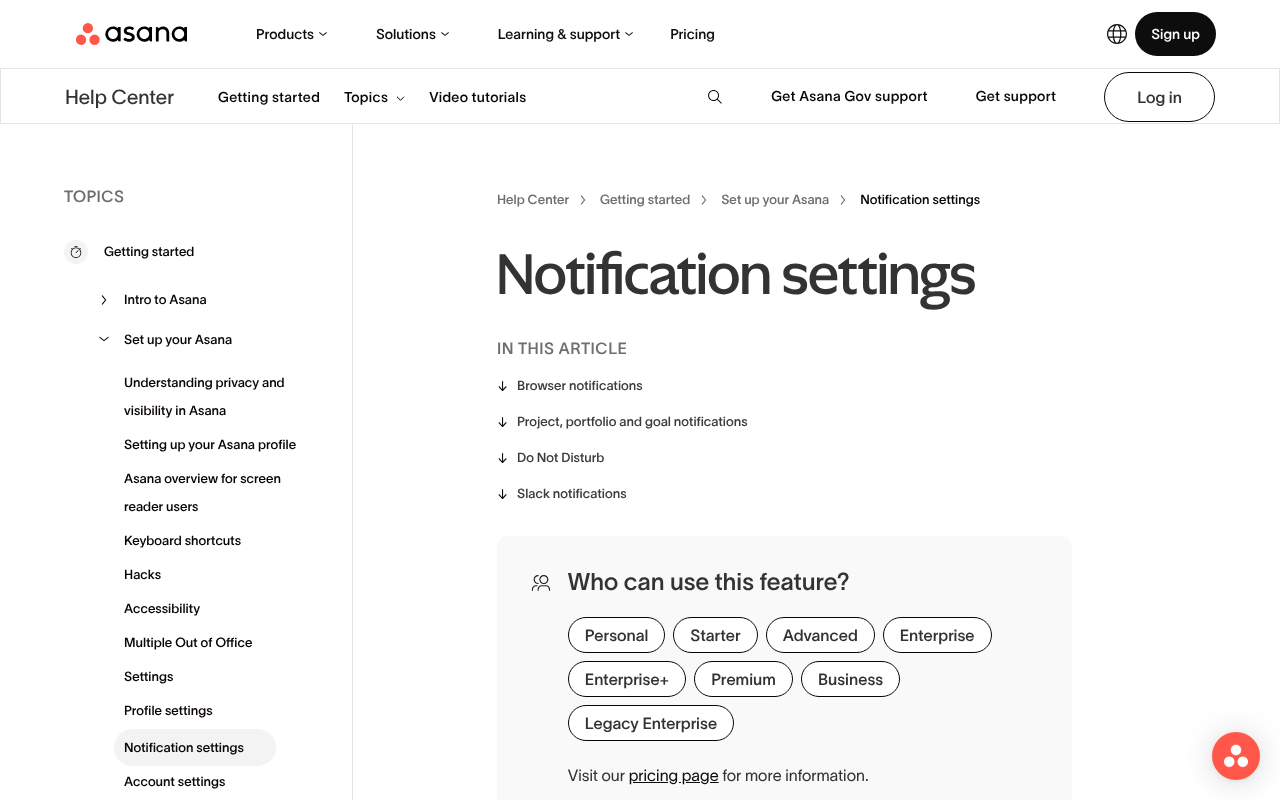
5. Allow browser notifications
Browser alerts only work in Chrome, Firefox and Edge.
- In Asana, open Settings, Notifications, then Browser notifications. Pick at least one type, like “Updates on your work.”
- Your browser asks if app.asana.com may show notifications. Select Allow.
- If you clicked Block before, open the site settings for app.asana.com (the icon left of the address bar) and switch Notifications to Allow.
- Check your computer’s own focus or notification settings. On a Mac, Focus mode can hide every browser alert.
6. Fix phone push alerts
Push needs three things to be true: the app is signed in, Asana is allowed in your phone’s settings, and Do Not Disturb in Asana is off.
- iPhone: Settings, then Notifications, then Asana. Turn on Allow Notifications. Check that no Focus mode blocks it.
- Android: Settings, then Apps, then Asana, then Notifications. Turn them on. Turn off battery saving for Asana if alerts arrive late.
If push still fails, sign out of the app and sign back in. That often clears a stuck connection.
7. Make sure you are a collaborator
Inbox shows updates on projects you are a member of, and tasks you are assigned to or collaborate on. If you are not on the task, you will not hear about it.
- Open the task and check the collaborators list at the bottom of the task. Add yourself if you are missing.
- Check project notification defaults: Settings, Notifications, then the project, portfolio and goal options. Turn on “Tasks added” for projects where you need to see new work.
- To change one project, select Manage individual projects.
For whole teams, the project owner should confirm each member’s notification boxes in the project’s member settings. Asana says all members get comment and @mention emails only when those boxes are ticked.
8. Reconnect Slack
Slack notifications need a paid Asana plan.
- Go to Settings, then Notifications.
- Under Slack, select Connect and finish the steps.
- Open the Slack drop-down and turn on Notify me via Slack.
If alerts stopped after a Slack admin change, disconnect and connect again. Our Asana Slack integration guide covers the full setup. Teams users should see our Asana for Microsoft Teams guide.
9. Missing weekly reports or rule emails
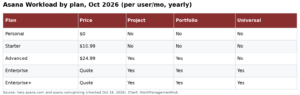
- Weekly report emails need Advanced, Enterprise or Enterprise+ (or legacy Business and Enterprise). You get at most 20 a week. Starter users will not see this option. Our Asana pricing guide shows what each plan includes.
- Rules that “send a notification” act like any other user action. If a rule assigns you a task, you get the normal assignment alert. If the rule does not run, nothing is sent. Open the rule from the project’s Customize menu and check that it is still on and its trigger still fits. Our Asana rules guide explains triggers.
When to contact Asana Support
If every setting is right and alerts still stop, Asana’s community team asks for two things: a screenshot of your notification settings, and the date you last got a notification. Have both ready. It speeds up the ticket a lot.
One last tip from admins who run large workspaces: do not try to fix “too many emails” by turning everything off. Turn off email and use Inbox with a saved filter like “For me.” You keep the signal and lose the noise.
Common questions
Why don’t I get notified when I assign myself a task?
Asana only notifies you about actions taken by other people. Your own actions never create a notification.
Why did an Asana email never arrive after I saw the update?
If you archive the item in Inbox within 30 seconds (critical alerts) or 60 minutes (other alerts), Asana skips the email.
Which browsers support Asana notifications?
Google Chrome, Mozilla Firefox and Microsoft Edge. You must allow notifications for app.asana.com.
Does the daily summary show overdue tasks?
No. It shows tasks due in the next 5 days and recent assignments. Overdue tasks come in a weekly reminder.
Do Slack notifications work on the free Asana plan?
No. Connecting Slack notifications from the Notifications tab needs a paid Asana subscription.
Checked against help.asana.com (Notification settings, Email notifications, Inbox) and asana.com/pricing on October 16, 2026.
Sponsored