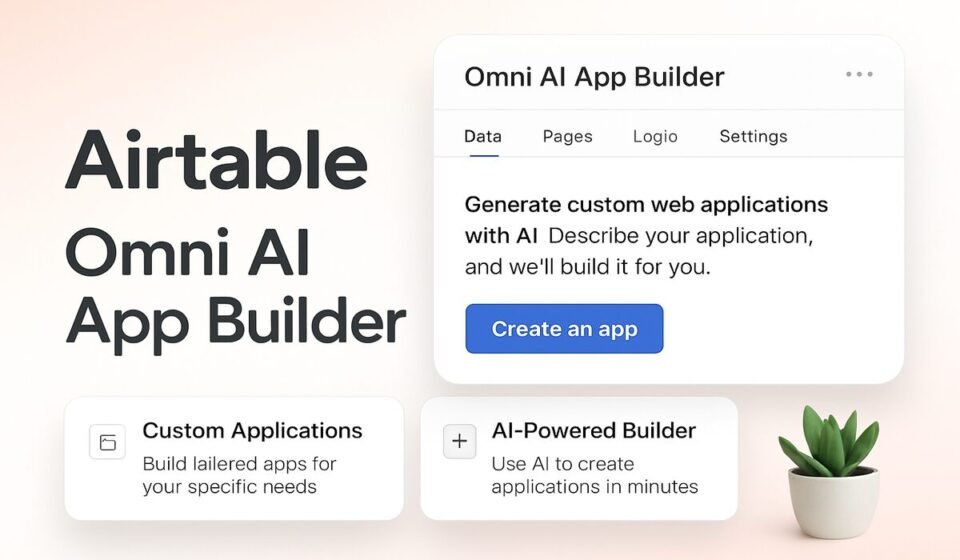
Airtable Omni AI App Builder Deep Dive 2026: Tables, Interfaces & Automations From One Prompt

- The Airtable Omni AI app builder is conversational: describe what you need and it generates tables, AI interface elements, and automations as a working app — the centerpiece of the “AI-native Airtable” relaunch.
- Building and iterating on apps with Omni is free and does not consume AI credits — but asking Omni questions, running analysis, Field Agents, and AI automations all draw from your plan’s monthly credit pool.
- Everything Omni ships is built from Airtable’s standard, production-tested components — not generated code — so you can edit any table, field, or automation with the normal drag-and-drop tools.
- Admins can choose the underlying models (OpenAI GPT, Anthropic Claude via Amazon Bedrock, Meta Llama, IBM Granite), but Omni itself requires OpenAI or Amazon-hosted models to be enabled — and you cannot bring your own API key.
- Omni builds and analyzes; Field Agents run AI inside every record; Cobuilder was the 2024 predecessor that Omni has effectively superseded. Knowing which does what is the difference between a free build and a burned credit pool.
Airtable Omni is a conversational AI app builder that generates complete, production-ready apps — tables, interface elements, and automations — from a natural language prompt. Building and iterating with Omni is free on all plans; asking it questions or analyzing data consumes AI credits. Everything it creates remains fully editable with Airtable’s standard tools.
- What Is the Airtable Omni AI App Builder?
- What Omni Actually Ships From One Prompt
- What’s Free vs. What Burns AI Credits
- How to Build Your First App With the Airtable Omni AI App Builder
- Choosing the Underlying AI Model
- Editing Omni’s Output: Nothing Is Locked
- Omni vs. Field Agents vs. Cobuilder
- Analyzing Data at Volume With Omni
- Limitations You Should Know Before Committing
- Frequently Asked Questions
The Airtable Omni AI app builder changes the economics of internal tooling. A tracker that used to take an operations lead a full afternoon to configure — tables, linked records, an intake form, a status automation — now comes back from a single prompt in minutes, and the build itself costs nothing in AI credits. That last detail matters more than the demo videos suggest: Airtable’s other AI features draw from a finite monthly credit pool, so understanding exactly where the free lane ends is the difference between rolling Omni out across a 40-person team and getting a surprise mid-month when every AI feature in the workspace stops responding.
This guide covers what Airtable’s official documentation scatters across a dozen pages and what no independent guide has assembled in one place: what Omni builds, what’s free versus what consumes credits, how model selection works, how to edit Omni’s output, and how Omni differs from Field Agents and Cobuilder.
What Is the Airtable Omni AI App Builder?
Omni is Airtable’s integrated conversational AI assistant, launched as the centerpiece of what CEO Howie Liu called “the AI-native Airtable” — the most significant relaunch in the company’s history. You describe an app in plain language, and Omni generates the complete structure: tables with appropriate field types, linked relationships, automations, and AI-generated interface elements. It also researches the web, analyzes data and documents, creates and updates records, and answers questions about your base on request.
The architectural decision that separates Omni from code-generation tools like Lovable or Bolt is that Omni doesn’t write an app from scratch. It assembles apps from Airtable’s existing production-tested components — the same tables, field types, and automation triggers Airtable has been hardening for over a decade. Airtable describes this as turning the platform into a “parts bin” that Omni has full access to. The practical consequence: Omni’s output is production-ready on arrival, and anything it builds can be modified by a human with standard Airtable skills. There is no generated codebase to inherit, no deployment step, and no separate hosting bill.
Omni is available on all plan types, including Free, and appears in two places: the Omni icon in the upper-left corner of any base (for builders) and the lower-right corner of any interface (for end users, if enabled). Per Airtable’s Omni documentation, Omni mirrors the permissions of whoever is using it — it can only see data you can see and only perform actions you could perform yourself. For teams already running structured work in Airtable, that permission model is what makes it safe to expose Omni to interface-only collaborators without handing them the keys to the schema.
What Omni Actually Ships From One Prompt
“Builds complete apps” is marketing shorthand. Here is the concrete inventory of what Omni can create or modify from a conversational request, based on Airtable’s current documentation:
- Tables and fields — new tables with sensible field types, including linked record relationships and even Field Agents (AI-powered fields) configured as part of the build.
- AI-generated interface elements — custom visualizations and layouts built from your prompt. Note the important boundary: Omni creates AI-generated interface elements, not traditional Interface Designer pages. It cannot create or modify Gantt views or blank-page layouts built in Interface Designer — those remain manual work.
- Automations — new automations or updates to existing ones, using the same trigger-and-action framework covered in our Airtable automations guide.
- Data operations — creating, updating, and editing records across fields and cells, renaming fields, extracting key points from uploaded documents into long-text fields, and building or deleting standalone forms.
- Custom extensions — Omni can generate custom code extensions, though admins can disable this org-wide via the admin panel’s “Prevent development of custom code” setting.
For a 10-person marketing team, that inventory translates to a campaign tracker with an approval automation shipped before the standup ends. For a 100-person operation, it means the ops team can prototype a vendor management app in a meeting, then hand it to a certified builder for hardening — instead of opening a ticket with IT and waiting three weeks.
What’s Free vs. What Burns AI Credits
This is the section Airtable’s marketing pages gloss over and the one that determines your real cost. Airtable’s AI pricing runs on a credit system: every plan includes a monthly pool of AI credits, and AI operations deduct from it. The critical carve-out — confirmed on Airtable’s own platform pages — is that asking Omni to build and iterate on your apps comes at no additional cost. Structure generation is free. Intelligence consumption is not.
Here is the split as it stands in mid-2026:
| Free (no credits consumed) | Consumes AI credits |
|---|---|
| Asking Omni to build a new app (tables, fields, relationships) | Asking Omni questions about your data |
| Iterating on structure (“add a priority field,” “split this into two tables”) | Omni analysis of records, documents, and patterns |
| Creating and editing automations via Omni | Field Agent runs (per record processed) |
| AI-generated interface elements (available on all plans) | AI steps inside automations (summarize, categorize, generate) |
| Configuring agents and workflows with Omni | Omni web research and content generation |
The mental model: Omni the architect is free; Omni the analyst bills by the question. Credits are consumed when AI actively processes data or generates content — not when it assembles structure.
As for the pools themselves, Airtable’s published plan details at the time of writing allocate roughly 500 monthly credits on Free, 15,000 on Team, 20,000 on Business, and 25,000 per paid user per month on Enterprise Scale, with add-on credit packs available when teams outgrow their allocation. Individual AI operations typically cost from a handful of credits to 50+ depending on complexity, and when the pool is exhausted, credit-consuming AI features pause until the next cycle — your apps and non-AI automations keep running. Check Airtable’s AI billing documentation for current figures, and see our Airtable pricing breakdown for how credits fit into total plan cost.
The budgeting implication for team leads: you can let a 25-person team build with Omni freely and without governance anxiety, but you should treat Field Agents on high-volume tables (thousands of records) and daily analysis queries as metered spend that deserves a monthly review.
How to Build Your First App With the Airtable Omni AI App Builder
Here is the exact walkthrough, using Airtable’s current UI:
- Omni icon (upper-left of your base) — Open the base where you want to build (or create a new base from your workspace home), then click the Omni icon in the upper-left corner of the screen to open the chat panel. You need Owner or Creator permissions to build; editors and interface-only collaborators get a more restricted Omni.
- Chat input field — Type a prompt describing the outcome, not the schema: “Build a client onboarding tracker for a 12-person agency: clients, onboarding tasks per client, task owners, due dates, and an automation that notifies the owner when a task is overdue.” Include rules, benchmarks, and formatting preferences — Airtable’s own guidance is to give Omni as much context as possible and use standard Airtable terminology (table, field, view, automation).
- Send / Enter — Submit the prompt. Omni proposes and executes the build: tables, linked fields, the automation, and any AI-generated interface elements. This step consumes zero credits regardless of how large the build is.
- Checklist icon (on Omni’s response) — Hover over Omni’s completed response and click the checklist icon to expand the exact steps it took. Audit this list against what you asked for — it is the fastest way to spot a missed relationship or a misnamed field.
- Follow-up prompts — Iterate conversationally: “Add a single-select Priority field to Tasks,” “Change the overdue notification to Slack instead of email.” Omni also generates suggested follow-ups beneath each response. Iteration remains free.
- Undo icon — If a build step produced something unexpected, click the Undo icon on that response to roll back the actions Omni performed rather than deleting objects manually.
- Chat name dropdown ⌄ → Settings — Click the dropdown next to your chat’s name (default: “New chat”), then click Settings. Here you can toggle Enable Omni in interfaces, add organizational context and response preferences (two customization text boxes that act as standing guardrails), and toggle Internet access on or off. Click Save.
- Share / Interface toggle — Once the structure is right, review the “Allow Omni to create, update, and delete data for interface-only collaborators” setting (defaults to On) before rolling the interface out to end users.
A realistic expectation check: first drafts land at roughly 80% of what a competent builder would produce. Budget two or three iteration prompts — still free — to close the gap, then finish edge cases by hand.
Choosing the Underlying AI Model
Airtable AI is model-agnostic at the platform level. Depending on plan and admin configuration, workspaces can run on OpenAI’s GPT models, Anthropic’s Claude models (hosted via Amazon Bedrock), Meta’s Llama models, or IBM’s Granite models via IBM watsonx — with enterprise admins deciding which providers are enabled for their organization. This matters for regulated teams: a legal-ops group that has cleared Claude on Bedrock for contract data can standardize on it across the workspace.
Two constraints are easy to miss:
- Omni requires OpenAI or Amazon-hosted models. Per Airtable’s documentation, if an admin enables only Gemini, Meta, IBM, or Amazon Titan/Nova models, Omni will not be available across the organization. Enterprise admins locking down model access should verify this before wondering why the Omni icon vanished for 500 users.
- No bring-your-own-key. Airtable AI runs exclusively on Airtable-hosted models. You cannot connect your own OpenAI or Anthropic API key to reduce credit costs or route to a custom deployment.
Editing Omni’s Output: Nothing Is Locked
The most underrated property of the Omni approach is reversibility. Because Omni assembles standard Airtable objects rather than generating code, everything it creates is a first-class citizen you can modify with the normal tools:
- Tables and fields behave identically to hand-built ones — rename, retype, reorder, add formulas, build any of the standard view types on top.
- Automations open in the standard automation editor, where you can add conditional logic, swap triggers, or extend action chains.
- Interface elements Omni generates can be refined by prompt or replaced with manually built Interface Designer pages when you need layouts Omni can’t produce.
This is the fundamental contrast with AI code generators, where the moment a non-developer inherits generated code, iteration stops. In Airtable, the AI build and the human edit share one canvas. A practical workflow that works well for mid-size teams: Omni drafts the structure in a sandbox base, a designated builder reviews via the checklist icon and revision history, hardens permissions and validations by hand, then the app graduates to the production workspace.
Omni vs. Field Agents vs. Cobuilder
Airtable has shipped three distinctly named AI capabilities in three years, and conflating them causes both budgeting and architecture mistakes. Here is the clean separation:
| Capability | What it is | Where it runs | Credit cost |
|---|---|---|---|
| Omni | Conversational assistant that builds apps, edits data, analyzes, and answers questions on demand | Chat panel in bases and interfaces | Building free; questions/analysis consume credits |
| Field Agents | AI-powered fields that automatically process every record — enrich, classify, summarize, research | Inside table fields, continuously as data arrives | Credits per run, per record |
| Cobuilder | 2024 prompt-to-app generator that produced a starting base structure from one description | One-shot generation at base creation | Superseded by Omni’s richer build loop |
The relationship in one sentence: Cobuilder was the proof of concept, Omni is the ongoing conversation, and Field Agents are the workers Omni can hire for you. Cobuilder generated a base once and left you alone; Omni stays in the loop, editing and expanding the app indefinitely. Field Agents aren’t a chat at all — they’re the deployed, per-record AI that Omni can configure as part of a build (Omni creates field agents just like traditional fields). Notably, that division of labor also defines the billing boundary: Omni configuring a Field Agent is free; the Field Agent then running against 5,000 records is metered. For a full setup walkthrough of the per-record side, see our Field Agents guide.
Analyzing Data at Volume With Omni
Omni’s second job — the credit-consuming one — is analysis. Airtable positions Omni as capable of finding patterns and insights across data volumes far beyond a single LLM context window: customer feedback backlogs, call transcripts, reports, and contracts. In practice, teams use it to read an entire field across thousands of records and surface themes (“what are the top five complaints in this quarter’s NPS verbatims?”), run calculations against pre-computed fields, and pull key points out of uploaded documents into structured long-text fields.
Two honest caveats from Airtable’s own documentation. First, Omni cannot perform complex statistical computations — sums, averages, variances — on raw data; it can count records and use pre-computed numerical fields, so keep your rollups and formula fields as the source of quantitative truth. Second, every analysis question consumes credits, so a support team pointing Omni at 10,000 transcripts weekly should model that against their plan’s pool before making it a ritual. For qualitative synthesis at scale, though, this is genuinely the capability spreadsheets never had — and a major reason teams comparing platforms in our full Airtable review now weight AI analysis alongside database features.
Limitations You Should Know Before Committing
Omni is impressive, not omnipotent. Current documented limitations worth planning around:
- No traditional interface pages. Omni builds AI-generated interface elements only; Gantt layouts and blank-page Interface Designer builds remain manual.
- No table syncs, no permission configuration, no data export. Governance and integration plumbing stays with human builders.
- No form editing and no record templates.
- Complex multi-step workflows with approval chains and audit requirements are still better built deliberately with automations and interfaces — Airtable itself recommends using Omni for initial structure, then hardening with traditional features.
- Corporate web filters are the most common cause of the “Something went wrong” Omni error — worth telling IT before rollout.
Omni is the strongest reason in years to build internal tools on Airtable instead of a code-generation platform. Because building is free and unlimited on every plan, ops leads, marketing managers, and team-of-one builders should be using it today for every new tracker, CRM, and intake workflow — the risk is near zero and the output is editable by anyone with basic Airtable skills. Enterprise teams get the additional win of model choice under their existing Bedrock or watsonx governance. The only groups that should wait: teams whose apps live or die on custom Interface Designer layouts and table syncs (still manual), and high-volume analysis use cases that need careful credit budgeting first. For everyone else, the honest comparison is no longer “Omni vs. hiring a builder” — it’s “Omni draft plus one hour of human polish vs. a blank base.”
Frequently Asked Questions
Is Airtable Omni free to use?
Building and iterating on apps with Omni — creating tables, automations, and AI-generated interface elements — is free on all plans and consumes no AI credits. However, asking Omni questions, having it analyze data or documents, and running the Field Agents or AI automations it builds all draw from your plan’s monthly AI credit pool.
Can I edit what Omni builds?
Yes, completely. Omni assembles standard Airtable components rather than generating code, so every table, field, view, and automation it creates opens in the normal editors and responds to normal drag-and-drop editing. You can also click the Undo icon on any Omni response to roll back a build step entirely.
What AI models does Airtable Omni use?
Airtable AI supports OpenAI GPT models, Anthropic Claude via Amazon Bedrock, Meta Llama, and IBM Granite via watsonx, with admins controlling which are enabled. Omni specifically requires OpenAI or Amazon-hosted models to be active — if only other providers are enabled, Omni is unavailable. Bring-your-own API keys are not supported.
What’s the difference between Omni and Cobuilder?
Cobuilder was Airtable’s 2024 one-shot prompt-to-app generator: it produced a starting base and stepped aside. Omni, launched with the AI-native relaunch, is a persistent conversational assistant that builds, edits, expands, and analyzes apps over time — including configuring Field Agents and automations — and it effectively supersedes Cobuilder.
Does Omni work on the Airtable Free plan?
Yes. Omni is available on all plan types, and building with it is free everywhere. The Free plan’s constraint is its small monthly AI credit allocation, which limits how much question-answering and analysis you can do — but structure-building isn’t metered, so even free workspaces can generate complete apps.