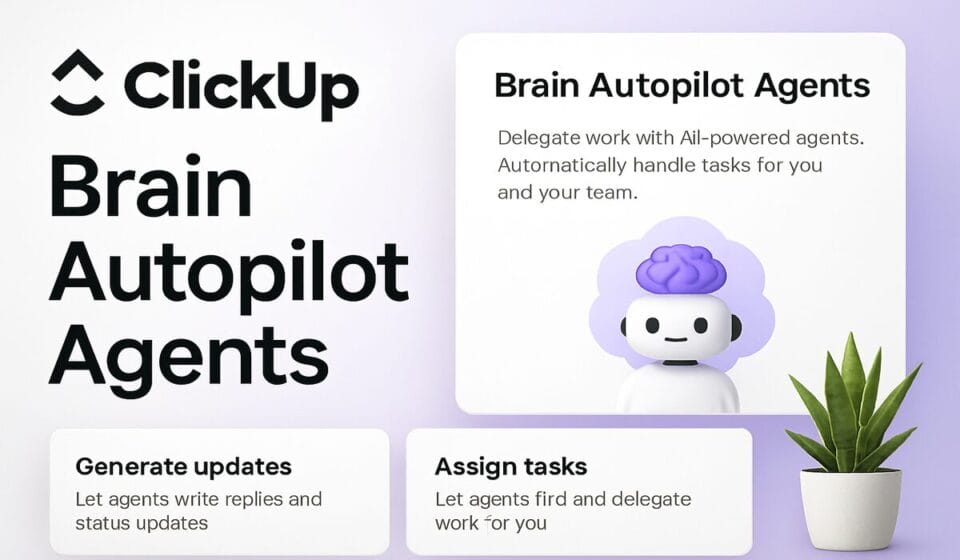

- ClickUp Brain gained full agentic capabilities in May 2026, with Autopilot Agents that autonomously handle standups, ticket triage, and status updates without human intervention.
- The Brain² AI plan starts at $9/user/month and bundles GPT-5, Claude Opus, o3, and Gemini — eliminating the need for separate AI tool subscriptions across your team.
- Autopilot Agents are built with a no-code visual builder and can be deployed across multiple Spaces, Folders, Lists, and Chats simultaneously.
- AI Fields like priority scoring, sentiment detection, and client progress updates can be auto-filled by agents — removing the manual overhead that kills adoption in most teams.
- Setup takes under 30 minutes for a basic agent and requires no coding knowledge, making this one of the most accessible agentic workflow tools available in 2026.
To set up ClickUp Brain Autopilot Agents, click the Brain icon in the top nav, select Agents, then New Agent. Choose a trigger (schedule or event), define scope across your Spaces or Lists, configure AI actions and AI Fields, then activate. The entire process takes under 30 minutes using ClickUp’s no-code agent builder.
- What Are ClickUp Brain Autopilot Agents?
- Brain² Plan Pricing and AI Model Access
- Before You Start: Prerequisites and Workspace Setup
- How to Create Your First Autopilot Agent (Step-by-Step)
- How to Configure AI Fields for Auto-Fill
- Deploying Agents Across Spaces, Folders, and Lists
- Three Autopilot Agent Workflow Recipes to Use Now
- Setting Up Super Agents for Multi-Step Orchestration
- Monitoring, Auditing, and Controlling Your Agents
- Verdict
- Frequently Asked Questions
What Are ClickUp Brain Autopilot Agents?
If you have been waiting for AI to actually reduce your operational overhead rather than just summarize text, May 2026 is the inflection point. ClickUp Brain’s Autopilot Agents represent the platform’s shift from AI-assisted work to AI-executed work. These are persistent, background agents that run on a defined schedule or in response to workspace events — and they complete real tasks inside ClickUp without you needing to prompt them each time.
The distinction matters. Most AI features in project management tools in 2025 were reactive: you asked, it answered. Autopilot Agents are proactive. An agent can wake up every Monday at 8 AM, pull overdue tasks from your Engineering List, classify them by urgency using AI reasoning, post a structured standup summary to your Team Chat, and update the priority field on each task — all before your team logs in. That is not a chatbot. That is a workflow teammate.
For context on how this fits ClickUp’s broader automation ecosystem, see our guide on setting up ClickUp 4 automations in 2026. Autopilot Agents sit on top of the standard automation layer and extend it with AI reasoning, multi-model access, and cross-workspace deployment capabilities that rule-based automations simply cannot replicate.
The three primary agent types you will work with are: Recurring Workflow Agents (schedule-triggered), Event-Triggered Agents (fired when a task is created, status changes, or a comment is posted), and Super Agents (orchestration agents that delegate tasks to specialized sub-agents). This guide covers all three.
Brain² Plan Pricing and AI Model Access
ClickUp’s Brain² AI plan is priced at $9/user/month as an add-on to any paid ClickUp plan. At that price point, it is one of the most defensible line items you can add to a team’s software budget in 2026, because it eliminates the need to maintain separate subscriptions to OpenAI, Anthropic, or Google for work-related AI use.
The Brain² plan includes multi-model access to GPT-5, Claude Opus, o3, and Gemini. You can choose which model powers each agent based on the task. In practice: GPT-5 and Claude Opus perform best for nuanced writing and structured reasoning tasks like status summaries and client update drafts; o3 excels at analytical and classification tasks like ticket triage and priority scoring; Gemini performs well on long-context document analysis tied to task descriptions.
You do not need to configure API keys or manage token limits. ClickUp handles the model routing, context management, and rate limiting at the platform level. This is a meaningful operational simplification — especially for teams that previously tried to stitch together Zapier, OpenAI, and ClickUp manually.
If you are evaluating whether ClickUp’s AI approach beats competitors, our ClickUp vs Asana 2026 comparison breaks down how each platform handles AI workflows. The short version: ClickUp’s agentic execution model is more powerful; Asana’s AI Rules are more constrained but easier to govern at scale. For Asana’s approach specifically, see how to use Asana AI Rules and automation in 2026.
Before You Start: Prerequisites and Workspace Setup
Before building your first Autopilot Agent, confirm that your workspace meets these requirements:
- Brain² Add-On Activated — Navigate to Settings (gear icon, bottom-left sidebar) → Billing → Add-ons and confirm Brain² is active for your workspace. If not, click Upgrade next to ClickUp Brain and select the Brain² tier.
- Admin or Owner Role — Agent creation requires Admin-level permissions. Workspace Owners and Admins can create agents; Members can trigger or view them depending on sharing settings configured at the agent level.
- Workspace Structure Finalized — Agents are scoped to specific Spaces, Folders, or Lists. Before you build, know exactly which Lists the agent will read from and write to. Vague scoping leads to agents pulling irrelevant data and producing low-quality outputs.
- Custom Fields Ready — If you want agents to auto-fill AI Fields like priority, sentiment, or client status, those Custom Fields must already exist on your Lists. Create them under List Settings → Custom Fields before building the agent.
- Notification Preferences Checked — Agents post summaries and updates to Chats or task comments. Ensure your team’s Chat notification settings are not set to “off” or the agent’s outputs will go unseen.
How to Create Your First Autopilot Agent (Step-by-Step)
The following steps walk through creating a Monday morning standup agent — one of the most immediately valuable agents for any team running weekly sprints. The same process applies to any recurring workflow agent.
- Open the Brain Panel — Click the Brain icon (sparkle/lightning bolt) in the top navigation bar. The Brain sidebar will open on the right side of your workspace.
- Navigate to Agents — In the Brain sidebar, click the Agents tab (displayed as a robot icon or labeled “Agents” depending on your ClickUp version). This opens the Agents management view.
- Create a New Agent — Click the New Agent button (top-right of the Agents view). A modal will appear asking you to select an agent template or start from scratch. For your first agent, select the Standup Summary template to reduce configuration time.
- Name Your Agent — Give the agent a descriptive name that includes its scope. Example: “Engineering Team — Monday Standup Agent.” Avoid generic names like “AI Agent 1” — when you have 10+ agents, naming discipline matters.
- Set the Trigger — Under Trigger Type, select Scheduled. Set the schedule to Every Monday at 8:00 AM. Select the timezone that matches your team’s primary timezone.
- Define the Data Scope — Under Scope, click Add Source and select the Lists or Folders the agent should analyze. For a standup agent, select your active sprint List and your Backlog List. Toggle on “Include subtasks” if your team breaks work into subtasks.
- Select the AI Model — Under AI Model, choose Claude Opus for standup summaries. It produces the most readable, contextually aware summaries when tasks have varied descriptions and mixed completion states.
- Write the Agent Instructions — In the Instructions field, write a clear prompt. A working template: “Review all tasks in the selected Lists. Identify tasks completed in the last 7 days, tasks in progress, tasks overdue by more than 2 days, and tasks with no activity in the last 5 days. Format the output as a structured standup summary with four labeled sections. Flag any tasks marked High Priority that have no assignee.”
- Set the Output Action — Under Actions, click Add Action → Post to Chat. Select the Team Chat or specific channel where the summary should be posted.
- Activate the Agent — Toggle the agent status from Draft to Active. The agent will now run autonomously on the defined schedule. You will see a confirmation message with the next scheduled run time.
For reference, ClickUp’s official documentation on agent configuration is available at help.clickup.com and the full Brain feature overview is at clickup.com/features/ai.
How to Configure AI Fields for Auto-Fill
AI Fields are one of the most underutilized features in the Autopilot Agent stack. They allow agents to write structured data back into task fields automatically — not just post summaries to chat, but actually update the task record. This is where the real workflow leverage lives.
- Open List Settings — Navigate to the List where you want AI Fields active. Click the three-dot menu next to the List name in the sidebar → List Settings → Custom Fields.
- Add an AI Field — Click Add Field → scroll to the AI Fields section. You will see options including: AI Priority Score, AI Sentiment, AI Complexity Estimate, AI Client Progress Summary, and AI Risk Flag.
- Configure the AI Priority Score Field — Select AI Priority Score. In the field configuration panel, define the scoring criteria. Example: “Score tasks from 1-10 based on due date proximity, task description urgency keywords, and number of blocking dependencies. Tasks overdue score minimum 8.”
- Configure the AI Sentiment Field — Select AI Sentiment for Lists where tasks include client-facing comments or feedback. The agent will read comment threads and classify the overall sentiment as Positive, Neutral, Negative, or Escalation Risk.
- Link AI Fields to Your Agent — Return to your agent’s configuration (Brain → Agents → select your agent → Edit). Under Actions, add a new action: Update AI Fields. Select the List and the specific AI Fields you want the agent to populate on each run.
- Test the Field Population — Run the agent manually using the Test Run button before relying on it for live operations. Review 3-5 tasks to confirm the AI Field values are accurate. Adjust the Instructions or field configuration if outputs are inconsistent.
Deploying Agents Across Spaces, Folders, and Lists
One of the structural advantages of Autopilot Agents over traditional ClickUp automations is their ability to operate across multiple Spaces in a single run. This is critical for portfolio-level teams managing work across multiple departments or client accounts.
- Open the Agent’s Scope Settings — In Agent Edit mode, navigate to the Scope section. By default, scope is set to a single List. Click Expand Scope to enable multi-location deployment.
- Add Multiple Spaces or Folders — Click Add Source repeatedly to add each Space, Folder, or List you want the agent to cover. An agent can span up to 20 sources on the Brain² plan.
- Set Scope Filters — For each source, apply filters so the agent only reads tasks that meet specific criteria: Status (e.g., only “In Progress” tasks), Assignee, or Custom Field values.
- Configure Per-Space Output Routing — If your agent covers multiple Spaces but each Space has its own team Chat, configure the Output Actions to route summaries to the correct Chat per Space.
- Test at Reduced Scope First — Before deploying across 15 Lists, test on 2-3 Lists and review output quality. Cross-space agents are more prone to irrelevant data inclusion when scope filters are not precise.
Three Autopilot Agent Workflow Recipes to Use Now
These are three battle-tested agent configurations that deliver measurable time savings within the first week of deployment.
Recipe 1: Daily Ticket Triage Agent (Engineering / Support Teams)
Trigger: Every weekday at 7:30 AM. Scope: New task intake List. Model: o3. Instructions: Classify each new task by type (Bug, Feature Request, Documentation, Question), set the AI Priority Score field, assign to the relevant sub-team based on task content, and post a triage summary to the #engineering-triage Chat.
Recipe 2: Weekly Client Progress Update Agent (Account Management)
Trigger: Every Friday at 4:00 PM. Scope: All client project Folders. Model: Claude Opus. Instructions: For each client Folder, review task completion rates, milestone status, and any comment threads flagged with blockers. Draft a client-facing progress summary in professional language and post it to the designated client update task for review before sending.
Recipe 3: Overdue Task Escalation Agent (Project Management / PMO)
Trigger: Event-triggered — fires when a task’s due date passes with status not “Complete.” Scope: All active project Lists. Model: GPT-5. Instructions: When triggered, review the task’s history, assignee, and blocking dependencies. Post a comment summarizing why it may be delayed and suggest three resolution actions. Notify the assigned manager via Chat mention.
For comparison with how competing platforms handle similar agentic workflows, see our analysis of Notion Custom Agents in 2026 and the Linear Agent feature deep dive.
Setting Up Super Agents for Multi-Step Orchestration
Super Agents are ClickUp’s answer to complex, multi-step workflows that require coordination between specialized agents. A Super Agent can instruct a Triage Agent to classify incoming tasks, then instruct a Summary Agent to compile results, then instruct an Update Agent to write field values — all in a single coordinated run.
- Create the Super Agent — In Brain → Agents → New Agent, select Super Agent as the type. Name it to reflect its orchestration role, e.g., “Sprint Review Orchestrator.”
- Add Sub-Agents — Under the Sub-Agents section, click Add Sub-Agent. Select existing agents or create new sub-agents inline. Define execution order: sequential or parallel.
- Define the Handoff Logic — Use the Handoff Instructions field to tell each sub-agent what data to pass to the next. Example: “After the Triage Agent completes classification, pass the list of High Priority tasks to the Summary Agent for executive reporting.”
- Set the Super Agent Trigger — Super Agents support the same trigger types as regular agents. For sprint review orchestration, schedule for the last Friday of each sprint at 3:00 PM.
- Review the Orchestration Log — After the first run, open the agent’s Activity Log (Brain → Agents → select agent → Activity). The log shows each sub-agent’s execution and data passed between steps.
Monitoring, Auditing, and Controlling Your Agents
Deploying agents without a monitoring protocol is a governance failure waiting to happen. ClickUp provides adequate tooling for agent oversight — use it from day one.
Access the Agent Activity Log by navigating to Brain → Agents → select any agent → Activity tab. Every run is logged with a timestamp, the data sources accessed, the AI model used, the output generated, and any actions taken. This log is exportable to CSV for compliance documentation.
Set up Agent Alerts by clicking Alerts in the agent’s configuration panel. Configure alerts for execution failures, output confidence score drops, or actions on stale data.
Pause or deactivate any agent instantly from Brain → Agents by toggling its status to Paused or Inactive. Brief your team leads on how to access this so that any agent behaving unexpectedly can be stopped without waiting for an Admin.
Review agent outputs weekly for the first month. Agent quality is a direct reflection of your underlying data hygiene — if team members are not filling in task descriptions, agents will produce generic, low-value summaries.
🏆 Verdict
ClickUp Brain Autopilot Agents are the most operationally significant release in the project management space in 2026. At $9/user/month with multi-model access, the Brain² plan eliminates legitimate objections around cost. The no-code builder makes deployment accessible to operations teams without engineering support. The AI Fields capability is the feature that separates this from every competitor’s current offering — writing structured data back to task records, not just posting summaries to chat, is what genuinely reduces manual work. If your team is spending more than 3 hours per week on standups, status updates, or ticket triage, you should have Autopilot Agents running by end of this week.
Frequently Asked Questions
Can Autopilot Agents make changes to tasks automatically, or do they only post summaries?
Autopilot Agents can both post summaries and make direct changes to tasks depending on how you configure their output actions. With AI Fields enabled, agents can update custom field values such as priority scores, sentiment ratings, and status labels autonomously. They can also reassign tasks, move tasks between Lists, and post comments. You control which actions are permitted at the agent level, so you can keep some agents read-only if your governance requirements demand human review before any task data changes.
What happens if an Autopilot Agent runs on a task that has no data or description?
Agents handle sparse task data by either skipping the task entirely (if you configure a minimum data threshold in the instructions) or producing a low-confidence output flagged in the Activity Log. Tasks with no description and no comments will generate generic summaries that are not particularly useful. This is why workspace data hygiene is a prerequisite, not an afterthought. Establish a task creation standard — at minimum a title, description, assignee, and due date — before relying on agents to process task data at scale.
Can I use Autopilot Agents on the free ClickUp plan?
No. Autopilot Agents require the Brain² add-on at $9/user/month, available on any paid ClickUp plan (Unlimited, Business, or Enterprise). The free ClickUp plan does not include Brain features. Activate through Settings → Billing → Add-ons. Enterprise plan customers may have negotiated bundle pricing that includes Brain² — check with your ClickUp account manager before purchasing separately.
How do ClickUp Autopilot Agents differ from ClickUp’s standard Automations?
Standard ClickUp Automations are rule-based: when X happens, do Y. They execute predefined actions with no AI reasoning involved. Autopilot Agents are reasoning-based: they evaluate context, interpret unstructured data like task descriptions and comments, make judgment calls about priority and categorization, and produce outputs that vary based on what they find. An automation can move a task to “In Review” when a checkbox is checked; an agent can read the entire task history, decide the task is actually blocked by a dependency, and post a comment explaining the blocker before escalating to a manager.
Is there a limit to how many Autopilot Agents I can run in a workspace?
On the Brain² plan, ClickUp allows up to 50 active agents per workspace. Super Agents count as one agent, regardless of how many sub-agents they orchestrate. If you are approaching the limit, audit your agent list for agents with overlapping scopes that could be consolidated into a single multi-action agent. Enterprise customers can contact ClickUp support to discuss increased limits for large-scale deployments.
Sponsored