Skip to content
-
Subscribe to our newsletter & never miss our best posts. Subscribe Now!
Work Management Hub Work Management Hub

Expert Reviews, Comparisons & Guides for Smartsheet, Monday.com, Asana, ClickUp & More

Work Management Hub Work Management Hub

Expert Reviews, Comparisons & Guides for Smartsheet, Monday.com, Asana, ClickUp & More

  • Airtable
  • Asana
  • ClickUp
  • Jira
  • Monday.com
  • Notion
  • Smartsheet
  • Wrike
  • About
  • Contact
  • Airtable
  • Asana
  • ClickUp
  • Jira
  • Monday.com
  • Notion
  • Smartsheet
  • Wrike
  • About
  • Contact
Close

Search

  • https://www.facebook.com/
  • https://twitter.com/
  • https://t.me/
  • https://www.instagram.com/
  • https://youtube.com/
AsanaHow-To Guides

How to Set Up Asana Portfolios and AI Rules for Goal Alignment in 2026

By Shaik KB
May 18, 2026 14 Min Read
0

How to Set Up Asana Portfolios and AI Rules for Goal Alignment in 2026

⚡ Key Takeaways

  • Asana’s April 2026 update added AI-powered rule triggers (including collaborator-added events), automatic AI model selection for automation, and the ability to duplicate entire portfolio structures in one action.
  • AI Studio’s Winter 2026 release introduced prebuilt AI Teammates — Campaign Brief Writer, Workflow Optimizer, and Compliance Specialist — plus rule duplication to scale automations across projects without rebuilding from scratch.
  • Asana Goals now supports custom fields for sorting and categorizing initiatives, and AI applies consistent OKR formatting while flagging duplicate or overlapping goals across teams.
  • Linking Portfolios directly to Goals creates a real-time health signal that lets executives track strategic progress without needing manual status updates from project leads.
  • Rule duplication and portfolio structure cloning cut setup time by 60–80% when rolling out a proven operating model to new teams, business units, or client accounts.

Quick Answer:

To set up Asana Portfolios with AI rules for goal alignment in 2026: create a Portfolio, link it to Goals, then use AI Studio to configure AI-powered rule triggers and assign prebuilt AI Teammates. Duplicate the portfolio structure and rules across teams to scale without rebuilding. Full setup takes 30–45 minutes.

Table of Contents

  1. Why Portfolios and AI Rules Are a Strategic Pair in 2026
  2. What Changed: Asana’s April 2026 and Winter 2026 Updates
  3. Step 1 — Create and Configure Your Portfolio
  4. Step 2 — Build AI Rules in AI Studio
  5. Step 3 — Deploy Prebuilt AI Teammates
  6. Step 4 — Link Goals to Your Portfolio
  7. Step 5 — Scale with Portfolio Duplication and Rule Cloning
  8. Automating Portfolio Health Tracking
  9. Verdict
  10. Frequently Asked Questions

Why Portfolios and AI Rules Are a Strategic Pair in 2026

Most teams have no shortage of project management tools. What they lack is line of sight — a clear, real-time connection between day-to-day work and the strategic goals the organization has committed to delivering. Asana Portfolios were designed to fill that gap, and the 2026 AI updates have made them substantially more powerful.

The fundamental problem is familiar to anyone who has run a portfolio review meeting: project leads submit weekly status updates that are already stale by the time leadership reads them, key risks surface too late, and no one can confidently answer the question “is this initiative actually moving our OKRs?” The manual data-collection overhead alone can consume hours per week that could be spent on actual work.

With the April 2026 and Winter 2026 releases, Asana has moved Portfolios from a passive reporting layer to an active, AI-driven operating system. AI rules now trigger automatically on events that previously required a human decision — including when a new collaborator joins a project — and prebuilt AI Teammates handle recurring tasks like writing campaign briefs, optimizing workflow sequencing, and flagging compliance gaps. At the same time, Goals custom fields and AI-assisted formatting give strategy teams a consistent, searchable OKR record that scales across dozens of concurrent initiatives.

If you are comparing Asana against other enterprise platforms, see our Smartsheet vs. Asana Enterprise comparison for 2026 for a side-by-side look at portfolio and automation capabilities. And if you want to understand how Asana’s AI automation stack compares to Monday.com’s agent approach, our guide on setting up Monday.com AI agents in 2026 provides useful context.

What Changed: Asana’s April 2026 and Winter 2026 Updates

Before diving into the setup steps, it is worth understanding exactly what changed — because the new capabilities alter the optimal configuration sequence significantly.

April 2026 Platform Update

  • New AI rule trigger: Collaborator Added. Rules can now fire the moment a new collaborator is added to a task or project. This enables automatic onboarding workflows — briefing new stakeholders, assigning orientation tasks, or notifying the portfolio owner — without human intervention.
  • Automatic AI model selection. Asana now selects the most appropriate underlying AI model for each automation action based on task complexity, removing the need for admins to manually configure model preferences per rule.
  • Portfolio Structure Duplication. Teams can now duplicate an entire portfolio structure — including project groupings, custom fields, status columns, and connected goals — to a new workspace or business unit in a single action. This is a significant time saver for organizations rolling out a proven operating model to new regions or client accounts.

AI Studio Winter 2026 Release

  • Prebuilt AI Teammates. Three out-of-the-box AI Teammates are now available: Campaign Brief Writer (generates structured creative briefs from project context), Workflow Optimizer (analyzes project sequences and recommends task reordering or parallel paths), and Compliance Specialist (checks tasks and deliverables against regulatory or policy criteria you define).
  • Rule Duplication. Any AI rule built in AI Studio can now be duplicated and applied to multiple projects without rebuilding the trigger-action logic from scratch. This feature alone dramatically reduces the barrier to scaling a consistent operating model across teams.

Goals Enhancements

  • Custom Fields for Goals. Teams can now add custom fields to Goals — including dropdowns, text fields, and number fields — enabling sorting and filtering by initiative type, business unit, quarter, or any other dimension the organization tracks.
  • AI formatting and overlap detection. When AI assistance is enabled on Goals, Asana’s AI applies consistent naming and metric formatting to new goals and identifies goals that overlap with or duplicate existing initiatives, surfacing the conflict so teams can consolidate before work begins.

For a deeper look at AI rules specifically, see our complete guide on how to use Asana AI rules and automation in 2026.

Step 1 — Create and Configure Your Portfolio

A well-structured Portfolio is the foundation everything else builds on. Resist the temptation to add every project immediately — start with a single strategic theme (a product line, a business unit’s quarterly initiatives, or a client account) and expand from there.

  1. In the Asana left sidebar, click Portfolio (under the My Work section). If you do not see it, navigate to More and pin Portfolios to your sidebar.
  2. Click Create Portfolio in the top right. Enter a descriptive name that reflects the strategic theme — for example, “Q3 2026 Product Launches” or “Enterprise Client Accounts — EMEA.”
  3. Set the Privacy level. For executive-facing portfolios, choose Only invited members. For team-level portfolios that multiple leads contribute to, choose Anyone in the organization can view.
  4. Click Add Projects. Search for and add all relevant projects. You can add projects from different teams as long as you have at least Commenter access to each one.
  5. Open the Portfolio Settings (gear icon in the top right). Under Custom Fields, click Add Field. Add the following fields as a minimum baseline: Status (dropdown: On Track / At Risk / Off Track), Owner (people field), Priority (dropdown: P1 / P2 / P3), and Completion % (number field).
  6. Enable Status Rollups by toggling on Auto-calculate portfolio status from project statuses. This means project-level status updates flow up to the Portfolio automatically — no manual portfolio status entry required.
  7. Click Save. Your Portfolio is now live and ready to receive AI rules and Goal connections.
Pro tip: Use the Portfolio’s Timeline view to identify scheduling conflicts across projects before they escalate. Switch between List, Timeline, and Progress views using the view switcher in the top left of the Portfolio panel.

Step 2 — Build AI Rules in AI Studio

AI Studio is Asana’s no-code builder for AI-powered rules. Unlike standard Asana rules (which trigger actions mechanically), AI Studio rules can interpret context, generate text, make conditional decisions, and hand off to AI Teammates. The April 2026 update significantly expanded the trigger library, including the high-value collaborator-added event.

  1. Open a project within your Portfolio. Navigate to Customize (top right) → Rules → + Add Rule → AI Studio.
  2. In the AI Studio rule builder, click Select a Trigger. Browse the trigger library. For portfolio health automation, the most valuable triggers are:
    • Task status changes — fire when a task moves to At Risk or blocked
    • Due date approaching — fire 3 or 5 days before a milestone deadline
    • Collaborator added (new in April 2026) — fire when a new stakeholder joins a task
    • Custom field value changes — fire when Priority changes to P1
  3. Click Select an Action. For AI-powered actions, choose Run AI action. Asana will automatically select the best model — you do not need to configure this manually in 2026.
  4. In the AI action prompt field, write a clear instruction. For a collaborator-added trigger, an effective prompt is: “Write a 3-sentence briefing for the new collaborator summarizing the project goal, current status, and their expected contribution. Use formal business language.”
  5. Set the Output Destination — typically a task comment (so the new collaborator sees the briefing in context) or a custom text field on the task. Click Add Output and select your destination.
  6. Click Test Rule to verify the output on a sample task. Review the AI-generated output for accuracy and tone. Adjust the prompt if needed.
  7. Click Publish Rule. The rule is now active on this project.
Important: AI rules consume Asana AI credits. High-frequency triggers (such as “task created”) on large projects can exhaust credits quickly. Scope your triggers precisely and use conditional logic (e.g., “only if Priority = P1”) to limit unnecessary rule executions. Check your AI credit usage in Admin Console → AI Usage.

Step 3 — Deploy Prebuilt AI Teammates

AI Teammates are persistent AI agents that operate within specific projects or portfolios, executing predefined functions on demand or via rule triggers. The Winter 2026 release made three Teammates available out of the box, which significantly reduces the configuration time compared to building custom AI workflows from scratch.

Campaign Brief Writer

Best for: marketing, product, and creative teams that repeatedly produce structured creative briefs. The Teammate pulls context from the project description, task titles, and any custom fields you define (audience, channel, budget) and generates a formatted brief that follows your template.

  1. Navigate to AI Studio → Teammates → Browse Prebuilt Teammates.
  2. Select Campaign Brief Writer and click Add to Project. Choose the project (or multiple projects) where it should operate.
  3. In the Teammate configuration panel, specify your brief template structure. Add section headings — Objective, Target Audience, Key Messages, Deliverables, Timeline — so the AI follows your organization’s format.
  4. Set the activation trigger: either manual (team members invoke it on demand with @Campaign Brief Writer in a task comment) or rule-based (fires when a task with a specific tag like “brief-needed” is created).
  5. Click Save Teammate.

Workflow Optimizer

Best for: operations, PMO, and engineering teams managing complex dependencies. The Workflow Optimizer reviews your project’s task sequence, identifies bottlenecks and unnecessarily serialized tasks, and recommends where parallelization would reduce the critical path.

  1. Add Workflow Optimizer to your project via AI Studio → Teammates → Browse Prebuilt Teammates → Workflow Optimizer → Add to Project.
  2. In the configuration panel, set the Analysis Scope: choose whether the Teammate analyses the full project or only tasks in a specific section.
  3. Set the Output Format: recommendations can be delivered as a project comment, a new task (assigned to the PM), or a custom field update on the project.
  4. Schedule the analysis frequency: weekly is recommended for active projects, biweekly for projects in maintenance mode.
  5. Click Save Teammate.

Compliance Specialist

Best for: legal, finance, procurement, and regulated industry teams. Define your compliance criteria (GDPR checkpoints, SOC 2 requirements, internal approval gates) and the Teammate reviews tasks and deliverables against them, flagging non-compliant items before they move to the next stage.

  1. Add Compliance Specialist via AI Studio → Teammates → Browse Prebuilt Teammates → Compliance Specialist → Add to Project.
  2. In the Policy Definition field, paste or type your compliance requirements. Use numbered lists for clarity — the AI parses structured lists more reliably than prose paragraphs.
  3. Set the trigger: “When a task moves to the Review section” is the most common activation point.
  4. Configure the Non-Compliance Action: block the task from advancing (requires Enterprise), add a comment listing the failing criteria, or notify the compliance lead via an Asana notification.
  5. Click Save Teammate and test with a sample task that intentionally violates one policy criterion.

Step 4 — Link Goals to Your Portfolio

Portfolios track project execution. Goals track strategic outcomes. Connecting them creates the feedback loop that makes portfolio reviews meaningful: leadership can see, in one view, whether the projects they are funding are actually moving the metrics they care about.

  1. Navigate to Goals in the left sidebar. If you are creating a new goal, click + Add Goal. If you are connecting to an existing goal, open it.
  2. In the Goal detail panel, click Add Supporting Work → Link to Portfolio. Search for and select the Portfolio you created in Step 1.
  3. Set the Metric that the portfolio’s progress will contribute to. For example: “Increase enterprise ARR by $2M” → link metric source to the Portfolio’s Completion % field.
  4. Add Custom Fields to Goals using the new 2026 capability. In the Goal detail panel, click Customize Goal Fields. Add fields for Business Unit, OKR Quarter, and Initiative Type. These fields enable filtering and sorting across all goals in your organization’s Goals view.
  5. Enable AI Goal Assistance by toggling on AI formatting and overlap detection in the Goal settings. When enabled, Asana’s AI will flag if this goal’s metric overlaps with another active goal — a common problem when multiple teams are pursuing similar outcomes with different naming conventions.
  6. Click Save Goal. The goal now displays a progress bar that updates automatically as Portfolio status changes.
Goal hierarchy tip: Asana Goals supports parent and child goals. Create a Company-level goal (e.g., “Grow market share in EMEA by 15% in 2026”), then create Department-level sub-goals that roll up into it. Each department’s Portfolio links to their sub-goal. This creates a complete line of sight from individual tasks to company strategy.

Step 5 — Scale with Portfolio Duplication and Rule Cloning

The April 2026 Portfolio Structure Duplication feature and AI Studio’s rule duplication together solve the most painful part of scaling a work management system: the manual, error-prone process of rebuilding the same structure for every new team, client, or region. Organizations that previously spent 3–5 days configuring a new portfolio environment can now do it in under an hour.

Duplicating a Portfolio Structure

  1. Open the Portfolio you want to duplicate. Click the … overflow menu in the top right of the Portfolio panel.
  2. Select Duplicate Portfolio Structure. A configuration dialog will open.
  3. Choose what to include in the duplicate:
    • Project groupings and section structure (always included)
    • Custom fields (recommended)
    • Connected Goals (include if the new team shares the same strategic goals; exclude if they have distinct OKRs)
    • Portfolio members (typically exclude — you will add the new team separately)
  4. Name the new Portfolio and select the destination workspace or team folder.
  5. Click Duplicate. Asana creates the full Portfolio structure in seconds. The duplicated portfolio will contain empty project slots — you then add the new team’s projects to the appropriate sections.

Cloning AI Rules Across Projects

  1. Open AI Studio from the project where your original rules live.
  2. Find the rule you want to replicate. Click the … overflow menu next to the rule and select Duplicate Rule.
  3. In the duplication dialog, select all target projects (you can select multiple at once using the multi-select checkbox).
  4. Review the rule preview — trigger, AI action, and output destination — for each target project. Adjust the output destination if the target project uses different section names.
  5. Click Apply to Selected Projects. The rule is live on all target projects immediately.

For teams comparing Asana’s portfolio duplication against ClickUp’s workspace templates, our ClickUp vs. Asana 2026 comparison covers this in detail.

Automating Portfolio Health Tracking

With Portfolios, Goals, and AI rules in place, you can close the loop by automating the portfolio health tracking that previously consumed hours of manual status collection each week.

Recommended Automation Stack for Portfolio Health

  • Weekly status summary rule: Trigger: “Every Monday at 9:00 AM.” Action: AI reads all project statuses in the portfolio and generates a plain-English summary comment on the Portfolio, highlighting any projects that moved to At Risk since the previous week. Output: Portfolio-level comment, distributed to all Portfolio members via Asana notification.
  • Risk escalation rule: Trigger: “When any project’s Status field changes to Off Track.” Action: AI generates a concise risk summary (what slipped, likely cause based on task data, recommended next step) and creates a new task assigned to the Portfolio owner. This ensures no Off Track project is overlooked between weekly reviews.
  • Goal drift alert rule: Trigger: “When Goal completion % falls more than 10 points below the expected pace.” Action: AI notifies the goal owner and the Portfolio manager, and logs the alert as a task in the goal’s linked project. The expected pace is calculated from the goal’s start date, due date, and current date.
  • New stakeholder onboarding rule: Trigger: “Collaborator added to any project in the portfolio” (new April 2026 trigger). Action: Campaign Brief Writer Teammate generates a project context briefing and posts it as a task comment visible only to the new collaborator.

Configuring all four of these rules on one project and then using AI Studio’s rule duplication to push them across the entire portfolio takes approximately 25 minutes. Compare that to the 2–3 hours it previously took to manually configure equivalent automations on each project individually.

For the underlying Asana AI documentation, see Asana’s AI product page and the Asana Help Center for the most current feature specs and plan availability details.

If you are evaluating how Asana’s AI automation approach compares to other AI-native platforms, our guide on Notion Custom Agents in 2026 provides a useful reference point.

🏆 Verdict

The 2026 Asana updates — particularly Portfolio Structure Duplication, the collaborator-added AI trigger, and prebuilt AI Teammates — represent a meaningful shift from configuration-heavy automation to scalable, intelligent work orchestration. For any organization running more than five concurrent strategic initiatives, the combination of Portfolios + AI Studio rules + Goals creates a real-time operating picture that manual reporting simply cannot match. The setup investment is modest (under two hours for a complete first portfolio), and the duplication features mean that investment compounds across every new team or project that follows the same template. If you are on Asana Business or Enterprise and you are not yet using Portfolios with AI rules, the opportunity cost is real: your teams are spending hours each week on status reporting that AI can handle in seconds.

Frequently Asked Questions

Do I need Asana Business or Enterprise to use Portfolios and AI rules?

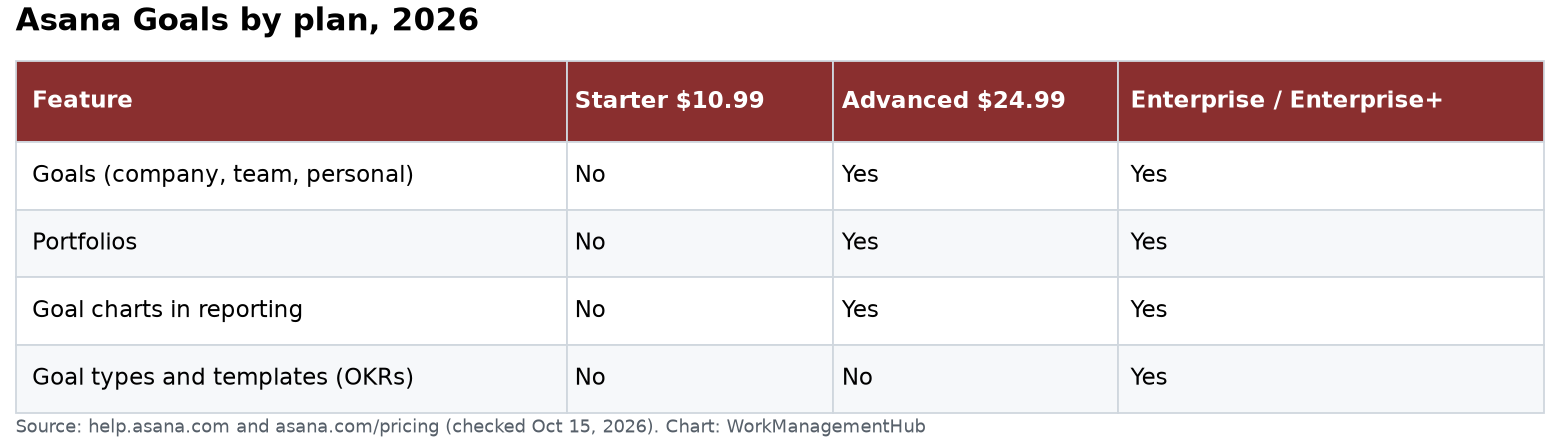
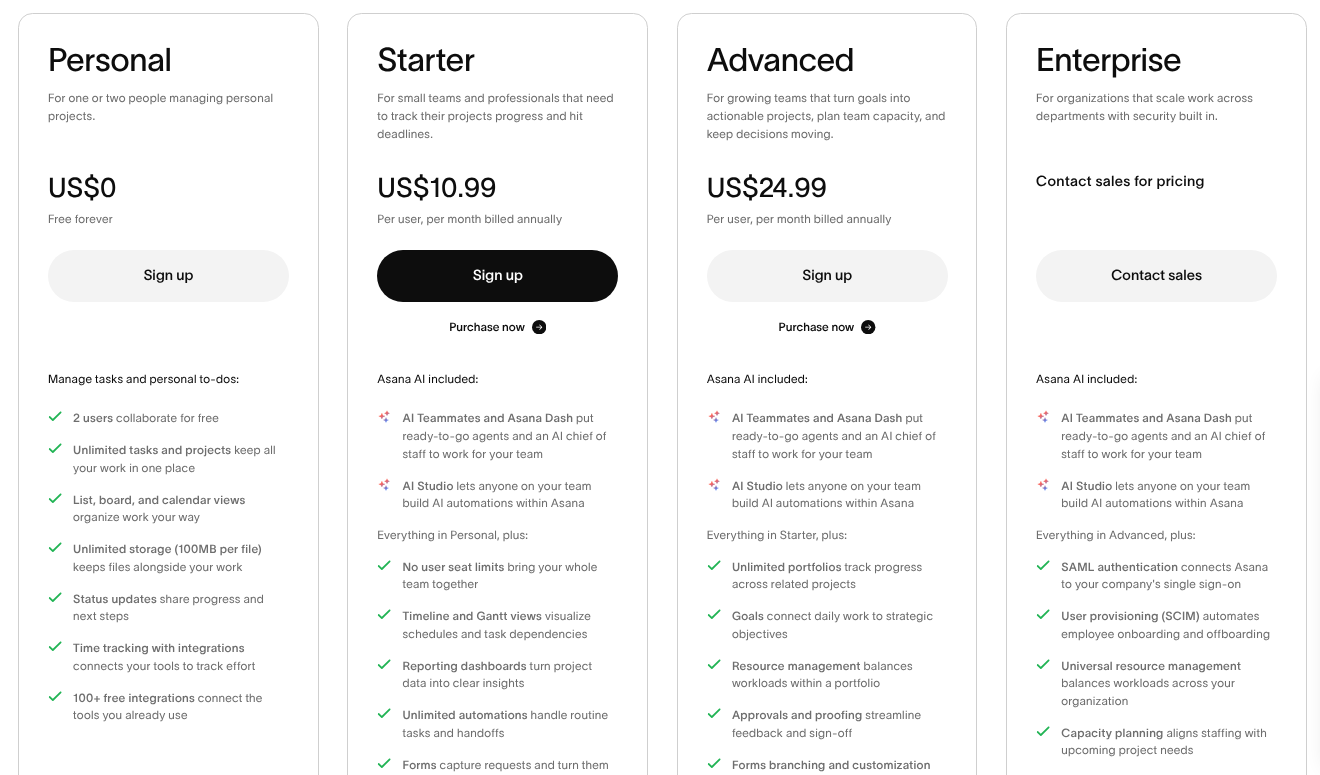
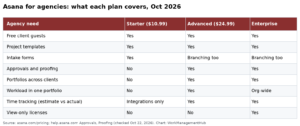
Portfolios require Asana Business or Enterprise. AI Studio features — including AI Teammates and AI-powered rule triggers such as the collaborator-added event — are available on Asana Enterprise and via the AI add-on for Business plans as of 2026. Check your current plan under Admin Console → Billing to confirm which AI features are included.

What is the new collaborator-added AI rule trigger in Asana’s April 2026 update?

The April 2026 update added a trigger that fires an AI rule whenever a new collaborator is added to a task. This lets AI Teammates automatically brief the new collaborator with context about the project goal, current status, and expected contribution — without the project manager needing to manually write and send that message for every new stakeholder.

Can I duplicate an entire Asana Portfolio structure to a new team?

Yes. Asana’s April 2026 update introduced the ability to duplicate entire portfolio structures, preserving project groupings, custom fields, and connected goals. Navigate to the Portfolio overflow menu (…) and select Duplicate Portfolio Structure. You choose which elements to carry over and name the new portfolio in the configuration dialog before confirming.

How does AI apply consistent formatting to Asana Goals?

When you enable AI assistance on Goals, Asana’s AI reviews newly created or edited goals and applies your organization’s naming conventions, metric formats, and OKR structure. It also flags goals that duplicate effort already tracked elsewhere in the workspace, surfacing the overlap so teams can consolidate before duplicated work begins. Enable this feature under Goals Settings → AI Assistance → Formatting and Overlap Detection.

How do I scale an AI rule across multiple projects without rebuilding it?

Use AI Studio’s rule duplication feature, introduced in the Winter 2026 release. Open the rule in AI Studio, click the … overflow menu next to the rule, and select Duplicate Rule. In the dialog that follows, select all target projects and click Apply to Selected Projects. The complete rule — trigger, AI Teammate, and output action — is cloned to each selected project instantly, with no rebuild required.


Author

Shaik KB

Follow Me
Other Articles
Previous

How to Set Up ClickUp Brain Autopilot Agents for Team Workflows in 2026

Next

Notion vs Linear 2026: Which Is Better for Developer and Product Teams?

No Comment! Be the first one.

    Leave a Reply Cancel reply

    Your email address will not be published. Required fields are marked *

    Sponsored Smartsheet Expert Services – Implementation, Automation, Training
    Sponsored Power BI & Tableau Analytics – Dashboards, Reporting, Insights
    Sponsored AI Agents for Work Management – Automate Tasks, Integrate Tools

    Categories

    • Airtable (8)
    • Alternatives (10)
    • Asana (29)
    • ClickUp (34)
    • How-To Guides (102)
    • Integrations (15)
    • Jira (22)
    • Monday.com (35)
    • Notion (24)
    • Pricing Guides (11)
    • Project Management (62)
    • Smartsheet (24)
    • Tool Comparisons (44)
    • Uncategorized (5)
    • Wrike (9)

    Recent Post

    • Notion vs ClickUp 2026: Which Tool Wins for Growing Teams?
    • Smartsheet Automations Not Triggering: 7 Fixes That Actually Work in 2026
    • How to Use ClickUp Gantt Baselines for Smarter Project Tracking in 2026
    • Linear Releases Feature Deep Dive: Track Every Deployment in 2026
    • How to Set Up Asana AI Teammates in 2026: Step-by-Step Guide
    Work Management Hub

    Independent expert reviews & comparisons of work management tools — helping 50,000+ teams choose the right software.

    Tools We Cover

    • Smartsheet
    • Monday.com
    • ClickUp
    • Asana
    • Notion
    • Jira
    • Wrike
    • Airtable

    Company

    • About Us
    • Contact Us
    • Privacy Policy
    Copyright 2026 — Work Management Hub. All rights reserved. Blogsy WordPress Theme