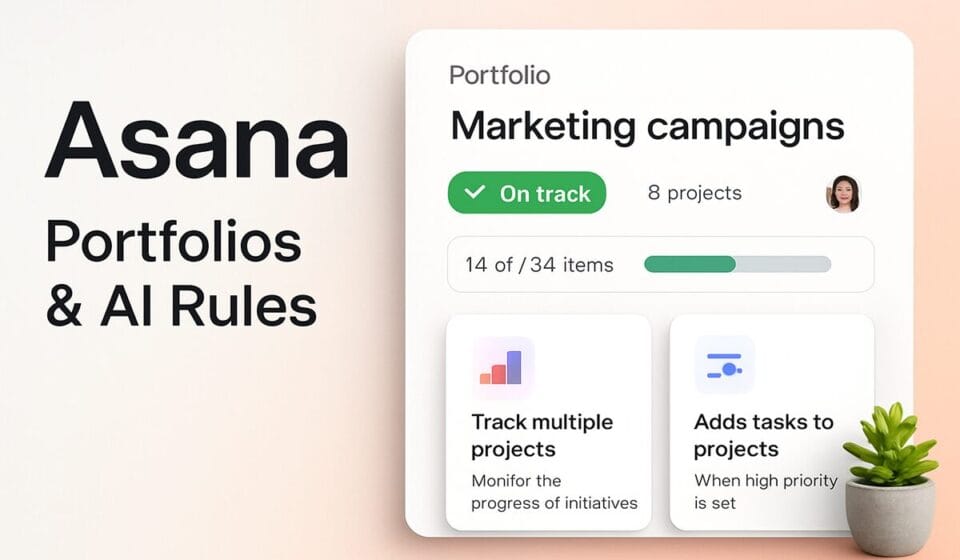

Alignment in Asana comes from two connected layers. Portfolios group related projects so you can watch their status, dates, and workload in a single view. Goals sit above those projects and roll their progress up automatically. Set both up together and leadership sees strategy and delivery in the same place, without chasing spreadsheets.
That is the short version. The longer version is that both features live behind Asana’s Advanced tier, the automatic roll-up has some quiet rules that trip people up, and there are cases where a plain project with a weekly status update does the job better than a portfolio ever will. This guide walks through the setup and is honest about the edges.
What you actually get, and what it costs
Portfolios and Goals are not entry-level features. Both are gated to Advanced and above. On Asana’s own help pages, portfolios are listed as “Available on Asana Advanced, Enterprise, and Enterprise+ tiers, as well as legacy tiers Business and Legacy Enterprise,” and Asana Goals carries the identical gating. The free Personal plan and the Starter plan do not include either one.
That matters for budgeting. If your reason for upgrading is portfolio and goal reporting, you are really paying for the Advanced tier, currently listed at $24.99 per user billed annually or $30.49 per user billed monthly. Starter ($10.99 annual / $13.49 monthly) gets you unlimited automations and AI Studio Basic, but no portfolios and no goals. Confirm the current numbers on the Asana pricing page before you commit seats, and if you want the full plan-by-plan breakdown we keep a running Asana pricing guide for 2026.
| Plan | Price per user | Portfolios | Goals |
|---|---|---|---|
| Personal | $0 (up to 2 users) | No | No |
| Starter | $10.99 annual / $13.49 monthly | No | No |
| Advanced | $24.99 annual / $30.49 monthly | Yes (unlimited) | Yes |
| Enterprise / Enterprise+ | Custom | Yes | Yes |
One pleasant detail on the current pricing page: Advanced now lists unlimited portfolios. Some legacy Business plans carried a portfolio cap, so if you are on an inherited plan, check your own limit rather than assuming.
Set up a portfolio
A portfolio is a container. It does not hold tasks of its own; it holds projects (and other portfolios) and surfaces their roll-up data in columns you choose. Here is the setup.
- In the sidebar, click the Projects + button and choose New portfolio. You can also reach it from the Insights + button, or by opening Portfolios in the sidebar and clicking + Create.
- Name the portfolio after the thing it represents, not the team. “Q3 Product Launches” ages better than “Marketing’s Portfolio.”
- Add projects. Inside the portfolio click + Add work and type a project name, or add a project from its own overview tab under Connected portfolios.
- Add the columns that answer a leadership question. Status, Progress, Owner, and Due date are the ones people actually read. You can also add custom fields to compare projects on the same scale, such as a Priority or Health field.
- Open the Dashboard tab to turn those fields into charts, and the Workload tab to see how assignments stack up across every project in the portfolio at once.
The status column is the payoff. Each project reports its own status (On track, At risk, Off track) through its status updates, and the portfolio simply aggregates them. If your projects are not getting regular status updates, the portfolio will look empty and honest at the same time. Our guide to Asana status updates and progress reporting covers how to make that cadence stick.
Nested portfolios and one gotcha
You can put a portfolio inside another portfolio. Click + Add work and select a portfolio’s name, or use the drop-down arrow next to + Add work and choose Create new portfolio. This is how a program owner rolls several team portfolios into one executive view. The catch, straight from Asana’s portfolios documentation: a portfolio that contains other portfolios has its Timeline tab disabled. Remove the nested portfolios and the timeline comes back. If a cross-program Gantt view is the whole point, don’t nest.
Set up goals and connect them to work
Goals are where alignment stops being a folder and starts being a number. A goal has an owner, a time period, a target, and a progress source. The single most important decision is that last one: Manual or Automatic progress.
- Open Goals from the sidebar and create a goal. Give it a clear owner and a time period, and write the title as a measurable outcome.
- In the progress settings, choose your update method. Pick Automatic if the goal should track completion of underlying work, or Manual if you will type in the number yourself.
- For an automatic goal, select the progress source: Sub-goals, Projects, or Tasks. From the goal’s detail page, connect the specific items.
- If you chose Projects, decide whether success is measured by Milestones complete or Tasks complete. Asana averages the completion percentage across every connected project.
- Set an update reminder. Goal owners can be nudged Weekly, Biweekly, Monthly, or Quarterly to post a status update.
How automatic roll-up behaves is worth reading twice. With sub-goals as the source, a percentage measurement gives you the average of the sub-goals, while numeric or currency measurements give you the sum. With projects, it is the average of milestone or task completion. And there is a hard ceiling: Asana’s goals documentation states that up to 100 items (tasks, projects, or goals) can be connected to automatic progress on a single goal. That is generous, but it means a company-level goal built directly from hundreds of tasks will hit the wall. The fix is to build a hierarchy of sub-goals rather than wiring everything to the top.
Manual isn’t a downgrade
Manual goals ask for a current value and a target value, measured as a percentage, a number, or a currency amount. Asana itself recommends manual for goals graded on qualitative judgment, external data, or a simple achieved/not-achieved call. A revenue goal fed by your finance system, or an NPS target, is more honest as a manual entry than as an average of task checkboxes. Do not force a metric into automatic mode just because automatic sounds better.
Where rules and AI fit, and where they don’t
This is where the old version of this topic tended to overpromise, so let’s be precise. Asana’s rules (its automation engine) operate at the project level. There is no separate rule builder that fires at the portfolio or goal level. Portfolios aggregate; goals roll up through the progress-source setting you chose. Neither needs a rule to update, and you cannot write a portfolio-wide “if/then” the way you can inside a single project.
What rules do contribute is upstream. Because portfolio status and goal progress are only as current as the projects beneath them, project-level automation is what keeps the whole tree honest, moving tasks to Done sections, flagging overdue work, requesting status updates on a schedule. If a connected project’s tasks are getting completed and closed by a rule, the goal above it moves on its own. Our Asana automations guide covers building those project rules.
On AI: Asana’s pricing page lists AI Studio Basic as included on paid plans, with a monthly credit pool per billing account, currently shown as 50K credits on Starter, 75K on Advanced, and 200K on Enterprise, with paid Plus and Pro tiers for more. AI Studio builds no-code workflows and embeds AI agents inside projects. It is a real capability, but it is a project-and-workflow tool, not a magic portfolio- or goal-level automation. Treat any claim that AI “automatically writes your goal roll-ups” with suspicion unless you have configured a specific AI Studio workflow to do it.
When a portfolio is overkill
If you are running two or three projects for one team, a portfolio adds a layer of navigation for very little payoff. A single project with sections, a saved dashboard, and a disciplined weekly status update will tell the same story with less to maintain. Portfolios earn their keep when you are comparing many projects on the same fields, watching capacity across teams, or rolling programs up to executives who will never open an individual project.
Similarly, the portfolio Workload tab is genuinely useful, but only if every project has assignees and effort set consistently. Half-populated data produces a workload chart that looks authoritative and is quietly wrong. If capacity planning is your real goal, invest in the underlying assignment hygiene first; our Asana workload and capacity planning guide goes deeper. And for turning portfolio data into leadership-ready charts, see the reporting dashboards guide.
Frequently asked questions
Do I need the Advanced plan for both portfolios and goals?
Yes. Asana’s help documentation gates both portfolios and Asana Goals to the Advanced, Enterprise, and Enterprise+ tiers, plus the legacy Business and Legacy Enterprise plans. The free Personal plan and the Starter plan include neither. If portfolio and goal reporting is your reason to upgrade, Advanced is the entry point.
How many projects can feed a goal’s automatic progress?
Asana’s documentation sets the limit at up to 100 items, counting tasks, projects, or sub-goals combined, connected to a single goal’s automatic progress. For very large objectives, build a layer of sub-goals instead of wiring hundreds of tasks directly to a top-level goal, which keeps you under the ceiling and the reporting readable.
Can I put a portfolio inside another portfolio?
Yes. Use + Add work inside a portfolio and select an existing portfolio, or create a new one from the drop-down. Nesting is how program owners roll team portfolios into one executive view. Note that any portfolio containing other portfolios has its Timeline tab disabled until the nested portfolios are removed.
Should goal progress be automatic or manual?
Use automatic when the goal genuinely tracks completion of connected projects, tasks, or sub-goals. Use manual for outcomes graded on external data or judgment, such as revenue, NPS, or a binary achieved/not-achieved result. Manual goals take a current and target value as a percentage, number, or currency, and are often the more honest choice.
Do rules automate portfolios and goals directly?
No. Asana rules run at the project level. Portfolios aggregate their projects and goals roll up through the progress source you set, so neither uses a dedicated rule engine. Project-level automation still matters indirectly, because it keeps the underlying work current, which is what makes the portfolio and goal views accurate.
Sponsored