Notion AI for Project Management: 8 Workflows That Work in 2026

Notion AI helps a project manager most in four places: turning meetings into action items, writing status updates, sorting new requests, and filling in database fields. Full Notion AI comes with the Business plan ($20 per member a month, yearly). Custom Agents that run on a schedule cost extra, at about $10 per 1,000 credits. Free and Plus get only a limited trial.
This is a workflow guide. If you want the full product tour, read our Notion AI guide first. Here I focus on what I actually set up for project teams, and what it costs per run. Facts come from Notion’s pricing page and Help Center, checked October 15, 2026.
What you need first
| Need | Plan | Notes |
|---|---|---|
| Notion Agent, AI Meeting Notes, Enterprise Search | Business ($20) or Enterprise | Included with a usage allowance |
| Research Mode | Business or Enterprise | Limited trial on lower plans |
| Basic Autofill | Business or Enterprise | Does not use credits |
| Custom Agents | Business or Enterprise | Uses Notion credits |
| Any AI on Free or Plus ($10) | Free, Plus | Limited complimentary responses only |
Credits are an add-on. Monthly credits cost $10 per 1,000 and reset each month. Yearly credits cost $13 per 1,000, are paid up front and expire at renewal, according to Notion’s credits help page. Notion spends monthly credits first, then yearly, then on-demand. Plan math is in our Notion pricing guide.
The 8 workflows
1. Meeting notes that become tasks
Use AI Meeting Notes (still labeled beta) in your project kickoff and weekly syncs. It transcribes, summarizes and pulls out action items. No bot joins the call.
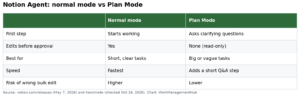
Then ask Notion Agent: “Turn the action items from this meeting into tasks in the Project Tasks database, with owners and due dates.” Check the result before you close the page. AI is good at spotting action items. It is worse at guessing the right owner.
2. A weekly status update, written for you
This is the best use of a Custom Agent. Build one from the Agents section in the sidebar, as Notion’s Custom Agents guide shows. Give it a recurring trigger, like every Friday at 3 p.m. in your time zone. Grant it access to your project and task databases only.
Instructions I use: “Read tasks changed this week in Project X. Write a status update with: what shipped, what slipped, top 3 risks, and asks. Keep it under 200 words. Post it to the Status Updates page.”
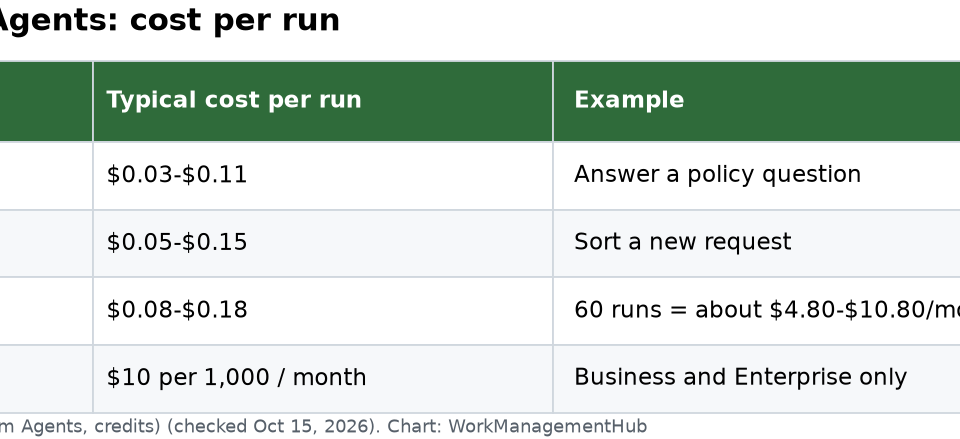
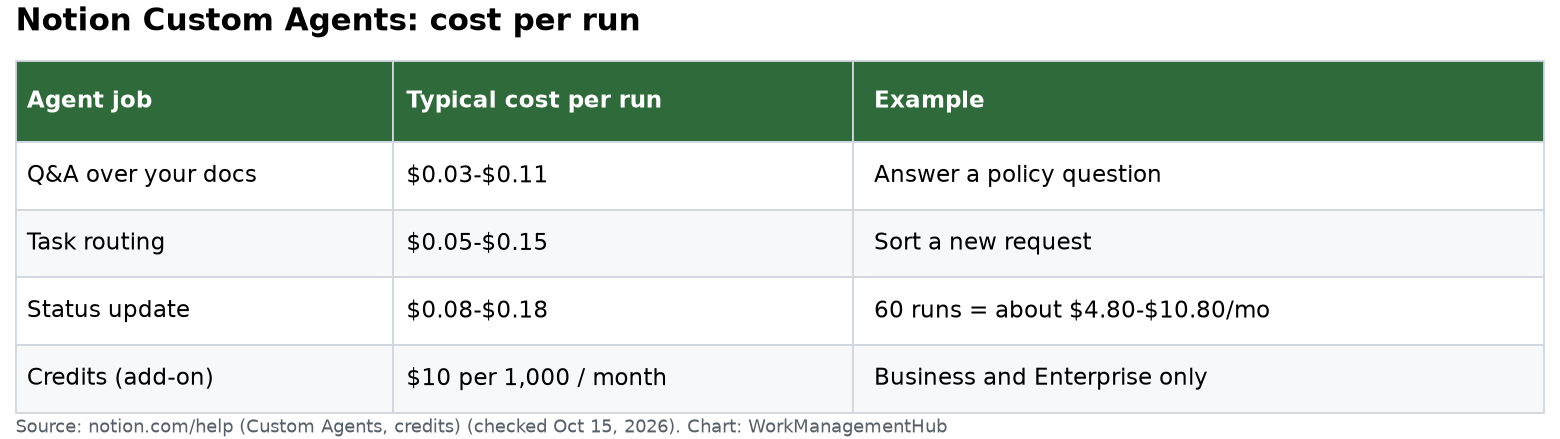
Notion’s own estimate for a status-update agent is $0.08 to $0.18 per run. Sixty runs a month comes to about $4.80 to $10.80. That is cheap next to an hour of a PM’s time each week.
3. Intake triage for new requests
Point a Custom Agent at your request database. Use the trigger “page added to database.” The agent reads the request, sets priority and type, and assigns a team.
Notion lists task routing at $0.05 to $0.15 per run. If your team gets 300 requests a month, plan on roughly $15 to $45. Keep a human check for anything marked urgent. Our Notion forms guide covers the intake side.
4. Autofill in your project database
Add an AI Autofill property to a task or project database. Good uses:
- A one-line summary of each task.
- A “risk” tag based on the description.
- A suggested next step.
Basic Autofill is included on Business and Enterprise and does not use credits. Custom Agent Autofill does use credits. Start with basic. If your databases are new to you, see our Notion database guide.
5. A project Q&A agent
New team members ask the same questions. “Where is the spec?” “Who owns QA?” A Custom Agent can answer from your project wiki. Notion puts Q&A at $0.03 to $0.11 per run. You can also trigger it from Slack, with a message, emoji or mention, once a Slack admin connects it.
6. Research briefs with Research Mode
On Business and Enterprise, open Notion AI from the sidebar and turn on Research Mode. Ask for a short brief: “Compare our three vendor options using the notes in this teamspace and current info from the web.” It works best when you name the pages it should read.
7. Search across tools
Enterprise Search looks across Notion and connected apps like Slack and Google Drive. For a PM, the use is simple: “What did we decide about the launch date?” You get an answer with sources. Check the source. Old Slack threads can mislead.
8. Clean up a messy project page
Ask Notion Agent to reorganize a long project page: “Group this page into Goals, Scope, Timeline, Risks and Decisions. Keep all facts. Mark anything that conflicts.” Then compare it with page history. On Business, page history goes back 90 days.
Guardrails I always set
- Grant the least access. A Custom Agent can only see pages you give it in Tools and access. Give it the project, not the whole workspace.
- Decide on web access. It is a toggle. Turn it off for internal-only agents.
- Watch the activity log. Each agent keeps one, plus version history. Check it weekly for the first month.
- Set a credit budget. Admins can buy credits and track use in the credits dashboard.
- Keep one human owner per agent. If nobody owns it, it drifts.
Agents are built on desktop or web, not mobile. If you want agents to call outside code, see our Notion Workers guide.
Honest limits
Where it shines: turning messy notes into structure, writing first drafts of updates, and routing simple requests. It saves real time when your databases are tidy.
Where it falls short: it cannot fix bad data. If task owners and dates are wrong, the status update will be wrong too. It is not a scheduler. Notion has no resource leveling or true critical path. Teams that need that should look at a dedicated PM tool. And costs are hard to predict until you run agents for a month.
Common questions
Is Notion AI included in the Plus plan?
No. Plus ($10 per member a month, yearly) gets only limited complimentary AI responses. Full Notion AI comes with Business and Enterprise.
How much do Notion Custom Agents cost?
They use Notion credits. Monthly credits cost $10 per 1,000 and reset each month. Notion estimates $0.03 to $0.18 per run for common jobs like Q&A, routing and status updates.
Can a Notion agent post status updates on a schedule?
Yes. Custom Agents support recurring triggers by day, week, month or year, at a set time and time zone.
Does Autofill use Notion credits?
Basic Autofill is included on Business and Enterprise and does not use credits. Custom Agent Autofill uses credits.
Can Notion AI see every page in my workspace?
A Custom Agent can only use pages you grant it in Tools and access. Notion AI itself only uses pages and connected apps that you have permission to see.
Checked against notion.com/pricing and notion.com/help on October 15, 2026. AI pricing changes often; confirm before you plan a budget.
Sponsored