
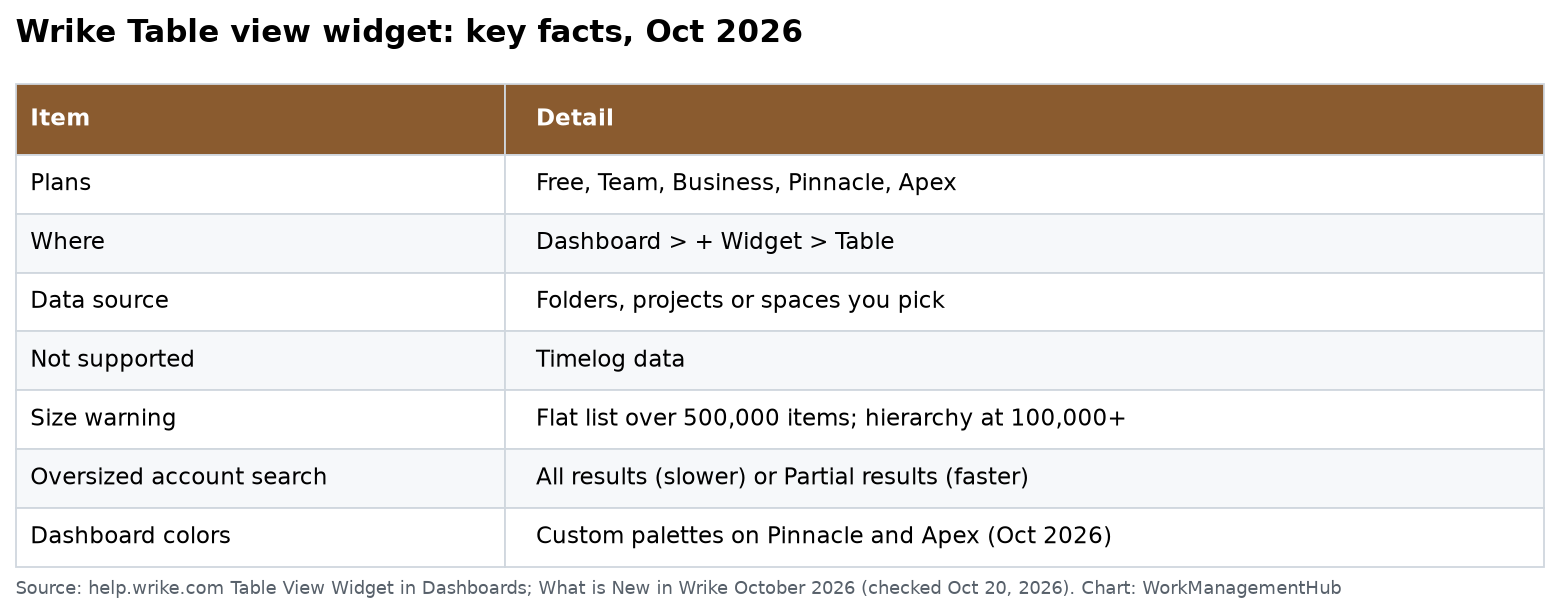
The Table view widget puts a live, editable table of tasks and projects on a Wrike dashboard. Add it with + Widget, then Table. Pick a data source, add filters, choose fields, and decide between a flat list or a hierarchy. It works on every Wrike plan, from Free to Apex. It cannot show timelog data.
I followed Wrike’s Table View Widget article (last updated September 29, 2026) and the October 2026 release notes, checked October 20, 2026.
Why use the Table widget
Before this widget, a project one-pager in Wrike often needed four or five widgets: a list, a chart, a count and a few filters. The Table widget can replace many of them. Wrike says it lets you:
- See all work with full task, project and folder hierarchy.
- Group work on several levels, for personal, project and portfolio reports.
- Show parent-level data and column rollups in one view.
- Edit status, due dates and assignees right in the widget.
The last point matters most to busy managers. You can fix a wrong due date from the dashboard without opening the task.
Step 1: Open the right dashboard
- Go to Dashboards in the sidebar. If you don’t see it, click More and choose Dashboards.
- Click the caret next to the dashboard title and pick your dashboard.
- Or open a space and pick the dashboard from the Tools section of the sidebar.
Step 2: Add the widget
- Click + Widget in the top-right corner of the dashboard.
- Choose Table.
- Set up the widget data (next step).
- Click Create widget.
To change it later, click the three-dot menu on the widget and select Edit.
Step 3: Configure it
The settings panel at the top of the editor has seven controls:
| Setting | What it does | My tip |
|---|---|---|
| Data Source | Folders, projects or spaces to pull from | Pick the smallest source that covers the work |
| Filter | Narrow by status, assignee, dates or custom fields | Hide Completed and Cancelled first |
| Sort | Priority, Name, Status, Due Date or any active field | Due Date for team views |
| Group by | Sections by status, assignee, project or custom field | Project, then Status, for a portfolio view |
| Fields | Which columns show, and their order | Keep it to 6 to 8 columns |
| Flat list or hierarchy | Nested by folder and project, or one simple list | Hierarchy for one-pagers |
| Subitems | Collapse or expand subitems | Collapse for leadership views |
Click Save changes when you are done.
Priority sorting is worth knowing. It uses a custom order that you set by dragging items, so the top of the table shows what you decide matters most.
Large accounts: the warning you may see
Wrike shows a warning when a widget searches a large source. The warning depends on the source size, not the number of rows shown. It appears when:
- A flat-list widget searches a folder, project or space with more than 500,000 items.
- A hierarchy widget searches a source with 100,000 or more items.
- A hierarchy widget searches a whole account that Wrike marks as oversized.
For oversized flat-list widgets that search the whole account, pick a mode:
- All results: slower, but complete.
- Partial results: faster, but may miss matches.
My advice: don’t point dashboards at the whole account. Point them at a space or a project folder. They load faster and nothing is missed.
What the Table widget cannot do
- No timelog data. For hours, use a report or a timesheet view instead.
- No charts. Pair it with a chart or gauge widget for visuals.
- Very large sources can trigger the warnings above.
New in October 2026
- Dashboard color customization. A new Design button in the dashboard toolbar lets you build a custom palette and preview it in light and dark mode. Anyone with Editor or Full permission on the dashboard can use it. Wrike lists it for Pinnacle and Apex.
- Quick Search in Table View. Search a long table, including items not loaded yet. This is the Table view in workspaces, not the widget.
- Other updates that month include cross-project dependencies in Gantt and any/all approvers. See our Wrike Gantt guide.
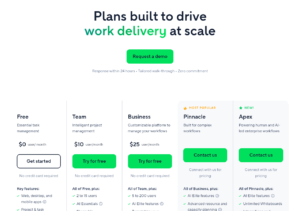
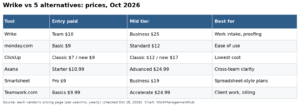
Wrike plan prices (October 2026)
From Wrike pricing, billed yearly, per user per month:
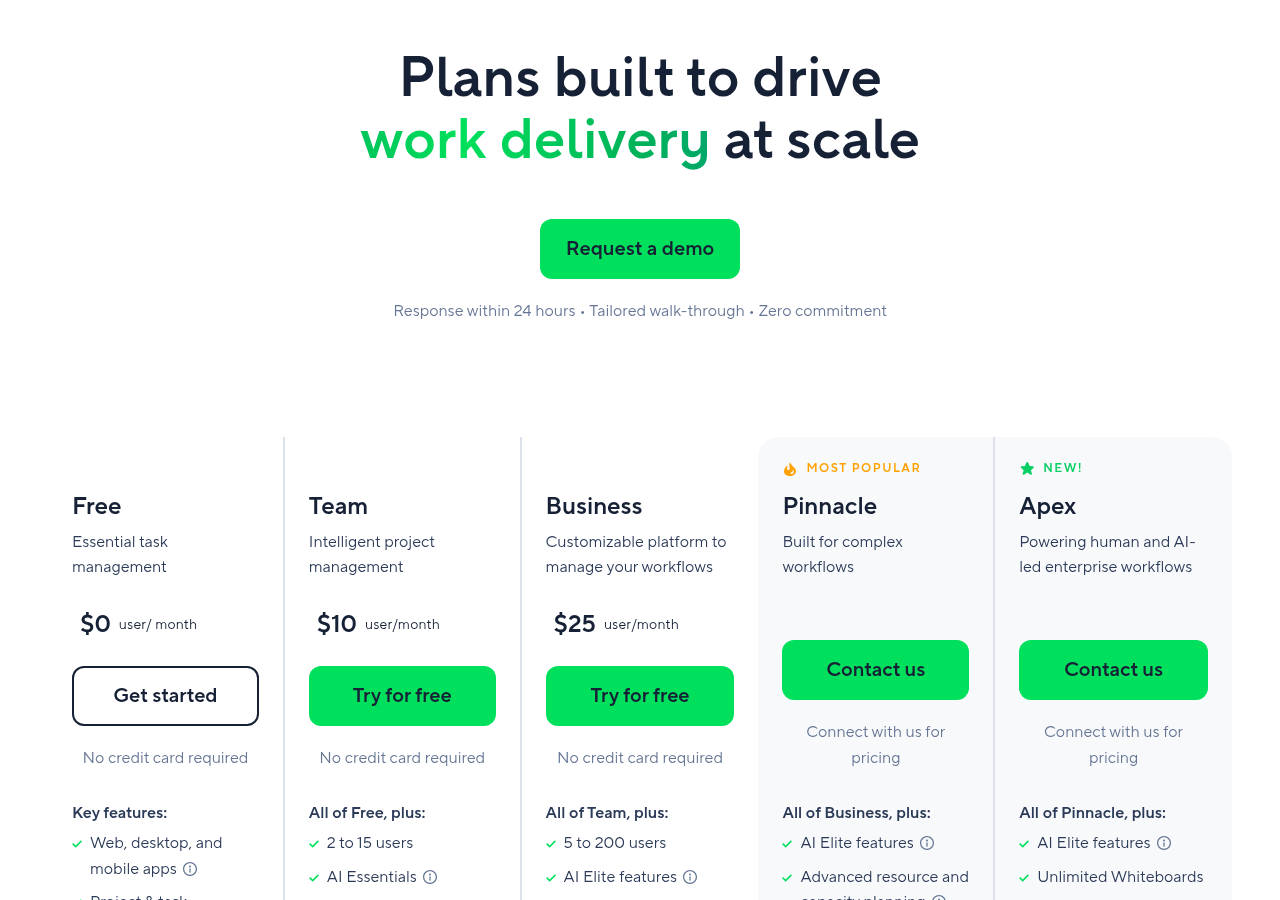
- Free: $0
- Team: $10, for 2 to 15 users
- Business: $25, for 5 to 200 users
- Pinnacle and Apex: contact sales
See our Wrike pricing breakdown for details.
Three Table widget setups that work
- My week: Data source = your main space. Filter = assigned to me, due in the next 7 days, not completed. Sort = Due Date.
- Project one-pager: Data source = one project. Hierarchy on. Fields = Status, Assignee, Start, Due, Duration and a Budget custom field.
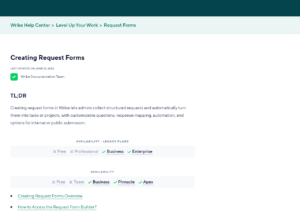
- Intake triage: Data source = the folder where your request forms land. Filter = status New. Group by = request type.
Build a full one-page dashboard around it
The Table widget works best with a few helpers. Wrike’s help center covers each of these:
- Sections to split the dashboard into parts, such as “This week” and “At risk.”
- Gauge widget for one number that matters, like the share of tasks done on time.
- Text widget for a short note on what the dashboard is for and who owns it.
- Set Dashboard as Home so your team lands on it when they open Wrike.
- Public links if you need to show the dashboard to someone without a Wrike login. Check with your admin first.
Mistakes I see on client dashboards
- Too many columns. A table with 15 fields is hard to read on a laptop. Show what people act on.
- No status filter. Completed tasks pile up and push current work off the screen.
- Whole-account sources. They are slow and can trigger the large-source warning.
- One widget per person. Use one table grouped by assignee instead of ten small lists.
- No owner for the dashboard. Pick one person who checks it each week and fixes broken filters.
For capacity views, see our Wrike resource management guide.
Common questions
Which Wrike plans have the Table view widget?
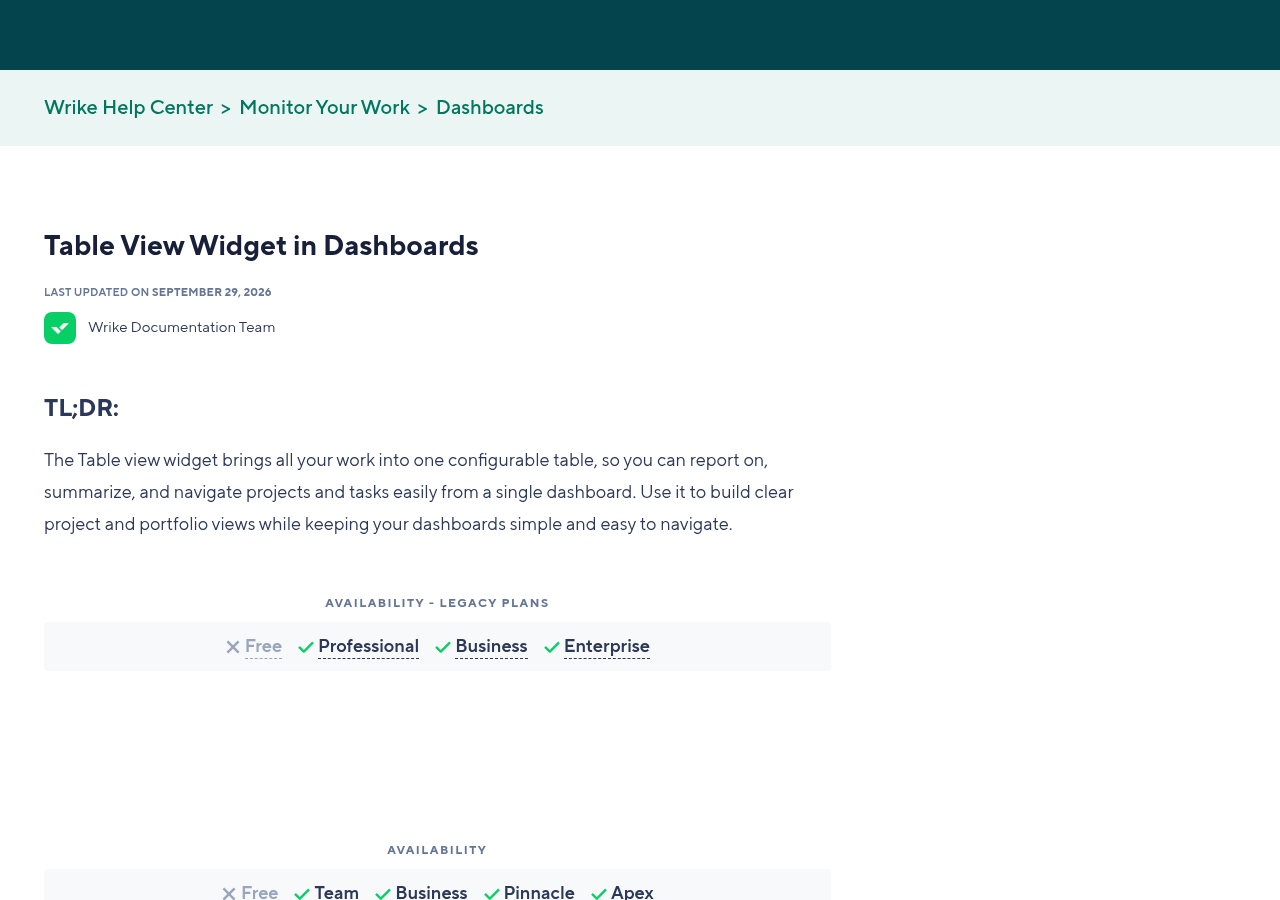
All current plans: Free, Team, Business, Pinnacle and Apex. On legacy plans, Free, Professional, Business and Enterprise.
Can I edit tasks from the Table widget?
Yes. You can change status, due dates, assignees and other details right in the widget.
Does the Table widget show time logs?
No. Wrike says timelog data is not supported in the Table view widget.
Why do I see a warning on my Table widget?
The source is large: over 500,000 items for a flat list, or 100,000 or more for a hierarchy. Narrow the data source.
Can I change dashboard colors in Wrike?
Yes, since October 2026, with the Design button. Wrike lists it for Pinnacle and Apex.
Sources
- Wrike: Table View Widget in Dashboards
- Wrike: What’s New in Wrike, October 2026
- Wrike: Dashboards
- Wrike pricing (checked Oct 20, 2026)
Sponsored