Smartsheet Notifications Not Working? 8 Fixes for Alerts, Reminders & Approval Emails in 2026
- The #1 cause of Smartsheet notifications not working during testing: Smartsheet never notifies you of your own changes unless Include my changes in sheet notifications is enabled in Personal Settings.
- Notification delivery is controlled per user under Personal Settings > Notifications — if a user disabled email there, no sheet-level workflow can reach them, no matter how it’s built.
- Unless a workflow is set to send to “any email address,” recipients must be verified Active users — unverified accounts silently receive nothing, with no error shown to the workflow owner.
- Reminders must be set at least one day in the future; a reminder pointed at today’s date or a past date will never fire.
- If Smartsheet’s Activity Log shows the notification was sent but nobody received it, the problem is your email server — get IT to allowlist the smartsheet.com sending domain.
The most common cause is that Smartsheet doesn’t notify you of your own changes by default. Open your profile icon > Personal Settings > Notifications and enable “Include my changes in sheet notifications.” If others aren’t receiving alerts, verify they’re Active, verified users and that their own notification delivery isn’t disabled.
- Smartsheet Notifications Not Working: Quick Diagnosis
- Fix #1: Enable “Include My Changes” (the Testing Trap)
- Fix #2: Turn Notification Delivery Back On in Personal Settings
- Fix #3: Verify Recipients Are Active, Verified Users
- Fix #4: Loosen the Sheet’s Automation Permission Scope
- Fix #5: Reactivate a Disabled Workflow
- Fix #6: Fix Trigger Conditions and Run Frequency
- Fix #7: Rescue Alerts From Spam and IT Email Filtering
- Fix #8: Correct Reminder Dates and Timing Rules
- Smartsheet Notifications Not Working After All 8 Fixes? Escalate Here
- Frequently Asked Questions
When Smartsheet notifications are not working, the cost isn’t the missing email — it’s the approval that sat unnoticed for four days, the vendor deadline nobody was reminded about, and the project that stalled while everyone assumed someone else got the alert. I’ve debugged Smartsheet notifications not working for client teams ranging from five-person marketing groups to enterprise PMOs, and the failure almost always traces back to one of eight causes. This guide ranks them from most common to least, with the exact clicks to fix each one.
One reassuring fact up front: Smartsheet’s notification engine itself is rarely broken. In nearly every case, an alert “failed” because a setting somewhere in the chain — the sheet’s workflow, the recipient’s personal profile, the account’s user list, or the company’s email server — silently blocked delivery. Your job is to find which link failed. Here’s how to do it in minutes instead of days.
Smartsheet Notifications Not Working: Quick Diagnosis
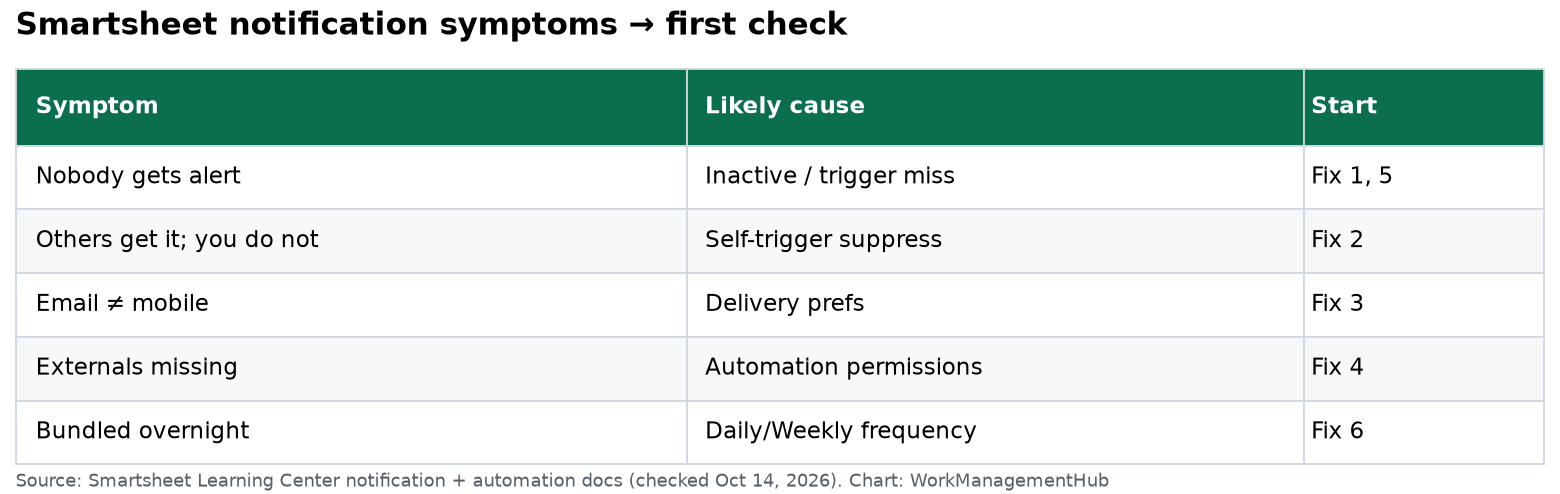
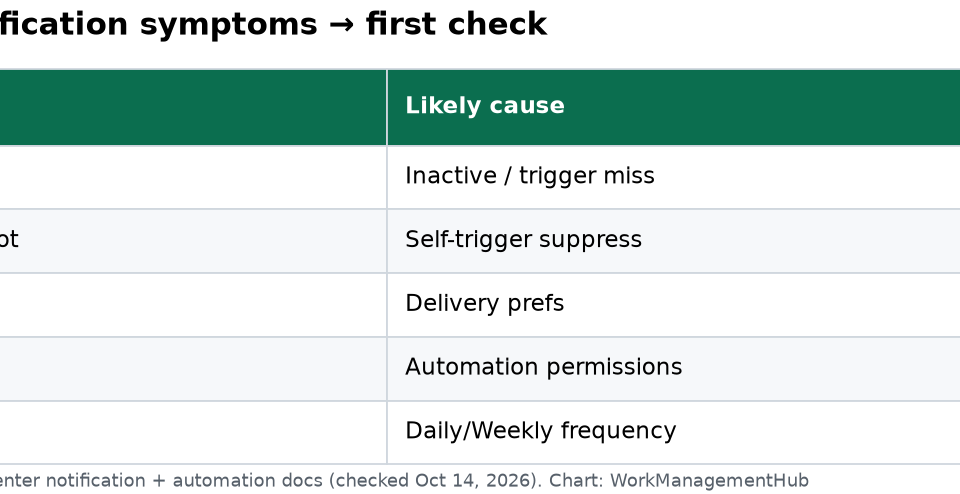
Match your symptom to the most likely fix before reading everything. Ranking reflects how often each cause turns out to be the culprit in real deployments.
| Symptom | Most Likely Cause | Go To |
|---|---|---|
| You test an alert by editing the sheet yourself — nothing arrives | “Include my changes” is off (the default) | Fix #1 |
| One specific person never gets any alerts from any sheet | Their Personal Settings have email delivery disabled | Fix #2 |
| New team members get nothing; existing members get alerts fine | Recipient account is unverified or inactive | Fix #3 |
| People not shared to the sheet get no alerts, or get stripped-down content | Automation permission scope is Restricted | Fix #4 |
| A workflow that used to work stopped entirely for everyone | Workflow deactivated (often after the owner left) | Fix #5 |
| Alerts fire sometimes but skip changes you expected to trigger them | Trigger conditions not met, or hourly/daily run frequency | Fix #6 |
| Activity Log shows “sent” but nothing lands in any inbox | Spam folder or corporate email filtering | Fix #7 |
| Reminders and date-based alerts never fire | Date is today or in the past — must be at least one day out | Fix #8 |
If you’re troubleshooting the workflow itself rather than delivery — the automation genuinely never ran — start with our companion guide on fixing Smartsheet automations that aren’t triggering, then come back here for the delivery layer.
Fix #1: Enable “Include My Changes” (the Testing Trap)
By default, Smartsheet does not notify you of changes you made yourself. This is sensible in production — you don’t need an email telling you what you just typed — but it’s brutal during testing. You build a workflow, edit a cell to test it, receive nothing, and conclude the automation is broken. It isn’t. It correctly ignored you. This single default explains more “Smartsheet notifications not working” reports than every other cause combined, and it’s the recurring answer in Smartsheet Community thread 84891 and thread 67829.
- Account (profile icon) — click your profile image in the lower-left corner of the Smartsheet window
- Personal Settings — select it from the pop-up menu to open your settings dialog
- Notifications — click the Notifications tab in the left panel of the dialog
- Include my changes in sheet notifications — check this box under the notification customization options
- Save — click to apply, then re-run your test edit and wait a minute or two
Consultant’s note: I enable this on my own account permanently and tell clients to enable it on any account used to build or test workflows. Leave it off for pure end users to reduce inbox noise. Full details are in Smartsheet’s official article, Configure how Smartsheet notifies you.
Fix #2: Turn Notification Delivery Back On in Personal Settings
Here’s the architectural point most teams miss: workflow settings on the sheet decide when an alert is generated, but each user’s Personal Settings decide whether it’s actually delivered to them, and through which channels (email, mobile push, in-app). If a user disabled email notifications there — often months ago, to silence a noisy sheet — no sheet-level alert will ever reach their inbox again. The workflow owner sees nothing wrong; the recipient just goes dark.
This is why “it works for everyone except Dana” is almost always a Dana-side setting. Have the affected user (this cannot be done for them by an admin) do the following:
- Account (profile icon) — click the profile image in the lower-left corner
- Personal Settings — open the settings dialog
- Notifications — select the tab in the left panel
- Email toggle — confirm email delivery is enabled for the notification types that matter (alerts and reminders, requests, etc.)
- Save — apply the changes, then trigger a fresh test alert
While they’re in there, have them confirm the email address on the Profile tab is the one they actually monitor. I’ve seen approval requests flow perfectly to an old address the user abandoned two jobs ago.
Fix #3: Verify Recipients Are Active, Verified Users
If your workflow sends only to “users shared to this sheet” or specific contacts (rather than to any email address), those recipients must be verified, Active users on the account. An invited user who never clicked the verification link in their welcome email exists in your contact list, appears selectable in the workflow builder — and silently receives nothing. No bounce, no warning. This is the classic “new hires never get the approval emails” failure, and it stalls onboarding-heavy processes like intake queues and contract approvals.
- Account (profile icon) — click it, then choose Admin Center (or Account Administration on older plans; you need system admin rights)
- User Management — open the user list from the left navigation
- Search — find the affected recipient by name or email
- Status column — confirm it reads Active; anything like Invited or Pending means they never verified
- Resend Invitation — use the row’s action menu to resend, then have the user click the verification link
- Manage Workflows — alternatively, open the workflow on the sheet and change the recipient setting to Send to specific people / any email address if your automation permissions allow it (see Fix #4)
Prevention tip: make account verification a day-one onboarding checklist item. If you’re setting up a new team, our Smartsheet beginners setup guide covers the user provisioning sequence that avoids this entirely.
Fix #4: Loosen the Sheet’s Automation Permission Scope
Every sheet has an automation permission setting that governs who workflows are allowed to notify. If it’s set to Restricted, only users shared to the sheet receive alerts — external stakeholders, unshared approvers, and distribution lists get dropped without any error. Limited allows unshared recipients but strips row data from their emails, which recipients often misread as a broken notification. Only Unrestricted sends full alerts to anyone.
- Automation — open the menu at the top of the affected sheet
- Manage Workflows — select it to open the workflow list
- ⚙ (settings gear icon) — click it in the upper-right of the Manage Workflows dialog to open sheet-level automation settings
- Permission level — review the selected option: Restricted, Limited, or Unrestricted
- Unrestricted (or Limited) — select the least restrictive option your data-governance rules allow
- Save — apply, then re-test with an unshared recipient
Governance caveat: Unrestricted means anyone a workflow targets can receive cell data from the sheet. For sheets holding sensitive data (salaries, legal matters), keep Restricted and instead share the approvers to the sheet with Viewer access.
Fix #5: Reactivate a Disabled Workflow
Workflows carry an Active/Inactive toggle, and they don’t only get switched off manually. Smartsheet deactivates workflows in several situations — commonly when the workflow’s owner is removed from the account or loses sharing access to the sheet. That’s why a process that ran flawlessly for a year dies the week after someone leaves the company, taking your approval chain down with it.
- Automation — open the menu on the affected sheet
- Manage Workflows — open the full workflow list
- Active toggle — check the toggle beside each workflow; flip any that show Inactive back to Active
- Edit (pencil icon) — if a workflow won’t reactivate, open it and resave to take ownership under your account
- Save — confirm the workflow now shows Active, then run a test trigger
Off-boarding rule I give every client: before deactivating a departing employee, transfer their sheets and resave their critical workflows under a role-based admin account, not another individual.
Fix #6: Fix Trigger Conditions and Run Frequency
If alerts arrive for some changes but not others, the workflow is working — its logic just doesn’t match your expectations. Three sub-causes dominate. First, the trigger watches a specific field (“when Status changes to Complete”), so edits to other fields do nothing. Second, condition blocks filter out rows that don’t meet every criterion, and one stale condition (a dropdown value that was renamed, for example) silently blocks everything. Third, the workflow’s run frequency may be set to hourly, daily, or weekly, so changes batch up instead of sending immediately — a daily workflow triggered at 9 a.m. may not deliver until much later, which reads as “broken” to an anxious approver. Also remember: changes only count once they’re saved to the sheet.
- Automation — open the menu and choose Manage Workflows
- Edit (pencil icon) — open the misbehaving workflow
- Trigger block — confirm the watched field and change type (“any change” vs. “changes to specific values”) match what you’re testing
- Condition blocks — verify every condition against real current data; delete or fix stale criteria (renamed dropdown options are the usual offender)
- Run frequency link — click the blue “when triggered / hourly / daily / weekly” text in the trigger block and set it to When triggered for time-sensitive alerts
- Save — apply, make a qualifying change, and save the sheet to fire the test
If the trigger logic checks out and the workflow still never fires at all, the deeper diagnostics in our Smartsheet automations not triggering guide pick up where this section leaves off.
Fix #7: Rescue Alerts From Spam and IT Email Filtering
When Smartsheet’s records say the notification was sent but no inbox has it, stop debugging Smartsheet and start debugging email. Corporate spam gateways, quarantine policies, and aggressive Outlook rules routinely swallow automated mail — especially approval requests, which contain action buttons that some filters treat as suspicious. The tell-tale pattern: the entire company stops receiving alerts at once, usually right after IT changed a mail security policy.
- Spam / Junk folder — have each affected user search for “smartsheet” in junk and quarantine digests first
- Not junk / Allow sender — mark any found messages so the local client stops filtering them
- File (in the sheet) — as a cross-check, confirm sends on Smartsheet’s side: a Business/Enterprise admin can review sheet activity via File > View Activity Log
- IT allowlist request — ask your email admin to allowlist Smartsheet’s sending addresses and domain (notifications arrive from smartsheet.com addresses such as automation@smartsheet.com) at the gateway level, not just per-mailbox
- Test message — trigger a fresh alert after the allowlist change and confirm delivery to at least two different recipients
Belt-and-braces option: Smartsheet can also deliver via mobile push and in-app notifications, which bypass email entirely. For approval-critical workflows, encourage approvers to install the mobile app so a quarantined email doesn’t stall a project.
Fix #8: Correct Reminder Dates and Timing Rules
Date-based reminders play by different rules than change-based alerts, and the big one trips everyone: a reminder must be set at least one day in the future. Create a reminder tied to today’s date — or a date that already passed — and it will never send. Teams discover this when they build a “remind assignee on the due date” workflow, backfill a sheet full of current tasks, and hear crickets. The reminders weren’t lost; they were never eligible to fire.
- Automation — open Manage Workflows on the sheet and edit the reminder workflow
- Trigger block (When a date is reached) — confirm which date field drives the reminder and the offset (on the date, or days before/after)
- Date field values — spot-check actual rows: any row whose target date is today or earlier will not generate a reminder
- Send time — check the delivery time configured in the trigger block and remember it uses the sheet’s timezone context, so “9:00 AM” may land mid-afternoon for a distributed team
- Save — set a test row’s date to tomorrow, save, and confirm the reminder arrives at the configured time
For recurring nudges (weekly status chasing, for instance), pair a date column with a workflow set to a weekly run frequency rather than editing dates by hand.
Smartsheet Notifications Not Working After All 8 Fixes? Escalate Here
If you’ve cleared all eight checks and alerts still aren’t landing, work this short escalation list before opening a support ticket:
- File > View Activity Log — confirm whether Smartsheet believes the notification was generated; this splits the problem cleanly into “workflow issue” vs. “delivery issue”
- Second recipient test — add a personal Gmail address to the workflow (temporarily, and only if permission scope allows); if Gmail receives it, your corporate mail stack is the blocker
- Rebuild test workflow — create a minimal one-condition alert on the same sheet; if it works, the original workflow’s logic is corrupt and should be rebuilt
- Smartsheet Status page — rule out a platform-wide notification delay before burning more hours
- Support ticket — include the workflow name, Activity Log evidence, affected recipients, and timestamps; this cuts resolution time dramatically
And if your team runs a multi-tool stack, the same “generation vs. delivery” debugging mindset transfers directly — we use it in our Monday.com formula column guide and when configuring request-intake alerts in our Linear Asks deep dive. The platform changes; the failure pattern doesn’t.
For most teams, Fix #1 ends the mystery: Smartsheet was working all along, but it doesn’t notify you of your own changes until “Include my changes in sheet notifications” is enabled in Personal Settings. If someone else is the missing recipient, Fixes #2 and #3 — their personal delivery settings and their verification status in User Management — resolve the overwhelming majority of remaining cases. Preventively, standardize three things: enable “Include my changes” on every builder account, make account verification a day-one onboarding step, and have IT allowlist the smartsheet.com sending domain before your first approval workflow goes live.
Frequently Asked Questions
Why don’t I get Smartsheet notifications for my own changes?
By design, Smartsheet suppresses alerts triggered by your own edits so you’re not emailed about work you just did. To receive them — essential when testing workflows — open your profile icon > Personal Settings > Notifications and check “Include my changes in sheet notifications.” This is the single most common cause of alerts appearing broken.
Do recipients need a Smartsheet license to receive alerts and approval requests?
They don’t need a paid license, but unless the workflow is configured to send to any email address, they must be verified Active users on the account. An invited user who never clicked their verification email silently receives nothing. Check their status under Admin Center > User Management and resend the invitation if needed.
Why do Smartsheet approval requests reach some people but not others?
Person-specific failures usually come from the recipient’s side: their Personal Settings have email notifications disabled, their account email is outdated, or their account is unverified. The sheet’s automation permission scope can also block users who aren’t shared to the sheet. Compare a working recipient against a failing one across those three settings and the difference usually jumps out.
How long does a Smartsheet notification take to arrive?
Workflows set to “When triggered” typically deliver within a couple of minutes of the change being saved to the sheet. If the workflow’s run frequency is set to hourly, daily, or weekly, changes are batched and sent on that schedule instead. Check the blue frequency link inside the workflow’s trigger block before assuming delivery failed.
Why did my Smartsheet reminder never send?
Reminders must be set at least one day in the future — a reminder tied to today’s date or a past date will never fire. Verify the date column driving the reminder, the days-before/after offset, and the configured send time. Then set a test row’s date to tomorrow and confirm the reminder arrives.